













Picture this: It’s 10 PM, and you’re racing to submit a design portfolio. The client portal only accepts image files, but all your work samples are locked inside PDFs. Sound familiar? Whether you’re a marketer preparing social media assets, a designer extracting graphics, or someone who just needs to share a document page as an image, knowing how to convert PDF to JPG online 2026 is an essential digital skill.
The good news? You don’t need expensive software or complicated installations anymore. Modern browser-based tools let you convert PDF files to high-quality JPG or PNG images in seconds—with complete privacy and zero technical hassle. This guide walks you through everything: the conversion process, quality settings, common pitfalls, and how to choose the right tool for your needs.
Key Takeaways
- Browser-based converters run entirely on your device, keeping files private with no server uploads required
- Quality settings matter: 72 DPI works for web, 150 DPI balances quality and size, 300 DPI suits print projects
- No signup or installation needed with privacy-first tools like CoreToolsHub’s PDF to JPG converter
- Batch conversion saves time when processing multi-page PDFs into separate image files
- File format choice (JPG vs PNG) affects transparency support, compression, and final file size
Why Convert PDF to JPG or PNG in 2026?
The digital landscape has evolved, but PDFs and images serve fundamentally different purposes. Understanding when and why to convert PDF to JPG online in 2026 helps you work smarter across platforms.
The Practical Reasons
Platform compatibility tops the list. Social media platforms like Instagram, Facebook, and LinkedIn display images natively but require extra steps for PDFs. Email clients preview JPGs instantly, while PDFs often need downloading. Website builders and content management systems handle images more efficiently than embedded PDFs, improving page load speeds and user experience[1].
File size reduction matters for sharing and storage. A single-page PDF with embedded fonts and metadata might weigh 2-3 MB, while the same content as a compressed JPG could be 200-400 KB—a reduction of 80-90%. This difference becomes critical when sending files via email (which often caps attachments at 25 MB) or uploading to systems with strict size limits.
Editing flexibility increases dramatically. Once converted to JPG or PNG, pages become standard images you can crop, resize, add text overlays to, or incorporate into presentations and marketing materials. Graphic designers regularly extract pages from PDF portfolios to create social media posts, email headers, and website banners.
Industry-Specific Use Cases
Marketers extract infographics, charts, and report pages from PDF whitepapers to create shareable social media content. A 50-page industry report becomes 10 high-performing LinkedIn posts when key statistics are converted to eye-catching images.
Designers pull mockups and concepts from client-submitted PDFs to incorporate into presentations or send for quick approval. Converting PDF pages to PNG preserves transparency for logo files and graphics with complex backgrounds.
Educators and students transform textbook pages, assignment sheets, and study materials into images for easier annotation in note-taking apps or sharing in group chats where PDF support is limited.
Job seekers convert resume pages to JPG format when online application systems don’t accept PDFs or when creating visual portfolios for creative positions.
“The ability to quickly convert PDF pages to images has become as fundamental as knowing how to create a PDF in the first place. It’s not about replacing PDFs—it’s about format flexibility for different contexts.” — Digital workflow consultant, 2026
Step-by-Step: How to Convert PDF to JPG Online 2026
Converting PDFs to images used to require desktop software like Adobe Acrobat or Photoshop. Today’s browser-based tools deliver professional results with dramatically simpler workflows. Here’s the complete process.
The Quick Conversion Method
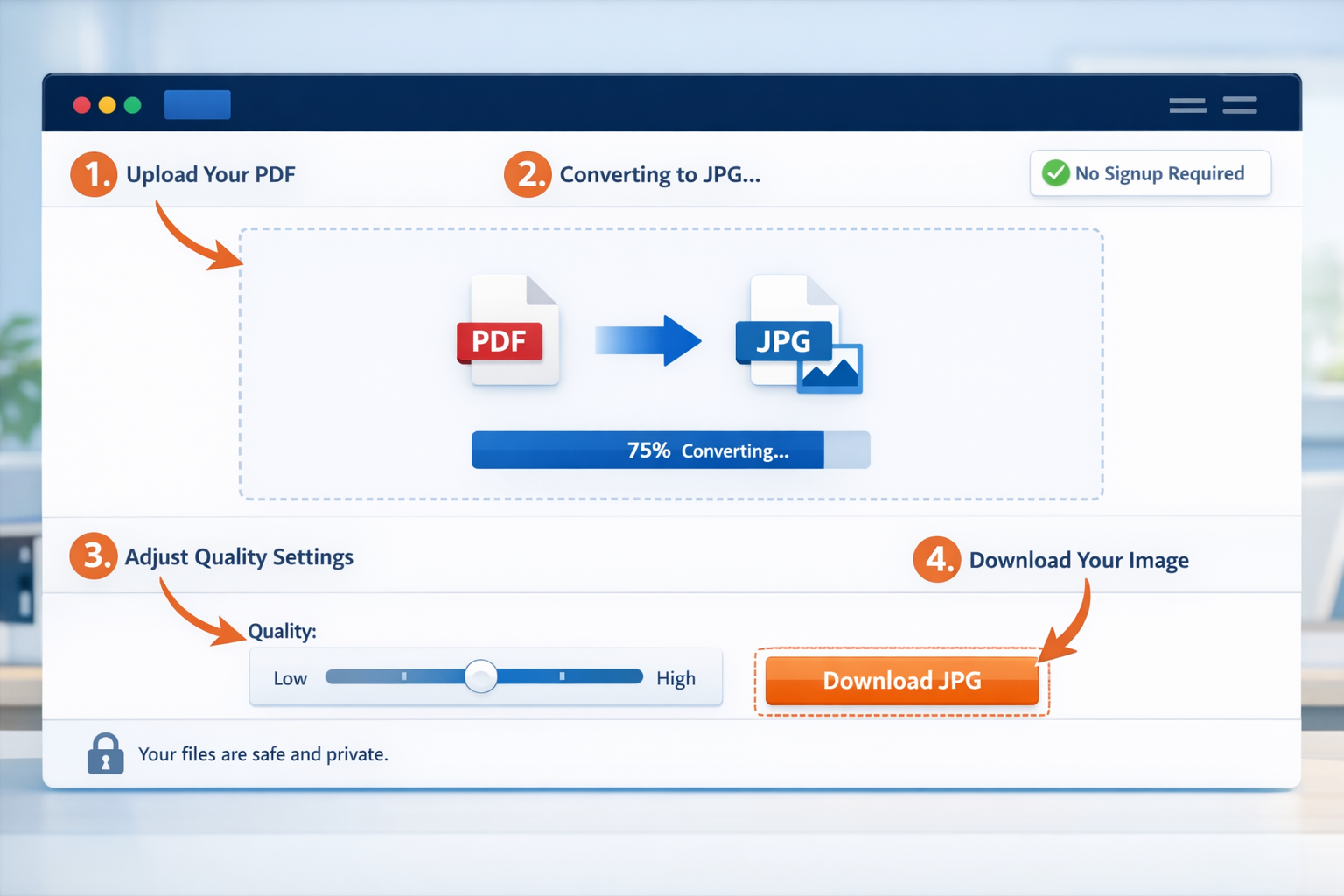
Step 1: Choose a privacy-first converter
Open your browser and navigate to a tool that processes files locally—meaning your PDF never leaves your device. CoreToolsHub’s PDF to JPG converter runs entirely in your browser with no signup required, keeping sensitive documents completely private.
Step 2: Upload your PDF file
Click the upload area or drag your PDF directly into the browser window. Most modern converters support files up to 50-100 MB, handling everything from single-page invoices to multi-page presentations. The file stays on your device—all processing happens in the browser.
Step 3: Select conversion settings
Choose your output format (JPG or PNG) and quality level:
- JPG for photographs, complex graphics, and general use (smaller files)
- PNG when you need transparency support or lossless quality (larger files)
Adjust the DPI (dots per inch) based on your intended use:
| Use Case | Recommended DPI | File Size | Best For |
|---|---|---|---|
| Web & Social Media | 72-96 DPI | Smallest | Instagram, Facebook, websites |
| Email & Sharing | 150 DPI | Medium | Email attachments, Slack, Teams |
| Print & Archive | 300 DPI | Largest | Professional printing, high-quality archives |
Step 4: Convert and preview
Click the convert button. Processing happens instantly for single-page PDFs and takes 5-15 seconds for multi-page documents. Preview the converted images to verify quality before downloading.
Step 5: Download your images
Single-page conversions download as individual JPG or PNG files. Multi-page PDFs typically offer two options:
- Download each page separately
- Download all pages as a ZIP archive
The files save directly to your device’s download folder with no intermediate server storage.
Advanced Conversion Options
Batch processing for multi-page PDFs: Most quality converters let you select specific pages rather than converting the entire document. Converting pages 5, 12, and 23 from a 50-page report saves time and storage space.
Custom resolution settings: Beyond standard DPI presets, some tools let you specify exact pixel dimensions. This matters when you need images sized precisely for website headers (1200×628 pixels for social sharing) or email templates.
Color space selection: Professional users can choose between RGB (for screens) and CMYK (for print), though RGB is sufficient for 95% of online use cases.
The Mobile Conversion Process
Converting PDFs on smartphones and tablets follows the same basic steps with touch-friendly interfaces. Modern converters work identically on mobile browsers—no app installation required. Simply:
- Open your mobile browser (Safari, Chrome, Firefox)
- Navigate to the converter tool
- Tap to upload from your device or cloud storage
- Select settings and convert
- Save images to your photo library or files app
The privacy-first approach matters even more on mobile devices, where you’re often working with personal documents on public networks.
Understanding Image Quality: DPI, Compression, and File Formats
Not all converted images are created equal. The settings you choose dramatically impact visual quality, file size, and suitability for different purposes. Here’s what actually matters when you convert PDF to JPG online in 2026.
DPI Explained Simply
DPI (dots per inch) determines the level of detail in your converted image. Higher DPI means more pixels, sharper details, and larger file sizes.
Think of it like this: A 72 DPI image contains 5,184 pixels per square inch (72 × 72). A 300 DPI image packs 90,000 pixels into the same space (300 × 300)—more than 17 times the detail[2].
For screen viewing (websites, presentations, social media), 72-96 DPI provides crisp, clear images because most displays show 72-110 pixels per inch. Using 300 DPI for web images wastes storage space without visible quality improvement.
For printing, 300 DPI is the industry standard. Professional printers require this resolution to produce sharp, detailed output without visible pixelation. A 300 DPI image printed at 4×6 inches needs to be 1200×1800 pixels.
JPG vs PNG: Choosing the Right Format
JPG (JPEG) uses lossy compression, discarding some data to create smaller files. This format excels for:
- Photographs and images with gradients
- General document pages with text and graphics
- Situations where file size matters (email, web)
- Social media uploads (platforms re-compress anyway)
PNG uses lossless compression, preserving every pixel perfectly. Choose PNG for:
- Images requiring transparency (logos, graphics with no background)
- Screenshots and images with sharp edges or text
- Graphics you’ll edit further (no quality degradation)
- Archival purposes where perfect fidelity matters
File size comparison: A typical document page converted at 150 DPI might be 350 KB as JPG but 1.2 MB as PNG—more than 3× larger. For a 20-page PDF, that’s 7 MB versus 24 MB total.
Compression Quality Settings
Most converters offer quality sliders from 1-100 for JPG output:
- 60-75%: Noticeable compression artifacts, smallest files, avoid for professional use
- 75-85%: Good balance for web use, minimal visible quality loss
- 85-95%: Excellent quality for most purposes, moderate file sizes
- 95-100%: Maximum quality, largest files, diminishing returns above 95%
The sweet spot for most users is 85-90% quality at 150 DPI—sharp enough for professional sharing, small enough for easy transmission.
Real-World Quality Comparison
Converting the same PDF page at different settings produces dramatically different results:
| Setting | File Size | Best Use | Quality Notes |
|---|---|---|---|
| 72 DPI, 80% JPG | 180 KB | Social media posts | Crisp on screens, fast loading |
| 150 DPI, 85% JPG | 420 KB | Email, presentations | Excellent all-purpose quality |
| 300 DPI, 90% JPG | 1.4 MB | Professional printing | Sharp details, print-ready |
| 150 DPI, PNG | 1.8 MB | Graphics with transparency | Lossless, larger files |
A marketing team recently converted a 25-page PDF report using different settings. The 72 DPI versions for social media totaled 4.5 MB. The 300 DPI print versions reached 35 MB. Choosing appropriate settings saved 30 MB of storage and countless hours of upload time.
How CoreToolsHub’s PDF to JPG Converter Excels
Not all online converters deliver the same experience. After testing dozens of tools, CoreToolsHub’s PDF to Images converter stands out for its combination of privacy, speed, and professional results.
Privacy-First Architecture
All processing happens in your browser—not on remote servers. When you upload a PDF, it never leaves your device. The conversion runs using your computer’s processing power through modern web technologies (WebAssembly and JavaScript). This architecture means:
- Zero data collection: CoreToolsHub doesn’t see, store, or log your files
- No account required: Start converting immediately without signup, passwords, or email verification
- Complete confidentiality: Perfect for sensitive documents like contracts, financial statements, or medical records
- Works offline: Once the page loads, you can convert files even without internet connectivity
This privacy-first approach contrasts sharply with traditional online converters that upload files to servers, process them remotely, and promise (but can’t guarantee) deletion afterward.
Speed and Performance
Instant conversion for single-page PDFs—typically under 2 seconds from upload to download. Multi-page documents process at roughly 1-2 seconds per page, meaning a 10-page PDF converts in 10-20 seconds.
The browser-based processing eliminates upload/download time to remote servers. A 15 MB PDF that would take 30-60 seconds to upload on a typical internet connection converts immediately since it never leaves your device.
Batch processing handles multi-page PDFs intelligently, converting all pages simultaneously rather than one at a time. Download individual pages or grab everything as a convenient ZIP file.
Quality and Flexibility
Professional-grade output with customizable settings:
- DPI selection from 72 to 300 (or custom values)
- JPG quality slider for precise file size control
- PNG support for transparency and lossless quality
- Automatic color space optimization
Smart defaults work perfectly for 90% of use cases—just upload and convert. Advanced users can fine-tune every parameter for specific requirements.
No artificial limits: Convert PDFs of any reasonable size (up to 100 MB) with unlimited daily conversions. No “upgrade to premium” prompts or feature restrictions.
User Experience Details
Clean, intuitive interface removes confusion. The conversion process is self-explanatory:
- Big, obvious upload area
- Clear settings with helpful tooltips
- Prominent convert button
- Instant preview and download
Mobile-optimized design works perfectly on smartphones and tablets. The responsive interface adapts to touch controls without sacrificing functionality.
No ads or upsells interrupting your workflow. The tool focuses entirely on conversion without distracting popups, countdown timers, or aggressive marketing.
Related Tools Integration
CoreToolsHub offers a complete suite of PDF and image tools that work together seamlessly:
- JPG to PDF: Convert images back to PDF format
- Merge PDF: Combine multiple PDFs before conversion
- Split PDF: Extract specific pages before converting
- Compress PDF: Reduce PDF size before conversion
- Rotate PDF: Fix orientation before converting pages
All tools share the same privacy-first, browser-based architecture with no signup required.
Best Practices for Web Images and Professional Use
Converting PDFs to images is straightforward, but following best practices ensures optimal results for your specific use case. Here’s what professionals need to know in 2026.
Optimizing for Different Platforms
Social media has specific requirements that vary by platform:
- Instagram posts: 1080×1080 pixels (square) or 1080×1350 (portrait), 72-96 DPI, JPG format
- Facebook shared images: 1200×630 pixels for optimal link previews, 72 DPI
- LinkedIn posts: 1200×627 pixels, JPG at 85% quality for fast loading
- Twitter/X images: 1200×675 pixels (16:9 ratio), compressed JPG under 5 MB
Convert your PDF at 150 DPI, then resize the resulting JPG to platform-specific dimensions using an image editor or image resizing tool.
Email attachments benefit from balanced quality settings:
- Use 150 DPI for readable text and clear graphics
- Target 300-500 KB per page to stay under email size limits
- JPG at 85% quality provides excellent results
- For multi-page PDFs, consider converting only essential pages
Website use prioritizes fast loading:
- 72-96 DPI suffices for all screen displays
- Compress JPGs to 80-85% quality
- Use modern formats (WebP) when browser support allows
- Implement lazy loading for pages with multiple converted images
Print projects demand maximum quality:
- Always use 300 DPI for professional printing
- Choose PNG for graphics requiring transparency
- JPG at 95% quality for photographs and complex pages
- Verify dimensions match your print size (300 DPI × inches = pixels)
File Naming and Organization
Systematic naming prevents confusion with large batches:
- Include the source PDF name:
Q4-Report-page-03.jpg - Add date stamps for version control:
Invoice-2026-03-15.jpg - Use leading zeros for proper sorting:
page-01.jpg,page-02.jpg, notpage-1.jpg
Folder structure matters for projects with multiple PDFs:
/project-name
  /source-pdfs
  /converted-images
    /web-72dpi
    /print-300dpi
Maintaining Quality Through Workflows
Avoid re-conversion: Converting PDF → JPG → PDF → JPG degrades quality with each step. Keep the original PDFs and create new copies when needed.
Archive originals: Store source PDFs even after conversion. You might need different settings later (web version now, print version later).
Version control: When converting updated PDFs, use clear naming to distinguish versions: proposal-v1-page-02.jpg, proposal-v2-page-02.jpg.
Accessibility Considerations
Text alternatives: Converted images lose PDF text searchability and screen reader compatibility. When publishing converted pages online:
- Add descriptive alt text for accessibility
- Include text transcripts for important content
- Consider keeping PDFs available alongside images
Color contrast: Verify converted images maintain sufficient contrast for readability, especially if you’ll add text overlays.
Common Mistakes to Avoid
❌ Using 300 DPI for web images: Wastes storage and slows page loading with no visible benefit
❌ Over-compressing JPGs: Setting quality below 75% creates visible artifacts in text and graphics
❌ Converting entire PDFs: Extract only needed pages to save time and storage
❌ Ignoring file size: A 5 MB image takes 40 seconds to load on 3G mobile connections
❌ Wrong format choice: Using JPG for logos with transparency or PNG for photographs
❌ Skipping previews: Always check converted images before downloading, especially for important documents
✅ Best practice: Convert at 150 DPI, 85% JPG quality for general use. Create 300 DPI versions only when actually printing. Preview before downloading. Keep original PDFs archived.
Security and Privacy Best Practices
Use browser-based tools for sensitive documents. Server-based converters create security risks:
- Files uploaded to servers may be logged or retained
- Data transmission exposes documents to interception
- Third-party processors may access your content
Privacy-first converters like CoreToolsHub eliminate these risks by processing everything locally in your browser. Your converted images never touch external servers.
For highly sensitive documents:
- Use tools that work offline after initial page load
- Clear the browser cache after converting confidential files
- Avoid public computers or shared devices
- Verify the tool’s privacy policy explicitly states no server uploads
Troubleshooting Common Conversion Issues
Even with straightforward tools, occasional issues arise. Here’s how to resolve the most common problems when you convert PDF to JPG online in 2026.
Blurry or Pixelated Output
Problem: Converted images look fuzzy or show visible pixels.
Solutions:
- Increase DPI setting (try 150 or 300 instead of 72)
- Check source PDF quality—low-resolution source PDFs can’t produce high-quality images
- Verify you’re viewing images at 100% zoom (browser scaling can make images appear blurry)
- For print use, ensure 300 DPI and actual pixel dimensions match your print size
Example: Converting a PDF created from 72 DPI scans won’t produce sharp 300 DPI output—the quality limitation exists in the source.
File Size Too Large
Problem: Converted images exceed email limits or storage capacity.
Solutions:
- Reduce DPI from 300 to 150 or 72 (depending on use case)
- Lower JPG quality from 95% to 85% (minimal visible difference)
- Switch from PNG to JPG format (unless transparency is required)
- Convert only necessary pages instead of entire multi-page PDFs
- Use a compress image tool after conversion
Calculation: A 20-page PDF at 300 DPI might create 40 MB of images. The same PDF at 150 DPI produces 10 MB—75% smaller with negligible loss of quality for screen viewing.
Conversion Fails or Freezes
Problem: Browser stops responding, or the conversion never completes.
Solutions:
- Verify the PDF file isn’t corrupted (try opening in a PDF reader first)
- Check file size—extremely large PDFs (over 100 MB) may exceed browser memory
- Close other browser tabs to free up system resources
- Try a different browser (Chrome, Firefox, or Safari)
- Disable browser extensions that might interfere with processing
- For password-protected PDFs, remove protection before converting
Technical note: Browser-based conversion uses your device’s RAM. Converting a 50-page, 80 MB PDF might require 2-4 GB of available memory.
Wrong Colors or Appearance
Problem: Converted images show incorrect colors, missing elements, or strange formatting.
Solutions:
- Verify source PDF displays correctly in a PDF reader
- Check for embedded fonts or special formatting in the original
- Try converting at higher quality settings (90-95% JPG quality)
- For professional color work, ensure RGB color space (CMYK requires specialized handling)
- Some PDF effects (transparency, blending modes) may convert differently
Design tip: PDFs with complex layering or special effects sometimes require desktop software like Adobe Acrobat for perfect conversion fidelity.
Mobile Conversion Issues
Problem: Conversion doesn’t work properly on smartphones or tablets.
Solutions:
- Ensure you’re using an updated mobile browser
- Check available storage space on your device
- Try downloading files to cloud storage instead of device memory
- Verify your mobile browser allows file downloads (check settings)
- For iOS devices, use Safari for the best compatibility
Batch Conversion Problems
Problem: Only some pages convert, or batch processing fails.
Solutions:
- Convert in smaller batches (5-10 pages at a time)
- Check for corrupted pages in the source PDF
- Verify individual page conversion works before batch processing
- Clear browser cache and try again
- For very large PDFs, split the PDF first using a split PDF tool
Quick Troubleshooting Checklist
When conversion isn’t working as expected:
- ✅ Verify source PDF opens correctly in a PDF reader
- ✅ Check file size is under 100 MB
- ✅ Confirm browser is updated to the current version
- ✅ Try clearing browser cache and cookies
- ✅ Test with a different, simpler PDF to isolate the issue
- ✅ Disable browser extensions temporarily
- ✅ Ensure sufficient device storage space
- ✅ Try an alternative browser if problems persist
Most conversion issues stem from source PDF problems, browser limitations, or device resource constraints rather than converter tool defects.
The Future of PDF to Image Conversion in 2026 and Beyond
The landscape of document conversion continues evolving rapidly. Understanding current trends helps you choose tools and workflows that remain relevant.
Browser Technology Advances
WebAssembly and modern JavaScript enable increasingly sophisticated in-browser processing. Tools that required desktop software five years ago now run entirely in web browsers with comparable speed and quality. This trend accelerates as browser capabilities expand[3].
Progressive Web Apps (PWAs) blur the line between websites and installed applications. Converters can now work offline, send notifications, and integrate with operating system file pickers—all without traditional installation.
Privacy Becomes Standard
Client-side processing shifts from novelty to expectation. Users increasingly demand tools that keep data local rather than uploading to servers. Privacy-first architecture becomes a competitive requirement, not a differentiator.
GDPR and privacy regulations worldwide push converter tools toward zero-data-collection models. Browser-based tools naturally comply by never accessing user files.
AI and Automation Integration
Intelligent conversion uses machine learning to optimize settings automatically:
- Detecting document type (text-heavy vs. image-heavy) and adjusting compression
- Identifying optimal DPI based on content analysis
- Suggesting best format (JPG vs. PNG) for each page
- Auto-cropping white space and correcting orientation
Batch intelligence processes multi-page PDFs with page-specific settings rather than one-size-fits-all conversion.
Format Evolution
WebP and AVIF image formats offer superior compression while maintaining quality, compared to JPG. As browser support reaches universal adoption, converters increasingly offer these modern formats as output options.
Responsive images automatically generate multiple sizes and formats, letting websites serve optimal versions based on device and connection speed.
Mobile-First Design
Smartphone conversion becomes the primary use case as mobile devices dominate computing. Tools optimize for touch interfaces, limited screen space, and mobile-specific workflows like direct sharing to apps.
Integration Ecosystems
API access lets converters integrate with broader workflows:
- Automatic conversion when files are added to cloud storage
- Integration with content management systems
- Batch processing triggered by email attachments
- Workflow automation through tools like Zapier or Make
Cross-tool compatibility improves as converters, compressors, editors, and other file tools share common formats and workflows.
Conclusion: Master PDF to JPG Conversion in 2026
Converting PDFs to images has evolved from a technical challenge requiring expensive software to a simple browser-based task anyone can accomplish in seconds. Whether you’re a marketer creating social media content, a designer extracting graphics, or simply someone who needs to share a document page as an image, modern tools make the process effortless.
The key principles remain consistent:
- Choose privacy-first tools that process files in your browser, keeping sensitive documents secure
- Select appropriate quality settings based on your use case (72 DPI for web, 150 DPI for general use, 300 DPI for print)
- Understand format differences between JPG (smaller files, no transparency) and PNG (lossless quality, supports transparency)
- Avoid common mistakes like over-compressing images or using excessive DPI for screen viewing
CoreToolsHub’s PDF to JPG converter delivers professional results with complete privacy, no signup required, and processing that happens entirely in your browser. Convert single pages or entire documents in seconds, with full control over quality, format, and output settings.
Your Next Steps
Ready to convert your PDFs? Start with these actions:
- Try the tool: Visit CoreToolsHub’s PDF to Images converter and convert your first PDF in under 30 seconds
- Experiment with settings: Convert the same page at different DPI and quality levels to see the differences
- Bookmark for future use: Save the tool for quick access when you need fast, private conversions
- Explore related tools: Check out Images to PDF, Merge PDF, and Compress PDF for complete PDF workflow solutions
The ability to quickly convert PDF to JPG online in 2026 is no longer optional—it’s a fundamental digital skill for professional and personal productivity. With the right tools and knowledge, you’re equipped to handle any conversion need efficiently and securely.
Start converting now and experience the difference that privacy-first, browser-based tools make in your daily workflow.