













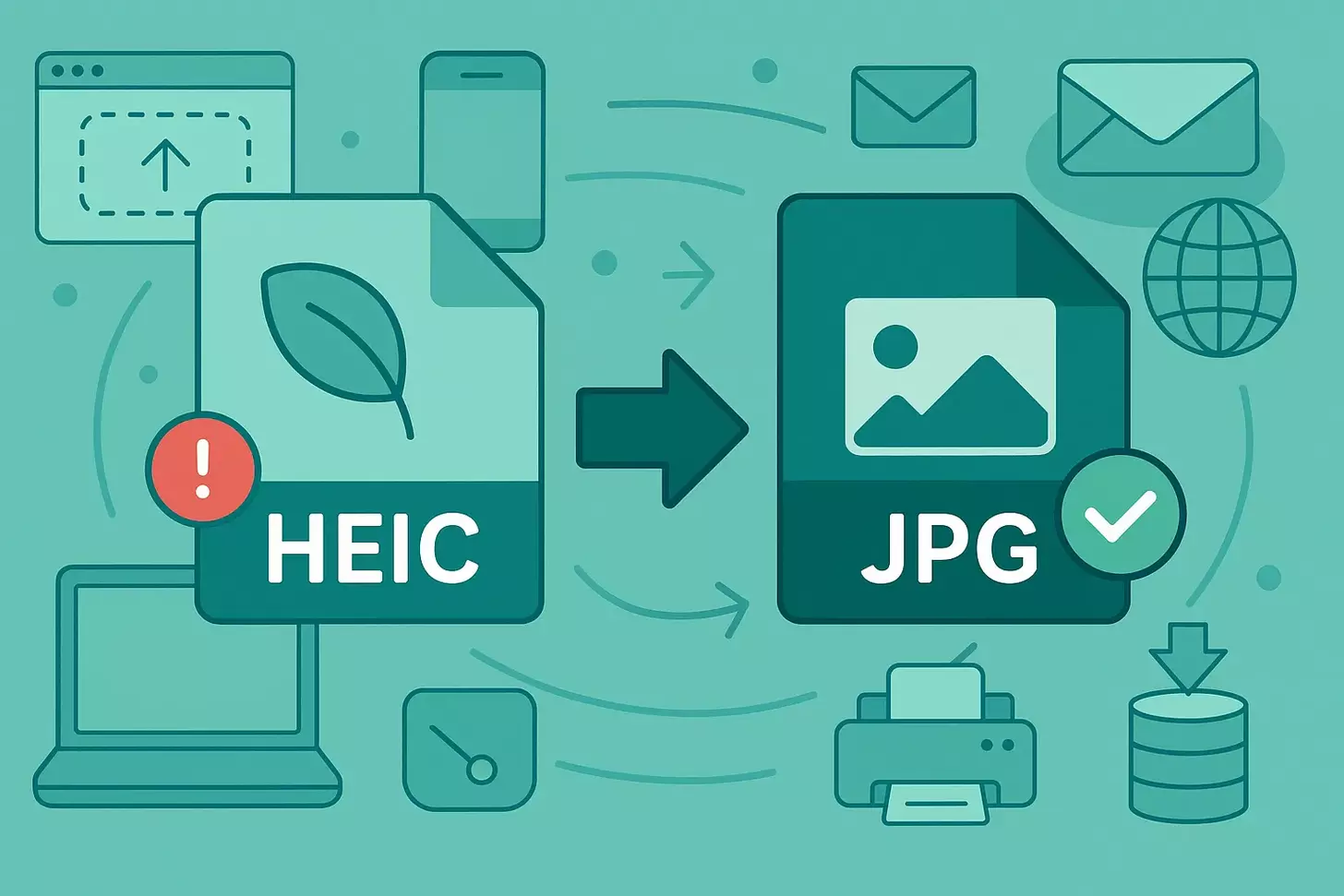
Can a quick change in image format save hours of frustration? We often get photos from phones that won’t play nice with our sites or editors. This introduction presents a straightforward, step-by-step approach to making those images shareable and reliable across computers and cloud services.
We explain why phones use a modern format, when a classic image type works better, and which choices help maintain high visual quality. You’ll learn simple options: built-in apps, safe online tools, and offline batch software for bulk jobs.
Throughout this guide, we highlight privacy tips, common roadblocks such as missing codecs, and quick settings that preserve color, DPI, and metadata. Think of this as a friendly expert walkthrough to help keep your photos consistent and web-ready.
Key Takeaways
- We outline fast methods to convert HEIC files and keep image quality.
- Built-in apps, trusted online tools, and batch software fit different needs.
- Watch compression, metadata, and DPI to avoid visible loss.
- Follow privacy best practices when using third-party tools.
- Workflows cover single exports, batch jobs, and automatic transfers.
Why convert HEIC to JPG for the web and everyday use
A quick file format swap often prevents failed uploads and keeps images consistent across devices.
Many sites and services still expect a classic image type because it offers broad browser support, smaller file sizes at solid quality, and universal compatibility for uploads.
We explain when it makes sense to convert HEIC to JPG and how that process helps. Converting modern phone output clears up “can’t open” errors and speeds sharing across any device. It also reduces storage strain by balancing file size and visual quality.
Typical scenarios that need conversion:
- Submitting photos to online forms or print shops.
- Sharing on email and CMS platforms that prefer JPG or JPEG.
- Embedding images in documents that won’t accept HEIC files.
Below is a quick comparison to help pick the right output for each use case.
| Use | Best output | Why |
|---|---|---|
| Web galleries | JPG | Wide support and good quality at a small size |
| Logos & icons | PNG | Transparency and sharp edges |
| Cloud backup | keep original | Preserve metadata and the highest fidelity |
HEIC, JPEG, and PNG at a glance: formats, quality, and compatibility
Not all image formats are equal: differences in compression, transparency, and metadata change results.
What is HEIC/HEIF, and why do iPhone photos default to this format
HEIF is an efficient image container that uses HEVC compression. Apple has adopted it since iOS 11 to save space while keeping detail. It can hold bursts, live frames, and multiple images in one file. That extra capability explains why many devices set it as the default.
JPEG vs PNG vs HEIC: compression, transparency, and typical use cases
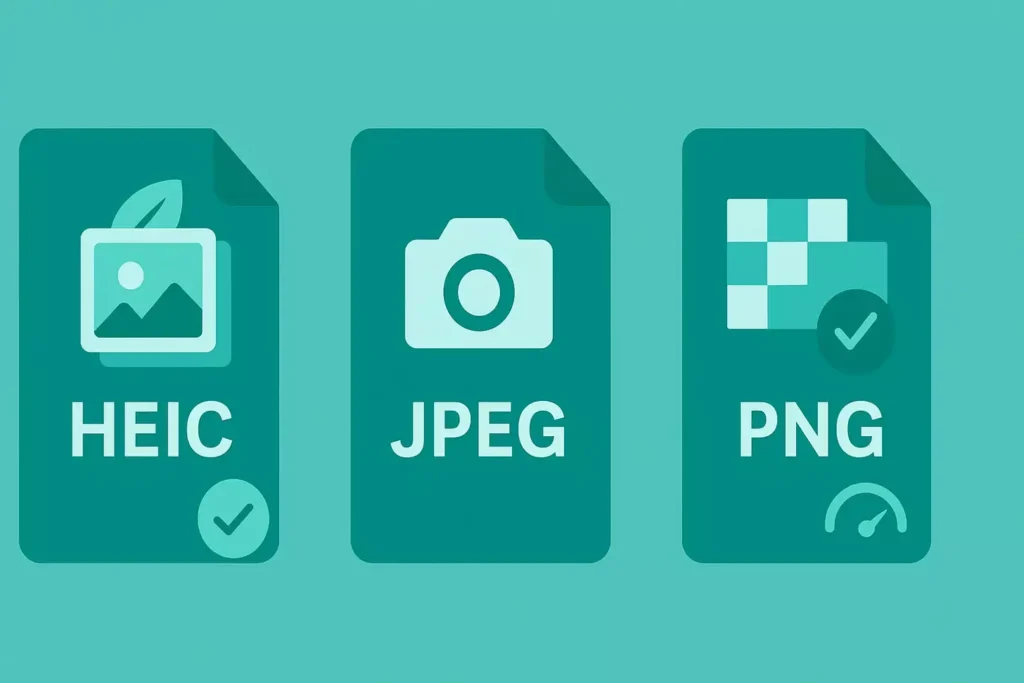
JPEG uses lossy compression and is widely supported for photos. PNG is a lossless format that supports transparency, making it ideal for logos and graphics. HEIF offers smaller files with similar perceived quality but may encounter licensing limitations in certain apps.
EXIF metadata, DPI, and perceived image quality when you change formats
EXIF stores camera model, ISO, shutter speed, and timestamps. Removing or keeping it affects privacy and some editing workflows. Web display relies on pixels, not DPI, so preserving pixel dimensions keeps sharpness after format changes.
| Format | Strength | When to use |
|---|---|---|
| HEIF | High efficiency, stores advanced features | Stay inside the Apple ecosystem or archive originals |
| JPEG | Universal support, adjustable compression | Photos for web and email |
| PNG | Lossless, transparency | Logos, icons, and graphics needing precise edges |
HEIC to JPG on Windows & Mac: Web-Safe Conversion the Easy Way
If you need web-ready photos fast, Windows offers built-in exports and simple batch tools.
Quick single-file export with the Photos app
Open a HEIC photo in the Photos app. Use the More options (ellipsis) and choose Export or Save as. Pick JPEG and save a web-ready copy to a chosen folder.
Install the HEIF/HEVC extensions if you can’t open files. That unlocks native support across apps, making editing smoother.
Recommended tools and best practices
- Choose a GUI batch converter if you prefer clicks over commands (vet privacy and limits).
- Keep originals in a separate folder to avoid overwrite mistakes.
- Run test exports, check image quality at 100% zoom, then batch process.
| Task | Fast option | Batch option |
|---|---|---|
| Single export | Photos app – Export as JPEG | N/A |
| Many files | GUI converter (TunesBro, vetted) | ImageMagick command line |
| Privacy-sensitive | Local export | Offline software |
Quick checklist: open the HEIC, export to JPG, confirm the output folder, verify a few JPGs, then run the batch.
Convert HEIC to JPG on macOS without losing image quality
Built-in utilities make this process straightforward. We can export modern phone images while keeping color and detail. That keeps files usable across apps and devices.
Preview on Mac: Export HEIC to JPG or PNG in a few clicks
Open an image in Preview, choose File > Export, then pick JPEG or PNG. Set quality and save to a folder you control.
Why use Preview? It’s fast, built in, and reliable for single files or quick checks.
Photos app on macOS: Export originals or JPEG with size and quality choices
Select photos, then File > Export > Export [number] Photos. Choose JPEG format, pick size and quality, and include or exclude metadata.
Pick “Unmodified Originals” when you need full features from the source file. Choose JPEG when you want broad support and smaller file sizes.
Make transfer easier: Automatically convert to JPEG when moving photos
On your iPhone, set Camera > Formats > Most Compatible to shoot in JPEG by default. In Photos on a Mac, set Transfer to Mac or PC to Automatic so that images are converted to JPEG during import.
For batches, use Photos’ export tools and keep originals in a separate folder. Preview a few exported files at 100% to confirm image quality before processing a large album.
- Use moderate-to-high JPEG settings to limit visible loss.
- Choose PNG for graphics or screenshots with flat colors.
- Remove EXIF when privacy matters; keep metadata for editing workflows.
Use an online HEIC converter safely: step-by-step and best practices
When we need a quick, browser-based fix, online converters are a solid option. They let us upload up to 100 converted HEIC files at once and pick output settings before we download.
Simple workflow: add or drag-and-drop HEIC files, choose HEIC, JPG, or PNG, set quality percent and optional resize, then click Convert. Wait a few seconds and download a single ZIP or save directly to Google Drive or Dropbox.
Batch processing: drag multiple iPhone images or whole folders, then grab the “Download all” link. A QR option can automatically push converted JPGs to mobile devices without requiring manual file transfers.
- Privacy: temporary file URLs expire in about an hour, and files are deleted within 24 hours—no registration required.
- Quality controls: adjust output quality, keep original resolution/DPI, remove EXIF for privacy, and avoid upscaling.
- Storage tips: resize long edges or compress moderately to save storage space while keeping visual quality.
Quick advice: test a few photos first, organize outputs into a new folder, and use offline tools when images are sensitive or need advanced editing.
Offline and bulk workflows: faster batches, better control, no uploads
Processing many files locally gives faster throughput and keeps sensitive images private.
DocuFreezer is our top pick for offline batch work. It converts multiple HEIC files into JPEG and other formats with pro controls for color modes (CMYK, RGB, RGBA, Grayscale). You can set compression, DPI, and add watermarks before exporting a large file.
For print jobs, Print Conductor queues many files and handles per-job settings. For scripted tasks, ImageMagick remains the go-to for repeatable pipelines on a Windows workstation.
Build a repeatable batch pipeline
- Source folder → output folder with clear naming rules.
- Pick color space (sRGB for web) and set balanced compression.
- Do a quick spot-check at 100% and then archive originals.
Quality tip: aim for modest compression and avoid multiple saves that degrade quality. Keep the original HEIC images in a separate archive if you plan more edits later.
“Batch processing locally gives speed, privacy, and predictable results.”
Quick mobile settings cut later work: set Camera > Formats > Most Compatible to shoot JPEG, and choose Photos > Transfer to Mac or PC > Automatic to change files during import.
| Task | Best tool | Why |
|---|---|---|
| Bulk export | DocuFreezer | Color modes, DPI, watermarking |
| Print queue | Print Conductor | Queue control, mixed formats |
| Scripted high-volume | ImageMagick | Automatable and fast |
Conclusion
We close with a clear playbook. Use built-in apps for quick exports, an online tool for speedy fixes, and offline batch software when you need scale and privacy.
Choose the right format for your goal. Pick JPG for broad sharing, PNG for transparency, and keep original files when you want archive fidelity.
Watch image quality: set moderate compression, keep pixel dimensions, and preview a few samples before complete runs.
Protect privacy by preferring local tools for sensitive photos and verifying removal policies when using web services. Keep organized folders: originals, exports, and web-ready versions.
With a small workflow and trusted tools, you’ll convert HEIC files efficiently, protect data, and publish images that load fast and look great.