













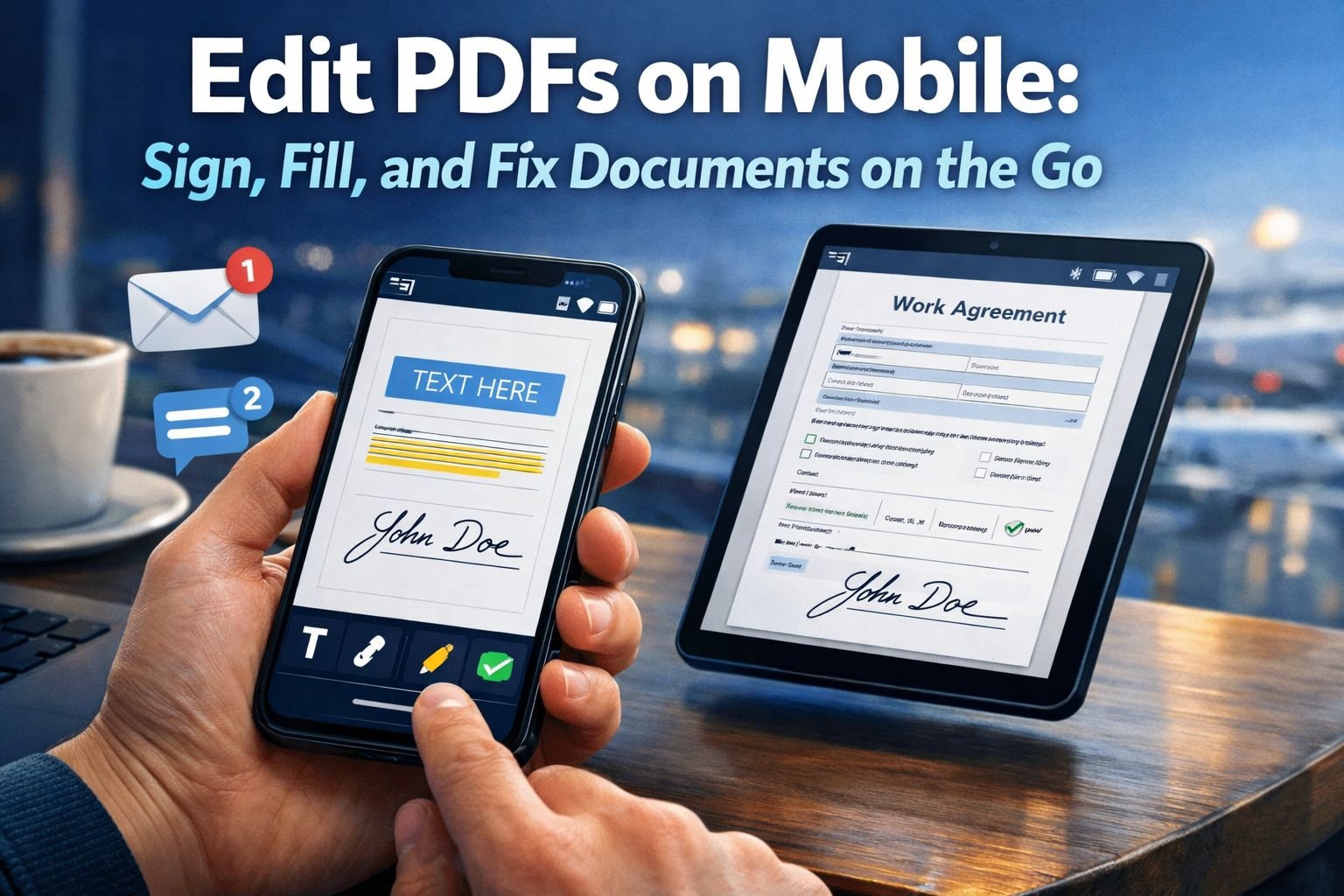
Last updated: April 24, 2026
Quick Answer
Yes, it is possible to edit a PDF on mobile for free for common tasks such as filling out forms, adding a signature, highlighting text, and fixing small mistakes. The fastest option for most people is a browser-based mobile PDF editor that runs on the phone without an install, while dedicated apps are better for offline use and more intensive editing. Core Tools Hub fits the quick-fix use case well because it works on desktop and mobile, is privacy-first, and gives simple step-by-step tools for fast, clean results.
Key Takeaways
- A phone can handle light PDF editing well, especially signing, form filling, annotations, and page fixes.
- For one-off tasks, a browser-based mobile PDF editor is often easier than installing an app.
- For regular work or no-signal situations, a dedicated app may be the better choice.
- Many mobile-friendly tools now support responsive interfaces for touch input and e-signatures.
- Free options exist, but some tools limit advanced text editing, exports, or file size.
- If a PDF is too large to send, compress it first to reduce the file size for email.
- Privacy matters on phones. Choose tools that handle files securely, have clear policies, and, when possible, perform all processing in the browser.
- Core Tools Hub is strongest for quick page-level fixes and mobile workflows such as compressing, merging, rotating, splitting, and reordering PDFs.
What can you realistically edit in a PDF on mobile?
Most people can edit a PDF on mobile for free, for small, practical changes, not a full document redesign. Phones are best for quick actions: filling out a form, signing a contract, highlighting a section, adding comments, or rotating pages.
That matters because many users get PDFs through email or chat and just need to send them back quickly. A job application, school permission slip, rental form, or client approval sheet usually needs only light edits.
Tasks that work well on a phone
- Fill text fields in forms
- Add a handwritten or typed signature
- Check boxes and select dates
- Highlight and annotate for review
- Add simple text boxes for brief corrections
- Rotate, reorder, split, or merge pages
- Compress large PDFs before sending
Tasks that are harder on a phone
- Rewriting long blocks of text
- Matching fonts exactly in a locked PDF
- Heavy layout editing
- OCR repair on scanned pages
- Detailed graphic edits
Decision rule: Choose mobile if the job takes less than 5 minutes and only requires touch-friendly changes. Choose a desktop if the PDF needs precise formatting or multiple content edits.
A phone is great for finishing paperwork. A desktop is still better for rebuilding paperwork.
A common real-world example: someone receives a two-page NDA while riding to a meeting. The PDF only needs initials, a signature, and one date. That is a perfect mobile task. But if the same file has the wrong company name in six places and broken spacing, the desktop will be faster.
Should you use an app or a browser tool to edit a PDF on mobile for free?
For quick one-time edits, a browser tool is usually the simplest answer. For frequent work or offline access, an app is usually better.
Mobile PDF apps like Foxit, Adobe Acrobat Reader, and other Android-focused editors offer signing, annotations, and form support, with some adding stronger document management and offline access. Web-based tools are appealing when users want no installs, no signup required, and a fast fix from a phone browser.
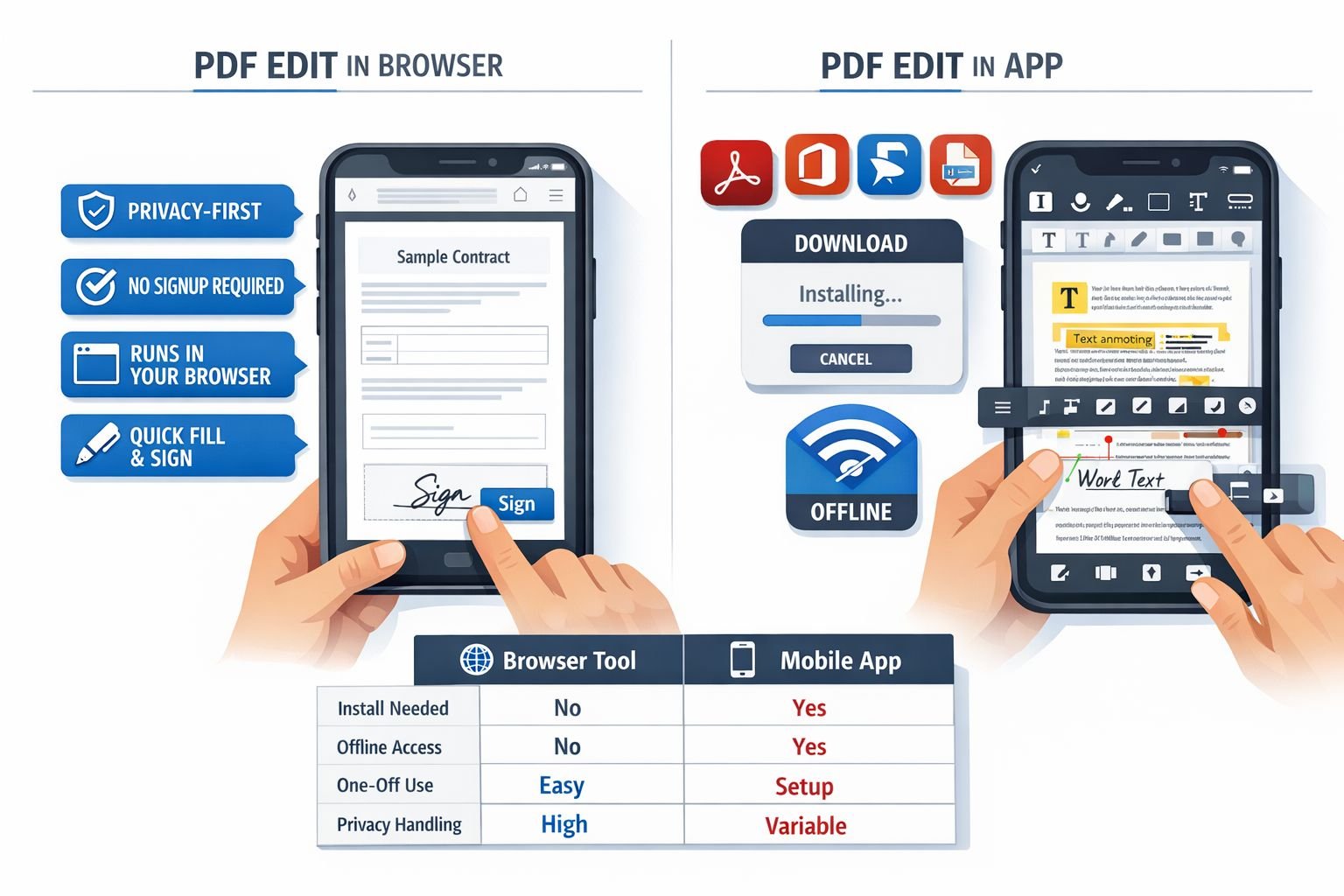
App vs browser-based PDF tools
| Option | Best for | Pros | Limits |
|---|---|---|---|
| Browser-based tool | One-off fixes from email or chat | No installs, works across devices, easy on shared phones, often privacy-first | Needs internet, may have fewer advanced editing features |
| Dedicated app | Frequent editing, offline use | Better file organization, offline access, richer tools | Install required, may push subscriptions, can feel heavy for quick tasks |
Choose a browser tool if
- The PDF came from email and needs a fast response
- Storage is low on the phone
- The edit is simple: sign, fill, rotate, merge, split
- Privacy is a priority, and the tool clearly explains file handling
Choose an app if
- Files need to be available offline
- You edit PDFs every day
- You need saved signatures and cloud sync
- You want more advanced markup or document management
Core Tools Hub is built for the browser-first route. Its Online PDF Tools work well for quick mobile actions, and the platform explains how it works in plain English.
How do you fill and sign a PDF on your phone?
The fastest workflow is simple: open the PDF, add text where needed, insert a signature, review, and then save or share. Many mobile tools now support this flow well, including browser editors and signing apps.
Step-by-step checklist
- Open the PDF from email, chat, or cloud storage.
- Choose a mobile-friendly editor in your browser or app.
- Tap fill fields and enter names, dates, addresses, or check marks.
- Add a signature using draw, type, or image upload.
- Zoom in and review each page for cut-off text or missed fields.
- Save a copy so the original stays untouched.
- Send it back through email or your messaging app.
Best settings for mobile signing
| Task | Best choice on phone |
|---|---|
| Signature style | Draw with finger for a natural look |
| Zoom level | 125% to 200% for smaller fields |
| Save option | Save a new file, not overwrite |
| Sharing | Email PDF, not screenshots |
| File size | Under typical email limits if possible |
Quick example
A parent receives a school trip permission form via WhatsApp. The fastest method is to open the PDF in a mobile browser, fill in the student’s name, add a signature with a finger, save, and return the file directly in chat. No laptop, no scanner, no printout.
Common mistake: sending a screenshot of a signed page instead of the actual PDF. That often breaks form quality and can make the document unusable.
For teams that handle signatures frequently, Adobe and other vendors continue to improve mobile signing experiences. Free signer tools also remain popular for simple e-signature needs.
Can you correct typos or annotate a PDF on a mobile device?
Yes, but only small fixes are realistic on a phone. Annotations are easy; deep text editing depends on how the PDF was created and what the tool supports.
If the PDF is a true digital document, some editors can add or replace text. If the PDF is a scan, most mobile tools treat it as an image unless they include OCR.
Good mobile fixes
- Add a note saying “See corrected date”
- Place a text box over a minor mistake
- Highlight a clause before sending for review
- Add arrows, comments, or underlines
- Mark approval or rejection
Edge case: scanned PDFs
A scanned lease or photographed form may not allow clean text editing. In that case:
- Add annotations instead of trying to rewrite text
- Use a desktop OCR workflow later if needed
- If allowed, ask for the original editable file
Canva, Evernote-style guides, and Android editor roundups all show that mobile PDF workflows now commonly include annotation, text boxes, and form support, but advanced editing still varies by file type and tool.
How do you edit a PDF on a mobile device for free when the file is too large to send?
Compress the PDF before sending. This is often the fastest fix when a signed or annotated file becomes too large for email or chat.
Phone users often run into this problem with scanned documents and image-heavy PDFs. The good news is that compression can reduce file size for email without visible quality loss in many everyday documents.
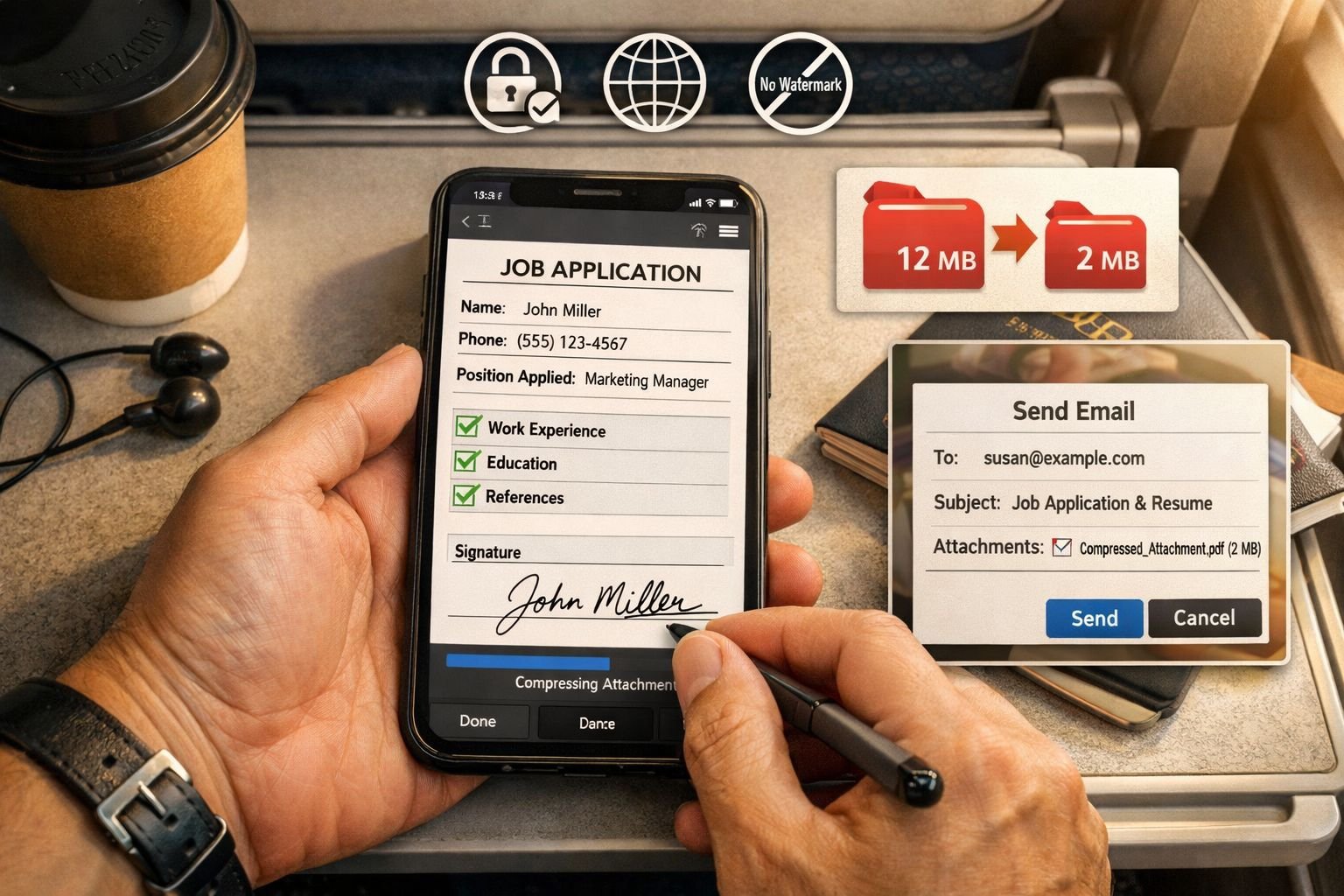
Simple mobile workflow for large PDFs
- Finish the form or signature
- Save the updated PDF
- Run it through a PDF compressor
- Check that text is still readable
- Send the smaller version
Core Tools Hub offers a mobile-friendly Compress PDF tool and a deeper guide on compressing PDF without losing quality. If the PDF was built from photos, it may also help to resize or compress the images first with image tools.
Common mistake: compressing the same file multiple times. That can cause quality loss. Start from the original edited version each time.
What if the PDF pages are sideways, out of order, or split across files?
Page-level fixes are often easier on mobile than content editing. If the problem is orientation or page order, a simple browser tool is usually enough.
Common quick fixes
- Use Rotate PDF if a scanned page is sideways
- Use Merge PDF Files if the pages came in separate attachments
- Use Reorder PDF Pages if the sequence is wrong
- Use Extract Pages from PDF if only one section needs to be sent back
This kind of workflow is common on phones. For example, a recruiter may ask for a signed contract plus ID page in one file. A user can sign the contract, merge the extra page, compress the result, and email it back, all from mobile. For more options, see the roundup of best online tools to merge PDFs in 2026.
Is editing PDFs on mobile safe and private?
It can be safe if the tool clearly explains where processing happens and how files are handled. Browser-based tools are attractive because some do all processing in the browser, which helps keep files private.
That privacy-first model is especially useful for sensitive forms like contracts, applications, and school records. Core Tools Hub emphasizes in-browser processing where supported and explains details in its Privacy Policy and its guide to browser-based file conversion vs cloud upload tools.
Safer mobile habits
- Use trusted tools with clear file handling
- Avoid public Wi-Fi for sensitive documents when possible
- Save finished PDFs to a secure folder
- Delete duplicate local copies you do not need
- Keep apps updated if using installed software
Decision rule: If the PDF contains private legal, financial, or medical details, use tools that explain processing clearly and avoid sharing through random chat forwards.
Who is mobile PDF editing best for, and when should you switch to desktop?
Mobile PDF editing is best for people who need speed more than precision. It works especially well for commuters, job seekers, students, parents, field teams, and anyone handling forms from email on the go.
Mobile is a strong fit for
- Signing contracts
- Filling school or HR forms
- Marking up drafts
- Sending corrected PDFs back quickly
- Combining or rotating pages before upload
Desktop is still better for
- Long text edits
- Exact font matching
- Design-heavy documents
- Large batches of PDFs
- Complex scanned-file cleanup
A good rule is simple: if two thumbs can finish the job in a few minutes, stay on mobile. If the PDF needs careful layout repair, wait for a bigger screen.
Related reading
- Online PDF Tools
- Compress PDF Without Losing Quality — 2026 Guide
- Best Online Tools to Merge PDFs 2026 | Fast & Secure
- Rotate PDF — Fix Page Orientation
- Browser-Based File Conversion vs Cloud Upload Tools
FAQ
Can you edit a PDF on an iPhone without an app?
Yes. A responsive browser-based tool can let an iPhone user fill, sign, annotate, or do page fixes without installing an app.
What is the best free way to sign a PDF on a phone?
For one file, the best free way is usually a browser or app that supports drawing, typing, or uploading signatures and exports without a watermark.
Can Android phones fill PDF forms?
Yes. Many Android PDF editors support form filling, annotation, and signatures.
Is mobile PDF editing good for contracts?
Yes, for signing and basic field entry. For major wording changes, the desktop is safer and easier to review.
Why can’t some PDFs be edited on mobile?
Some PDFs are scans, flattened files, or protected documents. Those usually allow annotation but not true text editing.
How do you email a signed PDF from a phone?
Save the signed PDF first, then attach that file to the email. Do not send a screenshot unless someone specifically asks for an image.
Can you edit a PDF on a mobile device for free, without a watermark?
Yes, some tools and apps offer free signing and light editing without watermarks, but limits vary by provider.
What is the fastest mobile PDF workflow?
Open the file from email, fill it out or sign it in a mobile-friendly browser editor, compress it if needed, then send it back as a PDF attachment.
Conclusion
If the goal is to edit a PDF on mobile for free, the easiest path is usually a browser-based tool that handles light edits fast. Phones are great for signatures, form fields, comments, and quick page fixes. They are less ideal for heavy text rewriting or design work.
For most on-the-go document tasks, the winning workflow is simple: open, fill, sign, review, compress, and send. Core Tools Hub is a strong fit for that approach because it runs in your browser, works on desktop and mobile, keeps the process simple, and helps with the parts mobile users need most, like compressing, merging, rotating, splitting, and reordering PDFs.
Need a quick fix now? Start with Core Tools Hub’s free online PDF tools and handle the document directly from your phone.
Meta title and meta description
edit PDF on mobile free, mobile PDF editor, sign PDF on phone, fill PDF form on Android, edit PDF on iPhone, browser-based PDF editor, compress PDF on phone, merge PDF mobile, annotate PDF, mobile document signing