







Last updated: March 31, 2026
Every iPhone since 2017 saves photos in HEIC format by default. That’s fine until you try to email one to a colleague on Windows, upload it to a government form, or share it on a platform that only accepts JPG. Suddenly, the photo is “unsupported” or simply won’t open. Converting HEIC to JPG fixes the problem in seconds, and you don’t need to install anything.
This guide covers the fastest ways to convert one photo or hundreds of photos, how to stop the problem at the source by changing your iPhone settings, and what to watch for when choosing a converter (especially regarding privacy).
Key Takeaways
- HEIC (High Efficiency Image Container) is Apple’s default photo format since iOS 11. It produces files roughly half the size of JPG at similar quality, but many Windows PCs, older Android devices, and web forms can’t open it.
- Browser-based converters are the fastest fix for most people: drag, drop, download a JPG. No software installs, no signup required.
- Batch conversion handles hundreds of HEIC files at once, which matters when you’re migrating an entire photo library.
- Changing one iPhone setting (Camera > Formats > Most Compatible) makes your phone shoot JPG going forward, preventing the issue entirely.
- Privacy varies widely between converters. Some upload your photos to remote servers; others process everything locally in your browser, so files never leave your device.
- Keep HEIC when storage space matters (iCloud, iPhone backups). Use JPG for universal compatibility.
- Over 78% of Windows users still need extra codecs or a converter to open HEIC files, according to community reports across Microsoft and Apple support forums.
Quick Answer
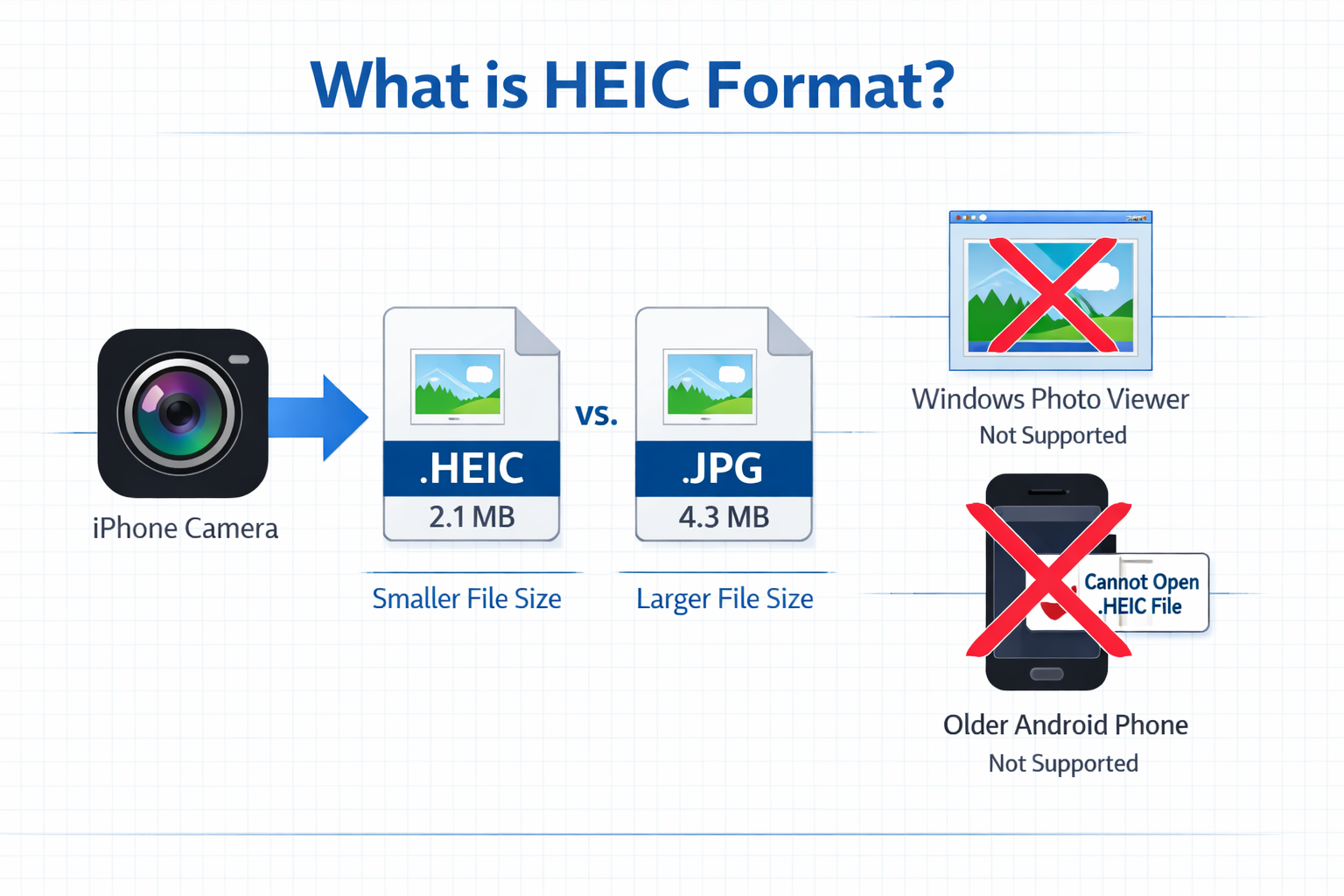
To convert HEIC to JPG, open a browser-based converter like the Core Tools Hub HEIC converter, drop your .HEIC files in, and download the JPGs. The whole process takes seconds, runs in your browser with no uploads to external servers, and works on any device. For a permanent fix, change your iPhone’s camera format to “Most Compatible” in Settings > Camera > Formats.
What Is HEIC and Why Your Photos Suddenly Look “Broken” on Windows
HEIC (High Efficiency Image Container) is the file format iPhones use by default to save photos. Apple adopted it with iOS 11 in 2017 because HEIC files are roughly 40–50% smaller than equivalent JPGs while maintaining similar visual quality. That’s a real benefit when you’re storing thousands of photos on a 128 GB phone.
The problem is compatibility. HEIC works great inside the Apple ecosystem (iPhones, iPads, Macs), but outside of it, support is inconsistent:
| Platform | HEIC Support |
|---|---|
| Windows 10/11 | Requires free HEIF Image Extensions from the Microsoft Store; many users don’t know this exists |
| Older Android (pre-Android 10) | No native support |
| Web forms & portals | Most government, insurance, and job application portals accept only JPG or PNG |
| Social platforms | Some accept HEIC, but many silently reject or re-encode it with quality loss |
| Email attachments | Recipients on Windows often see a blank file or an error |
This explains the flood of “why can’t I open my iPhone photos?” posts on Reddit’s r/techsupport and r/ios. The photo isn’t broken. The receiving device just doesn’t speak HEIC.
Common mistake: Renaming a .heic file to .jpg doesn’t convert it. The file data inside is still HEIC-encoded, and renaming it will just produce a corrupted image that nothing can open.
Quick Fix: Convert a Few HEIC Files to JPG Online
If you have one to ten photos that need converting right now, a browser-based tool is the fastest path. Here’s the simple step-by-step:
How to convert HEIC to JPG in your browser
- Open the HEIC to JPG converter on any device (desktop or mobile).
- Drag and drop your .HEIC files into the converter, or tap “Choose Files” to select them.
- Click Convert. The tool processes each file locally in your browser.
- Download your JPG files. Done.
No signup required. No software to install. All processing happens in your browser, so your photos never leave your device.
Best settings for quick conversions
| Setting | Recommended Value | Why |
|---|---|---|
| Output format | JPG | Universal compatibility |
| Quality | 90–95% | Visually identical to the original; keeps file size reasonable |
| EXIF data | Keep (default) | Preserves date, location, and camera info |
If you need PNG instead (for transparency or lossless quality), the same image converter tool supports HEIC to PNG output as well.
Choose JPG if you’re sharing photos by email, uploading to a web form, or posting on social media. Choose PNG if you need lossless quality for editing or printing.
Batch Convert Hundreds of HEIC Photos for Windows and Android
One photo is easy. But what about the 2,400 vacation photos sitting in a folder on your desktop? This is where many free tools hit limits, either capping the number of files, slowing to a crawl, or requiring a paid upgrade.
Three approaches to batch conversion
1. Browser-based batch converter (recommended for most users)
Tools like Core Tools Hub let you drop multiple files at once and convert them in a single batch. Because processing runs locally in your browser, speed depends on your device rather than internet upload bandwidth. This works well for batches of 50–200 files at a time.
2. Desktop software
Apps like IrfanView (Windows, free) or the built-in Preview app on Mac can batch convert HEIC files. The upside: they handle very large batches without browser memory limits. The downside: you need to install software, and the setup isn’t always obvious for non-technical users.
3. OS-level codec (Windows only)
Installing the free HEIF Image Extensions from the Microsoft Store lets Windows open and display HEIC files natively. This doesn’t convert them to JPG, but it does let you view and share them from Windows. You can then use the built-in Photos app to “Save as” JPG one at a time, though that’s slow for large batches.
Batch conversion checklist
- Organize HEIC files into a single folder before starting
- Check available disk space (JPGs will be roughly 1.5–2x larger than the HEIC originals)
- Choose 90% quality or higher to avoid visible compression artifacts
- Verify a few converted files before deleting originals
- Back up originals until you’ve confirmed the conversion looks right
Edge case: Some HEIC files from iPhones contain Live Photo data (a short video clip). Most converters extract only the still image. If you need the video component, you’ll need to handle that separately.
For related file conversions after your batch is done, you might also want to compress your images without quality loss to reduce file sizes for email or web use.
Permanent Fix: Change iPhone and Transfer Settings to Avoid HEIC Issues
Converting files after the fact works, but you can also prevent the problem from happening in the first place. There are two settings worth knowing about.
Option A: Shoot in JPG from now on
- Open Settings on your iPhone.
- Tap Camera > Formats.
- Select Most Compatible.
Your iPhone will now save all new photos as JPG and videos as H.264 (MOV). The tradeoff: photos will take up roughly twice as much storage space. If you have plenty of iCloud storage or a large-capacity phone, this is the simplest long-term fix.
Option B: Keep HEIC but auto-convert on transfer
- Open Settings > Photos.
- Under Transfer to Mac or PC, select Automatic.
In this setting, your iPhone keeps shooting in HEIC (to save storage), but automatically converts photos to JPG when you transfer them via USB to a Windows PC or Mac. This is the best-of-both-worlds option for most people.
Common mistake: Many users change the transfer setting but forget it only applies to USB transfers. AirDrop, email attachments from the Photos app, and iCloud downloads may still send HEIC files depending on the receiving device and app.
Which option should you choose?
- Choose Option A if you regularly share photos with Windows users, upload to web forms, or want zero friction.
- Choose Option B if storage space is a concern and you mostly transfer via USB cable.
- Keep HEIC with no changes if you stay entirely within the Apple ecosystem and rarely share outside it.
Privacy and Security When Using HEIC to JPG Converters
Your photos contain more than pixels. EXIF metadata can include GPS coordinates, timestamps, device information, and even your name. When choosing a HEIC to JPG converter, privacy matters.
Server-based vs. browser-based converters
| Feature | Server-based converters | Browser-based converters |
|---|---|---|
| Where files go | Uploaded to a remote server | Stay on your device |
| Deletion policy | Typically deleted after 1–24 hours | Never uploaded, so nothing to delete |
| Risk | Server breach, retention beyond stated policy | Minimal (limited to your own device security) |
| Speed | Depends on upload bandwidth | Depends on device processing power |
| Best for | Very large files on slow devices | Privacy-conscious users, sensitive documents |
Many popular converters, such as FreeConvert and HEIC Digital, upload your files to their servers for processing. Their state files are deleted within hours, but you’re trusting their policy.
Browser-based tools like the Core Tools Hub HEIC converter process everything locally. Your photos never leave your device. For a deeper comparison of these approaches, see our guide on browser-based file conversion vs. cloud upload tools.
Decision rule: If the photos contain faces, location data, or anything personal (which most phone photos do), a privacy-first browser-based tool is the safer choice.
If you also want to strip location and camera data from your converted JPGs before sharing, the EXIF data remover can do so with one click.
When to Keep HEIC and When to Prefer JPG
HEIC isn’t a bad format. In fact, it’s technically superior to JPG in several ways. The question is whether the devices and platforms you use can handle it.
HEIC vs. JPG comparison
| Factor | HEIC | JPG |
|---|---|---|
| File size | ~40–50% smaller at similar quality | Larger |
| Image quality | Excellent; supports 16-bit color | Good; 8-bit color |
| Compatibility | Apple devices, newer Android, some web apps | Universal: every device, browser, and platform |
| Editing support | Limited in many photo editors | Supported everywhere |
| Transparency | Supported | Not supported (use PNG instead) |
| Web uploads | Often rejected | Always accepted |
Keep HEIC when:
- You’re storing photos on your iPhone or in iCloud and don’t need to share them externally
- Storage space is limited, and you want maximum photos per gigabyte
- You’re staying within the Apple ecosystem
Convert to JPG when:
- Sharing photos with Windows or older Android users
- Uploading to web forms, job applications, insurance claims, or government portals
- Posting to websites or platforms that don’t accept HEIC
- Sending photos as email attachments to recipients who may not have HEIC support
- Printing photos at a lab or kiosk (most accept JPG, not HEIC)
For web publishing specifically, you might also consider converting to modern formats like WebP for smaller file sizes. Our PNG to WebP converter and JPG to WebP converter can help with that workflow.
Conclusion
HEIC is a smart format that saves storage space, but it creates real friction the moment your photos leave an Apple device. The fix is straightforward: use a browser-based converter for quick, one-off conversions; batch-convert when migrating a library; and change your iPhone settings to prevent the issue going forward.
For the fastest, most private option, the Core Tools Hub HEIC to JPG converter handles single files and batches directly in your browser with no uploads, no signup, and no installs. Your photos stay on your device from start to finish.
FAQ
What does HEIC stand for?
HEIC stands for High Efficiency Image Container. It’s based on the HEIF (High Efficiency Image Format) standard and is the default photo format on iPhones since iOS 11 (2017).
Can I convert HEIC to JPG without installing software?
Yes. Browser-based converters like Core Tools Hub run entirely in your browser. No downloads, no installs, no signup required.
Does converting HEIC to JPG reduce image quality?
At 90–95% JPG quality, the difference is virtually invisible to the human eye. The file size will increase (JPGs are larger than HEIC), but the visual quality stays excellent.
Why can’t Windows open my iPhone photos?
Windows doesn’t include HEIC support by default. You need to install the free HEIF Image Extensions from the Microsoft Store or convert the files to JPG.
How do I batch convert HEIC to JPG?
Use a batch-capable converter. Browser-based tools handle dozens of files at once. For very large batches (1,000+ files), desktop software like IrfanView may be more practical due to browser memory limits.
Is it safe to upload my photos to an online converter?
It depends on the service. Server-based converters upload your files and typically delete them within 1–24 hours. Browser-based converters process files locally, so your photos never leave your device. For sensitive photos, browser-based is safer.
Will converting HEIC to JPG remove my photo’s date and location info? Most converters preserve EXIF metadata (date, location, camera settings) by default. If you want to remove that data for privacy, use a dedicated EXIF remover tool after conversion.
Can I convert HEIC to PNG instead of JPG? Yes. PNG is a good choice when you need lossless quality or transparency. The HEIC converter supports both JPG and PNG output.
How do I stop my iPhone from taking HEIC photos? Go to Settings > Camera > Formats > Most Compatible. Your iPhone will shoot in JPG from that point forward. Existing HEIC photos won’t be affected.
Does HEIC to JPG conversion work on my phone? Yes. Browser-based converters work on mobile browsers (Safari, Chrome) on both iPhone and Android. No app download needed.
What’s the difference between HEIC and HEIF? HEIF is the format standard; HEIC is the specific file extension Apple uses for HEIF files that use HEVC compression. For practical purposes, they’re the same thing when it comes to conversion.
Can I convert HEIC files on a Chromebook? Yes. Any device with a modern web browser can use a browser-based HEIC to JPG converter. Chromebooks work fine since all processing happens in the browser.
Related Reading
- HEIC to JPG on Windows & Mac: Web-Safe Conversion the Easy Way
- How to Compress Images Without Quality Loss
- Browser-Based File Conversion vs. Cloud Upload Tools: Which Is Safer?