







Last updated: March 17, 2026
Key Takeaways
- HEIC is Apple’s default photo format since iOS 11, using advanced compression to store images at roughly half the file size of JPEG at comparable visual quality.
- HEIC files work natively on Apple devices but require extra steps — or conversion — on Windows, Android, and most web platforms.
- Converting HEIC to JPG is the fastest fix for upload errors, compatibility failures, and sharing problems.
- Browser-based converters let you convert HEIC photos without installing software or creating an account, keeping your files private.
- For long-term storage, HEIC is excellent on Apple devices; for universal sharing, JPG remains the safest choice in 2026.
Quick Answer
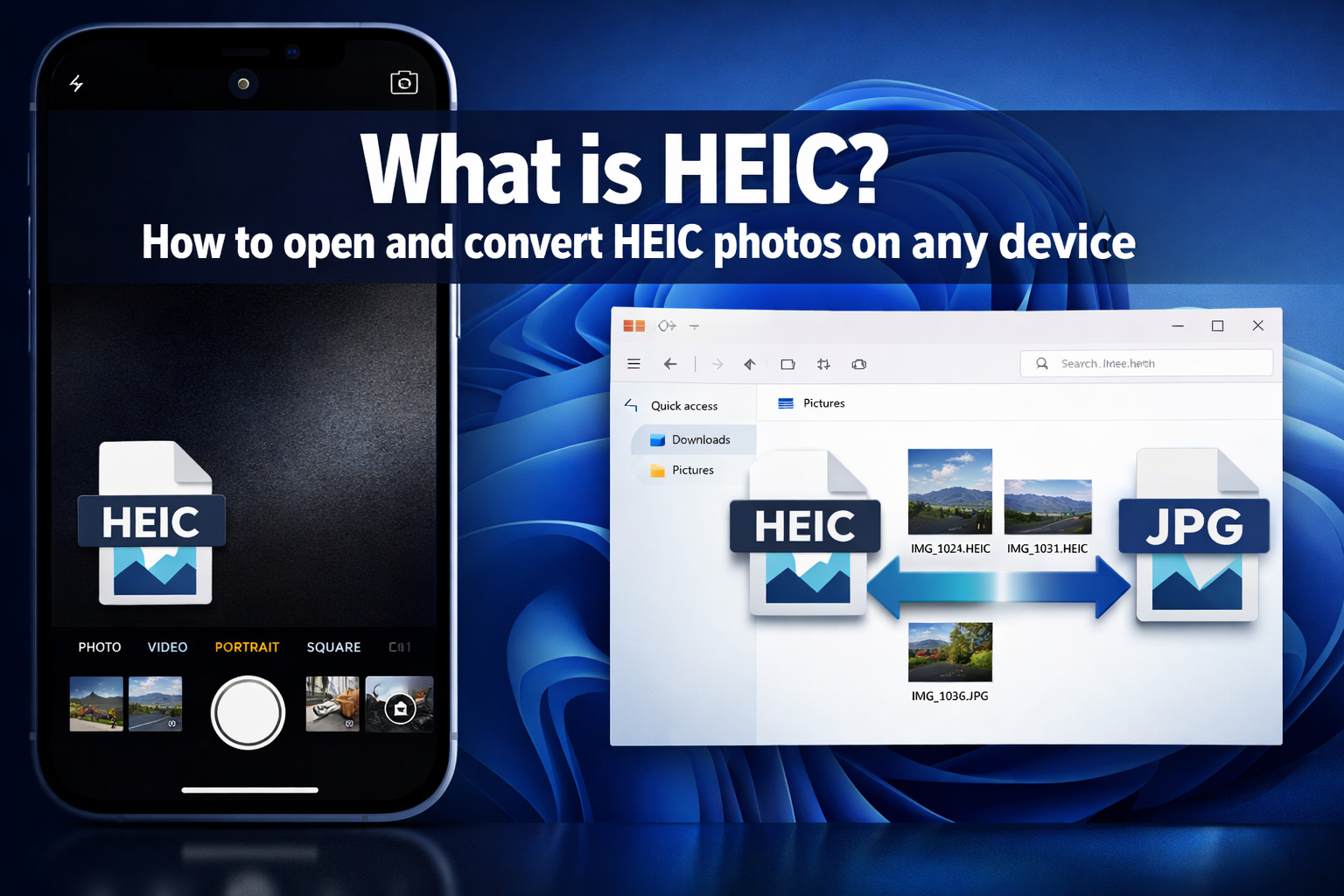
HEIC (High Efficiency Image Container) is the photo format iPhones have used by default since 2017. It produces smaller files than JPEG without a visible drop in quality, but many Windows apps, Android devices, and websites don’t support it natively. If a HEIC file won’t open or upload somewhere, converting it to JPG solves the problem instantly.
What Is HEIC and Why Does Your iPhone Use It?
HEIC stands for High Efficiency Image Container. It’s a file format built on the HEIF (High Efficiency Image Format) standard, which uses HEVC (H.265) video compression technology to store photos. Apple made HEIC the default camera format starting with iOS 11 in 2017, and it’s been the default ever since.
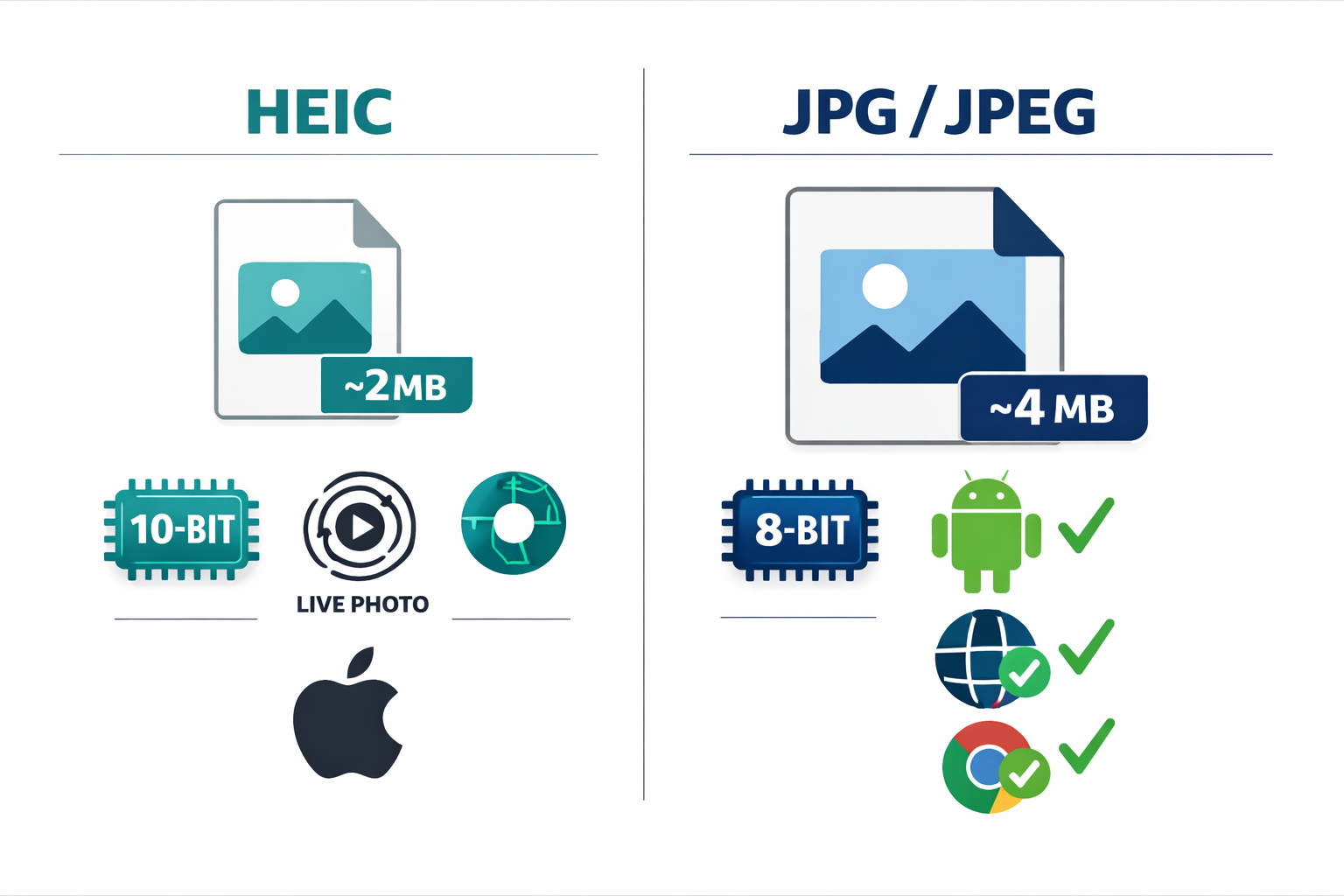
The short reason iPhones use HEIC: it saves storage space. A typical HEIC photo is 40–50% smaller than an equivalent JPEG, yet looks nearly identical to the human eye. For a phone that shoots hundreds of photos, that difference adds up fast.
But HEIC does more than just save space:
- 10-bit color depth — supports over 1 billion colors, compared to JPEG’s 16 million
- HDR support — captures brighter highlights and deeper shadows
- Live Photos — stores the short video clip and still image together in one file
- Depth maps — preserves portrait mode blur data for re-editing later
- Metadata preservation — keeps GPS, lens info, and editing history intact
So HEIC isn’t just a compressed JPEG. It’s a richer container that holds more information about your photo. The tradeoff is that not every device or app knows how to read it.
💡 Quick definition: HEIF is the standard; HEIC is the specific file extension Apple uses for still images encoded with HEVC. You’ll sometimes see both terms used interchangeably.
HEIC vs. JPG: Quality, Size, and Features Compared
HEIC produces better quality at smaller file sizes than JPEG, but JPEG works everywhere. That single sentence covers most of the comparison, but the details matter depending on what you’re doing with your photos.
| Feature | HEIC | JPG/JPEG |
|---|---|---|
| Typical file size | ~2 MB (per photo) | ~4 MB (per photo) |
| Color depth | 10-bit (1B+ colors) | 8-bit (16M colors) |
| HDR support | Yes | Limited |
| Lossless editing | Yes (non-destructive) | No |
| Live Photos / sequences | Yes | No |
| Browser support | Limited | Universal |
| Windows native support | Requires codec | Built-in |
| Android support | Growing (OEM-dependent) | Universal |
| Web upload compatibility | Often rejected | Always accepted |
Choose HEIC if you’re staying within the Apple ecosystem and want maximum quality at minimum storage cost.
Choose JPG if you’re sharing photos with non-Apple users, uploading to websites, submitting to government portals, or sending files to older software.
One important note: when you convert HEIC to JPG, you may lose depth map data and Live Photo video clips. The still-image quality, however, is well preserved at high JPEG quality settings (85–95%).
What about newer formats? AVIF (based on AV1 video codec) is gaining ground as a web-friendly alternative with similar compression efficiency and better browser support than HEIC. JPEG XL is another contender with impressive lossless capabilities, though browser adoption has been inconsistent. For now, neither has displaced HEIC on iPhones or JPG for universal sharing. Industry observers expect VVC/H.266-based formats to emerge as potential successors around 2027–2030, offering even better compression than HEVC. For a deeper look at AVIF, see the AVIF Converter tool and format guide.
How to Open HEIC Files on Windows, macOS, Android, and the Web
The easiest way to open a HEIC file depends on your device. macOS handles them natively; Windows needs a codec or a converter; Android support varies by manufacturer.
Opening HEIC on macOS
No action needed. Preview, Photos, and Quick Look all open HEIC files without any setup. If you’re on macOS High Sierra (10.13) or later, HEIC just works.
Opening HEIC on Windows 10 and Windows 11
This is where most people run into trouble. Windows does not include HEIC support by default. There are three paths:
Option 1 — Install the free Microsoft codec (recommended)
- Open the Microsoft Store.
- Search for “HEIF Image Extensions” (free).
- Install it. Windows Photos and File Explorer thumbnails will now display HEIC files.
- For full editing support, you may also need the “HEVC Video Extensions” codec — note that Microsoft charges a small fee for this one, which frustrates many users.
Option 2 — Use a free third-party viewer App like IrfanView (free), which supports HEIC with the right plugin installed. This avoids the paid codec issue entirely.
Option 3 — Convert HEIC to JPG first If you just need to view or use the photo once, converting it to JPG is faster than installing anything. Use a browser-based tool like the free HEIC to JPG converter at Core Tools Hub — no installs, no signup required, and all processing runs in your browser, so your photos stay private.
⚠️ Common mistake: Many users search for unofficial HEVC codec downloads from third-party sites after seeing Microsoft’s fee. This is a real security risk. Stick to the Microsoft Store or convert the file instead.
Opening HEIC on Android
Android support for HEIC has improved significantly through 2025 and into 2026, especially on mid-range and premium devices from Samsung, Google, and other major manufacturers. Google Photos on Android can display most HEIC files. However, older Android versions and budget devices may still struggle.
If a HEIC file won’t open on your Android device, convert it to JPG first — that solves the problem on every Android version.
Opening HEIC in Web Apps and Online Platforms
Most web platforms (eBay, government portals, many form submission systems) still only accept JPG or PNG. HEIC uploads are frequently rejected with a vague error message. Converting before uploading is the reliable fix.
When and How to Convert HEIC to JPG or PDF
Convert HEIC to JPG when you need to share, upload, or use a photo outside the Apple ecosystem. Convert HEIC to PDF when you need to submit photos as a document — for job applications, insurance claims, or school assignments.
Fastest method: browser-based conversion
The Core Tools Hub HEIC converter converts HEIC files to JPG or PNG directly in your browser. There’s no software to install, no account to create, and your files never leave your device. This works on desktop and mobile.
Steps to convert HEIC to JPG:
- Go to the HEIC to JPG converter.
- Drag and drop your HEIC file (or click to browse).
- Select JPG as the output format.
- Click Convert.
- Download your JPG file.
For batch converting multiple HEIC photos at once, the same tool handles multiple files in one session — a genuine time-saver when you’ve just imported a camera roll.
Converting on iPhone (before sharing)
You can tell your iPhone to shoot in JPG instead of HEIC:
- Open Settings.
- Tap Camera, then Formats.
- Select Most Compatible instead of High Efficiency.
This records new photos as JPG. It doesn’t convert existing HEIC files, but it prevents the problem going forward.
Alternatively, when you AirDrop or share a photo from the Photos app to a non-Apple device, iOS often converts it to JPG automatically. This doesn’t always happen with email attachments, though.
Converting HEIC to PDF
If you need to submit a photo as a PDF, convert the HEIC to JPG first, then use the Images to PDF tool to package it. This two-step process gives you a clean, universally accepted PDF from any HEIC photo.
Best settings for HEIC to JPG conversion
| Goal | Recommended JPG quality | Expected file size |
|---|---|---|
| Email or web upload | 80–85% | Small (under 1 MB) |
| Printing (home) | 90% | Medium (1–3 MB) |
| Professional print | 95% | Larger (3–6 MB) |
| Archiving (max quality) | 95–100% | Largest |
Fixing Common HEIC Upload and Compatibility Errors
Most HEIC errors have one fix: convert the file to JPG before uploading. But a few specific errors have their own solutions.
“File type not supported” on upload forms
The site only accepts JPG, PNG, or PDF. Convert your HEIC file first, then re-upload. The HEIC converter handles this in seconds.
HEIC thumbnail not showing in Windows File Explorer
Install the free HEIF Image Extensions from the Microsoft Store. After installation, thumbnails appear without needing to restart.
Photo looks different after conversion (colors off, HDR clipped)
HEIC stores HDR data that standard JPG can’t fully represent. When converting HDR HEIC photos to JPG (an SDR format), highlights may clip slightly. This is a format limitation, not a tool error. For most everyday photos, the difference is invisible.
Live Photo video clip missing after conversion
Converting HEIC to JPG saves only the still image. The video portion of a Live Photo cannot be embedded in a JPG. If you need the video clip, export it separately from the Photos app as a MOV file.
Metadata (GPS, date, camera info) stripped after conversion
Some online converters strip EXIF metadata during conversion. If preserving metadata matters to you, check that your converter keeps it — or use the Image EXIF Remover tool intentionally if you want to remove location data before sharing.
Batch conversion is timing out or failing
Large batches (50+ files) can slow down browser-based tools on older hardware. If a batch stalls, try converting in smaller groups of 10–20 files at a time.
Privacy and Security When Converting Personal Photos
Your photos are personal. Before using any converter, understand where your files go. Many free online converters upload your photos to a remote server for processing, which means your images pass through someone else’s infrastructure.
Core Tools Hub takes a different approach: all processing runs in your browser using client-side JavaScript. Your files are never uploaded to a server, never stored, and never seen by anyone else. This is especially important for photos that contain GPS metadata, faces, or sensitive documents.
A few privacy rules of thumb when converting photos online:
- Check the privacy policy before using any tool. Look for language about server-side processing or data retention.
- Remove EXIF data if you’re sharing photos publicly. GPS coordinates embedded in photos can reveal your home address. The Image EXIF Remover strips this data before you share.
- Avoid uploading sensitive photos to tools that process files on remote servers.
- Use in-browser tools for maximum privacy — processing stays on your device.
For more on how Core Tools Hub handles your files, see the privacy policy and how it works pages.
Choosing the Right Long-Term Format for Your Photo Library
For long-term storage, the best format depends on where you store your photos and how you access them.
There’s no single right answer, but here’s a practical framework:
Keep HEIC if:
- Your photos live in Apple Photos or iCloud.
- You edit on iPhone, iPad, or Mac.
- Storage space matters and you want the best quality-per-MB ratio.
- You use portrait mode and want to re-edit depth effects later.
Convert to JPG if:
- You back up photos to a Windows PC or NAS drive.
- You share photos regularly with non-Apple users.
- You use Google Photos, Dropbox, or other cross-platform services as your primary library.
- You frequently submit photos to websites, forms, or print services.
Consider PNG if:
- You’re archiving screenshots or graphics with text (PNG is lossless).
- File size isn’t a concern, and you want zero compression artifacts.
Consider AVIF if:
- You’re optimizing images for a website.
- You want modern compression with broad browser support.
- You’re already using tools that support it.
For converting between other image formats, the Core Tools Hub image tools collection supports JPG, PNG, WebP, AVIF, and more — all in the browser with no uploads.
One practical tip: if you’re migrating a large photo library from HEIC to JPG, do it in batches and keep the originals until you’ve confirmed the conversions look correct. Conversion is one-way — you can’t recover HEIC-specific data (like depth maps) from a JPG.
Frequently Asked Questions
Q: What is HEIC in simple terms? HEIC is the photo format iPhones use by default. It stores photos at roughly half the file size of JPEG without a visible quality loss. Think of it as a more efficient JPEG — but one that not every device can read.
Q: Why are my iPhone photos saving as HEIC instead of JPG? Apple set HEIC as the default camera format starting with iOS 11 because it saves storage space. To switch back to JPG, go to Settings → Camera → Formats → Most Compatible.
Q: Can Windows 11 open HEIC files? Windows 11 can open HEIC files after you install the free “HEIF Image Extensions” from the Microsoft Store. Without it, HEIC files appear as blank icons. Alternatively, convert HEIC to JPG first — no codec needed.
Q: Is HEIC better than JPG? HEIC is technically superior: smaller files, more colors, HDR support, and non-destructive editing. But JPG works on every device and platform without extra steps. “Better” depends on your use case.
Q: Does converting HEIC to JPG reduce quality? At high quality settings (85–95%), the quality difference is not visible to the human eye. Some HDR color data may clip slightly, and Live Photo video clips are not included in the JPG. For everyday photos, the conversion is effectively lossless in appearance.
Q: Why does my HEIC photo get rejected when I try to upload it? Most websites and forms only accept JPG, PNG, or PDF. HEIC is not yet universally supported on the web. Convert your photo to JPG before uploading to fix this instantly.
Q: How do I convert HEIC to JPG for free without installing anything? Use a browser-based converter like the Core Tools Hub HEIC to JPG converter. It runs entirely in your browser, requires no signup, and processes files locally, so nothing is uploaded.
Q: Does HEIC work on Android? Support has improved significantly in 2025–2026, especially on premium Android devices. Google Photos can display most HEIC files. However, older Android versions and some apps still don’t support it. Converting to JPG is the reliable fallback.
Q: Will HEIC replace JPG eventually? HEIC has not replaced JPG over the decade since iOS 11 introduced it, largely due to fragmentation in compatibility. Newer formats like AVIF may have a better path to universal adoption due to broader browser support. JPG is likely to remain dominant for sharing and web use for the foreseeable future.
Q: What happens to Live Photos when I convert HEIC to JPG? Only the still image is saved. The short video clip embedded in a Live Photo cannot be stored in a JPG file. Export the video separately from the Photos app as a MOV if you need it.
Q: Is it safe to convert personal photos online? It depends on the tool. Tools that upload files to a server carry privacy risks. Browser-based tools that process files locally — like Core Tools Hub — are safer because your photos never leave your device.
Q: Can I batch convert HEIC photos to JPG? Yes. The Core Tools Hub HEIC converter supports batch conversion. For very large batches, convert in groups of 10–20 files for the most reliable results.
Key Takeaways
- HEIC is Apple’s default photo format, used on every iPhone since iOS 11 (2017). It stores images more efficiently than JPEG using HEVC compression.
- HEIC files are 40–50% smaller than equivalent JPEGs and support 10-bit color, HDR, depth maps, and Live Photos.
- macOS opens HEIC natively. Windows requires a free codec from the Microsoft Store or a file conversion. Android support is growing but inconsistent.
- The fastest fix for any HEIC compatibility problem is converting to JPG. This works for upload errors, app incompatibility, and cross-platform sharing.
- Browser-based converters are the safest option for personal photos — no uploads, no accounts, and your files stay on your device.
- To stop shooting in HEIC on iPhone, go to Settings → Camera → Formats → Most Compatible.
- Converting HEIC to JPG preserves visual quality at high settings, but removes Live Photo video clips and may slightly clip HDR highlights.
- For web images, AVIF is worth considering as a modern alternative with better browser support than HEIC.
- Strip EXIF metadata (including GPS location) before sharing photos publicly using a tool like the Image EXIF Remover.
- HEIC is excellent for Apple ecosystem storage; JPG is the safest choice for sharing, uploading, and long-term cross-platform access.
Conclusion
HEIC is a genuinely good photo format. It’s smaller, richer, and more capable than JPEG in almost every technical measure. The problem isn’t the format itself — it’s that the rest of the world hasn’t fully caught up yet. Windows still needs a codec. Web platforms still reject HEIC uploads. Android support is improving but uneven.
Until compatibility catches up, the practical strategy is simple: keep HEIC photos on your Apple devices for storage and editing, and convert to JPG when you need to share, upload, or use photos anywhere else.
For a fast, private conversion with no installs and no signup, the Core Tools Hub HEIC to JPG converter handles single files and batches in seconds — all processing runs in your browser, so your photos stay yours.
If you regularly work with images in multiple formats, the full image tools collection covers everything from PNG to JPG to WebP to PNG — same privacy-first, no-upload approach across every tool.
Related Reading
- Free HEIC to JPG Converter — No Uploads, No Signup
- Image Compressor — Reduce File Size Without Visible Quality Loss
- Images to PDF — Convert Photos to a PDF Document
- Image EXIF Remover — Strip Location and Metadata Before Sharing
- All Image Tools — Core Tools Hub