







Picture this: You’ve spent hours perfecting your resume, gathering recommendation letters, and scanning your transcripts. You’re ready to submit your dream job application—until the portal throws an error message: “Upload only page 2 of your transcript.” Your heart sinks as you stare at your 15-page PDF, wondering how to extract just that one page without downloading sketchy software or compromising your private documents.
If you’ve ever needed to split a PDF into separate pages for job applications, school submissions, or government portals, you’re not alone. In 2026, most upload systems require specific pages rather than entire documents—and knowing how to quickly separate your PDF pages can save hours of frustration and missed deadlines.
The good news? You can split a PDF into separate pages right in your browser, with no downloads, no signup, and complete privacy. Your files never leave your device, processing happens locally, and you’ll have clean, organized pages ready to upload in seconds.
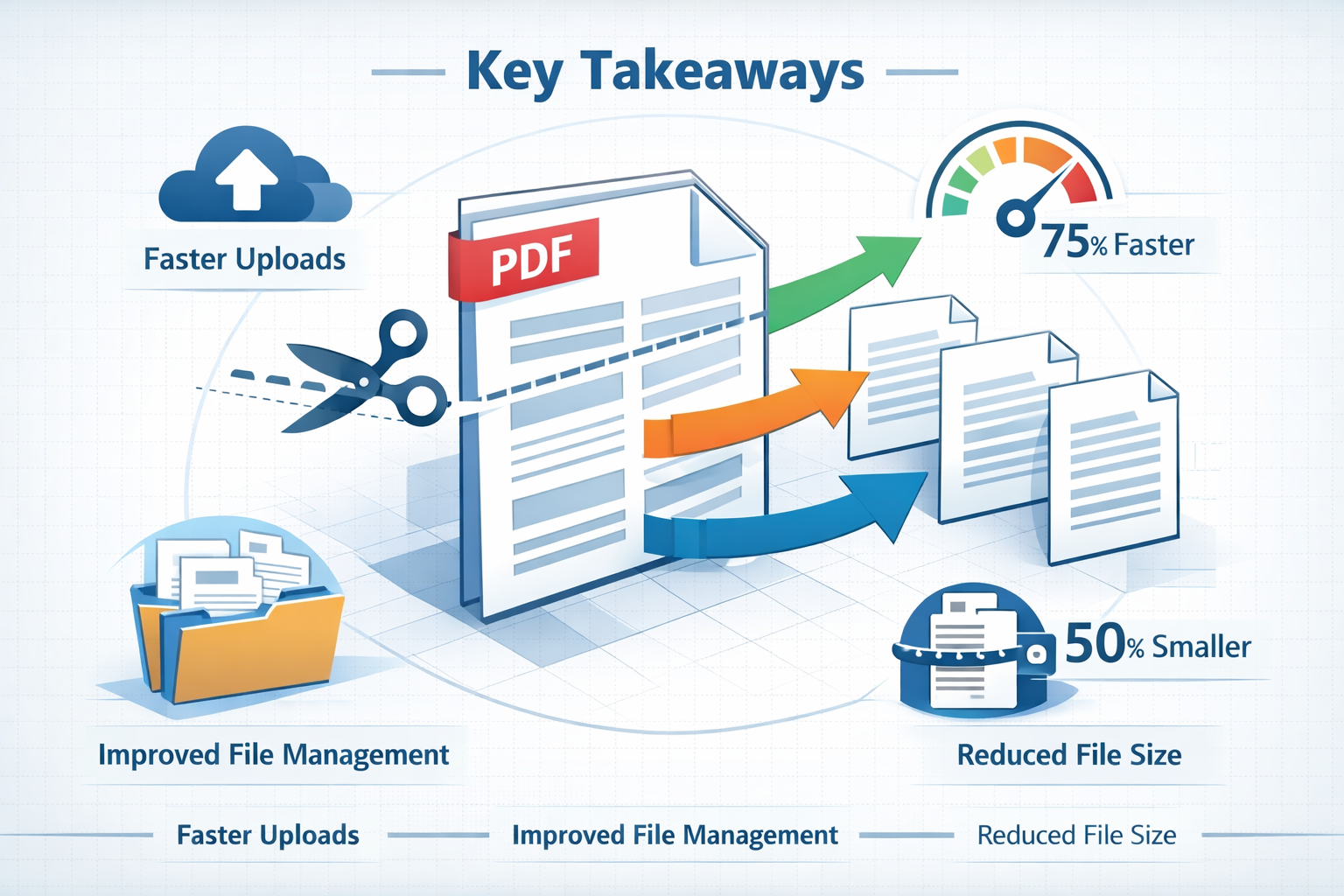
Key Takeaways
- Split PDF into separate pages directly in your browser using privacy-first tools that process files locally without uploads
- Choose the right splitting method for your needs: single pages, page ranges, or custom selections based on portal requirements
- Organize and name your split files properly to avoid upload errors and keep track of which page goes where
- Compress split pages when needed to meet file size limits without sacrificing quality
- Avoid common mistakes like wrong page numbering, oversized files, and poor naming conventions that cause submission rejections
When Splitting PDF Pages Beats Sending the Full Document
Not every situation calls for your entire PDF. In fact, sending a full multi-page document when only specific pages are requested can result in your submission being rejected outright.
Job Applications and HR Portals
Most applicant tracking systems (ATS) in 2026 require precise document uploads. HR portals often ask for:
- Page 1 only of your resume (no cover letters attached)
- Specific transcript pages showing relevant coursework
- Individual reference letters as separate files
- Single certification pages rather than complete credential packets
Uploading a 20-page PDF when the system expects one page triggers file size warnings, slows down processing, and sometimes causes automatic rejection. Hiring managers reviewing hundreds of applications don’t have time to hunt through your full document for the requested page.
School and University Submissions
Educational portals have become increasingly specific about page requirements:
- Standardized test score pages (just the scores, not the full report)
- Individual assignment pages for portfolio reviews
- Specific form pages from larger application packets
- Selected transcript sections for transfer credit evaluation
One graduate student shared that her scholarship application was delayed by 2 weeks because she uploaded her complete 30-page academic record rather than the requested 3 pages showing her GPA and major courses. By the time she resubmitted the correct pages, the review committee had moved to the next round.
Government Forms and Legal Documents
Government agencies and legal offices have strict document requirements for good reason—they process thousands of submissions daily and need standardized formats:
- Specific pages from tax returns for income verification
- Individual permit or license pages for renewals
- Selected pages from contracts for review
- Particular form sections from multi-page applications
These systems often have hard file size limits (typically 2-5 MB per upload) and page count restrictions. Splitting your PDF into separate pages ensures compliance and faster processing.
File Size and Email Limitations
Even when you’re not dealing with formal portals, practical limitations make splitting necessary:
- Email attachment limits (most providers cap at 10-25 MB)
- Mobile device storage constraints when sharing via text
- Slow internet connections that struggle with large files
- Recipient preferences for receiving only relevant pages
Sending someone a 50-page PDF when they only need pages 12-14 wastes their time, storage, and bandwidth. It’s simply better practice to split a PDF into separate pages and share exactly what’s needed.
How to Split PDF into Separate Pages: Quick Step-by-Step Guide
The fastest way to split a PDF into separate pages in 2026 is using a browser-based tool that keeps your files private and requires no installation. Here’s the complete process using Split PDF from Core Tools Hub.
Step 1: Open the Split PDF Tool
Navigate to the Split PDF tool in any modern browser—Chrome, Firefox, Safari, or Edge all work perfectly. The tool runs entirely in your browser, meaning:
- ✅ No signup required – start splitting immediately
- ✅ All processing in browser – your files never upload to a server
- ✅ Works on desktop and mobile – split PDFs from any device
- ✅ Keep files private – everything stays on your device
The interface loads in under two seconds, and you’ll see a clean upload area ready for your PDF.
Step 2: Upload Your PDF File
Click the upload area or drag your PDF directly onto the page. The tool accepts PDFs up to 100 MB, which covers virtually all common documents:
- Resume and cover letter packets
- Academic transcripts and diplomas
- Scanned application forms
- Multi-page contracts and agreements
- Combined reference letters
Pro tip: If your PDF is larger than 100 MB (usually scanned documents with high-resolution images), consider using the Compress PDF tool first to reduce file size without visible quality loss.
Once uploaded, you’ll see a preview of all pages in your document. The tool automatically numbers each page, making it easy to identify exactly which pages you need to extract.
Step 3: Select Your Splitting Method
Choose how you want to split your PDF based on your specific needs:
Split into Single Pages Perfect when you need individual files for each page. Select “Split all pages” and the tool creates separate PDF files numbered sequentially (page_1.pdf, page_2.pdf, etc.). This works great for:
- Uploading different pages to different portal fields
- Sharing specific pages with different recipients
- Creating a complete set of individual pages for archival
Extract Specific Pages When you only need certain pages, use the page selector to choose exactly which ones to extract. Click the pages you want (they’ll highlight), then click “Split selected.” This method is ideal for:
- Extracting just your resume from a multi-document PDF
- Pulling specific transcript pages showing relevant courses
- Grabbing individual reference letters from a combined file
Split by Page Ranges Need pages 1-3 as one file and pages 4-7 as another? Enter your ranges in the format “1-3, 4-7” and the tool creates separate PDFs for each range. Perfect for:
- Grouping related pages together (like a two-page resume)
- Separating different sections of a larger document
- Creating logical document chunks for different purposes
For more advanced page extraction needs, check out the dedicated Extract Pages from PDF tool, which offers additional filtering options.
Step 4: Download Your Split Pages
Click “Download” and your split PDF files download instantly to your device. The tool automatically names files based on your splitting method:
- Single pages:
original-filename_page-1.pdf,original-filename_page-2.pdf - Selected pages:
original-filename_pages-1-3-5.pdf - Page ranges:
original-filename_pages-1-3.pdf,original-filename_pages-4-7.pdf
All downloads happen simultaneously, so you don’t have to wait for each file individually. The entire process—from upload to download—typically takes less than 10 seconds for most documents.
Step 5: Verify Your Split Files
Before uploading to portals or sharing with others, quickly verify your split files:
- Check page count – Open each PDF and confirm it contains the correct pages
- Verify content – Scan the first few lines to ensure you grabbed the right sections
- Confirm file size – Make sure each file meets your portal’s size requirements
- Test readability – Zoom in to verify text remains crisp, and images are clear
This 30-second verification prevents the frustration of uploading the wrong pages and having to restart the entire submission process.
Choose Page Ranges Correctly: Common Split Patterns
Understanding how to specify page ranges correctly saves time and prevents errors. Here’s a reference table of the most common splitting patterns and when to use each.
| Split Pattern | How to Specify | Result | Best For |
|---|---|---|---|
| All single pages | Select “Split all pages” | Each page becomes a separate PDF | Maximum flexibility; uploading different pages to different fields |
| Specific single pages | Click pages 1, 5, 9 | Three PDFs: page 1, page 5, page 9 | Extracting scattered pages (like just signature pages) |
| Continuous range | Enter “1-5” | One PDF containing pages 1 through 5 | Keeping related pages together (multi-page resumes, complete forms) |
| Multiple ranges | Enter “1-3, 7-9” | Two PDFs: pages 1-3 and pages 7-9 | Separating document sections (personal info vs. work history) |
| Mixed selection | Enter “1, 3-5, 8” | Two PDFs: page 1 alone, pages 3-5 together, page 8 alone | Complex requirements with both single pages and ranges |
| Odd pages only | Enter “1, 3, 5, 7, 9” | Five PDFs, each with one odd-numbered page | Splitting scanned two-sided documents |
| Even pages only | Enter “2, 4, 6, 8, 10” | Five PDFs, each with one even-numbered page | Extracting back sides of scanned documents |
| Every other range | Enter “1-2, 5-6, 9-10” | Three PDFs with paired pages | Creating matched sets (question and answer pages) |
Understanding PDF Page Numbering
Critical distinction: PDF page numbers (what the tool uses) often differ from printed page numbers visible on the document itself.
- PDF page 1 = the first page of the file, regardless of what number appears on it
- PDF page 5 = the fifth page in the document viewer
- Printed “Page 3” might actually be PDF page 5 if your document has a cover page and table of contents
Always count pages from the beginning of the PDF file, not from the numbers printed on the pages themselves. Most PDF viewers show both the PDF page position and printed page number—use the PDF position for splitting.
Testing Your Range Before Splitting
Not sure if you’ve specified the right pages? Use the preview feature:
- Enter your page range in the tool
- Check the highlighted pages in the preview
- Verify those are the actual pages you need
- Adjust the range if necessary
- Then proceed with splitting
This five-second preview check prevents the common mistake of splitting the wrong pages and having to start over.
Organize and Name Your Split PDF Files Properly
You’ve successfully split your PDF into separate pages—now what? Proper file organization and naming prevent confusion, upload errors, and wasted time searching for the right file.
File Naming Best Practices
Generic names like “document_page_1.pdf” tell you nothing about the content. Instead, use descriptive names that immediately identify the document:
Bad naming:
- ❌
file1.pdf - ❌
document.pdf - ❌
page_2.pdf - ❌
scan_001.pdf
Good naming:
- ✅
Smith_Resume_2026.pdf - ✅
Transcript_Page2_GPA.pdf - ✅
Reference_Letter_DrJohnson.pdf - ✅
W2_Form_2025_Page1.pdf
Naming Convention Formula
Follow this proven formula for clear, professional file names:
[YourLastName][DocumentType][SpecificDetail]_[Date/Year].pdf
Examples in practice:
Martinez_Resume_SoftwareEngineer_2026.pdfChen_Transcript_UniversityXYZ_Page3.pdfWilliams_Reference_ProfSmith_Jan2026.pdfJohnson_TaxReturn_2025_Schedule_C.pdf
This format ensures:
- Immediate identification of whose document it is
- Clear document type so you know what you’re uploading
- Specific details that distinguish it from similar files
- Date context for version control
Organizing Split Files in Folders
Create a logical folder structure before you start uploading:
<code>📁 Job_Application_CompanyXYZ/
  📄 Martinez_Resume_2026.pdf
  📄 Martinez_CoverLetter_2026.pdf
  📄 Martinez_Transcript_Page1.pdf
  📄 Martinez_Transcript_Page2.pdf
  📄 Martinez_Reference_DrSmith.pdf
  📄 Martinez_Reference_ProfJones.pdf
</code>
This structure lets you:
- Find the right file instantly when the portal asks for it
- Avoid uploading the wrong page to the wrong field
- Keep track of what you’ve already submitted
- Reuse files for multiple applications
Portal-Specific Naming Requirements
Some portals have strict file naming requirements. Before splitting and renaming, check if the system requires:
- Maximum character limits (often 50-100 characters)
- No special characters (stick to letters, numbers, underscores, and hyphens)
- Specific naming formats (some systems require exact formats like “LastName_FirstName_DocumentType.pdf”)
- Case sensitivity (some systems distinguish between “Resume.pdf” and “resume.pdf”)
When in doubt, use only:
- Letters (A-Z, a-z)
- Numbers (0-9)
- Underscores (_)
- Hyphens (-)
Avoid spaces, apostrophes, ampersands, and other special characters that can cause upload errors.
Version Control for Multiple Submissions
Applying to multiple positions or schools? Add version identifiers:
Martinez_Resume_TechCompany_v1.pdfMartinez_Resume_FinanceRole_v2.pdfMartinez_CoverLetter_Position123_Draft.pdfMartinez_CoverLetter_Position123_Final.pdf
This prevents accidentally uploading an old version or a draft meant for a different application.
Compress Split Pages to Meet Upload Size Limits
You’ve split your PDF into separate pages, but the portal shows a dreaded error: “File size exceeds 2 MB limit.” This happens frequently with scanned documents, which often contain high-resolution images that can make file sizes large even for a single page.
When to Compress Split PDF Pages
Consider compression when:
- Portal file size limits are smaller than your split pages (common limits: 2 MB, 5 MB, or 10 MB)
- Email attachments need to stay under provider limits
- Mobile uploads struggle with large files on slow connections
- Multiple files together exceed the total submission limits
One page of a scanned document can easily exceed 5 MB if scanned at high resolution. Compression reduces this to 500 KB or less, with no visible quality loss, for most text documents.
How to Compress After Splitting
After splitting your PDF into separate pages, compress each page individually using the Compress PDF tool:
- Upload your split page to the compression tool
- Choose compression level (light, medium, or aggressive)
- Preview the result to verify quality remains acceptable
- Download the compressed file (typically 60-80% smaller)
- Verify file size meets your portal requirements
The entire process takes about 10 seconds per page and happens entirely in your browser with no uploads to external servers.
Compression Settings Guide
Different document types require different compression approaches:
| Document Type | Recommended Compression | Expected Size Reduction | Quality Impact |
|---|---|---|---|
| Text-only documents (resumes, letters) | Medium to Aggressive | 70-85% smaller | Minimal; text remains crisp |
| Text with simple graphics (forms, tables) | Medium | 60-75% smaller | Barely noticeable |
| Scanned documents (B&W text) | Medium | 65-80% smaller | Very slight softening |
| Documents with photos (portfolios) | Light to Medium | 40-60% smaller | Slight quality reduction |
| High-resolution scans (certificates) | Light | 30-50% smaller | Minimal impact |
| Color graphics heavy (infographics) | Light | 25-40% smaller | Noticeable if aggressive |
Pro tip: Always use “Light” compression first. If the file still exceeds limits, try “Medium.” Only use “Aggressive” compression for text-only documents where image quality doesn’t matter.
Compress Before or After Splitting?
The order matters depending on your situation:
Compress BEFORE splitting when:
- The original PDF is extremely large (50+ MB)
- You need all split pages at similar file sizes
- You want to save time (compress once instead of multiple times)
Compress AFTER splitting when:
- Different pages need different compression levels
- Some pages meet size limits, but others don’t
- You need maximum quality for specific pages
Most users find it easier to split first, then compress only the pages that exceed size limits. This preserves maximum quality for pages that don’t need compression.
Verify Quality After Compression
Before uploading compressed files, always verify:
- Text readability – Zoom to 150% and check that text remains sharp
- Image clarity – Ensure photos and graphics look acceptable
- Signature visibility – Confirm signatures and handwriting are legible
- Barcode scanning – Test that any barcodes or QR codes still scan
- Overall appearance – Check that the document looks professional
If quality degrades too much, try a lower compression level or consider reducing the original scan resolution and re-splitting.
Common Mistakes When Splitting a PDF Into Separate Pages
Even with straightforward tools, certain mistakes happen repeatedly. Avoid these common pitfalls to save time and prevent submission errors.
❌ Mistake #1: Counting Pages Incorrectly
The problem: Confusing PDF page numbers with printed page numbers visible on the document.
Example: Your transcript shows “Page 2 of 5” printed at the bottom, but it’s actually the third page in the PDF file (after a cover page). You split “page 2” thinking you’re getting your grades, but you actually extract the cover page.
The fix: Always count from the first page of the PDF file, regardless of what’s printed on the pages. Use the page counter in your PDF viewer (usually shown as “Page 3 of 10” in the toolbar) rather than printed page numbers.
❌ Mistake #2: Splitting at Too High Resolution
The problem: Keeping scanned documents at 600 DPI or higher when 150-300 DPI is perfectly readable.
Example: You scan your diploma at 600 DPI “just to be safe,” creating a 12 MB single-page PDF. The portal rejects it because of the 5 MB limit. You spend 20 minutes trying to compress it, when rescanning at 300 DPI would have created a 2 MB file with identical visual quality.
The fix: For text documents, scan at 300 DPI maximum. For photos or images where quality matters, 150-200 DPI is usually sufficient for digital submission. Higher resolution only matters for professional printing.
❌ Mistake #3: Poor File Naming
The problem: Using generic names that don’t identify the content.
Example: You split your application packet into six files named “document_1.pdf” through “document_6.pdf.” Three weeks later, when the portal asks you to re-upload “your transcript page 2,” you have no idea which file that is and must re-split everything.
The fix: Use descriptive names immediately after splitting: Smith_Transcript_Page2_Grades.pdf tells you exactly what’s in the file six months later.
❌ Mistake #4: Forgetting to Verify Split Results
The problem: Assuming the split worked correctly without checking the output files.
Example: You select pages “1-3” but accidentally type “1-33” in the range field. The tool creates a 33-page PDF, and you upload it to the portal without checking. The system rejects it for exceeding the page limit, and you’ve wasted your one submission attempt.
The fix: Always open each split file and verify it contains exactly the pages you intended. This 10-second check prevents hours of frustration.
❌ Mistake #5: Over-Compressing Important Documents
The problem: Using aggressive compression when quality matters.
Example: You compress your professional certification to meet a 1 MB limit, but the aggressive compression makes the seal and signature barely visible. The reviewing authority rejects it as potentially altered or illegible.
The fix: Start with light compression and only increase if necessary. For legal documents, certificates, and anything with signatures or seals, prioritize quality over file size. If you can’t meet the size limit without quality loss, contact the requesting party to request a higher limit or an alternative submission method.
❌ Mistake #6: Splitting Password-Protected PDFs
The problem: trying to split a password-protected or security-restricted PDF.
Example: Your university sends you a password-protected transcript. You try to split it, but the tool can’t process it due to security settings.
The fix: First, open the PDF in a PDF viewer, enter the password, and then use “Save As” to create an unprotected copy. Split the unprotected version. (Only do this with documents you legally own or have permission to modify.)
❌ Mistake #7: Not Keeping Original Files
The problem: Deleting the original PDF after splitting, only to later need different pages.
Example: You split your 20-page application packet and extract pages 1-3 for one submission. You delete the original to save space. A week later, a different portal asks for pages 5-7, and you no longer have the original file.
The fix: Always keep the original PDF in a safe location. Split files are copies—the original remains untouched. Create a folder structure like:
<code>📁 Documents/
  📁 Originals/
    📄 Complete_Application_Packet.pdf
  📁 Split_For_CompanyA/
    📄 Pages_1-3.pdf
  📁 Split_For_CompanyB/
    📄 Pages_5-7.pdf
</code>
Split PDF on Mobile: Tips for Phones and Tablets
Need to split PDF into separate pages while you’re away from your computer? Mobile splitting works perfectly in 2026, but requires a few adjustments to the workflow.
Browser-Based Mobile Splitting
The Split PDF tool works on any mobile browser—Safari on iPhone, Chrome on Android, or any other modern mobile browser. The process is identical to the desktop:
- Open the tool in your mobile browser
- Tap the upload area to access your files
- Select your PDF from downloads, cloud storage, or email
- Choose your splitting method using the mobile-optimized interface
- Download split pages directly to your device
The tool automatically adapts to smaller screens, making buttons and controls easy to tap with your finger.
Accessing PDFs on Mobile Devices
The trickiest part of mobile splitting is often finding your PDF file:
iPhone/iPad:
- PDFs in email: Tap and hold the attachment, select “Share,” then “Save to Files”
- PDFs in Messages: Tap the PDF, tap the share icon, select “Save to Files”
- PDFs in cloud storage: Open Files app, navigate to iCloud Drive, Google Drive, or Dropbox
Android:
- PDFs in email: Tap attachment, select “Download” or “Save”
- PDFs in Downloads folder: Open Files app or Downloads
- PDFs in cloud storage: Open Google Drive, Dropbox, or OneDrive app
Once saved, you can access the PDF through the file picker when you tap “Upload” in the split tool.
Mobile File Management After Splitting
Downloaded split pages go to your device’s Downloads folder by default. For better organization:
iPhone/iPad:
- Open the Files app
- Navigate to Downloads
- Tap “Select” in the upper right
- Select your split PDF files
- Tap the folder icon and choose “Move”
- Create a new folder or select an existing one
Android:
- Open Files or Downloads app
- Long-press the first split file
- Tap additional files to select multiple
- Tap the three-dot menu
- Select “Move to” and choose your destination folder
Mobile Upload Tips
When uploading split pages from mobile:
- Use the portal’s mobile app if available (often more reliable than mobile browsers)
- Check file size before uploading on cellular connections (large files consume data quickly)
- Verify the upload completed before closing the browser or app
- Take screenshots of confirmation pages as proof of submission
- Keep files on device until you receive confirmation the submission was accepted
Converting PDFs to Images on Mobile
Some mobile portals only accept image files (JPG or PNG) rather than PDFs. In these cases, use the PDF to Images tool to convert your split pages to JPG format. The process works identically on mobile browsers, and image files often compress better than PDFs for mobile uploads.
Advanced Splitting Scenarios and Solutions
Beyond basic page extraction, certain situations require more sophisticated approaches to splitting PDF into separate pages.
Splitting Large Scanned Documents
Scanned multi-page documents often create enormous PDFs—sometimes 100+ MB for a 20-page document. The challenge is splitting these efficiently:
- Compress first using the Compress PDF tool to reduce the original file size
- Then split into individual pages or ranges
- Compress again if needed for pages that still exceed size limits
This two-stage compression approach maintains higher quality than aggressive single-step compression.
Splitting PDFs with Mixed Orientations
Some PDFs contain both portrait and landscape pages (common with reports, presentations, or scanned documents). When splitting:
- Each split page maintains its original orientation automatically
- No rotation needed unless you want to change orientation
- Use the Rotate PDF tool if you need to fix orientation after splitting
Extracting Pages from Protected PDFs
If you legally own a PDF but it has restrictions preventing splitting:
- Open in a PDF viewer and enter the password
- Print to PDF (this creates an unprotected copy)
- Split the printed PDF normally
Note: Only do this with documents you own or have explicit permission to modify. Bypassing security on copyrighted or restricted documents may violate terms of use or laws.
Batch Splitting Multiple PDFs
Need to split several PDFs the same way? While the Split PDF tool processes one file at a time, you can streamline the workflow:
- Open the tool in multiple browser tabs (one per PDF)
- Upload a different PDF to each tab
- Apply the same split settings to each
- Download all results simultaneously
This parallel processing approach splits multiple PDFs in the time it would take to split one.
Splitting Then Merging Different Pages
Sometimes you need to split multiple PDFs and then recombine specific pages into a new document:
- Split each source PDF into individual pages
- Organize the split pages you want to combine
- Use the Merge PDF tool to combine selected pages in your desired order
Example: You have three reference letters in separate PDFs, but the portal wants one combined file. Split each letter, then merge page 1 from letter A, page 1 from letter B, and page 1 from letter C into a single PDF.
Reordering Pages After Splitting
Realize you need pages in a different order after splitting? Use the Reorder PDF Pages tool:
- Upload your split pages (or the original PDF)
- Drag pages into your desired order
- Download the reordered document
This is particularly useful when portal fields appear in a different order than the order of your document pages, and you want to upload them sequentially.
Privacy and Security When Splitting PDFs Online
When working with sensitive documents – resumes, transcripts, tax forms, medical records – privacy matters. Here’s what you need to know about secure PDF splitting in 2026.
How Browser-Based Processing Protects Your Files
The Split PDF tool uses client-side processing, which means:
- Files never upload to a server – everything happens in your browser
- No data transmission – your PDF doesn’t travel across the internet
- No storage – files aren’t saved anywhere except your own device
- No tracking – the tool doesn’t know what documents you’re processing
This privacy-first approach contrasts sharply with traditional online tools that upload your files to remote servers, process them there, and then send results back. With browser-based tools, your files never leave your control.
Verifying Privacy Claims
How can you verify that a tool truly processes locally? Check these indicators:
Works offline – If you disconnect from the internet after the page loads, does the tool still function? Browser-based tools work offline; server-based tools don’t.
Instant processing – Browser-based tools process files in seconds without upload/download delays. Server-based tools show upload progress bars and longer wait times.
No file size uploads – Browser-based tools don’t display “uploading” messages, only “processing” messages.
Privacy policy transparency – Check the Privacy Policy to confirm no file uploads occur.
Additional Security Measures
For maximum security when splitting sensitive documents:
Use incognito/private browsing mode
- Prevents browser history from storing file names
- Clears any temporary data when you close the window
- Useful for shared computers or public devices
Clear downloads folder after submission
- Delete split files once you’ve uploaded them
- Prevents unauthorized access if device is lost or stolen
- Especially important on shared computers
Disable cloud sync for sensitive folders
- Prevent automatic upload to iCloud, Google Drive, or OneDrive
- Keep sensitive split files only on your local device
- Re-enable sync after moving files to secure storage
Use device encryption
- Enable FileVault (Mac), BitLocker (Windows), or device encryption (mobile)
- Protects files if device is lost or stolen
- Standard security practice for any sensitive documents
What About Desktop Software?
Desktop PDF software like PDFsam offers offline capabilities without internet connectivity at all, which some users prefer for maximum privacy. However, this requires:
- Software installation (not always possible on work or school computers)
- Storage space (typically 50-200 MB)
- Updates and maintenance (security patches, version updates)
- Platform-specific versions (separate downloads for Windows, Mac, Linux)
Browser-based tools offer comparable privacy without these drawbacks, making them ideal for most users in 2026.
Troubleshooting Common Split PDF Problems
Even with reliable tools, occasional issues arise. Here’s how to solve the most common problems when trying to split PDF into separate pages.
Problem: “File Too Large” Error
Symptoms: The tool won’t accept your PDF, showing a file size error.
Solutions:
- Compress the original PDF first using the Compress PDF tool
- Reduce scan resolution if you created the PDF from scanned images (use 300 DPI instead of 600 DPI)
- Split the PDF in sections – if it’s 200 pages, split pages 1-100 first, then 101-200
- Check the tool’s file size limit and choose a tool that accepts larger files if needed
Problem: Split Pages Look Blurry or Low Quality
Symptoms: Text appears fuzzy or images look pixelated in split pages.
Solutions:
- Check the original PDF quality – if the source is low quality, splits will be too
- Avoid multiple compression cycles – compressing, splitting, then compressing again degrades quality
- Use “Light” compression instead of “Aggressive” if you need to reduce file size
- Verify your display zoom level – PDFs may look blurry when zoomed beyond 100%, but print fine
Problem: Wrong Pages in Split Files
Symptoms: You selected pages 1-3 but got pages 4-6 instead.
Solutions:
- Recount pages from the beginning of the PDF file, not from printed page numbers
- Use the preview feature to verify page selection before splitting
- Check for blank pages at the beginning of the PDF that offset page counts
- Verify page orientation – sometimes rotated pages appear in unexpected positions
Problem: Can’t Upload Split Files to Portal
Symptoms: Portal rejects your split PDF with an error message.
Solutions:
- Check file size limits – compress if your split page exceeds the limit
- Verify file format – some portals only accept PDF version 1.4 or lower (most split tools output compatible versions)
- Check file naming – remove special characters, spaces, or very long names
- Try a different browser – some portal upload systems work better in Chrome vs. Safari or Firefox
- Disable browser extensions – ad blockers sometimes interfere with file uploads
Problem: Split Tool Won’t Load or Process Files
Symptoms: The tool page is blank, won’t accept files, or freezes during processing.
Solutions:
- Update your browser to the latest version
- Clear browser cache and reload the page
- Disable browser extensions temporarily (especially ad blockers and privacy tools)
- Try a different browser (Chrome, Firefox, Safari, or Edge)
- Check available device memory – very large PDFs require sufficient RAM to process
- Close other browser tabs to free up memory
Problem: Downloaded Files Have Wrong Names
Symptoms: Split files download with generic names like “download.pdf” instead of descriptive names.
Solutions:
- Rename files immediately after download using your file manager
- Check browser download settings – some browsers ask where to save each file and let you rename during download
- Use batch rename tools if you have many files to rename at once
- Follow the naming convention outlined earlier in this guide
Problem: Can’t Find Downloaded Split Files
Symptoms: Files downloaded successfully but you can’t locate them on your device.
Solutions:
- Check your Downloads folder – this is the default location for most browsers
- Search by file name – use your operating system’s search function
- Check browser download history – shows where files were saved
- Look in cloud sync folders – some systems automatically move downloads to cloud storage
- Check browser download settings to see the configured download location
Conclusion: Master PDF Splitting for Faster, Smoother Uploads
Knowing how to split PDF into separate pages is an essential skill in 2026’s digital-first world. Whether you’re applying for jobs, submitting school assignments, filing government forms, or sharing documents with colleagues, the ability to quickly extract and organize specific pages saves time, prevents submission errors, and keeps your private documents secure.
The key principles to remember:
✅ Use privacy-first, browser-based tools that process files locally without uploads ✅ Choose the right splitting method for your specific needs—single pages, ranges, or custom selections ✅ Name and organize files properly to avoid confusion and upload errors ✅ Compress when necessary to meet file size limits without sacrificing quality ✅ Verify your results before uploading to portals or sharing with others
The Split PDF tool from Core Tools Hub makes the entire process simple, fast, and secure. No signup required, no installs, no uploads—just clean, professional results in seconds.
Your Next Steps
Ready to split your PDF? Here’s what to do right now:
- Gather your PDF files that need splitting
- Open the Split PDF tool in your browser
- Upload and split following the step-by-step guide above
- Organize and name your split files properly
- Compress if needed to meet size requirements
- Upload with confidence knowing you have exactly the right pages
For related PDF tasks, explore these complementary tools:
- Extract Pages from PDF – Advanced page selection with filtering options
- Merge PDF Files – Combine split pages or multiple PDFs into one document
- Compress PDF – Reduce file size to meet upload limits
- Rotate PDF – Fix page orientation before or after splitting
- Reorder PDF Pages – Rearrange pages in your desired sequence
All tools run entirely in your browser, keep files private, and deliver fast, clean results without signup or installation.
Stop struggling with oversized PDFs and portal upload errors. Start splitting PDF into separate pages the right way—quickly, privately, and professionally.