







Last updated: March 24, 2026
Key Takeaways
- TinyPNG is a solid starting point, but its free tier limits, server-side uploads, and historically weak AVIF support push many site owners toward alternatives.
- Modern photo compressor tools now support AVIF, WebP, and batch processing — formats that can reduce file sizes by 30–50% compared to standard JPEG compression.
- Privacy matters: client-side tools process images entirely in your browser, so files never leave your device.
- The best tool depends on your workflow — a blogger, a Shopify merchant, a WordPress site owner, or an agency, each has different needs.
- Core Tools Hub offers a free, no-upload, browser-based image compressor and format converter that requires no account.
Quick Answer
If you’ve hit TinyPNG’s free limits or need AVIF/WebP batch support, the strongest alternatives are ShortPixel (WordPress + bulk), Squoosh (advanced single-image, privacy-first), Imagify (WordPress automation), Kraken.io (API/developer use), Shrink.media (AI-powered), TinyIMG (Shopify), and Core Tools Hub (browser-based, no uploads, no quota). Each serves a different workflow. Pick the one that matches your format needs, batch size, and privacy requirements.
When TinyPNG Stops Being Enough for Your Workflow
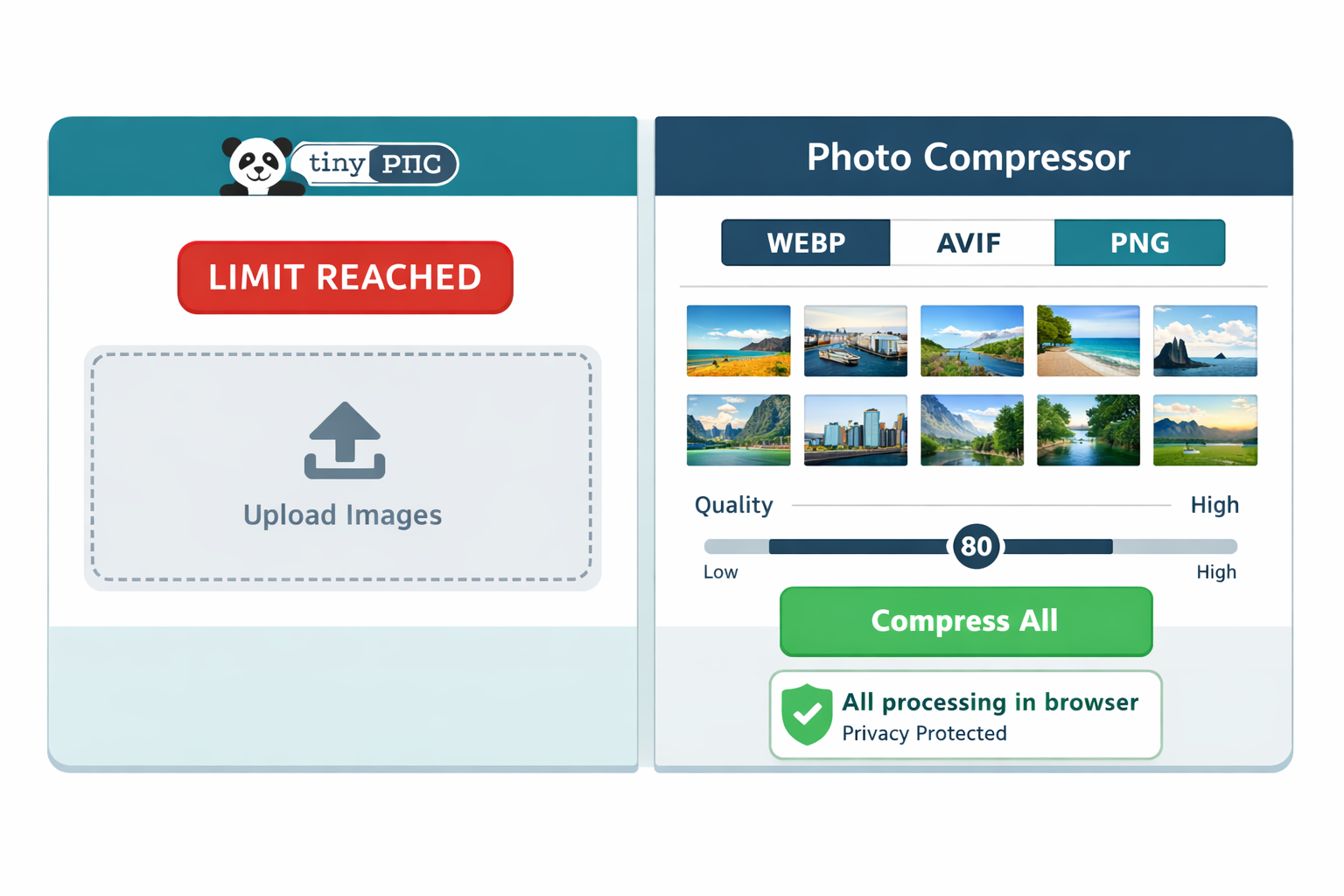
TinyPNG works well for occasional PNG and JPEG compression. But it wasn’t built for the demands of a growing website, an active Shopify store, or an agency managing dozens of clients.
Here’s where most users hit a wall:
- Free tier cap: TinyPNG’s free API allows 500 compressions per month. For a product catalog with 1,000 SKUs, that’s gone in a single session.
- Format gaps: TinyPNG added AVIF and WebP support, but the implementation is limited compared to tools built around modern formats from the ground up.
- No batch control: You can’t set per-format quality targets, choose compression modes (lossy vs. lossless), or preview before downloading.
- Server uploads: Every image you compress goes to TinyPNG’s servers. For client work, medical images, or any sensitive content, that’s a real concern.
- No CMS integration on free plan: WordPress and Shopify users need a plugin or API key, which costs money.
“I was compressing product images for a client’s Shopify store — 800 photos. TinyPNG’s free limit ran out in minutes, and I had no way to batch-process the rest without paying or switching tools.” — A common frustration shared across web dev forums.
This is the point where most site owners start searching for a better photo compressor. The good news: there are excellent options at every price point, including free ones that outperform TinyPNG in specific areas.
Key Features to Look for in a Modern Photo Compressor
The right image compression tool depends on more than just “how small does it make my files?” Before comparing tools, know what features actually matter for your use case.
Format support
At minimum, look for JPEG, PNG, and WebP. AVIF is increasingly important — according to testing by web performance researcher Daniel Aleksandersen on a 600-image dataset, AVIF achieves a median size reduction of approximately 50.3% versus JPEG, compared to WebP’s 31.5%. At the 85th percentile, AVIF still outperforms WebP (39.6% vs. 20%). If your site serves high-traffic pages, AVIF support is worth prioritizing.
Batch processing
Single-image tools are fine for one-off tasks. For product catalogs, blog archives, or client deliverables, you need to compress dozens or hundreds of files at once. Check both the batch size limit and whether you can apply consistent settings across the batch.
Compression modes
- Lossy: Smaller files, some quality reduction (usually invisible at 75–85% quality)
- Lossless: No quality loss, larger files — best for logos, screenshots, graphics with text
- Glossy (ShortPixel term): A middle ground that applies minimal lossy compression for near-lossless results
Privacy and data handling
Client-side tools (Squoosh, Core Tools Hub) process everything in your browser. No file ever leaves your device. Cloud-based tools (ShortPixel, Imagify, Kraken.io) send files to remote servers — faster for large batches, but a privacy consideration for sensitive content.
CMS and workflow integration
WordPress users benefit from plugins that auto-compress on upload. Shopify merchants need tools with native app integrations. Developers need APIs. Marketers need simple drag-and-drop.
Pricing transparency
Watch for tools that offer a “free” tier but charge for the features you actually need. Compare cost per image, monthly limits, and whether credits roll over.
TinyPNG vs. Top Alternatives: Formats, Limits, and Pricing
Here’s a direct comparison of TinyPNG against seven leading alternatives across the criteria that matter most.
| Tool | Formats | Batch | Privacy | Free Tier | Best For |
|---|---|---|---|---|---|
| TinyPNG | PNG, JPEG, WebP, AVIF | Up to 20 at once (web) | Server upload | 500/mo (API) | Quick one-off compression |
| ShortPixel | JPEG, PNG, GIF, WebP, AVIF | Up to 50 online | Server upload | 100 images/mo | WordPress sites, bulk |
| Imagify | JPEG, PNG, GIF, WebP | Unlimited (plugin) | Server upload | 20 MB/mo | WordPress automation |
| Kraken.io | JPEG, PNG, GIF, SVG, WebP | API-driven | Server upload | Limited free | Developers, APIs |
| Squoosh | JPEG, PNG, WebP, AVIF, JPEG-XL | Single image only | Client-side ✅ | Unlimited free | Advanced single-image |
| TinyIMG | JPEG, PNG, WebP | Bulk via app | Server upload | Free plan | Shopify stores |
| ImageOptim | JPEG, PNG, GIF, SVG | Drag-and-drop batch | Client-side ✅ | Free (Mac only) | Mac users, lossless |
| Core Tools Hub | JPEG, PNG, WebP, AVIF | Batch supported | Client-side ✅ | Unlimited free | Privacy-first, no quota |
ShortPixel
ShortPixel is one of the most complete alternatives for WordPress users. It offers three compression modes (lossy, glossy, lossless), automatically generates WebP and AVIF versions, and integrates directly with the WordPress Media Library. The free online tool allows batch compression of up to 50 images, with 100 free API compressions per month.
One important note for 2026: ShortPixel’s WordPress plugin (versions up to 6.4.2) was affected by a path traversal vulnerability (CVE-2026-1246) disclosed on February 4, 2026. If you use ShortPixel for WordPress, update to the latest version immediately and verify your server’s input sanitization settings.
Best for: WordPress site owners who want automated compression on upload, multiple format outputs, and reliable quality control.
Squoosh (Google)
Squoosh runs entirely in your browser using WebAssembly, which means your images never leave your device. It supports AVIF, WebP, JPEG-XL, and standard formats, with real-time side-by-side previews so you can see exactly what quality loss looks like before downloading.
The major limitation: Squoosh is single-image only. There’s no batch mode. For compressing one hero image or testing compression settings before applying them in bulk elsewhere, it’s excellent. For a 500-image product catalog, it’s impractical.
Best for: Developers and designers who need precise control over a single image and want to test AVIF/WebP output quality before committing to a batch workflow.
Imagify
Imagify is built specifically for WordPress and WooCommerce. It auto-compresses images on upload, converts to WebP, and offers bulk optimization of your existing media library. The free plan includes 20 MB of compression per month — enough for light bloggers, but limiting for active sites.
Best for: WordPress bloggers and WooCommerce stores that want set-it-and-forget-it compression without touching individual files.
Kraken.io
Kraken.io targets developers and agencies that need API access and programmatic control. It supports JPEG, PNG, GIF, SVG, and WebP, with lossy and lossless modes. The web interface works for manual compression, but Kraken.io’s real value lies in its API, which integrates with custom pipelines and build tools.
Best for: Developers building automated image pipelines or agencies managing compression at scale across multiple client sites.
TinyIMG
TinyIMG is purpose-built for Shopify. It compresses product images, generates alt text, handles SEO metadata, and integrates directly with the Shopify admin. For e-commerce merchants who don’t want to manage image optimization manually, it’s one of the cleanest solutions available.
Best for: Shopify store owners who want image compression bundled with SEO features in a single app.
ImageOptim
ImageOptim is a Mac desktop app that handles drag-and-drop batch compression for JPEG, PNG, GIF, and SVG files. It runs entirely offline — no internet connection needed, no server uploads. The downside: it’s Mac-only, and it doesn’t support WebP or AVIF output.
Best for: Mac users who need fast, private, lossless batch compression and don’t need modern format output.
CrunchPix
CrunchPix is a newer browser-based tool highlighted in early 2026 comparisons for filling the gap between Squoosh (single-image, private) and TinyPNG (batch, server-side). It supports batch compression to WebP and AVIF with parallel processing and ZIP downloads, all in the browser. It uses canvas-based processing rather than WebAssembly, which limits codec depth compared to Squoosh — but for most use cases, the output quality is acceptable and the privacy benefit is real.
Best for: Users who need private batch compression to WebP/AVIF without installing software.
Which Photo Compressor Is Right for Your Use Case?
Different workflows need different tools. Here’s a decision matrix to cut through the noise in comparisons.
🖊️ Bloggers and Content Creators
Choose: Imagify (WordPress) or Core Tools Hub (any platform)
You’re uploading a few images per post, not hundreds. You want compression to happen automatically without thinking about it. Imagify handles this inside WordPress. If you’re on a different platform or want zero server uploads, Core Tools Hub’s browser-based image compressor processes files locally with no account required.
Common mistake: Using lossless compression for every image. For blog photos and hero images, lossy at 80–85% quality is visually identical and 40–60% smaller.
🛒 Shopify and E-Commerce Merchants
Choose: TinyIMG or ShortPixel (API)
Product images are high-volume and directly tied to page speed scores, which affect conversion rates. TinyIMG integrates natively with Shopify. ShortPixel’s API works well for custom storefronts. Both support WebP output, which most modern browsers handle natively.
If you’re converting existing product images to WebP format, Core Tools Hub’s JPG to WebP converter or PNG to WebP converter can handle that step without uploads.
🏢 Agencies and Freelancers
Choose: ShortPixel (bulk online) or Kraken.io (API)
You’re managing multiple client sites with different CMS setups. ShortPixel’s bulk online tool handles up to 50 images at once. Kraken.io’s API integrates into custom workflows. For client deliverables where privacy matters, browser-based tools keep files off third-party servers entirely.
👨💻 Developers
Choose: Squoosh (for testing) + Kraken.io or Sharp (for automation)
Squoosh gives you format-by-format previews to validate compression settings. Kraken.io or the Node.js Sharp library handles programmatic batch processing in build pipelines. For quick format conversions during development, Core Tools Hub’s AVIF converter runs in the browser with no setup.
🔒 Privacy-Conscious Users
Choose: Squoosh, ImageOptim (Mac), or Core Tools Hub
If your images contain sensitive content — client photos, medical images, legal documents with embedded images — client-side processing is non-negotiable. These tools never transmit your files to a remote server.
Privacy, Performance, and Automation Considerations
Client-side vs. cloud-based compression is a real tradeoff, not just a marketing distinction.
Cloud-based tools (ShortPixel, Imagify, Kraken.io, TinyPNG) upload your files to remote servers, apply compression using server-side codecs, and return the result. This approach is fast, supports heavy codecs such as AVIF, and scales well for large batches. But your files do leave your device, even temporarily.
Client-side tools (Squoosh, Core Tools Hub, ImageOptim) run compression algorithms directly in your browser or on your computer. Files never leave your device. The tradeoff is that browser-based AVIF encoding can be slower than server-side processing, and some advanced codec features aren’t available in canvas-based implementations.
For most users, the practical difference in output quality is small. The privacy difference, however, is significant for specific use cases.
Automation considerations:
- WordPress users: Plugins like Imagify and ShortPixel compress on upload automatically. No manual step required.
- Shopify users: TinyIMG handles this at the app level.
- Developers: Kraken.io API, Sharp (Node.js), or Squoosh CLI integrate into CI/CD pipelines.
- Everyone else: Manual upload tools work fine for occasional use. For regular batch work, a plugin or API saves significant time.
EXIF data and metadata: Many compression tools strip EXIF data by default, which reduces file size further but removes location, camera, and copyright information. If you need to preserve metadata, check tool settings before compressing. Core Tools Hub also offers a standalone image EXIF remover if you want to strip metadata separately.
How Core Tools Hub Fits Into Your Optimization Stack
Core Tools Hub is a browser-based, privacy-first file tool suite. All processing happens in your browser — no files are uploaded to any server, no account is required, and there are no monthly compression limits.
For image optimization specifically, Core Tools Hub covers:
- Image compression — Compress PNG, JPEG, and WebP files with quality control, all in-browser
- AVIF conversion — Convert PNG, JPEG, or WebP to AVIF format for maximum compression
- PNG to WebP and JPG to WebP — Convert to modern formats without server uploads
- Image resizing — Resize to exact pixel dimensions before compressing
- WebP to PNG — Convert back to PNG when compatibility requires it
Core Tools Hub isn’t a replacement for ShortPixel’s WordPress plugin or Kraken.io’s API. It’s designed for users who need fast, clean results without installing software, creating accounts, or sending files to third-party servers. It fits naturally into workflows where privacy matters, where you’re on a platform without plugin support, or where you just need a quick fix without friction.
For a full overview of available image tools, see the Core Tools Hub image tools collection.
Suggested Upgrade Path as Your Site and Media Library Grow
Most site owners start with a free tool and upgrade as their needs grow. Here’s a practical path that avoids paying for features you don’t need yet.
Stage 1 — Just starting out (under 50 images/month)
Use TinyPNG’s free tier or Core Tools Hub for occasional compression. No cost, no commitment. Focus on getting images to a reasonable size rather than optimizing every byte.
Best settings at this stage: JPEG/PNG at 80% quality, lossy compression. Convert hero images to WebP using Core Tools Hub’s JPG to WebP tool for faster page loads.
Stage 2 — Growing site or store (50–500 images/month)
Install a WordPress plugin (Imagify or ShortPixel) or a Shopify app (TinyIMG). Set it to auto-compress on upload. Enable WebP generation if your host supports it. At this stage, automation saves more time than it costs.
Stage 3 — Active media library (500+ images/month or existing backlog)
Bulk-compress your existing media library using ShortPixel’s bulk optimizer or Kraken.io’s API. Prioritize AVIF for high-traffic pages. Consider running an image audit to find uncompressed files that are slowing your site.
Stage 4 — Agency or developer scale
Build compression into your deployment pipeline using Kraken.io’s API or Sharp. Automate format conversion (WebP for broad support, AVIF for modern browsers). Set up monitoring to catch uncompressed uploads before they reach production.
Common mistake at every stage: Compressing images after they’re already embedded in pages, then not updating the file references. Always compress before uploading, or use a plugin that handles replacement automatically.
FAQ
Q: Is TinyPNG still worth using in 2026? Yes, for simple one-off PNG and JPEG compression. TinyPNG is fast, free for up to 500 API calls per month, and easy to use. It becomes limiting when you need batch control, AVIF output, or privacy-first processing.
Q: What’s the best free photo compressor with no upload limits? Core Tools Hub’s browser-based image compressor has no monthly limits and processes files entirely in your browser. Squoosh is also free and unlimited but handles only one image at a time.
Q: Does AVIF really compress better than WebP? Yes, consistently. In a 600-image test by Daniel Aleksandersen, AVIF achieved a median size reduction of 50.3% versus JPEG, compared to WebP’s 31.5%. AVIF files are typically 20–30% smaller than equivalent WebP files at similar quality levels.
Q: Which tool is best for WordPress image compression? ShortPixel and Imagify are the two strongest options. ShortPixel offers more compression modes and AVIF support. Imagify is simpler to configure. Both auto-compress on upload and handle bulk optimization of existing libraries.
Q: Can I compress images without uploading them to a server? Yes. Squoosh (single image), Core Tools Hub (batch), and ImageOptim (Mac, batch) all process images client-side. Your files never leave your device.
Q: What’s the difference between lossy and lossless compression? Lossy compression removes some image data to achieve smaller files — the quality reduction is usually invisible at 80–85% settings. Lossless compression reduces file size without removing any data, resulting in larger files but perfect quality. Use lossy for photos; use lossless for logos, screenshots, and graphics with text.
Q: Is ShortPixel safe to use after the 2026 vulnerability? ShortPixel patched CVE-2026-1246 (disclosed February 4, 2026, affecting WordPress plugin versions up to 6.4.2). Update to the latest version immediately. The vulnerability was in the WordPress plugin’s file path handling, not the core compression service.
Q: What formats should I use for web images in 2026? WebP for broad compatibility (supported by all modern browsers). AVIF for maximum compression on high-traffic pages where browser support is confirmed. Keep JPEG or PNG as fallbacks for older browsers or CMS systems that don’t support modern formats.
Q: Does image compression affect SEO? Indirectly, yes. Smaller images load faster, which improves Core Web Vitals scores (specifically LCP — Largest Contentful Paint). Google uses page speed as a ranking signal. Compressing images is one of the most reliable ways to improve load time without changing your content.
Q: Can I compress images in bulk without paying for a tool? Yes. ShortPixel’s free online tool allows up to 50 images per batch (100/month free). Core Tools Hub supports batch compression with no monthly limit. CrunchPix offers browser-based batch compression to WebP/AVIF for free.
Q: What’s the best tool for Shopify image optimization? TinyIMG is purpose-built for Shopify and handles compression, alt text, and SEO metadata in one app. For manual compression before uploading, Core Tools Hub or ShortPixel’s online tool work well.
Q: How do I convert existing images to WebP without a plugin? Use Core Tools Hub’s PNG to WebP converter or JPG to WebP converter. Both run in your browser, support batch conversion, and require no account or software installation.
Key Takeaways
- TinyPNG’s free tier (500 API calls/month, 20 images per web batch) is limiting for active sites and stores.
- AVIF offers significantly better compression than WebP — roughly 50% size reduction versus JPEG, compared to WebP’s 30%.
- ShortPixel is the strongest all-around alternative for WordPress users; Imagify is simpler for bloggers; TinyIMG is best for Shopify.
- Squoosh is the best free option for single-image AVIF/WebP compression with full privacy.
- Client-side tools (Core Tools Hub, Squoosh, ImageOptim) never upload your files — important for sensitive content.
- ShortPixel’s WordPress plugin had a security vulnerability (CVE-2026-1246) disclosed in February 2026 — update immediately if you use it.
- For most sites, lossy compression at 80–85% quality produces files that are 40–60% smaller with no visible quality difference.
- The best upgrade path: start free (Core Tools Hub or TinyPNG), add a plugin when you hit WordPress/Shopify, move to API-based automation at scale.
- Modern format conversion (WebP, AVIF) is as important as compression — both reduce file size and improve load time.
- Privacy-first tools that run entirely in the browser are a practical, no-cost option for users who can’t or won’t send files to third-party servers.
Conclusion
TinyPNG earned its reputation as a go-to photo compressor for good reason — it’s simple, reliable, and fast for basic use. But as sites grow, formats evolve, and privacy expectations rise, its limitations become real friction.
The alternatives covered here aren’t just “more of the same.” ShortPixel and Imagify bring automation and CMS depth. Squoosh brings format precision and client-side privacy. TinyIMG solves Shopify-specific needs. Core Tools Hub offers a no-quota, no-upload option that works for anyone who needs fast, clean results without creating an account or installing software.
Actionable next steps:
- Identify your biggest compression pain point: limits, format support, privacy, or automation.
- Match that to the tool in the comparison table above.
- For immediate compression without any setup, try Core Tools Hub’s image compressor — it runs in your browser, supports modern formats, and has no monthly cap.
- If you’re on WordPress, install ShortPixel or Imagify and run a bulk optimization pass on your existing media library.
- Start converting high-traffic images to WebP or AVIF using the AVIF converter or format conversion tools — the file size savings are immediate and measurable.
The right photo compressor isn’t the one with the most features. It’s the one that fits your workflow, respects your privacy requirements, and handles the formats your site actually needs.