













Last updated: April 27, 2026
Quick Answer
To fix file too large to email problems, first check the size limit for the email service, upload form, or app. Then use the right method for the file type: compress PDFs, resize or convert images, split large PDFs, or send a cloud link if the file is still too big. Most email services cap attachments around 20–25 MB, and some forms allow much less.
Key Takeaways
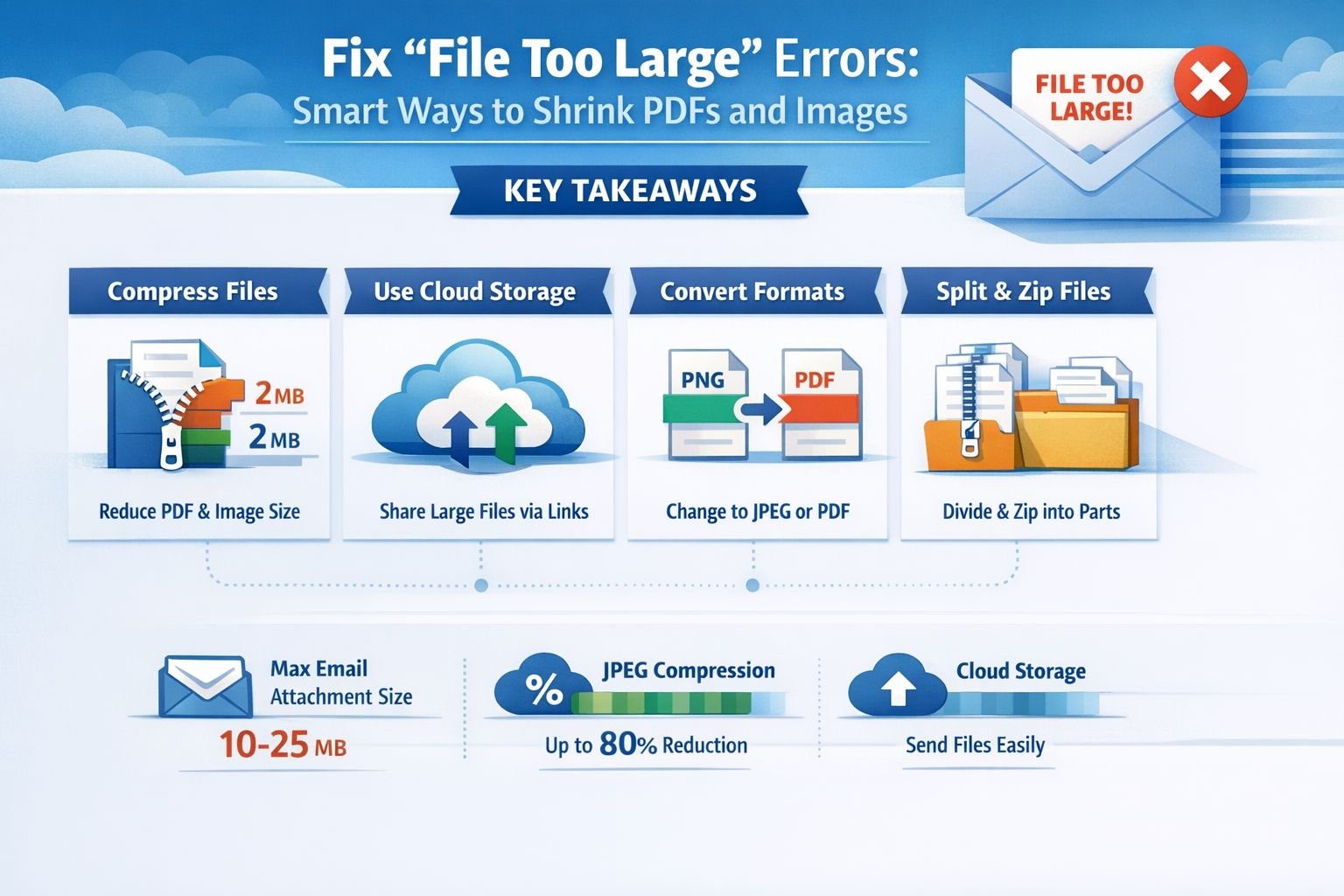
- Email attachment limits are usually smaller than they look because encoding adds extra size overhead.
- A safe target is often well below the posted limit, especially for email attachments.
- PDF compressors can often reduce file size substantially while keeping text readable.
- Large images are often easiest to fix by resizing dimensions and changing format.
- PNG files are usually bigger than JPG or WebP for photos.
- Scanned PDFs are often large because they contain many full-page images.
- If one PDF is still too large, split the PDF pages into smaller files.
- Cloud-share links are best when a file must stay full quality or is still too large after compression.
- Core Tools Hub works in your browser, with no installs and no sign-up required, making it useful for quick, privacy-first file fixes.
Why do “file too large” errors happen?
A “file too large” error means the file exceeds the limit set by the email provider, web portal, or messaging app. The fix is usually simple: reduce size, change format, or split the file before trying again.
Common reasons include:
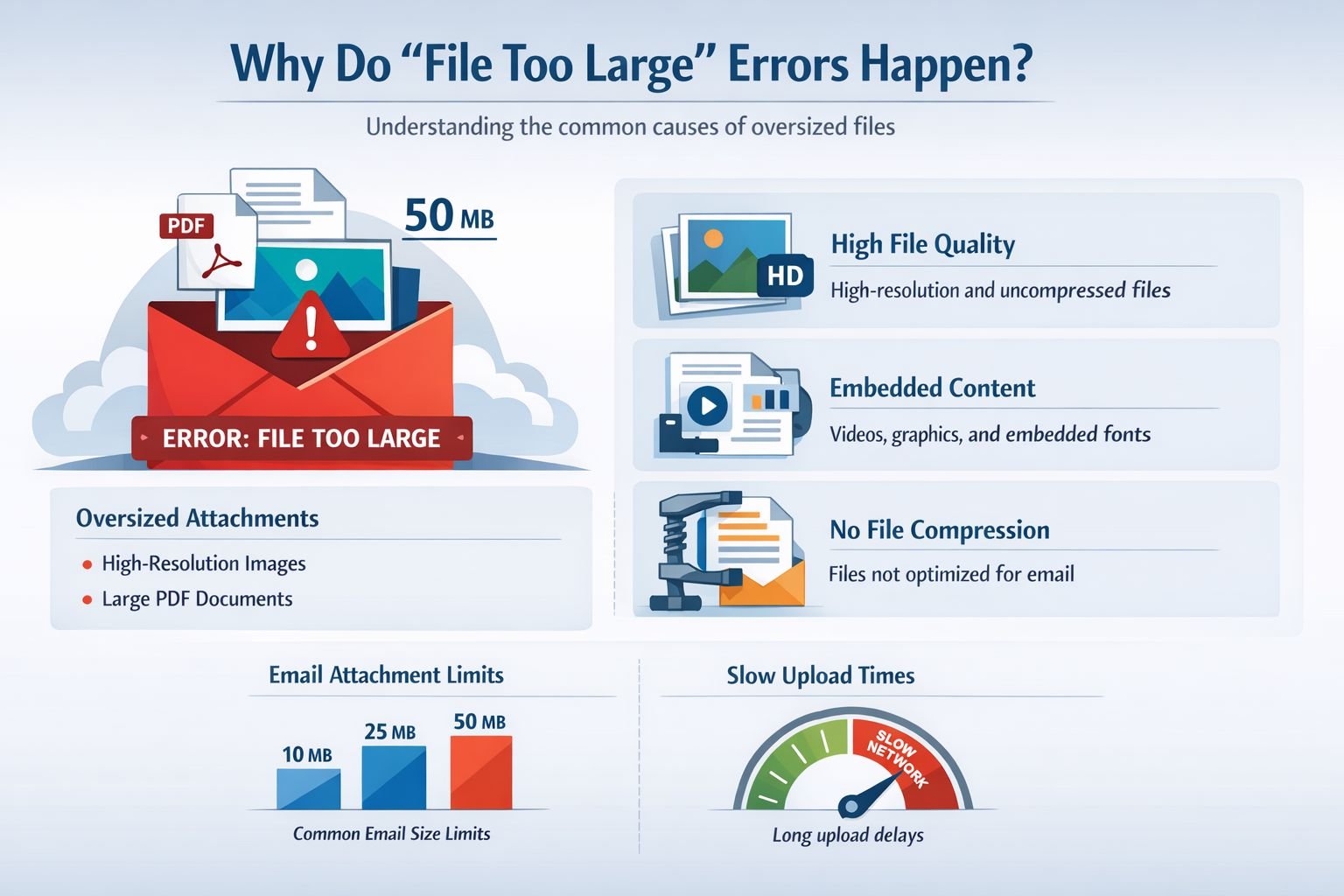
- Email limits: Gmail, Outlook, and similar services commonly allow attachments of about 20–25 MB per message.
- Upload form limits: Job portals, school systems, and government forms often use stricter limits such as 1–10 MB.
- Encoding overhead: Email attachments grow in size during transmission due to MIME encoding, so a file near the stated limit may still fail.
- Heavy file content: Scanned PDFs, high-resolution photos, and PNG screenshots can be much larger than expected.
A file that looks “under the limit” on a computer can still fail in email because attachments are wrapped and expanded during sending.
Quick example:
A 19 MB PDF resume may still trigger a send error in some inboxes. A 6 MB portal limit is even stricter, so that same file needs stronger compression or page extraction.
What file size should you aim for to fix a file that is too large to email?
To fix a file too large to email, aim for about 60–80% of the stated email cap when possible. That buffer helps avoid hidden overhead and repeated send failures.
Safe target guide
| Destination | Stated limit | Better target |
|---|---|---|
| Gmail or Outlook attachment | 20–25 MB | 12–18 MB |
| Job application portal | 5–10 MB | 3–8 MB |
| School or government form | 1–5 MB | 0.8–4 MB |
| Messaging app upload | Varies | Keep comfortably under limit |
Choose this rule:
- If sending by email, stay clearly below the cap.
- If uploading to a portal, follow the exact posted limit.
- If no limit is shown, aim for under 10 MB unless the system says otherwise.
Common mistake:
Retrying the same file over and over without changing it. Support threads often show people doing this, but the platform limit will not change on its own.
How do you check the file size of PDF and image files?
Checking file size first prevents guesswork. On most devices, you can view file size in the file manager before sending.
Simple step-by-step
- Find the file on the computer or phone.
- Open file details or properties.
- Look for the size shown in MB or KB.
- Compare that size with the destination limit.
- If it is too close to the limit, reduce it before sending.
What size usually causes trouble?
- PDFs: scanned forms, contracts, portfolios, and exported slide decks
- Images: phone photos, screenshots, and design files from Canva or Photoshop
- Mixed files: a message with several smaller attachments can still exceed the total limit
If the file is a PDF, a dedicated PDF compressor is usually the fastest clean fix. If it is an image, use an image compressor or image resizer.
How can you reduce the PDF size so the file isn’t too large to email?
The best way to shrink a PDF is to compress it first. If compression is not enough, split the PDF, extract only the needed pages, or rebuild image-heavy pages at a lower resolution.
Best PDF fixes in order
Compress the PDF
- Best for most text documents, scanned forms, and reports
- Often reduces size meaningfully without hurting readability
Split the PDF
- Best if only some pages are needed
- Useful for uploads with very low caps
Extract only the needed pages
- Best for applications asking for one document section, not the full packet
Convert image-heavy pages
- If a PDF is mostly photos or scans, reducing image resolution inside the PDF can help
Best settings for PDF emailing
| Use case | Suggested approach |
|---|---|
| Resume, cover letter, forms | Light to medium compression |
| Scanned documents | Medium compression |
| Print-ready brochure | Light compression only |
| Huge multi-page packet | Compress, then split |
PDF compression guides commonly note that reductions vary by content. Text-heavy documents may shrink modestly, while scanned or image-heavy PDFs can shrink much more.
For a deeper walkthrough, see Compress PDF Without Losing Quality — 2026 Guide or use the browser-based Compress PDF tool.
Edge case:
If the PDF must stay print-ready, aggressive compression may soften logos or photos. In that case, use light compression or send a cloud link instead.
How do you shrink image files without ruining quality?
To shrink an image, reduce the pixel dimensions, remove unnecessary metadata, and convert to a lighter format when appropriate. For non-technical users, that is the fastest way to reduce file size for email and uploads.
Best image fixes in order
Resize dimensions
- A 4000 px phone photo is often far larger than needed for email
- For forms or web uploads, 1200–1600 px is often enough
Compress the image
- Good for JPG, PNG, and WebP files
- Smart lossy compression can reduce size heavily while keeping the image visually crisp
Convert format
- PNG to JPG for photos
- PNG to WebP for web-style image sharing
- HEIC to JPG for compatibility
Remove metadata
- EXIF data can add extra bytes, especially on phone photos
Best settings for images
| Image type | Best format | Good starting size |
|---|---|---|
| Phone photo for email | JPG | 1600 px wide |
| Screenshot with text | PNG or WebP | 1200–1600 px wide |
| Web upload image | WebP | Based on portal limit |
| iPhone HEIC for forms | JPG | 1200–2000 px wide |
If the image is a photo, converting a large PNG to JPG can cut the file size sharply. If it is a modern web image, PNG to WebP is often a better option. If the file came from an iPhone and a portal rejects it, try HEIC to JPG.
Helpful reading:
- Compress Image File Size Without Losing Quality (2026)
- How to Resize Images Online Free 2026 | Complete Guide
- Lossless vs Lossy Formats: Balancing File Size and Image Quality
Common mistake:
Using PNG for a photograph. PNG is great for graphics and transparency, but it is often much bigger than JPG or WebP for normal photos.
When should you split a PDF instead of compressing it?
Split a PDF when compression does not get the file under the limit, or when the recipient only needs part of the document. Splitting is often the cleanest fix for application packets, scanned records, and long reports.
Choose split PDF if:
- The file is still too large after compression
- Only pages 1–3 are needed
- A portal requires multiple smaller uploads
- The document has sections, like a transcript plus certificates
Use Split PDF — Extract Pages from PDF for full separation, or Extract Pages from PDF if only a few pages are needed.
Quick example:
A 40-page scanned packet may shrink from 28 MB to 15 MB after compression, but a portal only allows 10 MB. Splitting into two smaller files usually solves the problem faster than trying harsher compression.
When is a cloud link better than shrinking the file?
Use a cloud link when quality must stay unchanged, the file is still too large after cleanup, or the recipient is comfortable opening shared links. This is often the best last resort for large presentations, print files, and full-resolution photo sets.
Choose a cloud link if:
- The file is over about 25 MB for email
- Compression makes the file look too soft
- The recipient needs the full original
- You are sending multiple large files
Adobe and Microsoft both point users toward cloud-sharing options when attachments exceed practical email limits.
Tradeoff:
Cloud links avoid attachment limits, but they add an extra click for the recipient. For job applications or formal submissions, always check whether links are allowed before using them.
What is the fastest decision tree to fix a file too large to email?
Use this simple flow: identify the file type, check the limit, then choose the smallest effective fix. That avoids over-compressing files and saves time.
Quick decision flowchart
If the file is a PDF:
- Under limit but failing in email → compress lightly
- Far over limit → compress, then split
- Only some pages needed → extract pages
- Must stay print-ready → use light compression or cloud link
If the file is an image:
- Huge phone photo → resize first
- PNG photo → convert to JPG or WebP
- HEIC rejected by portal → convert to JPG
- Still too large → compress after resizing
If several files together are too large:
- Compress each file first
- Merge only if the portal wants one document, using Merge PDF Files — Combine PDFs Free, Private
- Otherwise, send separate, smaller files or a cloud link
What mistakes make file size problems worse?
A few common mistakes keep files bigger than they need to be. Avoiding them usually saves more time than repeated retries.
Common mistakes
- Sending files right at the stated email limit
- Scanning documents at very high resolution for simple text forms
- Keeping every page in a PDF when only a few pages are needed
- Uploading original phone photos without resizing
- Using PNG for photos
- Zipping image-heavy files and expecting big savings
- Converting files repeatedly, which can lower quality over time
A zip file can help with some text-heavy PDFs, but it usually does less for already-compressed images and image-heavy PDFs.
Related reading
- Free Online PDF & Image Tools — Fast, Private, In-Browser
- Online PDF Tools
- Online Image Tools
- Browser-Based File Conversion vs Cloud Upload Tools: Which Is Safer in 2025?
FAQ
Why does a 20 MB file still fail in email?
Email attachments can grow during encoding, so a file near the limit may exceed the real sending threshold.
What is the best way to fix a file that is too large to email for PDFs?
Start with PDF compression. If that is not enough, split the PDF or extract only the needed pages.
Does zipping always make files small enough?
No. Zip works better on some text-heavy files than on photos or already compressed PDFs.
Is JPG smaller than PNG?
Usually, yes for photos. PNG is often larger, especially for camera images.
What size should a resume PDF be?
A resume PDF should be kept as small as possible, ideally well under the limits of common portals or email services.
What if a website rejects HEIC images from an iPhone?
Convert HEIC to JPG first, then resize or compress if needed.
Is cloud sharing better than email attachments?
Cloud sharing is better for very large files or files that must keep full quality.
Can PDF compression hurt quality?
Yes, especially with image-heavy PDFs. Light compression usually protects readability better than aggressive settings.
Are browser-based tools private?
Some are. Core Tools Hub is designed to be privacy-first, with file handling that runs in your browser and no signup required.
Conclusion
Most “file too large” errors can be fixed in a few minutes. The simplest path is to check the limit, identify the file type, then compress, resize, convert, or split only as needed. For email, staying below the stated cap matters because attachment overhead can push files over the edge.
For non-technical users, the best quick fix is usually:
- PDF: compress first, split second
- Image: resize first, compress second, convert format if needed
- Still too large: use a cloud link if allowed
If a fast, privacy-first fix is needed, Core Tools Hub offers PDF tools and image tools that run in the browser, with no installs and no signup required. Start with the PDF compressor or image compressor to reduce file size for email and uploads in minutes.