













Last updated: May 6, 2026
Quick Answer: To convert Excel to PDF online free without broken formatting, set your print area and page scaling in Excel’s Page Layout view first, then upload your file to a browser-based converter like CoreToolsHub’s Excel to PDF tool. This two-step approach — pre-format, then convert — prevents the cut-off columns and misaligned charts that most people run into.
Key Takeaways
- Most Excel-to-PDF formatting problems happen before conversion, not during it — fixing print area and page scaling in Excel solves 80% of layout issues.
- Free online converters like CoreToolsHub, Nitro, and Smallpdf handle XLSX and XLS files without requiring software installs or signups.
- Set “Fit to 1 page wide” in Excel’s Page Layout tab before uploading to any converter — this alone prevents column cutoffs.
- Multi-tab workbooks require a specific step (select all sheets before exporting) to include every sheet in one PDF.
- Adobe Acrobat produces high-accuracy results but requires a free account to save files.
- Browser-based tools that process files locally keep your spreadsheet data private — no server uploads means no data exposure.
- After converting, if your PDF file size is large, run it through a PDF compressor to reduce it for email sharing.
- iLovePDF and Nitro both handle multi-sheet files well, but iLovePDF has daily usage limits for free users.
- Always preview the PDF output before sharing — one quick scroll catches 90% of layout problems.
Why Does Excel-to-PDF Conversion Break Formatting?
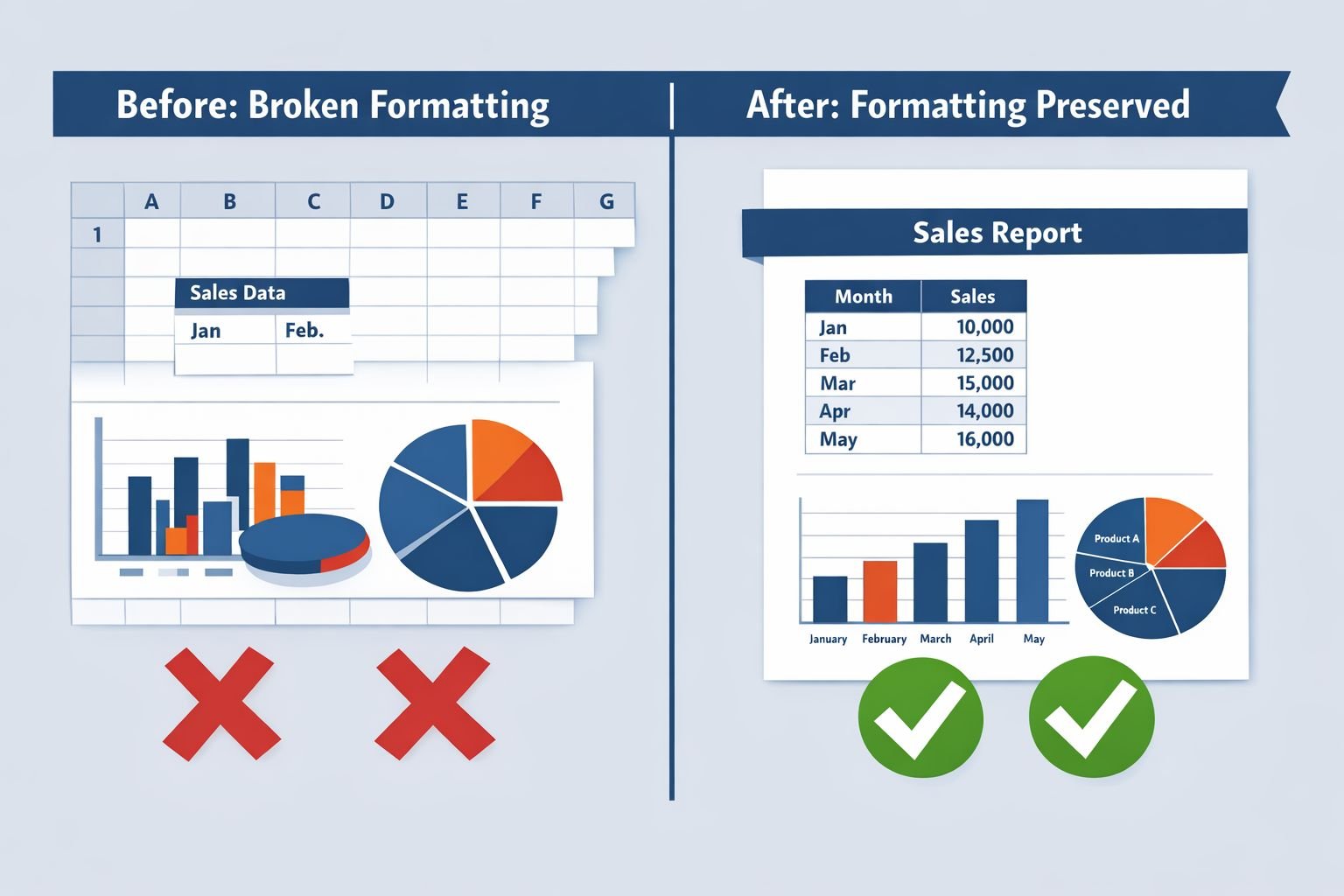
Most formatting problems aren’t caused by the converter — they’re caused by Excel’s default page settings. When you open a spreadsheet, Excel doesn’t automatically know where your page boundaries are. Without a defined print area, converters treat the entire worksheet as one continuous block and slice it wherever the default paper size ends. That’s why columns get cut off mid-cell.
Here are the most common culprits:
- No print area defined: Excel exports everything, including blank columns far to the right of your data.
- Page scaling not set: Wide spreadsheets overflow onto a second page horizontally.
- Default margins too wide: Reduces usable page width, pushing columns off the edge.
- Charts anchored to cells: If cells resize during conversion, embedded charts shift or crop.
- Multi-sheet workbooks: Most converters only process the active sheet unless you tell them otherwise.
The good news: every one of these problems is fixable before you upload a single file.
Set Up Your Excel File Before Converting (Critical Pre-Formatting Steps)
This is the step most guides skip — and it’s the reason your PDF looks wrong. Spend two minutes here, and the conversion almost always comes out clean.
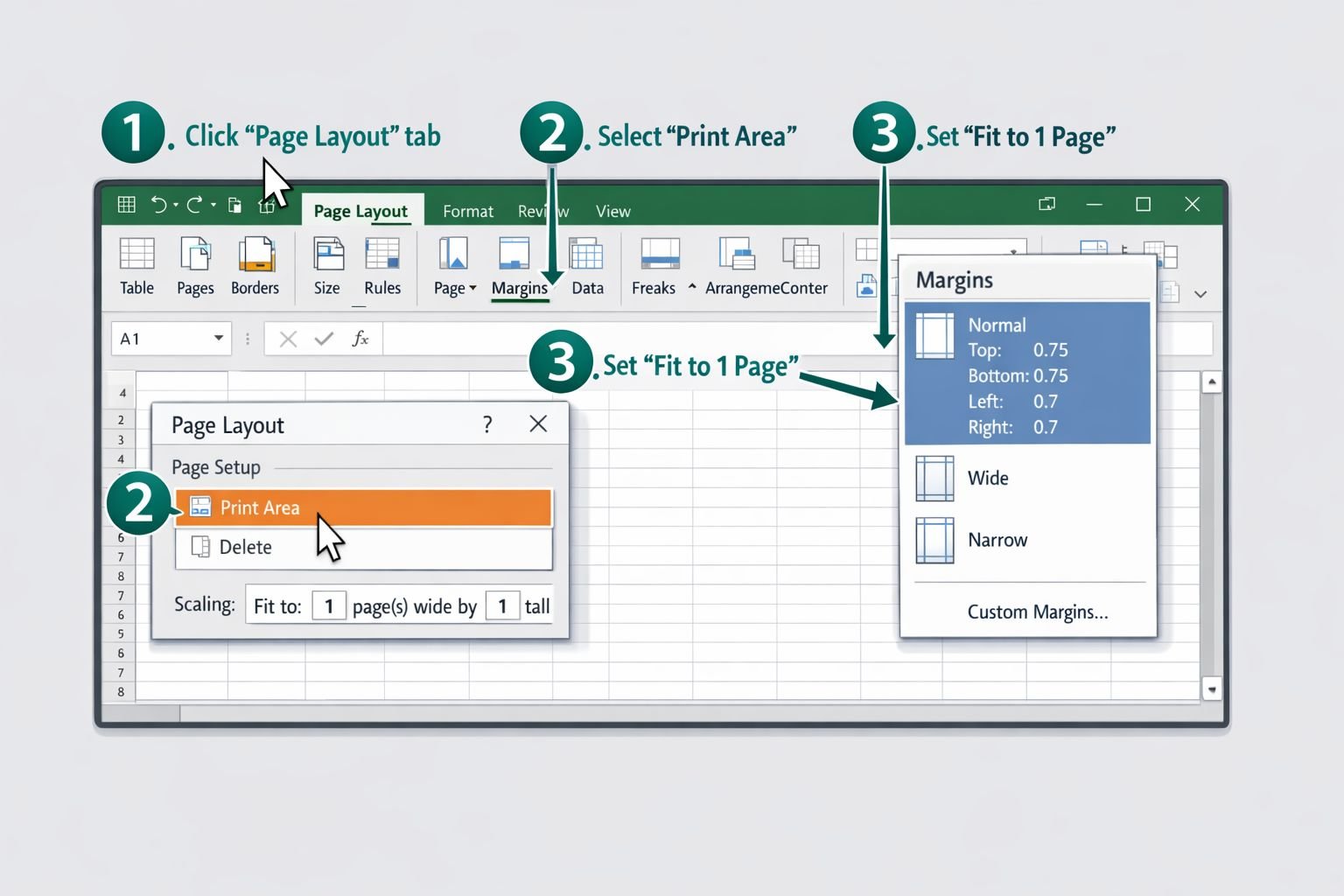
Step 1: Define Your Print Area
- Select the cells you want in the PDF (highlight your actual data range).
- Go to Page Layout → Print Area → Set Print Area.
- A dashed border will appear around your selection — that’s your export boundary.
This tells Excel (and any converter) exactly where your data ends. Without it, the tool guesses — and usually guesses wrong.
Step 2: Scale to Fit the Page
- In the Page Layout tab, find the Scale to Fit group.
- Set Width to 1 page and Height to Automatic.
- This forces all columns onto one horizontal page, regardless of how wide your spreadsheet is.
For very tall spreadsheets (hundreds of rows), leave Height set to Automatic so rows flow naturally across multiple pages rather than being compressed into unreadable rows.
Step 3: Check Page Break Preview
Go to View → Page Break Preview. Blue lines show exactly where pages will split. Drag them to adjust. If a column header lands at the bottom of page 1 with data on page 2, move the break up so they stay together.
Step 4: Set Margins
Go to Page Layout → Margins → Narrow. Narrow margins give you about 15% more usable width per page — often enough to fit that one extra column that kept getting cut off.
Best Settings Reference Table
| Setting | Recommended Value | Why It Matters |
|---|---|---|
| Print Area | Your data range only | Excludes blank cells from export |
| Page Width | 1 page | Prevents horizontal overflow |
| Page Height | Automatic | Lets rows flow naturally |
| Margins | Narrow (0.25″) | Maximizes usable page width |
| Orientation | Landscape (wide sheets) | Better fit for many-column data |
| Paper Size | A4 or Letter | Matches most printer/screen standards |
Common mistake: Skipping the print area step and jumping straight to the converter. Even the best online tools can’t fix what Excel sends them — garbage in, garbage out.
How to Convert Excel to PDF Online Free — Step by Step
Once your Excel file is pre-formatted, the actual conversion takes under a minute. Here’s the process using CoreToolsHub’s free Excel to PDF converter:
- Open the tool at coretoolshub.com/excel-to-pdf — no signup required, no installs.
- Upload your file by clicking the upload button or dragging your XLSX or XLS file onto the page.
- Wait for processing — conversion typically completes in seconds for files under 10MB.
- Preview the output if available, or download and open the PDF to check the formatting.
- Download your PDF — it’s ready to share, print, or attach to an email.
All processing runs in your browser, which means your spreadsheet data never leaves your device. That matters for financial models, client data, or any file with sensitive figures.
Choose your tool based on your situation:
- Use CoreToolsHub for fast, private, no-signup conversion with clean results.
- Use Nitro if you need drag-and-drop simplicity and no registration — Nitro produces well-preserved layouts with no watermarks.
- Use Smallpdf if you’re on a shared device and want it to auto-delete after 1 hour.
- Use Adobe Acrobat if formatting accuracy is critical and you don’t mind creating a free account.
If your resulting PDF ends up larger than expected — common with spreadsheets containing embedded charts or images — run it through a PDF compression tool to reduce the file size before emailing.
How to Include All Tabs and Sheets in One PDF
By default, most converters (and Excel’s own export function) only process the currently active sheet. If your workbook has five tabs and you need all five in one PDF, follow these steps.
Method 1: Select All Sheets in Excel Before Exporting
- Right-click any sheet tab at the bottom of Excel.
- Click Select All Sheets — all tabs will highlight.
- Go to File → Export → Create PDF/XPS (or Save As → PDF).
- Excel will include every sheet in the exported PDF, in tab order.
Method 2: Export Each Sheet Separately, Then Merge
If you’re using an online converter that processes one sheet at a time:
- Export each sheet as a separate PDF.
- Use a free PDF merge tool to combine them into one document.
- Reorder pages if needed using a PDF page reorder tool.
Method 1 is faster. Method 2 gives you more control over page order and lets you exclude specific sheets.
Edge case: If different sheets have different orientations (some portrait, some landscape), export them separately and merge — Excel sometimes overrides orientation settings when all sheets are selected.
Best Free Excel to PDF Converters in 2026 Compared
Several solid free options exist. Here’s an honest comparison based on what matters most for business users: formatting accuracy, privacy, and ease of use.
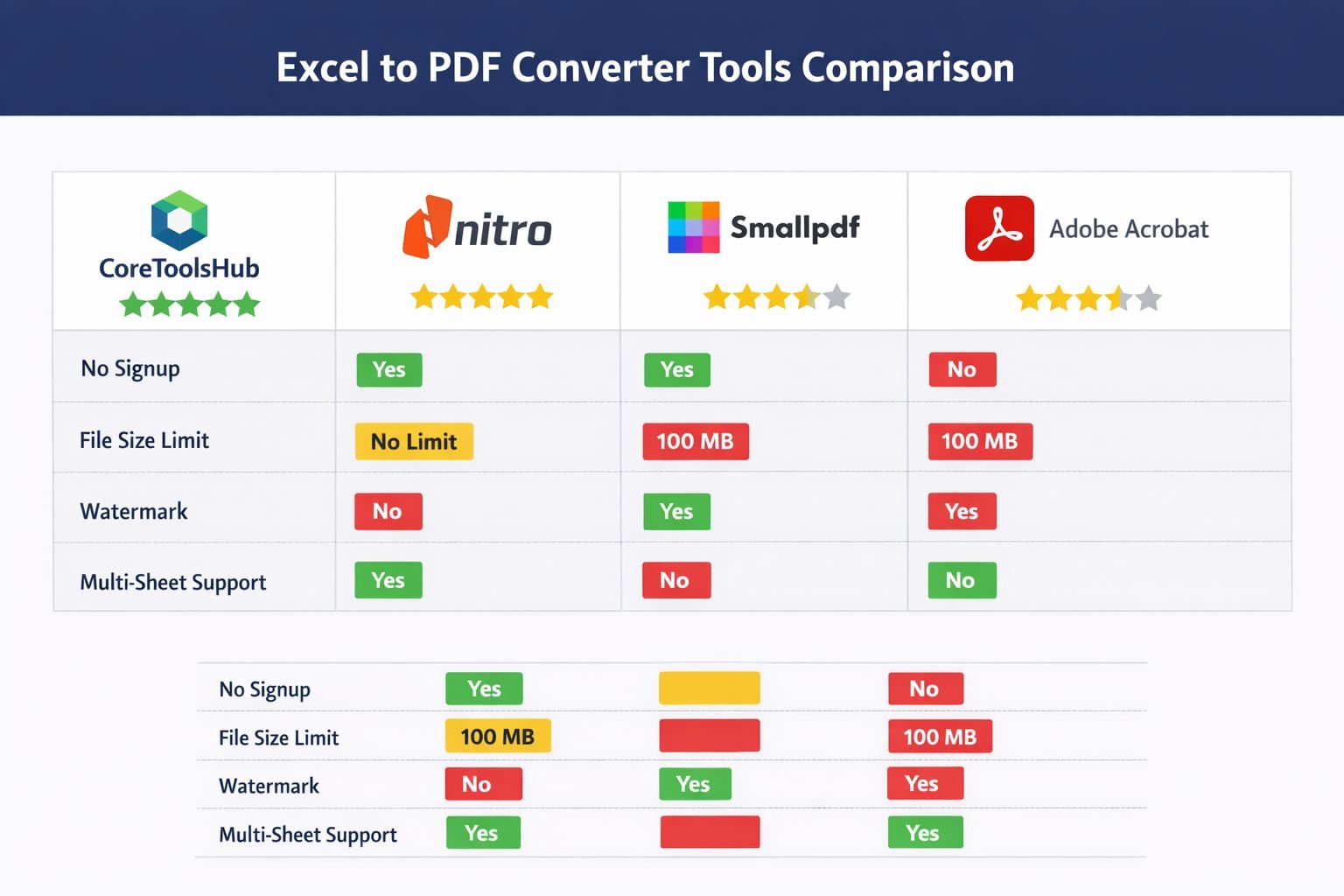
| Tool | Signup Required | File Size Limit | Watermarks | Multi-Sheet | Privacy |
|---|---|---|---|---|---|
| CoreToolsHub | No | Varies | No | Yes (with prep) | In-browser processing |
| Nitro | No | No stated limit | No | Yes | Standard upload |
| Smallpdf | No (basic) | 5MB free tier | No | Limited | 1-hour auto-delete |
| Adobe Acrobat | Yes (free account) | No stated limit | No | Yes | Adobe servers |
| iLovePDF | No | No stated limit | No | Yes | Standard upload; daily limits |
Notes on each:
- Nitro handles layout preservation well and requires no registration, making it a strong choice for one-off conversions.
- Smallpdf updated its converter in March 2026, emphasizing the preservation of formulas and tables for cross-device sharing.
- Adobe Acrobat delivers high accuracy but routes files through Adobe’s servers and requires sign-in to download results.
- iLovePDF is fast and handles multi-sheet files accurately, but free users hit daily conversion limits.
- EaseUS PDF Editor supports batch Excel-to-PDF on Windows and Mac with fonts and layouts intact.
For users who handle sensitive financial data or client spreadsheets, a browser-based tool that processes locally is worth prioritizing. See why browser-based conversion is safer than cloud upload tools for a full breakdown.
Common Mistakes That Ruin Excel-to-PDF Output
Even with the right tool, a few habits consistently produce bad results:
- Converting without setting a print area — results in blank columns and extra blank pages.
- Using portrait orientation for wide spreadsheets — columns overflow to a second horizontal page.
- Embedding very high-resolution images in charts — bloats file size and sometimes causes rendering errors.
- Not checking page break preview — row or column headers end up orphaned at the bottom of a page.
- Assuming the converter handles multi-sheet workbooks automatically — most don’t without explicit selection.
- Ignoring the PDF preview step — a 10-second scroll before sharing catches most problems.
Frequently Asked Questions
Q: Can I convert Excel to PDF online free without Microsoft Office installed?
Yes. Browser-based tools like CoreToolsHub, Nitro, and Smallpdf accept XLSX and XLS files directly — no Office installation needed.
Q: Why are my columns cut off in the PDF?
The most common cause is no print area set and page scaling left at the default (100%). Set Width to “1 page” in Excel’s Page Layout tab before converting. This forces all columns onto one horizontal page.
Q: Does converting to PDF remove Excel formulas?
Yes — and that’s intentional. PDFs are non-editable by design, so formulas become static values. The displayed results remain visible; the underlying calculations do not.
Q: Will the PDF look the same on every device?
PDF formatting is fixed and device-independent, which is why converting from Excel to PDF is the standard way to share spreadsheets that must look identical for every recipient.
Q: Is it safe to upload financial spreadsheets to an online converter?
It depends on the tool. Tools that process files locally in your browser (rather than uploading to a server) are significantly safer for sensitive data. Always check the tool’s privacy policy before uploading confidential files.
Q: How do I convert all sheets in a workbook to one PDF?
In Excel, right-click a sheet tab, select “Select All Sheets,” then export to PDF. Alternatively, export each sheet separately and merge them using a free PDF merge tool.
Q: Can I convert a password-protected Excel file to PDF online?
Most online converters cannot process password-protected files. Remove the password in Excel first (Review → Unprotect Sheet), then convert.
Q: What’s the best file format to upload — XLSX or XLS?
XLSX is the current standard and is better supported by all modern converters. If you have an older XLS file, most tools still accept it, but converting to XLSX in Excel first can improve output quality.
Q: My charts look blurry or pixelated in the PDF. What’s wrong?
This usually happens when a converter rasterizes the chart at low resolution. Try a different tool, or in Excel, right-click the chart and check that it isn’t set to a very small pixel size before converting.
Q: How do I reduce the PDF file size after converting?
Run the exported PDF through a free PDF compressor to reduce the file size for email attachments without visible loss of quality.
Q: Do I need to sign up to convert Excel to PDF for free?
No — CoreToolsHub, Nitro, and Smallpdf all offer free Excel-to-PDF conversion without requiring an account. Adobe Acrobat requires a free sign-in to download results.
Q: Can I convert Excel to PDF on a phone or tablet?
Yes. Browser-based tools work on mobile browsers. The pre-formatting steps (print area, scaling) need to be done in Excel or a compatible mobile spreadsheet app before uploading.
Conclusion
Converting Excel to PDF online free is straightforward once you understand that most formatting problems start in Excel, not in the converter. Set your print area, scale to fit one page wide, switch to narrow margins, and check the page break preview — those four steps handle the vast majority of cut-off columns and broken layouts before the file ever gets uploaded.
From there, pick a tool that matches your needs: CoreToolsHub for fast, private, no-signup conversion; Nitro for drag-and-drop simplicity; Smallpdf for auto-deletion; or Adobe Acrobat when accuracy is non-negotiable.
Your next steps:
- Open your Excel file and set the print area now.
- Switch to Page Layout view and set Width to 1 page.
- Head to CoreToolsHub’s Excel to PDF converter and upload your file.
- Download, preview, and share — done in under two minutes.
If the resulting PDF is too large for email, the CoreToolsHub PDF compressor reduces the file size without visible loss of quality. And if you need to work with the PDF further — splitting, merging, or reordering pages — the full suite of PDF tools at CoreToolsHub handles all of it, free, in your browser.