













Last updated: May 4, 2026
Quick Answer: To rotate PDF pages online free, upload your file to a browser-based tool like CoreToolsHub’s Rotate PDF, select the pages you want to fix, choose your rotation direction (90° clockwise, 90° counterclockwise, or 180°), then download the corrected file. No signup required, no software to install, and the fix is permanent — the rotated orientation saves into the file itself.
Key Takeaways
- Scanned documents are the #1 cause of sideways or upside-down PDFs — mobile scanner apps often save pages in the wrong orientation.
- You can rotate PDF pages online for free without creating an account or downloading any software.
- Rotating in a PDF viewer (like Adobe Reader or your browser’s built-in viewer) is temporary — it does not save. You need a dedicated tool to make the fix permanent.
- Most free online tools let you rotate individual pages, not just the entire document — useful when one page is landscape in an otherwise portrait file.
- CoreToolsHub, Smallpdf, and PDF24 all rotate and permanently save orientation changes, with zero sign-up and no file-size restrictions.
- Processing happens in your browser, so your file stays private and is never stored on a server.
- After rotating, you can compress the PDF if the file size is too large for email or upload.
Why Do PDF Pages Appear Sideways or Upside Down?
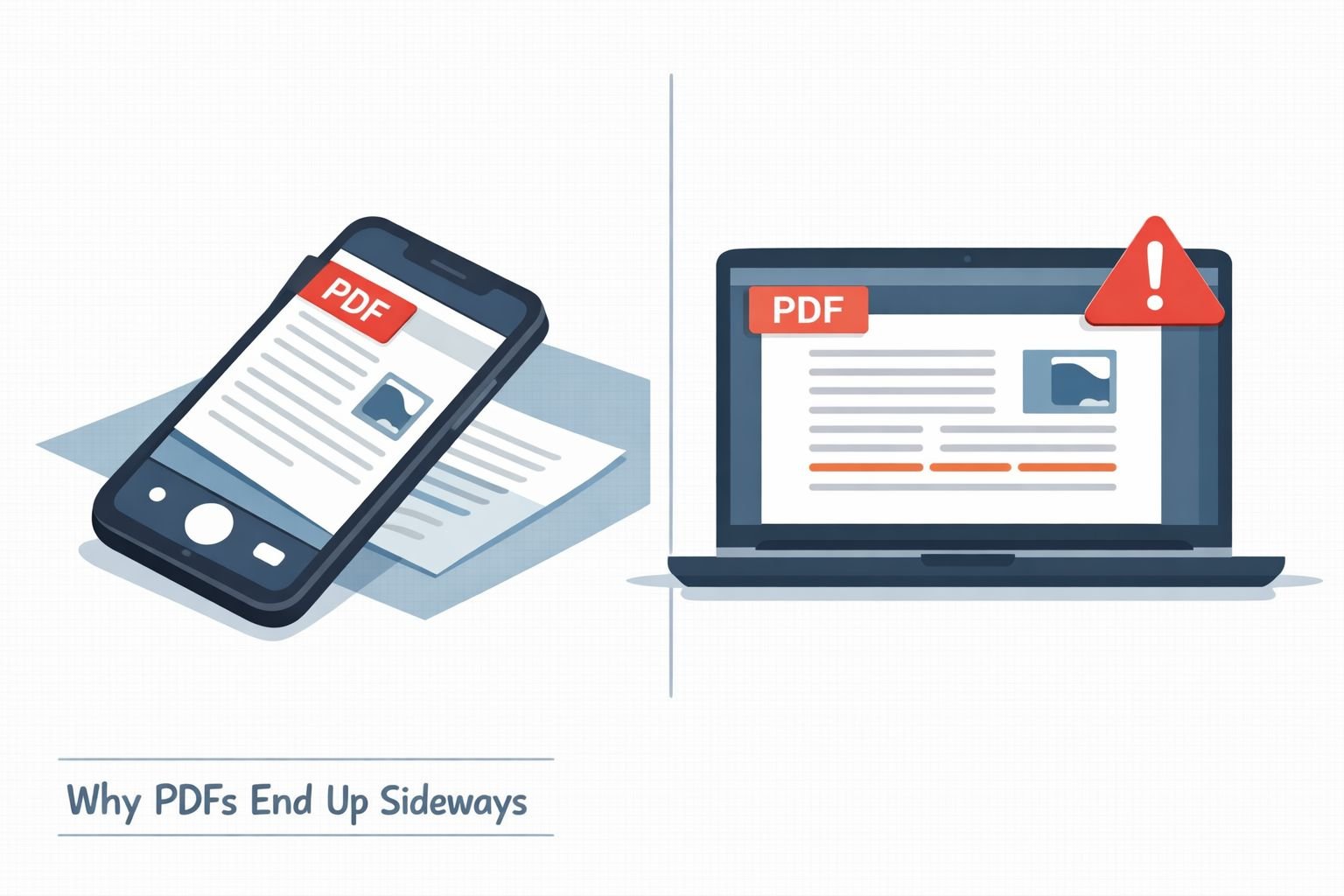
The most common cause is a scanned document saved in the wrong orientation. When someone photographs a physical document with a mobile scanner app — think Adobe Scan, Microsoft Lens, or even a phone camera — the app sometimes saves the image based on how the phone was held, not how the page reads. The result is a PDF in which every page is rotated 90° or 180° from its intended orientation.
Here are the most frequent reasons this happens:
- Mobile scanning apps capture pages in landscape when the document is portrait (or vice versa).
- Flatbed scanners default to landscape mode, especially for letter-sized documents fed in sideways.
- Merged PDFs that combine pages from different sources — some portrait, some landscape — end up with mixed orientations. (If you’re dealing with a merged file, see our guide on splitting PDFs into separate pages to isolate problem pages first.)
- Exported files from design or presentation software sometimes rotate pages during the PDF conversion process.
The fix is straightforward once you know which tool to use and — critically — whether you need a permanent fix or just a temporary view adjustment.
Temporary View Rotation vs. Permanently Saved — Know the Difference
This is the most important distinction most users miss, and it causes a lot of repeated frustration.
Rotating in a viewer is temporary. If you open a PDF in Adobe Acrobat Reader, Chrome, Safari, or any standard browser and use the “rotate” button in the toolbar, you’re only changing how the file looks on your screen right now. Close the file, reopen it, or send it to someone else — and the pages are sideways again.
Rotating with an editor or online tool is permanent. When you upload a PDF to a dedicated rotation tool, make your changes, and download the new file, the rotation is written into the PDF itself. Anyone who opens that file — on any device, in any viewer — will see the correct orientation.
💡 Quick rule: If you need to fix a PDF before sharing, printing, or submitting it, always use a dedicated tool and download the new file. Viewer rotation is only useful for your own reading session.
This distinction also applies to Adobe Acrobat (the paid desktop app). Acrobat’s “View > Rotate View” option is temporary. The permanent fix requires going to Tools > Organize Pages > Rotate and then saving.
How to Rotate PDF Pages Online Free — Step-by-Step
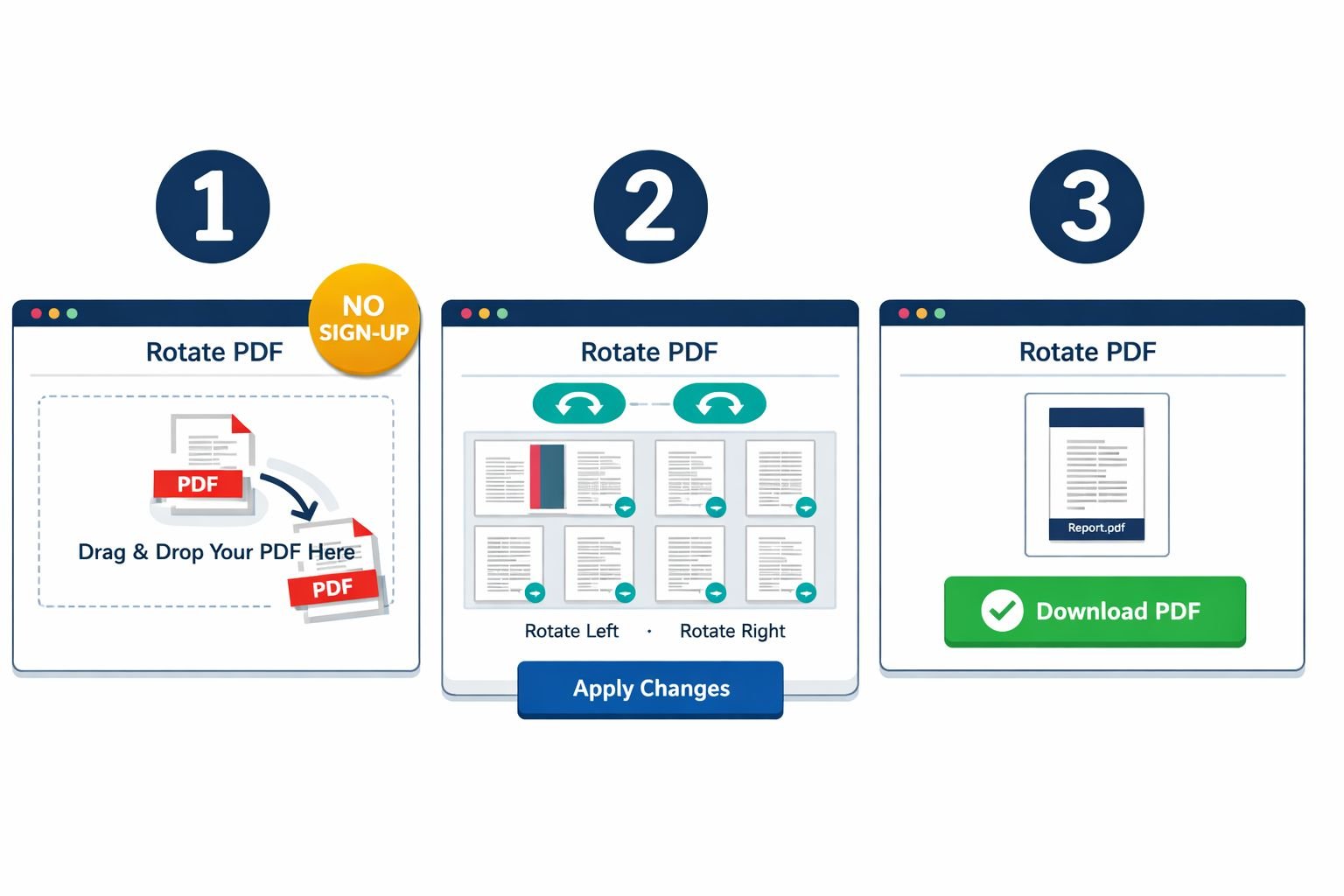
Rotating a PDF online takes under a minute. Here’s the exact process using CoreToolsHub’s free Rotate PDF tool, which runs entirely in your browser with no signup required.
Step 1: Open the Tool
Go to CoreToolsHub Rotate PDF. No account needed. Works on desktop and mobile.
Step 2: Upload Your PDF
Click “Choose File” or drag and drop your PDF onto the upload area. The tool loads a thumbnail preview of every page in your document.
Step 3: Select Which Pages to Rotate
- To rotate all pages: use the “Select All” option, then choose your rotation direction.
- To rotate individual pages, click the thumbnails of the pages you want to rotate. This is especially useful when only one or two pages are sideways in an otherwise correct document.
Step 4: Choose Your Rotation Direction
| Option | When to Use |
|---|---|
| 90° Clockwise | Page appears rotated left (counterclockwise) |
| 90° Counterclockwise | Page appears rotated right (clockwise) |
| 180° | Page is completely upside down |
Not sure which direction to pick? If the text reads from bottom to top, rotate 90° clockwise. If it reads from top to bottom but is upside down, rotate 180°.
Step 5: Apply and Download
Click Rotate (or Apply), then download your corrected PDF. The new file has the rotation permanently saved — open it anywhere, and it will display correctly.
Common mistake: Downloading the file but opening the old version from your downloads folder. Always open the newly downloaded file to confirm the fix worked.
Rotating Individual Pages vs. the Whole Document
Most guides only cover rotating an entire PDF at once. But in practice, mixed-orientation documents are very common — for example, a 10-page report where pages 1–9 are portrait and page 5 is a landscape chart.
Rotating the whole document when only one page is wrong will fix that page but break every other page. Always check your document page by page before applying a bulk rotation.
To rotate individual pages:
- Upload your PDF to a tool that shows page thumbnails (CoreToolsHub, Smallpdf, and PDF2Go all do this).
- Click only the pages that need fixing.
- Apply the rotation to the selection only.
- Download and verify.
PDF2Go supports thumbnail-based selection for precise page rotation and is free. Smallpdf also allows individual or all-page rotation via drag-and-drop, free without signup, though uploaded files auto-delete after one hour.
If your document has a complex page structure — say, pages that need to be reordered as well as rotated — consider using a PDF page reorder tool alongside the rotation fix.
Best Free PDF Rotation Tools in 2026 (No Signup Required)
Several solid options exist for rotating PDF pages online for free. Here’s a straightforward comparison of the most reliable ones as of 2026.
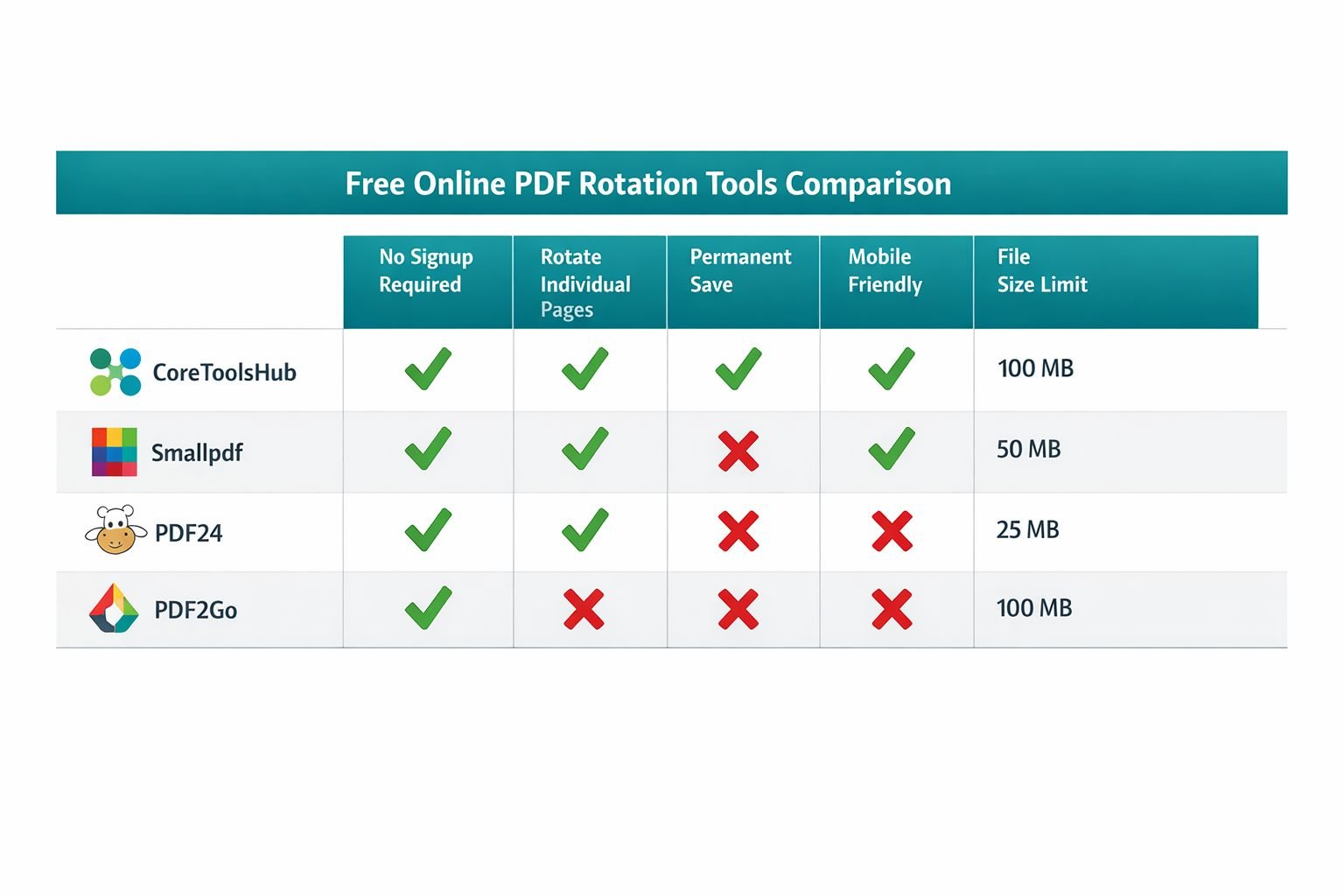
| Tool | No Signup | Rotate Individual Pages | Permanent Save | File Size Limit | Mobile Friendly |
|---|---|---|---|---|---|
| CoreToolsHub | ✅ | ✅ | ✅ | Browser-based | ✅ |
| Smallpdf | ✅ | ✅ | ✅ | No stated limit | ✅ |
| PDF24 | ✅ | ✅ | ✅ | No stated limit | ✅ |
| PDF2Go | ✅ | ✅ | ✅ | 50 MB free | ✅ |
| Adobe Acrobat Online | ❌ (sign-in required) | ✅ | ✅ | 100 files / 500 pages | ✅ |
| RotatePDF.net | ✅ | ✅ | ✅ | No stated limit | ✅ |
Choose CoreToolsHub if: you want all processing to happen in your browser (your file never leaves your device), no account, and a clean, simple interface.
Choose Smallpdf if: you already use it for other PDF tasks and want everything in one place. Note that files auto-delete from their servers after one hour.
Choose PDF24 if you’re on Windows and want a desktop app — TechRadar (Feb 2026) recommends PDF24 Creator as the best free Adobe alternative for Windows users.
Choose Adobe Acrobat Online if: you already have an Adobe account and need to handle very large batches (up to 100 files at once).
Avoid Adobe Acrobat Online if: you don’t want to create an account — it’s the only major free tool that requires sign-in.
Privacy and Security: What Happens to Your File?
When you use a browser-based tool like CoreToolsHub, all processing happens in your browser. Your PDF is never uploaded to a remote server, which means no one else can access it. This matters especially for sensitive documents — tax forms, medical records, legal paperwork, signed contracts.
Cloud-based tools like Smallpdf and PDF2Go upload your file to their servers for processing. Both have privacy policies stating files are deleted after a set period (Smallpdf: 1 hour; PDF2Go: 24 hours), but if file privacy is a concern, a fully in-browser tool is the safer choice.
For more context on why this distinction matters, see our breakdown of browser-based vs. cloud upload file tools.
What to Do After Rotating Your PDF
Once your pages are correctly oriented, a few follow-up tasks are worth considering:
- File too large to email? Run it through the CoreToolsHub PDF compressor to reduce the file size without visible loss of quality. For a deeper look at compression options, the best free online PDF compressor guide for 2026 clearly covers your choices.
- Need to extract just a few pages? Use an extract PDF pages tool to pull out only the pages you need.
- Need to convert the PDF to images? After rotating, you can export PDF pages as PNG or JPEG for use in presentations or documents.
- Combining multiple corrected files? See the guide on best online tools to merge PDFs to bring everything together cleanly.
Common Mistakes When Rotating PDFs
- Rotating in a viewer and thinking it’s saved. It isn’t. Use a dedicated tool and download the new file.
- Rotating all pages when only one is wrong. Always preview thumbnails before applying bulk rotation.
- Not checking the downloaded file. Open the new PDF before sharing to confirm the fix worked.
- Using the wrong rotation direction. If your first attempt looks worse, undo and try the opposite direction.
- Forgetting to save under a new filename. Overwriting your original means you lose the unedited version. Save the rotated file with a new name like
document-rotated.pdf.
Frequently Asked Questions
Q: Can I rotate PDF pages online free without creating an account? Yes. CoreToolsHub, Smallpdf, PDF24, PDF2Go, and RotatePDF.net all allow free PDF rotation with no signup required.
Q: Will rotating a PDF reduce its quality? No. Rotating a PDF page only changes the orientation metadata — it does not re-compress or re-render the content. Image quality and text sharpness remain identical.
Q: How do I rotate just one page in a PDF, not all of them? Use a tool that shows page thumbnails (CoreToolsHub, Smallpdf, or PDF2Go). Click only the specific page you want to fix, apply the rotation, then download. The rest of the document stays unchanged.
Q: Is rotating a PDF permanent? Only if you use a dedicated rotation tool and download the new file. Rotating in a PDF viewer (Adobe Reader, Chrome, Safari) is temporary and resets when you close the file or share it.
Q: Does Adobe Acrobat’s free online tool require a login? Yes. Adobe’s free online PDF rotation tool requires an Adobe account sign-in, unlike most other free browser-based tools.
Q: Can I rotate a scanned PDF? Yes. Scanned PDFs rotate the same way as any other PDF — the rotation applies to the page as an image. If the scanned text is also difficult to read or search, you may need an OCR tool separately.
Q: What’s the difference between rotating 90° clockwise and counterclockwise? Clockwise turns the page to the right. Counterclockwise turns it to the left. If your page text reads from bottom to top (like a book spine), rotate 90° clockwise to fix it.
Q: Can I rotate a PDF on my phone? Yes. All the tools mentioned work on mobile browsers — no app download needed. Upload, rotate, and download directly from your phone’s browser.
Q: What if my PDF has both portrait and landscape pages? Rotate only the pages that need fixing using the thumbnail selection feature. Don’t apply a bulk rotation to the whole document or you’ll flip the pages that are already correct.
Q: Is it safe to upload sensitive PDFs to online rotation tools? For sensitive documents, use a fully in-browser tool like CoreToolsHub, where your file never leaves your device. Cloud-based tools do upload your file to their servers, even if they delete it afterward.
Conclusion
A sideways or upside-down PDF is one of the most common file frustrations — and one of the fastest to fix. The key steps are simple: use a dedicated rotation tool (not just a viewer), select the specific pages that need fixing, apply the correct rotation direction, and download the new file.
For a fast, private fix with no signup and no installs, CoreToolsHub’s Rotate PDF tool handles it all in your browser in seconds. If you need to tackle other PDF tasks afterward — compressing for email, splitting pages, or merging corrected files — the full suite of free PDF tools is available in the same place.
Fix it once, save it permanently, and move on.