













Last updated: March 20, 2026
Key Takeaways
- A reliable free online PDF editor lets you add text, sign documents, annotate, merge, and split PDFs entirely in your browser, with no account required.
- Canva’s PDF editor can strip permission flags from locked PDFs but lacks advanced features such as OCR, batch editing, and fine-grained export controls.
- Adobe Acrobat’s free tier is heavily restricted; most meaningful edits require a paid subscription.
- Client-side (in-browser) PDF tools never upload your file to a server, making them the safer choice for legal, HR, and confidential documents.
- A small stack of free, browser-based tools can handle roughly 90% of what Acrobat Pro does, without a subscription or watermark.
Quick Answer
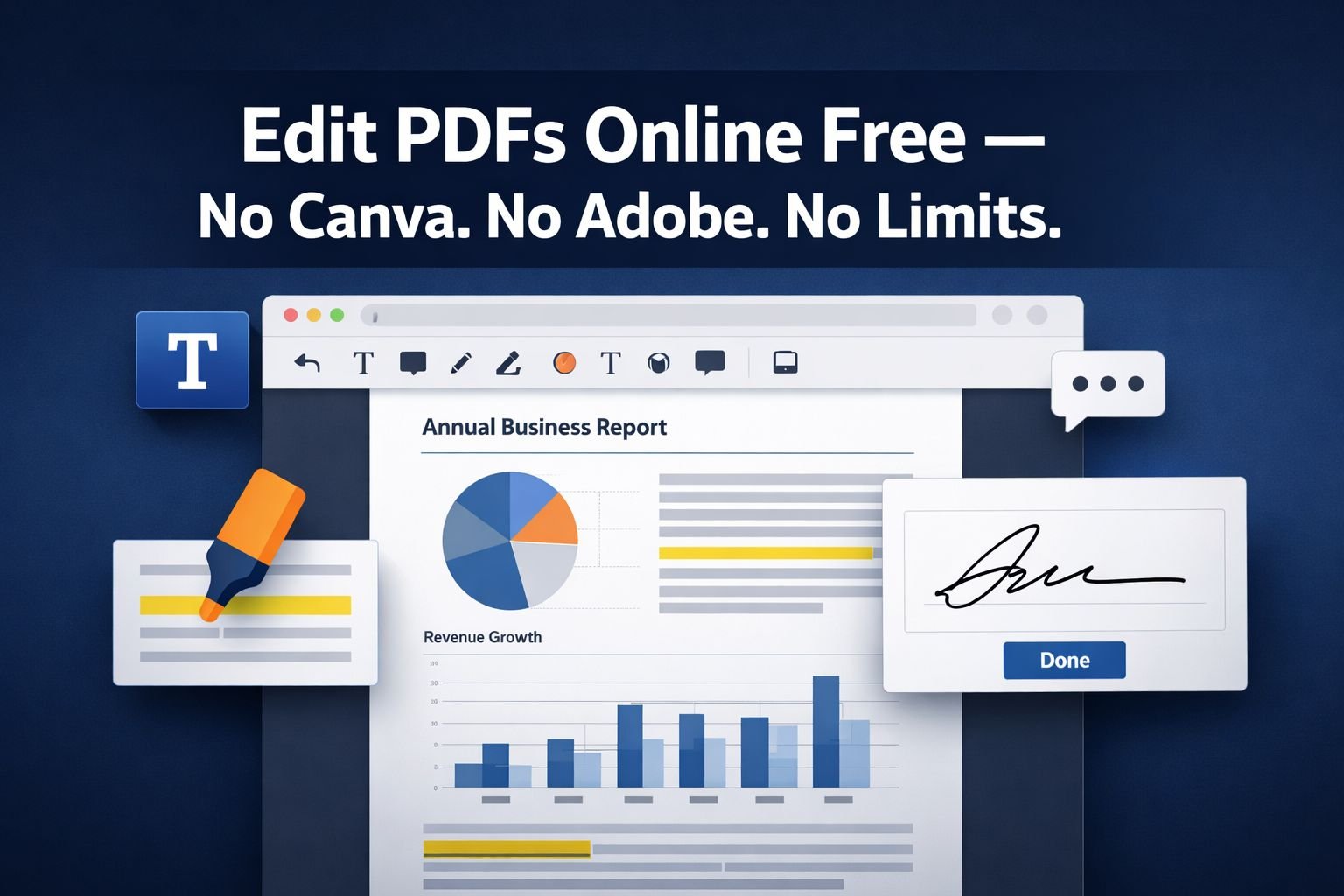
The best free online PDF editors in 2026, including PDFgear, Sejda, and Xodo, let you edit text, fill forms, sign documents, and annotate PDFs directly in your browser without creating an account or paying a cent. For tasks like merging, splitting, rotating, or compressing PDFs, privacy-first tools such as Core Tools Hub’s PDF suite process files locally in your browser so your documents never leave your device. You don’t need Canva or Adobe Acrobat to get professional results.
What “Free Online PDF Editor” Really Means in 2026
Not every tool that calls itself a free PDF editor online is actually free. Some are free to open but charge for saving. Others add watermarks, cap file sizes, or require a login before you can download. Knowing the difference saves time and frustration.
Here’s how to read the fine print:
| What they say | What it often means |
|---|---|
| “Free to use” | Free to open; saving may cost money |
| “No watermark” | True for basic tasks; advanced edits may add one |
| “No signup required” | Confirmed free; watch for download prompts |
| “Unlimited edits” | May mean unlimited page views, not unlimited saves |
| “Browser-based” | Could still upload to a server; check privacy policy |
The three questions to ask before using any free PDF editor:
- Does it require an account to download the edited file?
- Does it upload my file to a remote server?
- Does it add a watermark or restrict features after a trial?
Tools like PDFgear and Xodo answer “no” to all three for core tasks. Smallpdf is partially free but pushes direct text editing behind a Pro subscription after a 7-day trial. Knowing this up front means you pick the right tool for each job rather than discovering its limits mid-task.
Where Canva and Adobe’s Online Editors Fall Short
Canva and Adobe both impose significant restrictions on their free PDF-editing tiers, and some of Canva’s behaviors can actively damage carefully prepared documents.
Canva’s PDF Editor: What It Gets Wrong
Canva is a design tool first. Its PDF import converts your document into an editable canvas, which sounds helpful until you realize what that process destroys:
- Font substitution: If your PDF uses a font that Canva doesn’t have, it replaces it silently. Your carefully formatted report can come back with different spacing and line breaks.
- Color profile changes: CMYK colors used in print-ready PDFs get converted to RGB, which shifts colors noticeably.
- Permission stripping: This is the most serious issue. Users on Reddit and Adobe’s community forums have reported that Canva ignores PDF permission flags, making “locked” or “read-only” PDFs fully editable after import. For anyone sending contracts, certificates, or client deliverables, this is a real problem.
- No OCR: Canva cannot read text from scanned PDFs. If your document is a scan, Canva treats the whole page as an image.
- Login required: Every Canva session requires an account, which means your file is tied to their servers.
- No export control: You can’t choose DPI, compression level, or PDF/A compliance on export.
Adobe Acrobat Online: Capable but Gated
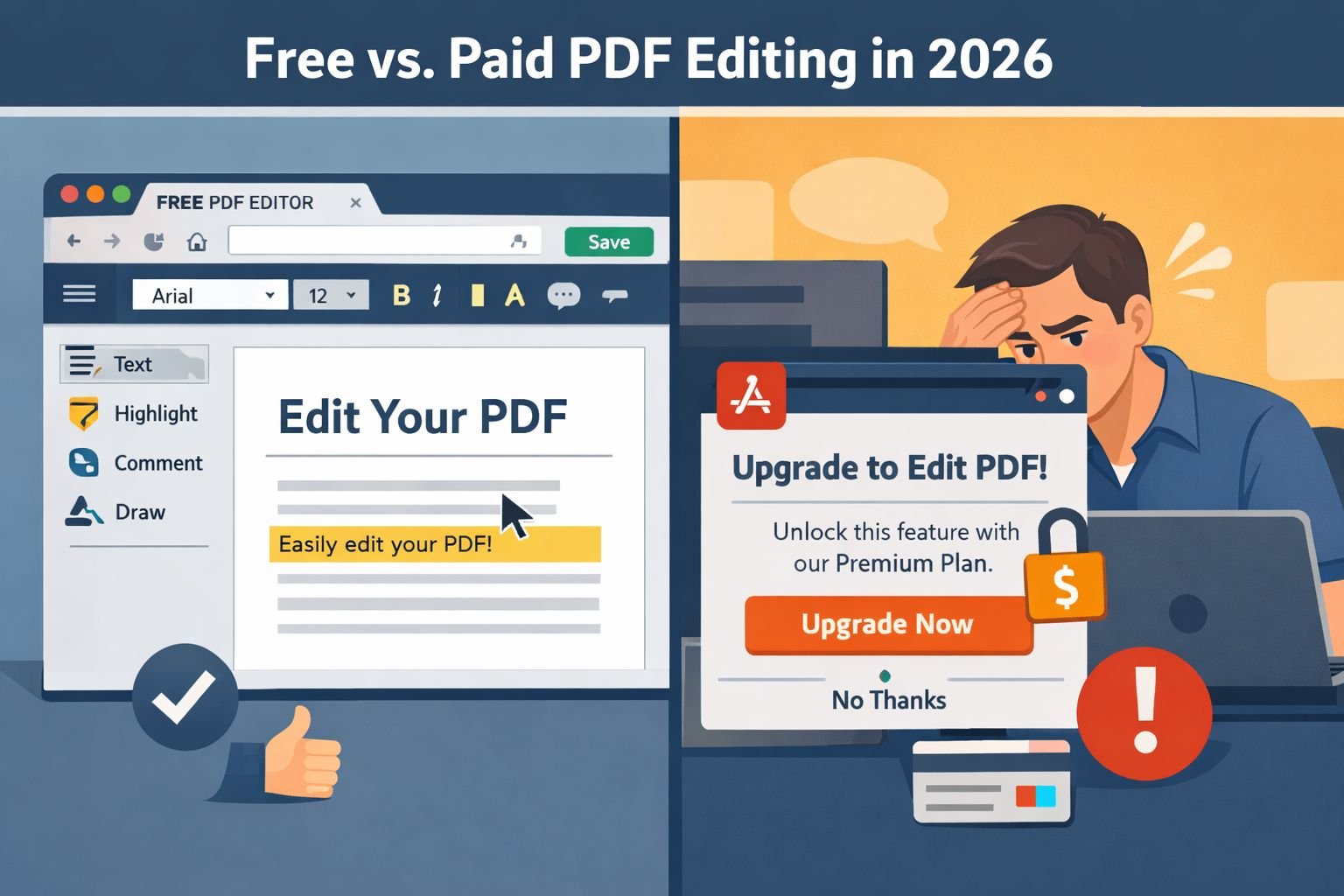
Adobe’s online tools are genuinely powerful, but the free tier is narrow. You can view and comment on PDFs for free. Editing text, converting files, or using OCR all require an Acrobat Standard or Pro subscription, which starts at around $12.99/month as of early 2026. The free trial locks you in with a credit card and auto-renews.
The core problem: Both Canva and Adobe treat “free” as a funnel toward paid plans. The tools covered in this guide treat free as the actual product.
Essential PDF Edits You Can Do 100% in the Browser
Most everyday PDF tasks, from signing a lease to annotating a report, can be completed entirely in a browser with no software installation or account required.
Here’s a clear map of what’s possible for free, and which tools handle each task best:
Text and Annotations
- Add text boxes: PDFgear, Xodo, Sejda
- Highlight, underline, strikethrough: Xodo, PDFgear
- Add sticky notes/comments: Xodo, PDFgear
- Draw freehand: Xodo
Forms and Signatures
- Fill interactive PDF forms: PDFgear, Xodo, Sejda
- Add a typed or drawn e-signature: Xodo, PDFgear, Smallpdf (free tier)
- Create a signature image and stamp it: Any tool that supports image insertion
Page Management
- Merge multiple PDFs into one: Core Tools Hub Merge PDF — runs entirely in your browser, no uploads
- Split a PDF into separate files: Split PDF tool — client-side, no signup
- Extract specific pages: Extract PDF Pages
- Reorder pages by drag and drop: Reorder PDF Pages
- Fix upside-down or sideways pages: Rotate PDF
Compression and Conversion
- Reduce file size for email: Compress PDF (Lite) — browser-side, no quality guessing
- Export PDF pages as images: PDF to Images
- Convert JPG or PNG images into a PDF: Images to PDF
Common mistake: People use Canva to “merge” PDFs by downloading each page as an image and re-uploading. This bloats the file size and loses all text layers. A dedicated merge tool preserves the original PDF structure in seconds.
Step-by-Step Workflows for Editing, Signing, and Annotating PDFs
Each workflow below is designed for non-technical users and completes in under five minutes using free, browser-based tools.
Workflow 1: Sign a PDF Contract
- Open Xodo in your browser (no signup needed for basic use).
- Click Open File and select your PDF from your device.
- Select the Signature tool from the toolbar.
- Draw your signature with a mouse or finger, or type it and choose a style.
- Click where you want the signature to appear on the document.
- Click Download to save the signed PDF locally.
Best for: Lease agreements, consent forms, offer letters, and school permission slips.
Workflow 2: Add Text to a Non-Editable PDF
Some PDFs are image-based (scanned documents) and don’t have a text layer. For those, you need to place a text box on top of the image.
- Open PDFgear in your browser.
- Upload your PDF (processed locally, no server upload).
- Select Add Text from the toolbar.
- Click on the area where you want to type and enter your text.
- Adjust font size and color to match the document.
- Download the result.
Note: This places a text overlay, not embedded editable text. For true OCR (converting scanned text into selectable text), PDFgear’s desktop app includes this feature; the online version does not.
Workflow 3: Merge Multiple PDFs Without Uploading Them
- Go to Core Tools Hub’s Merge PDF tool.
- Click Add Files and select all the PDFs you want to combine.
- Drag to reorder them if needed.
- Click Merge PDF.
- Download the combined file. Your files are never sent to a server.
Best for: Combining a cover letter and resume, assembling a multi-document application, packaging invoices.
Workflow 4: Reduce PDF Size for Email
If your PDF is over 5MB, most email clients will reject or flag it.
- Go to the Compress PDF tool.
- Upload your PDF.
- Select a compression level (Medium works for most documents; High is fine for text-heavy files).
- Download the compressed version.
Best settings for email: Medium compression. Keeps text sharp and images readable while typically cutting file size by 40–60% for standard documents.
Workflow 5: Annotate a Research Paper or Report
- Open Xodo or PDFgear in your browser.
- Load your PDF.
- Use the Highlight tool to mark key passages.
- Use Sticky Notes to add comments at specific points.
- Use the Underline or Strikethrough tools for review markup.
- Download the annotated version to share with a colleague.
Keeping PDFs Private: Client-Side vs. Cloud Processing
For sensitive documents, the most important feature of a free PDF editor online tool isn’t what it can do; it’s where your file goes.
Two Processing Models
Cloud-based processing: Your file is uploaded to the tool’s server, processed there, and then sent back to you. The provider’s privacy policy governs what happens to your data in between. Most free tools use this model.
Client-side (in-browser) processing: The tool runs entirely in JavaScript within your browser. Your file is never transmitted anywhere. Even if the website goes offline mid-session, your file stays on your device.
| Processing type | File leaves your device? | Best for |
|---|---|---|
| Cloud-based | Yes | Non-sensitive documents |
| Client-side | No | Legal, HR, medical, financial docs |
Why This Matters for Real Documents
Consider a paralegal who needs to redact a client’s Social Security number from a PDF before sharing it with opposing counsel. If the redaction tool uploads the file to process it, the unredacted version exists, even briefly, on a third-party server. That’s a potential compliance issue under HIPAA, GDPR, or attorney-client privilege rules.
Client-side tools eliminate that risk entirely. Core Tools Hub’s PDF tools, including merge, split, rotate, compress, and extract, all run in your browser. See how it works for a plain-English explanation of the in-browser processing model.
Quick rule: If the document contains names, account numbers, medical information, or legal content, use a client-side tool. If it’s a menu or a flyer, cloud processing is fine.
Recommended Tool Stack to Replace Most Acrobat Pro Tasks
A combination of three to four free tools covers roughly 90% of what Acrobat Pro does, without any subscription.
Here’s a practical stack organized by task type:
Core Editing and Annotation
PDFgear Online
- No signup, no watermarks
- Handles files up to 100MB
- Adds text, shapes, images, and form fills
- Processes locally in the browser
- Limitation: No direct text replacement in existing text blocks (desktop version required for that)
Xodo Online (updated February 2026)
- No signup for basic use
- Text editing, annotations, redaction, measurements, cropping, signing, and form filling
- Strong mobile browser support
Page Management
Core Tools Hub PDF Tools covers:
- Merging PDFs
- Splitting and extracting pages
- Reordering pages
- Rotating pages
- Compressing PDFs
- Converting images to PDF and PDF to images
All tools run client-side, no account needed.
Quick Text Edits and Form Filling
Sejda PDF
- No signup for basic tasks
- Edits existing text, fills forms, adds images and links
- Files are deleted from their servers after processing
- Limitation: Free tier caps at 200 pages or 50MB per task; pushes heavier use toward a desktop download
Image-Related Tasks
When a PDF page needs to be converted to an image for embedding elsewhere, the PDF to Images tool exports pages as PNG or JPEG without any upload. If you need to go the other direction and turn photos into a PDF, the Images to PDF tool handles JPG and PNG files in seconds.
When You Still Need a Desktop PDF Editor (and How to Choose One)
Browser-based tools have real limits. A desktop PDF editor makes sense in specific situations.
Use a desktop editor when you need to:
- Replace existing text in a PDF (not just overlay new text): This requires a full PDF editor like PDFgear Desktop (free), LibreOffice Draw (free), or PDF-XChange Editor (free tier available).
- Run OCR on scanned documents: Converting a scanned image into selectable, searchable text requires OCR software. PDFgear Desktop and Adobe Acrobat both do this; ABBYY FineReader is another option.
- Edit large batches of files: Browser tools handle one file at a time well. Batch processing dozens of PDFs is faster with desktop software.
- Work offline consistently: If your internet connection is unreliable, a desktop app is more predictable.
- Apply advanced security: Setting specific permission flags (print-only, no copy, password-protected editing) is more reliable in a dedicated desktop editor.
Free Desktop Options Worth Knowing
| Tool | Best for | Cost |
|---|---|---|
| PDFgear Desktop | Full editing, OCR, conversions | Free |
| LibreOffice Draw | Opening and editing PDF structure | Free |
| PDF-XChange Editor | Annotations, forms, light editing | Free tier available |
| Foxit PDF Reader | Viewing, annotating, signing | Free |
Choose PDFgear Desktop if you need OCR and full text editing without paying anything. Choose LibreOffice Draw if you’re already using LibreOffice and want a familiar interface. Choose PDF-XChange if you need strong annotation tools on Windows.
FAQ
Q: Can I edit a PDF online for free without creating an account? Yes. PDFgear, Xodo, and Sejda all allow basic editing, form filling, and signing without requiring an account. Core Tools Hub’s merge, split, rotate, and compress tools also require no signup.
Q: Is it safe to use a free online PDF editor for sensitive documents? It depends on the tool. Cloud-based tools upload your file to their servers, which carries a privacy risk. Client-side tools like those at Core Tools Hub process files entirely in your browser, so your document never leaves your device. For legal, medical, or financial documents, always use a client-side tool.
Q: Why does Canva mess up my PDF when I import it? Canva converts PDFs into its own design format on import. This process substitutes missing fonts, converts CMYK colors to RGB, and can strip permission flags from locked PDFs. It’s designed for visual design, not document fidelity.
Q: Can I edit a scanned PDF for free online? You can overlay text on a scanned PDF using tools like PDFgear or Xodo. True OCR, which converts scanned text into editable text, generally requires a desktop app. PDFgear Desktop offers free OCR.
Q: What’s the file size limit for free online PDF editors? Limits vary. PDFgear online handles up to 100MB. Sejda’s free tier caps at 50MB. Core Tools Hub’s browser-based tools depend on your device’s memory rather than a server cap, so larger files are often manageable on a modern computer.
Q: Does Smallpdf add a watermark on free edits? Smallpdf’s free tier allows adding text, images, highlights, and e-signatures without a watermark. However, direct text editing of existing PDF content requires a Pro subscription after the 7-day trial period.
Q: Can I sign a PDF for free without Adobe? Yes. Xodo, PDFgear, and Smallpdf (free tier) all support typed, drawn, or image-based e-signatures at no cost and without an Adobe account.
Q: Will merging PDFs in the browser preserve the original formatting? Yes, when done with a proper PDF merge tool. The Merge PDF tool at Core Tools Hub combines PDFs at the file level, preserving fonts, images, and layout exactly as they appear in the originals.
Q: What’s the difference between a PDF editor and a PDF annotator? A PDF annotator adds layers on top of the existing document (highlights, notes, text boxes, signatures) without changing the underlying content. A PDF editor can modify existing text and images within the document. Most free online tools are annotators; true editing requires more capable software.
Q: Can I use these tools on a Chromebook or mobile device? Yes. Browser-based tools work on any device with a modern browser, including Chromebooks, Android phones, and iPhones. No installation is needed. Performance on very large files may vary on older or low-memory devices.
Q: How do I reduce a PDF file size without losing quality? Use a compression tool set to medium compression. The Compress PDF tool runs in your browser and reduces file size without visible quality loss for standard documents. Avoid maximum compression on PDFs with detailed images or fine print.
Q: Is there a truly free PDF editor with no watermark and no time limit? PDFgear online is currently the closest option: no watermark, no signup, no time limit, and no per-file cost for files under 100MB. Xodo also offers core features free with no watermark. Always verify current terms directly on the tool’s website, as policies can change.
Conclusion: Build Your Free PDF Workflow Today
The gap between “free” and “actually useful” in PDF editing has closed significantly. In 2026, a combination of PDFgear or Xodo for editing and signing, Sejda for quick text edits, and Core Tools Hub’s browser-based tools for page management and compression covers the vast majority of real-world PDF tasks, with no subscription, no watermark, and no files leaving your device.
Actionable next steps:
- Bookmark Core Tools Hub’s PDF tools page for merge, split, rotate, compress, and convert tasks.
- Test PDFgear online for your next annotation or form-filling job.
- Use Xodo the next time you need to sign a document without Adobe.
- Check your tool’s privacy model before uploading anything sensitive. If in doubt, choose a client-side option.
- Download PDFgear Desktop if you regularly need OCR or true text replacement.
There’s no reason to pay for Acrobat or work around Canva’s limitations for everyday PDF tasks. The free, private, browser-based alternatives are ready when you are.
Key Takeaways
- “Free” means different things: Always check whether a tool requires login, adds watermarks, or uploads your file before using it.
- Canva is a design tool, not a document tool: It strips PDF permissions, substitutes fonts, and converts color profiles in ways that can damage professional documents.
- Adobe’s free tier is narrow: Most useful features require a paid Acrobat subscription.
- Client-side tools are the safest choice: For sensitive documents, use tools that process PDFs in your browser without any server upload.
- PDFgear and Xodo are the strongest free options for editing, annotating, and signing in 2026, with no signup and no watermarks.
- Core Tools Hub handles page management privately: Merge, split, rotate, extract, reorder, and compress PDFs with tools that run entirely in your browser.
- A desktop editor is still needed for OCR, true text replacement, and batch processing. PDFgear Desktop is free and covers most of these cases.
- Sejda is reliable for quick edits but has per-task limits on the free tier (50MB, 200 pages).
- No single tool does everything for free: A small stack of two to three tools covers 90% of Acrobat Pro’s functionality at zero cost.
- Browser-based tools work on any device: Chromebooks, phones, and low-spec PCs all run these tools without installation.