













Last updated: April 29, 2026
Quick Answer: Most visa and job portals reject files because of wrong formats (HEIC instead of JPG, for example), oversized PDFs, or photos with incorrect pixel dimensions — not because your actual documents are wrong. To fix this, convert photos to JPG, compress PDFs to under 5MB, resize images to the exact pixel dimensions specified, and verify file sizes before you upload. Every step in this guide can be done in a browser with no software to install and no account to create.
Key Takeaways
- Visa portals commonly require JPG photos at 600×600 pixels and under 200–240 KB; job portals typically want PDF resumes under 2–5 MB.
- HEIC files (default iPhone format) are rejected by almost every application portal — convert to JPG first.
- Schengen visas require 35×45 mm photos; US visas require 2×2 inch (51×51 mm) — these are not interchangeable.
- IRCC (Canada) updated its portal limit to 5 MB per upload in late 2025, but older IRCC portal users still face a 2 MB cap.
- A PDF with 8–10 scanned pages at 150 DPI typically fits within 4 MB — higher DPI scans are a common cause of oversized files.
- North American job applications expect Letter-size (8.5×11 inch) PDFs; international roles expect A4 — a mismatch can clip content in ATS systems.
- All tools referenced in this guide run in your browser, require no signup, and process files locally where possible.
- Stripping EXIF metadata from photos before upload is a smart privacy step — some portals flag embedded GPS data.
Why Visa and Job Portals Reject Your Files
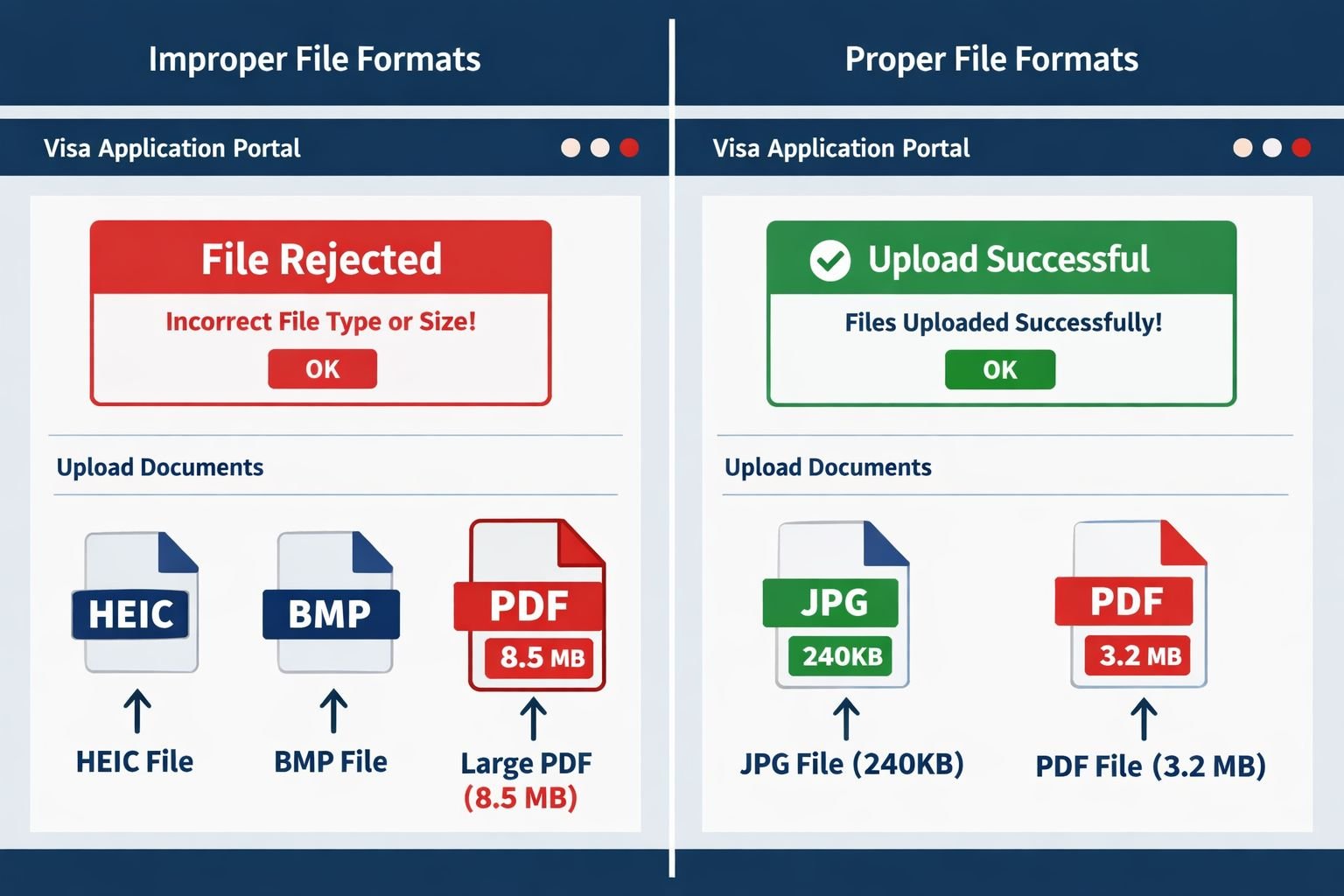
Portal rejections almost always come down to three things: wrong file format, file too large, or image dimensions outside the accepted range. The error messages are often unhelpful — “invalid file” or “upload failed” — which makes it hard to know what to fix.
Here’s what’s actually happening behind the scenes:
- Format mismatch: Portals are coded to accept specific MIME types. A
.heicfile from an iPhone, a.webpscreenshot, or a.bmpscan will fail even if the content is perfectly fine. - File size caps: These vary widely. US visa photo uploads cap at 240 KB. The IRCC portal (Canada) allows up to 5 MB per document. Many job portals cap resume PDFs at 2–5 MB. Exceeding the cap by even a few KB causes a silent rejection on some systems.
- Pixel dimension rules: A photo that’s 800×600 pixels will fail a portal expecting exactly 600×600 pixels. Some portals check aspect ratio only; others check exact pixel counts.
- PDF page count or version: Some portals reject PDFs with more than a set number of pages, or PDFs created by certain software versions.
Common mistake: Sending a scanned document at 300 DPI when 150 DPI is sufficient. A 300 DPI scan of a single page can exceed 2 MB on its own. Dropping to 150 DPI for text documents brings that under 200 KB with no visible quality loss for screen viewing.
Understanding Common Requirements for Photos and PDFs
Requirements differ by destination and platform, but the patterns are consistent enough to plan around. Here are the most widely used specs as of 2026:
Visa Photo Requirements by Region
| Destination | Size | Format | Max File Size | Face Height |
|---|---|---|---|---|
| USA (DS-160 digital) | 600×600 px (2×2 in) | JPG | 240 KB | 22–35 mm |
| Schengen / EU | 35×45 mm | JPG | 200–500 KB (varies) | 32–36 mm |
| Canada (IRCC) | 35×45 mm | JPG | 5 MB (new portal) | 31–36 mm |
| Australia | 35–40 mm × 45–50 mm | JPG | 5 MB | 32–36 mm |
| India e-Visa | 200×200 px min | JPG | 1 MB | 70–80% of frame |
Key point: A US-format 2×2 inch square photo will be rejected by a Schengen portal expecting 35×45 mm. These are different aspect ratios. Always check the destination’s spec before resizing.
A February 2026 USCIS guidance also clarified that certain immigration photos must be taken by USCIS or an authorized entity — not self-taken — for specific application types. This doesn’t affect DS-160 or standard N-400 submissions, but it’s worth confirming for your specific form.
Job Application PDF Requirements
- File format: PDF is standard. Some portals also accept DOCX, but PDF is safer because it preserves formatting across all ATS (Applicant Tracking Systems).
- Page size: Letter (8.5×11 in) for North American applications; A4 for international. Submitting A4 to a US portal can clip the bottom of your resume in print preview.
- File size: Most job portals cap uploads at 2–5 MB. A well-formatted single-page resume PDF should be well under 500 KB.
- Fonts embedded: Portals that parse PDFs for ATS screening can fail if fonts aren’t embedded. Export from Word or Google Docs as PDF rather than printing to PDF for cleaner output.
Step-by-Step: Prepare Your Documents and Images for Visa and Job Applications PDF
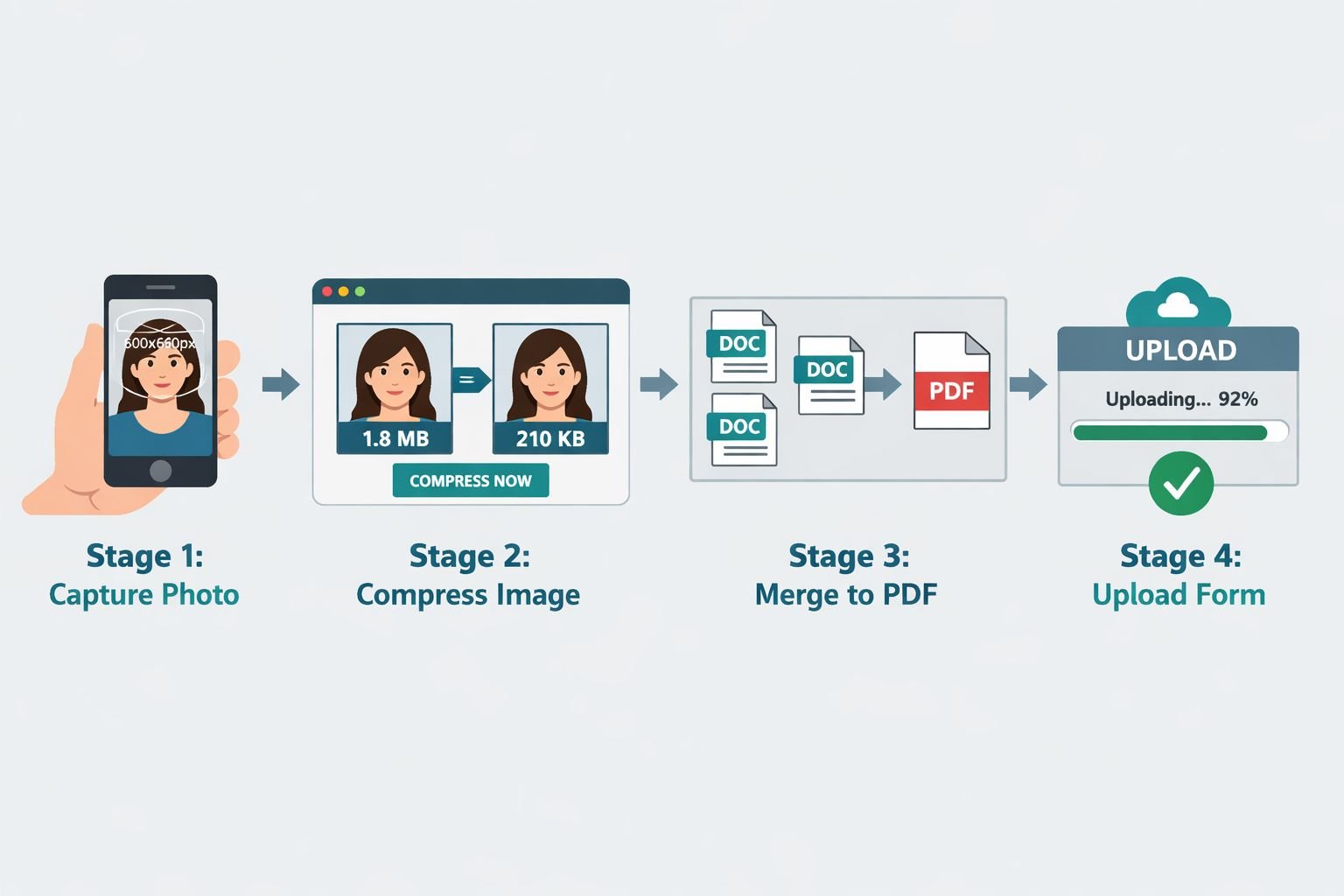
This is the core workflow — from raw file to upload-ready. Each step uses a browser-based tool, so there’s nothing to install and no signup required.
Step 1: Convert Your Photo to the Right Format
iPhones save photos as HEIC by default. Android phones sometimes save as WebP. Neither format is accepted by application portals.
- Go to the HEIC to JPG converter on Core Tools Hub.
- Drop your photo in. It converts in seconds, entirely in your browser.
- Download the JPG output.
If your photo is already a PNG (common for screenshots), use the PNG to JPG converter instead. PNG files are larger than JPG for photos and often exceed portal size limits.
Step 2: Resize to the Exact Required Dimensions
Once you have a JPG, resize it to match the portal’s pixel requirements.
- Open the Image Resizer tool.
- Enter the exact width and height in pixels (e.g., 600×600 for a US visa photo).
- Lock the aspect ratio only if the portal allows flexible dimensions — for visa photos, enter exact values without locking.
- Download the resized image.
For a detailed walkthrough of resizing options, see the guide on resizing images online without losing quality.
Step 3: Compress the Image to Meet the KB Cap
A 600×600 JPG fresh from a camera can still be 800 KB or more. Most portals cap visa photos at 200–240 KB.
- Open the Image Compressor.
- Upload your resized JPG.
- Adjust the quality slider — for a visa photo, 75–85% quality typically brings a 600×600 image under 200 KB with no visible degradation.
- Check the output file size shown in the tool before downloading.
The guide on reducing image size in KB for forms and portals covers this in more detail, including what quality settings work best for different use cases.
Best settings for visa photos:
- Format: JPG
- Quality: 75–85%
- Output size target: Under 200 KB (US), under 500 KB (Schengen/Canada)
Step 4: Prepare Your PDF Documents
Scanned documents are the most common source of oversized PDFs. A passport scan at 300 DPI can be 3–4 MB per page. At 150 DPI, the same page is typically under 300 KB and still perfectly legible on screen.
If your PDF is already too large:
- Go to Compress PDF on Core Tools Hub.
- Upload the PDF. The tool reduces file size in your browser — your file doesn’t leave your device.
- Download the compressed version and check the new file size.
For context on how much compression is safe, the guide on compressing PDFs without losing quality explains the tradeoffs between screen-quality and print-quality compression.
Step 5: Convert Images to PDF (When Required)
Some portals ask you to submit scanned documents as a single PDF rather than individual image files.
- Use the Images to PDF tool to combine JPG or PNG scans into one PDF.
- Arrange pages in the correct order before converting.
- Download the PDF and check the total file size.
Building Application Packs: Merge, Split, and Compress PDFs
Many visa applications require you to combine multiple documents — passport bio page, financial statements, cover letter, supporting letters — into a single PDF. Job portals sometimes ask for a combined portfolio or work sample pack.
Merging PDFs
Use the Merge PDF tool to combine files in order. Drag to reorder pages before merging. The entire process runs in your browser with no uploads to a server.
For a comparison of the best tools for this task, see best online tools to merge PDFs in 2026.
Splitting PDFs
If a portal limits uploads to a certain number of pages, use the Split PDF tool to extract specific pages. This is also useful when a combined document is too large and you need to submit sections separately.
After Merging, Always Recompress
Merging PDFs often increases file size because the tool concatenates the files without re-optimizing them. After merging, run the combined PDF through the compressor again. A 10-page merged document that starts at 15 MB can often be brought under 5 MB this way.
Final Checks Before Uploading (Size, Format, Resolution)
Before hitting submit, run through this quick verification list. It takes two minutes and prevents the most common rejection reasons.
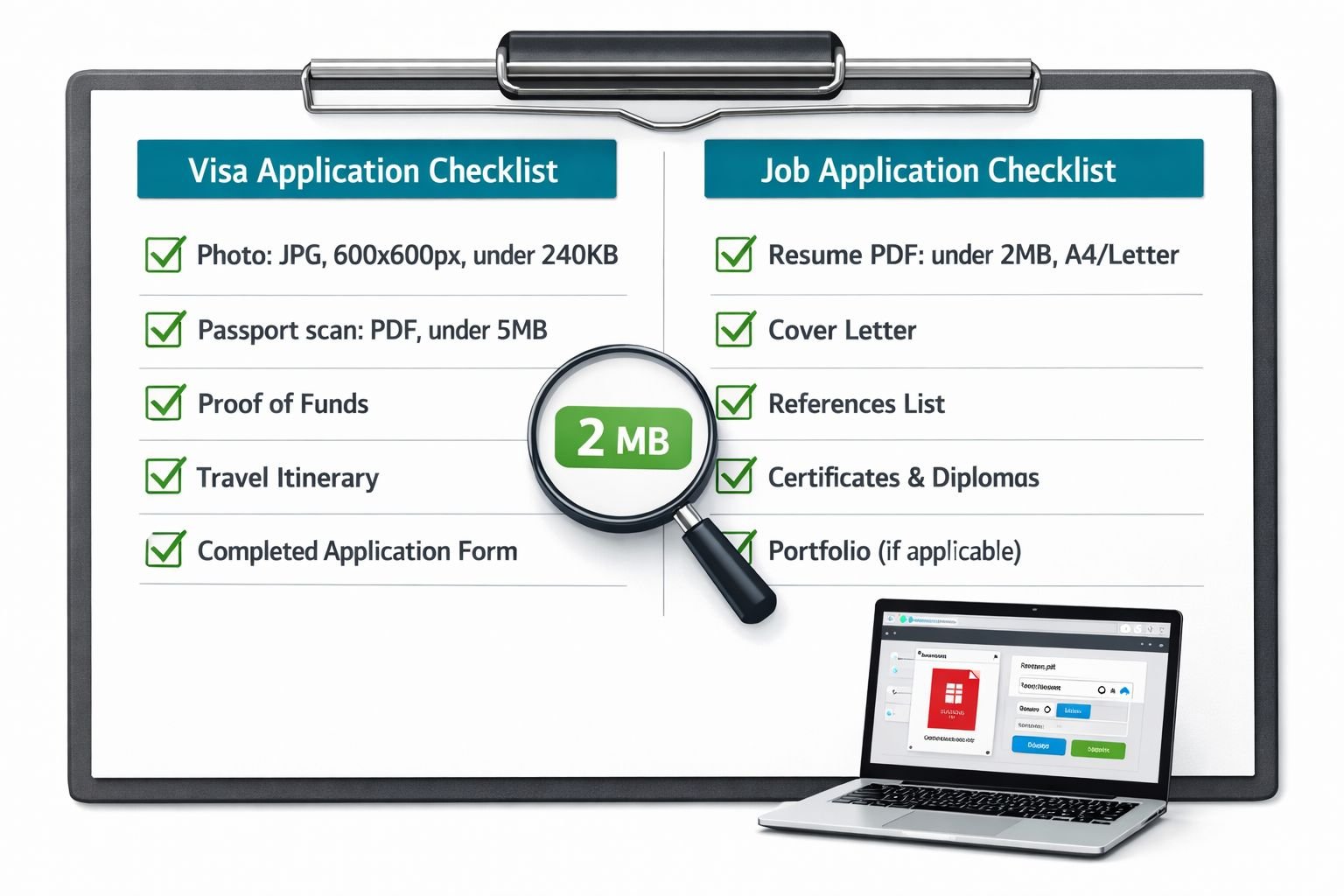
Pre-upload checklist:
- File format matches what the portal specifies (JPG for photos, PDF for documents)
- Image dimensions are exactly correct (e.g., 600×600 px, not 601×600)
- Photo file size is under the cap (check in your file browser or the tool’s output display)
- PDF file size is under the portal’s limit
- PDF page count is within the allowed range
- Resume PDF uses Letter size (US) or A4 (international) — not the wrong page size
- Fonts are embedded in the PDF (export from source, don’t print-to-PDF)
- EXIF metadata removed from photos if privacy is a concern (use the Image EXIF Remover)
- File names contain no special characters (spaces, ampersands, or accents can cause upload failures on older portals)
Sample Checklists for Visa and Job Applications
Visa Application File Checklist
| Document | Format | Max Size | Notes |
|---|---|---|---|
| Passport photo | JPG | 240 KB (US) / 500 KB (Schengen) | Exact dimensions required |
| Passport bio page scan | JPG or PDF | 2–5 MB | 150 DPI is sufficient |
| Financial statements | 5 MB per file | Compress if scanned at high DPI | |
| Supporting letters | 2 MB | Export from Word, don’t print-to-PDF | |
| Combined document pack | 10 MB (typical cap) | Merge then recompress |
Job Application File Checklist
| Document | Format | Max Size | Page Size | Notes |
|---|---|---|---|---|
| Resume / CV | 2 MB | Letter (US) or A4 | Embed fonts; no password protection | |
| Cover letter | 1 MB | Match resume page size | Single page preferred | |
| Portfolio / work samples | 5–10 MB | Any | Compress images within PDF | |
| References | 1 MB | Match resume page size | Combine into one file if possible |
How to Fix Last-Minute File Problems Before Deadlines
Deadlines have a way of surfacing file problems at the worst time. Here are the most common last-minute issues and quick fixes:
“My photo keeps getting rejected.” Check the exact pixel dimensions required, not just the file size. A 600×601 image fails a strict dimension check. Resize to exact values using the Image Resizer, then recompress.
“My PDF is 12 MB and the limit is 5 MB.” Run it through the Compress PDF tool first. If it’s still too large after compression, use the Split PDF tool to separate it into two submissions, or reduce the scan resolution of any image-heavy pages.
“The portal says ‘unsupported format’ but my file is already a PDF.” Some portals reject password-protected PDFs or PDFs created by certain software. Open the PDF, print it to PDF (using your OS print dialog), and re-upload. This re-creates a clean, unprotected version.
“My resume looks fine on screen but prints with content cut off.” This is almost always a page size mismatch. If you’re applying to a US company, confirm your PDF is Letter size. Open the original file, change the page size, and re-export. See the guide on fixing PDF formatting issues for more on this.
“I’m on mobile and can’t run desktop software.” All Core Tools Hub tools are mobile-friendly and run in your browser. The image compressor, PDF compressor, and merge tools work on iOS and Android without any app download.
Frequently Asked Questions
What file format should visa photos be for online applications? JPG (also written as JPEG) is the standard format for visa photos on almost every portal. PNG is sometimes accepted but produces larger files. HEIC, WebP, and BMP are almost universally rejected.
What pixel size is a US visa photo for online submission? The DS-160 form requires a 600×600 pixel JPG under 240 KB. The face should occupy 22–35 mm of the frame height. Printed photos for immigrant visa interviews are 2×2 inches (51×51 mm) on photo paper.
How do I prepare documents for visa and job applications as a PDF without software? Use a browser-based tool like Core Tools Hub’s Images to PDF converter to convert scans to PDF, then use the Merge PDF tool to combine files. No software install or account needed.
What’s the maximum PDF size for most visa portals? It varies. Canada’s IRCC portal allows up to 5 MB per file (updated late 2025). US immigration forms typically expect PDFs under 4 MB. Schengen and UK portals vary by VFS or embassy, but 5–10 MB per document is a common range.
Why does my merged PDF get larger after combining files? Merging concatenates files without re-optimizing them. Always run a merged PDF through a compressor after combining. This typically cuts 30–60% of the inflated size.
Should I use 150 DPI or 300 DPI when scanning documents for visa applications? 150 DPI is sufficient for text-based documents (bank statements, letters, forms) and keeps file sizes manageable. Use 300 DPI only for photos or documents with fine print that must remain readable when zoomed in.
Can I submit a WebP image to a visa portal? No. Convert WebP to JPG first using the WebP to JPG converter before uploading to any application portal.
What page size should a resume PDF be? Letter (8.5×11 inches) for North American job applications; A4 (210×297 mm) for international applications. Submitting the wrong page size can cause content to be clipped in ATS preview or print.
Is it safe to use browser-based tools for sensitive documents? Tools that process files entirely in your browser (client-side) never send your files to a server. Core Tools Hub’s tools work this way. Check the tool’s privacy policy or “how it works” page to confirm. See the Core Tools Hub privacy policy for specifics.
How do I remove EXIF data from a photo before uploading? Use the Image EXIF Remover tool. It strips embedded GPS coordinates, device info, and timestamps from JPG files in seconds, entirely in your browser.
Conclusion
Getting files rejected by a portal isn’t a reflection of your application — it’s a formatting problem with a straightforward fix. The workflow is always the same: convert to the right format, resize to exact dimensions, compress to meet the size cap, merge if needed, and verify before uploading.
The tools to do all of this are available right now, free, with no account and no software to install. Start with whichever step matches your current problem:
- Wrong format? → Image Converter or HEIC to JPG
- Photo too large in KB? → Image Compressor
- Wrong pixel dimensions? → Image Resizer
- PDF too large? → Compress PDF
- Need to combine documents? → Merge PDF
Keep this checklist bookmarked. The next time a portal throws an error, you’ll know exactly which step to fix first.