













Last updated: July 29, 2026
Quick Answer: The best free image and PDF tools for freelancers in 2026 are browser-based, require no login, and leave no watermarks. A lean stack covering compress, convert, merge, split, and edit — across both PDFs and images — handles the vast majority of client work without a single paid subscription. Core Tools Hub covers most of these tasks in one place, running entirely in your browser with no file uploads to external servers.
Key Takeaways
- A reliable toolkit needs just five to seven tools that cover compress, convert, resize, merge, split, and basic editing for both PDFs and images.
- Browser-based tools that run client-side are the safest choice for client files covered by NDAs or confidentiality agreements.
- No-watermark, no-login tools save real time — no account recovery emails, no daily limits resetting at midnight, no surprise paywalls mid-project.
- Photopea is the strongest browser-based image editor for PSD-compatible work; GIMP is better for heavy offline editing.
- PDF24 is a strong offline option for high-volume PDF work; for quick browser-based tasks, Core Tools Hub handles merge, split, compress, rotate, and reorder without uploading files.
- Organizing your toolkit by task type (not by tool name) makes onboarding new team members or contractors faster.
- The biggest time drain for most freelancers isn’t the tools themselves — it’s searching for a new tool every time a client sends an unfamiliar file format.
Why Freelancers Need a Stable Image and PDF Toolkit
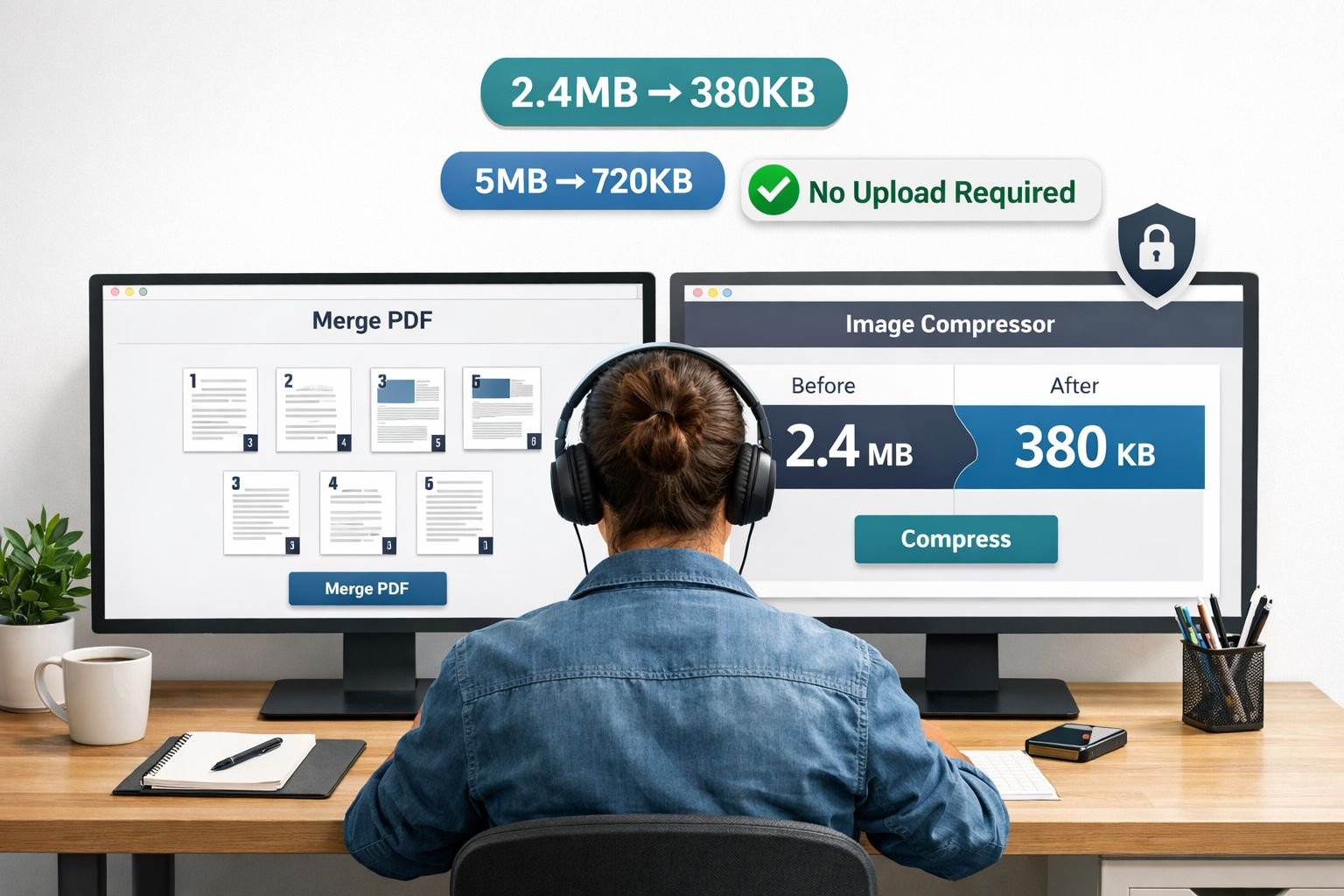
Most freelancers don’t have a toolkit problem. They have a consistency problem. A stable set of free image and PDF tools saves more time than any individual feature.
Here’s what actually happens without a consistent stack: a client sends a HEIC photo from their iPhone, a scanned PDF contract, and a logo in WebP format — all in the same email. Without a go-to set of tools, the next 20 minutes disappear into browser tabs, free-trial sign-ups, and watermarked exports that can’t go to the client.
That’s not a rare edge case. For freelancers handling onboarding paperwork, design deliverables, proposals, and revision rounds, PDF and image tasks come up daily. The cost isn’t just time — it’s the mental overhead of re-evaluating tools on every project.
A lean, consistent toolkit solves this. Not a bloated suite with features you’ll never touch, but a focused set of tools that cover the real tasks: compress, convert, resize, merge, split, and light editing. When those tools are browser-based and privacy-first, they also work on any device, at any client site, without installing software or logging in.
Core Tasks: What You Really Do with PDFs and Images for Clients
The best free image and PDF tools for freelancers are the ones that match actual work patterns — not theoretical feature lists.
Most freelance and agency PDF and image work falls into six recurring tasks:
| Task | Image | |
|---|---|---|
| Compress | Shrink a contract or proposal for email | Reduce a photo or mockup for web delivery |
| Convert | Export a PDF page as JPG for a client preview | Convert HEIC/WebP/PNG to a universally safe format |
| Merge / Split | Combine invoices and briefs into one document | Combine images into a single PDF for a portfolio |
| Edit / Annotate | Fill in a form, add a signature, fix a typo | Crop, resize, or adjust a deliverable image |
| Reorder / Rotate | Fix a scanned document with sideways pages | Rotate a photo before adding it to a report |
| Strip metadata | Remove hidden document properties before sending | Remove EXIF location data from client photos |
Each of these tasks comes up in real project phases: sending a proposal, sharing draft mockups, delivering final files, and archiving client documentation. A good toolkit maps directly to these phases rather than asking you to hunt for a new tool each time.
Recommended Free Tools Stack for PDFs (Edit, Merge, Compress, Redact)
For PDF work, the right tool depends on whether you need browser-based privacy or high-volume offline processing.
Browser-Based PDF Tools (No Upload, No Login)
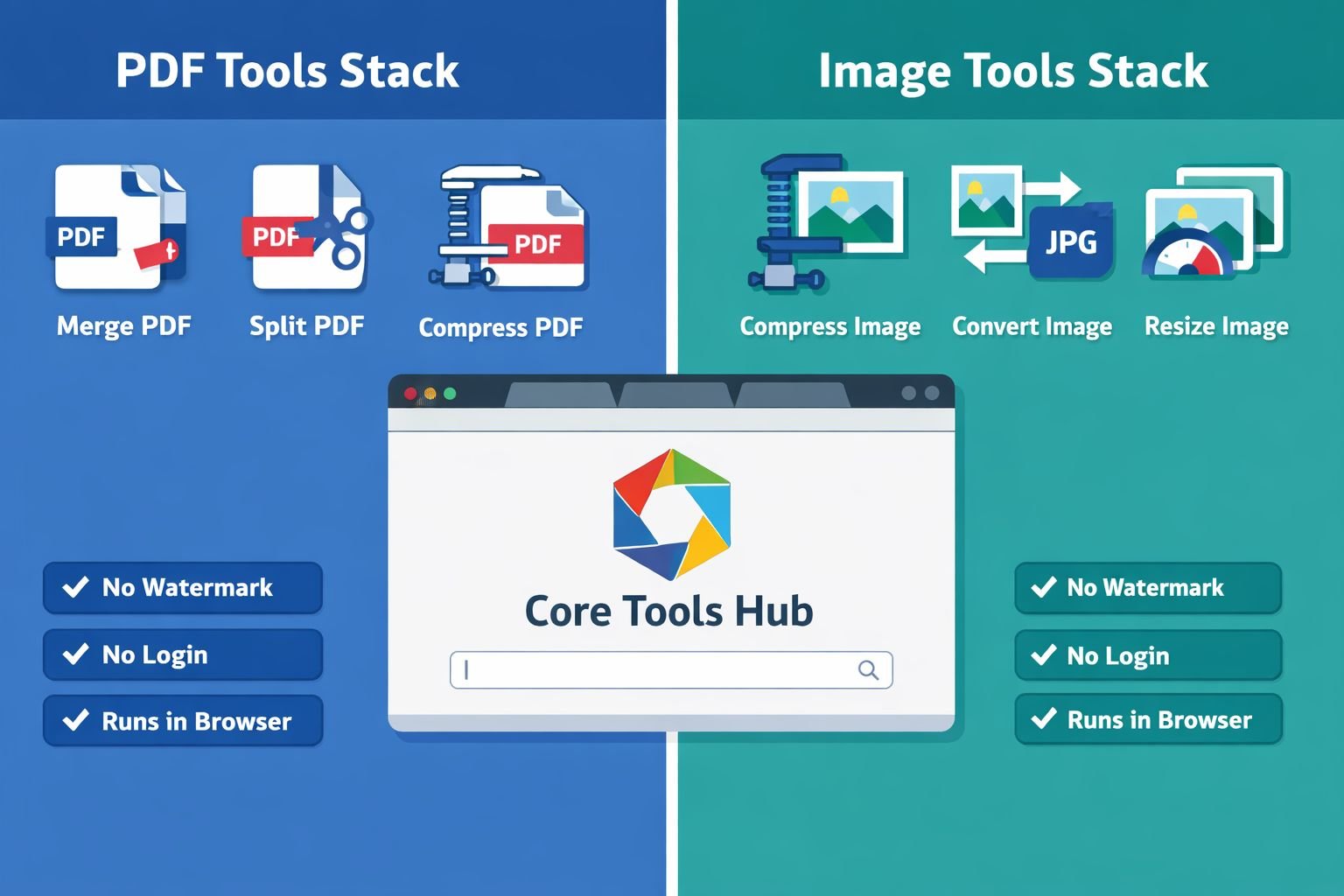
Core Tools Hub covers the core PDF workflow entirely in-browser:
- Merge PDF files — combine contracts, briefs, and invoices into one clean document
- Split PDF into separate pages — extract just the pages a client needs without sending the full file
- Compress PDF — reduce file size before emailing a proposal or attaching to a portal
- Rotate PDF pages — fix sideways scans in seconds
- Reorder PDF pages — drag and drop pages into the right sequence before final delivery
- Extract specific pages — pull selected pages from a long document without splitting the whole file
Because these tools run in your browser, no file data leaves your device. That matters when you’re handling signed contracts, financial documents, or anything covered by a client NDA. For a deeper look at why this distinction matters, see browser-based file conversion vs. cloud upload tools.
Desktop PDF Tools (High Volume, Offline)
PDF24 Creator (Windows) is a strong choice when you’re processing large batches offline. TechRadar named it the top free PDF editor overall in early 2026, citing its 40+ tools and no daily processing limits — a real advantage over tools like Sejda, which caps tasks at 200 pages. PDF24 works offline after install, which is useful for sensitive documents you’d rather never touch a server.
DocHub added a no-watermark Edit Text feature in April 2026, making it a reasonable option for light text edits on PDFs in the free tier. It’s browser-based but does require an account, so it’s better suited for internal documents than client-confidential files.
Common mistake: Using a cloud-based PDF editor for NDA-covered client files. If the tool uploads your file to a server — even temporarily — that’s a potential compliance issue. Browser-based tools that process files locally are the safer default for agency work.
Recommended Free Tools Stack for Images (Convert, Compress, Optimize)
For image work, the best free image and PDF tools for freelancers split into two categories: editors for creative adjustments and converters/compressors for file preparation.
Image Compression and Conversion (Browser-Based)
Core Tools Hub handles the most common image prep tasks without uploads:
- Compress PNG, JPG, or WebP images — compress without obvious quality loss before sending mockups or uploading to a CMS
- Resize images to exact dimensions — prepare images for web, email, or print at the right pixel size
- Convert HEIC to JPG — handle iPhone photos from clients without installing anything
- Convert PNG to JPG, JPG to WebP, and WebP to JPG — match the format a client’s CMS or portal actually accepts
- Convert images to PDF — package a set of JPGs or PNGs into a clean, print-ready PDF for portfolio delivery
For choosing between modern formats, the AVIF vs. WebP vs. JPEG comparison guide is a practical reference when a client asks which format to use for their website.
Image Editing (Browser-Based and Desktop)
Photopea earns a 4.8/5 rating in independent tool comparisons for browser-based PSD editing. It opens Photoshop files, runs entirely in the browser, and requires no install or account. For agencies that need to edit client-supplied PSDs without a Creative Cloud subscription, it’s the most practical option available.
GIMP is the stronger choice for heavy offline editing — layer management, scripting, and detailed retouching — but it has a steeper learning curve and doesn’t handle PSD files as cleanly as Photopea. Choose GIMP if you need offline power; choose Photopea if you need browser access and Photoshop compatibility.
Adobe Lightroom’s free tier received a significant update in April 2026 with AI-powered search and smarter photo culling. For freelancers managing client photo libraries, the free tier is a reasonable starting point before committing to a paid plan.
Best settings for image compression: For web delivery, aim for 70–80% quality on JPEGs and use WebP where the client’s CMS supports it. For email attachments, target under 1MB per image. The guide to compressing images without quality loss covers the specific settings worth bookmarking.
How Core Tools Hub Fits into a Freelancer or Agency Workflow
Core Tools Hub works best as the “always-open utility belt” — the first tab you reach for when a file task comes up, before considering anything else.
The key advantage isn’t any single feature. It’s that the tools are consistent, fast, and privacy-first across both PDF and image tasks. No account to log into, no watermarks on output, no daily limits that reset at inconvenient times. Files are processed in your browser, so nothing is uploaded to a server.
For agencies, this matters beyond just convenience. When a team member handles a client’s signed contract or confidential brand assets, the question “where did this file go?” should have a clear answer. With browser-based tools, the answer is: nowhere. It stayed on your device.
The full PDF tools suite and image tools suite at Core Tools Hub cover the complete toolkit described in this article, organized by task type so you’re not hunting through menus.
Example Workflows: From Proposal to Final Delivery
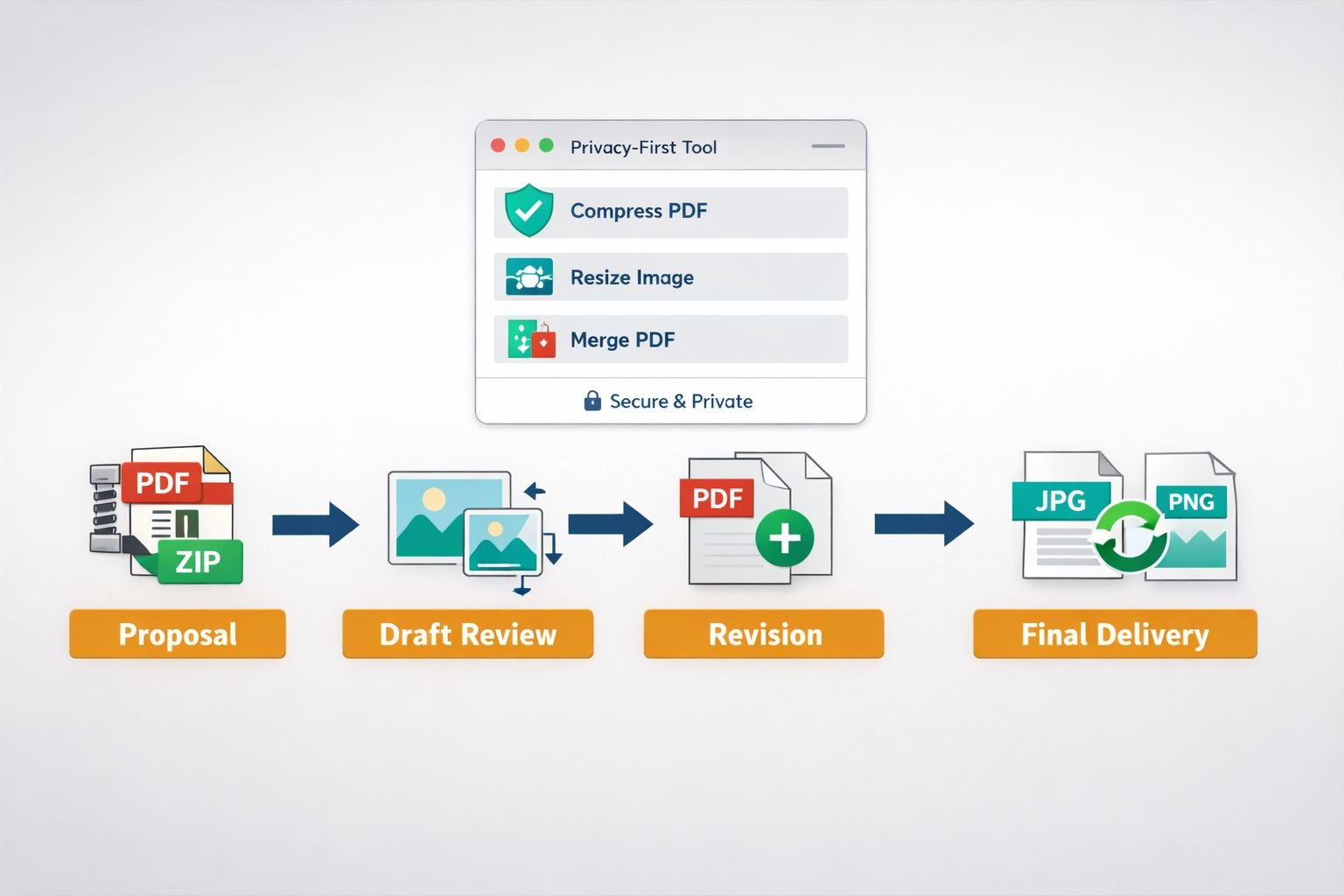
Here’s how a lean toolkit maps to four real project phases.
Phase 1: Sending a Proposal
A client requests a proposal as a PDF under 5MB for their internal portal.
- Export your proposal from your writing or design tool as a PDF.
- Open Compress PDF in your browser.
- Drop in the file, compress, download. Done in under 30 seconds.
If the proposal includes scanned signature pages, use Merge PDF to combine the main document with the signed pages before compressing.
Phase 2: Sharing Draft Mockups
A client wants to review design mockups but their email server rejects files over 10MB.
- Compress each image using the image compressor — most PNGs drop 50–70% without visible quality loss.
- If the client prefers a single document, use Images to PDF to package the mockups into one clean PDF.
Phase 3: Handling Client Revisions
A client sends back a PDF with handwritten notes scanned sideways, plus a HEIC photo they want incorporated.
- Fix the PDF orientation with Rotate PDF.
- Convert the HEIC photo to JPG using the HEIC to JPG converter.
- Resize the converted image to fit the document layout with the image resizer.
Phase 4: Final Delivery
A client needs the final deliverable as a PDF with only the relevant pages (not the full working document), under 8MB, with no internal metadata.
- Use Extract PDF Pages to pull only the pages the client needs.
- Compress the extracted PDF to meet the file size requirement.
- Strip image EXIF data from any embedded photos using the Image EXIF Remover before embedding.
Each step uses a browser-based tool. No installs, no accounts, no watermarks on the final file.
Keeping Your Toolkit Privacy-First and Low-Maintenance
A privacy-first toolkit isn’t just about protecting client data — it’s also about reducing maintenance overhead. Every SaaS account you create is a password to manage, a billing cycle to watch, and a terms-of-service update to ignore until it matters.
Three rules for a low-maintenance toolkit:
- Default to browser-based, client-side tools for anything involving client files. If a tool uploads your file to process it, that’s a deliberate choice, not a default.
- Keep a single bookmark folder with your core tools organized by task (compress PDF, compress image, merge PDF, convert image). When a task comes up, you open the folder — not a search engine.
- Review your stack once per quarter. Tools change. Free tiers add limits. New browser-based options appear. A 10-minute quarterly check keeps the stack current without constant monitoring.
For agencies with multiple team members, share the bookmark folder as a team resource. It’s faster than writing a tools policy and more reliable than asking everyone to find their own solutions.
What to try next: Start with the full Core Tools Hub toolkit and bookmark the five to seven tools that match your most common tasks. The next time a client sends a HEIC file or a 25MB PDF, the answer is already one click away.
Conclusion: Build the Stack Once, Use It on Every Project
The goal isn’t to find the perfect tool for every edge case. It’s to have a consistent, reliable answer for the file tasks that come up on every project — compress, convert, merge, split, resize, and edit.
The best free image and PDF tools for freelancers in 2026 share three traits: they run in the browser, they don’t require a login, and they don’t watermark the output. That combination covers the vast majority of client work without a subscription, without a download, and without the risk of a client file sitting on someone else’s server.
Build the stack once. Bookmark it. Share it with your team. Then stop thinking about tools and get back to the work clients actually pay for.
Start building your stack now at Core Tools Hub — fast, private, browser-based tools for every PDF and image task in your workflow.
Frequently Asked Questions
What are the best free PDF tools for freelancers that don’t add watermarks? Browser-based tools that process files locally — like Core Tools Hub’s merge, split, compress, and rotate tools — produce clean output with no watermarks and no login required. PDF24 Creator is a strong offline alternative for Windows users who need high-volume processing.
Are browser-based image and PDF tools safe for client files? Yes, when the tool processes files locally in your browser rather than uploading them to a server. Client-side tools never send your file anywhere, which makes them appropriate for NDA-covered documents and confidential brand assets.
What’s the difference between Photopea and GIMP for freelancers? Photopea runs in your browser, opens PSD files, and requires no install — best for quick edits and agencies without Creative Cloud. GIMP is a more powerful offline editor with a steeper learning curve, better suited for complex retouching work.
How do I compress a PDF for email without losing quality? Use a browser-based PDF compressor and target a file size under 5MB for most email servers (some cap at 10MB or 25MB depending on the provider). The guide to compressing PDF for email covers the specific settings that balance size and readability.
Can I merge PDFs without uploading them to a cloud service? Yes. Core Tools Hub’s Merge PDF tool runs entirely in your browser — files are never uploaded to a server. This is the safest option for combining contracts, proposals, or any confidential documents.
What image format should I use for client deliverables? JPG for photos and complex images, PNG for graphics with transparency, WebP for web assets where the CMS supports it. When a client sends a HEIC file from an iPhone, convert it to JPG first using a browser-based converter before incorporating it into any deliverable.
Is PDF24 really free with no limits? PDF24 Creator (the desktop Windows app) has no daily processing limits, which makes it better than tools like Sejda for high-volume work. The web version has some restrictions. For browser-based work with no limits and no install, Core Tools Hub is the more consistent option.
How do I remove metadata from images before sending to clients? Use a browser-based EXIF remover that processes the file locally. This strips location data, camera settings, and other embedded information before the file leaves your device — important for photos taken at client sites or with location services enabled.
Do these tools work on mobile? Most browser-based tools work on mobile browsers, though performance varies by device and file size. Core Tools Hub is designed to be mobile-friendly for common tasks like compressing images or splitting PDFs on the go.
How often should a freelancer update their toolkit? A quick quarterly review is enough. Check whether any free tiers have added new limits, whether better browser-based alternatives have appeared, and whether your bookmarks still point to working tools. Major changes in the tools landscape are infrequent enough that monthly reviews aren’t necessary.