













Last Updated: May 27, 2026
Your EPUB ebook opens perfectly on your phone — but the school printer, hospital terminal, or older Kindle your colleague uses just shows a blank screen or an error. EPUB is a brilliant format for reflowable reading, but it’s invisible to a huge chunk of devices and software that only speak PDF. The fastest fix? Convert EPUB to PDF directly in your browser, right now, with no app to install and no account to create.
The EPUB to PDF free browser converter at CoreToolsHub handles a 200-page ebook in under 20 seconds, preserves chapters, images, and your table of contents, and never sends your file to a server. That last part matters — especially if you’re working with a library loan, a draft manuscript, or any ebook you’d rather keep private.
Key Takeaways 📌
Convert EPUB to PDF in seconds — no install, no signup, no watermark on output.
Runs entirely in your browser — your ebook file never leaves your device.
Preserves chapters, images, footnotes, and table of contents in the output PDF.
Adjustable font size (default 11pt) so you can tune for printing or older eyes.
Works on desktop and mobile — Chrome, Firefox, Edge, and Safari all supported.
What the EPUB to PDF Tool Does — and Where to Drop Your File
The drop zone sits above the fold on the EPUB to PDF converter page. Drag your .epub file onto it, or click to browse. That’s the whole upload step.
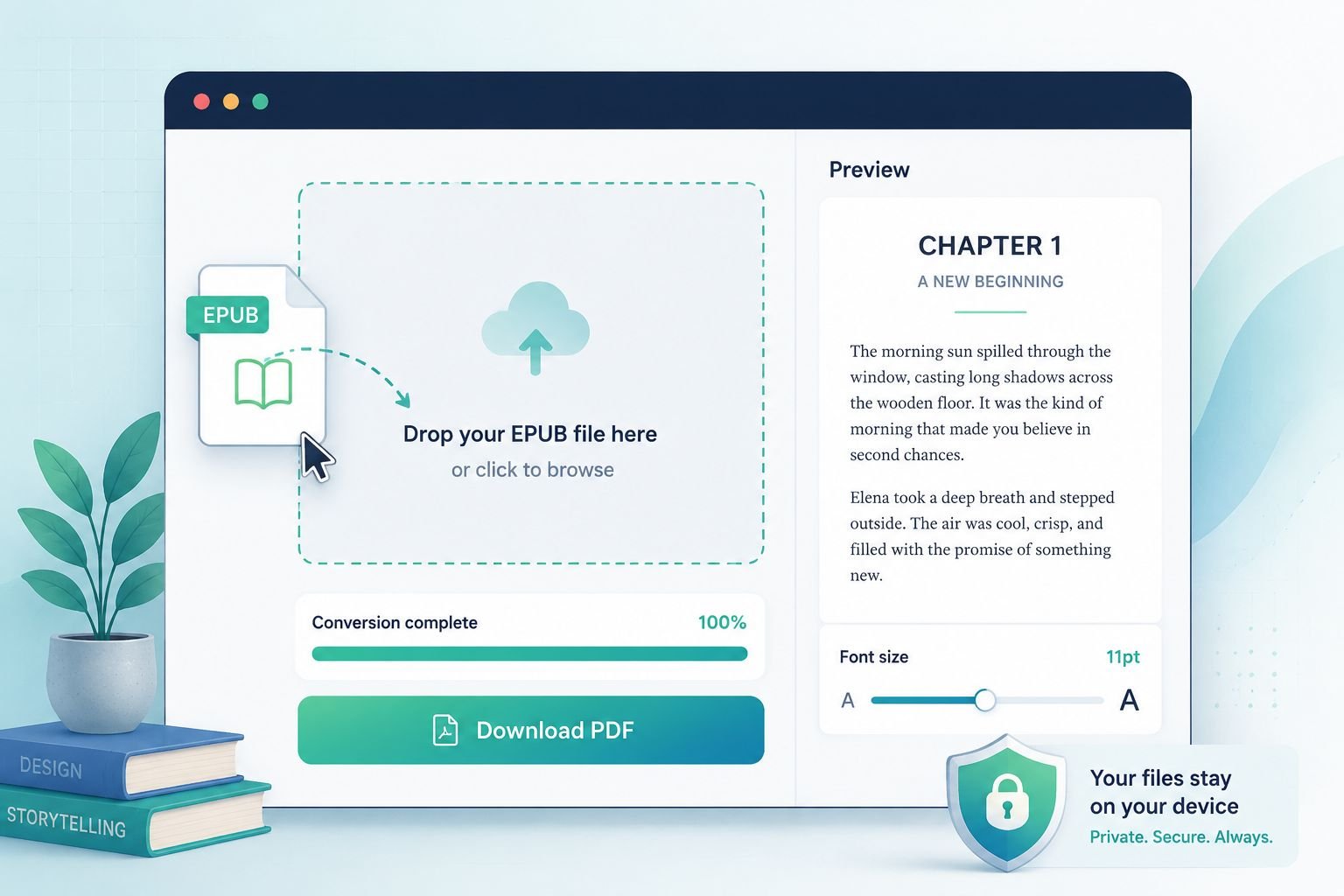
Under the hood, the tool unzips the EPUB package (EPUB files are actually ZIP archives containing HTML, CSS, and image files), parses the spine and manifest, and renders each chapter into paginated PDF pages — all inside your browser tab using client-side JavaScript. Nothing is sent to an external server.
What happens after you drop the file
After the file loads, a reading-style preview of the first chapter appears on screen. This lets you check that the text, fonts, and layout look right before you commit to downloading. You’ll also see a font-size slider set to 11pt by default. Nudge it up for large-print output or down for a more compact, paper-saving result.
💡 Quick tip: 11pt is a solid default for most ebooks. If you’re printing for someone with vision difficulties, try 13–14pt. If you’re printing a reference book to save paper, 9–10pt still reads cleanly on most laser printers.
Best settings at a glance
GoalFont SizeNotesStandard reading / sharing11ptDefault — works for most casesLarge-print or accessibility13–14ptIncreases page countCompact printing / reference9–10ptSaves paper; test readability firstAnnotating in a PDF reader11ptLeaves standard margin space
Step-by-Step: How to Convert EPUB to PDF
No jargon, no fuss. Here’s the full process from file to download-ready PDF.
Step 1 — Open the tool
Go to CoreToolsHub EPUB to PDF. No login screen, no paywall.
Step 2 — Drop or select your EPUB file
Drag the .epub file onto the drop zone, or click the zone to open your file browser. The tool accepts standard EPUB 2 and EPUB 3 files.
Step 3 — Check the preview
The first chapter renders immediately as a preview. Scroll through it. If the text looks off, adjust the font-size slider before proceeding.
Step 4 — Adjust font size if needed
Use the slider to set your preferred point size. Changes reflect in the preview in real time.
Step 5 — Click “Convert to PDF”
The tool processes all chapters in sequence. A 200-page ebook typically finishes in under 20 seconds on a modern browser.
Step 6 — Download your PDF
Click the Download PDF button. The file saves directly to your device. Open it in Adobe Acrobat, Preview (macOS), or any PDF reader to confirm everything looks right.
That’s it. Clean output, no watermark, no signup required.
DRM, Formatting Fidelity, and What Gets Preserved
This is the section most guides skip. Here’s what you actually need to know.
✅ What the converter preserves
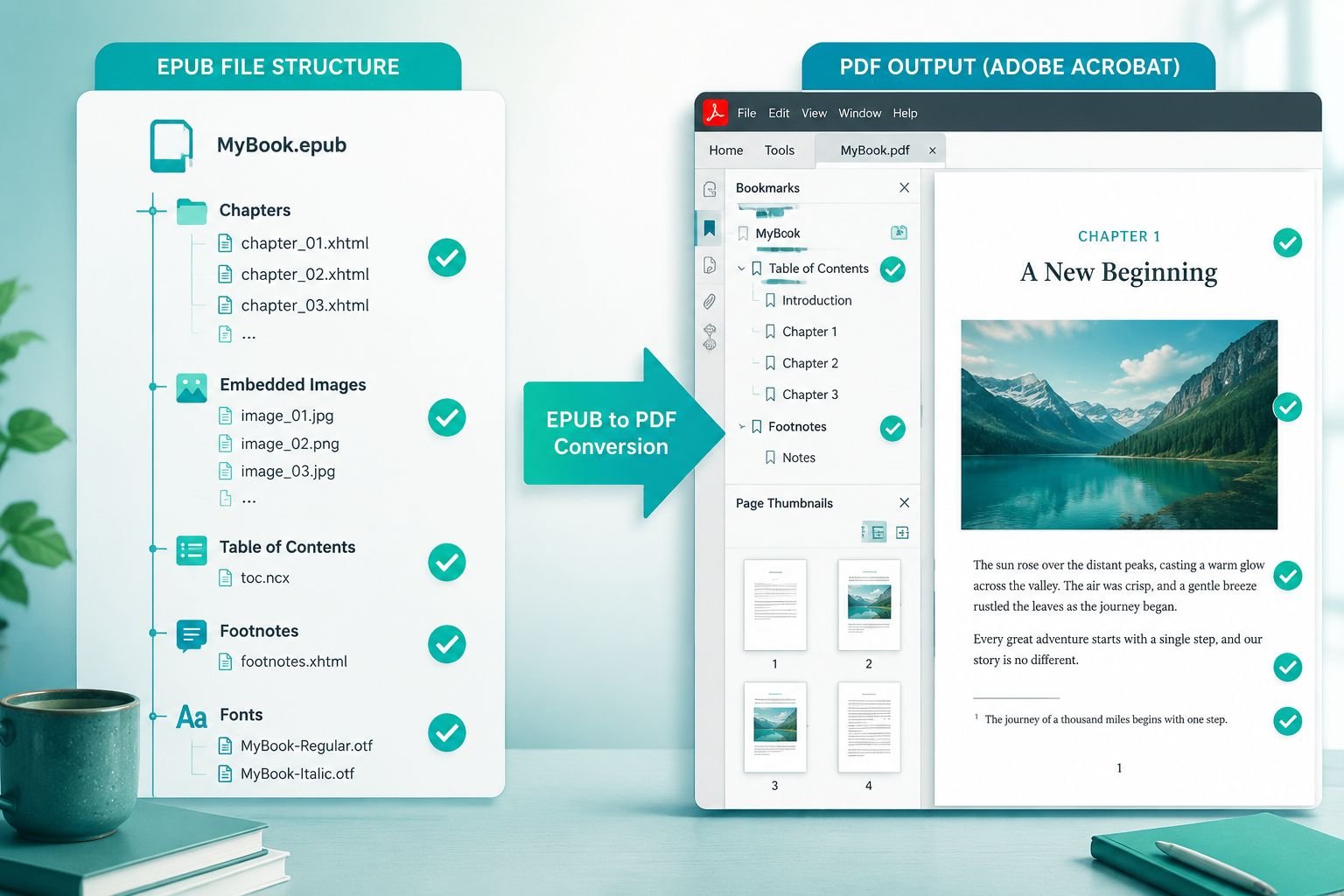
Chapter structure — each chapter becomes a logical section in the PDF, with page breaks between chapters.
Table of contents — if your EPUB has a
toc.ncxornav.xhtmlfile (standard in EPUB 2 and EPUB 3), the PDF bookmarks panel mirrors it.Embedded images — inline images, cover art, and figures are rendered at their original resolution.
Footnotes and endnotes — rendered as text at the bottom of the relevant page or at chapter end, depending on how the original EPUB structured them.
Basic formatting — bold, italic, headings, and block quotes carry through from the EPUB’s CSS.
⚠️ What may look different
Custom fonts — if the EPUB embeds a proprietary typeface, the converter falls back to a system-safe serif or sans-serif. For most ebooks, this is invisible. For heavily designed titles, you may notice a font swap.
Complex CSS layouts — multi-column magazine-style layouts may reflow to a single column. EPUB is designed to reflow; PDF is fixed. Some compromise in layout is expected and normal.
Fixed-layout EPUBs — picture books and graphic novels often use fixed-layout EPUB, which is essentially a series of positioned images. These convert well but may produce very large PDF files.
🔒 DRM — the honest answer
This tool cannot and does not bypass DRM (Digital Rights Management). If your EPUB was purchased from a store and has Adobe DRM or Kindle DRM applied, the file is encrypted and the converter will not be able to read it. This is by design — bypassing DRM is illegal in most jurisdictions regardless of whether you own the ebook.
DRM-free EPUBs work perfectly. These include:
Ebooks you created or self-published
Files from Project Gutenberg, Standard Ebooks, or similar open libraries
Ebooks purchased from DRM-free stores (Smashwords, Humble Bundle, etc.)
Draft manuscripts and review copies
FAQ: Chapters, Images, Fonts, and File Size
Will my table of contents show up in the PDF?
Yes. If the EPUB includes a navigation document (standard in EPUB 3) or an NCX file (EPUB 2), the PDF will include a matching bookmarks panel. Open it in Acrobat or Preview to jump between chapters.
What happens to images inside the ebook?
Embedded images render inline at their original resolution. Cover images appear on the first page. If an image was very low resolution in the original EPUB, it will look the same in the PDF — the converter doesn’t upscale.
How big will the output PDF be?
A text-heavy 200-page ebook typically produces a PDF between 1–4 MB at 11pt. Image-heavy ebooks can be significantly larger. If the file is too large to email, use the free PDF compressor afterward to reduce file size without obvious quality loss.
Can I convert multiple EPUBs at once?
The current tool processes one file at a time. For bulk conversions, desktop tools like Calibre (free, open-source) handle batch processing well, though they require a download and setup.
Does it work on mobile?
Yes. The tool is mobile-friendly and runs in Chrome, Firefox, and Safari on Android and iOS. The drop zone accepts files from your local storage or cloud storage apps. Conversion speed depends on your device’s processor, but most modern phones handle standard ebooks quickly.
Is there a file size limit?
Very large EPUBs (over 50 MB, typically fixed-layout or heavily illustrated) may be slow to render in the browser. For standard prose ebooks, there’s no practical limit.
Related CoreToolsHub PDF Tools
Once your EPUB is a PDF, you may need to do a bit more with it. Here are the tools that fit naturally into the next step:
Compress PDF — If the converted PDF is too large for email or a portal upload, run it through the compressor. It reduces file size in the browser with no uploads required. For a deeper look, see the guide to compressing PDFs without losing quality.
Merge PDF — Converted two separate EPUB volumes? Combine them into one PDF with the merge tool. No upload, no account. The best online tools to merge PDFs guide covers more options if you need them.
PDF to Word — Need to edit the converted ebook text in a word processor? This guide covers how to handle the formatting quirks that come up when moving from PDF to an editable document.
Best Free Online PDF Compressor — A broader look at compression options if the built-in compressor doesn’t get the file small enough for your specific use case.
Split PDF into Separate Pages — Want to extract just one chapter from the converted PDF? The split tool lets you pull out specific pages without touching the rest.
Conclusion — Get Your EPUB Into PDF in Under a Minute
EPUB is a great reading format. PDF is a great format for sharing, printing, and annotating. When you need to cross that bridge — for a school printer, a device that doesn’t support EPUB, or a colleague who just needs a file they can open anywhere — the CoreToolsHub converter gets it done fast, privately, and without any hoops to jump through.
Your next step: Drop your EPUB file into the free EPUB to PDF converter, check the chapter preview, set your font size, and download. The whole process takes less time than finding a workaround.
If the output PDF ends up larger than expected, head straight to the PDF compressor — it’s one click away and runs the same way: no uploads, no account, fast clean results.