













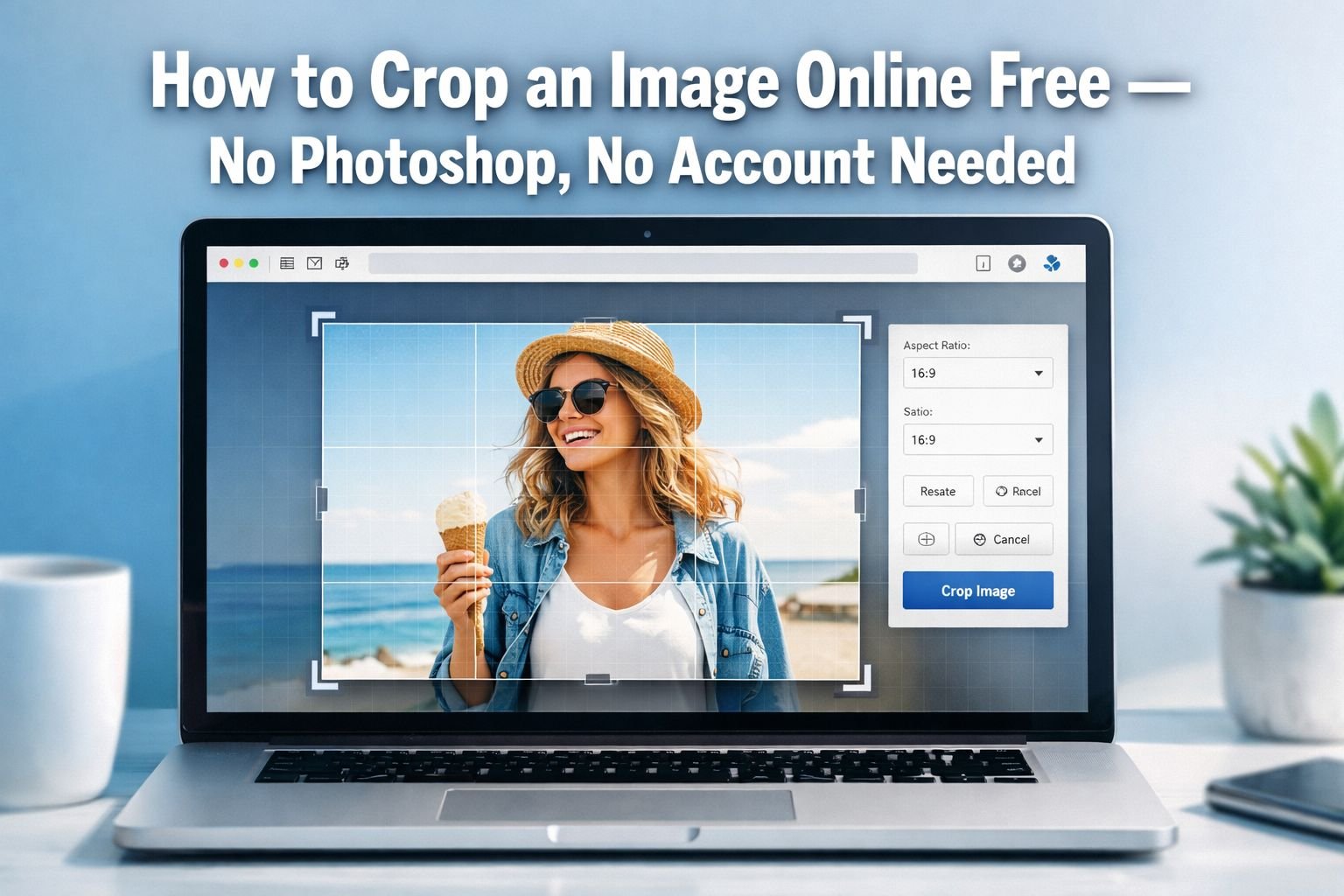
Last updated: May 13, 2026
Quick Answer: To crop an image online free without an account, open a browser-based image cropper, upload your photo, drag the crop handles to your desired area or select a preset aspect ratio (like 1:1 for Instagram), and download the result instantly. No software installation, no signup, and no waiting — the entire process runs in your browser and takes under 60 seconds.
Key Takeaways
- You can crop images online free without creating an account on Canva or Adobe Express — browser-based tools handle the job in seconds.
- Freeform cropping lets you drag any shape; preset aspect ratios (1:1, 16:9, 9:16) lock proportions for specific platforms.
- All processing happens in your browser, so your photos are never uploaded to a server — a genuine privacy advantage.
- Common social media crop sizes: 1080×1080 px (Instagram square), 1280×720 px (YouTube thumbnail), 1584×396 px (LinkedIn banner), 820×312 px (Facebook cover).
- To avoid quality loss, choose a tool that does not re-compress your image on export — browser-based croppers typically preserve the original file quality.
- After cropping, if your file is still too large for email or web use, run it through a free image compressor as a second step.
- Canva and Adobe Express both require account creation before you can download a cropped image — a common frustration for users who need a quick one-off crop.
- Cropping to exact pixel dimensions matters for professional results: a LinkedIn banner uploaded at the wrong size will appear blurry or stretched.
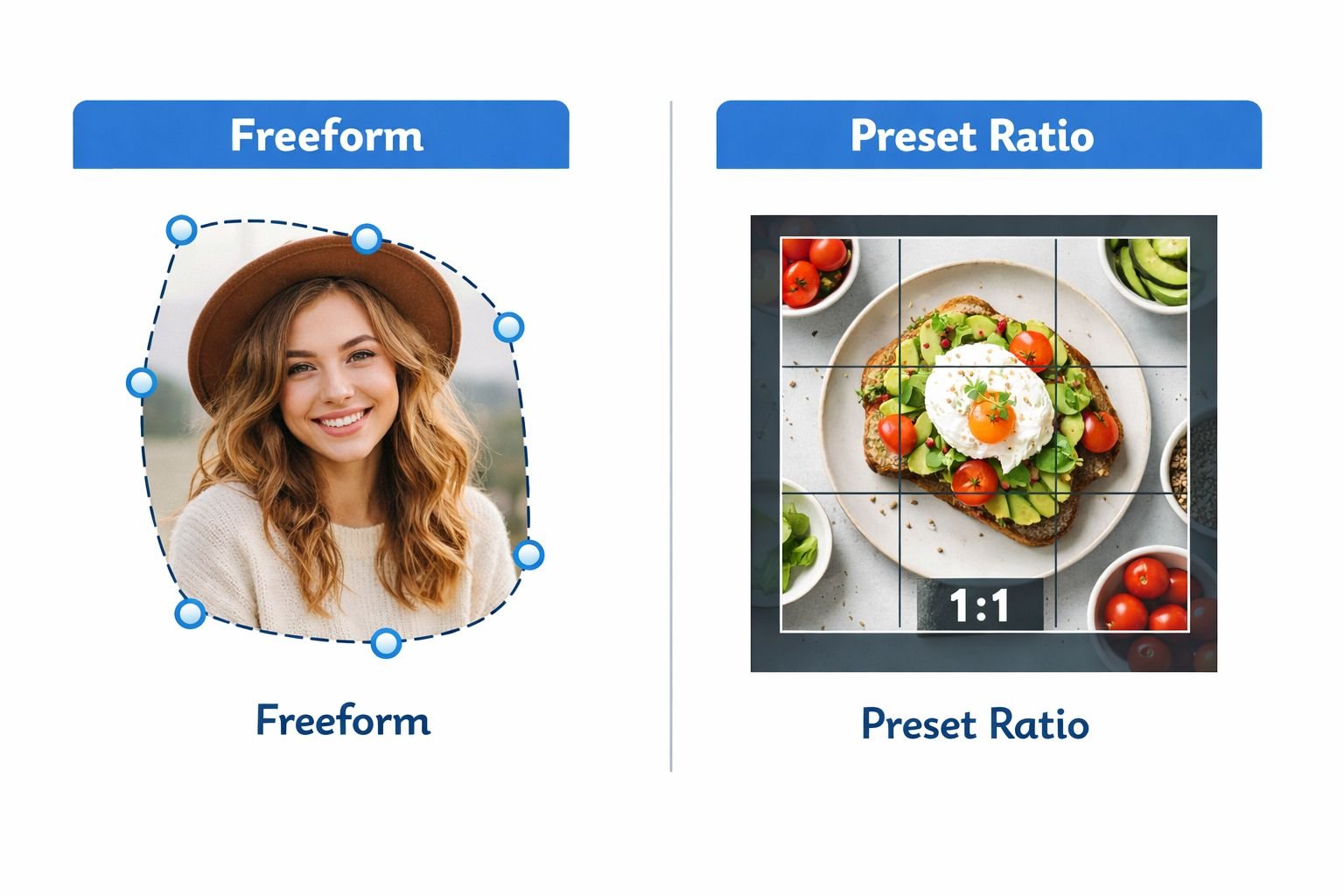
Freeform vs. Preset Aspect Ratios — Which Crop Mode Do You Need?
Choose freeform cropping when you need a custom shape or size. Choose a preset aspect ratio when you’re cropping for a specific platform like Instagram, YouTube, or LinkedIn.
Most free online image croppers offer two modes:
Freeform (custom) cropping lets you drag the crop handles freely. You decide the exact width and height. This is the right choice when you’re trimming unwanted edges from a product photo, removing a distracting background element, or cropping to a specific pixel dimension you already know (for example, 800×600 px for a blog header).
Preset aspect-ratio cropping automatically locks the proportions. You drag the crop area, but the width-to-height relationship stays fixed. This prevents you from accidentally uploading a stretched or squished image to a platform that expects a specific ratio.
Common preset ratios and where they’re used
| Aspect Ratio | Typical Use Case |
|---|---|
| 1:1 (square) | Instagram posts, profile photos, product thumbnails |
| 16:9 (landscape) | YouTube thumbnails, presentation slides, website banners |
| 9:16 (portrait) | Instagram Stories, TikTok, YouTube Shorts |
| 4:3 (standard) | General photography, older display formats |
| 4:5 (portrait) | Instagram portrait posts (recommended by Meta) |
Decision rule: If you’re cropping for social media, always use a preset ratio. If you’re trimming a document scan or removing a watermark edge, freeform gives you more control.
Common mistake: Cropping a profile photo freeform and ending up with a 3:2 rectangle — most platforms display profile images as circles or squares, so a 1:1 crop is almost always the right starting point.
How to Crop an Image Online Free — Step-by-Step
The process takes under a minute: open the tool, upload your image, set your crop area, and download. No account required.
Here’s the exact workflow using a browser-based image cropper:
- Open the crop tool in your browser. Go to CoreToolsHub’s image tools and select the image cropper. No download, no signup.
- Upload your image. Click the upload button or drag and drop your file. Supported formats typically include JPG, PNG, and WebP. If your image is in HEIC format (common on iPhones), convert it first using a free HEIC to JPG converter.
- Choose your crop mode. Select freeform for custom dimensions, or pick a preset ratio (1:1, 16:9, etc.) from the toolbar.
- Drag the crop handles. Adjust the selection box over the area you want to keep. Most tools let you move the box by clicking inside it and dragging.
- Set exact pixel dimensions (optional). If the tool supports it, type in your target width and height in pixels. This is useful for platform-specific requirements, such as a LinkedIn banner at 1584×396 px.
- Preview the result. Check that the crop captures the right area before downloading.
- Download your cropped image. Click the download button. The file saves to your device in the original format (or your chosen format).
What to do if the file is too large after cropping
Cropping removes pixels, so file size usually decreases. But if you’re cropping a small area from a very high-resolution photo, the output might still be larger than you need for email or web use. In that case, run the cropped image through the CoreToolsHub image compressor to reduce the file size without visible loss of quality.
For more on resizing images to exact dimensions alongside cropping, see the complete guide to resizing images online free.
Social Media Image Size Cheat Sheet — Crop to the Right Dimensions
The most common follow-up question after “how do I crop an image online free” is “what size should my image be?” Here are the current platform-recommended dimensions for 2026.
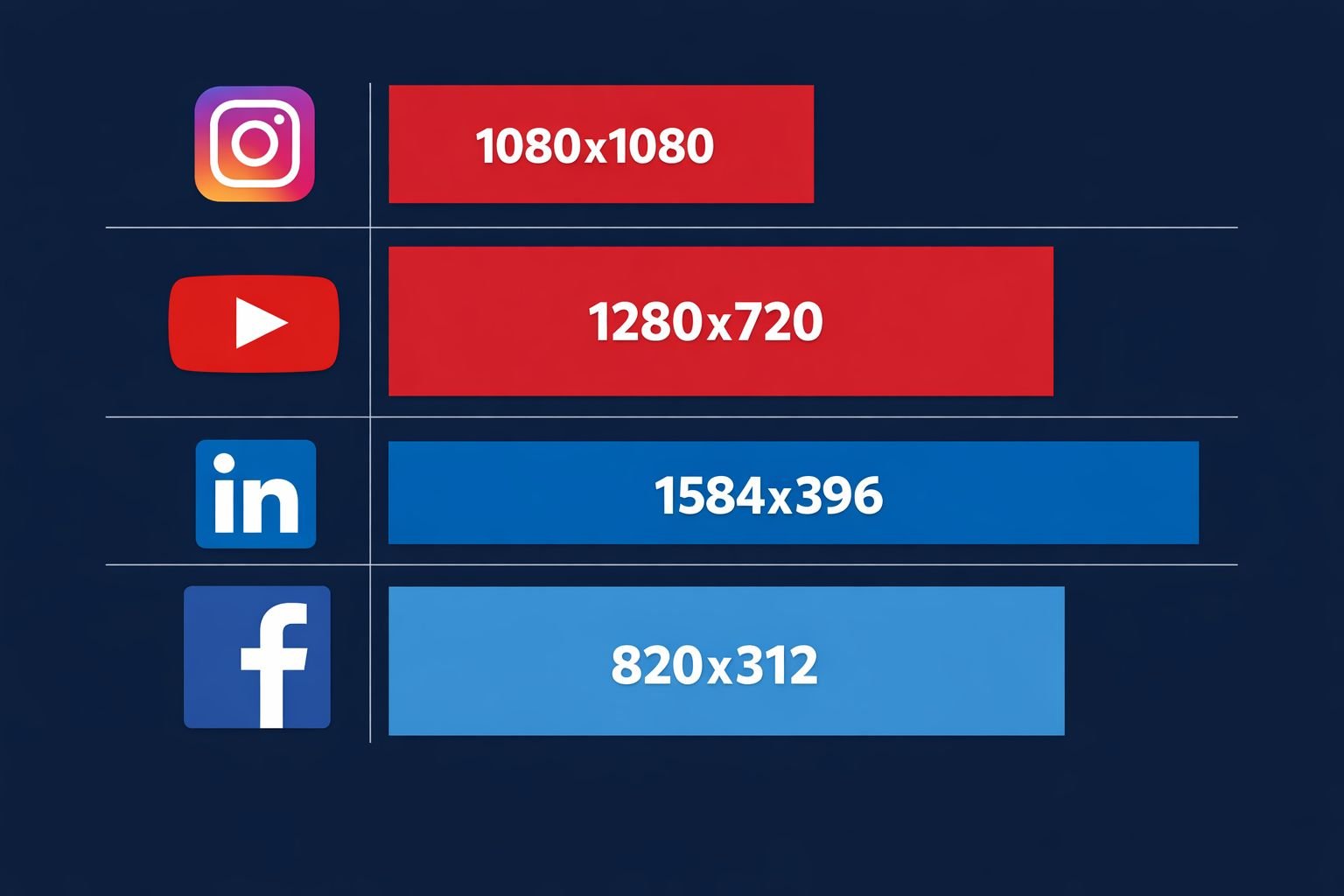
Uploading an image at the wrong size is the fastest way to get blurry results or awkward cropping by the platform’s own algorithm. Use these dimensions as your target when setting pixel dimensions in your crop tool.
Platform image dimension reference table
| Platform | Image Type | Recommended Dimensions | Aspect Ratio |
|---|---|---|---|
| Square post | 1080 × 1080 px | 1:1 | |
| Portrait post | 1080 × 1350 px | 4:5 | |
| Story / Reel | 1080 × 1920 px | 9:16 | |
| YouTube | Thumbnail | 1280 × 720 px | 16:9 |
| YouTube | Channel art | 2560 × 1440 px | 16:9 |
| Cover photo | 820 × 312 px | ~2.63:1 | |
| Post image | 1200 × 630 px | ~1.91:1 | |
| Personal banner | 1584 × 396 px | 4:1 | |
| Company banner | 1128 × 191 px | ~5.9:1 | |
| Twitter / X | Header photo | 1500 × 500 px | 3:1 |
| Twitter / X | Post image | 1200 × 675 px | 16:9 |
Quick tip: When in doubt for Instagram, crop to 1080×1080 px (1:1). It works for feed posts, is safe for profile thumbnails, and displays cleanly across all devices.
For a deeper look at sizing images correctly for web and social use, the guide on perfect image dimensions for web, email, and social media covers every major platform in detail.
How to Crop an Image Online Free Without Losing Quality
The key to preserving image quality during cropping is choosing a tool that processes the image in your browser without re-compressing it on a server.
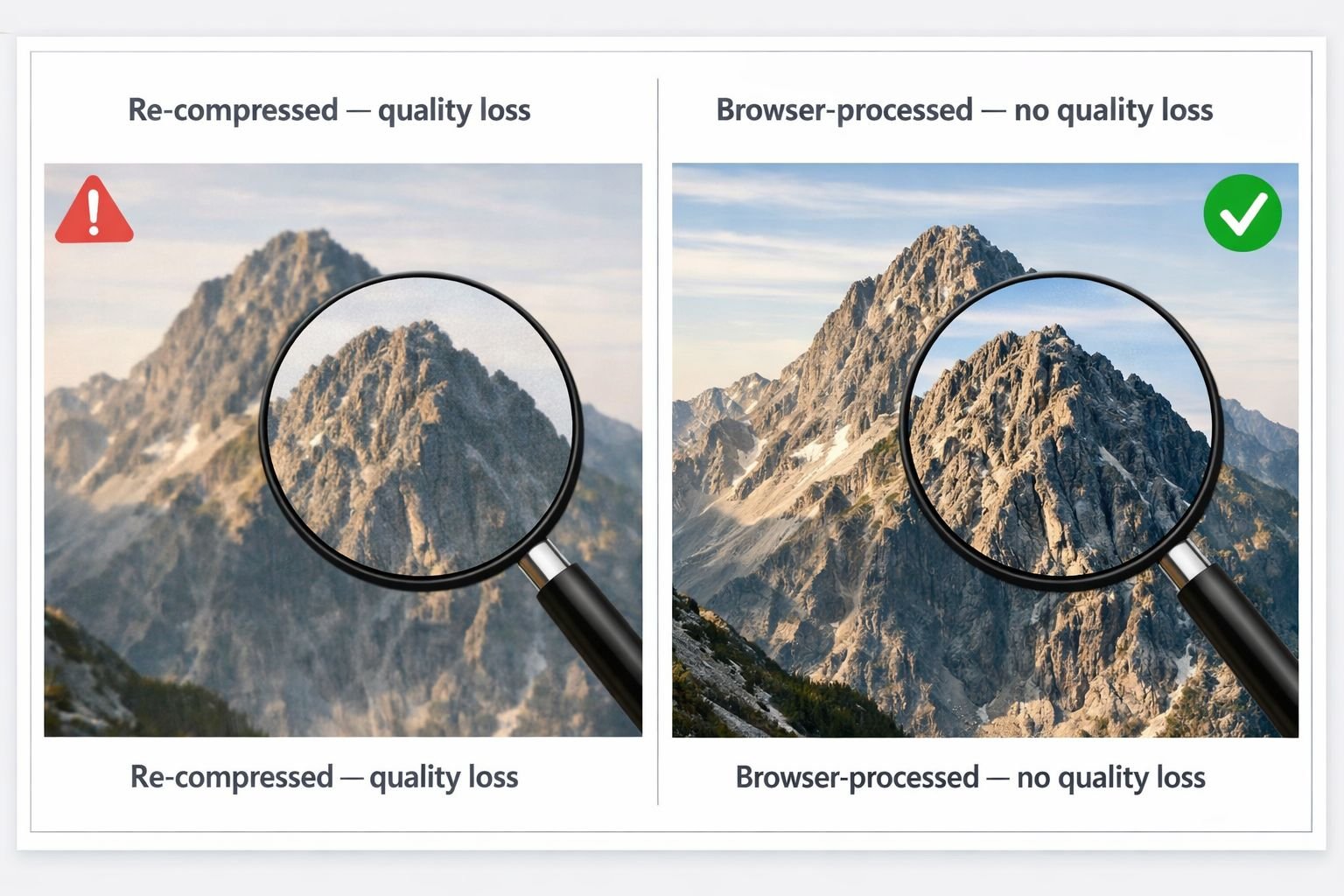
Here’s why quality loss happens — and how to avoid it:
When you upload an image to a server-based tool, it is sent to a remote computer, processed, and returned. Each round trip can introduce re-compression, especially for JPG files, which use lossy compression by default. Every time a JPG is saved after editing, it loses a small amount of detail.
Browser-based tools avoid this entirely. The image stays on your device, the crop calculation runs locally in JavaScript, and the downloaded file reflects only the crop, not an additional compression pass.
Best practices for quality-preserving crops
- Start with the highest-resolution version of your image. Cropping reduces the number of pixels, so starting with more pixels gives you more to work with.
- Crop to your target dimensions, not smaller. If you need a 1080×1080 px image, crop to exactly that size rather than cropping small and scaling up later. Scaling up always reduces sharpness.
- Use PNG for graphics with text or sharp edges. PNG is lossless, so it won’t introduce compression artifacts. JPG is fine for photographs.
- Avoid re-saving a JPG multiple times. Each save degrades quality slightly. Crop once, save once.
- Check the output format. Some tools default to converting your image to a different format on export. Make sure the output format matches what you need.
If your image is in WebP format and you need a JPG after cropping, use the WebP to JPG converter for a clean, single-step conversion without additional quality loss.
For a full breakdown of how compression affects image quality, see the guide on how to compress images without quality loss.
Best Free Online Image Croppers in 2026 (No Account Required)
Several browser-based tools let you crop images online free without creating an account. The best ones process images locally, support common aspect ratios, and download instantly.
Here’s a practical comparison of the most-used options:
| Tool | No Signup | In-Browser Processing | Preset Ratios | Freeform | Formats |
|---|---|---|---|---|---|
| CoreToolsHub | ✅ | ✅ | ✅ | ✅ | JPG, PNG, WebP |
| Mediamodifier | ✅ | ✅ (client-side) | ✅ | ✅ | JPG, PNG, SVG, PDF |
| Imagy.app | ✅ | ✅ | Limited | ✅ (freehand) | JPG, PNG, WebP |
| Canva | ❌ (account required) | ❌ (server-based) | ✅ | ✅ | Multiple |
| Adobe Express | ❌ (sign-in required) | ❌ (server-based) | ✅ | ✅ | Multiple |
Key distinction: Canva and Adobe Express both require account creation before you can download a cropped image. For users who need a single quick crop — a parent resizing a school photo, a small business owner trimming a product image — that signup friction is a genuine barrier. Browser-based tools like CoreToolsHub and Mediamodifier skip that entirely.
Imagy.app is worth noting for freehand (irregular shape) cropping, which is useful for non-rectangular crops that rectangle-only tools can’t handle. However, it has fewer AI-assisted features than newer tools.
On the AI-assisted side, tools like Picsart’s Smart Crop (released January 2026) use natural language prompts to identify crop intent without requiring pixel coordinates — useful for batch editing or when you’re not sure of the exact dimensions you need. These tools are evolving quickly, though most advanced AI features sit behind a paid tier.
Choose the right tool based on your need:
- Quick one-off crop, privacy matters: CoreToolsHub or Mediamodifier (browser-based, no account)
- Irregular/freehand crop shape: Imagy.app
- Batch cropping with AI subject detection: Picsart Smart Crop or Clipdrop (free tier available, some features require signup)
- Full design workflow: Canva or Adobe Express (account required)
Common Mistakes When Cropping Images Online
Most cropping errors come from skipping the dimension check, using the wrong aspect ratio, or downloading in the wrong format.
- Cropping too aggressively on low-resolution images. If your original photo is 800×600 px and you crop to a small area, the output will be too small to display cleanly. Always check the output pixel dimensions before downloading.
- Using freeform when a platform expects a specific ratio. Facebook cover photos cropped freeform often end up at the wrong ratio and get auto-cropped by the platform — sometimes cutting off faces or text.
- Ignoring the output format. If you need a transparent background, save as PNG, not JPG. JPG does not support transparency.
- Re-uploading and re-cropping the same image multiple times. Each edit cycle on a lossy format (JPG) degrades quality slightly. Make all your edits in one session and save once.
- Forgetting to check mobile display. A LinkedIn banner that looks correct on desktop may crop differently on mobile. Always preview on both.
Conclusion
Cropping an image online free doesn’t require Photoshop, a Canva account, or any software installation. Browser-based tools handle the job in under a minute, keep your files private by processing everything locally, and deliver clean results without re-compression quality loss.
Your next steps:
- Identify your crop target. Use the social media dimension table above to find the exact pixel dimensions for your platform.
- Open a browser-based crop tool. CoreToolsHub’s image tools work on desktop and mobile, no signup required.
- Choose freeform or a preset ratio, crop to your target dimensions, and download.
- If the file is still too large, run it through the CoreToolsHub image compressor to reduce file size without visible quality loss.
- Check your output on the target platform before publishing — especially for profile photos and banners where platform auto-cropping can cut off important details.
For related tasks, the guide on resizing images for social media without cropping covers situations where you need to fit an image to a new canvas size without removing any content.
Frequently Asked Questions
Q: Can I crop an image online free without creating an account?
Yes. Browser-based tools like CoreToolsHub process images directly in your browser with no signup required. Canva and Adobe Express require account creation before you can download cropped images.
Q: Does cropping an image reduce its quality?
Cropping itself does not reduce quality — it only removes pixels outside the selected area. Quality loss happens when a tool re-compresses the image during export. Browser-based tools that process images locally typically avoid this re-compression step.
Q: What is the best aspect ratio for Instagram?
For a standard Instagram feed post, use 1:1 (1080×1080 px). For portrait posts, 4:5 (1080×1350 px) uses more screen space and tends to perform better. For Stories and Reels, use 9:16 (1080×1920 px).
Q: How do I crop an image to an exact pixel size?
Use a tool that supports custom pixel dimension input. Enter your target width and height (for example, 1280×720 px for a YouTube thumbnail), then adjust the crop area. The tool will constrain the selection to those exact dimensions.
Q: Is it safe to crop images using an online tool?
It depends on the tool. Server-based tools upload your image to a remote computer, which carries some privacy risk. Browser-based tools process the image locally on your device — your file never leaves your computer. Look for tools that explicitly state “all processing in browser” or “no uploads.”
Q: What’s the difference between cropping and resizing?
Cropping removes parts of an image by selecting a smaller area within it. Resizing changes the overall dimensions of the entire image without removing content. You often need both: crop first to the right composition, then resize to the target pixel dimensions. For resizing, see the image resizer tool.
Q: Can I crop a WebP image online free?
Yes. Most modern browser-based croppers support WebP alongside JPG and PNG. If your tool doesn’t support WebP, convert it to JPG first using the WebP to JPG converter, then crop.
Q: What should I do if my cropped image looks blurry?
Blurriness after cropping usually means the original image resolution was too low for the crop area you selected. Start with a higher-resolution source image. If the image was already low-resolution, cropping won’t improve it — sharpening tools can help slightly but won’t fully recover lost detail.
Q: Do I need to crop differently for mobile vs. desktop?
For most social media platforms, the recommended dimensions work for both. However, some platform banners (like LinkedIn and Facebook covers) display differently on mobile — they crop the sides on smaller screens. Center your most important content to avoid it being cut off.
Q: Can I crop a PDF image online free?
If your image is embedded in a PDF, you’ll need to extract it first. Use the PDF to images converter to export the page as a JPG or PNG, then crop the resulting image file.