













Last Updated: August 3, 2026
You just took a batch of photos on your iPhone, transferred them to your Windows PC, and now every file ends in .heic. The upload form only accepts JPG. The email attachment bounces back. Your client says the images won’t open. Sound familiar?
This is one of the most common file headaches iPhone users face in 2026, and the fix takes about thirty seconds. Use the free HEIC to JPG converter at CoreToolsHub — drag in up to 50 HEIC files at once, pick your quality level, and download web-safe JPEG files. No signup required. No files ever leave your device.
The rest of this guide explains the format tradeoffs, the best quality settings, how to stop your iPhone from creating HEIC files in the first place, and why so many apps still refuse HEIC in 2026.
Key Takeaways
- HEIC files from iPhones are not supported by most Windows apps, Android devices, or web upload forms — converting to JPG fixes compatibility instantly.
- The free CoreToolsHub HEIC converter runs entirely in your browser via WebAssembly; files never upload to any server.
- Batch convert up to 50 HEIC photos at once with a quality slider set to 80 for the best balance of file size and sharpness.
- For ongoing use, switching your iPhone camera to “Most Compatible” saves all new photos as JPEG and eliminates the need to convert later.
- HEIC is a great capture format, but a poor sharing format — JPG remains the universal safe choice for email, web, and forms.
HEIC to JPG vs HEIC to PNG — Which Should You Choose?
When converting HEIC files, most people default to JPG — and for good reason. But it helps to understand what each format actually does before picking one.
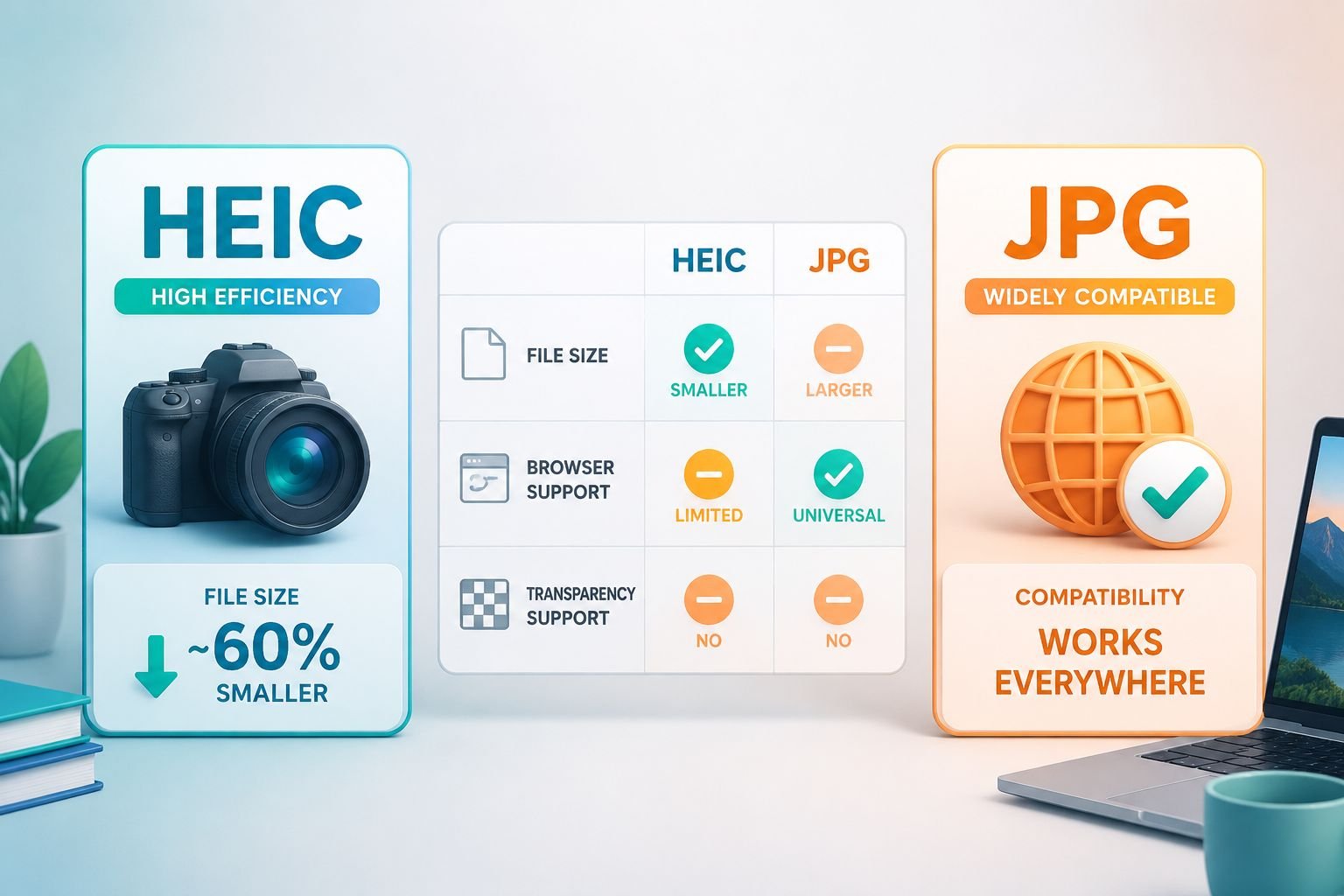
HEIC (High Efficiency Image Container) is Apple’s default photo format since iOS 11. It uses HEVC compression to store images at roughly half the file size of JPEG while keeping similar visual quality. The catch: browser support is essentially Safari-only in 2026, and most non-Apple platforms simply cannot read the format.
JPG/JPEG is the universal standard. Every browser, every email client, every upload form, and every Android device handles it without issue. The tradeoff is that JPEG uses lossy compression — meaning some image data is permanently discarded each time the file is saved. In practice, at 80% quality or above, the difference is invisible to the human eye.
PNG is lossless, meaning no quality is lost during compression. PNG files are larger than JPG but support transparency (a clear background), which matters for logos, product cutouts, and design assets.
Quick format decision table
| Use case | Best format |
|---|---|
| Sharing photos by email or messaging | JPG |
| Uploading to a web form or portal | JPG |
| Posting to social media | JPG |
| Logo or graphic with transparent background | PNG |
| Archiving originals with no quality loss | PNG |
| Web images where load speed matters | WebP or AVIF |
The short answer: Convert HEIC to JPG for almost every everyday task — email, uploads, printing, job applications, and social media. Convert to PNG only when you need a transparent background or a lossless archive copy.
For a deeper look at when PNG makes more sense, see JPG to PNG conversion explained.
What about quality loss?
Converting HEIC to JPG at 80–95% quality is visually lossless for most practical purposes. The image looks identical on screen and in print. What you do lose is metadata specific to Apple formats — Live Photo motion data and depth maps from Portrait Mode do not carry over to JPEG. If those features matter, keep the original HEIC file as a backup.
iPhone HEIC Settings: How to Stop Your Phone From Creating HEIC Files
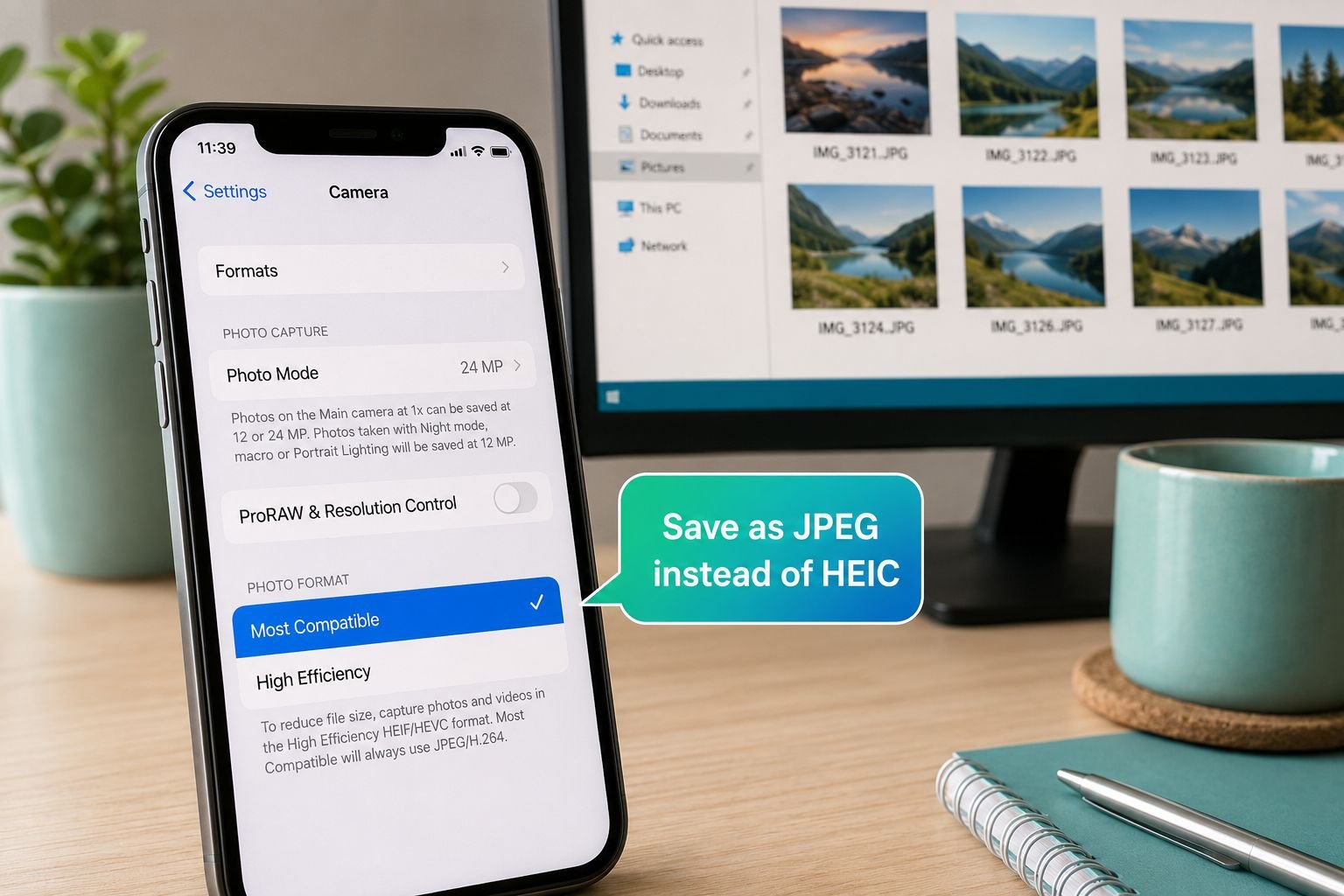
If you find yourself converting HEIC to JPG regularly, the most efficient fix is to stop your iPhone from creating HEIC files in the first place.
Apple calls this the “Most Compatible” setting. Here is how to switch it on:
- Open the Settings app on your iPhone or iPad.
- Scroll down and tap Camera.
- Tap Formats.
- Select Most Compatible.
From that point forward, all new photos save as JPEG instead of HEIF/HEIC. Video also switches from HEVC to H.264. The tradeoff is slightly larger photo files, but for most users that is a fair swap for zero compatibility headaches.
Note: This setting only affects new photos. It does not convert your existing HEIC library. For those older files, the batch converter below handles them in bulk.
When Apple auto-converts for you
Apple does quietly auto-convert HEIC to JPEG in some situations — when you share a photo via email or AirDrop to a non-Apple device, for example. However, this is inconsistent. It depends on the receiving device, the app used, and the iOS version. Relying on auto-conversion leads to surprises, so it is safer to convert explicitly when you know the destination requires JPG.
Bulk-Convert HEIC Photos From a Folder for Cloud Backup
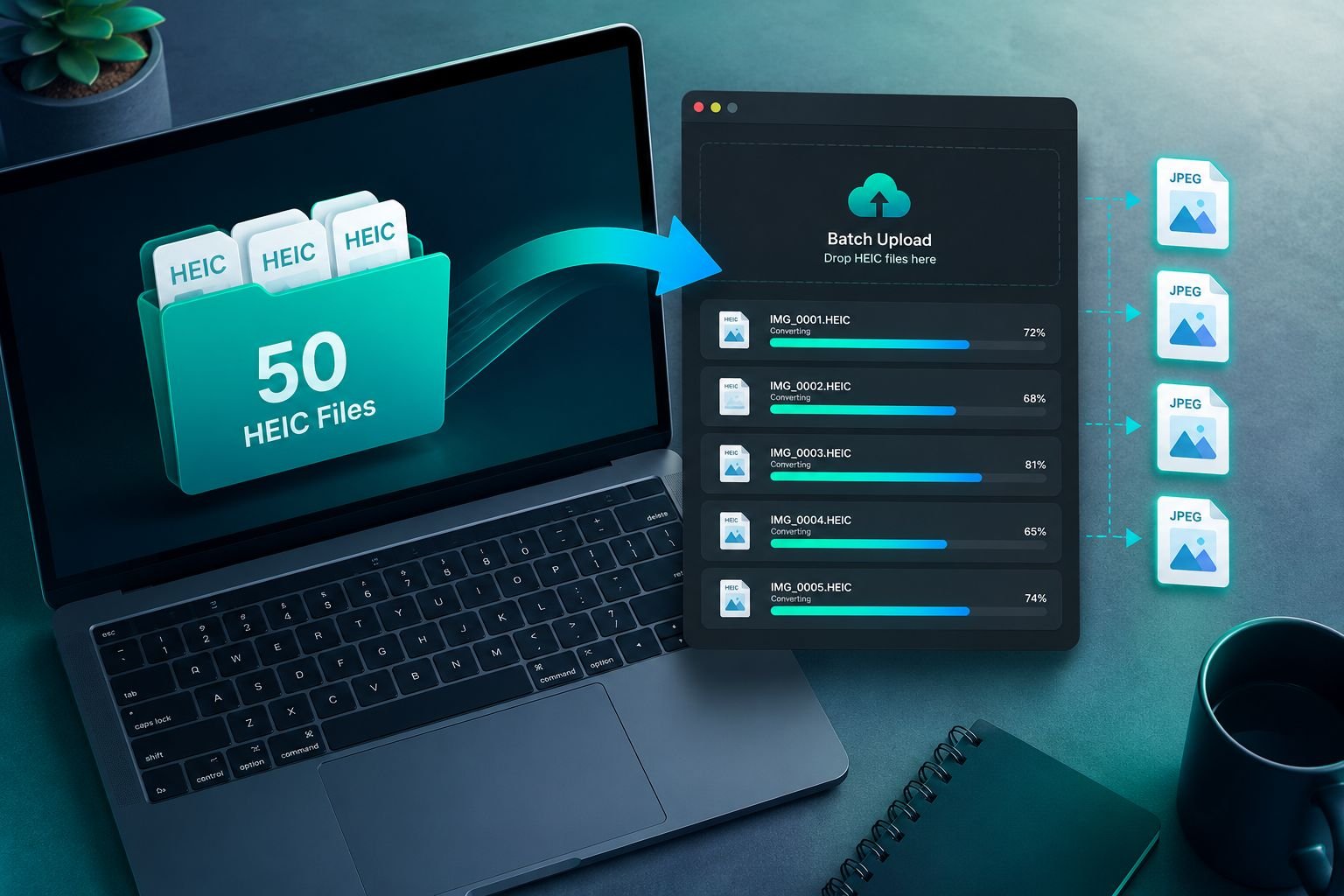
Moving a large iPhone photo library to Google Drive, Dropbox, or a Windows backup folder? Uploading raw HEIC files means the photos may not preview correctly or open at all on non-Apple devices. Converting the whole batch before upload solves this cleanly.
The CoreToolsHub HEIC converter supports drag-and-drop batch upload of 50 or more HEIC files at once. Here is the step-by-step process:
- Go to coretoolshub.com/heic-converter/.
- Drag your HEIC files from a folder directly onto the upload area, or click to browse and select multiple files.
- Use the quality slider to set your output level before converting:
- 60 — smallest file size, visible compression on close inspection; good for thumbnails or web previews.
- 80 — recommended for most uses; sharp results, moderate file size.
- 95 — near-original quality; larger files; best for printing or archiving.
- Click Convert and wait a few seconds.
- Download individual files or grab all converted JPEGs as a ZIP.
Privacy note: All conversion happens client-side in your browser using WebAssembly. Your photos never upload to any server. This is not a marketing claim — it is how the tool is built. If you want to verify, disconnect from the internet after loading the page; conversion still works.
Best settings for common tasks
| Task | Recommended quality |
|---|---|
| Email attachment (under 1 MB each) | 60–70 |
| Web upload or social media | 75–80 |
| Job application or form submission | 80 |
| Printing (4×6 or larger) | 90–95 |
| Cloud backup archive | 95 |
After converting, if your JPEGs are still larger than a portal allows, run them through the free image compressor to reduce file size further without obvious quality loss.
For more on managing image dimensions alongside format conversion, the complete guide to resizing images online covers exact pixel targets for common use cases.
Why Some Apps Still Refuse HEIC Files in 2026
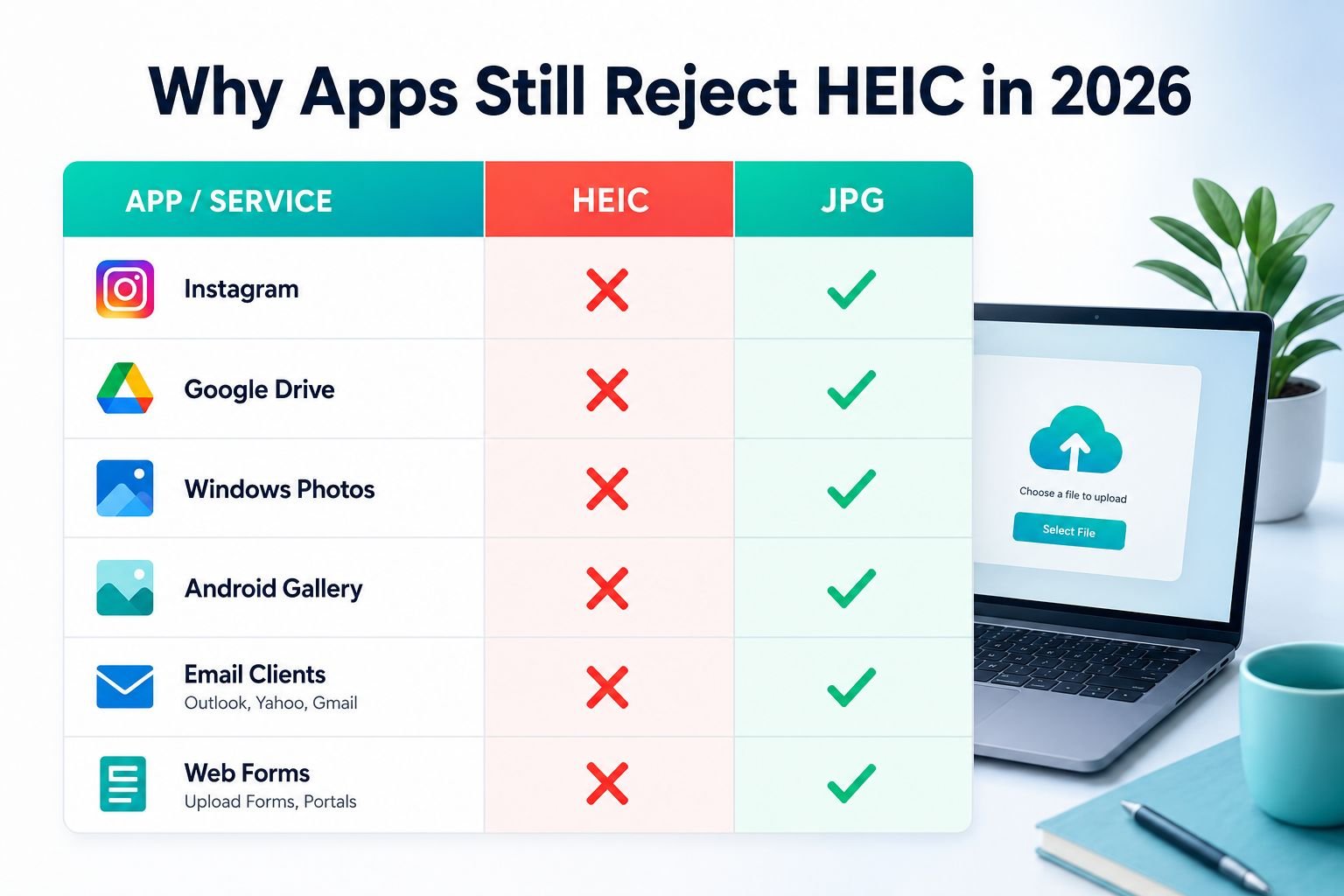
Despite HEIC being over a decade old, the format still fails silently on a surprising number of platforms. Here is why.
The patent problem
HEIC relies on HEVC (H.265) video compression technology. HEVC is covered by multiple overlapping patent pools, and browser makers — specifically Google (Chrome) and Mozilla (Firefox) — have not licensed it for image decoding. As of 2026, HEIC has essentially no native browser support outside Safari. That means any web-based upload form, web app, or cloud tool that runs in Chrome or Firefox cannot read HEIC files directly.
Where HEIC fails most often
| Platform / App | HEIC support in 2026 |
|---|---|
| Chrome browser | No native support |
| Firefox browser | No native support |
| Safari (macOS/iOS) | Full support |
| Windows Photos (no codec) | No |
| Windows Photos (with HEVC codec installed) | Yes |
| Android Gallery | No |
| Google Drive preview | No |
| Instagram upload | No — auto-rejects |
| Most job application portals | No |
| Email clients (non-Apple) | No preview |
This is not a bug that will be patched — it is a licensing and ecosystem issue that has persisted for years and shows no sign of resolving soon. The practical takeaway: treat HEIC as a capture format and JPG as your sharing format.
For a broader look at how HEIC compares to newer formats like AVIF and WebP for web use, the AVIF vs WebP vs JPEG format guide breaks down the tradeoffs clearly.
Common mistakes when dealing with HEIC files
- Renaming
.heicto.jpg— This does not convert the file. It just changes the label. The image data inside is still HEIC and will still fail to open. - Assuming email auto-converts — Apple sometimes converts on share, but not always. Verify the output format before sending to a client or employer.
- Uploading HEIC to a web form and getting a silent failure — Many portals reject the file without a clear error message. If an upload seems to hang or disappear, the format is likely the cause.
- Using a cloud-upload converter for sensitive photos — Most free online converters upload your files to their servers. The CoreToolsHub converter processes everything locally, so personal or confidential photos stay on your device.
Frequently Asked Questions
What is a HEIC file and why does my iPhone use it? HEIC stands for High Efficiency Image Container. Apple switched to it as the default camera format because it stores photos at roughly half the file size of JPEG with similar visual quality. It is efficient for storage but poorly supported outside Apple devices.
Is converting HEIC to JPG free? Yes. The CoreToolsHub HEIC to JPG converter is completely free, requires no account, and has no file count limits per session. Batch convert up to 50 files at once.
Will I lose image quality when converting HEIC to JPG? At 80% quality or higher, the difference is not visible in normal viewing or printing. You do lose Apple-specific metadata like Live Photo motion and Portrait Mode depth data, which do not exist in the JPEG format. Keep original HEIC files if those features matter to you.
Can I convert HEIC to JPG on a phone? Yes. The CoreToolsHub converter is mobile-friendly and works in Safari or Chrome on iPhone and Android. The conversion still runs in the browser — files do not upload anywhere.
Why can’t I just open HEIC files on Windows? Windows does not include HEVC decoding by default. You can install a codec from the Microsoft Store, but that only enables viewing — it does not convert files for sharing or uploading. Converting to JPG is the more practical fix for most users.
What is the difference between HEIC and HEIF?
HEIF (High Efficiency Image File Format) is the container standard. HEIC is Apple’s specific implementation using HEVC compression. For everyday purposes, the terms are interchangeable — both refer to the same .heic files your iPhone creates.
Conclusion
HEIC is a smart format for storing photos on your iPhone, but it creates real friction the moment you try to share, upload, or open those photos anywhere outside Apple’s ecosystem. In 2026, the compatibility gap has not closed — Chrome, Firefox, Android, and most web platforms still do not support it natively.
The fastest fix: drop your HEIC files into the free CoreToolsHub HEIC to JPG converter, set quality to 80, and download clean JPEG files in seconds. No install, no signup, no upload to a server.
For ongoing relief, switch your iPhone camera to “Most Compatible” in Settings so all new photos save as JPEG from the start.
If your converted JPEGs still need to be smaller for email or a portal, the image compressor tool reduces file size without noticeable quality loss. And if you ever need to go the other direction — converting JPG to another format for web or design work — the JPG to PNG converter handles that in the same browser-based, privacy-first way.