













Last updated: July 20, 2026
Quick Answer: To resize an image for a LinkedIn profile picture online, crop your photo to a 1:1 square ratio, resize it to 1000 x 1000 pixels, compress it below 1 MB (LinkedIn allows up to 8 MB), and save as JPG or PNG. The whole process takes under two minutes in a browser-based tool — no app download, no account needed.
Key Takeaways
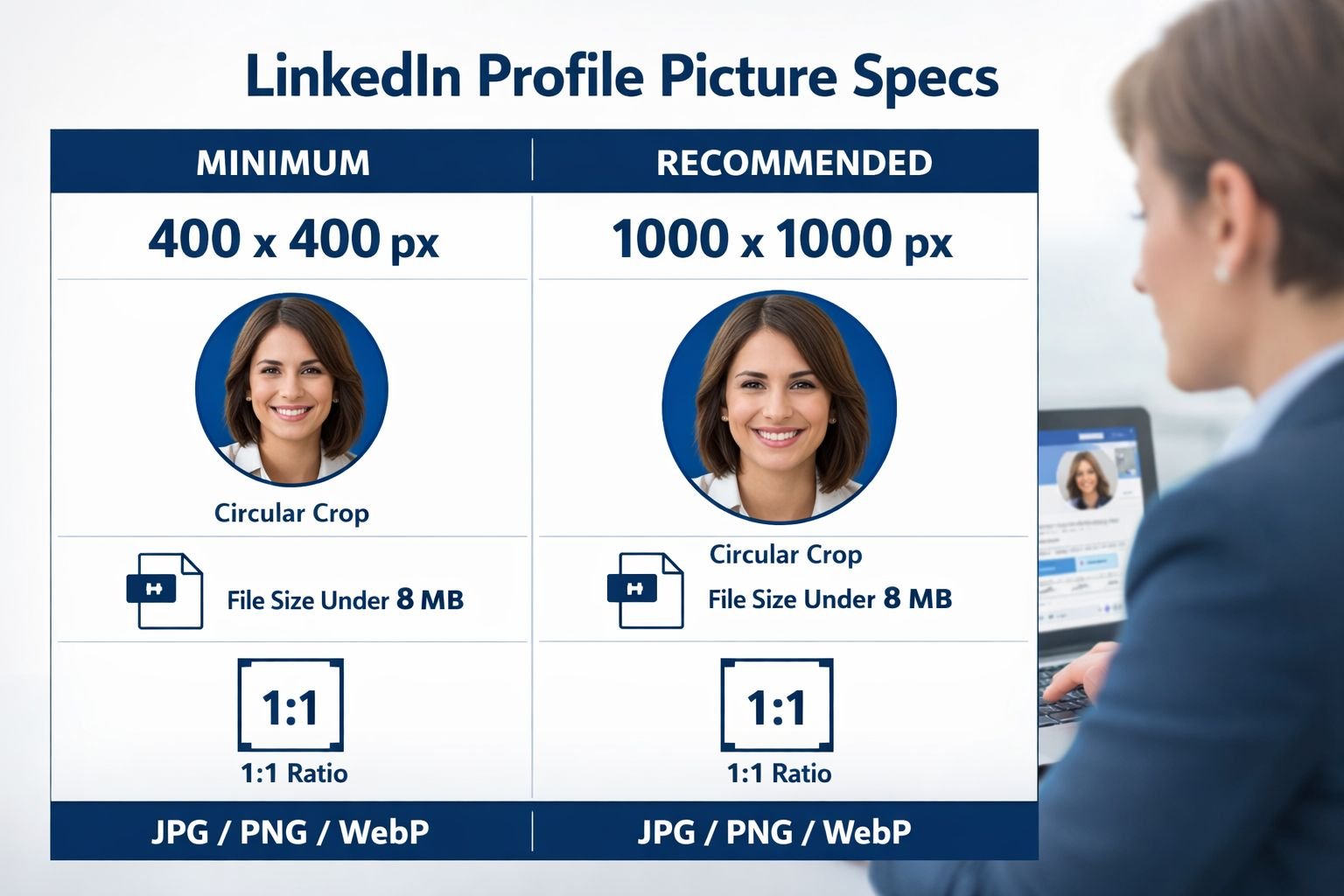
- LinkedIn requires a minimum of 400 x 400 px; upload at 1000 x 1000 px for sharp display on high-DPI and retina screens.
- LinkedIn accepts JPG and PNG files up to 8 MB. Aim for under 500 KB after compression to improve profile loading speed on mobile.
- LinkedIn applies a circular crop automatically — keep your face centered and leave a small margin around your head.
- The “60% Rule” is a reliable composition guide: your face should fill roughly 60% of the frame.
- iPhone and newer Android photos often save as HEIC. Convert to JPG first before uploading to LinkedIn or embedding in a CV.
- Browser-based tools process your photo locally — your image never leaves your device.
- For CV PDFs, embed your headshot at 150–200 px wide inside the document to keep the file size manageable for email.
- Compressing a headshot from 3 MB to under 300 KB typically produces no visible quality difference at profile display sizes.
What Makes a Great LinkedIn and CV Headshot in 2026?
A professional headshot does one job: it builds immediate trust. Recruiters spend seconds scanning a profile, and a clear, well-framed photo signals that you take your professional presence seriously.
The basics haven’t changed, but the technical bar has risen. High-DPI laptop screens and retina phone displays make low-resolution or poorly compressed photos noticeably soft. Here’s what a strong headshot looks like in practice:
Composition checklist:
- ✅ Face fills roughly 60% of the frame (the “60% Rule”)
- ✅ Eyes are in the upper third of the image
- ✅ Background is plain, blurred, or neutral — nothing competing for attention
- ✅ Lighting is even, preferably natural or soft front-facing light
- ✅ Expression is relaxed and direct — a slight smile reads as approachable
What to avoid:
- ❌ Group photos cropped down to just your face (low resolution, awkward edges)
- ❌ Casual selfies with cluttered backgrounds
- ❌ Photos taken at an angle that cuts off the top of your head
- ❌ Heavy filters that alter skin tone or add visual noise
For CV headshots, the same composition rules apply. The photo will be small on the page (roughly 2–3 cm wide), so simplicity matters even more.
Exact Image Sizes and Ratios for LinkedIn and Resumes
Getting the dimensions right is the fastest way to avoid a blurry or oddly cropped profile photo.
| Platform / Use | Recommended Size | Minimum | Max File Size | Format |
|---|---|---|---|---|
| LinkedIn Profile Photo | 1000 x 1000 px | 400 x 400 px | 8 MB | JPG, PNG |
| CV / Resume (embedded) | 150–200 px wide | 100 px wide | Keep CV under 2 MB total | JPG |
| Job Portal Upload | 400 x 400 px | Varies | Usually 2–5 MB | JPG, PNG |
| Email Signature Photo | 100 x 100 px | 80 x 80 px | Under 100 KB | JPG, WebP |
Why 1000 x 1000 px instead of the 400 px minimum? LinkedIn displays profile photos at various sizes depending on where they appear — the profile page, search results, messaging, and connection requests. On retina screens, a 400 px image can look noticeably soft. Uploading at 1000 x 1000 px gives LinkedIn enough resolution to scale down cleanly across all display contexts.
Aspect ratio: Always 1:1 (square). LinkedIn applies a circular crop on top of your square upload, so anything outside the circle is hidden — but the underlying file must be square.
For more context on sizing images correctly for different platforms, the guide on perfect image dimensions for web, email, and social media covers the full picture.
Step-by-Step: How to Resize an Image for a LinkedIn Profile Picture Online
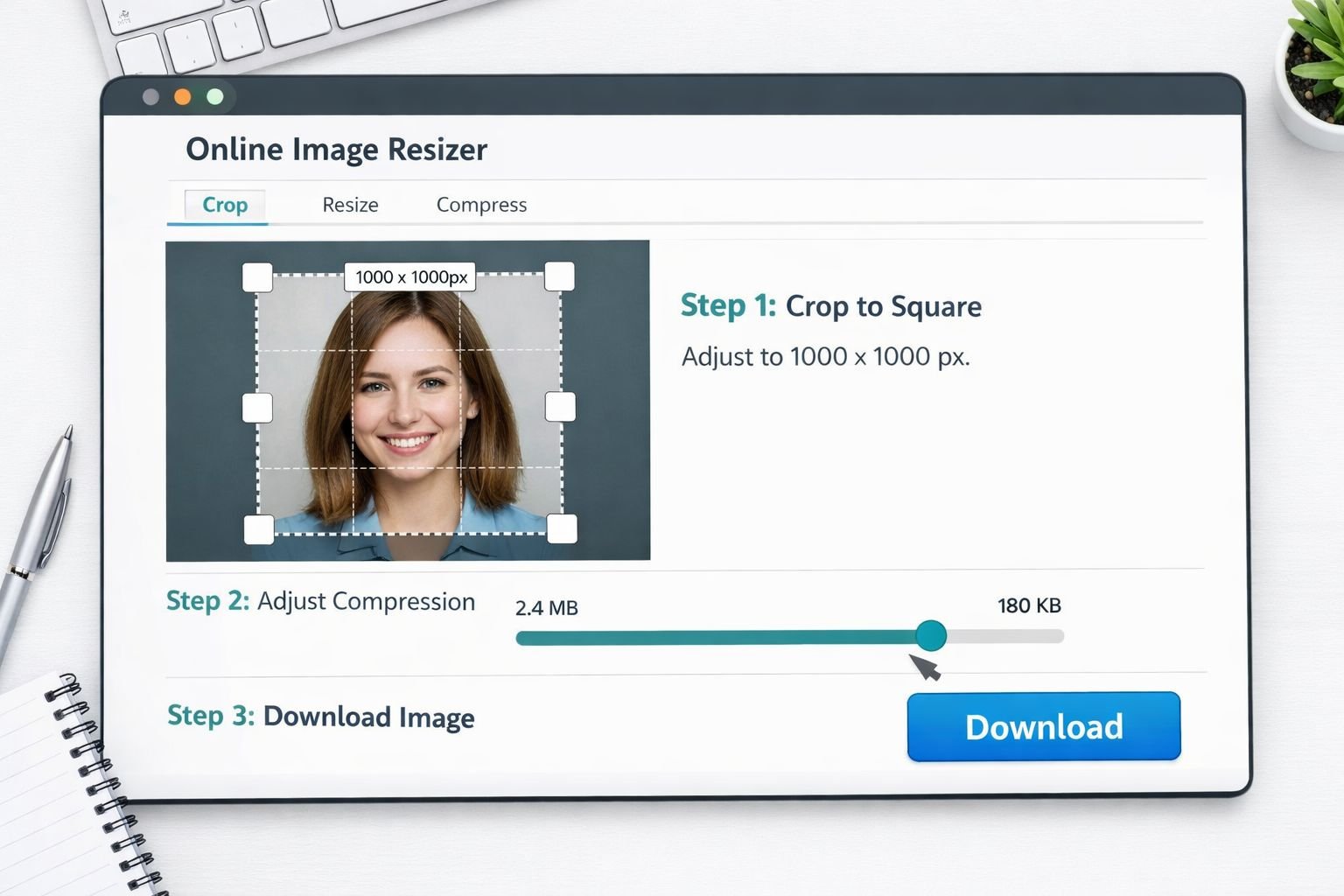
The fastest way to resize an image for a LinkedIn profile picture online is to use a browser-based tool that handles cropping and resizing in one place — no software to install, no account to create.
Here’s the complete workflow using Core Tools Hub’s Image Resizer:
Step 1: Convert your photo format (if needed)
If your photo came from an iPhone, it’s probably saved as HEIC. LinkedIn doesn’t accept HEIC files. Convert it to JPG first using the HEIC to JPG converter — it runs entirely in your browser, no upload to a server.
Similarly, if you have a PNG with a transparent background, convert it to JPG to keep the file size predictable.
Step 2: Crop to a square (1:1 ratio)
Open the Image Resizer tool. Upload your photo, then:
- Select the crop option and choose a 1:1 (square) aspect ratio.
- Center the crop box on your face, leaving a small margin above your head and below your chin.
- Apply the crop.
Common mistake: Cropping too tight so the circular LinkedIn mask clips your ears or the top of your hair. Leave roughly 10–15% padding around your face.
Step 3: Resize to 1000 x 1000 pixels
After cropping:
- Set the output width to 1000 and height to 1000 pixels.
- Make sure “lock aspect ratio” is on (it should be, since you’ve already cropped to square).
- Apply the resize.
Step 4: Save as JPG
Export as JPG at this stage. PNG works too, but JPG files are typically smaller for photographic content. WebP is an option if you’re only using the photo online, though some older job portal upload forms don’t accept WebP.
For a deeper look at format choices, the lossless vs. lossy formats guide explains when each format makes sense.
Compress Your Profile Photo Without Making It Blurry
A 1000 x 1000 px JPG straight from a camera can easily be 2–4 MB. That’s within LinkedIn’s 8 MB limit, but it’s heavier than necessary. A well-compressed headshot loads faster on mobile and takes up less space when embedded in a CV PDF.
Target file sizes after compression:
- LinkedIn profile upload: under 500 KB (ideally 150–300 KB)
- CV PDF embedded image: under 200 KB
- Email signature: under 80 KB
Use Core Tools Hub’s Image Compressor to compress without obvious quality loss. The tool runs in your browser — your photo isn’t sent to any server.
Best settings for headshot compression:
| Quality Setting | Typical Output Size | Visible Quality Loss? |
|---|---|---|
| 90% (high) | ~400–600 KB | None |
| 80% (recommended) | ~150–300 KB | None at profile sizes |
| 70% (aggressive) | ~80–150 KB | Slight softness on close inspection |
| 60% or below | Under 80 KB | Noticeable — avoid for headshots |
80% quality is the sweet spot for most headshots. At profile display sizes (typically 200–400 px on screen), the difference between 80% and 100% quality is invisible. You’re cutting file size by 60–75% with no visible tradeoff.
For more detail on getting this balance right, the guide on compressing images without quality loss walks through the logic step by step.
Embedding Headshots in PDF CVs and Job Portals
A headshot embedded in a CV PDF needs to be small enough that it doesn’t bloat the file, but sharp enough to print cleanly at 2–3 cm wide.
For PDF CVs:
- Resize your headshot to 300–400 px wide before embedding. At 300 DPI print resolution, 300 px covers roughly 2.5 cm — exactly the right size for a CV photo.
- Compress to under 200 KB using the Image Compressor before embedding.
- Embed as JPG inside your word processor or design tool. Avoid embedding PNG for photos — the file size is much larger with no visible benefit at CV print sizes.
- After embedding, check your total CV file size. Most job portals and email clients handle PDFs under 2 MB without issues. If your CV is larger, use the browser-based PDF compressor to reduce it.
For job portal uploads:
Many portals have their own photo upload fields separate from the CV. Common limits are 2–5 MB with JPG or PNG accepted. A 1000 x 1000 px JPG compressed to 250 KB clears every portal limit comfortably.
If a portal asks for a specific size like 400 x 400 px, resize to exactly that — don’t rely on the portal to scale it down for you, as auto-scaling often produces softer results.
For job seekers managing multiple application documents, the guide on reducing image size in KB for forms and portals covers portal-specific requirements in more detail.
Common Profile Photo Mistakes (And Easy Fixes)
Most headshot problems come down to a handful of recurring errors. Here’s what to watch for:
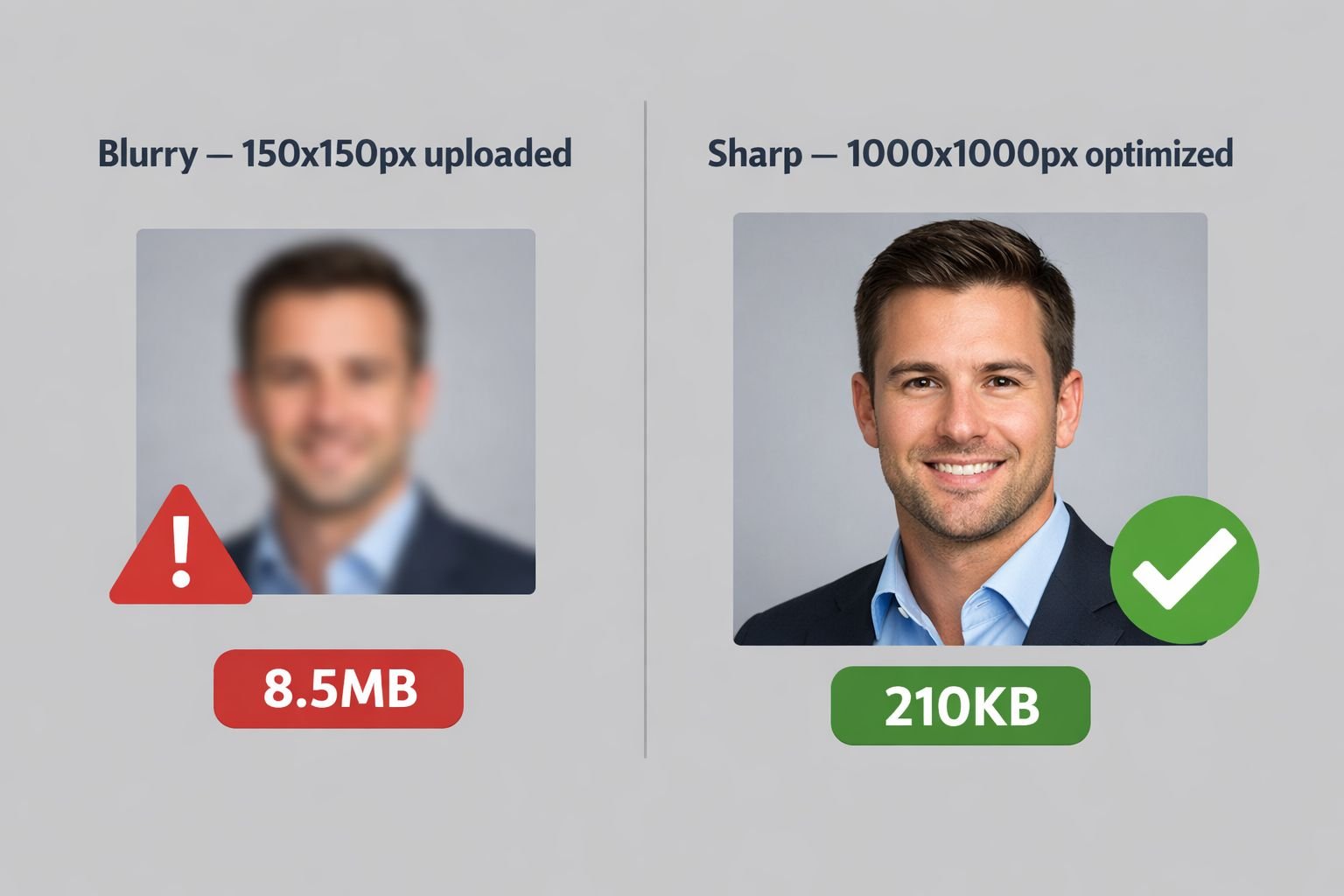
❌ Uploading a photo that’s too small Symptom: Profile picture looks blurry or pixelated, especially on desktop. Fix: Re-upload at 1000 x 1000 px minimum. Anything below 400 x 400 px will look soft on most screens.
❌ Wrong aspect ratio Symptom: LinkedIn squashes or stretches the photo, or the circular crop cuts off your face. Fix: Always crop to 1:1 square before uploading. The circular mask LinkedIn applies sits inside a square frame.
❌ HEIC file rejected by LinkedIn or job portals Symptom: Upload fails or produces an error. Fix: Convert HEIC to JPG first. See the complete HEIC to JPG conversion guide for device-specific steps.
❌ File too large for a job portal Symptom: Upload fails with a file size error. Fix: Compress to under 500 KB using the Image Compressor. A 1000 x 1000 px JPG at 80% quality is typically 150–300 KB.
❌ Face too small in the frame Symptom: Profile thumbnail shows mostly background; face is tiny. Fix: Re-crop so the face fills roughly 60% of the frame. Zoom in more during the crop step.
❌ Metadata revealing location or device data Symptom: Not visible, but a concern for privacy-conscious job seekers. Fix: Strip EXIF data before uploading using the Image EXIF Remover — it runs locally in your browser.
Privacy-Friendly Image Workflows for Job Seekers
Uploading a personal photo to a random website carries real risks — some tools store uploaded images on their servers indefinitely. For job seekers, a headshot is tied to your identity, so it’s worth being deliberate about where it goes.
What “privacy-first” means in practice:
A browser-based tool processes your image using JavaScript running locally in your browser tab. The file is never sent to a remote server. You can verify this by turning off your internet connection after the page loads — a true browser-based tool will still work.
Core Tools Hub’s image tools (the Image Resizer and Image Compressor) are browser-based tools. No signup required, no files stored, no account needed. The processed image downloads directly to your device.
For more context on why this matters, the comparison of browser-based vs. cloud upload tools lays out the practical differences clearly.
Privacy workflow summary:
- Convert HEIC → JPG locally (browser-based converter)
- Crop and resize to 1000 x 1000 px (browser-based resizer)
- Strip EXIF metadata (browser-based EXIF remover)
- Compress to under 300 KB (browser-based compressor)
- Download and upload to LinkedIn or embed in CV
Every step runs in your browser. Your photo never leaves your device until you choose to upload it to LinkedIn yourself.
Frequently Asked Questions
What is the best size for a LinkedIn profile picture in 2026? Upload at 1000 x 1000 pixels for the sharpest result across all devices. LinkedIn’s minimum is 400 x 400 px, but that can look soft on retina screens. Keep the file under 500 KB after compression.
Can I resize an image for a LinkedIn profile picture online for free? Yes. Browser-based tools like Core Tools Hub’s Image Resizer handle cropping, resizing, and format conversion at no cost with no account required.
What file format should I use for a LinkedIn profile photo? JPG is the most reliable choice. It’s universally accepted, produces small file sizes for photographic content, and is supported by every job portal and CV tool. PNG works too but produces larger files for photos.
Why does my LinkedIn photo look blurry after uploading? The most common cause is uploading a photo that’s too small — under 400 x 400 px. Upload at 1000 x 1000 px and make sure you’re exporting as JPG at 80% quality or higher.
How do I convert an iPhone HEIC photo for LinkedIn? Use a browser-based HEIC to JPG converter. The HEIC converter at Core Tools Hub converts the file locally without uploading it to any server.
How small can I compress a LinkedIn headshot without it looking bad? At 80% JPG quality, a 1000 x 1000 px headshot typically compresses to 150–300 KB with no visible quality loss at profile display sizes. Going below 70% quality starts to introduce softness.
Does LinkedIn crop my photo into a circle? Yes. LinkedIn displays profile photos with a circular mask. The underlying file you upload must be square (1:1 ratio). Keep your face centered with a small margin so the circular crop doesn’t clip your head.
Should I include a headshot in my CV PDF? It depends on the country and industry. In the US and UK, headshots on CVs are generally not recommended. In Germany, France, and many Asian markets, they’re standard. If you include one, resize to 150–200 px wide and compress before embedding to keep the PDF under 2 MB.
What if a job portal rejects my photo file? Check the portal’s size limit and accepted formats. Most portals accept JPG or PNG under 2–5 MB. Compress your image to under 500 KB and ensure it’s saved as JPG. If the portal rejects HEIC or WebP, convert to JPG first.
Is it safe to use online tools to resize my headshot? It depends on the tool. Browser-based tools that process images locally (using JavaScript in your browser tab) are safe — your file never leaves your device. Avoid tools that require you to create an account or that show an upload progress bar to a remote server.
Conclusion
Getting your LinkedIn headshot right comes down to three steps: crop to a 1:1 square with your face filling about 60% of the frame, resize to 1000 x 1000 pixels, and compress to under 500 KB. That combination covers every display context on LinkedIn, clears every job portal file limit, and keeps your CV PDF lightweight enough for email.
The entire process takes under two minutes when you use the right browser-based tools. No installs, no accounts, no waiting for uploads to process on a remote server.
Your next steps:
- Open the Image Resizer and crop your photo to 1000 x 1000 px.
- Run the result through the Image Compressor at 80% quality.
- Strip EXIF metadata with the Image EXIF Remover if privacy matters to you.
- Upload directly to LinkedIn or embed in your CV PDF.
If you’re preparing a full job application package — CV PDF, cover letter, and supporting documents — the online PDF tools and image tools at Core Tools Hub handle every file type you’ll need, all in the browser.