













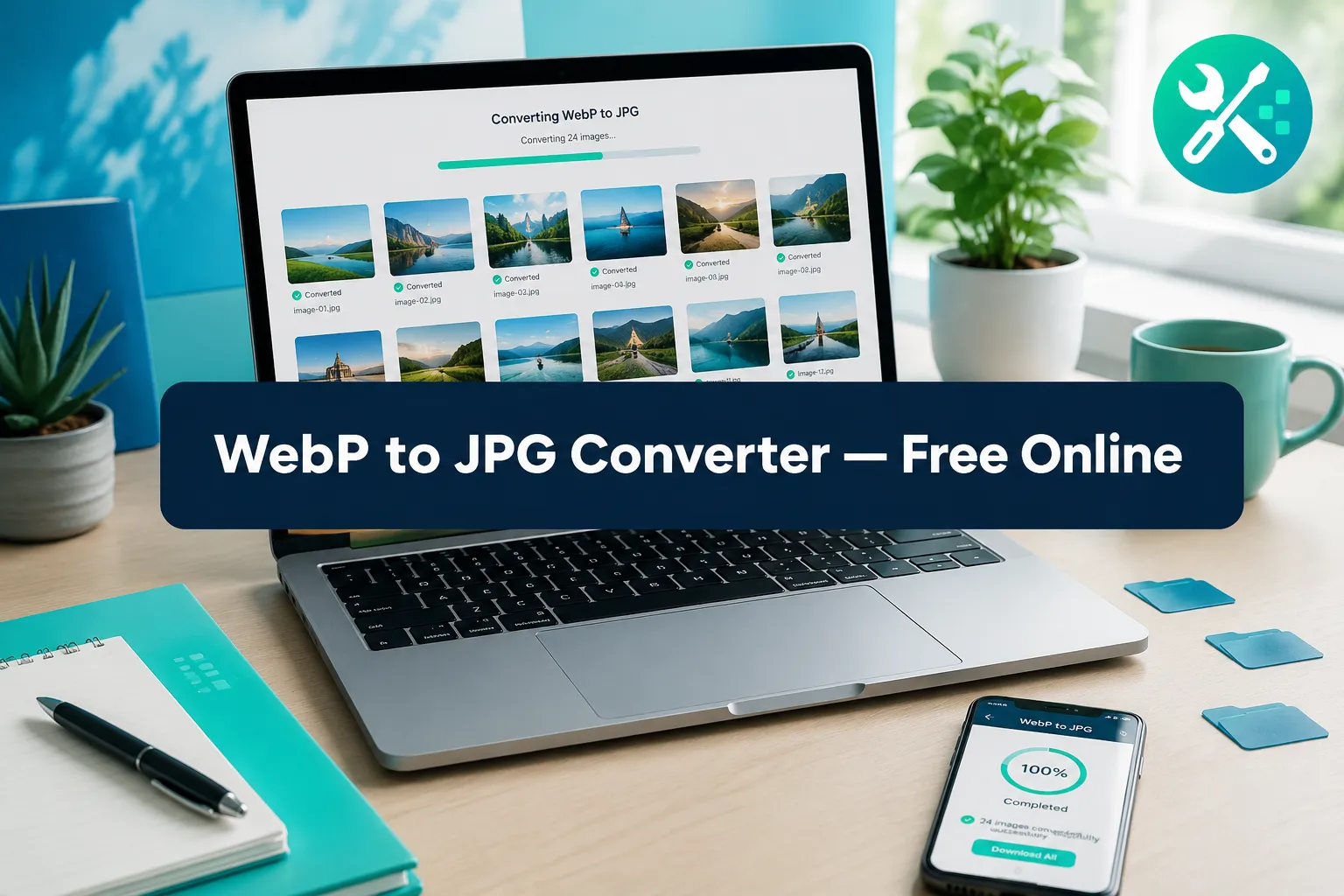
Last updated: September 18, 2026
Quick Answer
Converting WebP to JPG turns a modern web image format into a JPEG file that opens in nearly any app, printer, or older device. A browser-based WebP to JPG converter does this in seconds, without uploading files to a server, and lets users pick a quality level before downloading. This matters most for job applications, print shops, office documents, and phones or software that don’t recognize WebP.
Key Takeaways
- WebP is a modern image format that many older apps, printers, and legacy phones still cannot open.
- A browser-based WebP to JPG conversion keeps files on the user’s device, since nothing is uploaded to a server.
- Batches of 25 or more WebP files can be converted and downloaded together as a single ZIP file.
- JPG quality is adjustable, and higher quality settings produce larger file sizes.
- Converting WebP to JPG removes transparency by flattening it onto a white or chosen background color.
- JPG file size is often similar to or slightly larger than WebP at matching visual quality, since WebP’s compression is generally more efficient.
- Conversion works the same way on desktop, Mac, and mobile browsers, with no software installation needed.
What Is WebP Format and Why Convert to JPG
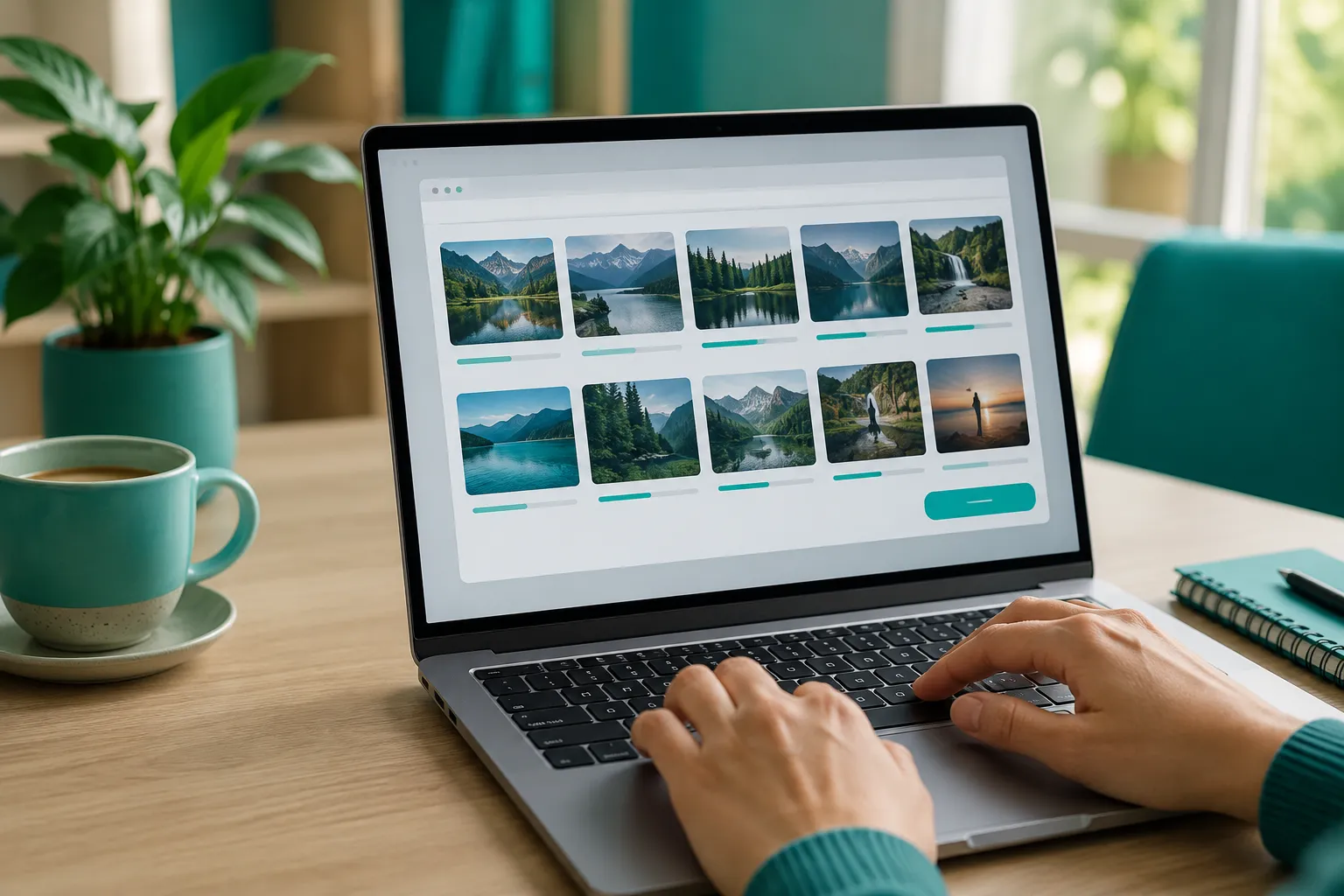
WebP is an image format built for the web that produces smaller files than JPEG at similar visual quality. Conversion to JPG becomes necessary when a WebP file needs to work outside a browser, such as in office software, older printers, or apps that never added WebP support.
Google introduced WebP to reduce page weight and speed up websites. Its own technical testing found that WebP files can run 25% to 34% smaller than JPEG at the same visual quality score, based on comparisons across standard image sets and thousands of real-world web photos. That efficiency is great for websites, but it creates a compatibility gap once an image leaves the browser.
Common situations where a plain JPEG copy is required:
- Uploading a photo to a job application portal that only accepts .jpg or .png
- Sending a saved product image to a local print shop
- Attaching an image to an email that flags unrecognized formats
- Opening a downloaded image in older photo-editing software
For anyone who saved an image from a website and got a .webp file that won’t open where it’s needed, converting it to JPG is the quick fix.
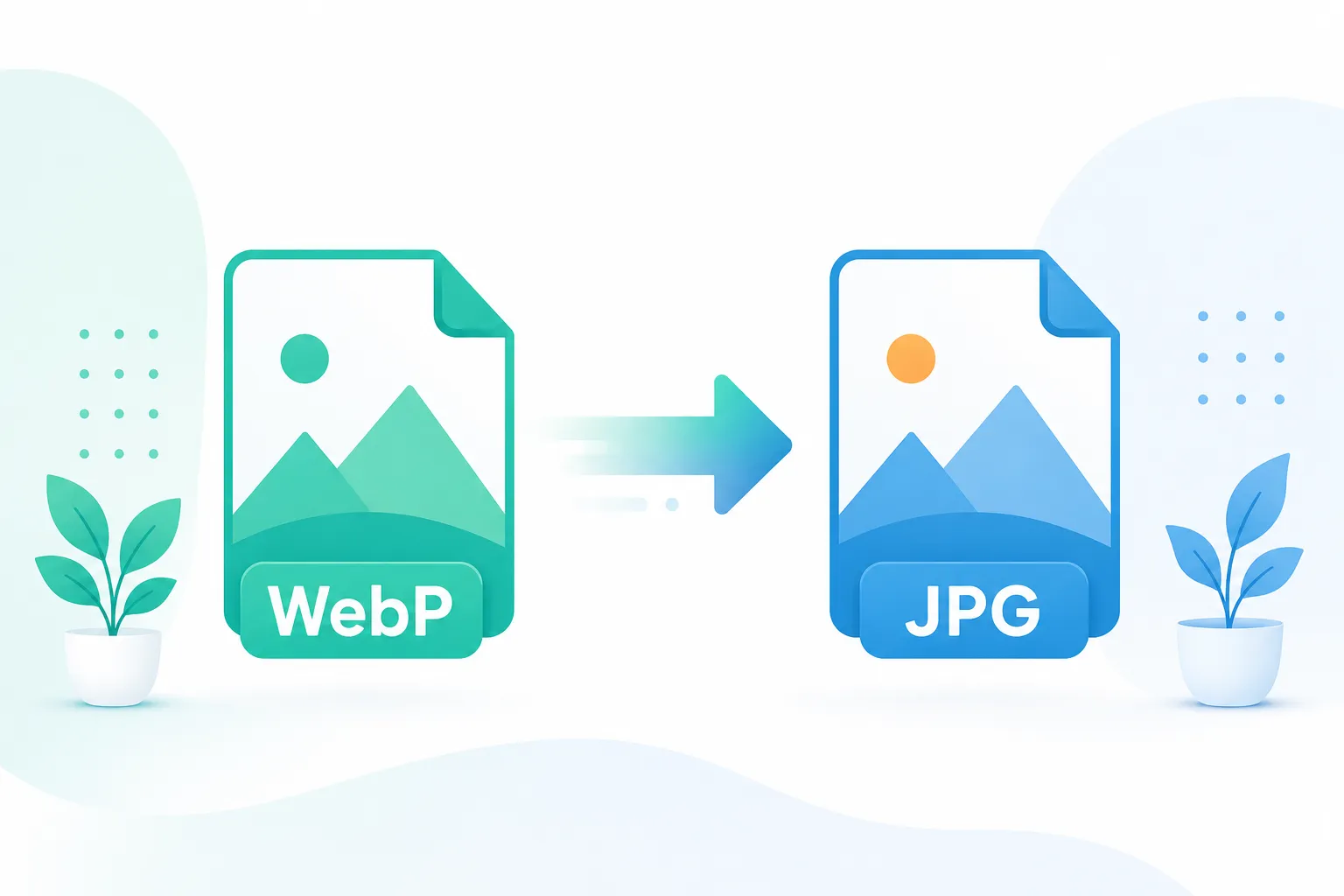
Why WebP Files Won’t Open in Some Apps
WebP files fail to open in certain apps because those programs were built or last updated before WebP became common, so they simply don’t recognize the file signature. This is a support gap, not a broken file.
Modern browsers, Chrome, Safari, Firefox, Edge, and Opera, have supported WebP natively for years, and Google’s own WebP documentation confirms that support remains current across all major browsers. The holdout is mostly older software stacks:
- Legacy versions of Microsoft Office and some PDF tools
- Older desktop photo viewers and editors
- Internet Explorer, which never added WebP support and remains listed as unsupported in browser compatibility references
- Some point-of-sale, print, or embroidery software used by small print shops
- Certain older Android and iOS versions paired with outdated third-party apps
Common mistake: assuming a WebP file is corrupted just because it won’t preview in an app. In most cases, the file is fine, the software just doesn’t know what to do with it. Renaming the file extension to .jpg does not fix this either, since the file’s internal data is still WebP; a real conversion is required.
How to Convert WebP to JPG Online Free
The fastest way to convert WebP to JPG for free is to use a browser-based tool that processes the file locally and returns a downloadable JPEG. No account or software install is required.
Simple step-by-step process:
- Open the WebP to JPG converter in any modern browser.
- Drag in one file or a folder of WebP images.
- Choose a JPG quality level (see the settings table below).
- Preview the estimated output size if the tool offers one.
- Click convert, then download the JPG or JPG batch as a ZIP.
Because this runs client-side, files never leave the device during conversion, a meaningful difference for anyone converting personal photos, ID scans, or work documents.
Best settings for common use cases
| Use case | Recommended JPG quality | Why |
|---|---|---|
| Email attachment | 70-80% | Small file size, no obvious quality loss |
| Print shop or flyer | 90-100% | Preserves detail for larger printed output |
| Website upload | 75-85% | Balances crisp images for web with fast load times |
| Job application photo | 85-95% | Clean, professional look without a huge file |
Best Free WebP to JPG Converter Tool
The best free WebP to JPG converter is one that handles single files and large batches, offers a visible quality control, and never requires an account. Many free tools online only convert one file at a time at a fixed quality, which slows down anyone with more than a handful of images.
Look for these features when comparing options:
- Batch processing: convert 25 or more files in one pass and download them as a single ZIP.
- Adjustable quality: a slider or dropdown, not a locked default.
- Estimated output size: shown before downloading, so there are no surprises.
- No signup required: upload and download without creating an account.
- Clear privacy handling: conversion that happens in the browser rather than on a remote server.
Choose this type of tool if: the goal is a quick, repeatable fix for saved web images, for example, converting a batch of product photos, portfolio images, or downloaded graphics before sending them somewhere that doesn’t accept WebP.
Can I Convert WebP to JPG Without Losing Quality
Some quality change is unavoidable, but it can be kept small and invisible to the eye when the right settings are used. JPEG uses lossy compression, so re-encoding always involves some data loss, the goal is to make that loss unnoticeable.
To compress without obvious quality loss:
- Set JPG quality to 85% or higher for photos with fine detail (faces, text, gradients).
- Avoid repeated conversions, convert once from the original WebP, not from a JPG that was already re-saved multiple times.
- For images that will be resized afterward, resize first, then convert, to avoid compounding artifacts.
Edge case: WebP files with fine gradients (like sunset skies) can show slight banding after JPG conversion at low quality settings. Raising quality to 90%+ usually resolves this.
WebP vs JPG: Which Format Is Better
Neither format is universally better, WebP is better for websites, and JPG is better for compatibility outside the browser. The right choice depends entirely on where the image will be used next.
- Choose WebP for site images, since it loads faster and reduces bandwidth, and virtually all modern browsers support it.
- Choose JPG for anything leaving the browser ecosystem: printing, office documents, email, older devices, or software that predates widespread WebP adoption.
Standards bodies describe WebP as designed to replace older formats like JPEG, PNG, and GIF for web delivery, while newer formats such as AVIF and JPEG XL are positioned to eventually supersede WebP itself. For a deeper technical comparison of where each format fits, see this breakdown of AVIF, WebP, and JPEG.
Transparency and Quality When Converting WebP to JPG
Converting a WebP file with transparency to JPG removes the transparent areas, because JPEG does not support an alpha channel. The converter fills the transparent background with a solid color, usually white, before saving the file.
What changes during this process:
- Transparent or semi-transparent pixels become solid, typically white or a chosen background color.
- Sharp edges around transparent shapes may show a faint fringe if the original had soft anti-aliasing.
- Photos without transparency are unaffected; only the compression itself changes their quality slightly.
Quick example: a logo with a transparent background saved as WebP will get a white square background once converted to JPG. If transparency must be preserved, converting to WebP to PNG instead keeps the transparent layer intact, since PNG supports alpha channels the way JPG does not.
How to Batch Convert Multiple WebP Files to JPG
Batch conversion lets users drop in a folder of WebP images and receive a single ZIP file of JPGs, instead of converting one file at a time. This is the setting most people ask about after realizing they have dozens of saved web images to fix.
Simple step-by-step checklist:
- Gather all WebP files into one folder.
- Open the batch-enabled WebP to JPG converter.
- Select or drag all files at once, 25, 50, or more.
- Set a single quality level for the whole batch.
- Convert, then download the ZIP and unzip on the device.
Common mistake: converting files one by one when a batch tool is available. This wastes time and increases the chance of picking inconsistent quality settings across images. For photo sets that also need resizing before or after conversion, a batch image resizer pairs well with batch JPG conversion.
Why Won’t My WebP File Convert to JPG
A WebP file usually fails to convert because it’s corrupted, mislabeled, or actually an animated WebP that the tool doesn’t support as a still image. Static-image WebP-to-JPG tools are not built to handle every WebP variant.
Checklist to troubleshoot:
- Confirm the file actually opens as an image first (try previewing it in a browser tab).
- Check if the file is an animated WebP, some converters only support static frames and will need a tool that explicitly supports animated WebP.
- Re-download the original file if it was interrupted or partially saved.
- Try a different browser if the current one is outdated, since very old browser versions may block certain file reads.
If a WebP file consistently fails, opening it in a browser tab first confirms whether the file itself is valid before blaming the converter.
Does Converting WebP to JPG Reduce File Size
Converting WebP to JPG usually does not reduce file size, in most cases, the JPG version is the same size or slightly larger than the original WebP at matching visual quality. This is because WebP’s compression method is generally more efficient than JPEG’s.
What actually controls output size after conversion:
- The JPG quality setting chosen during conversion (lower quality means smaller files).
- The image’s original resolution and level of visual detail.
- Whether the source WebP was already lightly compressed or heavily optimized.
For users who need the smallest possible file for email or web upload, converting to JPG and then running the file through an image compressor gives more control over the final size than relying on JPG conversion alone.
WebP to JPG Converter That Works on Mac
A browser-based WebP to JPG converter works the same way on Mac as it does on Windows, since the conversion happens inside the browser rather than through installed software. There’s no need for a Mac-specific app or Preview workaround.
Steps on Mac:
- Open Safari, Chrome, or Firefox on the Mac.
- Go to the webp to jpg converter.
- Drag WebP files from Finder directly into the browser window.
- Choose quality, convert, and save the JPG to the Downloads folder.
This avoids Mac Preview’s occasional inconsistent handling of WebP files across macOS versions, since the browser tool doesn’t depend on the operating system’s built-in image libraries.
Is It Safe to Use Online WebP Converters
Online WebP converters are safe when conversion happens fully in the browser, since the image file never gets uploaded to a remote server. This is different from older-style “upload and wait” converters that send files to the cloud for processing.
What to check for safe file handling:
- Look for tools that state conversion runs client-side, in the browser, rather than on a server.
- Avoid tools that require account creation just to convert a basic image.
- Be cautious with sensitive images (IDs, financial documents, private photos) on any tool that isn’t explicit about not uploading files.
Privacy-conscious users should treat “no upload” as the key phrase to look for, not just “free,” since many free tools still process files remotely.
How Long Does WebP to JPG Conversion Take
A single WebP file typically converts to JPG in one to two seconds in a modern browser, and a batch of 25-50 files usually finishes in well under a minute on a normal broadband or Wi-Fi connection. Processing time depends mainly on image resolution and how many files are queued at once.
Factors that slow things down:
- Very large source images (high-resolution photography or scanned graphics).
- Older or underpowered devices running many browser tabs at once.
- Extremely large batches (100+ files) processed in a single run.
For most everyday use, a handful of downloaded web images or a folder of product photos, conversion feels close to instant.
Can I Convert WebP to JPG on My Phone
Yes, WebP to JPG conversion works on mobile browsers on both iPhone and Android, using the same drag-and-drop or tap-to-upload flow as desktop. No app store download is required.
Mobile steps:
- Open the phone’s browser and go to the webp to jpg converter.
- Tap to select WebP images from the phone’s photo library or downloads.
- Choose a quality level.
- Convert and save the JPG directly to the phone’s camera roll or files app.
This mobile-friendly workflow is useful for anyone who saved a WebP image from social media or a website on their phone and needs to send it somewhere that only accepts JPG.
What’s the Difference Between WebP and JPG Quality
At the same file size, WebP generally preserves more visual detail than JPG, because its compression algorithm is more efficient, Google’s own testing found WebP files running 25% to 34% smaller than JPEG at matching quality scores. The visible difference, though, is usually small enough that most people won’t notice it in everyday photos.
Where the difference shows up:
- Fine gradients and skies: JPG can show slightly more banding at low quality settings.
- Sharp text or line art: both formats handle this reasonably well at high quality, but WebP tends to stay cleaner at lower settings.
- Ordinary photos: at 85%+ quality, most viewers can’t tell WebP and JPG apart.
Decision rule: choose WebP if the image stays on a website; choose JPG the moment it needs to travel outside a browser, since compatibility matters more than the small efficiency gap once that need arises.
!Comparison of WebP and JPG image quality on matching photos
Common Mistakes to Avoid
- Renaming a
.webpfile to.jpgwithout actually converting it, this does not change the file’s internal format. - Using a fixed low-quality setting for every image, regardless of whether it’s a print photo or a quick email attachment.
- Converting one file at a time when a batch mode is available for larger jobs.
- Forgetting that transparent WebP graphics will get a solid background after conversion.
- Uploading sensitive images to a converter that doesn’t clearly state client-side, in-browser processing.
What to Try Next
Anyone who regularly works with web images may also want to explore related conversions. Going the other direction, a JPG to WebP converter helps shrink images before uploading to a website. For images that need transparency preserved instead of flattened, WebP to PNG conversion is the better match. And once JPGs are ready, running them through an image compressor can shave off extra kilobytes for email or upload limits.
FAQ
Does converting WebP to JPG lose quality? Some quality loss happens because JPEG uses lossy compression, but at 85% quality or higher the difference is rarely visible to the eye in typical photos.
Can I convert an animated WebP to JPG? Standard static-image converters only handle one frame, usually the first, since JPG doesn’t support animation; a dedicated tool is needed for extracting frames from animated WebP files.
Will converting WebP to JPG make the file smaller? Not usually, JPG files are often the same size or slightly larger than WebP at equal quality, since WebP compression is generally more efficient.
Is it safe to convert WebP files with personal photos online? Yes, as long as the tool processes files in the browser rather than uploading them to a server, which keeps personal photos on the user’s own device throughout conversion.
Why does my converted JPG have a white background instead of transparency? JPEG doesn’t support transparent pixels, so any transparent area in the original WebP gets filled with a solid color, usually white, during conversion.
Can I convert 50 or more WebP files at once? Yes, tools with batch processing support converting large sets of files together and packaging the results into a single downloadable ZIP file.
Conclusion
WebP to JPG conversion solves a simple but common problem: a saved web image that won’t open where it’s actually needed. Whether the goal is attaching a photo to a job application, sending a graphic to a print shop, or fixing a file that an older phone refuses to display, a browser-based converter with adjustable quality and batch support handles it in seconds, with no signup, no install, and no files leaving the device.
For a quick fix on a single image or a full batch of 25-plus files, open the WebP to JPG converter, pick a quality setting from the table above, and download a clean, ready-to-use JPG.