













Last updated: September 16, 2026
Quick Answer
Converting JPG to PDF means placing one or more photos into a single document file that opens the same way on every device. A browser-based JPG to PDF tool lets anyone upload multiple photos, drag them into the right order, pick a page size, and download a finished PDF in seconds, with no software install, no signup, and no file leaving the device until the download starts.
Key Takeaways
- JPG to PDF conversion bundles individual image files into one document that prints, emails, and uploads more predictably than loose photos.
- A good JPG to PDF converter lets users reorder pages before export, not just stack files in upload order.
- Page size (A4 or Letter) and orientation should be chosen based on where the PDF will be viewed or printed, not left on default settings.
- Large photo batches often produce oversized PDFs; compressing after assembly keeps files under common email attachment limits.
- Browser-based tools process files locally, so scanned IDs, receipts, and personal photos are not uploaded to a server.
- The same JPG to PDF workflow works on Mac, Windows, and mobile browsers without separate apps for each platform.
- Password protection is a separate step after conversion, not a built-in setting in most simple converters.
How to Convert JPG to PDF in the Browser (Tool Panel Overview)
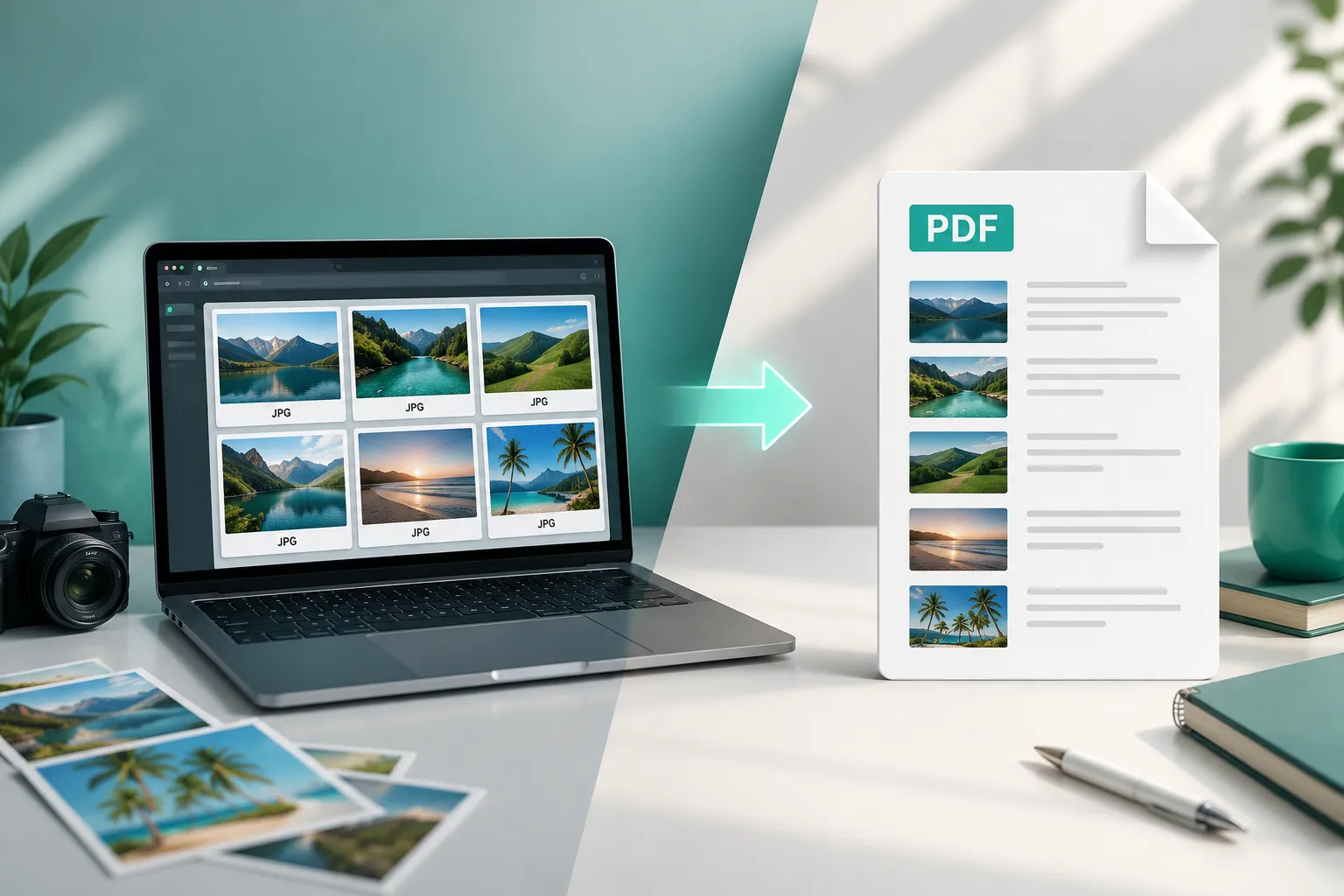
Converting JPG to PDF takes three steps in a browser-based tool: upload the photos, arrange the order, and download the finished PDF. No account creation or software installation is required, and the process typically finishes in under a minute for a normal batch of photos.
Here is the typical workflow using a tool like the JPG to PDF converter:
- Open the tool and select or drag in the JPG files (most browser tools accept 20 to 30+ images in one batch).
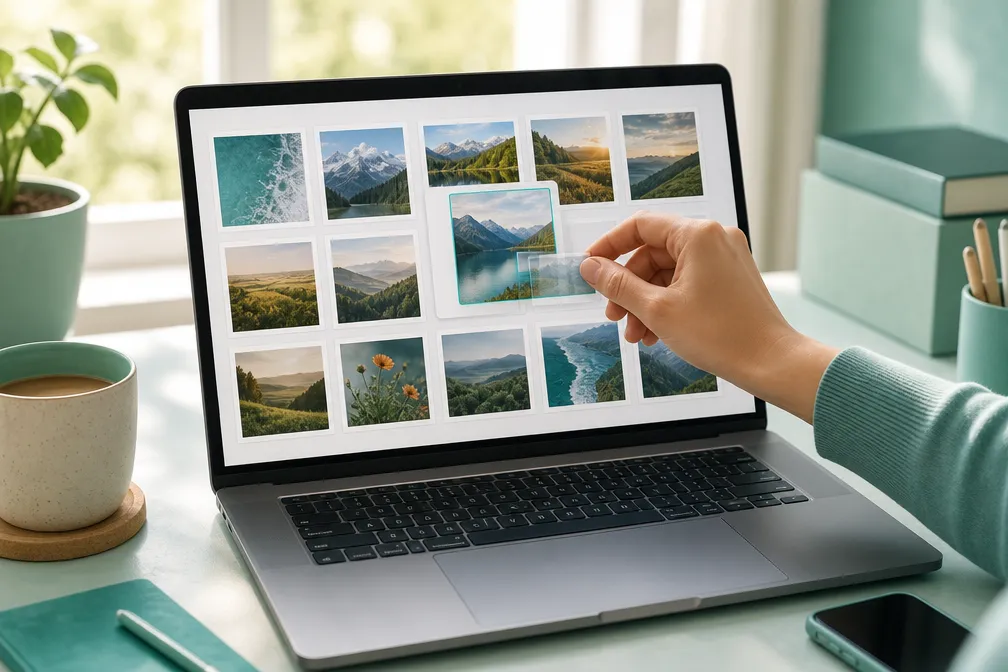
- Review the thumbnail grid that appears, each photo becomes one page.
- Drag thumbnails to reorder pages until the sequence matches what needs to be submitted or printed.
- Choose a page size next to the download button (A4 or Letter, depending on the destination).
- Click convert, then download the PDF directly to the device.
A thumbnail grid with a live page count is the detail that separates a fast tool from a frustrating one. Instead of guessing how many pages a 30-photo batch will produce, the count updates as files are added or removed, so there is no surprise when the download finishes.
Best jpg to pdf converter online free, what to look for: A genuinely useful free tool should offer drag-to-reorder thumbnails, a page-size choice placed near the download action, and no watermark stamped across the output. Tools that bury reordering behind a paywall or add a logo to every page are not solving the actual problem, getting a clean, submittable document.
Jpg to pdf converter without watermark: Watermark-free output matters most for job applications, visa paperwork, and business documents where a stray logo looks unprofessional or even raises questions about the file’s authenticity. Confirm before converting that the tool’s free tier does not brand the pages, some services reserve watermark-free exports for paid accounts.
JPG to PDF converter offline: True offline conversion (no internet connection needed after the page loads) depends on whether the tool runs entirely in the browser using local processing or sends files to a server. Browser-based tools that assemble the PDF using in-browser code work even on unreliable connections once the page itself has loaded, since no image data needs to travel anywhere.
How to Combine Multiple JPG Images Into One PDF
Combining multiple JPGs into a single PDF works by treating each photo as a separate page inside one file, in the exact order the thumbnails are arranged. This is the core use case for anyone assembling scanned receipts, ID photos, or application documents that need to arrive as one attachment instead of ten.
A practical example: a job applicant with a diploma photo, a transcript scan, and two reference letters (four JPGs total) can drag them into the thumbnail grid, arrange diploma first, transcript second, and letters last, then export one PDF that an employer’s application portal accepts as a single upload.
Common mistake: Uploading files in whatever order the file picker happens to list them, then forgetting to check the resulting sequence before download. Always confirm the thumbnail order matches the intended reading order, page one should be the first thing a reviewer needs to see.
Converting JPG to PDF on Mac
On a Mac, JPG to PDF conversion can happen either through Preview’s built-in print-to-PDF function or through a browser-based tool, and the browser route is faster for combining several photos at once. Preview handles one image at a time well but becomes tedious past two or three files, since each has to be opened and merged manually.
For batches, open the browser tool in Safari or Chrome on macOS, upload the JPGs, and download the result, the finished PDF opens natively in Preview without any conversion warnings, since it follows the standard PDF specification.
Converting JPG to PDF on Windows
On Windows, the fastest path is a browser-based converter rather than the built-in “Print to PDF” driver, which only handles one image at a time and does not offer reordering. Open the tool in Edge or Chrome, upload the batch of photos, arrange the pages, and download, the PDF then opens correctly in Adobe Acrobat, Edge’s PDF viewer, or any other standard reader.
Edge case: Windows File Explorer’s right-click “Print” option on selected images can sometimes combine JPGs into one PDF, but it offers no control over page order or size, and results vary by printer driver. A dedicated JPG to PDF tool gives predictable output every time.
Can You Convert JPG to PDF on Your Phone?
Yes, converting JPG to PDF on a phone works the same way as on a desktop, since browser-based tools are mobile-friendly and run in Chrome or Safari on iOS and Android without needing an app download. This matters for anyone photographing a receipt or ID with their phone camera and needing to submit it immediately.
The main difference on mobile is screen space: reordering thumbnails works with a tap-and-hold drag gesture instead of a mouse, and the page-size selector is placed near the download button so it stays reachable with one thumb.
Ordering Pages and Choosing Page Size for Mixed Photos
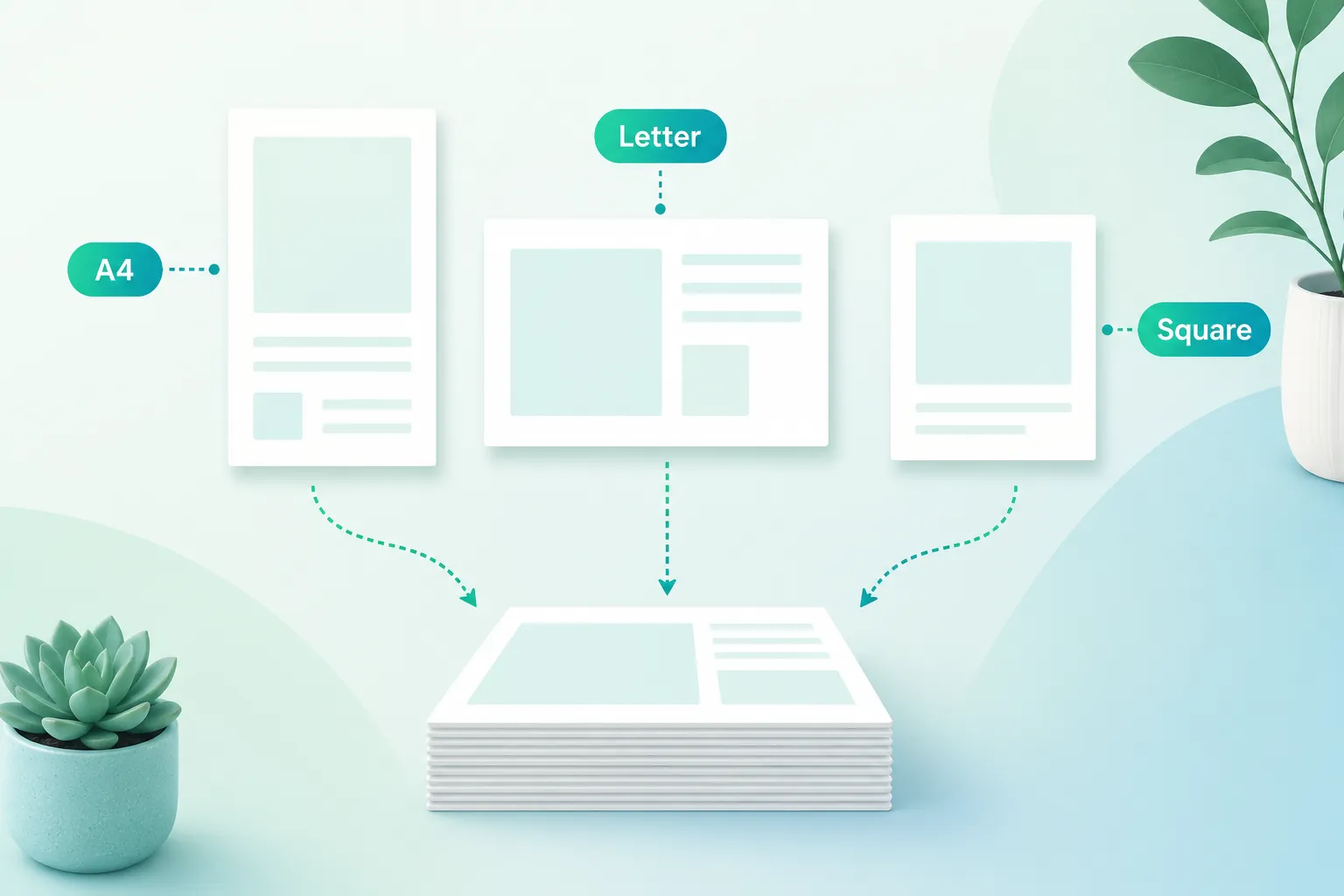
Page order and page size should be set before downloading, since most PDF viewers apply the size chosen at conversion time to every page, even when the source photos have different aspect ratios. A0-portrait photos and wide landscape scans mixed in the same batch need a size setting that keeps each photo readable without odd cropping.
Best settings for common scenarios:
| Use case | Recommended page size | Orientation |
|---|---|---|
| Job application documents | Letter (US) or A4 (international) | Portrait |
| Printed photo scans for records | A4 | Match photo orientation |
| Receipts for expense reports | Letter or A4 | Portrait |
| ID photos and passport scans | A4 | Portrait |
What’s the difference between JPG and PDF format? JPG is an image file format that stores a single picture using lossy compression, meaning some image data is discarded to keep the file small. PDF is a document format that can hold text, multiple images, and page structure together, preserving layout so the file looks identical on any device or printer. Converting JPG to PDF does not add compression on top of the JPG, it wraps the existing image data into a page-based document container.
JPG to PDF converter that keeps image quality: A converter preserves quality by embedding the original JPG data into the PDF page rather than re-encoding or resizing the photo during assembly. Look for a tool that shows a preview matching the source image sharpness; if thumbnails look noticeably softer than the original file, the tool may be downscaling before conversion. Combined with settings from the PNG to PDF converter for image types beyond JPG, mixed-format batches can be handled without a quality tradeoff.
Common mistake: Setting page size to “fit to page” without checking orientation first. A wide landscape receipt photo squeezed into a portrait A4 page often shrinks so much that printed text becomes unreadable. Rotate the source image or switch that page’s orientation before export.
Keeping the PDF Small Enough to Email
The fastest fix for an oversized JPG-to-PDF file is compressing it after assembly, since combining many full-resolution photos into one document multiplies file size quickly. A 20-photo batch at full camera resolution can easily produce a PDF well over 15 MB, larger than what most email providers accept as an attachment.
Why is my converted PDF file so large? Each JPG page keeps its original resolution and color depth inside the PDF container, so a batch of high-resolution smartphone photos (often 3-5 MB each) adds up fast across 10, 20, or 30 pages. The PDF format itself adds only a small amount of overhead, the size comes almost entirely from the embedded images.
How to reduce file size when converting JPG to PDF:
- Resize very large source photos before upload if the destination does not require print resolution (screen viewing rarely needs more than 150-200 DPI equivalent).
- Convert the batch into a PDF first, then run the result through a dedicated compress PDF tool to shrink file size without obvious quality loss.
- Check the final size against common limits, Gmail caps attachments around 25 MB, and many job application portals cap uploads at 5-10 MB per file.
- If the PDF still exceeds a limit, split it into two smaller PDFs using a split PDF tool rather than degrading image quality further.
Best settings: Aim for “quality vs file size” balance rather than maximum compression, a moderate compression setting keeps text and photo details legible while cutting file size 40-70% in most cases. Testing the compressed PDF on a phone screen before sending confirms it still looks sharp.
JPG to PDF for Applications, Receipts, and Scans
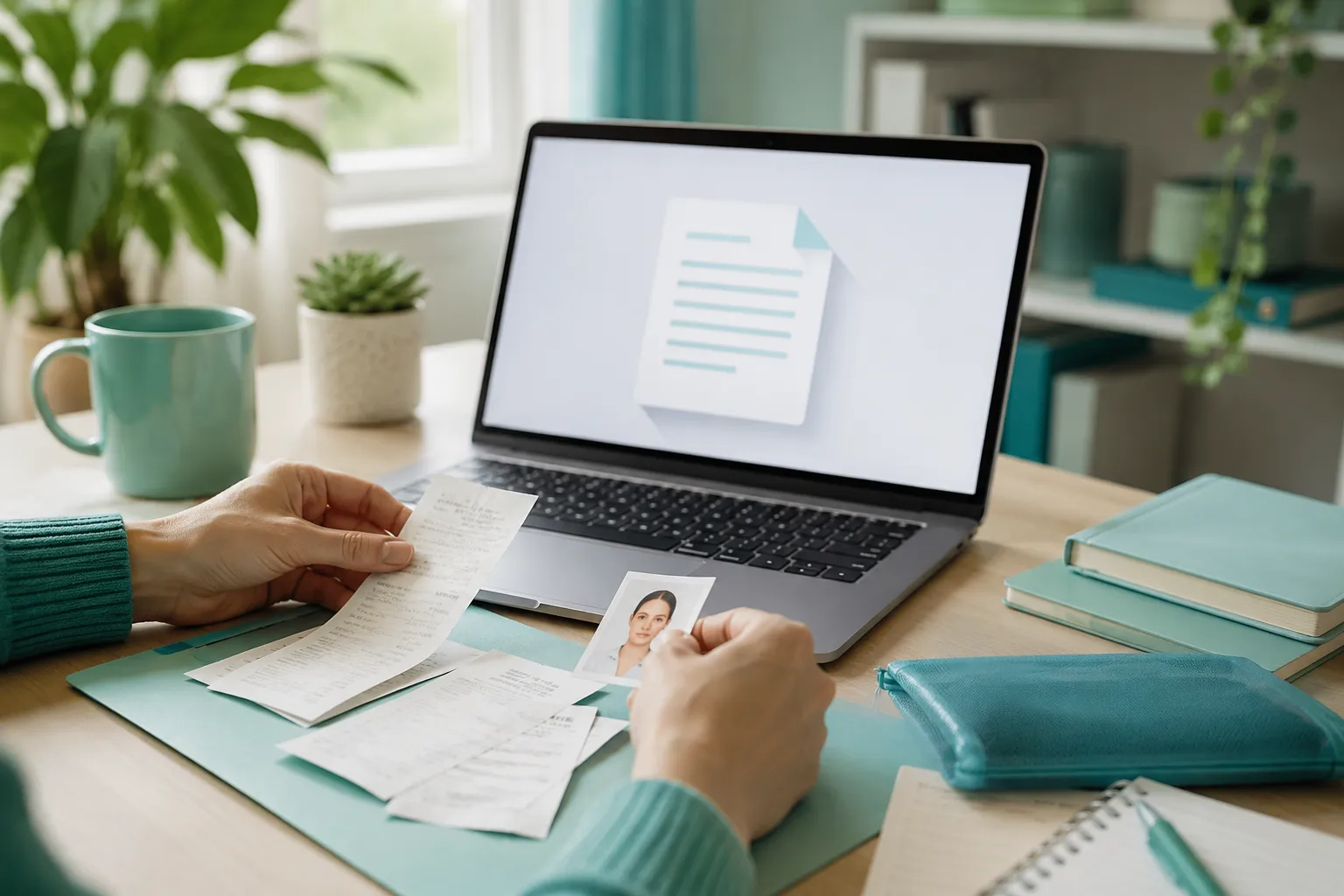
Job applications, expense reports, and ID submissions almost always ask for one document, not a folder of loose photos, which is exactly what a JPG to PDF converter solves by merging everything into a single, correctly ordered file. This section covers the specific scenarios where that matters most.
Applications: Visa applications, university admissions, and job portals typically request supporting documents as a single PDF with pages in a specific order (ID first, then supporting evidence). For a closer look at document prep for these situations, see the guide on preparing documents for visa and job applications.
Receipts: Expense reporting tools and accountants generally prefer one PDF per expense report rather than a dozen individual photo attachments. Photographing each receipt, then combining them in page order by date, produces a cleaner audit trail than scattered image files.
Scans: Photos of scanned documents, passports, certificates, medical forms, need to preserve reading order and orientation. After combining, a merge PDF tool can also fold in any existing PDF pages (like a cover letter) alongside the newly converted photo pages.
How to convert JPG to PDF in Google Drive: Google Drive can open a JPG and use the browser’s print function to save it as a single-page PDF, but it does not support combining multiple JPGs into one multi-page PDF with reordering, that requires a dedicated tool. Drive works fine as a place to store the finished PDF after conversion, but not as the conversion tool itself for multi-photo batches.
How to password protect a PDF after converting from JPG: Password protection is applied as a separate step after the JPG-to-PDF conversion is complete, using a tool built specifically for that purpose. Upload the finished PDF to a password protect PDF tool, set a password, and download the secured version, most simple converters intentionally keep conversion and encryption as separate steps to keep each tool fast and focused.
Privacy note: PDF assembly for receipts, IDs, and personal scans happens entirely in the browser with a tool built this way, meaning the actual photo data is never uploaded to a remote server during conversion, only the final download leaves the device, and only when the user chooses to save it.
FAQ: Quality, Page Limits, and Multi-Image PDFs
Does converting JPG to PDF reduce image quality? No, a properly built converter embeds the original JPG data into the PDF page without re-compressing it, so the visible quality stays the same as the source photo. Quality loss only happens if the tool resizes or re-encodes images during assembly, which better tools avoid by default.
Is there a limit to how many JPGs can go into one PDF? Most browser-based converters handle 20 to 30+ images in a single batch without trouble, since the process runs on the device’s own processing power rather than a server queue. Very large batches (100+ high-resolution photos) may slow down on older phones or low-memory devices, but desktop browsers handle large batches comfortably.
Can mixed page sizes and orientations be combined in one PDF? Yes, most converters let each page take on the orientation that best fits its source photo, even within the same document, while a single page-size setting (A4 or Letter) keeps overall dimensions consistent. This is the correct approach for batches mixing portrait ID photos with landscape receipt scans.
Will the PDF open correctly on every device? A correctly assembled PDF should open without warnings in Preview on Mac, Adobe Acrobat, and Chrome’s built-in PDF viewer, since standard converters follow the same PDF specification these readers expect. If a PDF shows a warning or fails to open, the file may have been corrupted during download, try converting again.
What’s the difference between combining JPGs into one PDF versus merging separate PDFs? Combining JPGs starts from image files and builds new PDF pages from them, while merging PDFs stacks already-existing PDF documents together. Anyone starting with a mix of photos and existing PDF pages may need both a JPG-to-PDF step and a merge PDF step to produce one final document.
Why does the file size vary so much between two PDFs with the same number of photos? File size depends on each photo’s resolution and file size going in, not just the page count, a batch of 10 high-resolution DSLR photos produces a much larger PDF than 10 compressed smartphone screenshots. Checking source file sizes before conversion gives a rough idea of what the final PDF size will be.
Conclusion
JPG to PDF conversion solves a specific, common problem: turning a scattered set of photos into one ordered, submittable document. The process works the same way whether the source is a phone camera roll full of receipts, a folder of scanned application documents, or a batch of ID photos, upload, reorder, pick a page size, and download.
For anyone assembling files right now, the fastest path is a browser-based tool that keeps reordering, page size, and download in one clear panel, without watermarks or signup requirements getting in the way. Try the JPG to PDF converter to combine photos into one clean, download-ready PDF in the next few minutes.