













Last updated: September 14, 2026
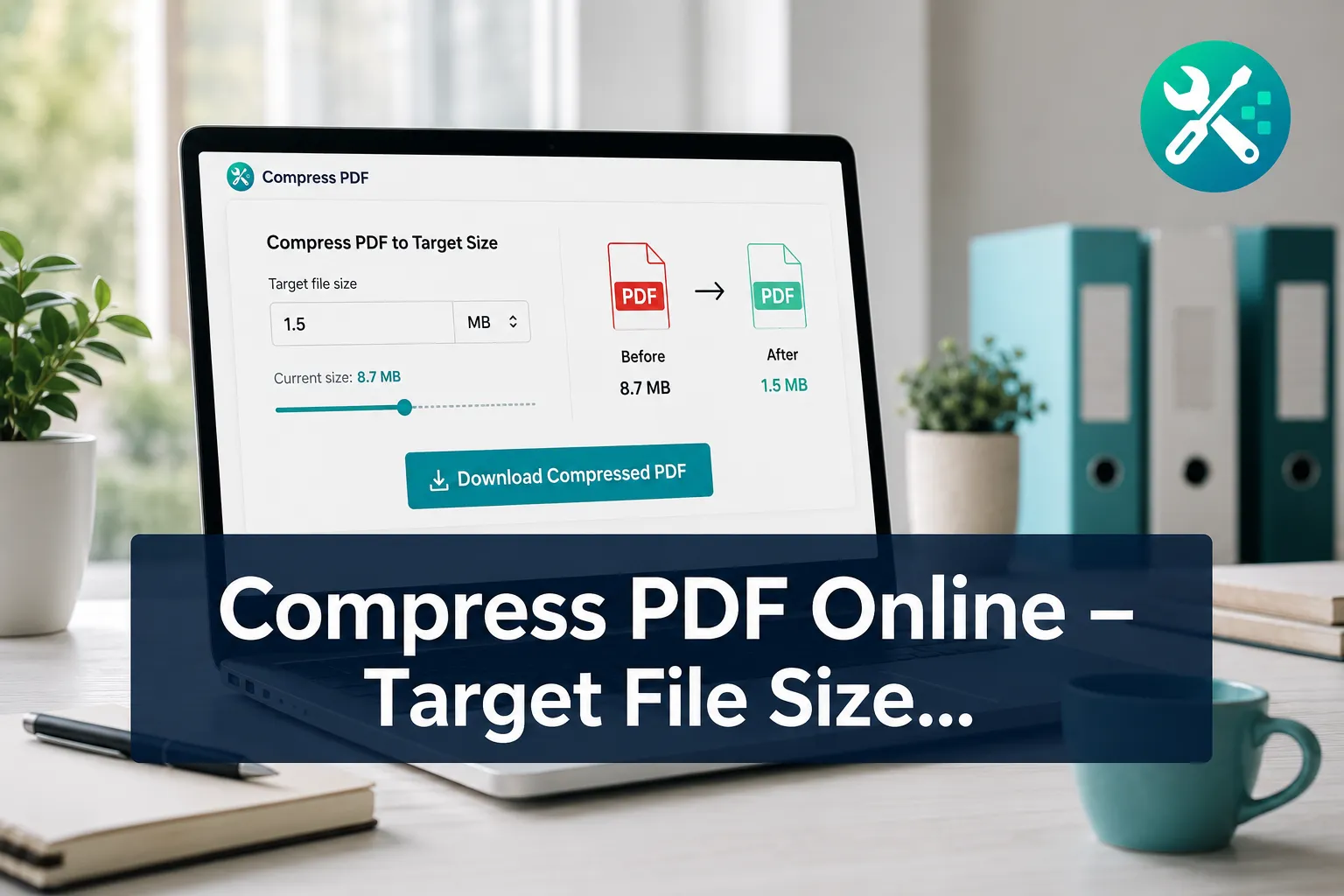
Quick Answer: To compress PDF files for a strict upload limit, enter a target size, run compression, and inspect the live preview before downloading. Core Tools Hub shows the original size, estimated output size, and expected quality change, helping produce a file within 10% of the request when the PDF has enough compressible content.
Key Takeaways
- Use a target size slightly below the stated limit to leave room for portal or email overhead.
- Medium compression usually gives the best balance between readability and file size.
- Scanned and image-heavy PDFs normally shrink more than text-only documents.
- Always inspect small text, signatures, charts, and identification pages in the preview.
- Compression may lower image resolution, but it should not change selectable text.
- A target cannot always be reached without making pages unreadable.
- The privacy-first compressor runs in your browser, with no install needed and no signup required.
- Keep the original PDF as a backup until the compressed copy has been accepted.
How Small Can a PDF Actually Get? Compression Ratios by Content Type
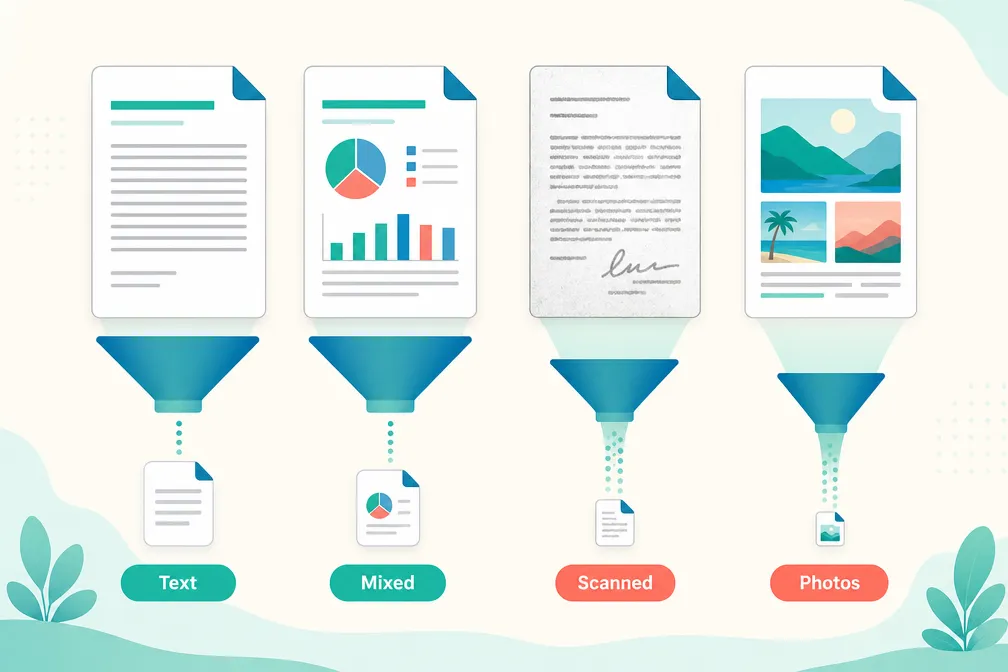
A PDF’s minimum usable size depends on what is inside it. Scanned pages and photographs often have substantial room for reduction, while text-only PDFs may already be compact and shrink very little.
Why is my PDF file so large?
Large PDFs usually contain high-resolution scans, photographs, duplicated fonts, transparent graphics, or unnecessary pages. A phone scan can store every page as a large color image, even when the page contains only black text.
Common causes include:
- Scans saved at a higher dots-per-inch setting than needed
- Full-color pages that could be grayscale
- Photos copied directly from a modern phone or camera
- Embedded fonts and design assets
- Multiple documents merged without prior compression
- Hidden metadata, thumbnails, or editing data
If extra pages are the problem, use the Split PDF tool to keep only the required section before compressing.
How much can you compress a PDF safely?
Safe compression stops before text, signatures, diagrams, or form fields become hard to read. As a practical starting point, use medium compression and inspect the smallest important details at 100% zoom.
| PDF content | Likely compression potential | Best starting point |
|---|---|---|
| Selectable text only | Low | Light compression |
| Text with charts or logos | Low to moderate | Medium compression |
| Scanned forms and contracts | Moderate to high | Medium compression |
| Photo-heavy brochure | High | Medium or strong compression |
| Already compressed PDF | Very low | Remove pages or recreate it |
These are practical ranges, not guarantees. The original image format, resolution, page count, and prior compression all change the outcome.
A smaller PDF is only useful when the recipient can still read every required detail.
Compress PDF with images versus text only
An image-heavy PDF usually shrinks by reducing image resolution and JPEG quality. A text-only PDF has fewer large assets, so repeated compression may save little while increasing the risk of damaged graphics.
For scanned documents, a reduction of at least 50% may be possible while keeping text readable. Preview every page because stamps, faint handwriting, and small serial numbers can degrade before ordinary body text does.
For more control over source images, see how to compress images without obvious quality loss before rebuilding the PDF.
Does compressing PDF reduce resolution?
PDF compression can reduce the resolution of embedded images, but it does not normally lower the sharpness of genuine vector text. Scanned text is an image, so its clarity can decline when resolution or image quality is reduced.
Choose a higher-quality setting for a print-ready PDF. Lower settings are better for screen viewing, email, forms, and portals where size matters more than crisp commercial printing.
Compress PDF versus reducing PDF quality
Compression is the overall process of removing or rewriting data to make a PDF smaller. Reducing quality is one possible compression method, usually applied to images through downsampling or stronger JPEG encoding.
Some changes are nearly invisible, such as removing duplicate data. Others are visible, such as softening photos. The lossless versus lossy format guide explains this quality vs file size tradeoff in plain English.
What are the best free PDF compression tools online?
The best free PDF compression tool depends on the file limit, privacy requirements, and need for exact-size controls. In 2026, useful options include Core Tools Hub for local browser processing, HiPDF and LightPDF for explicit size targets, PDF24 for image controls, and Adobe Acrobat Online for unusually large files.
Choose a browser-based tool that provides:
- A target-size input or clear output estimate
- Before-and-after file sizes
- A preview before download
- A readable explanation when the target is impossible
- Safe file handling suited to sensitive documents
- No watermark on the clean output
The Core Tools Hub PDF compressor is a quick fix when privacy and predictable sizing matter.
Compressing PDFs for Email
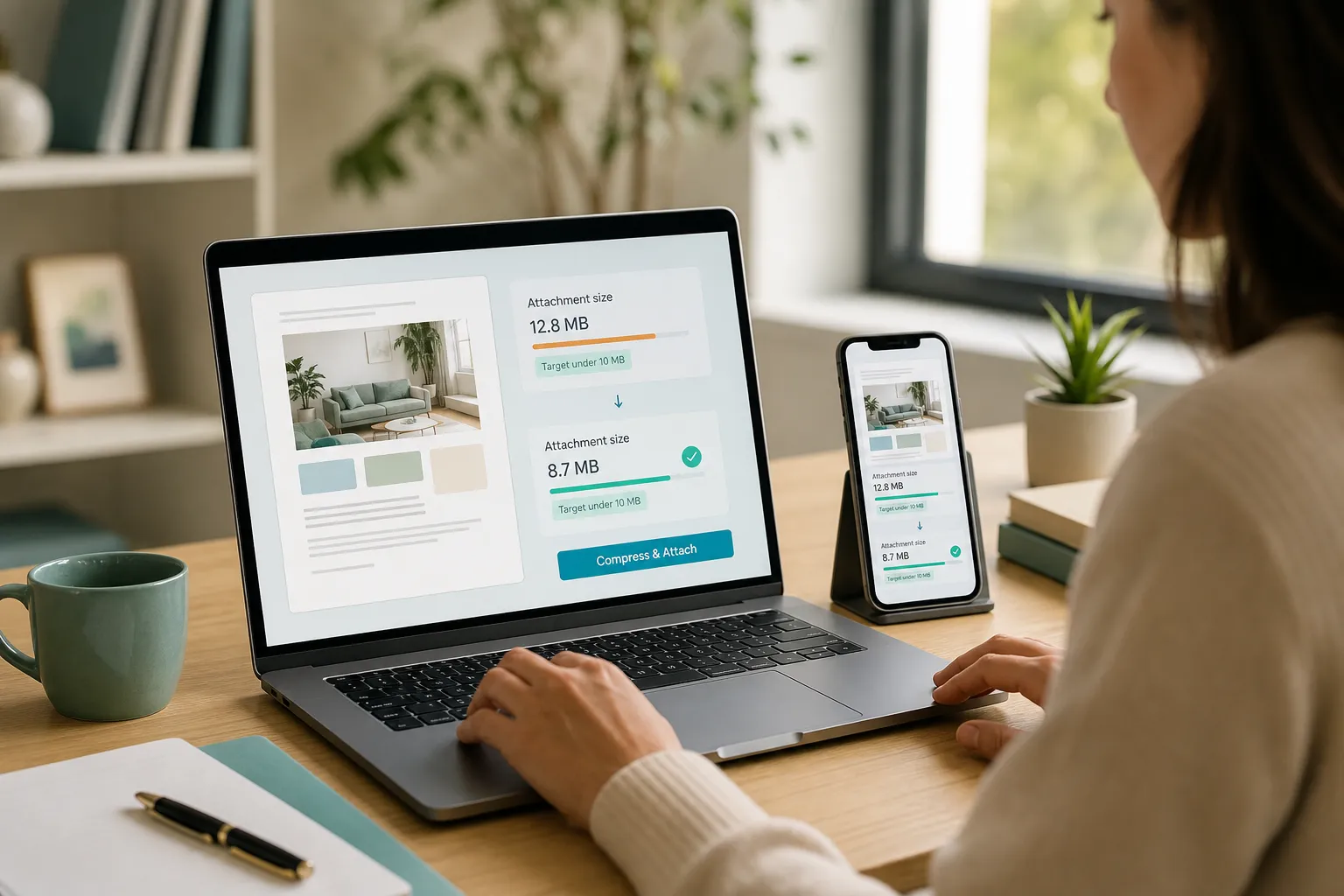
To compress PDF files for email, set the target below the mail service’s attachment cap and leave a small safety margin. A download-ready result under the limit is more reliable than a file matching the limit exactly.
How do you compress PDF for email attachment size limits?
First check the attachment limit shown by the email service. Then target a file slightly smaller than that cap because message encoding and other attachments can increase the total message size.
Use this simple step-by-step process:
- Save an untouched backup of the PDF.
- Open the browser-based compressor.
- Select the PDF from the device.
- Enter a target below the email limit.
- Start with medium compression.
- Review the before-and-after size.
- Inspect small text and images in the preview.
- Download and attach the compressed copy.
For more detail, use the guide to compress PDF for email without losing quality.
How do you compress PDF to a specific file size?
Enter the required size in kilobytes (KB) or megabytes (MB), then let the tool adjust image quality and resolution. The output should land within 10% of the request when the document contains enough data that can be reduced safely.
If the target cannot be reached, the tool should explain why rather than return an unreadable document. For example, a 12 MB scanned application may be reduced substantially, but forcing it to 100 KB could make names, signatures, and document numbers unusable.
Best settings
| Use case | Target strategy | Starting quality |
|---|---|---|
| Email attachment | Below the email cap | Medium |
| Job application | Below the portal cap | Medium |
| Screen reading | Small but clearly legible | Medium |
| Professional printing | Prioritize detail | High |
| Archive copy | Preserve the original | Highest |
What file size should a PDF be after compression?
The right final size is the smallest file that meets the destination’s limit without losing required detail. There is no universal ideal size because a one-page résumé and a 40-page scanned report contain very different amounts of information.
Choose a target based on the receiving system:
- For email, stay below the displayed attachment allowance.
- For a job or school portal, use the portal’s exact per-file limit.
- For printing, prioritize resolution over minimum size.
- For web download, balance fast loading with readable images.
- For archiving, keep the original alongside the smaller copy.
Can you compress PDF on Mac versus Windows?
Yes. A browser-based compressor works in current browsers on both macOS and Windows, so the steps are nearly identical. It also works on desktop and mobile without installing PDF software.
Mac Preview and Windows print-to-PDF features may create smaller copies, but they do not always provide a target-size field or live quality preview. Browser results can also vary with available memory, especially for long scanned files on older phones.
Compressing PDFs for Portals
Portal uploads work best when the PDF is comfortably below the stated cap, readable, and saved without unsupported security restrictions. Use a target-size control and preview rather than retrying preset compression levels blindly.
How do you compress PDF without losing quality?
No lossy compressor can promise zero quality change for every document. The practical goal is to compress without obvious quality loss by reducing unnecessary image data while preserving readable text, signatures, and diagrams.
Use light compression for designed reports or printing. Use medium compression for scanned forms, school work, and job applications. Strong compression is best reserved for severe upload limits.
The complete guide to compressing PDF without losing quality covers additional settings and edge cases.
Can you preview a compressed PDF before downloading?
Yes. A useful preview should display representative pages, before-and-after file sizes, and an estimated quality change before download. Check pages containing the smallest text and the most detailed images, not only the cover.
Preview checklist:
- Names and addresses remain readable
- Signatures and stamps are visible
- Barcodes or QR codes are sharp
- Charts retain labels and legends
- Photos have no severe blocks or color bands
- Page order and orientation are unchanged
- Form fields still work when required
A common mistake is checking the preview only at reduced zoom. Review critical details at 100% and zoom in further when the PDF contains identification numbers or fine print.
Can you batch compress multiple PDF files at once?
Batch processing is useful when several PDFs share the same destination and size requirement. However, each document may need a different setting because image-heavy and text-only files respond differently.
If batch compression is available, process a small test group first. If the browser reports low memory or freezes on mobile, compress files individually. To submit several documents as one file, compress them first and then use Merge PDF.
What should you try when the PDF remains too large?
Remove unnecessary pages, crop oversized scan margins, or rescan in grayscale at a practical resolution. Repeatedly compressing an already compressed file usually gives poor returns.
For scan-heavy files, converting the document into searchable text can sometimes improve usability before size reduction. See the guide to converting a scanned PDF into a searchable PDF.
Compressing PDFs for Government Uploads
Government and legal portals often enforce strict per-file limits, accepted formats, and security rules. Confirm all requirements first, then compress a copy and retain the untouched original.
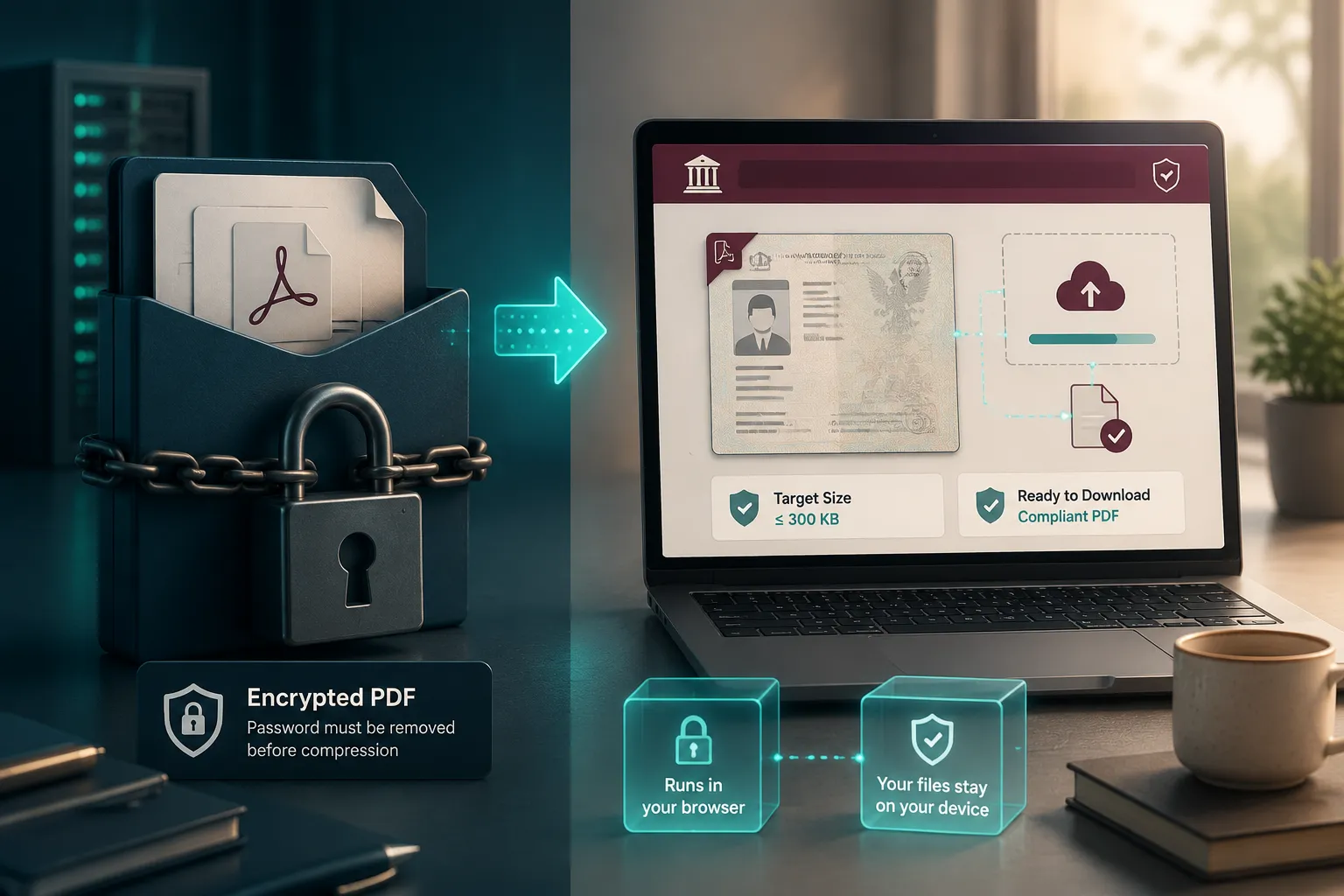
Can you compress a password-protected or encrypted PDF?
A compressor generally cannot process an encrypted PDF until it has been unlocked with the correct password. This protects the document from unauthorized changes.
Open the PDF with authorized software, remove the password from a temporary working copy, and then compress that copy. If encryption must remain in place, add protection again after checking the compressed output. Never attempt to bypass a password without permission.
What practical settings work for official documents?
Use medium compression for scanned forms and certificates, then confirm that seals, signatures, photos, and reference numbers remain clear. For financial, legal, or identity documents, a privacy-first tool that runs in your browser avoids sending the PDF to a remote server.
Core Tools Hub processes compression client-side, so the document stays on the device rather than being uploaded. No signup required, and the workflow is mobile-friendly. Very large documents may still need a desktop browser because phones have less working memory.
Common mistakes
Avoid these frequent upload problems:
- Setting the target exactly at the portal limit
- Overwriting the only copy of the original
- Compressing a digitally signed document without checking the signature
- Making identity photos or official stamps unreadable
- Leaving the PDF password-protected when the portal rejects encryption
- Combining files before checking whether the limit applies per document
- Assuming a successful download means the file passed portal validation
Frequently asked questions
Can a PDF be compressed to 100 KB?
A simple one-page PDF may reach 100 KB, but a multi-page scan may not remain readable at that size. Use the preview and accept a larger file if the tool reports that 100 KB is unsafe.
Why did my PDF barely shrink?
The PDF may already contain compressed images or mostly efficient text and vector graphics. Removing pages or recreating oversized source images may work better.
Will compression remove links or selectable text?
Standard compression should preserve links and selectable text. Always test important links, form fields, and document structure before submitting the file.
Is an online PDF compressor free?
Many compressors offer free processing with limits on file size, page count, or advanced settings. Core Tools Hub requires no install and no signup for its browser-based workflow.
Is PDF compression safe for confidential files?
Client-side compression suits privacy-conscious users because the file stays on the device. Server-side services upload documents for processing, so check their privacy terms first.
Should the original PDF be deleted after compression?
No. Keep the original until the recipient or upload portal has accepted the compressed version. You also need the original if higher-quality printing becomes necessary.
Related reading
Conclusion
A target-size PDF compressor removes the guesswork from strict email and portal limits. Enter a target below the cap, start with medium compression, inspect the live quality preview, and keep the original file as a backup.
If the requested size would make the document unreadable, remove unnecessary pages or adjust the source scans rather than forcing stronger compression. For fast clean results with no uploads, open the Compress PDF tool, choose a target, preview the result, and download the smaller copy.