













Last updated: April 17, 2026
Quick Answer
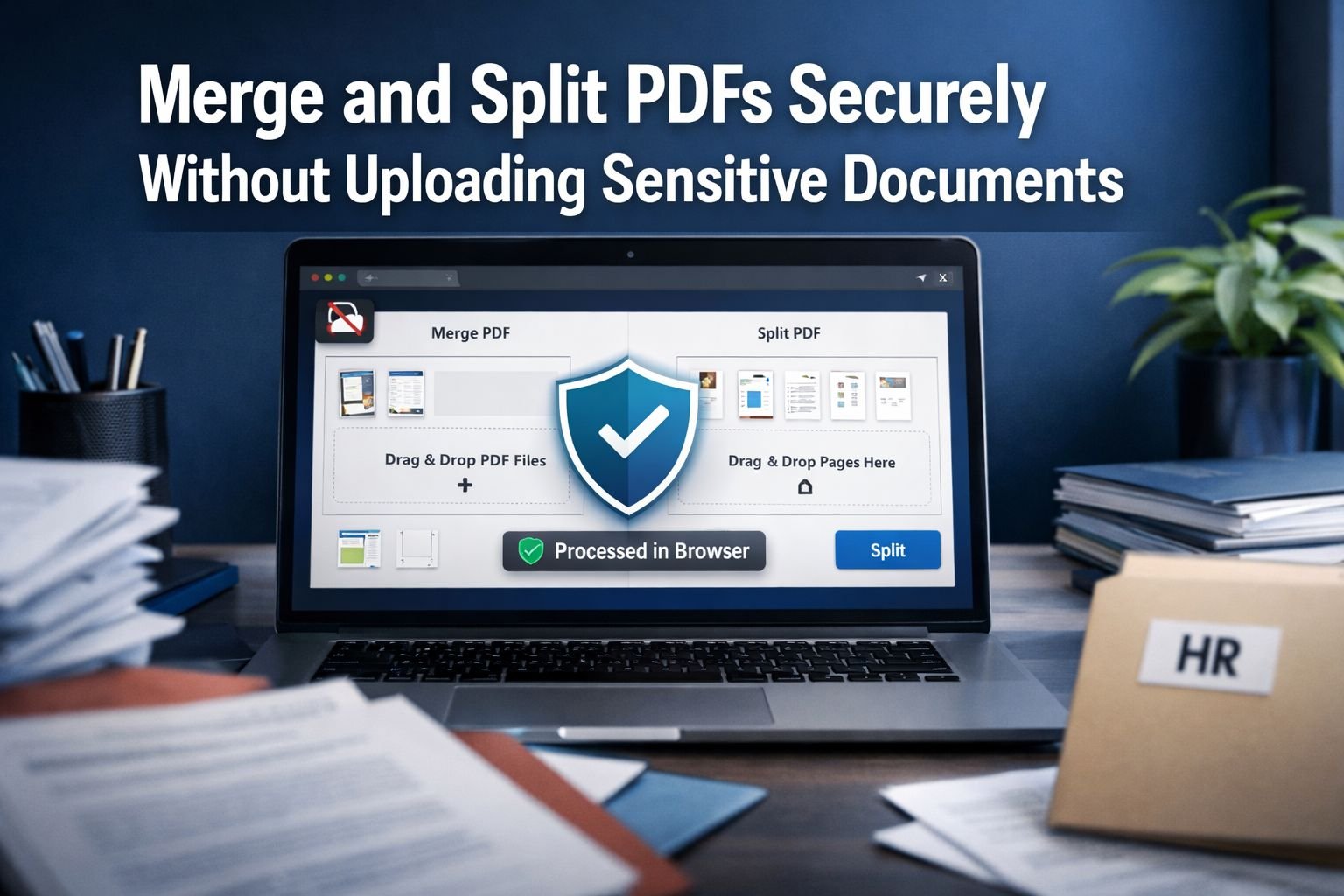
Yes, it is possible to merge and split PDFs without uploading files to a third-party server. The safest options are browser-based tools that process files locally on the device, or offline desktop apps that keep documents on the computer. For contracts, HR records, legal files, and submission packets, a privacy-first workflow reduces exposure and gives better control over sensitive documents.
Key Takeaways
- Merge and split PDFs without uploading is best done with browser-only or offline desktop tools.
- Cloud PDF tools are convenient, but they usually send files to remote servers, even if they encrypt data and delete files later.
- Browser-based PDF tools can run entirely on the device, which helps users keep files private.
- Offline desktop apps are a strong choice for larger jobs, repeat work, or restricted business environments.
- Core Tools Hub offers privacy-first workflows that run in your browser, with no installs and no signup required.
- Common use cases include combining scans into one contract, splitting signature pages, and building submission-ready packets.
- File handling matters as much as PDF features. Always check whether the tool uploads files, processes them locally, or auto-deletes them.
- After merging or splitting, compressing the final PDF can make uploads easier for portals and email attachments.
A recruiter needs to combine offer letters, ID forms, and signed acknowledgments. A legal assistant needs to pull out only the signature pages from a 120-page contract. In both cases, convenience matters, but privacy matters more. That is why many users now want to merge and split PDFs without uploading any sensitive documents.
Why does privacy matter when you merge and split PDFs?
Privacy matters because PDF files often contain names, signatures, salaries, addresses, account details, or case information. If a tool uploads those files to a server, even temporarily, that creates an extra point of exposure.
Sensitive PDF workflows usually involve:
- Employment contracts
- HR onboarding packets
- Legal filings
- Financial statements
- University or government submission bundles
- Medical or insurance forms
A cloud service may still be reasonable for low-risk files. Adobe and Smallpdf both provide online merge and split tools, but those workflows are server-based by design. That does not automatically make them unsafe, but it does mean the document leaves the device.
For confidential documents, the strongest privacy choice is simple: use a tool that processes PDFs locally and never uploads them.
A common mistake is assuming “online” always means “private enough.” For non-sensitive PDFs, that may be fine. For legal or HR files, many organizations prefer tools with all processing in the browser or fully offline desktop handling.
What is the difference between cloud, desktop, and browser-only PDF tools?
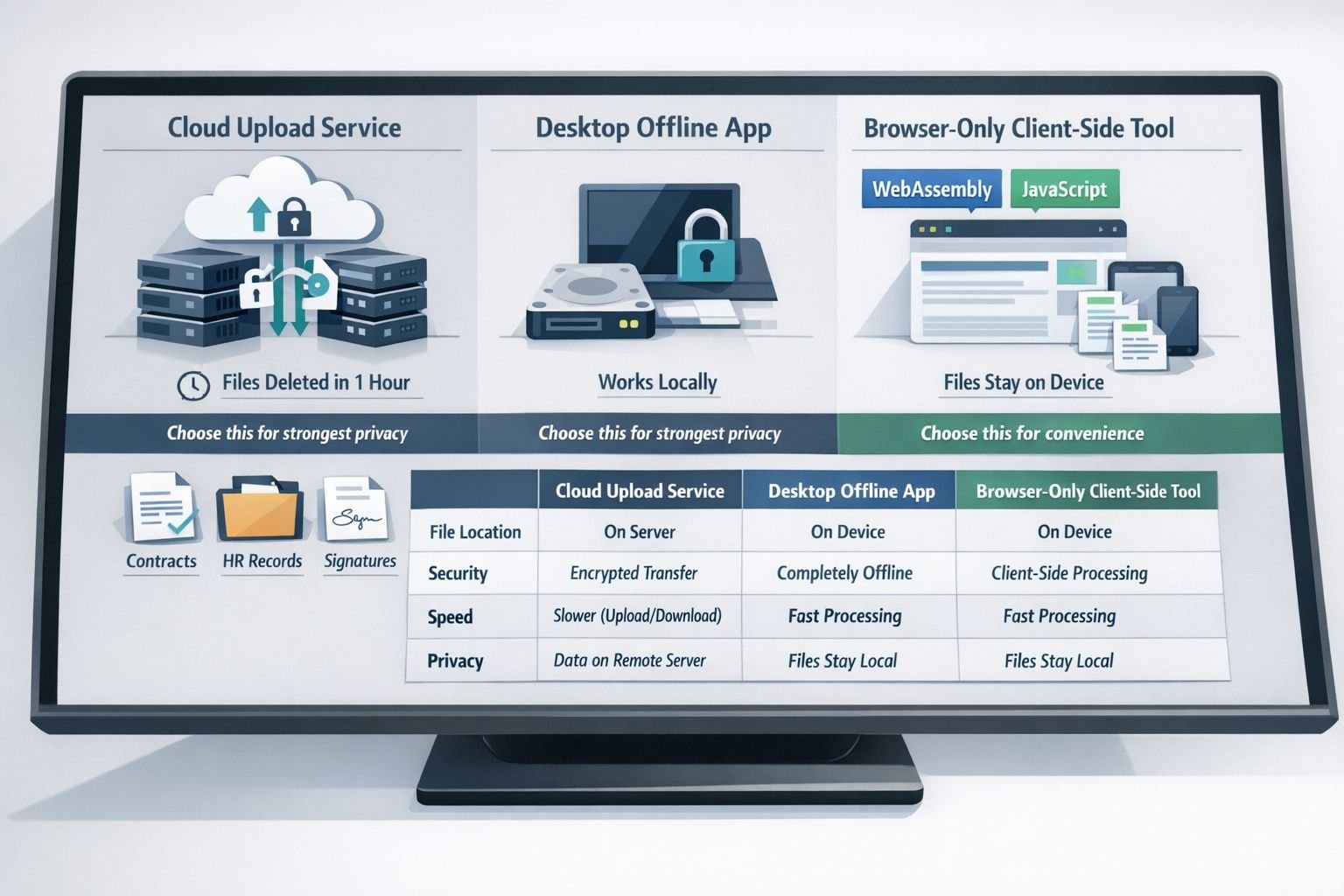
The main difference is where the file is processed. Cloud tools process files on remote servers, desktop tools process them on the local computer, and browser-only tools process them inside the browser on the device.
Here is the practical comparison:
| Tool type | Where files are processed | Best for | Main trade-off |
|---|---|---|---|
| Cloud PDF tools | Remote servers | Fast access from any device | Sensitive files leave the device |
| Desktop offline apps | Local computer | Large files, repeated secure work | Requires install |
| Browser-only local tools | Inside the browser on the device | Privacy-first, quick tasks, no installs | Performance depends on browser/device |
Choose cloud tools if:
- The PDF is low-risk
- Fast sharing matters more than strict privacy
- The user needs easy mobile access
- The device is too weak for local processing
Examples include Adobe’s online merge and split tools and Smallpdf’s merge tool.
Choose desktop offline tools if:
- The files are highly sensitive
- The user works with large bundles often
- The organization restricts browser tools
- The user wants a stable, long-term offline toolkit
Offline options are still active in 2026. 7-PDF continues to promote offline PDF merge workflows, and Microsoft Store options also position local processing as a feature. Jotform’s 2026 guide also notes that some desktop PDF apps stand out for offline handling.
Choose browser-only local tools if:
- The user wants to merge and split PDFs without uploading
- No installation is preferred
- A quick fix is needed on desktop or mobile
- The user wants privacy-first handling with simple step-by-step controls
For many people, browser-only local tools are the best middle ground: easy like an online tool, but without server uploads.
How can you merge and split PDFs without uploading to a browser?
Use a browser-based PDF tool that states files are processed locally on the device. Then add the files, reorder pages if needed, and export the new PDF, all without sending the document to a third-party server.
Core Tools Hub is built for this type of task. The site offers free online PDF and image tools that are privacy-first and designed for fast, clean results.
Simple step-by-step to merge PDFs securely
- Open the Merge PDF Files tool.
- Add the PDF files from the device.
- Confirm the files load locally in the browser.
- Drag pages or files into the correct order.
- Remove any duplicate or blank pages.
- Click merge.
- Save the combined PDF to the device.
Best settings
| Goal | Best choice |
|---|---|
| Combine scanned contracts | Check page order before export |
| Build a portal-ready packet | Merge first, then compress |
| Join signed pages from multiple PDFs | Rename files before adding |
A quick example: An HR coordinator receives four separate PDF scans for one employee file. Instead of uploading them to a server, the coordinator combines them in the browser, checks the page order, and saves a single clean master PDF locally.
For more options, see Best Online Tools to Merge PDFs 2026.
How do you split PDFs into smaller files without uploading?
Use a local or browser-only split tool, choose a page range or selected pages, and export only the needed section. This works well for signature pages, appendices, and long contracts that need to be broken into smaller parts.
Simple step-by-step to split PDFs securely
- Open the Split PDF tool.
- Select the PDF from the device.
- Choose how to split:
- by page range
- by individual pages
- by selected pages only
- Preview the pages carefully.
- Export the new file or files.
- Save the output locally.
If only certain pages are needed, use Extract Pages from PDF instead of splitting the whole document.
When splitting makes the workflow safer
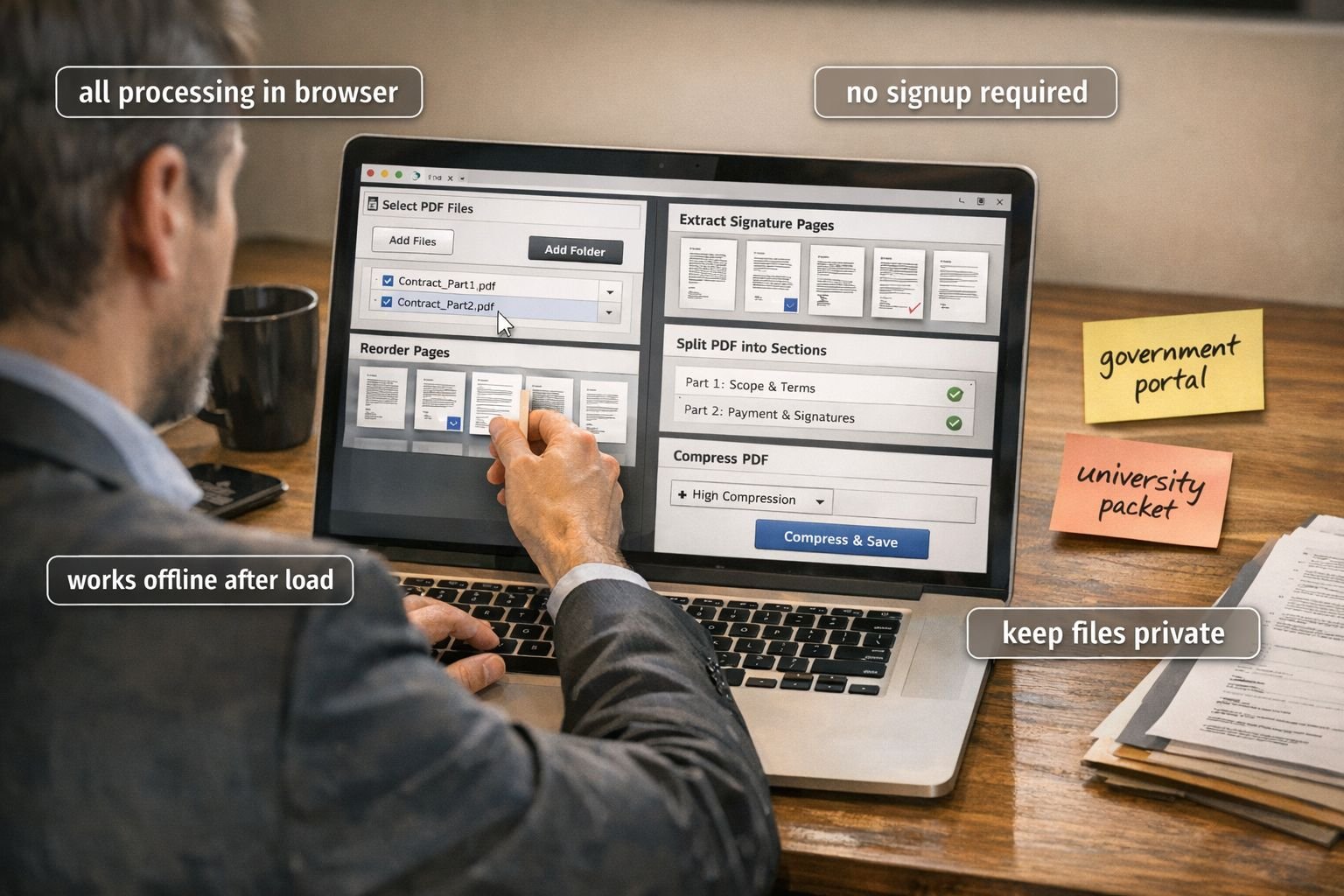
- Send only the signature page to a client
- Share only the appendix with a reviewer
- Remove unrelated employee records from a packet
- Break a large file into upload-friendly parts
A common mistake is splitting without checking page orientation and order first. If pages were scanned sideways, fix them in a Rotate PDF tool before export.
For a more focused walkthrough, read Split PDF into Separate Pages Fast.
Which tools handle data most safely?
The safest tools are the ones that clearly state files stay local, are processed on-device, or are deleted automatically if server processing is used. For sensitive documents, local-only handling is the better rule.
Data-handling comparison for common PDF workflows
| Tool/service type | Upload required | Local processing possible | Notes |
|---|---|---|---|
| Smallpdf Merge PDF | Yes | No stated local merge workflow | Useful, but cloud-based |
| Adobe online split/merge | Yes | No stated local online workflow | Cloud convenience |
| PDFChef merge tool | Yes | No stated local web workflow | Server-based web flow |
| 7-PDF Split & Merge | No for offline use | Yes | Offline-focused Windows option |
| Microsoft Store PDF merger/splitter app | No for local use | Yes | App-based local workflow |
| Core Tools Hub Merge/Split tools | No for browser-local workflows | Yes | Privacy-first, in-browser workflow |
Decision rule: Choose local browser or offline desktop tools for contracts, HR files, and legal records. Choose cloud tools only for non-sensitive PDFs or when policy allows uploads.
For a deeper comparison of privacy, see Browser-Based File Conversion vs Cloud Upload Tools and the Core Tools Hub Privacy Policy.
What are the best practices for secure PDF workflows?
Secure PDF handling starts before the merge or split step. The best workflow reduces unnecessary exposure, keeps outputs organized, and avoids sending more pages than needed.
Privacy-first checklist
- Use a tool that says files stay on-device
- Close other tabs when handling sensitive files
- Rename files clearly before merging
- Remove extra pages before sharing
- Split large packets into only the needed sections
- Save outputs to an encrypted or approved folder
- Delete temporary copies after sending
- Compress the final file only after checking the quality
Best settings for submission-ready bundles
| Use case | Suggested workflow |
|---|---|
| Government portal | Merge, review, compress, test upload |
| University application packet | Split by section, merge in final order, label clearly |
| Contract execution file | Extract signature pages, merge signed pages into final packet |
| HR onboarding | Keep each employee packet separate, then compress for email if allowed |
If the final file is too large, use Compress PDF (Lite) or read the full guide on compressing PDF without losing quality.
What mistakes should you avoid when trying to merge and split PDFs without uploading?
The biggest mistakes are choosing the wrong tool, exporting the wrong pages, and forgetting that page order matters. A secure workflow can still fail if the output is incomplete or mislabeled.
Common mistakes
- Using a cloud tool for confidential files without checking data handling
- Merging scans in the wrong order
- Splitting by page number without previewing page content
- Sending the full contract instead of only the needed section
- Forgetting to rotate sideways scans
- Compressing too aggressively before reviewing legibility
Quick fix guide
- Wrong order? Reorder pages before merging.
- Wrong pages? Use extract instead of a full split.
- Too large for email? Compress after final review.
- Scans hard to read? Keep a higher-quality original copy.
Edge case: Some old scans have inconsistent page sizes. That can make the final merged file look uneven. In those cases, review the packet page by page before submission.
Who should use browser-only tools, and who should choose desktop software instead?
Browser-only tools are best for quick, private tasks with no installs. Desktop software is better for heavy daily use, very large files, or locked-down work environments.
Browser-only is a better fit if:
- The user wants no installs
- The task is occasional or moderate in size
- The user needs a simple step-by-step workflow
- The browser device is reasonably current
- The goal is to keep files private while working fast
Desktop is a better fit if:
- The user handles large PDF batches every day
- The organization blocks web apps
- The machine needs repeatable offline workflows
- The job includes advanced editing beyond merge/split
Recent tool activity supports that split. 7-PDF and Microsoft Store apps continue to emphasize local processing. Recent product updates from PDF-related vendors in February 2026 also focused on workflow improvements and PDF processing components rather than on changing the basic privacy trade-off between local and cloud tools. Reviews and tutorials in 2026 also highlight offline editing tools such as OnlyOffice for users who want more local control.
Related reading
- Merge PDF Files — Combine PDFs Free, Private
- Split PDF — Extract Pages from PDF
- Compress PDF Without Losing Quality — 2026 Guide
- Best Online Tools to Merge PDFs 2026
- Browser-Based File Conversion vs Cloud Upload Tools
FAQ
Can you merge and split PDFs without uploading online?
Yes. Some browser-based tools process files locally on the device, so the PDF never leaves the computer or phone.
Is browser-based PDF processing the same as cloud processing?
No. Browser-based local processing happens on the device. Cloud processing sends the file to a remote server.
Are cloud PDF tools always unsafe?
No. Cloud PDF tools can still use encryption and deletion policies, but they are not ideal for highly sensitive files because the document is uploaded.
What is the safest option for legal or HR documents?
A local browser tool or an offline desktop app is usually the safest and most practical choice for merging and splitting tasks.
Can a phone merge PDFs without uploading?
Sometimes, yes. A modern mobile browser may handle small to medium files locally, but performance depends on the device and browser.
What if the final PDF is too big for email?
Compress the final merged file after reviewing it. Use moderate settings to reduce file size without visible quality loss.
Is desktop software better than browser-only tools?
Desktop software is better suited to large, repetitive workloads. Browser-only tools are better for quick, private tasks with no installation.
Should scanned PDFs be cleaned before merging?
Yes. Rotate pages, remove blank pages, and confirm the page order before creating the final file.
Conclusion
The best way to merge and split PDFs without uploading is to choose a tool that keeps processing on the device. For contracts, HR files, legal records, and submission packets, that simple choice lowers risk and gives better control over what gets shared.
A good, secure workflow is straightforward: choose a privacy-first tool, review pages carefully, export only what is needed, and compress the final file if submission limits require it. Core Tools Hub is built for exactly that kind of work, with PDF tools that run in your browser, require no signup, and help users keep files private.
Start with the Merge PDF tool, use the Split PDF tool when a packet needs to be split, and finish with the Compress PDF tool if the final file needs to be smaller.