













Last updated: April 15, 2026
Quick Answer
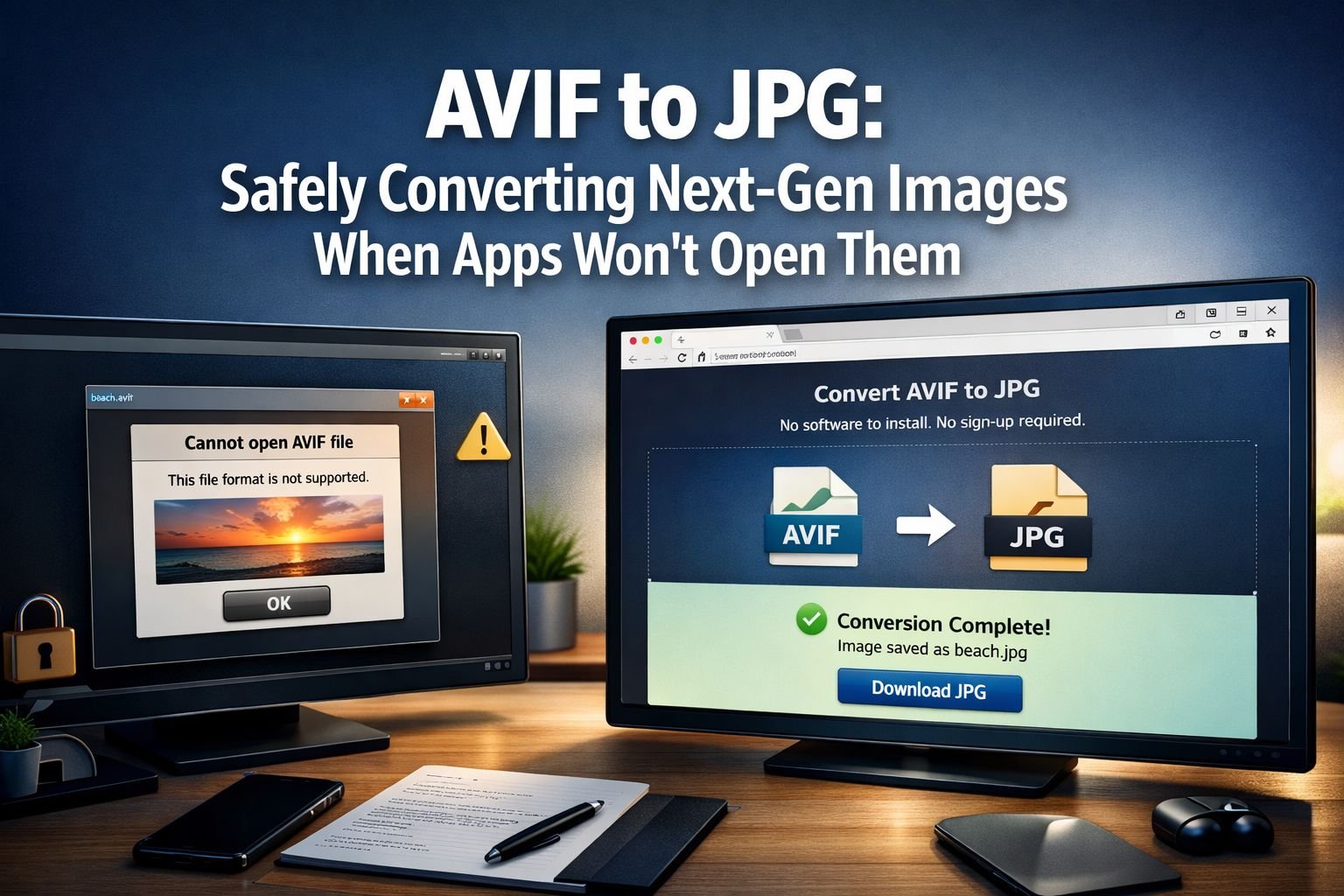
If an image downloads as AVIF and an older app cannot open it, the safest fix is to use a privacy-first AVIF to JPG converter that runs in your browser and exports a JPG copy without uploading the file to a server. Convert to JPG when compatibility matters for editing, email, printing, or older CMS workflows, but keep AVIF when web performance and smaller image delivery matter more.
Key Takeaways
- AVIF is a newer image format built for smaller file sizes and better web performance.
- Browser support is now widespread, but many desktop apps, plugins, and media workflows still lag behind.
- Converting AVIF to JPG improves compatibility, but it usually results in a larger file and may lose some color and detail.
- A browser-based converter is the better choice for private images because all processing occurs in the browser, avoiding server uploads.
- Batch conversion matters if a site export or asset download gives dozens of AVIF thumbnails at once.
- Choose JPG for older editors, office apps, print labs, and platforms that reject AVIF uploads.
- Keep AVIF for websites where speed, bandwidth savings, and crisp images matter.
- After conversion, compress the JPG if the file becomes too large for email or upload.
- Common mistakes include exporting JPG at very low quality, flattening transparency without checking the background, and resizing after repeated saves.
A freelance designer downloads product shots from a client site, double-clicks them, and gets an error. The images are fine. The format is the problem. That is why AVIF to JPG conversion has become a routine, quick fix in 2026.
What is AVIF, and why are websites using it?
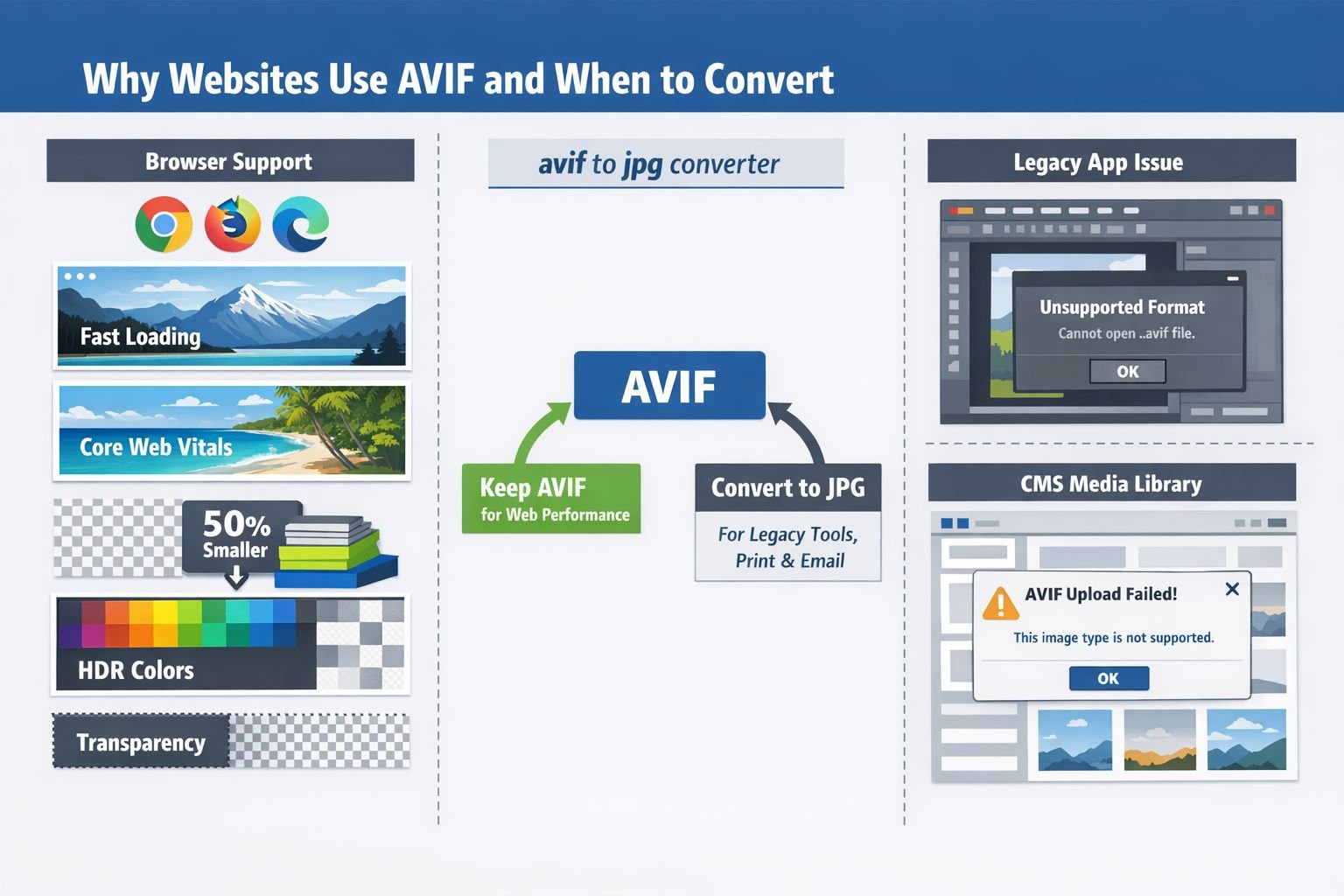
AVIF is a modern image format based on the AV1 codec. Websites use AVIF because it can deliver smaller files than JPEG at similar visual quality, while also supporting features like transparency, HDR, and wider color depth.
AVIF is popular for the web because it helps reduce page weight. In practical terms, smaller image payloads can help sites load faster, especially on mobile connections. Several industry guides also note that AVIF often beats JPEG and can outperform WebP in compression efficiency, though results vary by image type.
Some useful context:
- Good fit for AVIF: photos, hero images, product images, responsive website assets
- Less ideal for AVIF: text-heavy graphics, line art, screenshots, and assets that need perfect lossless edges
- Why people notice it now: browser support is strong, but local app support is still uneven
According to one 2026 comparison, AVIF browser support passed 93%, which explains why so many sites now serve it by default. That does not mean every desktop tool, CMS plugin, or email workflow handles it well.
For a broader strategy view, see Core Tools Hub’s guide to AVIF vs WebP vs JPEG and the deeper explainer on lossless vs lossy formats.
When should you convert AVIF to JPG?
Convert AVIF to JPG when compatibility is more important than compression efficiency. That usually means older editing software, office apps, print workflows, marketplace uploads, or CMS tools that fail to preview or process AVIF correctly.
Choose JPG if:
- An app says the file is unsupported
- A client, printer, or portal specifically asks for JPG
- You need a format that opens almost anywhere
- You are sending images by email to less technical users
- A legacy DAM, CMS, or plugin handles JPG more reliably than AVIF
Choose AVIF if:
- The image is staying on a modern website
- Fast page loads matter
- You want smaller image files for delivery
- The workflow already supports AVIF end to end
Simple rule: keep AVIF for web delivery, convert to JPG for people and systems that expect an older standard.
A common edge case is WordPress or a page builder that, in theory, accepts AVIF but produces poor previews, incorrectly scaled versions, or inconsistent thumbnails. In those cases, JPG is often the safer fallback for publishing consistency.
Which Avif to JPG converter is safest to use?
The safest AVIF to JPG converter is one that runs locally in the browser, does not require signup, and clearly explains whether files are uploaded or processed on-device. For sensitive client images, internal documents, and pre-release assets, privacy-first tools are the smarter choice.
Use this checklist before converting:
- Check where processing happens. Look for “runs in your browser” or “all processing in browser.”
- Check file limits. Some tools work well for a few images but struggle with batches.
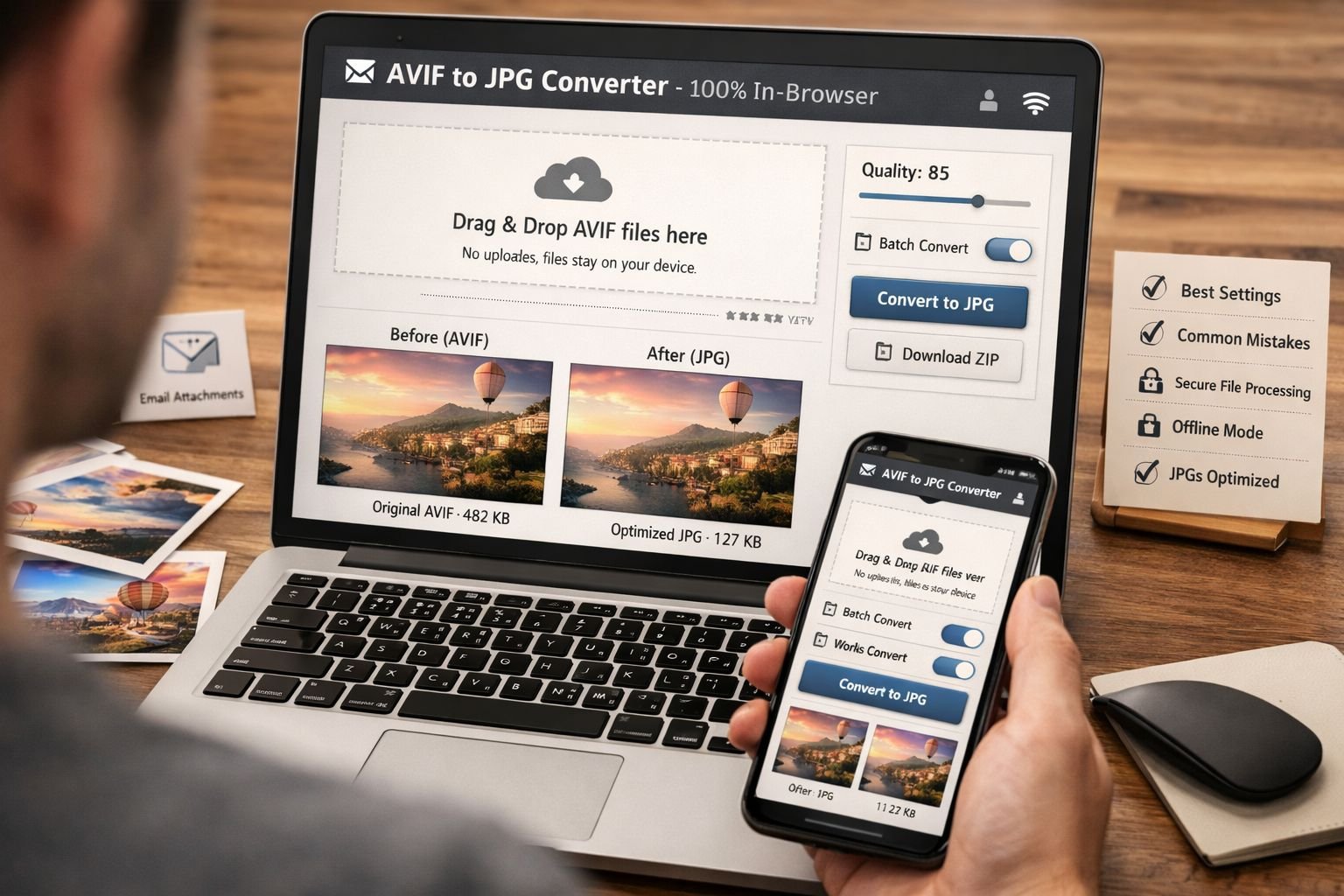
- Check output control. A quality slider or export setting helps avoid bloated JPGs.
- Check batch download options. ZIP export saves time.
- Check mobile support. Useful when downloads land on a phone.
Quick tool comparison
| Tool type | Best for | Main tradeoff |
|---|---|---|
| Browser-based, local processing | Privacy, quick fixes, no installs | Depends on device/browser memory |
| Cloud upload converter | Large server-side processing | Files leave your device |
| Desktop app or plugin | Repeat workflows, pro editing | Installs, updates, mixed AVIF support |
Core Tools Hub fits the first category: a privacy-first image converter that works on desktop and mobile, with no installs or signups required. If the exported JPG is still too large, follow up with the Image Compressor or read the guide on compressing image file size without losing quality.
For readers comparing privacy models, this overview of browser-based conversion vs cloud upload tools is useful.
How do you convert AVIF to JPG safely, step by step?
The safest method is simple: open a browser-based converter, add the AVIF file, choose JPG, export once at a sensible quality, and review the image before sharing it. Most users can convert in seconds.
Step-by-step checklist
- Open the Core Tools Hub’s image converter from the Online Image Tools area.
- Drag in the AVIF image or select it from the device.
- Choose JPG as output.
- Set quality to medium-high if a slider is available. Start around the default rather than forcing maximum.
- Convert and preview the result at 100% zoom if the image is important.
- Download the JPG to the device.
- Compress or resize as needed before emailing, uploading, or printing.
Best settings
| Goal | Recommended starting point |
|---|---|
| Email attachment | JPG, medium quality, then compress |
| Website upload fallback | JPG, medium-high quality, resize to display width |
| Print proof | JPG, high quality, confirm dimensions first |
| Batch thumbnails | JPG, medium quality, ZIP download if available |
Quick example: A shop owner exports 40 AVIF product thumbnails from a supplier portal. A batch AVIF to JPG converter with ZIP download is faster than opening each file one by one.
What quality do you lose when converting AVIF to JPG?
Converting AVIF to JPG can reduce quality because JPG is a lossy format and does not preserve all AVIF capabilities. The main losses are usually larger file size, less efficient compression, possible banding in gradients, and no transparency.
Here is what can change during transcoding:
- Color depth: AVIF supports higher bit depths and HDR workflows. JPG is more limited.
- Transparency: JPG does not support alpha transparency. Transparent AVIF areas will be flattened against a background color.
- Compression artifacts: Saving too aggressively can create halos, mushy textures, or blocking.
- Animation: Animated AVIF will not become an animated JPG.
Choose JPG quality based on use
- Choose higher quality for portraits, product photos, and print handoff.
- Choose medium quality for general web uploads and email.
- Avoid repeated saves, as each lossy re-export can introduce artifacts.
Common mistake: exporting at “maximum quality” does not always help. It often creates a much bigger JPG with little visible improvement. Start balanced, then inspect faces, text edges, and flat gradients.
If you also need exact pixel dimensions, use the Image Resizer or see the guide to perfect image dimensions for web, email, and social.
How can you preserve quality and color during AVIF to JPG conversion?
To preserve quality, convert only once, keep the original AVIF, export at sensible JPG quality, and avoid unnecessary resizing after the fact. For image-heavy projects, test one file first before batch converting everything.
Best practice checklist
- Keep the original AVIF as the master file
- Export to JPG only for compatibility copies
- Flatten transparency onto a chosen background color before export
- Resize before or during export if the final use is known
- Review skin tones, gradients, shadows, and text overlays after conversion
A good decision rule is simple:
- Choose a one-time JPG export if the file is just for delivery
- Choose another format, like PNG, if transparency or sharp text edges matter more than photo compression
For related format decisions, Core Tools Hub also offers tools to convert PNG to JPG, WebP to JPG, and HEIC to JPG on Windows and Mac.
Should you keep AVIF instead of converting to JPG?
Yes, keep AVIF when the image is meant for modern web delivery and your workflow supports it. AVIF still makes sense for faster-loading pages, smaller transfer sizes, and improved image efficiency on websites.
Keep AVIF when:
- Site speed matters
- You control the front-end stack
- Browser support is enough for your audience
- The CMS and image pipeline handle AVIF well
- You want to reduce bandwidth at scale
Convert to JPG when:
- Apps will not open the file
- Customers need a universal format
- Print or office systems are involved
- The workflow breaks on AVIF import
That split matters for SEO and user experience. AVIF can help deliver performance, while JPG still wins on universal compatibility. If a site owner is choosing formats for future uploads, the best next read is the best image format for the web.
What are the most common mistakes with an AVIF to JPG converter?
Most conversion problems come from using the wrong output settings or the wrong format for the job. The good news is that these mistakes are easy to avoid.
Common mistakes
- Converting a transparent AVIF to JPG without checking the background
- Using a low-quality slider setting for product or portrait photos
- Batch converting everything before testing one image
- Deleting the original AVIF after export
- Assuming JPG is better for every web image
- Using a cloud tool for sensitive files without checking privacy terms
Edge case to watch
Some AVIF files are thumbnails or highly compressed assets pulled from websites. Those files may already be small or low detail. Converting them to JPG cannot create missing quality. A converter changes the container and compression format, not the underlying visual information.
What if the AVIF file still will not convert or open?
If the AVIF file fails to convert, the issue is usually a corrupted download, an unusual AVIF variant, or device memory limits during browser-based processing. Retrying with the original source file often fixes the problem.
Try these fixes in order:
- Re-download the image from the original source.
- Rename the file carefully only if the extension is wrong, but do not fake a format change.
- Open the converter in another browser, such as Chrome, Edge, Firefox, or Safari.
- Convert one image at a time if batch mode stalls.
- Use a newer device if the file is very large.
- Ask for a JPG or PNG from the sender if the file appears corrupted.
For a general overview of modern formats and where they fit, Core Tools Hub’s article on beyond JPEG and PDF: exploring the latest file formats gives extra context.
FAQ
Is AVIF better than JPG?
AVIF is usually better for web compression efficiency, but JPG is better for broad compatibility.
Can Windows Photos open AVIF?
Some newer systems can, but support depends on OS version, codecs, and app updates.
Does converting AVIF to JPG reduce quality?
Yes, it can. JPG is lossy, so conversion may add artifacts or increase file size.
Can an AVIF to JPG converter work without uploading files?
Yes. Some tools process images locally in the browser, which is better for privacy.
Is JPG the best output for printing?
JPG is widely accepted for print handoff, but quality settings and pixel dimensions still matter.
Can AVIF keep transparency?
Yes. AVIF supports transparency, but JPG does not.
Why are websites serving AVIF now?
Websites use AVIF because it can shrink image file sizes while maintaining good visual quality.
Can batch conversion save time?
Yes. Batch conversion is the fastest option when a site or asset library contains many AVIF files.
Should site owners upload both AVIF and JPG?
Often yes. AVIF can be served to modern browsers, while JPG serves as a fallback for compatibility.
Conclusion
An AVIF file that will not open is usually a compatibility problem, not a broken image. The practical fix is to use a trusted, privacy-first AVIF to JPG converter that runs in your browser, export a JPG copy for the app or workflow that needs it, and keep the original AVIF for web use.
The key is choosing based on purpose. Keep AVIF for performance-focused websites. Convert to JPG for editors, email, print, and older software. Then compress or resize the JPG only if the new file is larger than expected.
For a fast, clean result, use Core Tools Hub’s browser-based image converter, then fine-tune the export with the Image Compressor if needed. No installs, no sign-up required, and secure file handling make it a practical, quick fix when apps refuse to open AVIF files.