













Last updated: April 13, 2026
Quick Answer
To compress a PDF for email without ruining readability, aim to shrink the file below your email provider’s practical attachment limit, usually closer to 12–18 MB for reliable sending, because attachment encoding adds extra size overhead. For most people, the best option is a privacy-first PDF compressor that runs in the browser, uses gentle compression, and lets you check the result before sending.
Key Takeaways
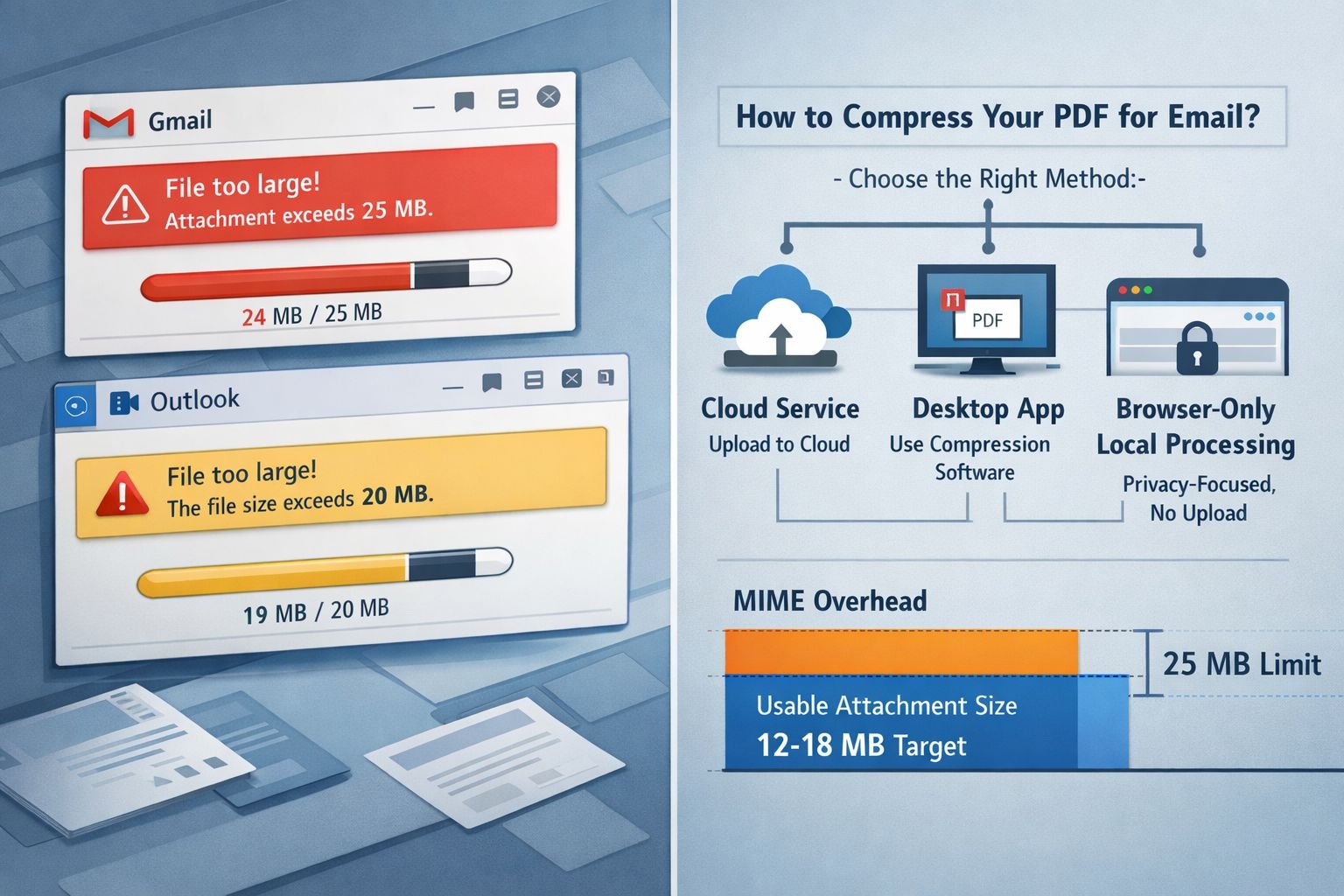
- Gmail commonly supports attachments up to 25 MB, while some Outlook setups are often around 20 MB.
- Gmail Enterprise Plus now supports 50 MB direct attachments in some business environments, but that does not apply to most personal Gmail users.
- To send reliably, a PDF often needs to be well under the posted cap because email encoding adds overhead.
- Text-heavy PDFs usually handle a 30–60% reduction with little visible loss if compression is gentle.
- Image-heavy PDFs need more care, especially when they contain scans, brochures, manuals, or photo-rich reports.
- Browser-only tools are best if you want no installs, no signup required, and stronger privacy for sensitive files.
- Cloud tools are convenient, but many free plans limit stronger compression or batch use.
- If a PDF is still too big, split pages, remove extra images, or send a cloud link instead of an attachment.
- Always open the compressed PDF and check text sharpness, charts, signatures, and page order before emailing.
Why is your PDF too large to email?
A PDF is usually too large to email because it contains scanned pages, high-resolution images, embedded fonts, or too many pages. Even when Gmail says 25 MB, the file often needs to be smaller in practice because email encoding increases the total message size.
A common example: someone scans a 12-page form on a phone, saves it as a PDF, and ends up with a 24 MB file. The text looks fine, but every page is stored as a large image. That is why “just a few pages” can still trigger a size error.
Common reasons the PDF size grows fast
- Scanned documents saved at high resolution
- Photos inside the PDF from phones or cameras
- Color pages when grayscale would work
- Too many pages, especially if some are blank or duplicates
- Export settings from Word, PowerPoint, or design tools
- Multiple merged PDFs with mixed image quality
Quick size targets for email
| Email situation | Safer target PDF size |
|---|---|
| Outlook or work email | 10–15 MB |
| Standard Gmail sending | 12–18 MB |
| If the PDF includes many images | As low as possible while readable |
| Enterprise Plus Gmail | Check admin rules first, even with 50 MB support |
Decision rule: If the PDF is under 10 MB, send it as-is. If it is 10–25 MB, compress it first. If it is still over the limit after compression, send a cloud link or split the file.
What is the best way to compress a PDF for email?
The best way to compress a PDF for email depends on what matters most: speed, privacy, or maximum reduction. Browser-only local tools are best for sensitive files, cloud services are best for convenience, and desktop apps are best for heavy or repeated use.
Compare the three main methods
| Method | Best for | Pros | Limits |
|---|---|---|---|
| Browser-only local processing | Private documents, quick fixes | Privacy-first, all processing in browser, no installs | Can be slower on older devices |
| Cloud-based compressors | Fast one-off jobs | Easy, works anywhere, polished interface | File uploads to a server, free tiers may be limited |
| Desktop/hybrid apps | Frequent use, large batches | More control, batch support, offline use | Requires download and setup |
Practical picks
- Choose browser-only if the PDF contains IDs, contracts, school records, or financial documents.
- Choose cloud tools if the PDF is not sensitive and you want the fastest upload-and-compress flow.
- Choose desktop apps if you often send large PDFs and want more advanced controls.
Core Tools Hub fits the first group well because the Compress PDF tool is privacy-first, runs in your browser, and delivers fast, clean results without a lengthy setup. If you want a broader overview first, the online PDF tools collection is a helpful starting point.
If a document is private and the job is simple, local browser processing is often the easiest safe choice.
How do you compress a PDF for email in Gmail, Outlook, and other providers?
To compress a PDF for email successfully, reduce the file first, check readability, and then attach the smaller copy. The actual compression steps are the same whether the final destination is Gmail, Outlook, Yahoo Mail, Apple Mail, or a school portal.
Simple step-by-step
Check the current file size
- On Windows or Mac, right-click the PDF and view Properties or Get Info.
- If it is over about 12–18 MB, compression is a smart first step.
Open a PDF compressor
- Use a browser-based tool like Compress PDF (Lite) — Reduce Size in Browser for a quick fix.
- If you want more background, see this guide to compress a PDF without losing quality.
Choose gentle or basic compression
- Start with the lightest setting that still reduces the file enough.
- Many online tools reserve stronger compression for paid plans.
Download the compressed PDF
- Save it with a clear name like
resume-email-version.pdf.
- Save it with a clear name like
Open and inspect the file
- Zoom to 100% and 200%.
- Check text, signatures, tables, logos, and scanned pages.
Attach and send
- If the email still rejects it, reduce the size further or split the PDF into parts.
Gmail notes
- Standard Gmail users usually work within the well-known 25 MB attachment limit.
- Gmail can switch to link-based sharing through Google Drive for larger files.
- Gmail Enterprise Plus has a larger direct attachment limit of 50 MB in some accounts.
Outlook notes
- Outlook limits vary by setup, but 20 MB is a common published benchmark in general email limit guides.
- Some work accounts have stricter admin rules than consumer accounts.
Other providers
General email limit roundups show many services cluster around the 20–25 MB range, which is why email-ready PDFs should usually land below the posted cap.
How much can you reduce a PDF without visible quality loss?
Many PDFs can shrink a lot without looking worse, but the safe amount depends on the content. Text-only and text-heavy PDFs usually compress much better than image-heavy documents.
Best settings by document type
| PDF type | Best settings | Expected result |
|---|---|---|
| Resume, invoice, contract | Gentle/basic compression | Smaller file, text stays crisp |
| Scanned forms | Gentle compression, grayscale if color is unnecessary | Big reduction with readable text |
| Slides or brochures | Medium compression, check images carefully | Moderate reduction |
| Photo-heavy manuals | Light compression only | Better quality, smaller reduction |
A quick example
A job applicant exports a 22 MB resume portfolio because it includes full-page project screenshots. After gentle compression and removing a few oversized images, the file drops to 11 MB and still looks sharp on screen. That is the sweet spot: small enough to send, clear enough to read.
If your PDF is mostly images, it also helps to compress them before they go into the PDF. These guides can help:
- Compress image file size without losing quality
- How to compress images without quality loss
- Lossless vs lossy formats
How can you keep quality high while you compress a PDF for email?
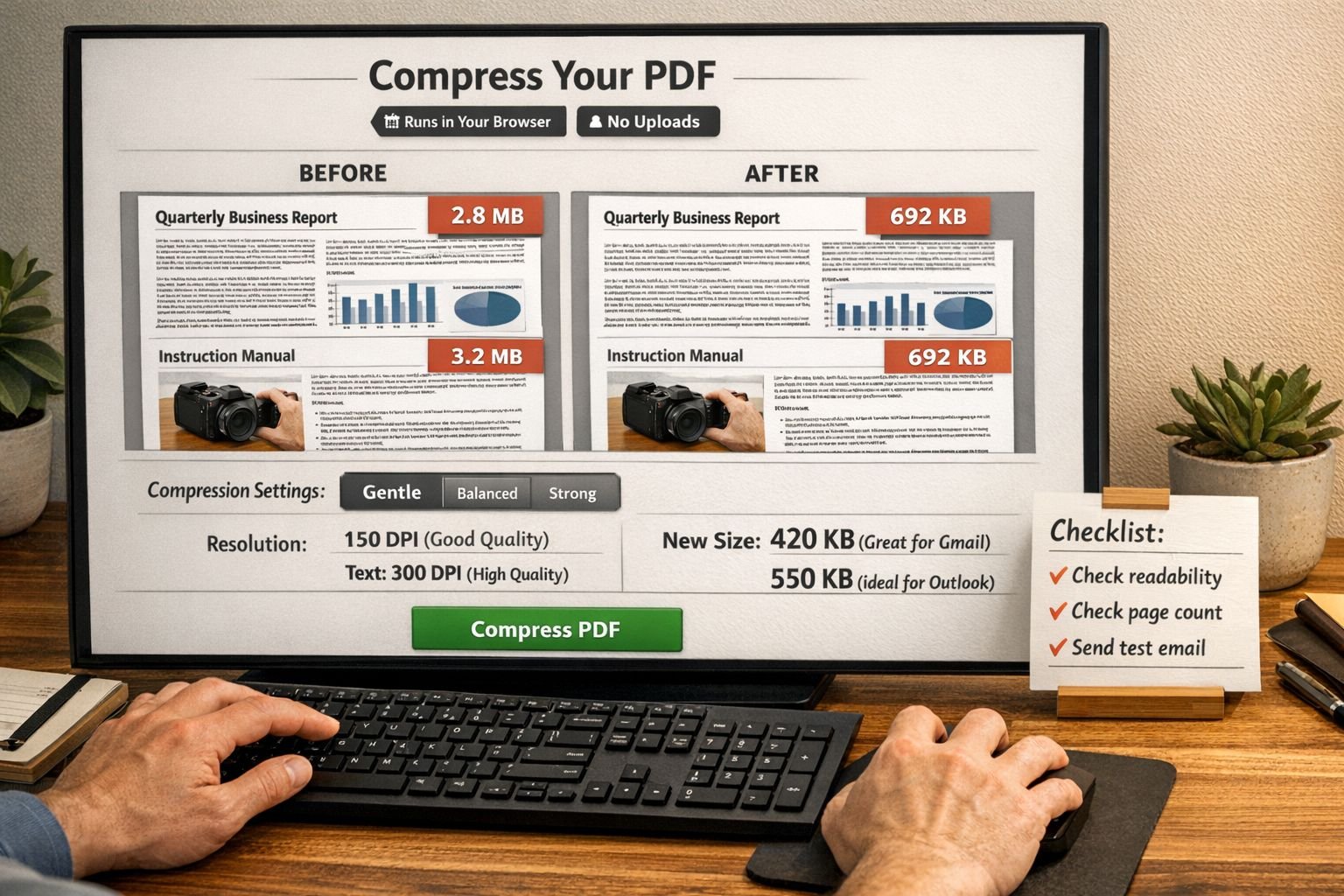
To keep quality high, start with light compression, avoid repeated re-compressing, and reduce unnecessary content before lowering image quality. Most bad results come from using strong compression too early.
What to click next
- Start with the basic or recommended mode.
- If the file is still too big, try one more step down.
- Check:
- small body text
- signatures
- barcodes or QR codes
- charts and tables
- page backgrounds
Common mistakes
Compressing the same PDF multiple times
Each round can make scans and images softer.Using maximum compression first
This often causes fuzzy text or blocky images.Ignoring page cleanup
Removing blank pages can help more than expected. Tools like Split PDF or Extract Pages from PDF are useful if only part of the file needs to be sent.Sending color scans when grayscale is enough
For forms and text documents, grayscale can save a lot of space.
Which tools are best for compressing PDFs for email in 2026?
The best tool depends on whether you care more about convenience, privacy, or advanced controls. Public web guides in 2026 commonly cite Adobe for reliability, Smallpdf for ease of use, and iLovePDF-style workflows for batch processing, while browser-only local tools stand out for privacy.
Quick comparison
Adobe Acrobat Online
- Strong reputation and easy workflow
- Good for business users
- May limit premium compression features
Smallpdf
- Popular, simple interface
- Promotes strong reduction and browser access
- Some advanced options are tied to paid plans
PDF2Go / similar cloud tools
- Useful for extra options like grayscale
- Good for one-off fixes
Browser-only local tools
- Best for users who want secure file handling and no uploads
- A strong fit when the goal is “reduce file size for email” without sending a document to a remote server
If privacy matters, the browser-only route is worth serious attention. For a deeper comparison, see Best Free Online PDF Compressor 2026 and the broader privacy discussion in browser-based file conversion vs cloud upload tools.
How do you protect privacy when compressing sensitive PDFs?
Sensitive PDFs should be compressed with tools that minimize data exposure. A local, in-browser workflow is often the safest practical option because the file can remain on the device rather than being uploaded to a third-party server.
Use this privacy checklist
- Prefer tools that state all processing in the browser
- Avoid uploading passports, medical records, contracts, or tax files to unknown services
- Read the tool’s privacy details if the document is confidential
- Delete temporary copies after sending
- Rename exported files clearly so the wrong version is not shared
Core Tools Hub’s approach is built around privacy-first file handling, no installs, and no signup required for quick jobs. If you want the technical overview, the How It Works page explains the browser-based model.
What if the PDF is still too big after compression?
If compression is not enough, the next step is to remove pages, split the file, or send a link instead of an attachment. Sometimes the right fix is not “more compression,” but a different delivery method.
Best fallback options
Split the PDF
- Send Part 1 and Part 2 in separate emails
- Good for long reports or image-heavy handbooks
Extract only the needed pages
- If the recipient only needs pages 3–8, send those instead
Recreate the PDF from smaller images
- If the file came from giant phone photos, resize those images first, then rebuild the PDF
Use cloud sharing
- Gmail may push oversized files to Drive
- Outlook environments may support OneDrive links for much larger files
A student once tried to email a 41 MB scanned assignment packet three times, each with stronger compression and worse quality. Splitting the file into two sections solved the problem in under five minutes. That is a good reminder: sometimes the fastest fix is structural, not visual.
Related reading
- Compress PDF without losing quality
- Best free online PDF compressor in 2026
- Online PDF tools
- Compress image file size without losing quality
- Browser-based file conversion vs cloud upload tools
FAQ
What size should a PDF be for email?
A practical target is usually under 12–18 MB for reliable delivery on common email services, because encoding overhead increases the total message size.
How do you compress a PDF for email for free?
Use a free PDF compressor, choose basic or light compression, download the smaller file, and check readability before attaching it.
Does compressing a PDF always reduce quality?
No. Text-heavy PDFs often shrink significantly with little or no visible change, while image-heavy PDFs require gentler settings.
Why does Gmail reject a PDF under 25 MB?
The visible file size is not the full size of the email. Attachment encoding adds overhead, so the message can exceed the limit even when the PDF looks close enough.
Is a browser-based PDF compressor safe?
A browser-based compressor can be safer for sensitive files if processing remains local on the device rather than uploading the PDF to a remote server.
What is better, compressing or splitting a PDF?
Compressing is better for short files that are only slightly too large. Splitting is better for long, image-heavy PDFs that need to stay readable.
Can Outlook and Gmail handle the same PDF size?
Not always. Gmail commonly uses 25 MB for standard accounts, while Outlook limits can vary and are often lower in workplace setups.
Should scanned PDFs be converted to grayscale?
Yes, if color is not important. Grayscale often meaningfully reduces the size of forms, records, and text documents.
Conclusion
If a PDF is too big to send, the fastest solution is to compress it for email using light settings, aim for a final size under the published limit, and check the result before sending. For most non-technical users, the best workflow is simple: check file size, compress gently, inspect the PDF, and only then attach it.
When privacy matters, use a tool that runs in your browser and keeps files private. When the file is still too large, split pages or send a link instead of forcing harsh compression. For a quick, privacy-first fix, try Core Tools Hub’s Compress PDF tool and explore the full PDF tools collection for splitting, reordering, rotating, and more.