













Last updated: April 20, 2026
Quick Answer: To convert a scanned PDF to a searchable PDF online, upload your file to a browser-based OCR tool that adds an invisible text layer over each page image. The result is a PDF you can search, copy from, and paste into other documents, with no desktop software required. For maximum privacy, choose a tool that runs OCR entirely in your browser so your files never leave your device.
Key Takeaways
- A scanned PDF is just a picture. You can’t search, select, or copy text from it until OCR processing adds a text layer.
- Browser-based OCR tools let you convert scanned PDFs to searchable text online without installing software or creating an account.
- Privacy-first tools that use WebAssembly (like Tesseract.js) process files entirely on the client side; your documents never touch a server.
- Scan quality matters: 300 DPI grayscale scans produce the best OCR accuracy for most documents.
- Compression after OCR keeps file sizes manageable for email and archiving without destroying the new text layer.
- Batch OCR is available in some tools, but free browser-based options often cap the number of pages or files per session.
- OCR isn’t perfect. Handwriting, low-contrast scans, and complex multi-column layouts still cause errors that need manual review.
How to Tell If Your PDF Is Scanned or Already Searchable
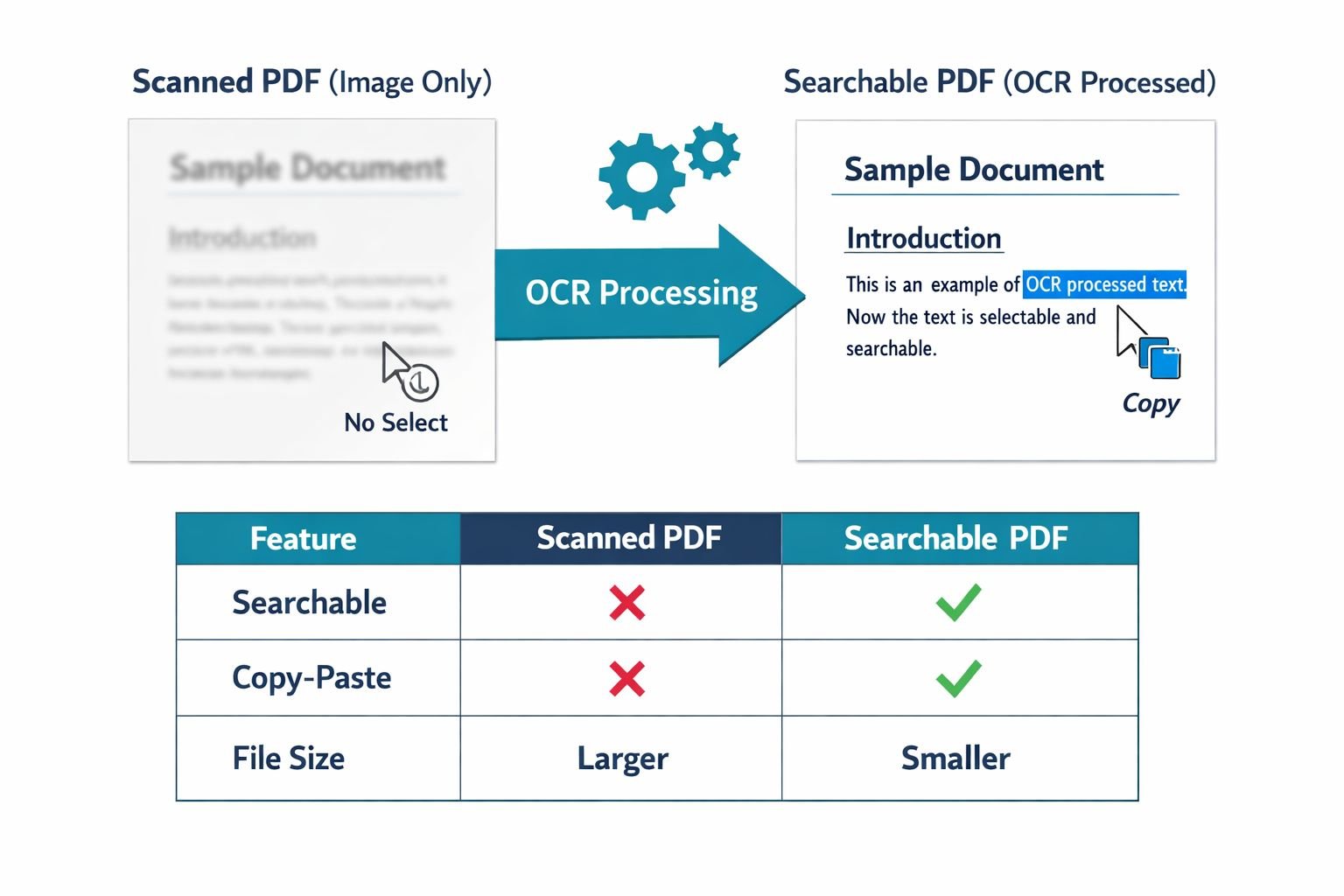
Try selecting text. Open the PDF, click and drag across a line of text. If you can highlight individual words, it’s already searchable. If the entire page appears as a single image (or nothing highlights at all), it’s a scanned, image-only PDF that needs OCR.
Another quick test: press Ctrl+F (or Cmd+F on Mac) and search for a word you can see on the page. No results? That confirms the PDF contains only images.
Why this matters for your workflow:
- Scanned (image-only) PDFs come from flatbed scanners, phone camera apps, and fax-to-PDF conversions. They look fine on screen but are dead weight for search, accessibility, and data extraction.
- Searchable (text-layer) PDFs contain either native digital text or an OCR-generated text layer sitting behind the page image. These support Ctrl+F search, copy/paste, and screen readers.
If you can’t select a single word, OCR is the fix.
What OCR Does and When You Need It
OCR (Optical Character Recognition) analyzes the pixel patterns in an image and converts them into machine-readable text. For PDFs, the recognized text is placed in an invisible layer behind the original page image, so the document looks identical but now supports search, selection, and extraction.
Common scenarios where OCR is essential:
| Use Case | Why OCR Helps |
|---|---|
| Paper contracts & legal docs | Search for clauses, copy text into summaries |
| Receipts & invoices | Extract amounts for expense reports or accounting software |
| Academic papers & book scans | Ctrl+F through hundreds of pages, quote passages |
| Accessibility compliance | Screen readers need a text layer to read content aloud |
| Archival & compliance | Searchable PDFs meet many document retention standards |
When you don’t need OCR: If your PDF was created digitally (exported from Word, Google Docs, or a design tool), it already contains native text. Running OCR on these files is unnecessary and can actually degrade quality.
Step-by-Step: Convert Scanned PDFs to Searchable Text Online
The fastest path is a browser-based OCR tool that requires no signup and no installs. Here’s the general workflow for most online OCR converters, including privacy-first options that process files entirely in your browser.
Basic conversion steps
- Open the OCR tool in any modern browser (Chrome, Firefox, Edge, Safari).
- Upload or drag-and-drop your scanned PDF. Some tools accept multiple files for batch processing.
- Select the document language. English is usually the default, but accuracy improves when you specify the correct language. Tools like LightPDF support 20+ languages.
- Choose output format. For a searchable PDF, select “Searchable PDF” or “PDF with text layer” rather than plain text or Word export.
- Start OCR. Processing time depends on the page count and whether the tool runs locally or on the server. A 10-page document typically finishes in under 30 seconds on server-based tools; client-side (Tesseract.js) may take 1–3 minutes.
- Download the result. Open it and use Ctrl+F to confirm the text is now searchable.
Choosing between cloud OCR and browser-local OCR
| Factor | Cloud-Based OCR | Browser-Local OCR |
|---|---|---|
| Privacy | Files uploaded to server | All processing in browser; files stay on your device |
| Speed | Fast, even for large files | Slower on long documents |
| Language support | Often 50+ languages | Typically fewer (Tesseract.js covers ~100, but quality varies) |
| Accuracy | Generally higher (Mistral OCR 3 reports 74% improvement over prior versions on forms and tables) | Good for clean prints; weaker on handwriting |
| Offline use | Requires internet | Works offline once loaded |
Choose browser-local OCR if you’re handling sensitive documents like contracts, medical records, or financial statements. For understanding the privacy differences in more detail, see our guide on browser-based file conversion vs. cloud upload tools.
Choose cloud OCR if you need high accuracy on complex layouts, handwriting, or non-Latin scripts, and your organization’s data policies allow server processing.
How to Improve OCR Accuracy with Better Scans and Settings
The single biggest factor in OCR accuracy is scan quality. No amount of software tuning compensates for a blurry, skewed, or low-resolution scan.
Best settings for scanning documents before OCR
| Setting | Recommended Value | Why |
|---|---|---|
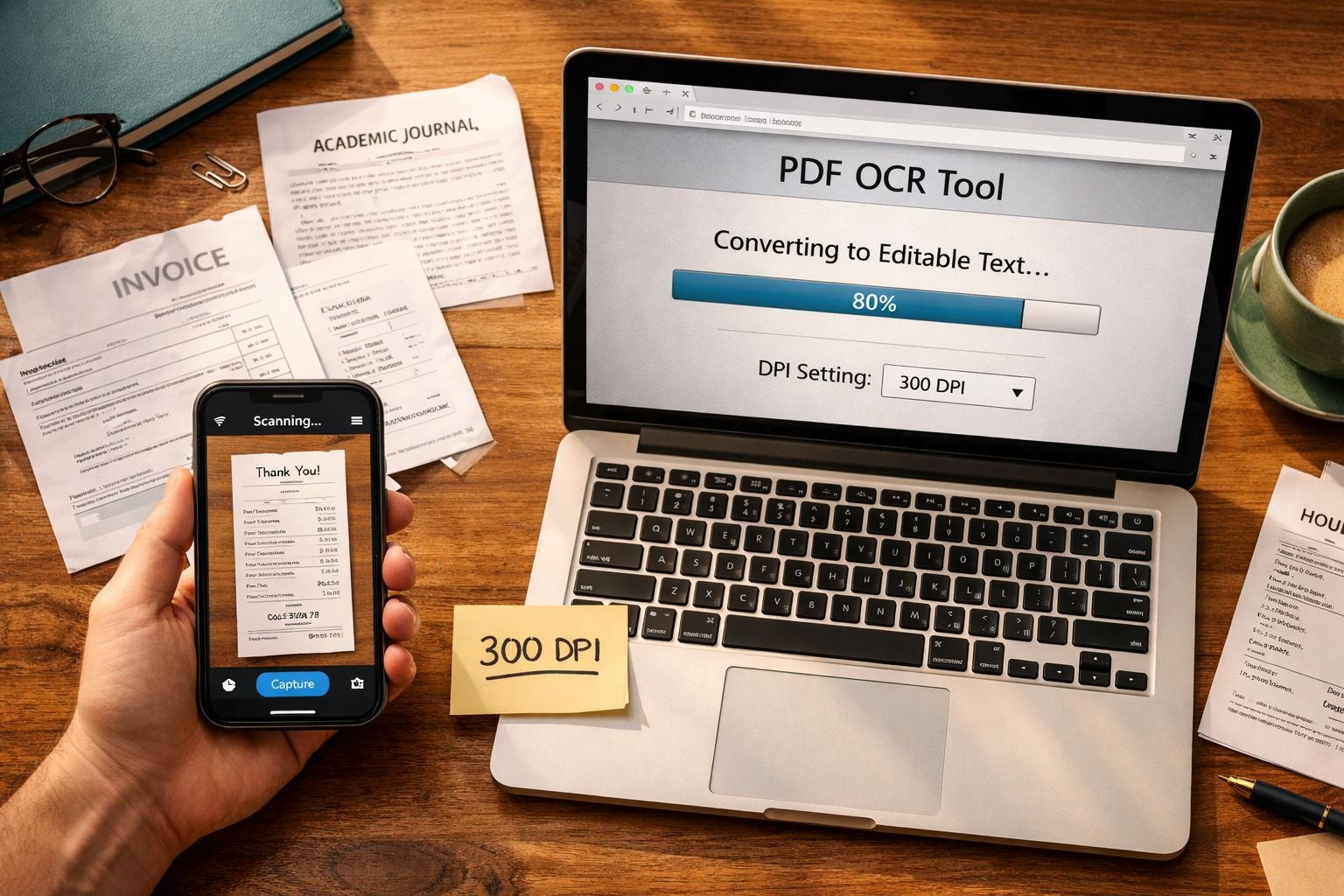
| Resolution (DPI) | 300 DPI | Industry standard for OCR; 200 DPI is the minimum, 600 DPI helps only for very small fonts |
| Color mode | Grayscale | Reduces file size without hurting text recognition; use color only if you need to preserve photos or colored charts |
| File format | PDF or TIFF (lossless) | Avoid heavy JPEG compression before OCR, as compression artifacts blur character edges |
| Page alignment | Straight, no skew | Most OCR engines auto-deskew, but starting straight improves results |
| Contrast | High (dark text, white background) | Low-contrast scans (faded ink, yellowed paper) cause misreads |
Common mistakes that hurt OCR results
- Scanning at 72 or 150 DPI. Phone cameras often default to low effective DPI. If you’re using a phone scanner app, hold the camera steady and ensure the entire page fills the frame.
- Compressing before OCR. Heavy JPEG compression smears letter edges. Always run OCR on the highest-quality version of your scan, then compress afterward.
- Skipping language selection. Leaving the language on “auto-detect” can cause the engine to confuse similar characters across languages (e.g., German ß vs. Greek β).
- Ignoring page orientation. Upside-down or sideways pages confuse most OCR engines. Use a tool like Core Tools Hub’s Rotate PDF to fix orientation before running OCR.
Compress and Share Your New Searchable PDFs Securely
OCR adds a text layer, which can increase the file size by 10–30%. After conversion, compress the PDF to keep it email-friendly and fast to load.
Post-OCR compression workflow
- Run OCR first to produce a searchable PDF.
- Compress the searchable PDF using a tool that preserves the text layer. Not all compressors handle OCR layers correctly; some strip the text. Our Compress PDF tool reduces the size in-browser without removing the searchable text layer.
- Test after compression. Open the compressed file, try Ctrl+F, and confirm search still works.
For a deeper look at compression settings and quality tradeoffs, check out the Best Free Online PDF Compressor 2026 guide.
Sharing tips
- Email attachments: Most providers cap at 25 MB. A 50-page searchable PDF at 300 DPI grayscale typically lands between 5–15 MB after compression.
- Cloud storage links: If the file is too large, upload to your preferred cloud drive and share a link instead.
- Archival: Searchable PDFs are ideal for long-term storage because they remain both human-readable and machine-searchable.
Advanced Workflows: Batch OCR, Merging, and Archiving
Power users dealing with dozens or hundreds of scanned pages need batch-processing and document-assembly tools, not one-page-at-a-time converters.
Batch OCR options
- Command-line tools like OCRmyPDF (open source, v16.11.1 as of October 2025) can process entire folders of scanned PDFs automatically. This is the best option for IT teams or anyone comfortable with a terminal.
- API-based OCR services like Mistral OCR 3 handle high-volume processing at roughly $2 per 1,000 pages, with strong accuracy on forms, invoices, and tables.
- Browser-based batch tools exist, but often cap at 5–10 files or a certain number of pages per session in free tiers.
Combining OCR with other PDF workflows
A typical end-to-end pipeline looks like this:
- Scan paper documents at 300 DPI grayscale.
- Fix orientation with a PDF rotation tool if pages are sideways.
- Run OCR to add the searchable text layer.
- Merge multiple single-page PDFs into one document using a merge PDF tool.
- Compress the final file for sharing or archiving.
- Split later if you need to extract specific pages, using a split PDF tool.
This pipeline works whether you’re digitizing a filing cabinet of old contracts or processing a semester’s worth of academic readings.
Conclusion
Converting a scanned PDF to a searchable PDF online doesn’t require expensive software or technical expertise. The core workflow is straightforward: scan at 300 DPI, run browser-based OCR to add a text layer, then compress and share. For sensitive documents, privacy-first tools that process everything in your browser keep files off external servers entirely.
Your next steps:
- Test one of your scanned PDFs right now: try Ctrl+F to confirm it needs OCR.
- Run it through a browser-based OCR tool, no signup required.
- Compress the result with Core Tools Hub’s PDF compressor to get it email-ready.
- Explore the full suite of PDF tools for merging, splitting, rotating, and more.
FAQ
What does “scanned PDF to searchable PDF online” actually mean?
It means using a web-based OCR tool to add an invisible text layer to an image-only PDF so you can search, select, and copy text from it, all without installing desktop software.
Is browser-based OCR accurate enough for legal or financial documents?
For cleanly printed text at 300 DPI, browser-based OCR typically achieves 95%+ accuracy. Always proofread critical documents. Complex layouts, handwriting, or low-quality scans significantly reduce accuracy.
Will OCR change how my PDF looks?
No. The original page image stays intact. OCR adds a hidden text layer behind the image, so the visual appearance is identical.
Can I convert a scanned PDF to a searchable PDF online for free?
Yes. Several browser-based tools offer free OCR with no watermarks. Free tiers often limit page count (typically 5–20 pages per file) or number of conversions per hour.
How do I make a PDF searchable without Adobe Acrobat?
Use any browser-based OCR tool. Upload your scanned PDF, select the language, and download the searchable result. No Adobe subscription needed.
What’s the best DPI for scanning documents before OCR?
300 DPI is the standard recommendation. It balances file size and recognition accuracy. Go to 600 DPI only for very small text (below 8pt).
Does OCR work on handwritten documents?
Partially. Cloud-based engines like Mistral OCR 3 have improved significantly on handwriting recognition, but accuracy is still much lower than for printed text. Expect to do manual corrections.
Are my files safe with online OCR tools?
It depends on the tool. Cloud-based tools upload your files to a server. Browser-local tools (using Tesseract.js or similar WebAssembly libraries) process everything on your device, so your files never leave your computer.
Can I batch-process multiple scanned PDFs at once?
Yes, but options vary. Command-line tools like OCRmyPDF handle unlimited batch processing. Browser-based tools typically limit batch sizes in free tiers. API services like Mistral OCR 3 support high-volume, large-scale processing.
Does compressing a searchable PDF remove the text layer? Some compressors strip the OCR text layer. Always test with Ctrl+F after compression. Tools specifically designed for PDF compression, like Core Tools Hub’s Compress PDF, preserve the text layer.
What languages does browser-based OCR support? Tesseract.js supports roughly 100 languages, though accuracy varies. Cloud tools like LightPDF support 20+ languages with strong accuracy. Always select the correct language before processing.