













Last updated: April 22, 2026
Quick Answer: You can legally remove a watermark from a PDF if you own the document, created the original content, or have explicit permission from the copyright holder. The safest methods include using a desktop PDF editor’s built-in watermark tool, a privacy-first browser-based editor, or rebuilding the document from its source file. Removing watermarks from copyrighted or licensed third-party content without permission can violate copyright law and software terms of service.
Key Takeaways
- Ownership matters most. Removing a watermark from your own document is almost always legal. Removing one from someone else’s copyrighted work is not.
- Trial/demo watermarks (such as “DEMO” or a tool’s branding) appear because you haven’t paid for the software. Stripping them typically violates the tool’s license terms.
- Desktop editors like Adobe Acrobat Pro and UPDF offer direct watermark-removal features that work in seconds.
- Browser-based tools can handle simple watermarks privately, with all processing happening on your device and no file uploads to external servers.
- Rebuilding the PDF from the original source (Word, Google Docs, design file) is the cleanest workaround when removal tools can’t help.
- Google Docs workarounds exist, but risk breaking layouts, deleting images, and imposing a 2MB file size limit.
- US copyright law allows statutory damages of up to $150,000 per willful infringement, and the DMCA imposes additional penalties for circumventing digital protections.
- The EU Parliament recommended in February 2026 that AI providers preserve watermarks in training data, signaling growing legal weight behind watermark protections.
- Privacy-first browser tools keep your files on your device, which matters when dealing with sensitive documents like resumes, contracts, or homework.
When Is It Legal to Remove a Watermark from a PDF?
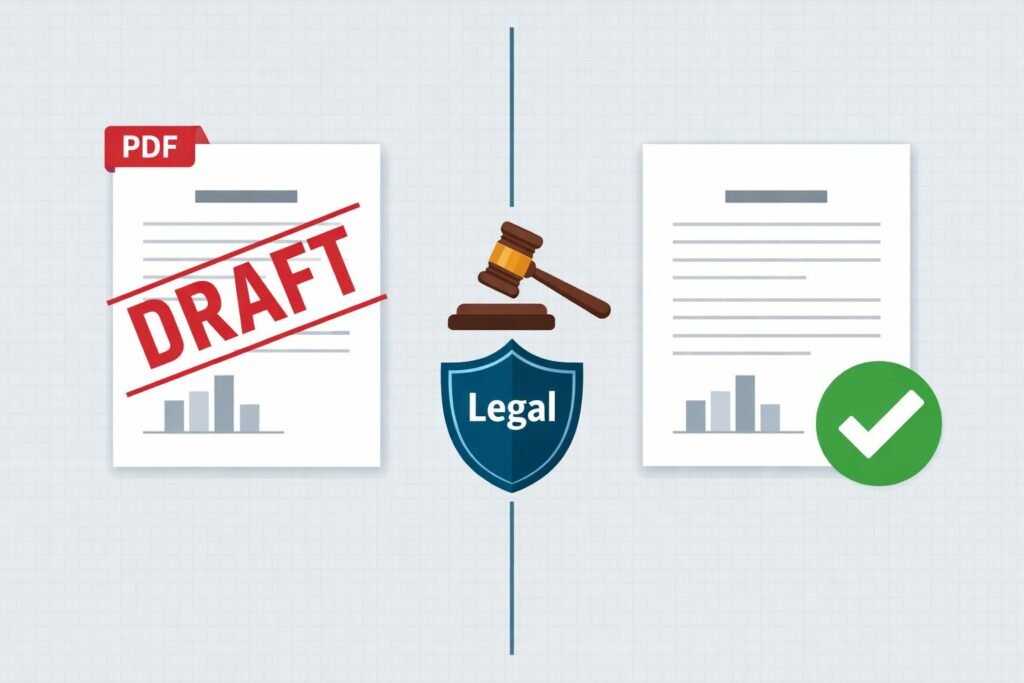
Short answer: it depends on who owns the content. Removing a watermark is legal when you hold the rights to the document or have written permission from whoever holds the rights. It’s not legal if the watermark infringes someone else’s copyright or violates a software license restriction.
Here’s a quick decision framework:
| Scenario | Legal to Remove? | Why |
|---|---|---|
| Your own design or document | Yes | You own the copyright |
| Public domain content | Yes | No active copyright exists |
| Licensed template you’ve paid for (license allows it) | Yes | License grants editing rights |
| Trial software “DEMO” watermark | No | Violates software license terms |
| Someone else’s branded/copyrighted PDF | No | Copyright infringement |
| Watermarked proof from a photographer or designer | No (without permission) | Watermark protects their paid work |
Legal experts note that US statutory damages can reach $150,000 per willful infringement, and DMCA violations carry additional penalties. In Europe, the European Parliament’s February 2026 report on AI and copyright further reinforced the view that digital watermarks serve as copyright protection tools and recommended their preservation.
Common mistake: Assuming that because a tool can remove a watermark, you’re allowed to. Technical ability doesn’t equal legal permission. Always check the license terms or ask the content owner before proceeding.
Rule of thumb: If you didn’t create the document and you don’t have a license or permission that explicitly allows editing, leave the watermark alone.
What Types of PDF Watermarks Exist (and Why It Matters for Removal)?
Not all watermarks are built the same way, and the type determines which removal method works.
- Text-layer watermarks are added as a separate PDF element (like “CONFIDENTIAL” or “DRAFT” stamped diagonally). These sit on their own layer and are the easiest to remove with any PDF editor that supports layer or watermark editing.
- Image-layer watermarks are semi-transparent logos or graphics placed over content. They’re also removable with editors that can select and delete image objects.
- Baked-in watermarks are embedded in the page content, meaning the watermark pixels are merged with the document’s text and images. These are much harder to remove because there’s no separate layer to delete.
- Background watermarks sit behind the text rather than on top. PDF editors sometimes treat these differently from foreground watermarks, so you may need to look under “background” settings rather than “watermark” settings.
Choose your method based on the type: If your watermark is on a separate layer, a direct removal tool works best. If it’s baked in, you’ll likely need to rebuild the document from source.
How to Remove Watermark from PDF Using Desktop Editors
Desktop PDF editors offer the most reliable watermark removal, especially for complex documents. Here are step-by-step workflows for the most common tools.
Adobe Acrobat Pro
- Open the PDF in Acrobat Pro.
- Go to Tools > Edit PDF.
- Click Watermark > Remove.
- Confirm the removal and save.
Acrobat handles both text and image watermarks on separate layers. It won’t help with baked-in watermarks.
UPDF
UPDF has positioned itself as a leading AI-powered PDF watermark remover in 2026, with processing times of seconds per file and support for files up to 2GB.
- Open the PDF in UPDF.
- Navigate to Page Tools > Watermark.
- Select the watermark and click Delete.
- Save the file.
Foxit PDF Editor
- Open the document in Foxit.
- Go to Organize > Watermark > Remove All.
- Confirm and save.
Foxit is priced at roughly $109.99/year, making it a mid-range option.
Best Settings Comparison
| Tool | Price (2026) | Max File Size | Batch Support | Ease of Use |
|---|---|---|---|---|
| Adobe Acrobat Pro | ~$22.99/mo | No hard limit | Yes | Moderate |
| UPDF | $35.99/yr | 2GB | Yes | Beginner-friendly |
| Foxit PDF Editor | ~$109.99/yr | No hard limit | Yes | Moderate |
Edge case: If the watermark was added by a different tool than the one you’re using to edit, the editor may not recognize it as a “watermark” object. In that case, try selecting it as a regular image or text element, then delete it manually.
How to Remove Watermark from PDF Online (Browser-Based Methods)
For users who don’t want to install software or create accounts, browser-based tools offer a practical alternative. The key advantage is privacy: the best browser tools process files entirely on your device, so your documents never leave your computer.
Browser-Based Tools (Privacy-First)
Some online tools run all processing in your browser, meaning your PDF stays on your machine. This matters when you’re working with sensitive documents like resumes, legal drafts, or financial forms.
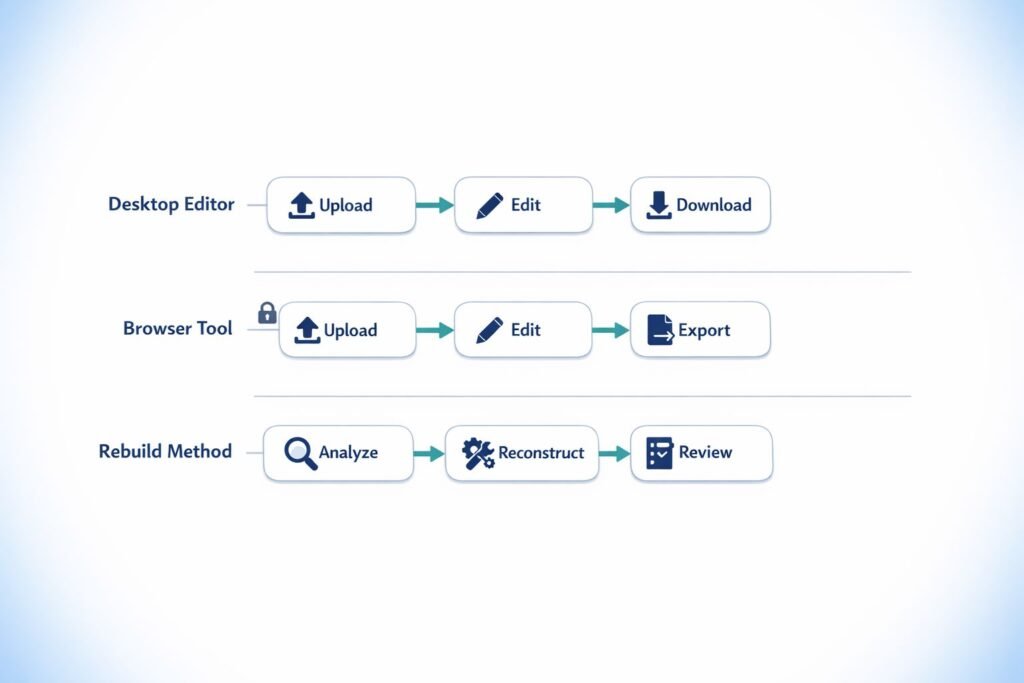
Steps for a typical browser-based PDF editor:
- Open the tool in your browser (no signup required).
- Load your PDF file locally.
- Select the watermark element and delete it, or use a white rectangle overlay to cover it.
- Export or save the cleaned PDF.
For a complete document cleanup workflow, you can also compress your PDF after removing the watermark to reduce file size for email, or merge multiple cleaned pages into a single document.
Cloud-Based Online Tools
Tools like LightPDF and Pixelbin offer AI-powered watermark removal through cloud processing:
- Pixelbin allows up to 3 free PDFs per month with no login, and uses AI to preserve layout.
- LightPDF offers a free tier with AI auto-removal but processes files one at a time, which is slow for batch processing.
Common mistake: Uploading sensitive documents (contracts, medical records, financial statements) to cloud-based tools without checking their privacy policy. If privacy matters, stick with tools that process everything in your browser. For more on why this matters, see our guide on browser-based file conversion vs. cloud upload tools.
The Google Docs Workaround
You can upload a watermarked PDF to Google Drive, open it as a Google Doc, and re-export as PDF. This sometimes removes watermarks because Google Docs re-renders the content.
But there are serious drawbacks:
- File size limit of 2MB
- Layouts frequently break (tables, columns, headers shift)
- Images may be deleted or repositioned
- Fonts often change
This method works only for simple, text-heavy documents. For anything with formatting you care about, it’s not reliable.
How to Rebuild a PDF When Watermark Removal Isn’t Possible
Sometimes the watermark is baked into the document, and no editor can cleanly remove it. In those cases, rebuilding is your best option.
When to Rebuild Instead of Remove
- The watermark is flattened/merged into the page images
- You have access to the original source file (Word, Google Docs, InDesign, Canva, etc.)
- The PDF was exported from a trial tool that stamps every page
Rebuild Workflow
- Open the original source file (the .docx, .pptx, or design file you used before exporting).
- Re-export as PDF using a tool that doesn’t add watermarks. Most word processors and design tools export clean PDFs natively.
- If you only have the watermarked PDF, copy the text content into a new document, reformat it, and export it fresh.
- For image-heavy PDFs, extract the pages as images, crop or edit out the watermark in an image editor, then convert the cleaned images back to PDF.
Dealing with “DEMO” Watermarks from Trial Software
This is the most common frustration on Q&A sites: users export a resume or homework assignment from a free PDF editor, only to find a giant diagonal “DEMO” or brand watermark stamped across every page.
Your options:
- Pay for the software. This is the intended solution and removes the watermark automatically.
- Use a free alternative that doesn’t add watermarks. LibreOffice, Google Docs, and browser-based PDF tools can handle basic editing and exporting without branding.
- Rebuild from source. If you still have the original file, re-export using a clean tool.
Don’t strip the demo watermark and use the document as if you had a paid license. That violates the software’s terms of service.
How to Protect Your Own PDFs with Smart Watermarking
If you’re on the other side of this issue, creating documents you want to protect, here’s how to watermark effectively.
Best Practices for Adding Watermarks
- Use semi-transparent text across the center of each page (e.g., “DRAFT,” “CONFIDENTIAL,” or your company name).
- Flatten the watermark into the page content before sharing. This makes it much harder to remove, because there’s no separate layer to delete.
- Add watermarks to image-based PDFs rather than text-based ones. Text PDFs are easier to edit around.
- Include metadata with your copyright information. While this doesn’t prevent removal, it establishes ownership.
When Watermarks Make Sense
| Use Case | Recommended Watermark Type |
|---|---|
| Draft documents for review | Text overlay (“DRAFT”) |
| Photography/design proofs | Tiled logo across image |
| Confidential internal docs | “CONFIDENTIAL” + recipient name |
| Free templates (upsell to paid) | Brand logo, semi-transparent |
After watermarking, you can compress your PDF to keep file sizes manageable for email or sharing. If you need to reorganize pages before distribution, split or reorder your PDF pages to get the document just right.
Common Mistakes When Removing PDF Watermarks
- Assuming all watermarks are on separate layers. Many are baked in and can’t be selected or deleted.
- Using cloud tools for sensitive documents. If the file contains personal or financial data, use a tool where processing stays in your browser.
- Breaking the layout with Google Docs. The conversion often mangles formatting beyond repair.
- Ignoring license terms. Just because you can remove a watermark doesn’t mean you should. Check the terms first.
- Not saving a backup. Always keep a copy of the original watermarked file before editing, in case something goes wrong.
- Forgetting about metadata. Even after removing a visible watermark, the PDF may contain metadata identifying the original source. Use a metadata removal tool if privacy is a concern.
FAQ
Can I remove a watermark from a PDF I created myself? Yes. If you own the content and added the watermark yourself (or it was added by your export tool), you have every right to remove it.
Is it illegal to remove a watermark from a PDF? It depends. Removing watermarks from your own documents is legal. Removing them from copyrighted or licensed third-party content without permission can violate copyright law, with US penalties up to $150,000 per willful infringement.
How do I remove a watermark from a PDF for free? Use a free browser-based PDF editor, rebuild the document from its source file, or use a tool like Pixelbin’s free tier (3 PDFs/month). Google Docs works for simple text documents but often breaks formatting.
Can I remove a “DEMO” watermark from a trial PDF editor’s export? Technically possible with another editor, but it violates the trial software’s license terms. The intended solution is to purchase the software or use a free alternative that doesn’t add watermarks.
What’s the difference between a watermark and a background in a PDF? A watermark typically sits on top of content (foreground), while a background sits behind it. PDF editors often have separate controls for each. If “Remove Watermark” doesn’t work, check the “Remove Background” option.
Do browser-based PDF tools upload my files to a server? Not all of them. Privacy-first tools process files entirely in your browser, so your documents never leave your device. Always check whether a tool uploads files before using it with sensitive documents.
Can AI remove baked-in watermarks from PDFs? AI tools are improving at this, but results vary. When watermarks are merged into page images, AI may leave artifacts or degrade image quality. Rebuilding from the source file is still more reliable for complex documents.
Will removing a watermark affect the rest of my PDF’s formatting? If the watermark is on a separate layer, removal should leave everything else intact. If it’s baked in and you’re using AI or manual editing, there’s a risk of layout changes or loss of quality.
How long does it take to remove a watermark from a PDF? Desktop tools like UPDF process files in seconds. Browser-based tools typically take 15-30 seconds per file. Rebuilding from source depends on document complexity.
Are there batch watermark removal tools? Yes. UPDF and Adobe Acrobat Pro support batch processing. Most free online tools process one file at a time.
Conclusion
Removing a watermark from a PDF is straightforward when you own the document and choose the right tool for the job. For layer-based watermarks, a desktop editor or browser-based tool handles the task in seconds. For baked-in watermarks, rebuilding from the source file is the most reliable path.
The critical step most people skip is the legal check. Before removing any watermark, confirm that you have the right to do so. Own the content? Go ahead. Trial software branding? Pay for the license or switch to a free tool. Someone else’s copyrighted work? Leave it alone.
For quick, privacy-first PDF work, including editing, compressing, merging, and splitting, explore Core Tools Hub’s full suite of PDF tools. All processing runs in your browser, with no installs or signups required.
Related Reading:
- Best Online Tools to Merge PDFs in 2026
- Best Free Online PDF Compressor 2026
- Split PDF into Separate Pages Fast