













Last updated: May 11, 2026
Quick Answer: You can password protect a PDF online free using browser-based tools that run entirely in your browser — no file ever leaves your device. For sensitive documents like tax records, contracts, or medical files, this is the only safe approach. Tools like CoreToolsHub’s PDF protector use AES encryption locally, so your file stays private from start to finish.
Key Takeaways
- Two password types exist: an open/user password (required to view the file) and an owner/permissions password (blocks editing, printing, or copying).
- Most popular online PDF tools upload your file to their servers before encrypting it — including many well-known platforms — which creates a real privacy risk for sensitive documents.
- Browser-based tools process your PDF locally, meaning the file never leaves your device. This is the safest option for confidential content.
- AES-256 encryption is the current standard for strong PDF protection; AES-128 is still common but offers a lower security ceiling.
- Desktop apps like PDFEncrypt (Windows, free, open-source) offer true offline encryption with zero network activity.
- Password strength matters as much as encryption strength. A weak password on an AES-256 file is still easy to crack.
- Before sharing a protected PDF, consider compressing it first to keep file sizes manageable without affecting security.
- Browser-based tools work on desktop and mobile — no installs, no signup required.
Open Password vs. Owner Password — Which Type Do You Need?
PDF encryption supports two distinct password types, and choosing the wrong one is one of the most common mistakes people make.
An open password (also called a user password) completely locks the file. Anyone who tries to open the PDF must enter the correct password first. This is what most people mean when they say “password protect a PDF.”
An owner password (also called a permissions password) lets anyone open the file, but restricts what they can do with it — printing, copying text, editing, or filling forms can all be blocked independently.
| Password Type | Blocks Opening? | Restricts Editing/Printing? | Best For |
|---|---|---|---|
| Open / User Password | ✅ Yes | ✅ Yes (when combined) | Confidential documents, contracts, tax files |
| Owner / Permissions Password | ❌ No | ✅ Yes | Read-only reports, branded documents, forms |
| Both Combined | ✅ Yes | ✅ Yes | Maximum protection |
Choose an open password if your goal is to prevent unauthorized access entirely. Choose an owner/permissions password if you want to share a document freely while preventing recipients from editing or copying its content. For most use cases — sharing a contract, protecting a tax return, or locking a medical record — an open password is the right call.
The Privacy Risk of Online PDF Encryption Tools (And How to Avoid It)
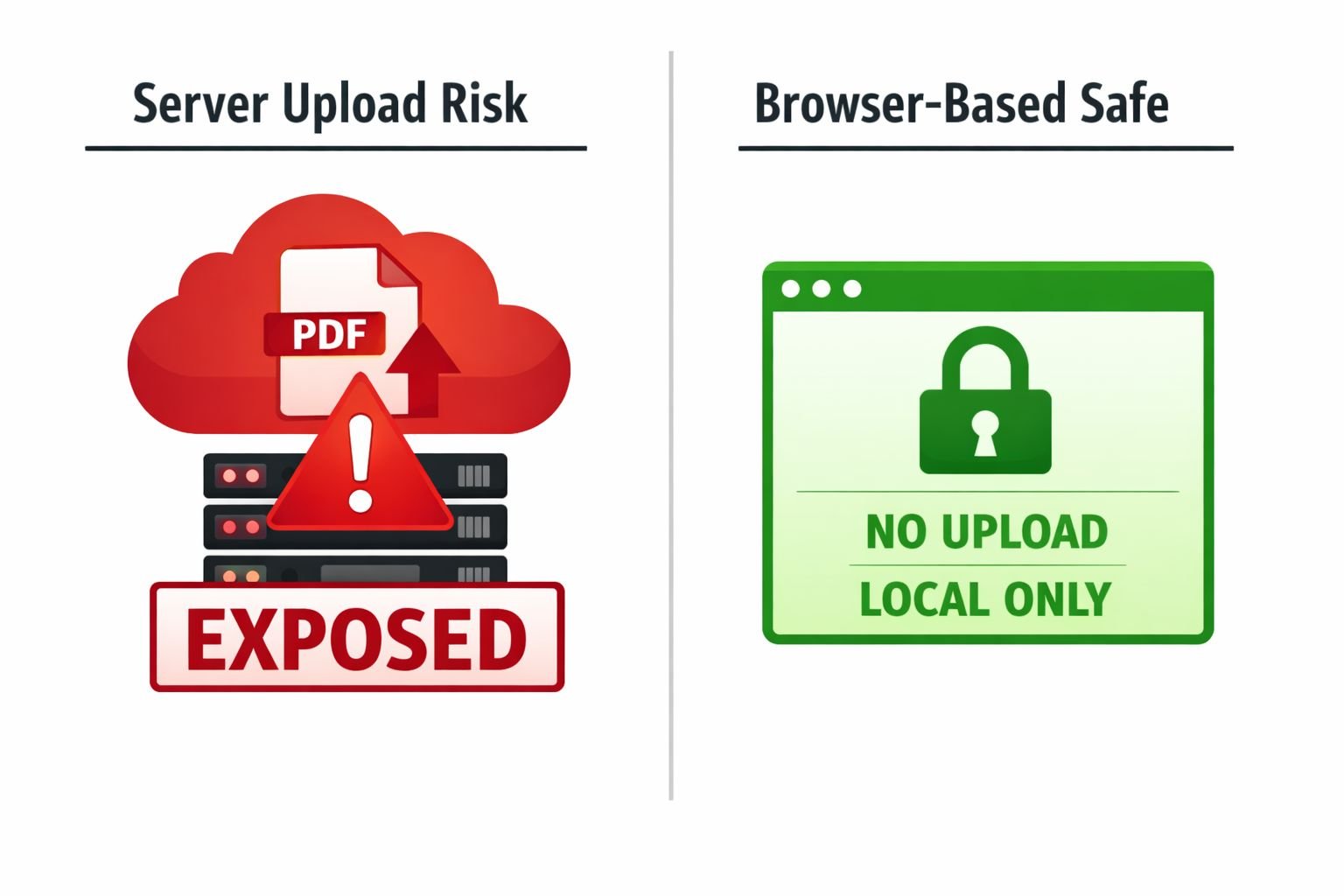
Here’s what most guides won’t tell you upfront: the majority of popular online PDF password tools upload your file to a remote server before encrypting it. The encryption happens on their infrastructure, not on your device.
That means your unencrypted PDF — containing whatever sensitive content it holds — temporarily exists on a third-party server during processing. Even if that server deletes the file afterward, the window of exposure is real.
Security analysts have flagged this as a meaningful risk for documents containing personally identifiable information, financial data, or legal content. A 2025 analysis by UPDF specifically warned that online services store PDFs on servers temporarily and recommended desktop alternatives for no-upload security.
“The file is encrypted after it arrives on the server — not before. That means your original, unprotected document travels across the internet first.”
How to identify whether a tool uploads your file:
- Check the tool’s privacy policy for phrases like “files are deleted after X minutes”—this confirms that the server processes them.
- Look for WebAssembly (Wasm) or JavaScript-based processing disclosures, which indicate true local/browser-based operation.
- If the tool works without an internet connection after the page loads, it’s processing locally.
For a broader look at why browser-based tools handle privacy differently from cloud-upload services, see this comparison of browser-based file conversion vs. cloud upload tools.
Privacy risk ratings by method:
| Method | File Leaves Device? | Privacy Risk | Best For |
|---|---|---|---|
| Browser-based (local processing) | ❌ No | 🟢 Low | Tax docs, legal contracts, medical records |
| Upload-based online tools | ✅ Yes | 🟡 Medium | Non-sensitive documents |
| Desktop app (offline) | ❌ No | 🟢 Very Low | Maximum privacy, no internet needed |
| Adobe Acrobat (paid, local) | ❌ No | 🟢 Very Low | Enterprise use |
How to Password Protect a PDF Online Free — Browser-Based, No Upload
The fastest and most private way to password protect a PDF online free is to use a browser-based tool that processes your file locally using JavaScript or WebAssembly. No file upload happens. No server receives your document. The encrypted PDF is generated directly in your browser and downloaded to your device.
CoreToolsHub’s PDF protection tool works exactly this way — all processing happens in your browser, with no installs and no signup required. Here’s how to use it:
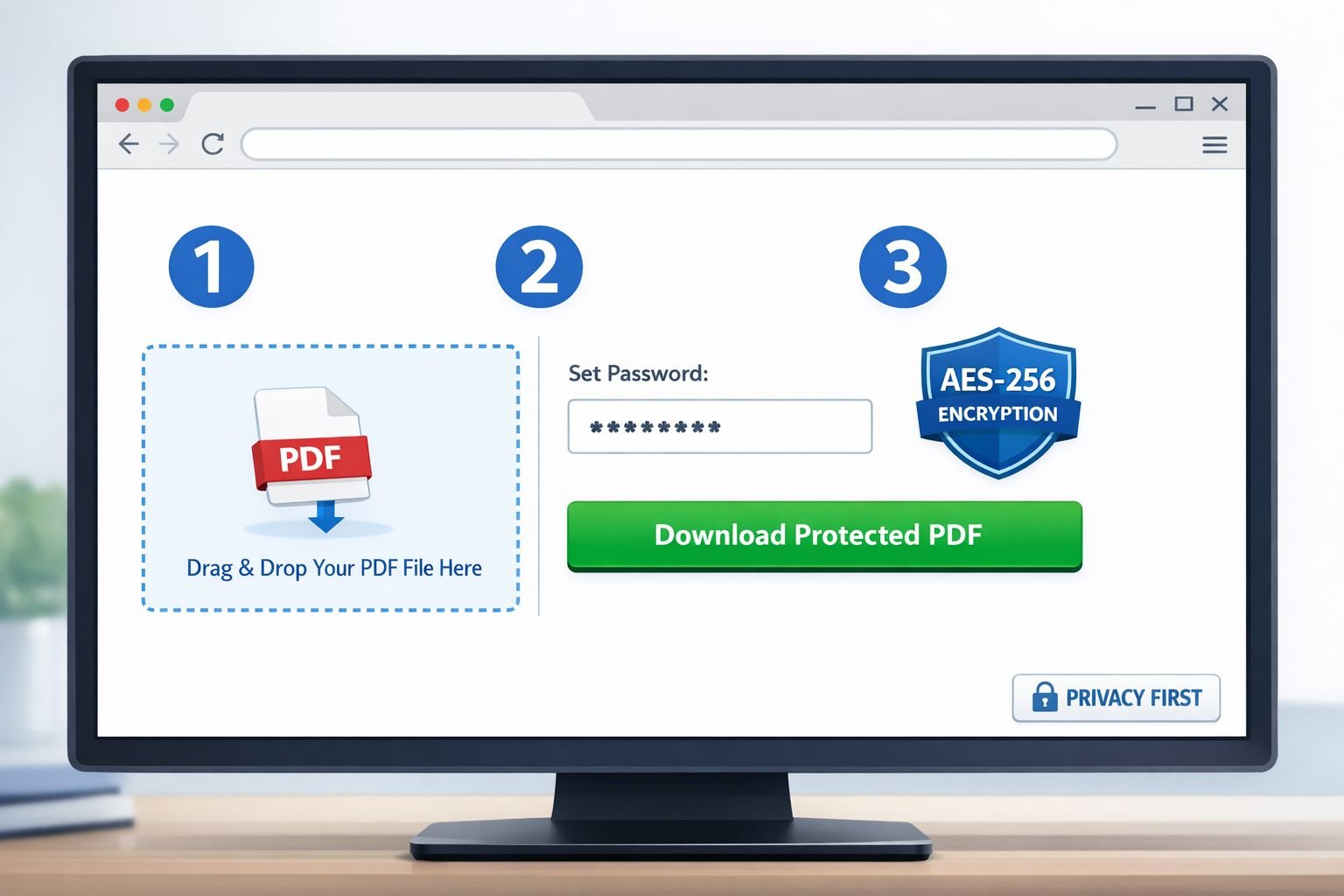
Step-by-step: Password protect a PDF in your browser
- Open the tool — Go to CoreToolsHub’s online PDF tools and select the PDF Protect tool.
- Upload your file — Drag and drop your PDF into the tool, or click to browse. The file loads directly into your browser’s memory.
- Set your password — Enter a strong password (see the password strength section below for guidance). Some tools let you set separate open and permissions passwords.
- Choose encryption level — Select AES-256 where available. This is the stronger standard.
- Apply protection — Click the “encrypt” or “protect” button. Processing happens locally in your browser.
- Download your protected PDF — The encrypted file downloads to your device. The original unprotected version is never sent anywhere.
Before you protect the file, consider whether it needs to be compressed first. A large PDF can be cumbersome to share even after encryption. CoreToolsHub’s PDF compressor reduces file size in-browser before you add password protection — keeping files private at every step.
Common mistakes to avoid:
- Setting only a permissions password when you actually need to block access entirely. Always add an open password for truly confidential files.
- Using the same password you use for email or other accounts.
- Forgetting the password with no recovery option — PDF encryption has no “forgot password” feature. Store it in a password manager.
- Assuming the tool is browser-based without verifying. Check that the page explicitly states “no upload” or “all processing in browser.”
How to Encrypt a PDF Offline — Desktop Options for Sensitive Documents
For the highest level of privacy, a desktop application that runs entirely offline is the gold standard. No internet connection means zero risk of interception during processing.
PDFEncrypt is a free, open-source Windows application that encrypts PDFs locally without any server interaction. It supports both open and owner passwords and applies AES encryption directly to the file on your hard drive. It’s not the most polished interface, but it does one thing well: encrypts your PDF without touching the internet.
Options by operating system:
| Tool | OS | Cost | Encryption | Upload Required? |
|---|---|---|---|---|
| PDFEncrypt | Windows | Free | AES | ❌ No |
| Preview (built-in) | macOS | Free | AES-128 | ❌ No |
| LibreOffice Draw | Win/Mac/Linux | Free | AES-256 | ❌ No |
| Adobe Acrobat | Win/Mac | Paid | AES-256 | ❌ No |
On a Mac, the built-in Preview app handles PDF password protection without any third-party tool:
- Open the PDF in Preview.
- Go to File → Export as PDF.
- Click Show Details, then check Encrypt.
- Enter and confirm your password.
- Save the file.
This uses AES-128 encryption and requires no internet connection — a solid option for everyday use on macOS.
On Windows, PDFEncrypt is the closest free equivalent to Preview’s built-in capability. LibreOffice Draw also works well: open the PDF, then export as PDF with a password set in the export dialog.
Strong PDF Passwords — What Actually Protects Your Document
Encryption strength means nothing if the password is weak. An AES-256 encrypted PDF with the password “1234” can be cracked in seconds using brute-force tools. The password is the real line of defense.
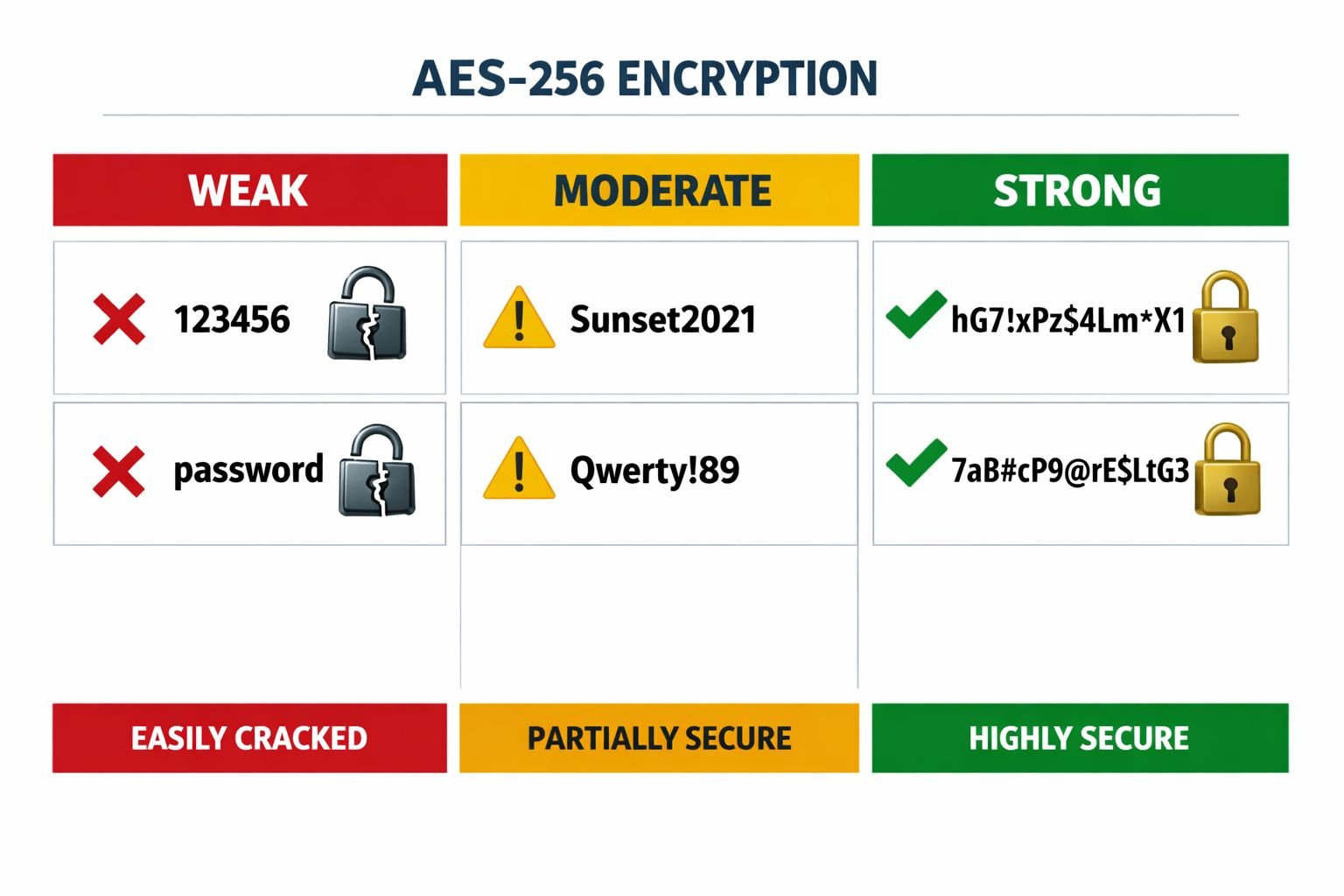
What makes a PDF password strong:
- Length: Minimum 12 characters; 16+ is better.
- Character mix: Uppercase, lowercase, numbers, and symbols (e.g.,
!,@,#,$). - No dictionary words: Avoid real words, names, or dates.
- Unique: Don’t reuse passwords from other accounts.
Password strength examples:
| Password | Strength | Estimated Crack Time (estimate) |
|---|---|---|
password123 |
❌ Weak | Seconds |
Contract2026 |
🟡 Moderate | Hours to days |
T@x-Doc#8821-Kw |
✅ Strong | Years+ |
mQ7!vL#2pRx9@nBz |
✅ Very Strong | Effectively uncrackable |
One practical approach: Use a passphrase — three or four random words joined with symbols, like Maple!River#Desk9. It’s long, memorable, and far harder to crack than a short complex string.
Store the password somewhere safe. PDF encryption offers no recovery mechanism. If you lose the password, the file is inaccessible. A reputable password manager (like Bitwarden or 1Password) is the right place to store it — not a sticky note or an unencrypted text file.
How to Remove a Password from a PDF You Already Secured
Removing a password from a PDF you own is straightforward — as long as you know the current password. The process is essentially the reverse of adding one.
Browser-based method (no upload):
Most browser-based PDF tools that support encryption also support decryption. Open the tool, load the password-protected PDF, enter the current password to unlock it, then save or export the file without re-applying a password.
On macOS with Preview:
- Open the password-protected PDF in Preview.
- Enter the password when prompted.
- Go to File → Export as PDF.
- Uncheck the Encrypt option.
- Save. The new file has no password.
On Windows:
Open the file in a PDF viewer that supports password entry (Adobe Reader, Foxit, etc.), then print to a PDF printer (like Microsoft Print to PDF). The printed output will be unencrypted.
Common mistake: Some users try to remove a password without knowing it, hoping a tool will bypass the encryption. Legitimate tools won’t do this — and tools that claim to “crack” PDF passwords may pose their own security risks. If you’ve genuinely lost the password to your own document, recovery is by design difficult.
For other PDF management tasks — like splitting a document before sharing individual sections — CoreToolsHub’s split PDF tool works the same way: all processing in browser, no uploads.
Comparing PDF Password Protection Methods — Which Should You Use?
The right method depends on how sensitive your document is and what device you’re working from.
Choose browser-based (no upload) if:
- You’re on any device (desktop or mobile) and want fast, clean results without installing software.
- The document contains moderately to highly sensitive information.
- You need a quick fix with no signup required.
Choose a desktop app if:
- The document is extremely sensitive (legal contracts, medical records, financial statements).
- You want zero internet involvement during processing.
- You’re on Windows and comfortable with a basic interface.
Choose an upload-based online tool only if:
- The document contains no sensitive personal, financial, or legal information.
- Convenience is the priority and privacy risk is acceptable.
- You understand the file will temporarily exist on a third-party server.
For related PDF tasks, CoreToolsHub also covers merging PDF files and splitting PDFs into separate pages — both handled privately in-browser.
FAQ
Q: Can I password protect a PDF online free without any software?
Yes. Browser-based tools like CoreToolsHub’s PDF protector run entirely in your browser — no download, no install, no signup required. The file never leaves your device.
Q: Is it safe to use online PDF password tools?
It depends on the tool. Upload-based tools send your file to a remote server before encrypting it, which creates a privacy risk for sensitive documents. Browser-based tools that process locally are safe because your file never leaves your device.
Q: What encryption does PDF password protection use?
Most modern PDF tools use AES-128 or AES-256 encryption. AES-256 is the stronger standard and is recommended for sensitive documents.
Q: What’s the difference between an open password and an owner password?
An open password prevents anyone from opening the file without the correct password. An owner password allows the file to be opened but restricts actions like editing, printing, or copying.
Q: Can I password protect a PDF on my phone?
Yes. Browser-based tools work on mobile browsers (Chrome, Safari, Firefox) without any app install. Some Android apps also offer local PDF encryption.
Q: What happens if I forget my PDF password?
PDF encryption has no recovery option. If you lose the password, the file is inaccessible. Always store PDF passwords in a password manager before distributing the protected file.
Q: Does adding a password change the PDF content or quality?
No. Password protection only adds an encryption layer around the file. The content, formatting, and quality remain exactly the same.
Q: Is AES-128 encryption still safe for PDFs?
AES-128 is still considered secure for most practical purposes in 2026. AES-256 provides a higher security margin and is the better choice for highly sensitive documents.
Q: Can I password protect a PDF without Adobe Acrobat? Yes. Browser-based tools, macOS Preview, LibreOffice, and free desktop apps like PDFEncrypt all handle PDF password protection without Adobe.
Q: Do browser-based PDF tools work offline?
Once the page has loaded, some browser-based tools continue to work without an active internet connection because all processing runs in the browser via JavaScript or WebAssembly. Check the specific tool’s documentation to confirm.
Q: How do I share a password-protected PDF securely?
Send the protected PDF through your normal channel (email, cloud link), but share the password through a separate channel — for example, via a text message or phone call. Never send the password in the same email as the file.
Q: Should I compress my PDF before password protecting it?
Yes, if the file is large. Compression reduces file size without affecting content, making it easier to email or share. Use CoreToolsHub’s PDF compressor first, then apply password protection. See also the full guide on compressing PDFs without losing quality.
Conclusion
Password protecting a PDF doesn’t have to mean uploading sensitive documents to a server you don’t control. Browser-based tools that process files locally give you AES encryption, fast, clean results, and complete privacy — all without installs or accounts.
The practical takeaway:
- Use a browser-based, no-upload tool for everyday sensitive documents (contracts, tax forms, reports).
- Use a desktop app like PDFEncrypt or macOS Preview for maximum privacy on highly sensitive files.
- Always use a strong, unique password — at least 12 characters with mixed types.
- Store the password in a password manager before sharing the file.
- If the file is large, compress it first, then protect it.
For a complete set of private, in-browser PDF tools — including protection, compression, splitting, and merging — visit CoreToolsHub’s PDF tools. Everything runs in your browser, no signup required, and your files stay exactly where they should: on your device.