













Last updated: July 6, 2026
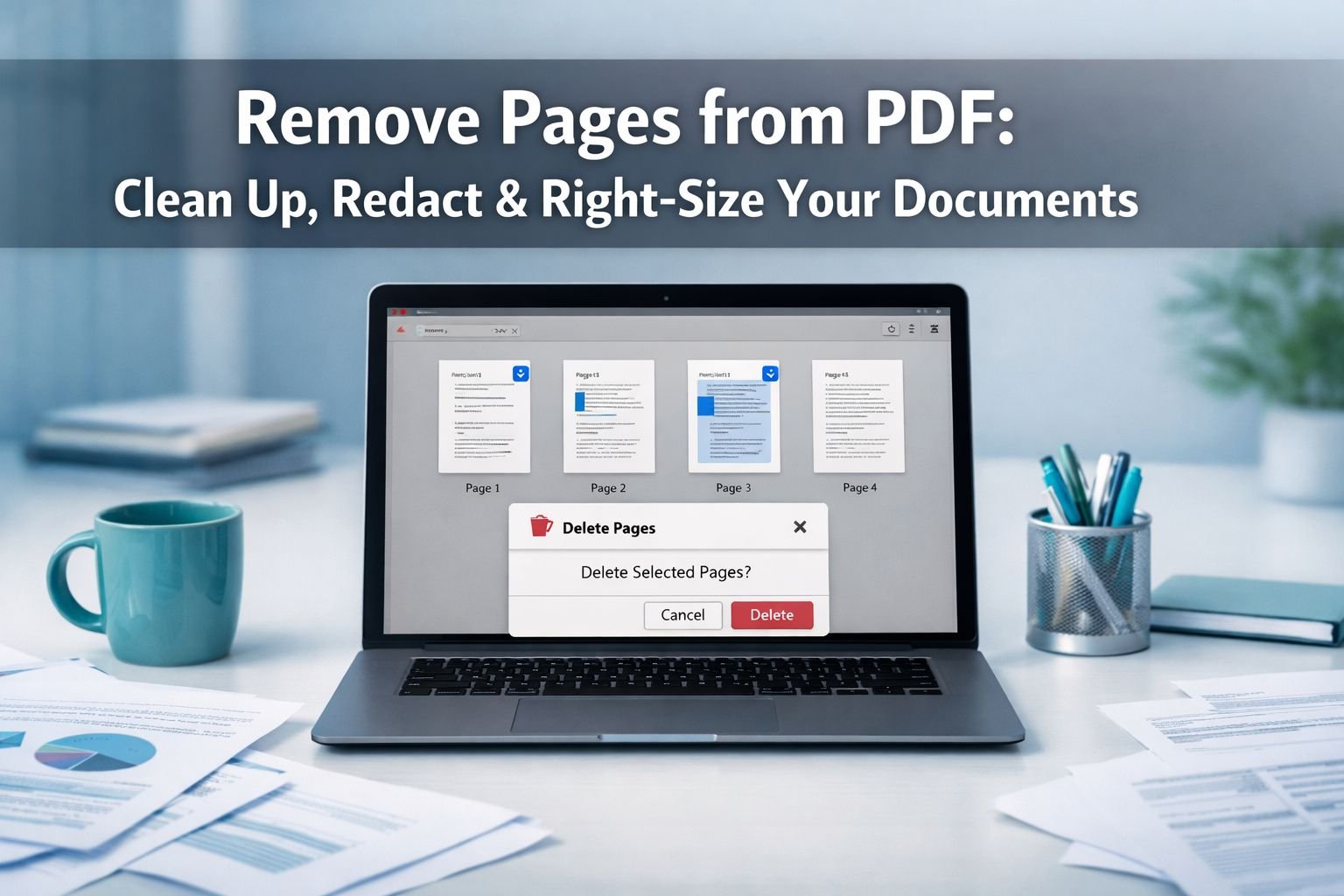
Quick Answer: To remove pages from a PDF, open the file in a browser-based tool, select the page thumbnails you want to delete, confirm the removal, and save a new file. No software installation needed. The whole process takes under two minutes and works on any device.
Key Takeaways
- Deleting unwanted pages is the fastest way to shrink a PDF before emailing, uploading to a portal, or printing.
- Browser-based tools process everything locally — your file never leaves your device, keeping sensitive content private.
- Always save as a new file after removing pages; never overwrite your only copy.
- Removing image-heavy scanned pages can dramatically reduce file size, often more than compression alone.
- Blank pages, cover sheets, and outdated appendices are the most common targets for deletion.
- Many government and visa portals reject PDFs over a set size limit — stripping unnecessary pages is often the quickest fix.
- Combine page removal with PDF compression for the smallest possible output.
- Privacy-conscious users should strip sensitive pages from any document before sharing it externally.
When and Why Should You Remove Pages from a PDF?
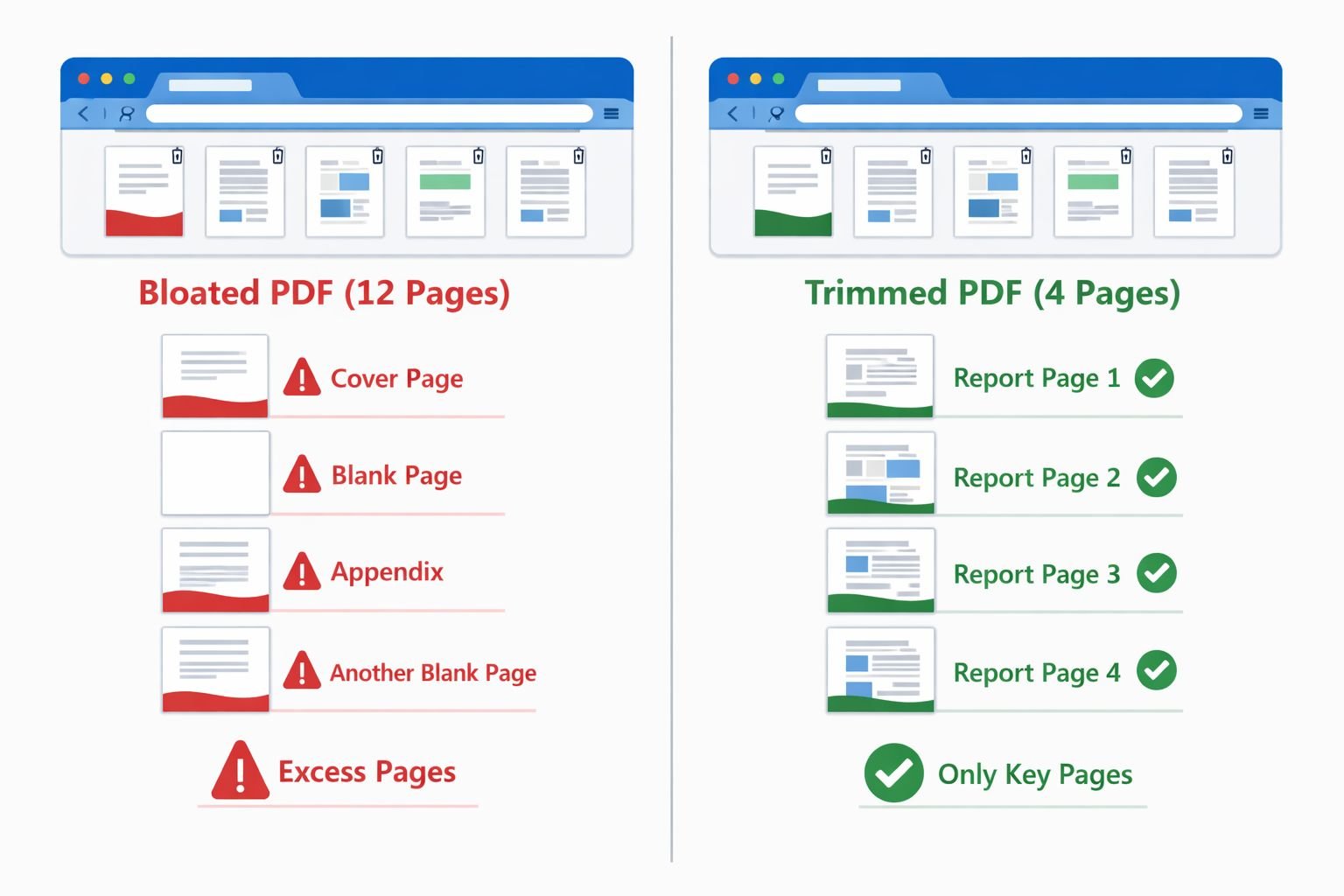
Removing pages from a PDF solves three common problems at once: file size, privacy, and relevance. A document that was useful internally often contains pages that have no business going to a client, a government portal, or a recruiter.
Here are the most frequent reasons people need to delete PDF pages:
- Blank or near-blank pages — scanners often insert empty pages between sections; these add size without adding value.
- Cover pages or internal routing sheets — useful inside an organization, irrelevant to an external recipient.
- Outdated appendices — old pricing tables, superseded terms, or expired certificates buried at the back.
- Sensitive data pages — payroll summaries, internal notes, or personal information that shouldn’t be shared.
- Exceeding upload limits — government portals, visa applications, and job boards often cap PDFs at 2 MB or 5 MB. Removing pages is faster than re-exporting the whole document.
- Print cost savings — trimming a 40-page report to 18 pages before sending to a print shop saves paper and money.
💡 Good to know: Many government and visa portals explicitly instruct applicants to remove blank or unnecessary pages to stay under strict file size limits — yet rarely explain how to do it. This guide covers exactly that.
How to Remove Pages from a PDF in a Browser Tool (Step-by-Step)
No installs, no signup required. Browser-based PDF tools handle page deletion entirely on your device, so your file stays private. Here’s how the workflow looks on Core Tools Hub:
Step 1 — Open the tool Go to the PDF Tools page and select the Remove Pages tool (or use the direct link).
Step 2 — Load your PDF Click “Choose File” or drag your PDF onto the upload area. The tool renders page thumbnails in your browser. Processing happens locally — nothing is sent to a server.
Step 3 — Select pages to delete Click the thumbnails of the pages you want to remove. Selected pages are highlighted. You can select multiple pages at once.
Step 4 — Confirm and download Click “Remove Selected Pages” and then download your new, trimmed PDF. The original file on your device is untouched.
Step 5 — Save as a new file
Rename the downloaded file (e.g., report-trimmed.pdf) so you always keep the original as a backup.
Total time: Under 2 minutes for most documents. Works on desktop and mobile.
What About Desktop Apps?
If you prefer working offline, here’s a quick comparison:
| Tool | How to Delete Pages | Cost | Privacy |
|---|---|---|---|
| Adobe Acrobat DC | Organize Pages panel → select → delete | Paid subscription | File stays local |
| macOS Preview | View > Thumbnails → select → Delete | Free (built-in) | File stays local |
| Foxit PDF Editor | Page panel → right-click → Remove | Free/Paid tiers | File stays local |
| Browser tool (CTH) | Thumbnail click → Remove → Download | Free, no account | Runs in your browser, no upload |
| Print to PDF | Print selected pages → save as new PDF | Free (any OS) | File stays local |
Choose a browser tool if you’re on a shared or work computer where you can’t install software, or if you want the fastest path without creating an account.
Choose a desktop app if you’re editing large batches of PDFs regularly and need advanced features like OCR or form editing.
How to Remove Pages from a PDF and Reduce File Size
Deleting pages and compressing a PDF are two different operations — but combining them gives the best results.
Removing pages reduces file size by eliminating the raw content of those pages (text, images, embedded fonts for that section). For scanned PDFs where each page is essentially a high-resolution image, removing even one or two pages can cut the file by several hundred kilobytes or more.
Recommended workflow for maximum size reduction:
- Remove unwanted pages first (biggest wins come from image-heavy pages).
- Run the trimmed PDF through a PDF compressor to squeeze the remaining pages.
- Check the output size before uploading or emailing.
If you’re still over a portal’s size limit after both steps, consider whether any remaining pages can be split into separate files. The Split PDF tool lets you break a document into smaller chunks — useful for multi-part application submissions.
For more on getting PDFs small enough for email, see the guide on compressing PDFs for email without losing quality.
How to Protect Privacy by Stripping Sensitive Pages Before Sharing
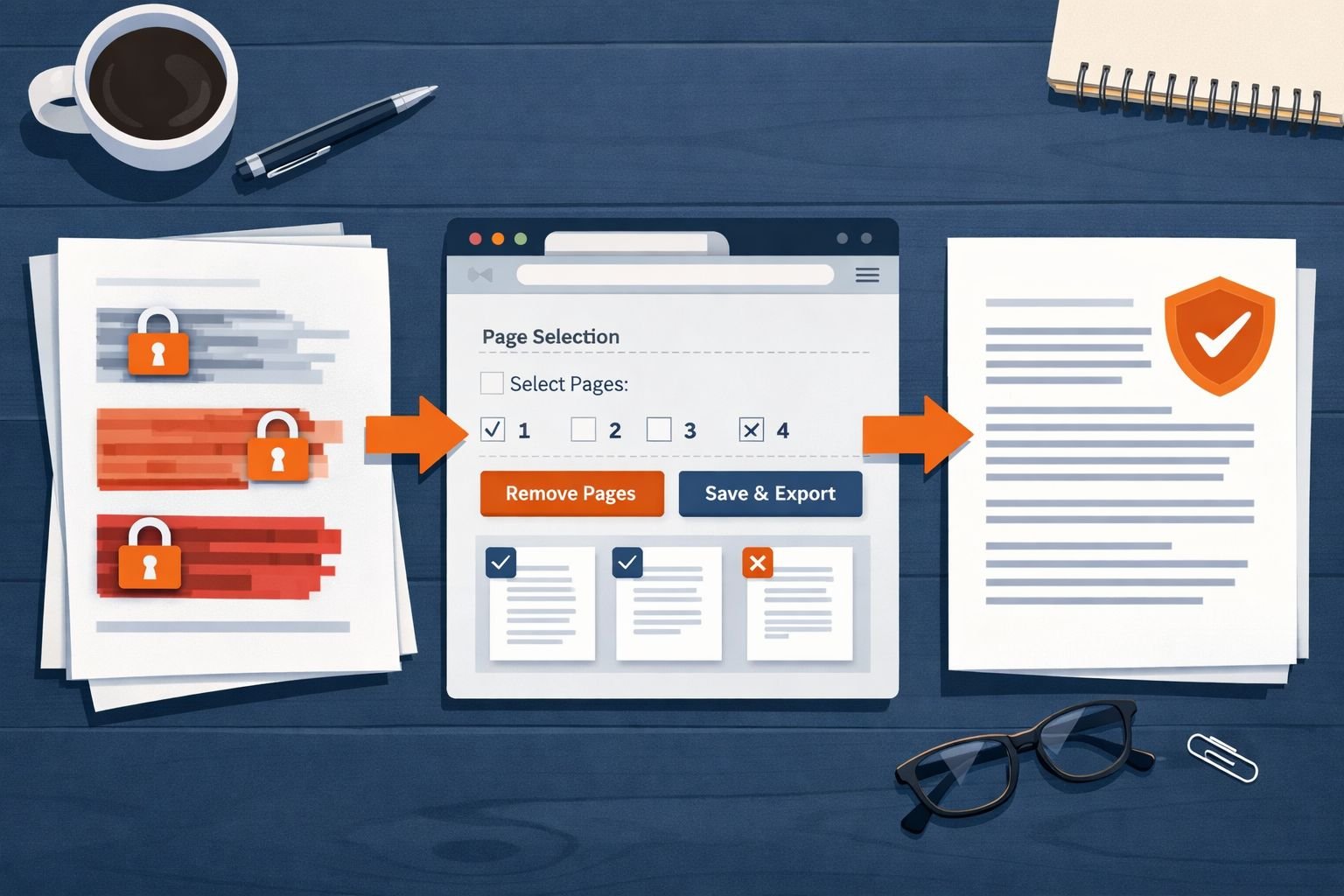
This is where page removal becomes more than a housekeeping task — it becomes a compliance and safety step.
A common scenario: someone exports a full data report or HR document as a PDF, then shares the whole thing because they don’t know how to remove the pages containing personal information. The result is accidental data exposure.
Pages to strip before sharing externally:
- Salary or payroll summaries
- Internal approval chains or routing notes
- Personal identification pages (passport copies, ID scans)
- Confidential pricing or contract terms are not meant for the recipient
- Draft comments or tracked-change annotations on a final-version page
Browser-based tools are the privacy-first choice here because all processing runs in your browser — the file is never uploaded to a third-party server. That matters when the document contains names, addresses, or financial data.
After removing sensitive pages, it’s also worth stripping any metadata from images you’ve embedded. The Image EXIF Remover handles that for standalone image files before they go into a PDF.
For a deeper look at why browser-based processing is safer than cloud-upload tools, the comparison guide on browser-based vs. cloud upload tools is worth reading.
Common Mistakes When Deleting PDF Pages (and How to Fix Them)
Even a simple task has a few pitfalls. Here are the ones that come up most often:
Mistake 1: Overwriting the original file Fix: Always download the trimmed version as a new file. Keep the original until you’ve confirmed the output is correct.
Mistake 2: Deleting the wrong pages Fix: Check page thumbnails carefully before confirming. Many tools show a preview — use it. If you delete the wrong page, go back to the original and start over.
Mistake 3: Removing pages but not re-checking page numbers Fix: After deletion, page numbers embedded in the document content (like “Page 7 of 12”) won’t auto-update. If that matters, edit the footer in a word processor before converting to PDF.
Mistake 4: Expecting compression-level size reduction from page deletion alone Fix: Combine page removal with compression. Deleting a text-only page may only save 10–20 KB. Deleting a full-page scanned image page can save 500 KB or more. Run the PDF compressor after trimming.
Mistake 5: Using a cloud-upload tool for sensitive documents Fix: Use a browser-based tool where processing stays on your device. Check the tool’s privacy policy before uploading anything confidential.
Mistake 6: Forgetting to check the output on mobile Fix: Open the trimmed PDF on your phone before submitting it. Page order and rendering can occasionally differ across viewers.
How to Remove Pages from a PDF on Mac, Windows, and Mobile
On Mac (free, no installs): macOS Preview handles page deletion natively. Open the PDF → View > Thumbnails → click the page(s) to select → press Delete → File > Export as PDF (not Save, which overwrites).
On Windows (free options): Windows doesn’t have a built-in PDF editor, but the browser-based tool at Core Tools Hub works perfectly in Chrome, Edge, or Firefox. Alternatively, print to PDF: File > Print > select specific pages > Microsoft Print to PDF.
On iPhone or Android: Use the browser-based tool in your mobile browser — it runs in your browser with no app download needed. For iOS, the Files app also lets you select pages when using “Create PDF” from certain document types, though it’s less flexible.
On Chromebook: The browser tool is the best option. Chrome OS has no native PDF editor, but the web-based workflow works seamlessly.
Recommended Workflow for 2026: Remove, Then Refine
The cleanest approach to PDF cleanup in 2026 combines several small tools in sequence. Here’s a complete workflow:
| Step | Action | Tool |
|---|---|---|
| 1 | Remove unwanted pages | Remove Pages tool |
| 2 | Fix page orientation if needed | Rotate PDF |
| 3 | Reorder remaining pages if needed | Reorder PDF Pages |
| 4 | Compress the trimmed file | Compress PDF |
| 5 | Split into parts if still too large | Split PDF |
Each of these tools runs in your browser with no signup required. They’re designed to work together as a PDF cleanup series — so you can go from a bloated 20-page export to a clean, right-sized document in a few minutes.
If you need to pull specific pages out into their own file rather than delete them, the Extract PDF Pages tool is the right choice — it saves selected pages as a new PDF without modifying the original.
Frequently Asked Questions
Does removing pages from a PDF reduce file size?
Yes, especially for scanned or image-heavy PDFs. Removing a page with a full-page scan can cut hundreds of kilobytes. Text-only pages save less. For maximum size reduction, combine page removal with PDF compression.
Will removing pages break links or bookmarks in the PDF?
It can. If the PDF contains internal hyperlinks or a table of contents that point to the deleted pages, those links will break. Check the document after editing and remove or update any broken references.
Is it safe to use an online tool to remove pages from a confidential PDF?
It depends on the tool. Browser-based tools that process files locally (without uploading to a server) are the safest option. Always read the privacy policy before using any online tool with sensitive documents.
Can I remove pages from a scanned PDF?
Yes. Scanned PDFs are treated as image-based pages. You can delete them the same way as any other page. The file size reduction is often greater than that of text PDFs because each scanned page contains a high-resolution image.
What’s the difference between removing pages and splitting a PDF?
Removing pages deletes them from the document permanently. Splitting a PDF divides it into separate files, keeping all pages but distributing them across multiple documents. Use split when you need to preserve all content but send it in parts.
Can I undo a page deletion?
Only if you kept the original file. Most tools don’t have an undo function once you’ve downloaded the output. Always save the trimmed version as a new file and keep the original until you’ve verified the result.
How many pages can I delete at once?
Most browser-based tools let you select and delete multiple pages in one operation. There’s typically no limit on the number of pages you can remove in a single session.
Does removing pages affect PDF/A or accessibility compliance?
It can. If your PDF was tagged for accessibility (WCAG 2.1 compliance), removing pages may disrupt the tag structure. For compliance-critical documents, verify the output with an accessibility checker after editing.
Why does my PDF still look large after removing pages?
Embedded fonts, metadata, and document structure can retain some overhead. Run the file through a PDF compressor after removing pages to address this.
Can I remove only the first page (cover page)?
Yes. Select only the first page thumbnail and delete it. The remaining pages shift up automatically, so page 2 becomes the new page 1.
Conclusion
Removing pages from a PDF is one of the most practical document tasks you can do — it cuts file size, protects privacy, and makes documents easier to read and share. The process takes under two minutes with a browser-based tool, works on any device, and requires no software installation or account.
Your next steps:
- Open the PDF Tools page and load your document.
- Select the pages you want to delete, download the trimmed file, and save it with a new name.
- If the file is still too large, run it through the PDF compressor.
- If you need to divide the document further, use the Split PDF tool.
Fast, clean results — and your files stay private the whole time.