













Last updated: July 3, 2026
Quick Answer: A browser-based PDF editor lets you change text, fill forms, add signatures, rearrange pages, and apply password protection — all without installing software or creating an account. For most everyday tasks (contracts, HR forms, invoices), online editing is fast and sufficient. But for true redaction of sensitive data or legally binding document workflows, you need to understand exactly what your tool does under the hood, because getting it wrong can expose the information you thought you removed.
Key Takeaways
- Modern browser-based PDF editors handle text edits, form filling, page reordering, annotations, and e-signatures for files up to 10–100 MB, depending on the tool.
- Privacy-first tools that process files entirely in your browser never upload your data to a server — a critical distinction from cloud-based editors.
- Password protection and permission restrictions (no-print, no-copy) are different security layers, and neither one equals redaction.
- True redaction permanently removes text and metadata from the file. A black rectangle drawn over text is not redaction — the text remains selectable and searchable underneath.
- For contracts, tax forms, or anything with SSNs and financial data, verify your tool’s privacy model before editing.
- Free online editors like Sejda (3 tasks/hour), PDFescape (up to 10 MB/100 pages), and CoreToolsHub’s PDF tools cover most knowledge-worker needs without paid subscriptions.
- Offline editors like PDFgear and LibreOffice Draw are better choices when handling highly confidential documents or large files.
What Can a Modern PDF Editor Do (and Not Do) in Your Browser?
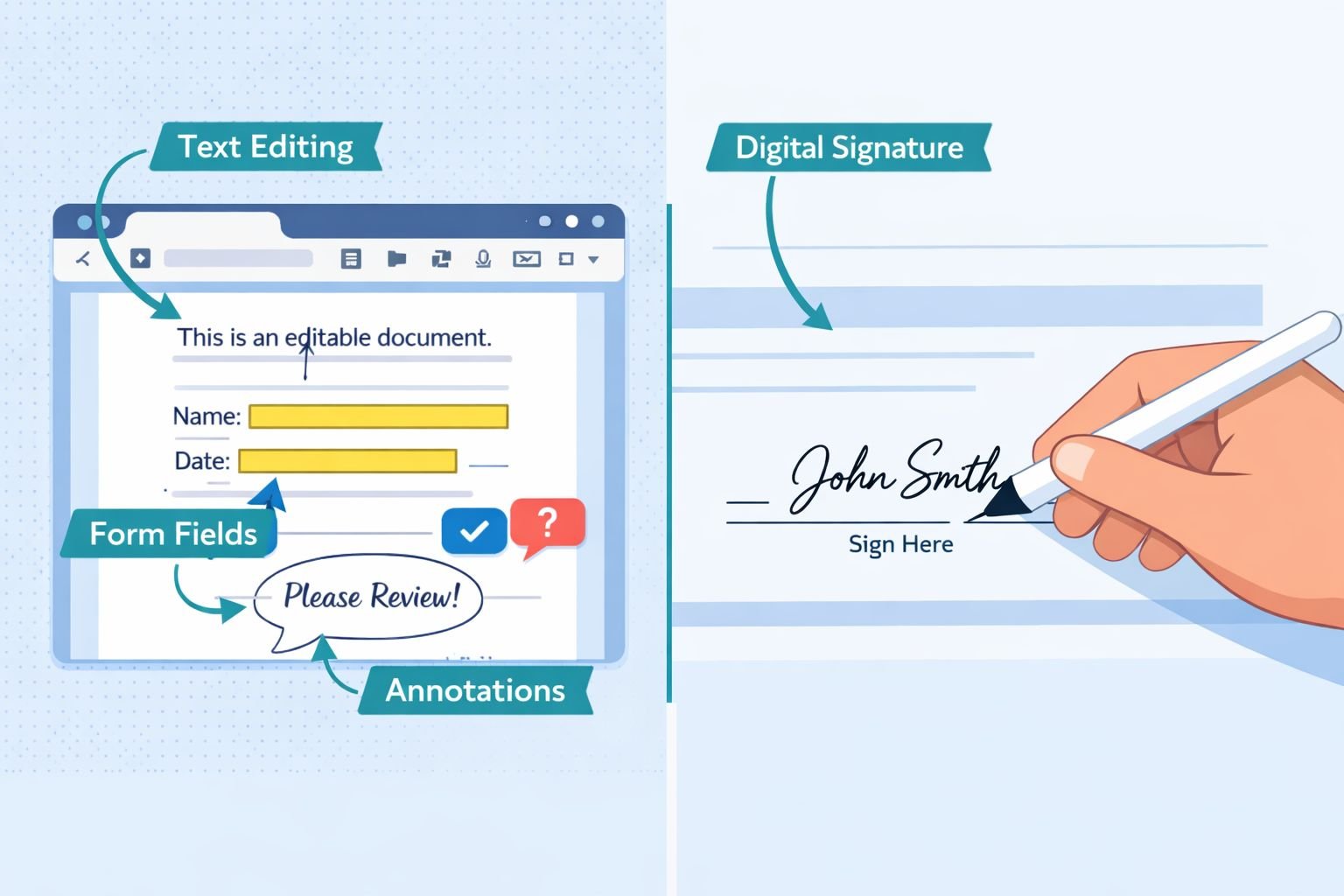
Browser-based PDF editors in 2026 can handle roughly 80% of what most knowledge workers need: editing existing text, adding new text blocks, inserting images, filling interactive form fields, applying signatures, and rearranging or deleting pages. They cannot reliably perform advanced tasks like reflowing multi-column layouts, editing embedded vector graphics, or running OCR on scanned documents (though a few paid tools offer basic OCR).
Here’s a practical breakdown:
| Task | Browser-Based Editor | Desktop Editor |
|---|---|---|
| Edit existing text | Yes (simple layouts) | Yes (complex layouts) |
| Fill form fields | Yes | Yes |
| Add e-signature | Yes | Yes |
| Rearrange/delete pages | Yes | Yes |
| Merge multiple PDFs | Yes (with size limits) | Yes |
| OCR scanned documents | Rarely (paid tiers) | Yes (PDFgear, Acrobat) |
| True secure redaction | Limited/risky | Yes (Acrobat, Foxit) |
| Batch edit 50+ files | No | Yes |
| Edit vector graphics | No | Limited |
Common mistake: Assuming that because a tool lets you type over a PDF, it’s actually modifying the underlying text. Some editors layer new text on top of old text, which means both versions exist in the file. Always download and reopen your edited PDF to confirm that the changes look correct.
For quick page operations like merging, splitting, or rotating, CoreToolsHub’s PDF tools run entirely in your browser with no uploads and no signup required.
How Do You Edit Text, Forms, and Pages in an Existing PDF?
Start by identifying what kind of PDF you have. A text-based PDF (created from Word, Google Docs, or similar) allows direct text editing. A scanned PDF (essentially an image) requires OCR first — and most free browser tools can’t do that.
Simple step-by-step for text-based PDFs:
- Open the PDF in your browser editor (drag and drop or file picker).
- Click the text you want to change. A text box should appear around the editable region.
- Make your edits — fix typos, update dates, change names.
- Check fonts. If the editor doesn’t have the original font, it substitutes one. This can shift spacing and break layouts.
- Download the edited file and open it in a separate PDF reader to verify.
For form filling:
Most modern PDFs with form fields (tax forms, applications, onboarding packets) work well in browser editors. Click each field, type your response, and tab to the next. If fields aren’t interactive, use the “Add Text” tool to place text manually.
For page operations:
Need to remove a blank page, reorder sections, or extract specific pages? These tasks are fast in browser tools. You can reorder PDF pages with drag and drop or split a PDF into separate pages without touching the content itself.
Edge case: If your PDF was exported from a design tool (InDesign, Illustrator), text may be embedded as outlines rather than editable characters. No online editor can modify outlined text — you’ll need the source file.
How Do You Sign and Approve PDFs Without Printing or Scanning?
You don’t need a printer, a pen, or a scanner. Every capable pdf editor in 2026 supports electronic signatures that are legally accepted for most business documents in the US, EU, and many other jurisdictions under laws like ESIGN and eIDAS.
Three ways to add a signature:
- Draw it with your mouse or finger (on mobile). Most tools offer a signature pad.
- Type your name and select a script-style font. Quick but less personal.
- Upload an image of your signature (PNG with transparent background works best). For clean signature images, you can convert and resize images to exact dimensions before inserting.
Steps to sign a PDF in your browser:
- Open the PDF in your editor.
- Select the signature or “Sign” tool.
- Create or upload your signature.
- Click the signature line or placement area in the document.
- Resize and position as needed.
- Add the date if required (most tools have a date stamp option).
- Download the signed PDF.
Choose typed signatures if you’re signing internal approvals, timesheets, or low-stakes forms. Choose drawn or image signatures if the document will be shared externally or needs to look hand-signed (client contracts, offer letters).
What about legally binding signatures? Simple electronic signatures (what browser tools provide) are valid for most contracts. They are not the same as qualified digital signatures (which use cryptographic certificates). If you’re signing regulated documents — certain government filings, notarized agreements, or cross-border legal contracts — check whether a qualified signature is required.
How Do You Secure PDFs with Passwords, Permissions, and True Redaction?
This is where most people get into trouble. There are three distinct layers of PDF security, and confusing them can lead to data leaks.
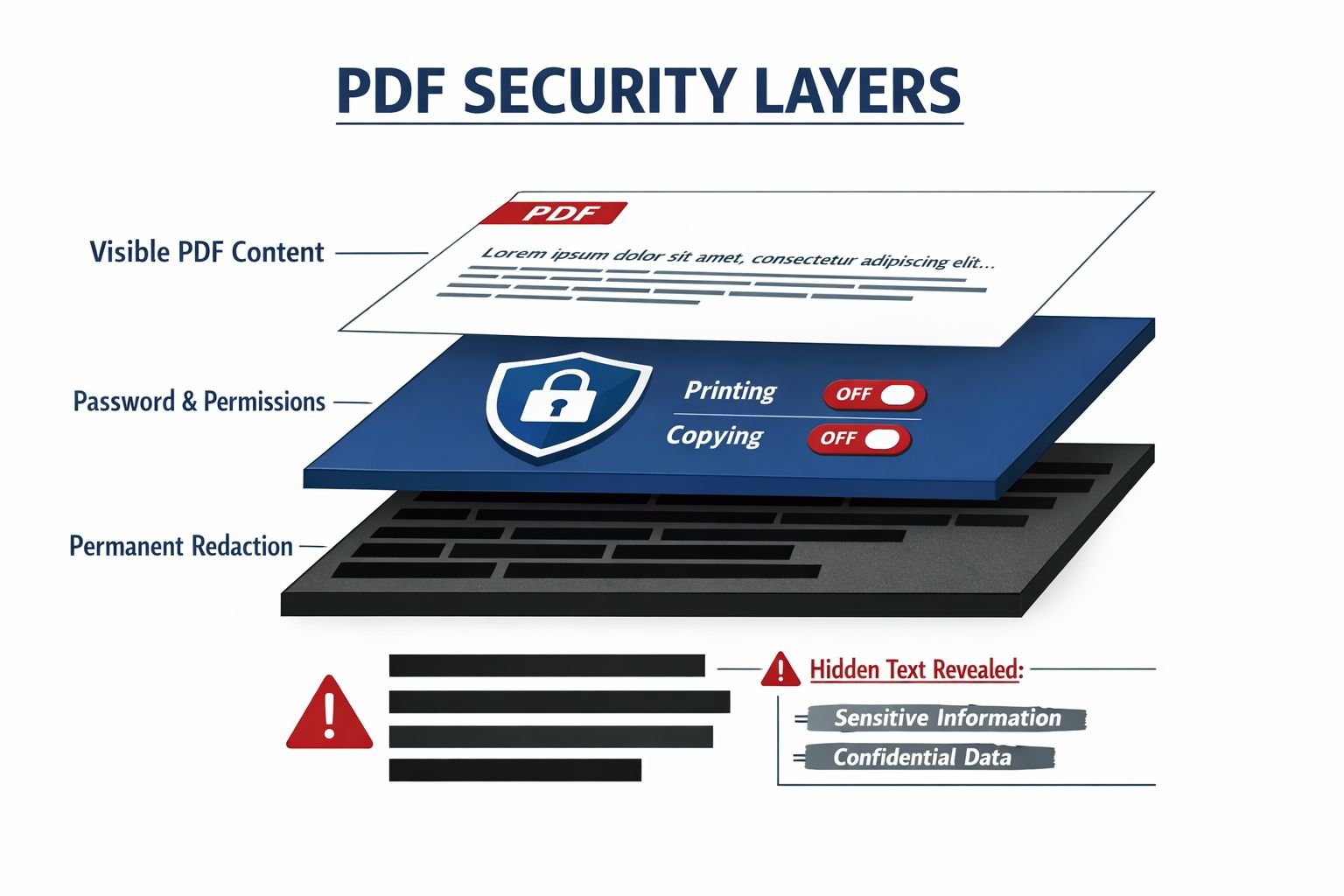
Layer 1: Password protection (open password)
This encrypts the file so it can’t be opened without the password. It’s the strongest basic protection. Use it when emailing contracts, financial documents, or anything you wouldn’t want a stranger to read if the email were forwarded.
Best settings for password-protected PDFs:
| Setting | Recommendation |
|---|---|
| Encryption | AES-256 (most modern tools default to this) |
| Password length | 12+ characters, mix of letters/numbers/symbols |
| Share password via | Separate channel (text, call — not the same email) |
Layer 2: Permission restrictions
These control what a recipient can do with the PDF after opening it: print, copy text, edit, or extract pages. Permission passwords are weaker than open passwords — many free tools can strip them. Think of permissions as a polite request, not a locked door.
Layer 3: True redaction
Here’s the critical distinction. Drawing a black box over text is not redaction. The text remains in the file’s data layer. Anyone can select it, copy it, or search for it. This has caused real-world data breaches — court filings, government documents, and corporate reports have all leaked sensitive information because someone used a black annotation instead of a redaction tool.
True redaction permanently deletes the underlying text, metadata, and any hidden layers from the PDF. After redaction, the content is gone — not hidden, not covered, but removed from the file entirely.
How to verify redaction worked:
- Open the redacted PDF in any reader.
- Try to select text in the redacted area. If you can highlight or copy anything, redaction failed.
- Use Ctrl+F (or Cmd+F) to search for the redacted term. If it appears in search results, the data is still there.
- Check file properties and metadata for author names, revision history, or comments that should have been removed.
Decision rule: If the document contains SSNs, medical records, financial account numbers, or legal case details, do not rely on a browser-based tool for redaction. Use Adobe Acrobat’s dedicated redaction tool or Foxit’s redaction feature on your local machine. The risk is too high.
For password protection and compression before sharing, you can compress PDFs for email and then apply an open password using a desktop tool or a trusted browser-based option.
When Should You Avoid Online PDF Editors and Go Offline?
Online editors are convenient, but they’re not always the right choice. Here’s when to use a desktop application instead:
- Highly sensitive documents: Tax returns, medical records, legal discovery, HR files with personal data. Even privacy-first browser tools carry some risk if you’re on a shared or compromised machine.
- Large files (over 50 MB): Browser editors slow down or crash with large files. Desktop tools handle them more reliably.
- Scanned PDFs needing OCR: Free browser editors rarely include OCR. PDFgear (free, offline) and Adobe Acrobat handle this well.
- Batch processing: If you need to edit, watermark, or convert 20+ files, desktop tools with batch features save significant time.
- True redaction: As covered above, this should be done offline with a tool that verifies content removal.
Understanding the difference between browser-based processing and cloud uploads matters here. Tools that process files in your browser (client-side JavaScript) never send your file to a server. Tools that upload to a cloud server for processing introduce a third party. Our guide on browser-based file conversion vs. cloud upload tools explains the privacy implications in detail.
Quick rule of thumb: If you’d be uncomfortable if the file appeared in a data breach notification, edit it offline.
How Do Popular PDF Editors Compare?
Here’s a practical comparison of tools tested and reviewed in early 2026, focused on what matters for knowledge workers and small teams:
| Tool | Type | Free Tier Limits | Best For |
|---|---|---|---|
| CoreToolsHub | Browser (client-side) | No limits on page ops | Merge, split, reorder, compress — all processing in browser, no signup |
| Sejda | Browser (cloud) | 3 tasks/hour, 200 pages, 50 MB | Quick text edits without watermarks |
| PDFescape | Browser (cloud) | 10 MB, 100 pages | Form filling, basic annotations |
| Smallpdf | Browser (cloud) | 2 docs/day | All-in-one with OCR (paid) |
| PDFgear | Desktop (free) | No limits | Full editing, OCR, offline — Adobe alternative |
| LibreOffice Draw | Desktop (free) | No limits | Open-source editing, less polished UI |
| PDF24 Creator | Desktop (free) | No limits | Lightweight, great on older Windows machines |
| OnlyOffice 9.3 | Desktop (free) | No limits | Open-source, cross-platform, active development |
Choose a browser tool if you need a fast, one-off edit and the file isn’t sensitive. Choose a desktop tool if you edit PDFs daily, handle confidential content, or need OCR.
For a deeper comparison of free browser-based options, see our guide on editing PDFs online without hitting Canva or Adobe limits.
What Are the Best PDF Editor Workflows for Teams in 2026?
Small teams can build efficient document workflows without expensive subscriptions by combining free tools strategically. Here are three common scenarios:
Workflow 1: Client contract (edit, sign, protect, send)
- Draft the contract in Google Docs or Word, then export it as a PDF.
- Open in a browser-based PDF editor to make last-minute text corrections.
- Add your signature using the sign tool.
- Compress the PDF to reduce file size for email.
- Apply password protection before sending (use a desktop tool for AES-256 encryption).
- Share the password via a separate channel.
Workflow 2: Onboarding packet (merge, fill, organize)
- Collect individual PDF forms (W-4, I-9, NDA, handbook acknowledgment).
- Merge PDFs into a single file for the new hire.
- The new hire fills forms and signs in their browser.
- HR reviews, then extracts specific pages for different filing systems.
Workflow 3: Report preparation (convert, compress, distribute)
- Export charts and data from your tools as images.
- Convert images to a single PDF for a clean, print-ready report.
- Compress for email distribution — aim for under 10 MB for reliable delivery.
- Add page numbers or a watermark if needed for draft versions.
Common mistakes in team workflows:
- Sending uncompressed PDFs that bounce off email size limits.
- Forgetting to flatten form fields before sharing (recipients can accidentally modify filled data).
- Using “print to PDF” from a browser, which often strips interactive elements and reduces quality.
- Assuming all team members have the same PDF viewer — always test with a basic reader like the browser’s built-in viewer.
Frequently Asked Questions
Why can’t I edit text in my PDF?
The PDF is likely a scanned image rather than a text-based document. You need OCR (Optical Character Recognition) to convert the image to editable text. Most free browser editors don’t include OCR — try PDFgear (free desktop app) or a paid tier of Smallpdf.
Is a PDF signature legally binding?
In most cases, yes. Simple electronic signatures are legally valid for standard business contracts in the US (ESIGN Act) and EU (eIDAS). Exceptions include certain notarized documents, wills, and specific government filings that may require qualified digital signatures with certificates.
How do I know if my online PDF editor is safe?
Check whether the tool processes files in your browser (client-side) or uploads them to a server. Client-side tools — where all processing in the browser happens locally — are inherently more private because your file never leaves your device. Look for clear privacy policies and auto-deletion statements.
Can someone remove the password from my protected PDF?
Permission passwords (restrict printing/copying) can be removed by many free tools. Open passwords (required to view the file) with AES-256 encryption are extremely difficult to crack. Always use an open password for true security.
What’s the maximum file size for browser-based PDF editing?
It varies by tool: PDFescape supports up to 10 MB, Sejda up to 50 MB, and pdfFiller up to 100 MB. CoreToolsHub’s page-operation tools (merge, split, reorder) handle typical business documents well, with no sign-up required.
How do I fix a PDF that looks different after editing?
Font substitution is the most common cause. If the editor doesn’t have the original font, it swaps in a similar one, which shifts spacing and alignment. For guidance on preserving formatting, see our guide on fixing PDF to Word formatting issues.
Can I edit a PDF on my phone?
Yes. Most browser-based PDF editors work on mobile browsers (Chrome, Safari). The experience is better suited to form-filling and signing than to precise text editing. A desktop or tablet gives more control for complex edits.
What’s the difference between a PDF editor and a PDF converter?
A PDF editor modifies the PDF directly — changing text, adding signatures, and rearranging pages. A PDF converter changes the file format (PDF to Word, PDF to JPG, etc.). If you need to extract images, you can convert PDF pages to JPG instead of editing.
Do free PDF editors add watermarks?
Some do (Canva, some tiers of Smallpdf). Sejda’s free tier does not add watermarks. CoreToolsHub’s tools produce clean output with no watermarks. Always check before editing an important document.
How do I reduce the PDF file size after editing?
Editing can increase file size, especially if you’ve added images or signatures. Use a PDF compressor to reduce file size for email without visible quality loss.
Conclusion
A good pdf editor doesn’t need to cost hundreds of dollars a year or require a 500 MB desktop installation. For text corrections, form filling, signatures, page operations, and basic protection, browser-based tools in 2026 handle the job well — especially privacy-first tools that keep files on your device.
The key is knowing the limits. Use browser tools for everyday edits and quick turnarounds. Switch to a desktop application for OCR, true redaction, batch processing, or anything involving sensitive personal data. And always verify: open your edited PDF in a separate reader, search for redacted terms, and confirm the output looks right before sharing.
Ready to get started? Head to CoreToolsHub’s free PDF tools to merge, split, reorder, compress, and prepare your PDFs — fast, private, and no signup required. Works on desktop and mobile.