













Last updated: June 10, 2026
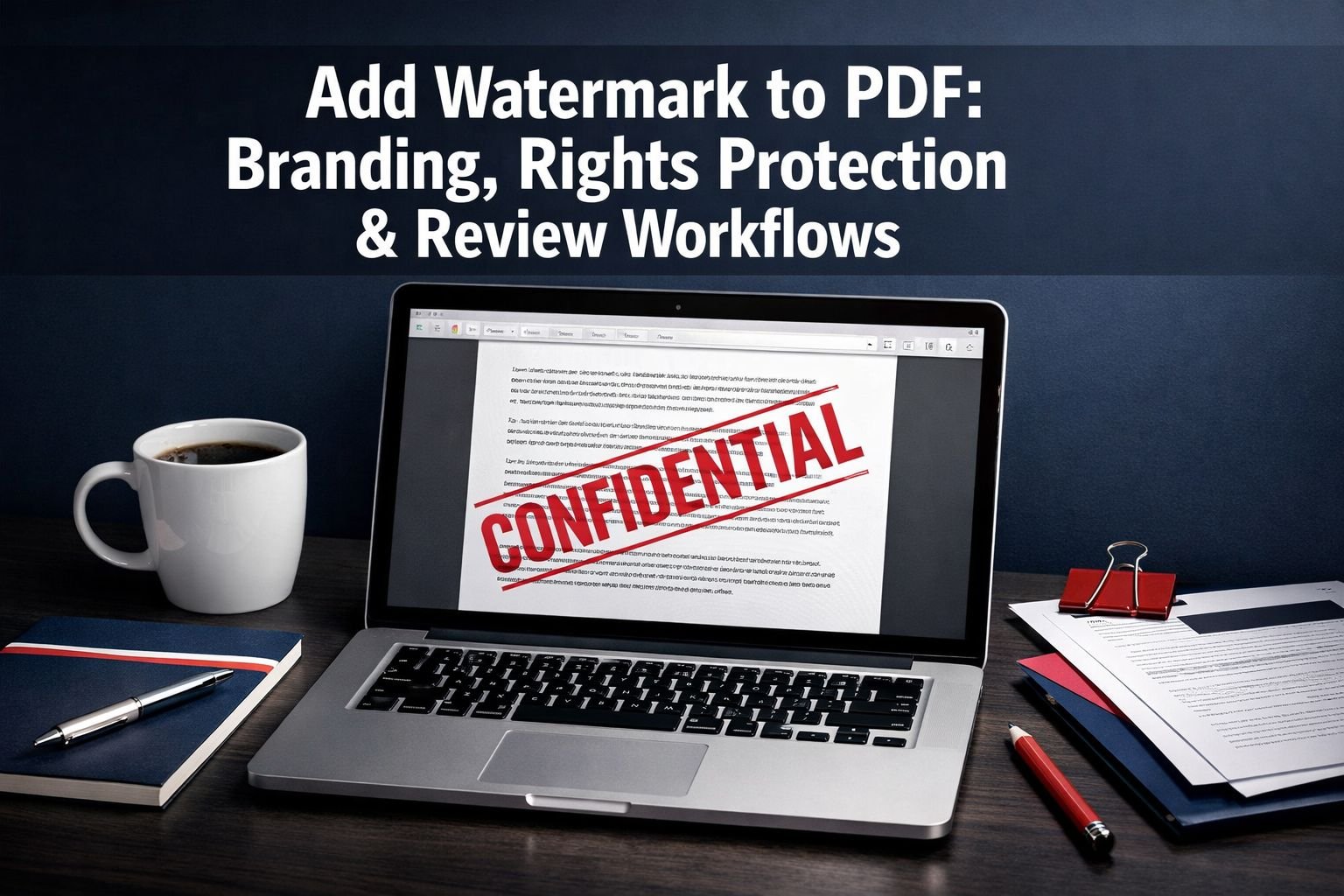
Quick Answer: To add a watermark to a PDF, use a browser-based tool (no install needed), choose text like “DRAFT” or “CONFIDENTIAL” or upload a logo image, set opacity between 20–40%, position it diagonally across the center, and apply it to all pages. The whole process takes under two minutes. Watermarks signal status or ownership — but they are not a substitute for password protection or redaction when real security matters.
Key Takeaways
- Text watermarks (DRAFT, CONFIDENTIAL, REVIEW) are fastest to apply and easiest to read at a glance.
- Image watermarks (logos, signatures) add branding but need careful sizing to avoid blocking content.
- Opacity between 20–40% keeps watermarks visible without making the document hard to read.
- Diagonal placement across the page center is the most tamper-evident and widely recognized format.
- Watermarks alone do not secure a document — pair them with password protection or redaction for sensitive files.
- Browser-based tools like Smallpdf and BoldSign process files locally, so your PDF never leaves your device.
- Dynamic watermarks (viewer-specific text like name or email) are better for traceability in client workflows.
- Batch watermarking saves time when you need to mark dozens of files with the same stamp.
- Watermarks can be removed by someone with the right tools — treat them as a deterrent, not a lock.
- File size impact from adding a text watermark is minimal; image watermarks can add weight if the logo file is large.
When Should You Add a Watermark to a PDF (and When Should You Skip It)?
Watermarks make sense when you need to communicate status, ownership, or sensitivity at a glance — without a conversation. They work best as a visual signal, not a security mechanism.
Use a watermark when:
- Sending draft documents for review so recipients know the file isn’t final
- Sharing proofs or creative work with clients before payment or approval
- Distributing internal reports marked “CONFIDENTIAL” or “FOR INTERNAL USE ONLY”
- Adding a company logo or name to branded templates and deliverables
- Sending sample or preview versions of paid content (e.g., photography, reports)
Skip the watermark (or use something stronger) when:
- The document contains personal data, legal contracts, or financial records that need actual access control — use password protection and encryption instead
- You’re submitting a final, signed document where a watermark would look unprofessional
- The watermark would obscure critical text, tables, or legal clauses
A common mistake: teams add “CONFIDENTIAL” watermarks to PDFs and assume the file is protected. It isn’t. Anyone can open it, screenshot it, or — with basic editing tools — remove the watermark entirely. The watermark signals intent; it doesn’t enforce it.
Text vs. Image Watermarks: Which One Should You Use?
Both types serve different purposes. Choosing the right one depends on your goal.
| Text Watermark | Image Watermark | |
|---|---|---|
| Best for | Status labels (DRAFT, CONFIDENTIAL) | Branding (logos, signatures) |
| Setup time | Seconds | Slightly longer (need logo file) |
| Readability impact | Low at 20–40% opacity | Medium — depends on logo size |
| File size impact | Negligible | Small–moderate (depends on image) |
| Customization | Font, size, color, rotation, opacity | Position, scale, opacity |
| Removal difficulty | Easy with editing tools | Easy with editing tools |
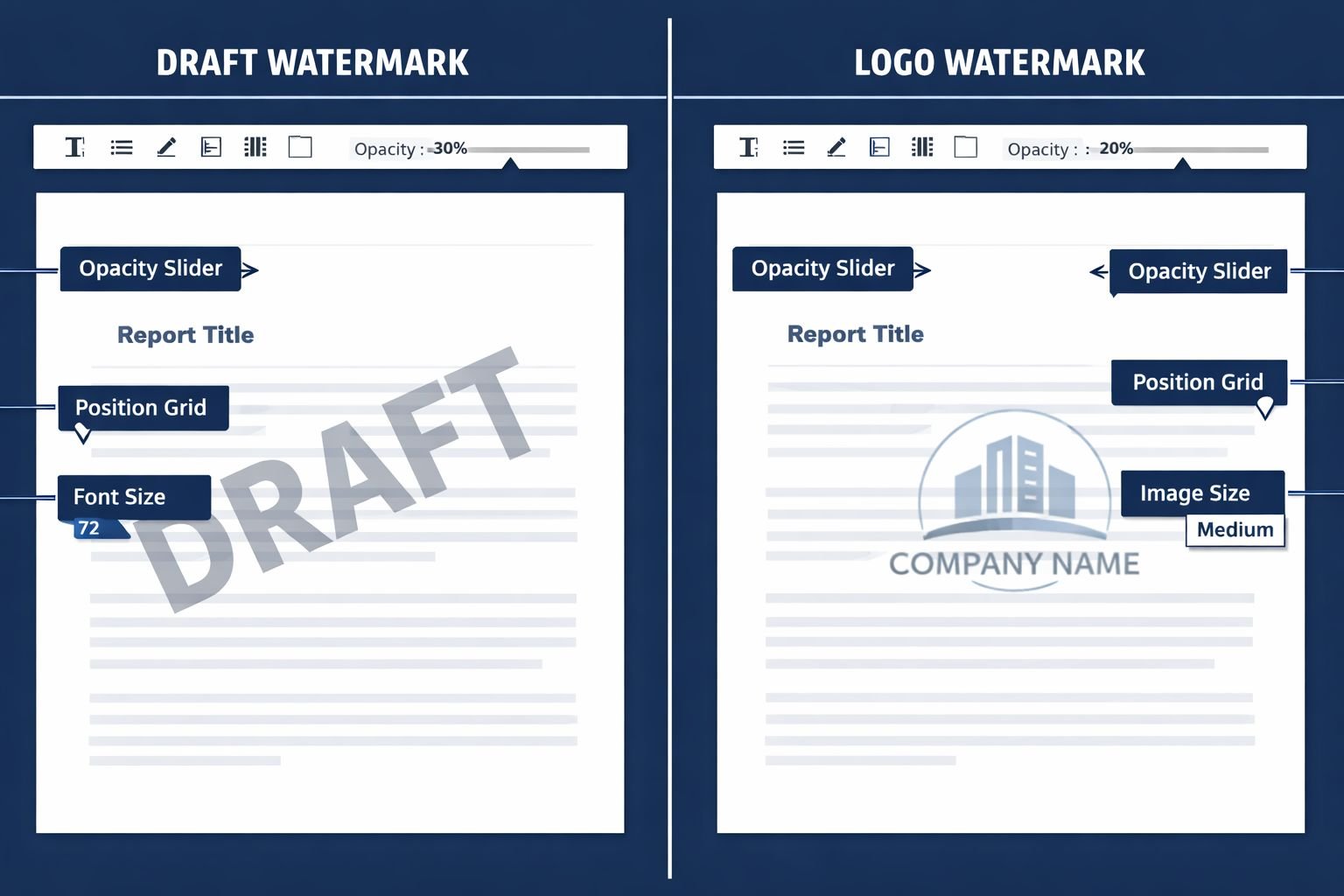
Text watermarks are the go-to for review workflows. Type “DRAFT” in gray at 30% opacity, rotate it 45 degrees diagonally, and it’s done. Every reader sees it immediately.
Image watermarks work well for client-facing deliverables where you want your logo on every page. The key is keeping the image small and the opacity low — a full-color logo at 80% opacity will make the document nearly unreadable.
💡 Quick tip: If your logo is a PNG with a transparent background, it will blend far more cleanly than a JPG with a white background. Use the Image Compressor to reduce logo file size before uploading it as a watermark — this keeps your PDF lean.
How to Add a Watermark to a PDF Online (Step-by-Step)
Browser-based tools are the fastest option for most teams. No installs, no signup required, and all processing happens in your browser — your file stays private.
Here’s the general workflow for any browser-based watermark tool:
- Open the tool in your browser (Smallpdf, BoldSign, or PDF24 Tools all work well for this).
- Upload your PDF by dragging and dropping it into the tool.
- Choose watermark type: text or image.
- For text: Type your label (e.g., “DRAFT”), choose font, size, color, and rotation.
- For image: Upload your logo file (PNG with transparent background recommended).
- Set opacity: Start at 30% and preview before finalizing.
- Choose position: Diagonal center is standard; tiled/repeat is useful for added visibility.
- Apply to all pages — most tools do this by default.
- Download your watermarked PDF.
The entire process takes under two minutes for a single file.
Best settings for common use cases:
| Use Case | Text | Color | Opacity | Rotation |
|---|---|---|---|---|
| Draft review | DRAFT | Gray (#AAAAAA) | 25–30% | 45° diagonal |
| Confidential | CONFIDENTIAL | Red (#CC0000) | 30–35% | 45° diagonal |
| Client branding | Company logo | N/A | 15–20% | 0° (centered) |
| Sample/Preview | SAMPLE | Blue (#0055AA) | 30% | 45° diagonal |
For teams managing multiple documents, splitting a large PDF into separate pages before watermarking individual sections can give you more control over which pages get marked.
How to Design a Watermark That’s Clear But Not Distracting
This is where most teams get it wrong. A watermark that’s too bold blocks the content. One that’s too faint gets ignored or missed entirely.
The goal is a watermark that a reader notices immediately but can still read through comfortably.
The readability balance:
- Opacity 20–40% is the practical sweet spot. Below 15%, most readers miss it on screen. Above 50%, it starts competing with the actual content.
- Gray or muted colors work better than bright ones for text watermarks on body-text-heavy pages. Save red for “CONFIDENTIAL” where urgency matters.
- Font size 60–80pt for diagonal text watermarks on standard A4/Letter pages. Smaller than 60pt and it disappears on mobile screens.
- Diagonal placement (45°) is harder to mentally filter out than horizontal text, making it more effective as a status signal.
- Tiled/repeat watermarks (the same text stamped across the whole page in a grid) are useful for image-heavy PDFs where a single diagonal stamp might fall on a photo and disappear.
One analysis from 2026 noted that optimized transparency in watermarks reduces clarity loss by less than 10% — meaning a well-set watermark barely affects readability when opacity is kept in the 20–40% range.
Common mistakes to avoid:
- ❌ Using a white watermark on a white background (invisible)
- ❌ Setting opacity above 60% (blocks content, frustrates readers)
- ❌ Using a JPG logo with a white box background (looks unprofessional)
- ❌ Placing the watermark only on page 1 (pages 2+ get shared without the mark)
- ❌ Using a tiny font size that disappears when the PDF is printed
Combine Watermarking with Passwords and Redaction for Real Protection
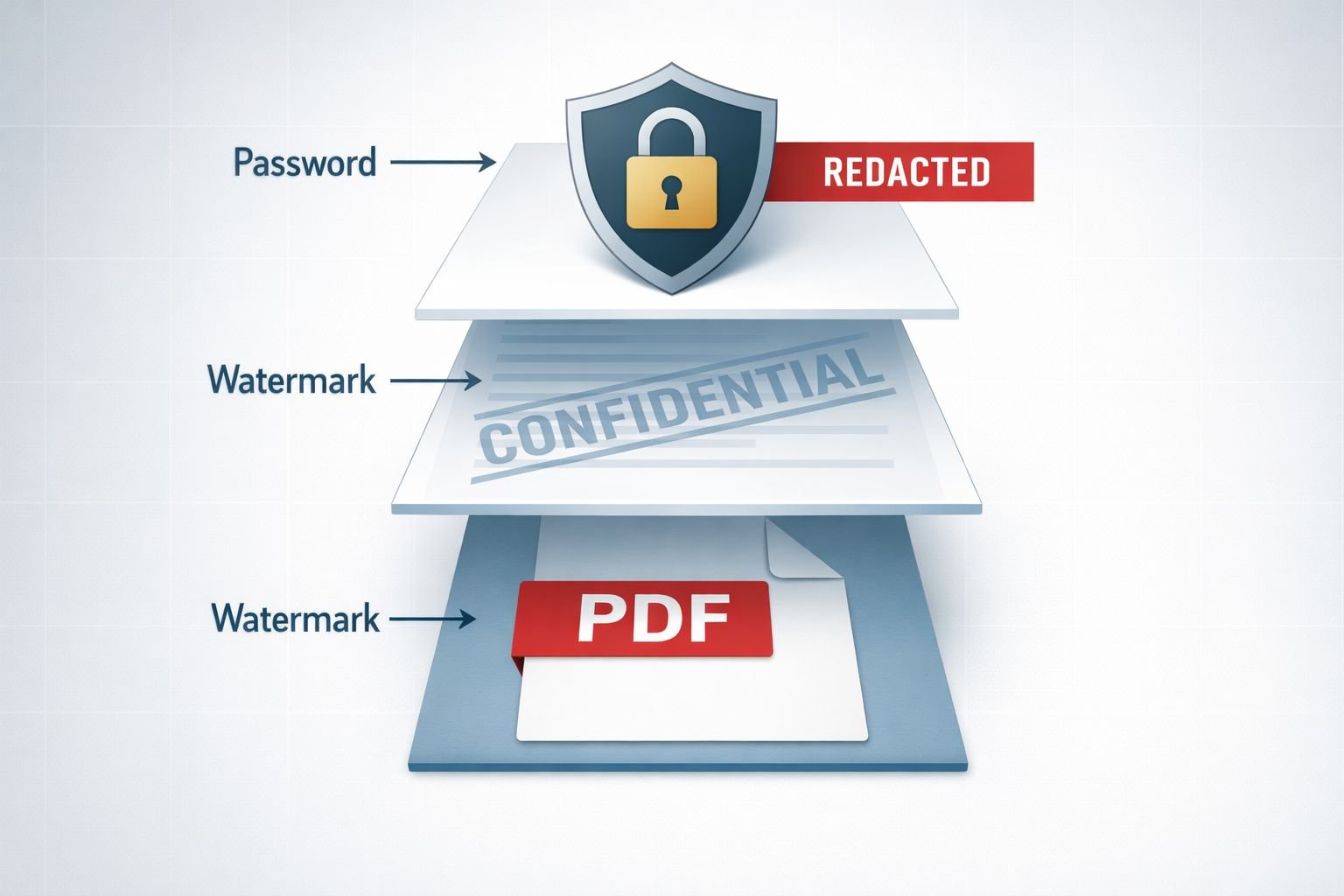
A watermark tells people how to treat a document. A password controls who can open it. Redaction removes sensitive content entirely. These three tools work together — none of them replaces the others.
When to layer your protection:
- Watermark only: Low-stakes drafts, internal reviews, branded deliverables where access isn’t restricted.
- Watermark + password: Client proofs, legal drafts, and financial reports you’re sharing with a specific person. The watermark signals status; the password limits access. Explore the full range of online PDF tools to handle both steps in one place.
- Watermark + redaction: Documents in which certain sections must be hidden (e.g., a contract with personal data removed before sharing). Redaction permanently blacks out content — it’s not just a black box drawn on top.
- All three: High-sensitivity documents like HR files, legal discovery, or financial audits.
⚠️ Important: Redaction is permanent. Make sure you’re working on a copy, not the original. For managing multi-page documents before applying these steps, merging PDFs or reordering pages first can simplify your workflow.
Dynamic watermarks take this further. Tools like Papermark can embed viewer-specific information — the recipient’s name, email address, or access timestamp — directly into the watermark. If a document leaks, you can trace exactly who shared it. This is especially useful for agencies sharing creative work, or legal teams distributing sensitive briefs to multiple parties.
What Watermarks Cannot Do: Real Limitations to Know
Watermarks are a deterrent, not a lock. Understanding their limits helps you use them appropriately.
What a watermark does NOT do:
- Prevent someone from opening, copying, or printing the PDF
- Stop screenshots or photos of the screen
- Prevent the watermark itself from being removed with PDF editing software
- Encrypt or password-protect the file in any way
- Guarantee legal protection on its own (though it can support a copyright claim as evidence of intent)
A determined person with access to PDF editing tools or even free online tools can remove most static watermarks. This is a known limitation across the industry, and it’s why security-focused workflows use watermarks alongside — not instead of — encryption or DRM (Digital Rights Management) tools.
For teams that need stronger enforcement, DRM solutions like Locklizard offer persistent access control that survives download. The tradeoff is complexity and cost. For most review workflows, a well-placed watermark paired with a password-protected PDF is a practical and proportionate response.
The privacy angle matters too: if you’re using an online watermark tool, check whether it processes files in the browser or uploads them to a server. Browser-based tools that run locally are the privacy-first choice — your document never touches an external server. For more on why this matters, see the comparison of browser-based vs. cloud upload tools.
Recommended Watermark Tools and Workflows for 2026
The right tool depends on your volume, technical comfort, and privacy requirements.
Browser-based (free, privacy-first, no installs):
- Smallpdf Watermark PDF — Drag-and-drop interface, full text customization (font, size, color, opacity), runs in browser. Good for one-off files.
- BoldSign Free Watermark Tool — No signup required, supports multiple PDFs, customizable rotation and position, no data leaves the browser.
- PDF24 Tools — Solid free option with batch support and image watermark capability.
Desktop software (paid, more control):
- Adobe Acrobat — Industry standard for precise watermark customization. Supports batch processing, exact positioning, and text property control. Costs $20+/month. Best for teams already in the Adobe ecosystem.
- SysTools PDF Watermark — One-time purchase (~$45), good for offline batch processing.
For dynamic/traceable watermarks:
- Papermark — Free tier available. Embeds viewer-specific data (name, email) per document view. Best for agencies and legal teams tracking document distribution.
Quick decision guide:
- One file, fast result: Use a free browser-based tool. No signup, no install, done in seconds.
- Dozens of files at once: Use Adobe Acrobat’s batch watermark feature or PDF24’s batch mode.
- Need to trace leaks: Use Papermark or another dynamic watermarking platform.
- Need privacy + watermark + encryption together: Look at browser extensions like PDF Armor, which combines watermarking with metadata stripping and encryption without uploads.
After watermarking, if your PDF has grown in file size (especially with image watermarks), run it through a PDF compressor to bring the size back down before sending. For email-ready PDFs specifically, the guide on compressing PDFs for email without losing quality covers the exact settings to use.
Frequently Asked Questions
Can a watermark be removed from a PDF? Yes. Static watermarks can be removed using PDF editing software or certain online tools. They act as a deterrent and a signal of intent, not a security barrier. For stronger protection, combine watermarks with password encryption.
Does adding a watermark to a PDF increase the file size? Text watermarks add almost no file size. Image watermarks (logos) can add a small amount, depending on the image resolution and format. Compress your logo to a small PNG before using it as a watermark to minimize the impact.
What opacity should I use for a PDF watermark? 20–40% opacity is the standard range. It keeps the watermark clearly visible without making the document hard to read. Use 30% as your starting point and adjust based on the background color of your pages.
What’s the difference between a static and a dynamic watermark? A static watermark is the same on every copy (e.g., “CONFIDENTIAL”). A dynamic watermark changes per viewer, embedding their name or email address. Dynamic watermarks are better for tracing document leaks.
Can I add a watermark to a PDF without Adobe Acrobat? Yes. Free browser-based tools like Smallpdf, BoldSign, and PDF24 all support text and image watermarks without any software installation or account creation.
Is a watermark enough to protect confidential documents? No. A watermark communicates sensitivity but doesn’t restrict access. For confidential documents, add password protection and consider redacting any data that shouldn’t be visible to all recipients.
Can I watermark multiple PDFs at once? Yes. Adobe Acrobat supports batch watermarking. Free tools like PDF24 also offer batch processing. For large volumes, desktop software is generally faster than browser-based tools.
What font size should I use for a diagonal text watermark? 60–80pt is the recommended range for A4 or Letter-size pages. This ensures the watermark is visible both on screen and in print without overwhelming the page content.
Will a watermark show up when the PDF is printed? Yes, as long as the opacity is set above roughly 15–20%. Very faint watermarks may not reproduce well on lower-quality printers, so test a print before distributing a large batch.
Does watermarking a PDF affect its searchability? No. Adding a text watermark as a PDF overlay does not affect the underlying text layer. The document remains fully searchable and selectable.
Should I watermark every page or just the first page? Watermark every page. Documents get shared page by page, screenshotted, or split. A watermark only on page 1 means pages 2 and beyond circulate without any marking.
What’s the best watermark text for client proofs? “PROOF,” “SAMPLE,” or “NOT FOR DISTRIBUTION” are clear and professional. Include your company name or website URL to reinforce branding alongside the status label.
Conclusion
Adding a watermark to a PDF is one of the fastest ways to communicate document status, assert ownership, or protect creative work before it’s finalized. The process takes under two minutes with any modern browser-based tool — no installs, no signup required.
The key is getting the balance right: visible enough to be noticed, subtle enough not to block the content. Stick to 20–40% opacity, diagonal placement, and 60–80pt font for text watermarks. Use PNG logos with transparent backgrounds for image watermarks. Apply to every page, not just the first.
And remember: a watermark signals intent. For documents that genuinely need access control, pair your watermark with password protection, and use redaction for anything that shouldn’t be readable at all.
Next steps:
- Try the free online PDF tools at Core Tools Hub for watermarking, merging, splitting, and compressing PDFs — all in your browser, all private.
- If your watermarked PDF is too large to email, run it through the PDF compressor to reduce its size without visible loss of quality.
- Before watermarking, for multi-page document management, use the split PDF tool to work with individual sections.