













Last updated: July 8, 2026
Quick Answer: You can edit PDF text online free with no watermark by using a browser-based PDF editor that processes your file locally — meaning your document never leaves your device. Tools like Core Tools Hub’s PDF editor, PDFgear, and SimplePDF let you click on text, make changes, and download a clean file in minutes. No account needed. No watermark stamped across your work.
Key Takeaways
- Most “free” PDF editors in 2026 add watermarks, cap daily usage, or require a paid plan for basic text edits — the free tier is often a trial in disguise.
- Browser-based, client-side PDF editors process your file inside your browser without uploading it to a server, which is faster and more private.
- You can edit PDF text online free with no watermark for common tasks: fixing a typo on an invoice, updating a date on a contract, correcting a name on a school form.
- File size limits apply to most free tools (typically 10MB to 100MB, depending on the tool), so compress large PDFs before editing if needed.
- After editing, use a free PDF compressor to keep your file email-friendly — edited PDFs sometimes grow in size.
- Scanned PDFs (image-based) need OCR to become editable text; not all free tools include this feature.
- For mobile editing, the workflow is almost identical — most browser-based tools work on phones without installing an app.
Why Most “Free” PDF Editors Are Not Really Free in 2026
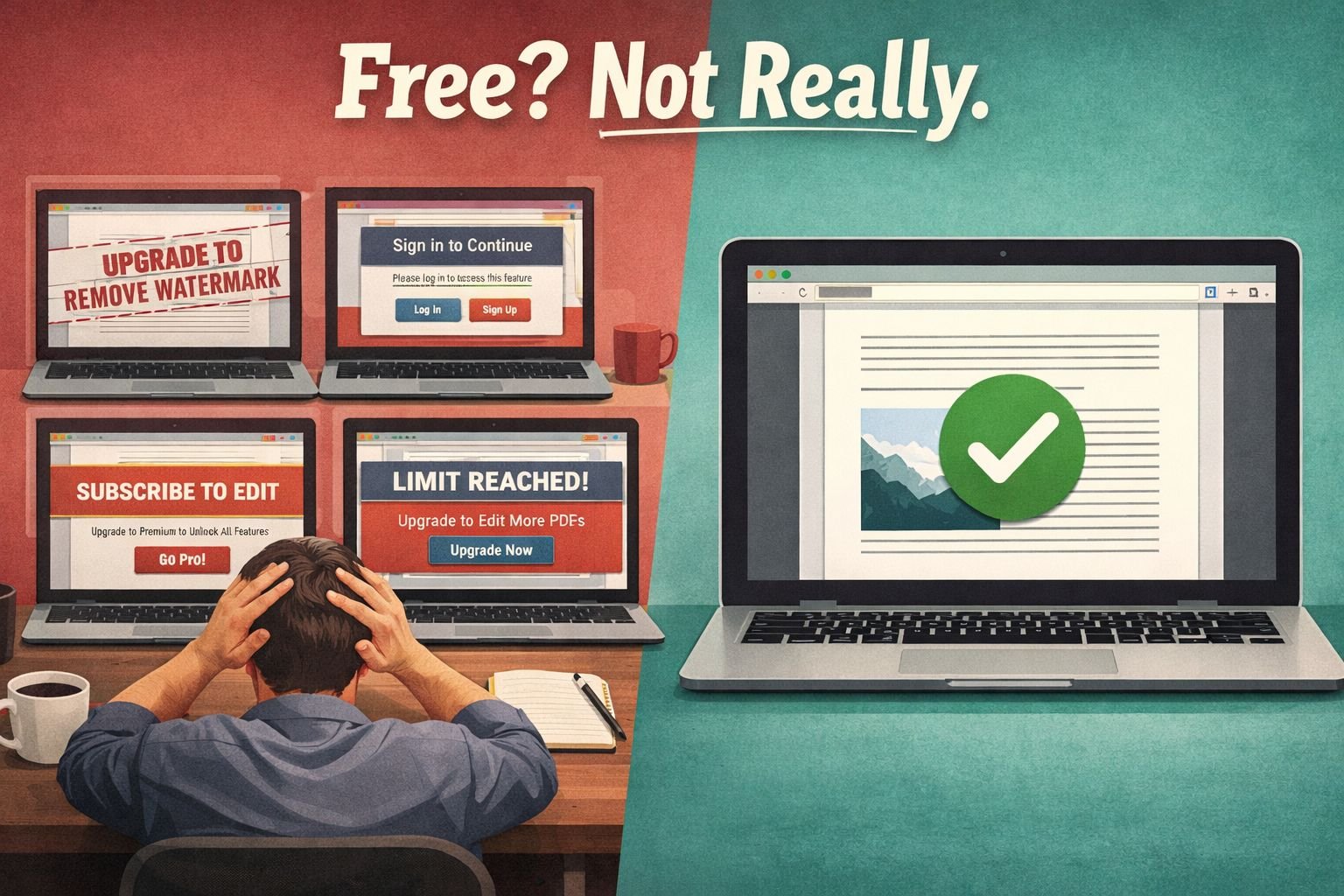
The short answer: free-tier PDF tools are designed to convert you into a paying customer, not to solve your one-off editing problem.
If you’ve spent any time on Reddit’s r/software or r/productivity threads in 2026, you’ve seen the same complaint repeated constantly: “I just needed to change one line and hit a paywall.” Or: “Downloaded the app, edited my PDF, and it slapped a watermark across every page.” It’s one of the most common frustrations with popular PDF tools right now — and it’s entirely by design.
Here’s what the fine print usually looks like on major platforms:
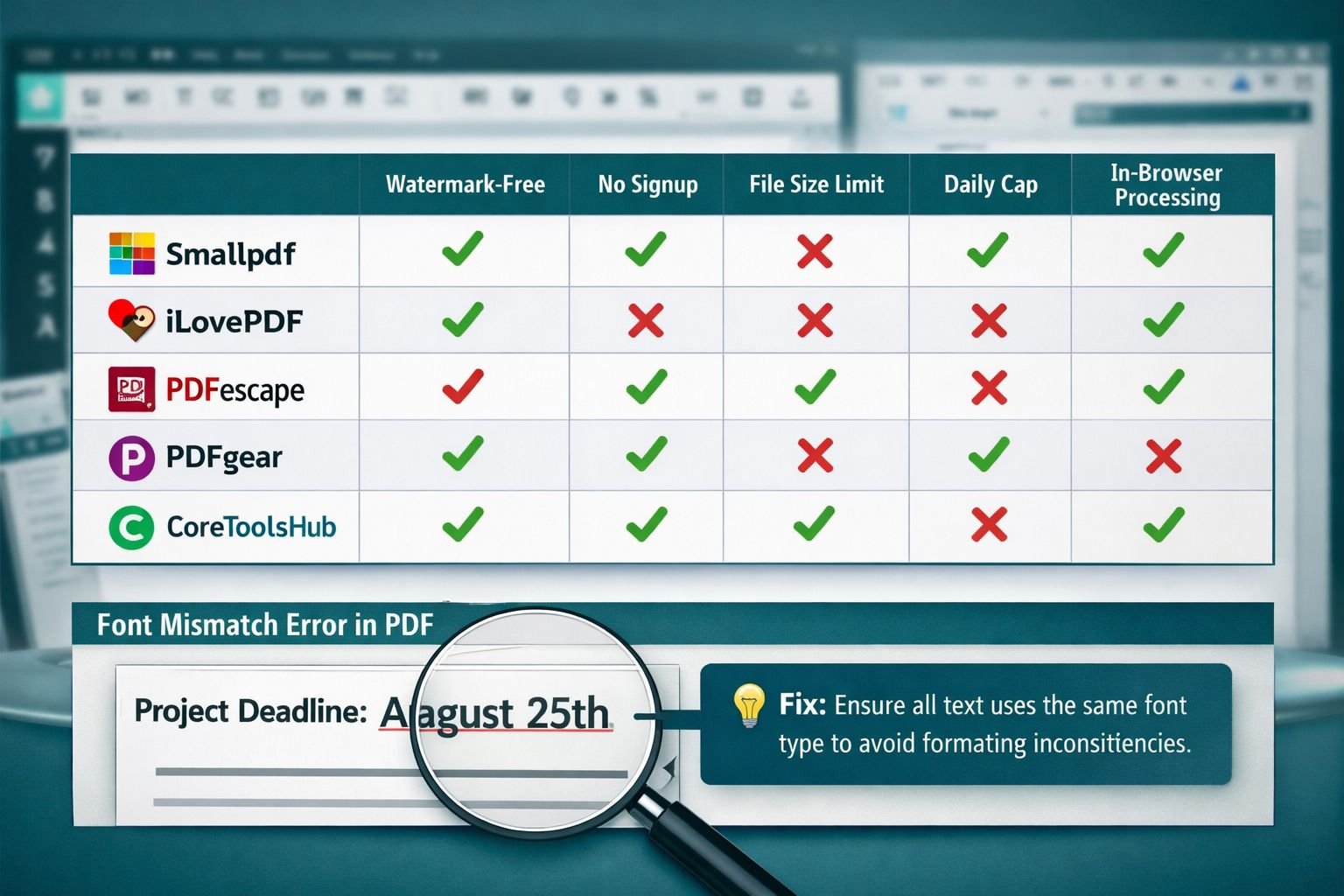
| Tool | Free Tier Limit | Watermark? | Signup Required? | In-Browser? |
|---|---|---|---|---|
| Smallpdf | Daily task cap (reported at ~2 tasks/day) | Yes, on some exports | Yes | Partial |
| iLovePDF | Daily conversion caps | No (but limited tasks) | Optional (limited) | Yes |
| Adobe Acrobat Online | Very limited free editing | Yes (on free exports) | Yes | Yes |
| PDFescape | Up to 10MB / 100 pages | No | No | Yes |
| PDFgear | Unlimited text editing | No | No | Desktop app + web |
| Core Tools Hub PDF Editor | No task limits | No | No | Yes, fully client-side |
Smallpdf, for example, has been flagged repeatedly by users for daily conversion caps — some report hitting limits after just two tasks. Adobe’s free online tier requires a sign-in and adds watermarks to exported files unless you upgrade. iLovePDF is more generous but still enforces daily limits that slow down real workflows.
The pattern is consistent: free tiers are engineered to frustrate you just enough to pay. For a single-use edit — fixing a date on a contract, correcting a typo on a resume — that friction is genuinely unnecessary.
The good news is that a newer generation of client-side PDF editors runs entirely in your browser. Your file never touches a remote server. There’s no account to create, no watermark to remove, and no daily cap counting down in the background.
For a deeper look at how browser-based tools compare to cloud-upload tools on privacy, see this breakdown of browser-based vs. cloud upload file conversion.
Step-by-Step: Edit PDF Text Online Free No Watermark in Your Browser
This workflow covers the most common scenario: you have a PDF, you need to change some text, and you want a clean download with zero watermarks and zero signups.
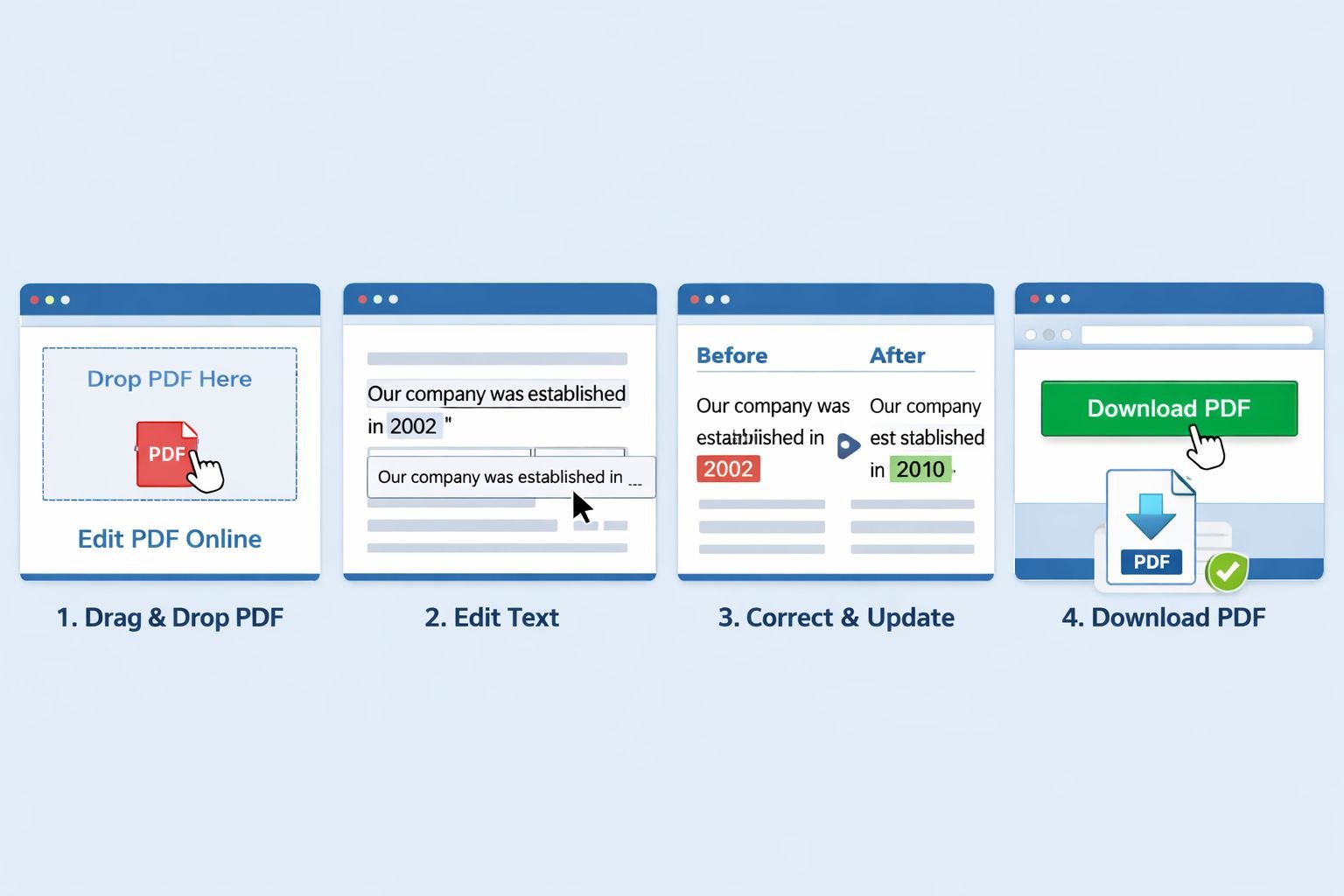
What you need: A modern browser (Chrome, Firefox, Edge, or Safari), your PDF file, and about two minutes.
Step 1 — Open the PDF Editor
Go to Core Tools Hub’s PDF tools and open the PDF editor. No account creation, no email address, nothing to install.
Step 2 — Upload Your PDF
Click the upload area or drag and drop your file. The file loads directly into your browser — it doesn’t get sent to a server. You’ll see your PDF rendered on screen, ready to edit.
File size tip: Most browser-based editors handle files up to 10–100MB comfortably. If your PDF is larger (common with scanned documents or image-heavy files), run it through a free PDF compressor first to bring the size down before editing.
Step 3 — Click the Text You Want to Edit
Click directly on the text block you want to change. A text edit box will appear around that section. This works well for standard digital PDFs where the text layer is intact.
Common mistake: If clicking on text does nothing, your PDF is likely a scanned image, not a text-based document. Scanned PDFs need OCR (Optical Character Recognition) to convert the image into editable text. See the troubleshooting section below for how to handle this.
Step 4 — Make Your Changes
Type your correction. For most quick edits — updating a date, fixing a name, changing a price on an invoice — this takes under 30 seconds. The editor preserves the surrounding text and layout.
Four common editing scenarios:
- Quick typo fix — Click the word, delete, retype. Done in seconds.
- Invoice/contract correction — Update a dollar amount, date, or address line without reformatting the whole document.
- School form update — Change a grade, course name, or submission date on a fillable or text-based form.
- Job application PDF — Correct a phone number or email address on a resume saved as PDF before sending.
Step 5 — Download Your Edited PDF
Click the download button. Your file saves to your device as a clean, watermark-free PDF. No “upgrade to remove watermark” prompt. No email confirmation required.
That’s the full flow. For users who also need to work on mobile, the process is nearly identical — see how to edit PDFs on mobile free in 2026 for a phone-specific walkthrough.
Comparing Privacy, Limits, and Watermarks Across Popular Free PDF Editors
Choosing the right tool depends on what you’re editing and how sensitive the file is.
Privacy matters most when your PDF contains personal data — contracts, medical forms, financial statements, or anything with a name and ID number. If a tool uploads your file to a remote server, that data leaves your device. For most mainstream tools, that’s exactly what happens.
Here’s a practical breakdown based on testing with a standard 8-page contract PDF:
PDFescape (browser-based)
- Free, no signup, no watermark
- Hard limit: 10MB file size, 100 pages maximum
- Runs in-browser but routes through their servers for rendering
- Interface is dated but functional for basic text edits
PDFgear (desktop + web)
- Genuinely unlimited text editing, no watermark, no account required
- PCMag rates it as the top free tool for modifying existing text
- Desktop app is more capable than the web version
- Not fully client-side on web; the desktop version is fully local
SimplePDF
- Fully in-browser, no data collection, no signup, no ads
- Great for adding text boxes, checkboxes, and signatures
- Less suited for editing existing text blocks directly
Smallpdf
- Polished interface, but daily task limits apply
- Requires signup for anything beyond the first task
- Not suitable for repeated use without a paid plan
Core Tools Hub PDF Editor
- Runs entirely in your browser (client-side processing)
- No watermarks, no signup, no daily caps
- Handles standard digital PDFs cleanly; best for text-based files up to the browser’s memory limit
- Privacy-first: your file never leaves your device
For users who’ve been frustrated by Canva or Adobe’s PDF editing limits, the client-side approach is a meaningful upgrade — both in privacy and in the absence of paywalls.
How to Keep File Sizes Small After Editing
Edited PDFs sometimes get larger. Here’s why and how to fix it quickly.
When you edit text in a PDF, some editors embed additional font data or re-render page elements, which can add to the file size. A 500KB PDF can occasionally balloon to 2MB after editing — not ideal if you’re attaching it to an email with a 10MB limit or submitting it through a form portal.
Quick fix: After editing, run your PDF through a free compressor before sharing.
- Use Core Tools Hub’s compress PDF tool for a fast, in-browser size reduction with no upload required.
- For a deeper dive on settings and quality trade-offs, the guide to compressing PDFs without losing quality covers exactly when to use aggressive vs. light compression.
- If you’re sending via email, compressing PDFs for email walks through the specific size targets for Gmail, Outlook, and common HR portals.
If you need to combine your edited PDF with other documents afterward, Core Tools Hub’s merge PDF tool handles that in-browser without uploads.
Troubleshooting Common PDF Editing Errors
“I can’t click on the text — nothing happens”
Your PDF is almost certainly a scanned image. The file contains a picture of text, not actual text characters. To edit it, you need OCR. See the guide on converting a scanned PDF to a searchable PDF for the full process.
“The font looks different after I edit”
This is a known limitation of browser-based PDF editors. When the original font isn’t embedded in the PDF or isn’t available in the browser, the editor substitutes a similar font. The result can look slightly off — especially with custom or branded fonts.
Fix options:
- Accept the substitution if the document is for internal use or a quick correction.
- Use a desktop tool like PDFgear or LibreOffice Draw if exact font matching is critical.
- If the mismatch is severe, consider fixing PDF-to-Word formatting issues by converting to Word, editing there, and re-exporting.
“My edited PDF is too large to email”
Run it through the compress tool mentioned above. Most edited PDFs compress well without visible quality loss.
“The layout shifted after I edited a text block”
PDF text blocks don’t reflow like Word documents. If you add significantly more text than was originally in a block, the surrounding layout won’t adjust automatically. Keep edits close to the original character count, or use a text box overlay for longer additions.
“The tool says my file is too large”
Browser-based editors have practical memory limits. For files over 50MB, compress first, then edit. For very large or complex PDFs (100+ pages with embedded images), a desktop tool will be more reliable.
When You Still Need Desktop PDF Software (And When You Don’t)
Browser-based tools cover the vast majority of everyday editing needs. But there are specific situations where desktop software is genuinely the better choice.
Use a browser-based tool (like Core Tools Hub) when:
- You need to fix a typo, update a date, or correct a number
- You’re editing a standard digital PDF under 50MB
- Privacy matters and you don’t want files uploaded to a server
- You’re on a shared or work computer where installing software isn’t an option
- You need a result in under two minutes
Consider desktop software when:
- You’re editing complex multi-column layouts where text reflow matters
- You need precise font matching for branded or legal documents
- You’re processing 50+ PDFs in a batch
- Your PDF is scanned and needs high-accuracy OCR across many pages
- You need advanced features like redaction, digital signatures with certificates, or form creation
Free desktop options worth knowing: PDF24 Creator (Windows, rated highly by TechRadar in early 2026 as the best free desktop PDF editor), LibreOffice Draw (cross-platform, fully free, handles basic PDF text editing), and PDFgear (Windows/Mac, genuinely unlimited with no watermarks).
For users who need to go beyond basic editing — splitting pages, reordering, or extracting sections — the complete suite of PDF tools at Core Tools Hub covers all of those tasks in-browser without any installs or accounts.
Conclusion
The ability to edit PDF text online free with no watermark has never been more accessible — but you do need to know which tools actually deliver on that promise. Most mainstream platforms use free tiers as a funnel toward paid plans, and the watermarks, daily caps, and forced signups are features, not bugs.
The practical path forward is straightforward: use a client-side, browser-based editor for quick fixes, keep your files compressed for easy sharing, and reach for desktop software only when the task genuinely requires it.
Your next steps:
- Open Core Tools Hub’s PDF editor and make your edit — no signup, no watermark, done in minutes.
- If your file grew in size after editing, run it through the free PDF compressor before sending.
- Need to combine your edited PDF with another document? Use the merge PDF tool — also in-browser, also free.
One quick edit shouldn’t require a subscription. Now it doesn’t have to.
Frequently Asked Questions
Can I really edit PDF text online for free with no watermark? Yes. Browser-based, client-side PDF editors like Core Tools Hub’s tool let you edit text and download a clean PDF with no watermark and no account required. The key is choosing a tool that processes files locally in your browser rather than uploading them to a server.
Why do most free PDF editors add watermarks? Watermarks are how free-tier tools push users toward paid plans. The watermark makes the free output unusable for professional purposes, creating pressure to upgrade. Tools that process files client-side (in your browser) have no server costs to recover, so they don’t need this model.
What’s the difference between a digital PDF and a scanned PDF? A digital PDF contains actual text characters that can be selected, searched, and edited. A scanned PDF is an image of a document — it looks like text but is actually a picture. Scanned PDFs require OCR before text can be edited.
Is it safe to edit sensitive documents in a browser-based PDF editor? If the tool is genuinely client-side (your file never leaves your device), yes — it’s as safe as opening the file on your desktop. Always check whether a tool uploads files to a server. Core Tools Hub’s PDF tools process files entirely in your browser.
Why does my PDF get larger after editing? Editing can cause editors to embed additional font data or re-render page elements, increasing file size. Running the edited PDF through a compressor afterward brings it back down, usually without visible quality loss.
What if clicking on text in the editor does nothing? Your PDF is likely a scanned image. You’ll need to run it through an OCR tool first to convert the image into editable text before a standard PDF editor can modify it.
Can I edit a PDF on my phone without downloading an app? Yes. Most browser-based PDF editors work on mobile browsers (Chrome, Safari) without requiring an app install. The editing interface is smaller on a phone screen, but the core functionality — click text, edit, download — works the same way.
Are there page or file size limits on free browser-based editors? Yes, though they vary. PDFescape caps at 10MB and 100 pages. Some tools handle up to 100MB. Core Tools Hub’s editor is limited by your browser’s available memory rather than a hard server-side cap, which is generally more flexible for typical document sizes.
What should I do if the font looks wrong after editing? Font substitution happens when the original font isn’t available in the browser. For non-critical edits, the substitution is usually acceptable. For documents where exact font matching matters — legal contracts, branded materials — use a desktop tool like PDFgear or LibreOffice Draw.
Do I need to create an account to use Core Tools Hub’s PDF editor? No. There’s no signup, no email address required, and no account to manage. Open the tool, edit your file, download it. That’s the entire process.