













Last Updated: May 20, 2026
Your job application portal only accepts PDFs. Your scanned ID card is a PNG. Your design mockup is three separate transparent PNGs. And the email attachment limit is 10 MB. Sound familiar?
Converting PNG to PDF is one of those everyday tasks that should be simple — but most free tools either slap a watermark on your output, cap you at five files, or quietly strip transparency so your logo lands on an ugly black background. The PNG to PDF Converter on CoreToolsHub fixes all three problems at once, runs entirely in your browser, and requires no signup.
Drop your images, pick a background color (or keep transparency), reorder pages, and download a clean PDF in seconds. That’s it.
Key Takeaways 📌
No upload, no account — the entire conversion runs in your browser; your files never leave your device.
Transparency handled correctly — choose to preserve the alpha channel or flatten against any background color, including white.
Batch-friendly — combine 20+ PNGs into a single PDF without hitting a file count wall.
No watermarks, no size limits imposed by the tool — output is clean and download-ready.
Works on desktop and mobile — no install needed, no software to update.
What the PNG to PDF Tool Does — and How to Use It
The Drop Zone: Fast, Visual, and Immediate
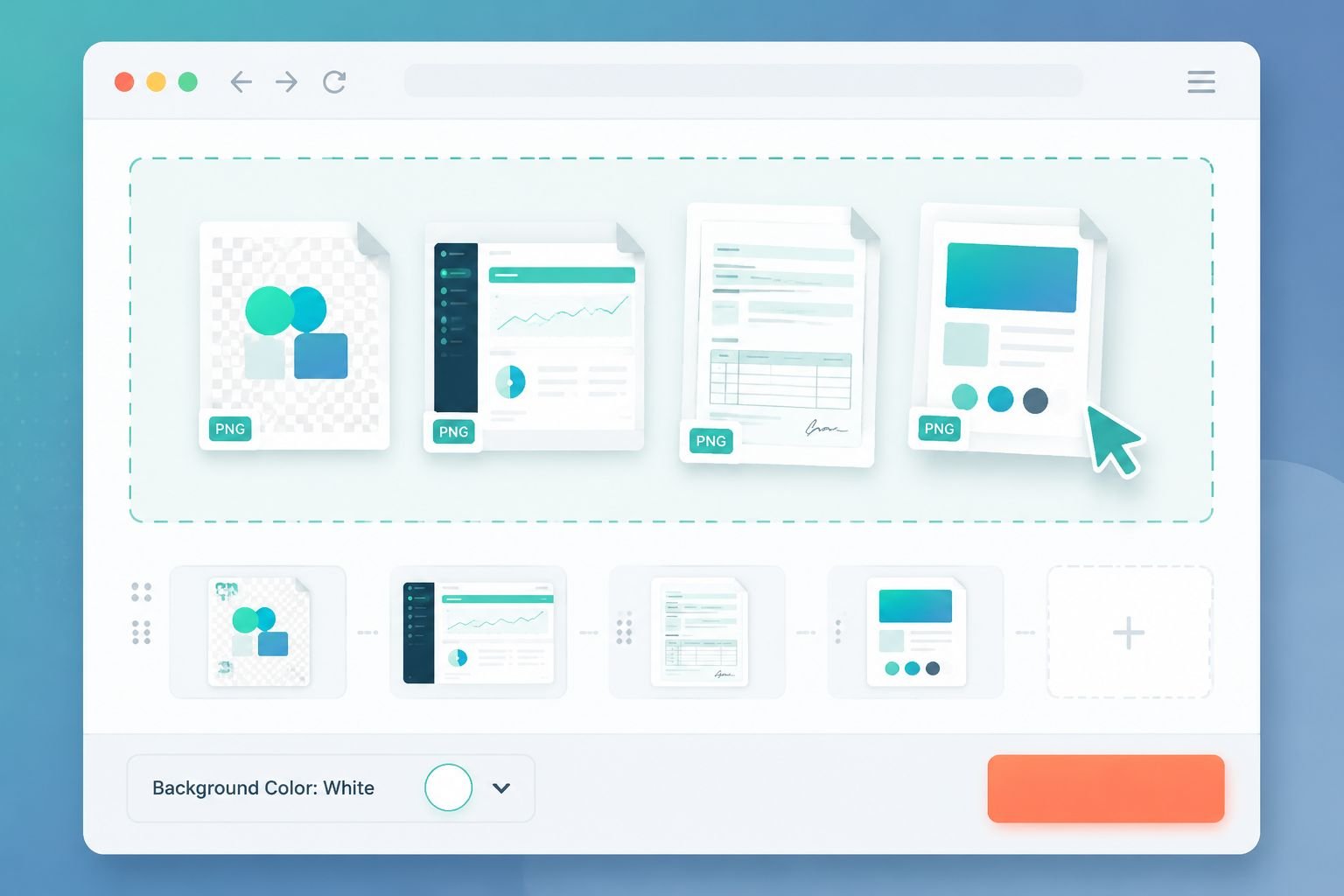
Open the PNG to PDF Converter and you’ll see a drop zone above the fold. Drag your PNG files straight onto it — or tap to browse on mobile. Thumbnails appear immediately so you can see exactly what’s going into your PDF before you commit.
Step-by-step:
Drop or select your PNG files. Add one image or 20+. The tool handles both.
Reorder if needed. Drag thumbnails into the sequence you want. Page order in the PDF matches the thumbnail order on screen.
Choose a background color. A small color picker lets you set what goes behind any transparent areas. It defaults to white (the safest choice for printing and portals), but you can pick any color — or choose Preserve Transparency if your PDF viewer supports it.
Click Convert. Processing happens in your browser using client-side JavaScript. There’s no server round-trip.
Download your PDF. The file is ready in seconds. Open it in Adobe Acrobat, macOS Preview, or any standard PDF viewer — no visual artifacts, clean output.
Common Mistakes to Avoid
Uploading very large PNGs without resizing first. A 6000×4000 PNG will produce a huge PDF. Use the Image Resizer to scale down before converting if file size matters.
Forgetting to reorder thumbnails. The PDF pages follow the thumbnail order exactly. Spend five seconds checking before you hit Convert.
Choosing “Preserve Transparency” for a print job. Most printers and portals expect opaque pages. Use white or a solid background color for anything that will be printed or submitted to a form portal.
Mixing PNG and JPG files. This tool is optimized for PNGs. If you have a mix of image formats, the Images to PDF tool handles JPG, PNG, and WebP together in one batch.
How Transparency Is Handled — Preserve vs. Flatten
This is the part most converters get wrong, so it’s worth a clear explanation.
What PNG Transparency Actually Is
PNG uses an alpha channel — a hidden layer of data that tells software which pixels are fully opaque, partially transparent, or completely invisible. That’s why a logo PNG on a design mockup has no background box: the transparent pixels just disappear against whatever is behind them.
When you convert a transparent PNG to PDF, the converter has to decide: what goes in those transparent pixels?
Two options:
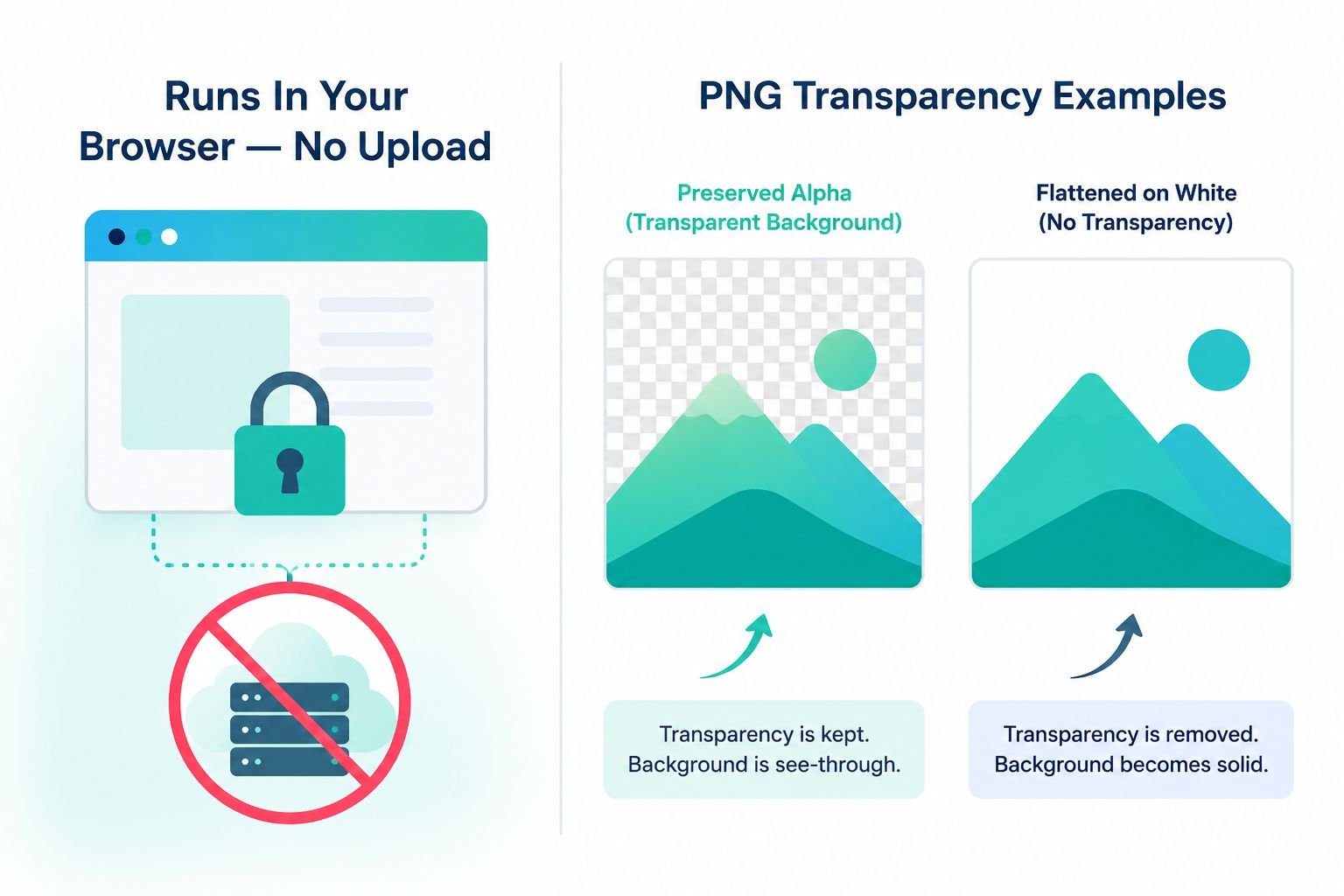
Preserve transparency — The alpha channel is embedded in the PDF. The PDF viewer renders transparent areas as see-through. This works well in Acrobat and Preview, but some older viewers or portal systems may render it as black, which looks broken.
Flatten to a background color — The converter fills transparent pixels with your chosen color (white by default) before building the PDF. The result is a fully opaque, universally compatible PDF. This is the right choice for printing, job applications, government portals, and email.
🔍 Rule of thumb: If you’re sharing the PDF with someone else or submitting it to a portal, flatten to white. If you’re keeping it for your own use in a modern PDF viewer, preserving transparency is fine.
The color picker in the tool makes this choice explicit and visual — you see the result in the thumbnail before you download anything.
Why Most Free Converters Get This Wrong
Many server-side converters default to a black background when they encounter transparency, because black is the default “empty” color in many rendering engines. The result is a PDF in which your transparent logo or screenshot appears to have a solid black box around it.
Because CoreToolsHub’s PNG to PDF tool runs entirely in your browser, it uses the browser’s own rendering engine — the same one that correctly displays transparent PNGs on every website you visit. The output matches what you see on screen.
Privacy: Your Files Never Leave Your Device
This matters more than most people realize. PNG files often contain sensitive content: scanned ID cards, passport photos, medical forms, design assets under NDA, screenshots of private data.
CoreToolsHub’s PNG to PDF converter is a privacy-first, browser-based tool. Here’s what that means in plain English:
✅ Your PNG files are loaded into your browser’s memory — not sent to any server.
✅ No file data passes through CoreToolsHub’s infrastructure.
✅ No account, no login, no email required.
✅ When you close the tab, everything is gone. Nothing is stored.
This is fundamentally different from cloud-based converters that upload your files to a remote server, process them there, and (sometimes) retain them for days. For a deeper look at why this matters, see the comparison of browser-based file conversion vs. cloud upload tools.
Frequently Asked Questions
What page size will my PDF be?
By default, each page is sized to match the dimensions of the PNG image — so a 1240×1754 px PNG becomes an A4-proportioned page. Most tools let you override this with a standard size, such as A4 or US Letter. Check the settings panel before converting if you need a specific page size.
How many PNG files can I convert at once?
The tool handles 20+ images in a single batch, with no file count limit imposed by the software. Very large batches (50+ high-resolution PNGs) may slow down on older devices because all processing happens in the browser. If you hit a slowdown, split your batch into two runs and merge the resulting PDFs afterward.
Will color profiles be preserved?
PNG files can embed ICC color profiles (sRGB, Adobe RGB, etc.). Browser-based conversion renders images in the browser’s color space, which is sRGB in most cases. For professional print work requiring specific color profiles, a desktop tool like Adobe Acrobat may be more appropriate. For everyday use — job applications, school submissions, emails — sRGB output is perfectly fine.
Does it work on mobile?
Yes. The tool is mobile-friendly and works on iOS Safari and Android Chrome without any installation needed. Tap the drop zone to open your photo library or file browser. The reorder drag-and-drop also works with touch. Output quality is identical to desktop.
What if my PNG files are very large?
Large PNGs (over 5 MB each) will produce large PDFs. If you need to reduce file size for email or a portal with a size limit, run your images through the Image Compressor before converting, or compress the finished PDF using the Compress PDF tool.
Related Tools Worth Knowing About
Once your PNG to PDF conversion is done, these tools handle the next steps:
Compress PDF — Reduce the file size of your finished PDF without obvious quality loss. Useful when the output exceeds email attachment limits.
JPG to PDF Converter — Same clean workflow for JPEG images. Ideal for photos from a camera or phone where PNG isn’t the source format.
Images to PDF — Mix PNG, JPG, and WebP files in one batch. The right tool when your source images aren’t all the same format.
Conclusion
Converting PNG to PDF doesn’t need to be complicated, expensive, or risky. Drop your images, set your background color, reorder if needed, and download a clean PDF — all without installing software, creating an account, or sending your files to a server.
The CoreToolsHub PNG to PDF Converter gives you transparent-PNG handling done right, batch support for 20+ files, and a privacy-first approach that keeps sensitive documents on your device where they belong.
Next steps:
📦 Need to shrink the result? Use the Compress PDF tool
🖼️ Working with JPEGs instead? Try the JPG to PDF Converter