













Last Updated: May 25, 2026
Three hours. That’s how long the average person spends printing a government form, filling it by hand, scanning it back in at a library, and emailing the blurry result — only to be told the signature box is in the wrong place. A browser-based PDF form filler ends that loop in about ninety seconds.
Whether it’s a W-9, an I-9, a school enrollment packet, or an HR onboarding contract, fillable PDFs are everywhere — and most desktop tools either cost $239 a year or hide the basics behind a paywall. The good news: you don’t need Acrobat, an account, or a subscription. You need a browser tab open.
This guide walks through exactly how to fill and sign any PDF online, how form-field detection actually works, and how to make sure the file you download is the one government portals will accept.
Key Takeaways
✅ Fill any PDF in your browser — type into existing fields or add free-form text on flat PDFs, no signup required.
🔒 Privacy-first: parsing and editing happen client-side, so SSNs, tax IDs, and immigration details never leave your device.
✍️ Signatures supported with typed, drawn, or uploaded options — and flattening locks them in for government portals.
📱 Works on desktop and mobile without installing software, ideal for last-minute submissions.
⚙️ Output preserves field values when reopened in Acrobat, Preview, or any standard PDF viewer.
What This Tool Does + Drop Zone
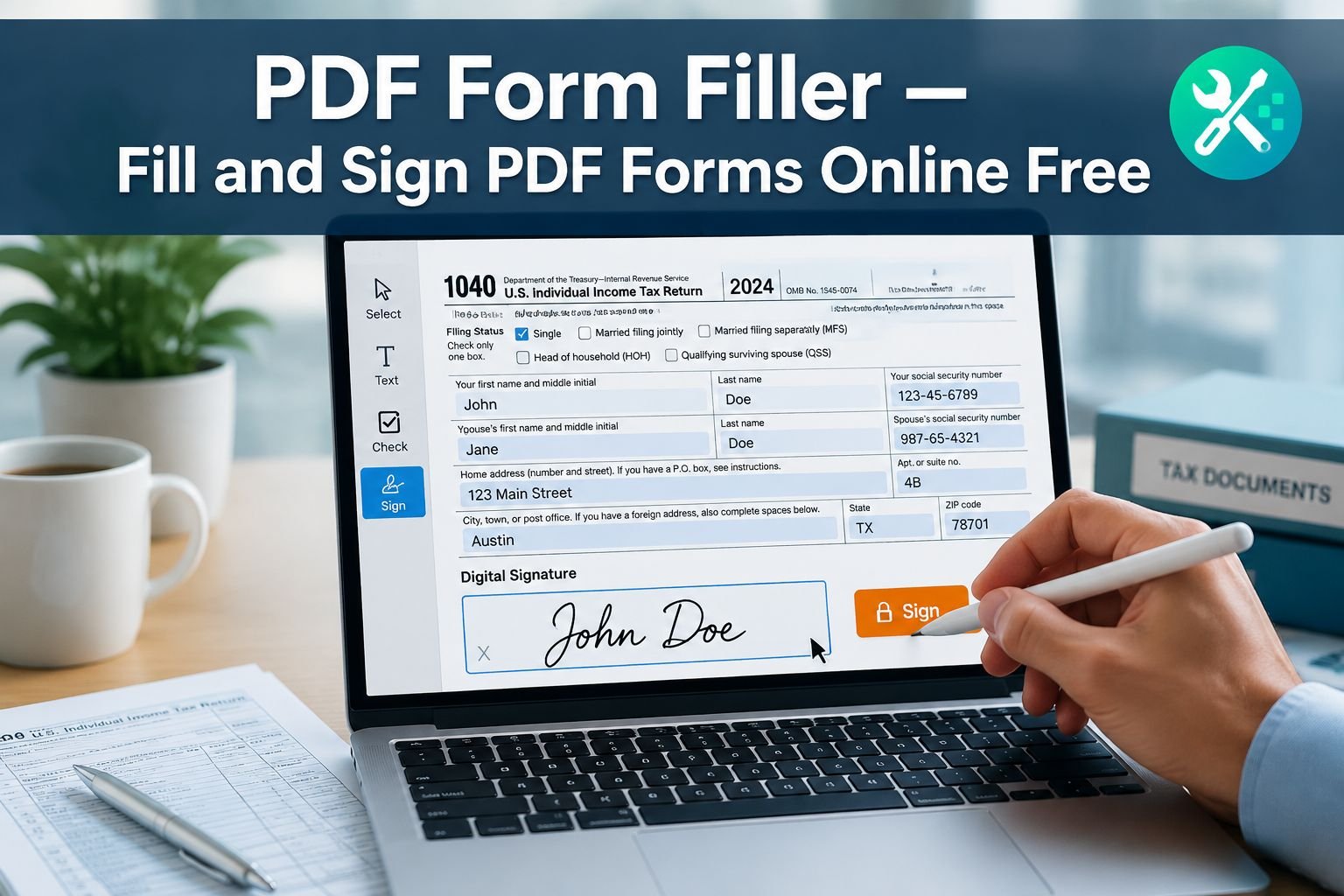
A pdf form filler is a browser-based tool that opens a PDF, detects any interactive fields inside it, and lets you type, check, sign, and save — without printing a single page.
Here’s the outcome-first version: drop your PDF into the upload zone, the tool scans it for form fields, you tab through them like a web form, click Sign, draw or type your signature, and click Download. That’s the whole flow.
How to fill a PDF form online — step by step
Open the tool. Head to the Fill PDF Online tool and drag your PDF into the drop zone (or click to browse).
Wait for field detection. Highlighted boxes appear over text fields, checkboxes, and signature areas. This takes about 1–3 seconds for a 10-page form.
Tab through fields. Press
Tabto move forward,Shift+Tabto go back. Type names, dates, and numbers directly.Add free-form text if the PDF has no real fields (a “flat” scanned form). Click anywhere to drop a text box.
Sign it. Hit the big Sign button, then choose typed, drawn (mouse or finger), or upload an image of your signature.
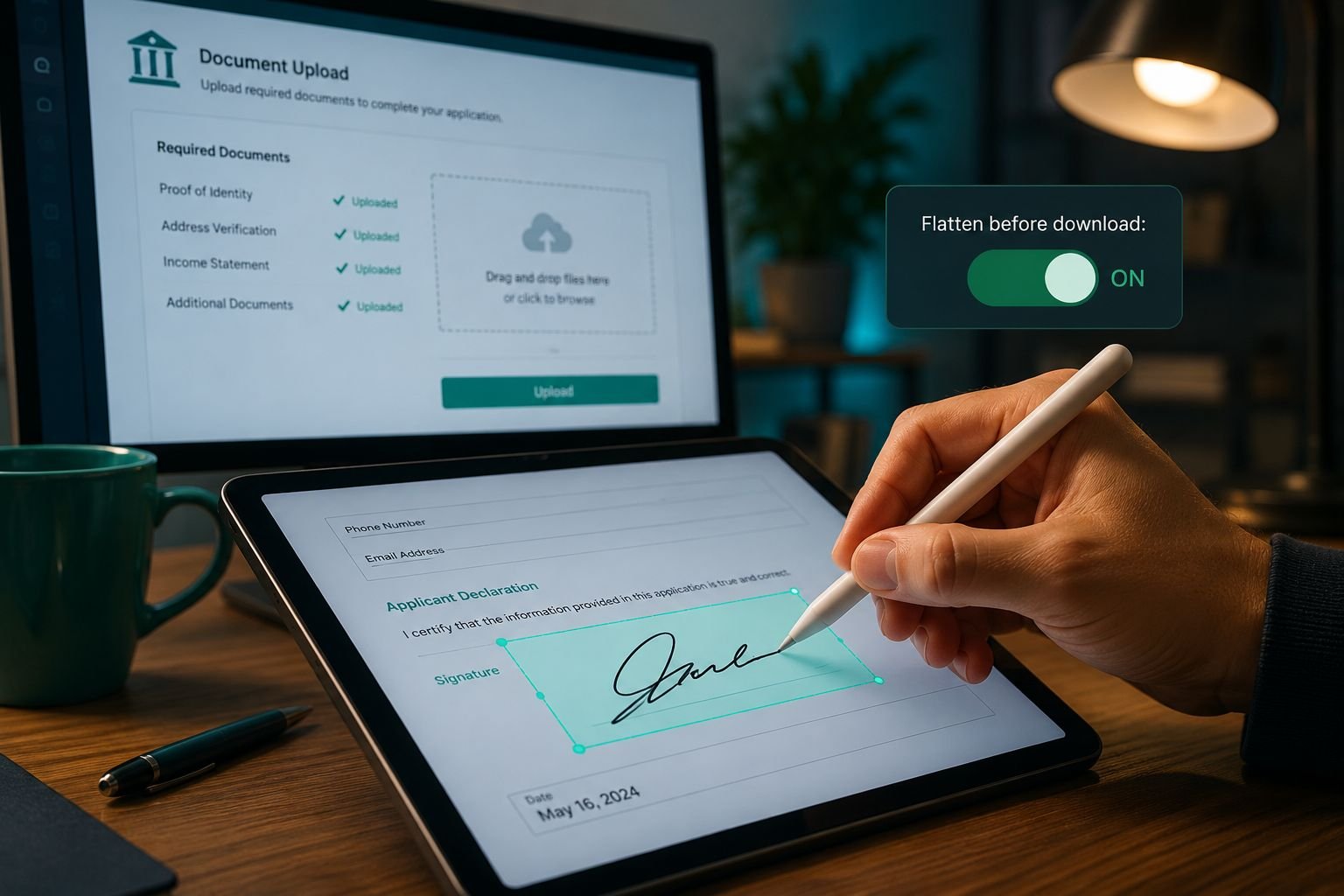
Flatten before download (toggle on by default). This bakes your entries into the page so portals can’t strip them.
Download the completed PDF.
Pull quote: “If you can fill out a web form, you can fill out a PDF. The browser does the rest.”
When to use this tool
Government forms (IRS W-9, USCIS I-9, FAFSA supplements)
HR onboarding (offer letters, direct deposit, benefits enrollment)
School enrollment and medical intake forms
Rental applications and contract templates
Any PDF where printing and scanning is overkill
How Form-Field Detection Works (AcroForm vs XFA)
Not all fillable PDFs are built the same — and this is where most free tools quietly fail.
PDFs use two main form technologies, and knowing which one you have explains a lot of weird behavior.
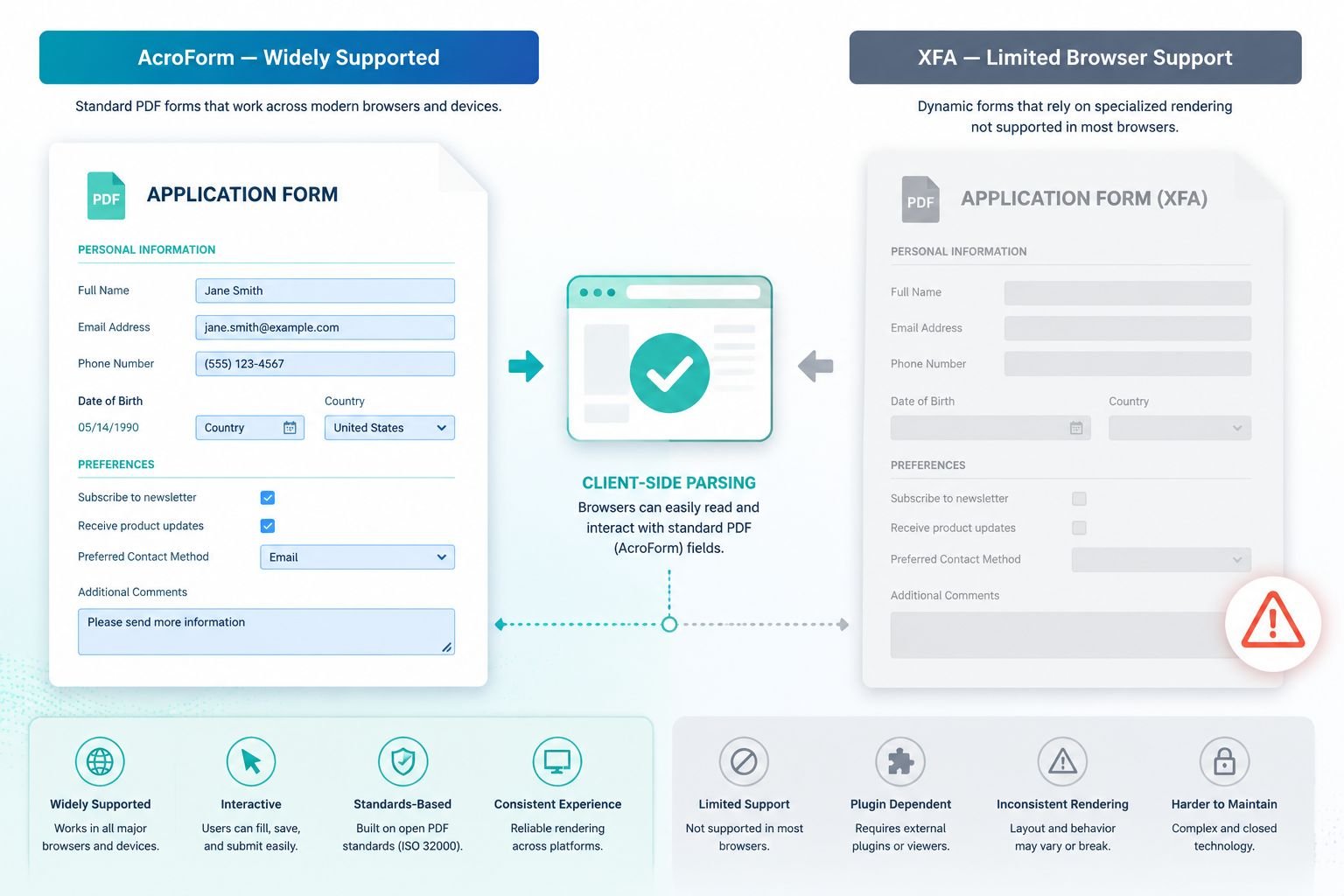
AcroForm — the universal standard
AcroForm is the original PDF form format introduced by Adobe in the late 1990s. It stores fields directly in the PDF structure as widgets — text boxes, checkboxes, radio buttons, dropdowns, and signature fields. Almost every modern viewer (Preview, Chrome, Firefox, Acrobat, our PDF form filler) reads AcroForm natively.
If your IRS form, W-9, or rental application has clickable blue fields when opened in Chrome, it’s an AcroForm. Good news: it will work everywhere.
XFA — the tricky one
XFA (XML Forms Architecture) is a different beast. It wraps the form in XML and was historically used by government agencies — including older USCIS and Canadian tax forms, as well as some EU paperwork. The PDF is essentially a shell around an XML form that requires Adobe Reader to render properly.
The honest limit: most browser-based tools, including ours, can read XFA fields when they’re embedded as a hybrid (AcroForm fallback), but pure XFA-only PDFs may show as blank pages in Chrome or Preview. If you see “Please wait… if this message is not eventually replaced…” you’ve hit a pure XFA form.
Quick fix: open the PDF in Adobe Reader once, use Print → Save as PDF to flatten it to a regular PDF, then bring that flat copy into the form filler and add text boxes manually.
Form-field detection table
PDF TypeBrowser-Based FillerBest ApproachAcroForm (most modern forms)✅ Full supportTab through fields, sign, downloadHybrid AcroForm + XFA✅ Works via fallbackUse detected fields normallyPure XFA (older gov forms)⚠️ LimitedFlatten in Acrobat first, then add textFlat / scanned PDF✅ WorksAdd free-form text boxes manuallyEncrypted/password-protected🔒 Unlock firstRemove password, then fill
If you’re juggling locked files, our guide on how to password protect a PDF online free also covers the reverse — unlocking PDFs you have rights to.
Signing and Flattening for Government Portals
Here’s where people get burned: they fill the form, email it, and the recipient sees blank fields. Or the signature shows up in Acrobat but disappears in Preview. The culprit is almost always flattening — or the lack of it.
What flattening means (in plain English)
A normal filled PDF stores your entries as a separate “annotation layer” floating above the original document. Some viewers render that layer; some don’t. Some portals strip annotations during upload as a security measure.
Flattening merges that annotation layer permanently into the page, like printing the form to a new PDF. After flattening:
✅ Your text and signature are part of the page itself
✅ Every viewer shows them identically
✅ Portals can’t strip them
❌ You can’t edit them anymore (that’s the point)
For most government uploads — IRS e-services, USCIS portals, state DMV submissions — flatten before download should be ON. Our tool defaults to this.
Signature options that actually hold up
A valid e-signature on a fillable PDF generally needs three things: clear intent, a recognizable mark, and a tamper-evident file. The form filler supports:
Typed signatures in a cursive font (fast, fine for HR docs and most contracts)
Drawn signatures with a mouse, trackpad, or finger on mobile (best for personal authenticity)
Uploaded image of a handwritten signature (PNG with transparency works best)
⚠️ Note on legal validity: Typed and drawn e-signatures are accepted under the U.S. ESIGN Act and EU eIDAS for most everyday agreements. For notarized documents, real estate closings, or certain immigration filings, you may still need a wet signature or a qualified digital certificate. Check the recipient’s requirements.
If the finished file ends up too large to email, the PDF compressor can shrink it without obvious quality loss before you hit send.
FAQ: Encrypted PDFs, Signatures, Mobile Use, Validity
Can I fill an encrypted or password-protected PDF?
Not directly. If the PDF requires a password to open, you’ll need to unlock it first using the password you have. Once open, save an unlocked copy and bring that into the form filler. We don’t crack or bypass passwords — that’s by design.
Will my filled PDF work in Acrobat and Preview?
Yes. As long as flatten-before-download is enabled, the values you typed will appear identically in Adobe Acrobat, Apple Preview, Chrome, Firefox, and mobile PDF viewers. If you turn flattening off, some viewers (especially older mobile apps) may not display annotations correctly.
Does this work on phones and tablets?
Absolutely — the tool is mobile-friendly. Draw signatures with your finger, tap fields to type, and download directly to your device. For deeper mobile editing tips, see our guide on how to edit PDFs on mobile free in 2026.
Is my data actually private?
Yes. All form parsing, editing, and signing happens client-side in your browser. Your PDF — including any SSNs, tax IDs, or immigration data — never gets uploaded to a server. When you close the tab, the file is gone from memory. If you want to dig deeper, here’s our breakdown of browser-based vs cloud upload tools.
Are e-signatures legally valid?
For the vast majority of agreements — contracts, HR forms, NDAs, vendor paperwork — yes, under ESIGN (U.S.) and eIDAS (EU). Exceptions include wills, some real estate documents, and notarized filings. Always check the recipient’s specific requirements.
What if the PDF doesn’t have form fields at all?
That’s a “flat” PDF — common with scanned forms. Use the Add Text tool to click anywhere on the page and drop a text box. Resize the font to match. Then sign and flatten as usual. Works the same as a fillable form from the user’s perspective.
Why does my signature look pixelated when I print?
Drawn signatures are vector-based and should print crisp. If you uploaded a low-resolution image, replace it with a 300 DPI PNG. For form prep tips, our print-ready PDF guide on merging covers related output settings.
Common Mistakes to Avoid
Skipping flatten before uploading to a government portal — fields show as blank to the reviewer.
Filling an XFA-only form in the browser and assuming it saved — always reopen the downloaded file to verify.
Using a typed signature for notarized documents — those need wet ink or a qualified digital certificate.
Forgetting required fields — tab through every page, even the last one with the date and initials.
Uploading a 40 MB scanned form by email — compress it first to fit attachment limits.
Related CTH Tools
After filling, you may still need to clean up the file:
📦 Compress PDF — shrink large forms for email or portal limits without obvious quality loss.
🔗 Merge PDF — combine your signed form with attachments (cover letter, ID scan, supporting documents) into one clean file.
🔄 Rotate PDF — fix sideways or upside-down pages before submission so reviewers don’t tilt their heads.
✂️ Split PDF — extract just the signature page if you only need to share one section.
🔐 Password Protect PDF — lock sensitive completed forms before emailing.
Conclusion
Filling a PDF shouldn’t require a $20-a-month subscription or a desktop app that takes ten minutes to launch. With a browser-based PDF form filler, the workflow is: open, tab, sign, flatten, and download. Ninety seconds, no signup, no upload to a server.
The two things to remember: AcroForm PDFs just work — that covers 95% of what you’ll encounter. And flatten before downloading when sending to government portals, so your entries aren’t stripped or rendered invisible.
Ready to skip the print-and-scan loop? Open the Fill PDF Online tool and drop your form in. If you need to combine it with other documents later, the PDF tools hub has everything you need — all browser-based, all privacy-first.