













Last Updated: August 7. 2026
Your job application is due in two hours. You have a resume, a cover letter, and three reference letters — all separate PDFs. The employer’s portal accepts only one file. Sound familiar?
This is one of the most common document headaches in 2026, and the fix takes under a minute. You can combine PDF files directly in your browser — no software to install, no account to create, and no files ever sent to a remote server.
This guide explains exactly how to do it, what to watch out for, and how to handle specific scenarios, such as tax document packets and selective page merging.
Key Takeaways
- Combining PDF files in a browser-based tool means your documents never leave your device — critical for contracts, IDs, and financial records.
- Drag-and-drop reordering lets you set the exact page sequence before merging.
- A per-file page-range selector lets you pull only the pages you need from each source PDF.
- The output PDF retains the bookmarks and metadata from your first source file by default.
- No signup, no watermark, no page limits — just a clean, download-ready result.
How to Merge PDFs Without Uploading Sensitive Documents
Most online PDF tools work the same way under the hood: your files get sent to a server, processed, stored temporarily, then returned as a download link. That process “looks instant,” but your documents can sit on a remote server for minutes or hours before deletion — even if the provider promises cleanup.
For everyday files that’s a minor inconvenience. For contracts, medical records, payslips, or government-issued IDs, that exposure is a real risk.
The better approach: a privacy-first, browser-based tool.
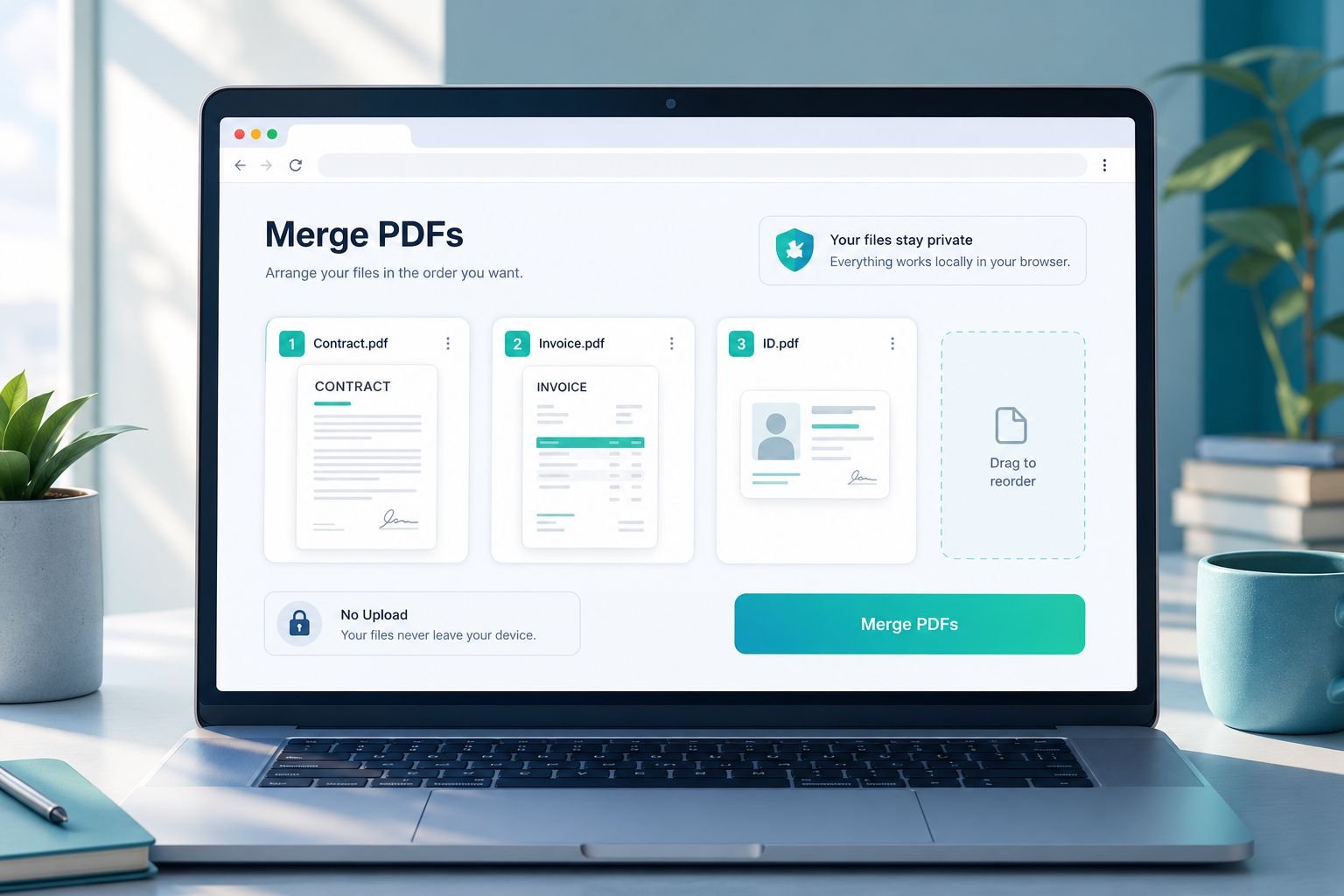
When a tool runs entirely in your browser using client-side JavaScript, your PDFs never leave your device. There is no upload step. No server receives your files. You can verify this yourself by opening your browser’s Network tab (press F12, click “Network”) and watching for outgoing requests while you merge — a genuine no-upload tool sends none.
The Merge PDF Files tool at CoreToolsHub works exactly this way. All processing happens locally in your browser tab.
Step-by-Step: Combine PDF Files in Your Browser
- Open the merge PDF tool in any modern browser — Chrome, Firefox, Edge, or Safari all work.
- Click Add Files or drag your PDFs directly onto the drop zone.
- Thumbnail previews appear for each file. Drag them into the order you want.
- Click Merge PDF.
- Download your combined file. Done.
The entire process runs in your browser tab. No login screen appears. No email is required. No watermark is added to the output.
Works on desktop and mobile. The tool is mobile-friendly, so you can merge documents from your phone just as easily as from a laptop.
Common Mistakes to Avoid
| Mistake | What Happens | Quick Fix |
|---|---|---|
| Adding files in the wrong order | Pages appear out of sequence | Drag thumbnails to reorder before merging |
| Forgetting to check page orientation | Upside-down pages in the output | Fix orientation first using a rotate PDF tool |
| Merging a very large scanned PDF without compressing first | Output file is too large to email | Compress the PDF before or after merging |
| Uploading to a server-side tool when files are sensitive | Files stored on remote servers | Use a browser-based, no-upload tool instead |
Privacy note: All merging happens locally in the browser. Your PDFs are never uploaded, even when combining many large files or working with sensitive documents.
Merge PDFs by Page Range: Pull Only the Pages You Need
Sometimes you do not need an entire PDF — just a few pages from it. A contract might be 40 pages, but you only need pages 1 and 2 for a summary packet. A bank statement might cover three months, but you only need January.
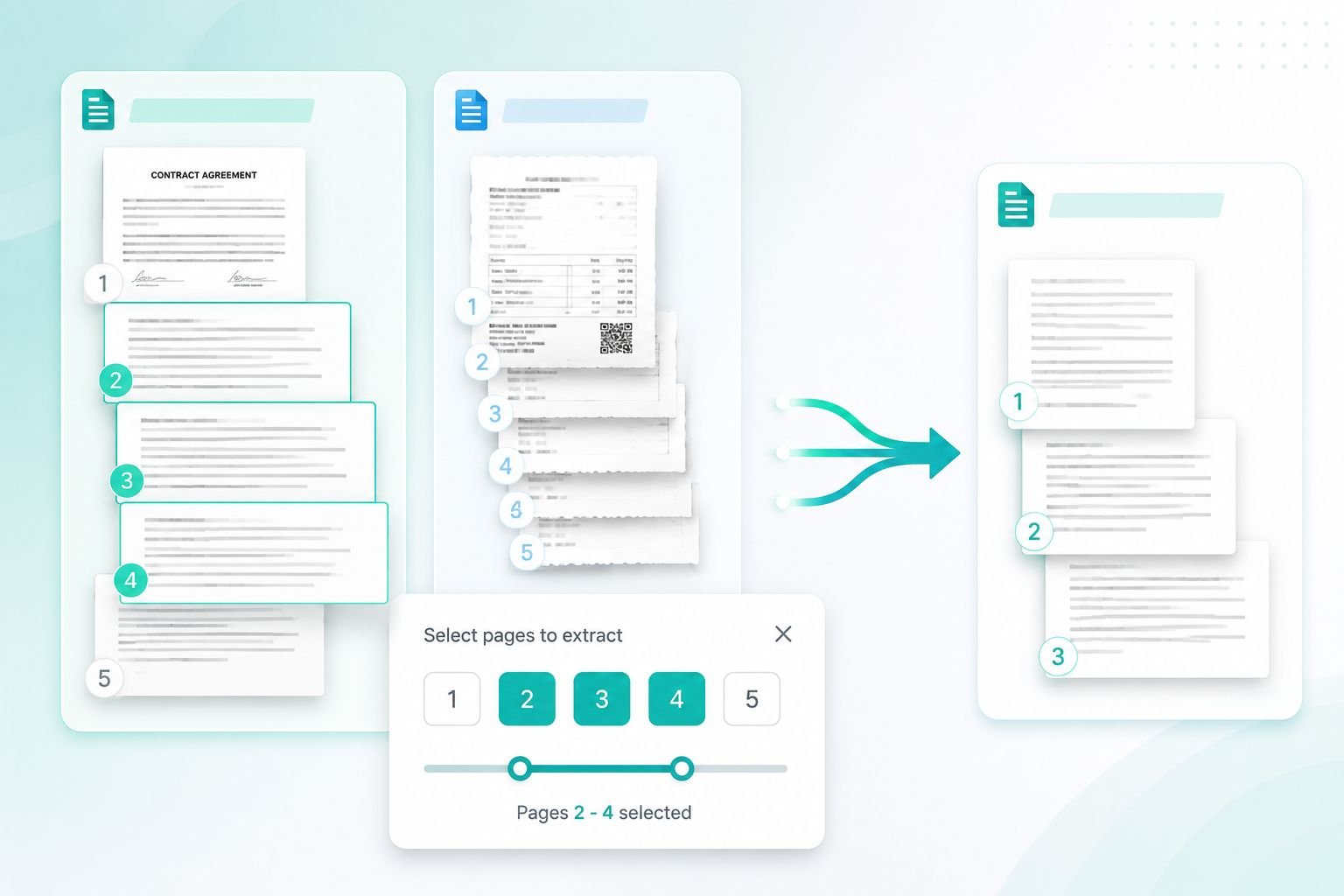
A per-file page-range selector solves this cleanly. Instead of merging whole documents and then trimming the result, you specify which pages to include from each source file before the merge runs.
How Page Range Selection Works
When you add a file to the merge queue, a page-range input appears alongside its thumbnail. Enter the pages you want — for example, 1-3, 7, 12-15 — and only those pages will be pulled into the combined output.
This is especially useful for:
- Job application packets — cover letter (all pages) + resume (all pages) + reference letter (page 1 only)
- Legal document summaries — signature pages only from multi-page contracts
- Financial reporting — specific monthly pages from quarterly statements
- Academic submissions — selected appendices from longer reports
Best Settings for Page Range Merging
| Scenario | Recommended Approach |
|---|---|
| Need all pages from every file | Leave page range blank — defaults to full document |
| Need specific pages from one file | Enter range for that file only; leave others blank |
| Need non-consecutive pages | Use comma separation: 1, 3, 5-8 |
| Need to reverse page order | Reorder thumbnails manually after selection |
If you need to go the other direction — breaking a large PDF into individual pages or sections — the split PDF tool handles that in the same no-upload, browser-based way. For a detailed walkthrough, see the guide on splitting PDF files into separate pages.
Output behavior: The merged PDF retains the bookmarks and metadata from your first source file by default. If the first file has no bookmarks, the output is a clean, untagged PDF ready for sharing or printing.
Combining Scanned Receipts and Invoices Into a Single Tax-Ready File
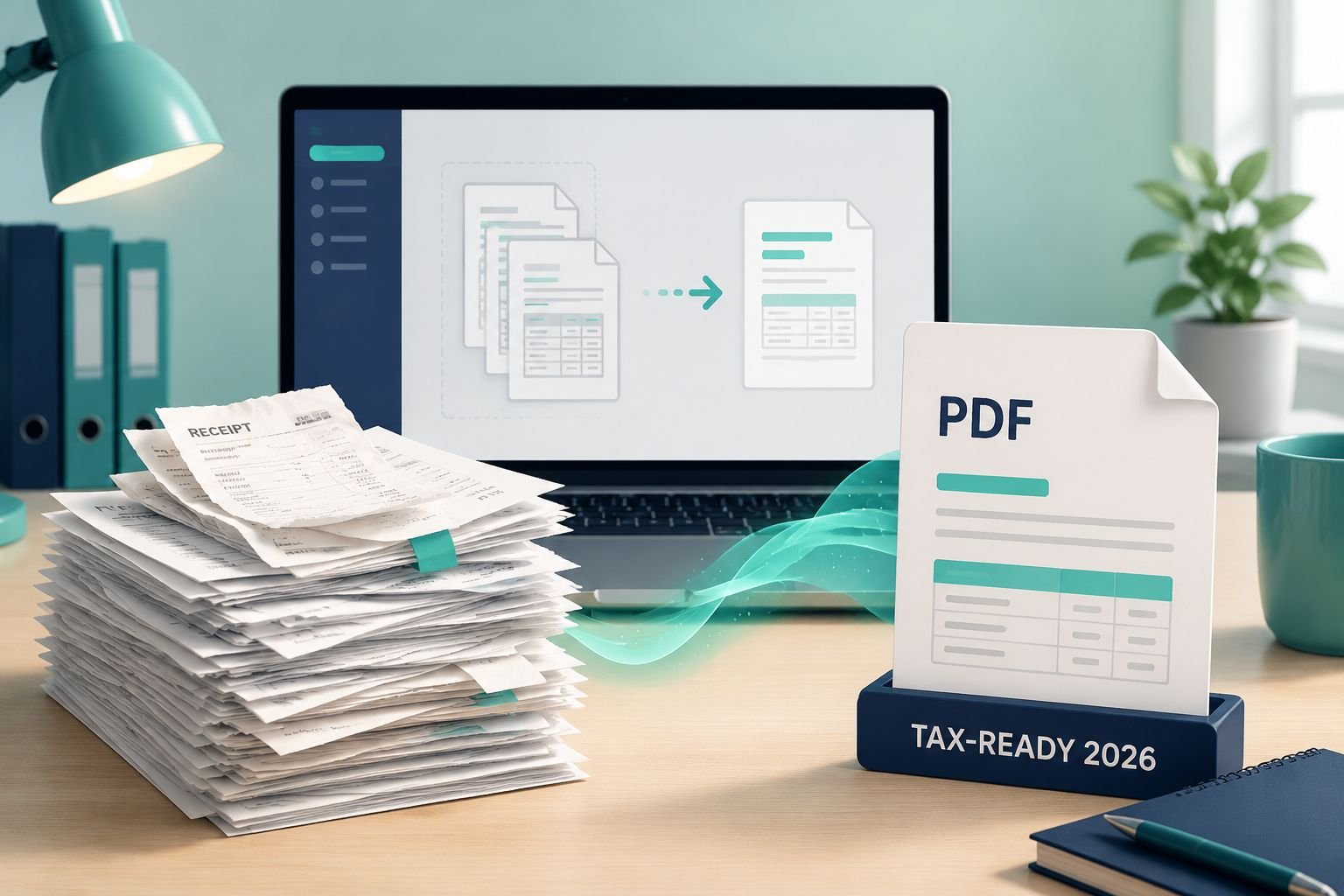
Tax season creates a specific document problem: dozens of scanned receipts, supplier invoices, bank statements, and expense reports — all separate files, often scanned at different times on different devices.
Submitting these as individual attachments to an accountant or uploading them one by one to a tax portal is slow and error-prone. Combining them into a single ordered PDF solves the problem in one step.
Practical Workflow for Accountants and Freelancers
Before you merge:
- Name your files consistently so they sort in a logical order (e.g.,
invoice-2026-01.pdf,invoice-2026-02.pdf). - Check that scanned pages are right-side up. If any are rotated, fix them first — the rotate PDF pages guide shows how to do this quickly.
- If individual scans are large, consider compressing each PDF first. Most email clients cap attachments at 10–25 MB, and a packet of 30 scanned receipts can easily exceed that.
Merge steps:
- Open the merge PDF tool.
- Add all receipt and invoice PDFs at once.
- Drag thumbnails into date or category order.
- Use page-range selectors to exclude blank or duplicate pages from any scanned file.
- Click Merge PDF and download the combined file.
The result is a single, ordered, download-ready document your accountant can open and navigate without hunting through a folder of files.
File size tip: If the merged output is still too large to email, run it through the PDF compressor to reduce size without obvious quality loss. For a detailed approach, see the guide on compressing PDFs for email.
What About Scanned Images That Are Not PDFs?
If some of your receipts were photographed as JPG or PNG images rather than scanned as PDFs, convert them first. The JPG to PDF converter and PNG to PDF converter both run in-browser with no upload required, producing clean PDF pages you can then merge with your other documents.
Merge PDF vs Combine PDF — Are They the Same Thing?
Short answer: yes, in everyday use these terms mean exactly the same thing.
Merge PDF and combine PDF both describe joining two or more PDF files into one. The terms are used interchangeably by users, search engines, and most tool providers. You will also see “join PDF,” “append PDF,” and “concatenate PDF” used to describe the same action.
There is one minor technical distinction worth knowing:
| Term | What It Usually Means |
|---|---|
| Merge / Combine | Join multiple PDFs into one new file |
| Append | Add pages to the end of an existing PDF |
| Insert | Add pages at a specific position within a PDF |
| Split | Divide one PDF into multiple separate files |
For most practical tasks — job applications, invoice packets, scanned document bundles — merge and combine are identical operations. Pick whichever term you prefer; the tool works the same either way.
The PDF editor software market is growing rapidly, with web-based tools and free-tier offerings identified as key drivers of adoption. Combine and merge features are consistently among the most-used free functions, which is why so many providers offer them at no cost. The practical benefit for users: there are now genuinely good, privacy-respecting, no-signup options available — you do not need to pay or register to get clean results.
Frequently Asked Questions
Is it safe to combine PDF files in a browser-based tool? Yes — when the tool processes files locally using client-side JavaScript, your PDFs never leave your device. No server receives or stores them. You can confirm this by watching the browser Network tab during the merge; a genuine no-upload tool shows no outgoing file transfers.
Can I combine PDF files on a phone or tablet? Yes. The CoreToolsHub merge tool is mobile-friendly and works in any modern mobile browser. The drag-and-drop interface adapts to touch screens, so you can reorder file thumbnails with your finger.
Does the merged PDF have a watermark? No. The tool adds no watermarks to the output. The combined file is clean and ready to submit, print, or share.
What happens to the bookmarks and metadata from my original files? The output PDF retains the bookmarks and metadata from the first source file by default. If the first file has no bookmarks, the merged output is a clean, untagged PDF.
Is there a page limit or file size limit? There are no artificial page limits. For very large files, browser memory is the practical constraint — most modern laptops and phones handle typical document packets without issue. If a combined file is too large to email, compress it afterward using the PDF compressor.
Can I merge a PDF with images like JPG or PNG? Convert the images to PDF first using the JPG to PDF or PNG to PDF tools, then merge all PDFs together. Both conversion tools also run entirely in-browser with no upload required.
Conclusion
Combining PDF files does not have to mean uploading sensitive documents to an unknown server and hoping they get deleted on schedule. A browser-based tool gives you the same clean, ordered output — with the added certainty that your files never left your device.
The practical steps are straightforward: add your files, drag thumbnails into order, set page ranges if you only need specific pages, and download the merged result. No account. No watermark. No waiting.
Ready to get started? Use the Merge PDF Files tool at CoreToolsHub — it runs entirely in your browser, handles multiple files at once, and delivers a clean, download-ready PDF in seconds.
If your merged file needs further work, the PDF compressor can reduce its size for email, and the split PDF tool can break it back apart if needed — all with the same privacy-first, no-upload approach.