













Last Updated: August 12. 2026
A real estate agent finishes a 12-page listing flyer in PDF, then realizes Instagram only accepts images. A teacher needs page 7 of a coursework PDF as a slide background. A marketer wants thumbnails of a quarterly report for a newsletter preview. All three hit the same wall: most converters force a signup, slap a watermark on the output, or export only one page at a time.
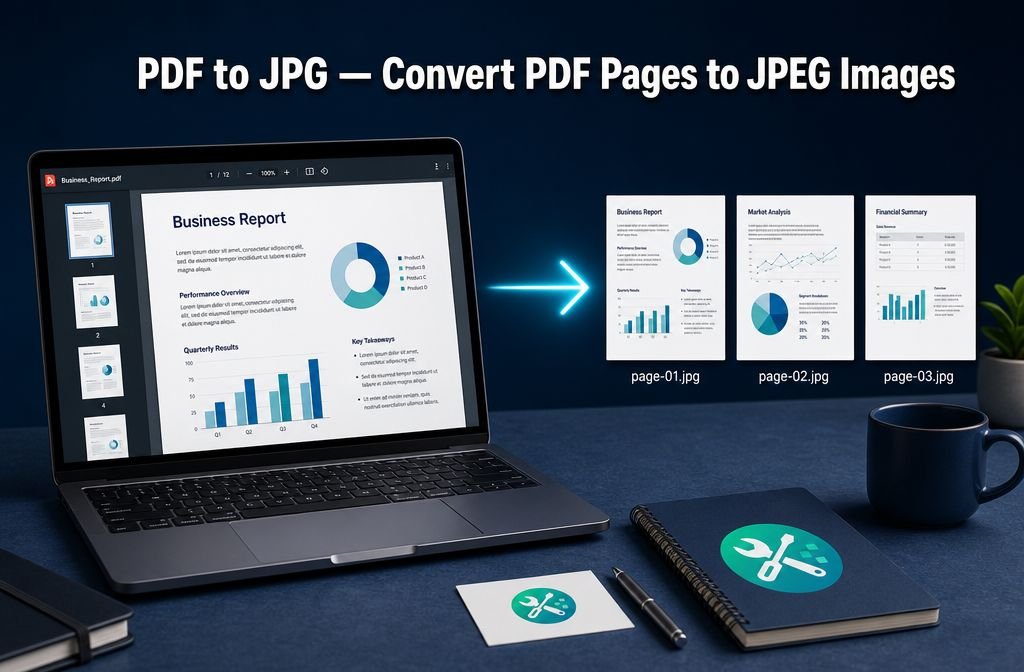
The fastest fix is a browser-based PDF to JPG converter that turns every page into a numbered JPEG in seconds, lets you pick a quality preset, and downloads the whole set as a ZIP. No install. No account. No upload to a server.
This guide walks through the three-click workflow, explains when to use high, medium, versus low quality, and answers the tricky questions about passwords, scanned PDFs, and large files.
Key Takeaways
- A privacy-first PDF to JPG converter renders pages locally in your browser using PDF.js and the canvas API, so your file never leaves your device.
- Quality presets map to JPEG values 95 (high), 80 (medium), and 60 (low) — pick based on whether the output is for print, web, or quick previews.
- Each page exports as a numbered file (page-01.jpg, page-02.jpg, etc.) and downloads together as a ZIP for batch use.
- A page range option lets you export just one page or a small section instead of the whole document.
- For scanned PDFs without text layers, the converter still works — it captures the page exactly as it appears.
How to convert PDF to JPG in three clicks
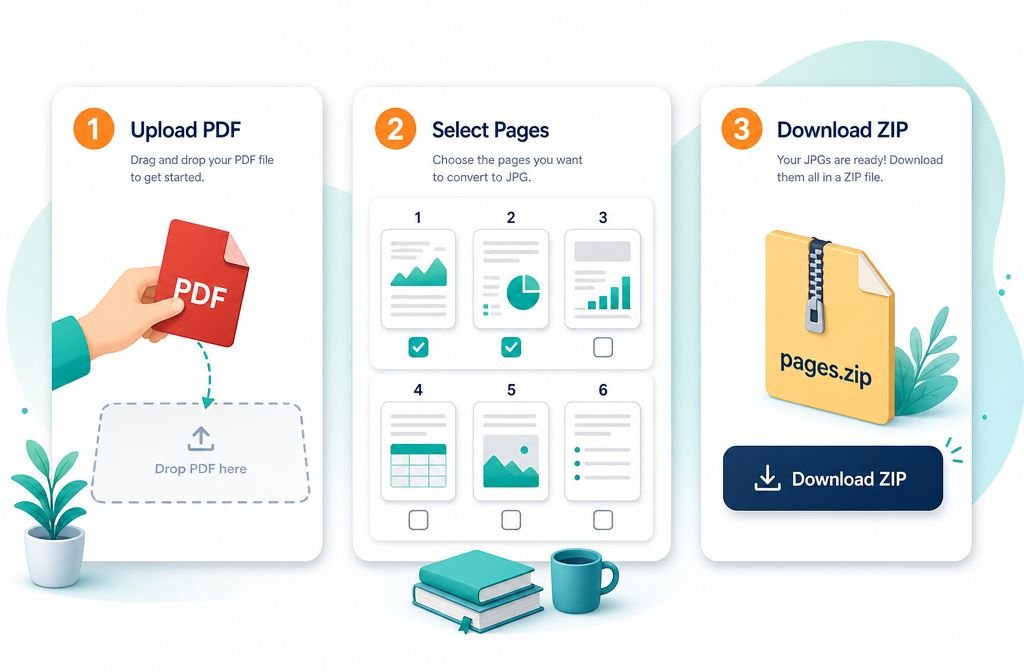
The whole flow is built around speed. Open the PDF to JPG tool, drop your file, and pick your settings. Here is the full sequence.
Step 1: Upload the PDF
Drag the file onto the upload area or click to browse. The file stays on your device — nothing uploads to a server. Right after the file loads, a thumbnail strip appears showing every detected page. Use it to confirm the right document loaded and check the page count before exporting.
Step 2: Choose quality and page range
Pick a quality preset (high, medium, or low) and decide whether to export all pages or a specific range like 3-5 or 1,4,7. The default is set to all pages so casual users can skip this step entirely.
Step 3: Click Convert and download the ZIP
The tool renders each page to a canvas, encodes it as JPEG, and bundles the results into a single ZIP archive. Files are named page-01.jpg, page-02.jpg, and so on, with leading zeros so they sort correctly in any folder.
Outcome first: a 20-page PDF becomes 20 numbered JPEGs in a single ZIP, usually in under ten seconds on a modern laptop.
That is the entire workflow. No email confirmation, no free trial timer, no watermark on the output.
PDF to JPG quality presets — when to use each
JPEG is a lossy format, which means every save discards some image data to reduce file size. The quality preset controls how aggressive the compression is. Higher quality keeps more detail but produces larger files.
Here is how the three presets compare for a typical letter-size PDF page.
| Preset | JPEG Quality | Typical Size (per page) | Best For |
|---|---|---|---|
| High | 95 | 1.5 – 3 MB | Print, archives, detailed charts, photos |
| Medium | 80 | 400 – 900 KB | Web embedding, slide decks, email attachments |
| Low | 60 | 150 – 350 KB | Thumbnails, previews, social media tiles |
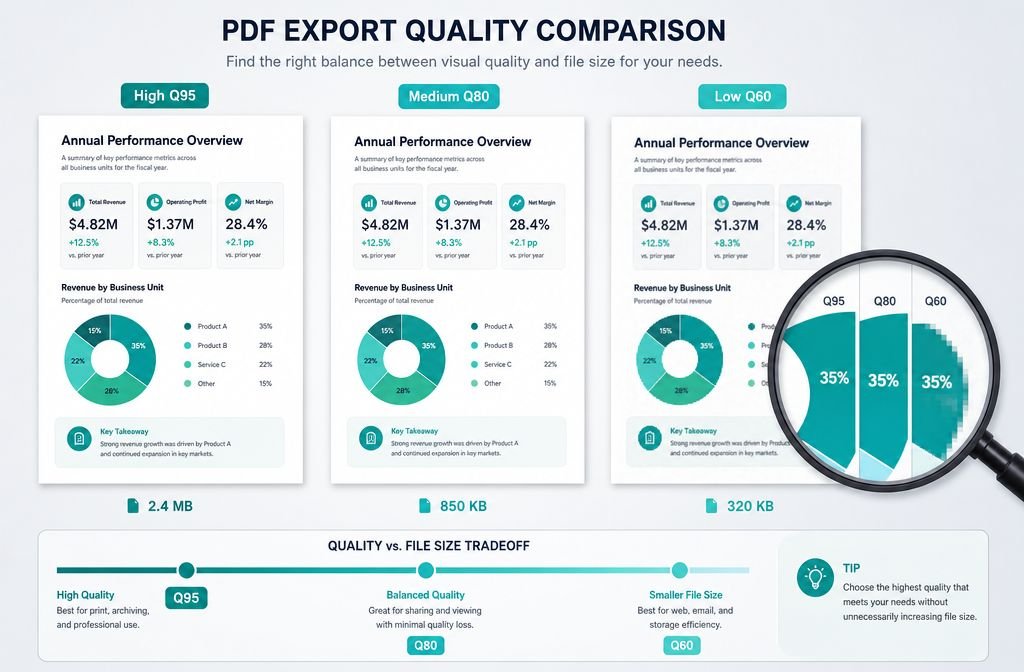
When to pick High (95): A real-estate flyer headed to a print shop, a research figure going into a published report, or any page where small text and fine lines must stay crisp. High quality is also the safer choice when you do not yet know the final use.
When to pick Medium (80): This is the sweet spot for most users. It compresses without obvious quality loss for screen viewing and keeps each page small enough to email or drop into a Google Slides deck without slowing things down.
When to pick Low (60): Thumbnail strips, preview tiles on a website, or any case where the image just needs to suggest the content. Low quality shows visible compression artifacts on text edges, so do not use it for anything that needs to be readable at full size.
If the final JPEGs still feel too large, run them through an image compressor for a second pass. For PDFs that need to stay as PDFs but shrink in size, the PDF compressor is the right tool instead.
Export single pages vs export the entire document
The page range option is the feature most converters either bury or charge for. Here is when each mode makes sense.
Export the entire document (default)
This is what most users want. A marketer turning a 30-page annual report into shareable images, a teacher converting a worksheet packet into slide backgrounds, or anyone building a complete visual archive of a PDF. Leave the page range on “all” and click convert.
Export a single page
Type a single number like 7 in the page range field. Useful when only one figure, chart, or page matters — for example, pulling page 4 of a research paper to embed in a blog post.
Export a custom range
Use formats like 3-5 for a section or 1,4,7 for specific non-sequential pages. Real estate agents often grab just the hero photo page and the floor plan. Students extracting figures from coursework can pull pages 12, 18, and 24 without touching the rest.
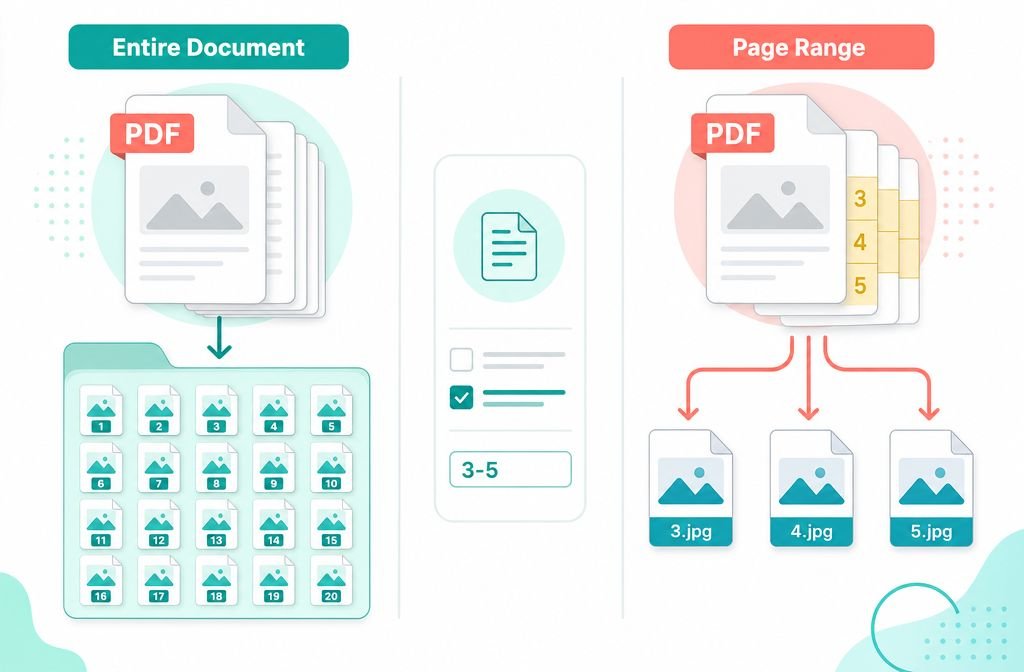
Page range works for any PDF size. A 500-page book exported page by page is still manageable because each JPEG renders independently and the ZIP packs them in order. For PDFs where the goal is to permanently break the file into smaller PDFs rather than images, use the split PDF tool instead.
Why CTH does not upload your PDF (client-side rendering explained)
Most online converters work by uploading the file to a server, running the conversion there, then sending the result back. That model has three problems: it is slower, it requires trusting the operator with the file contents, and it often breaks for large documents due to upload size limits.
A browser-based converter skips all of that. Here is how it works in plain terms.
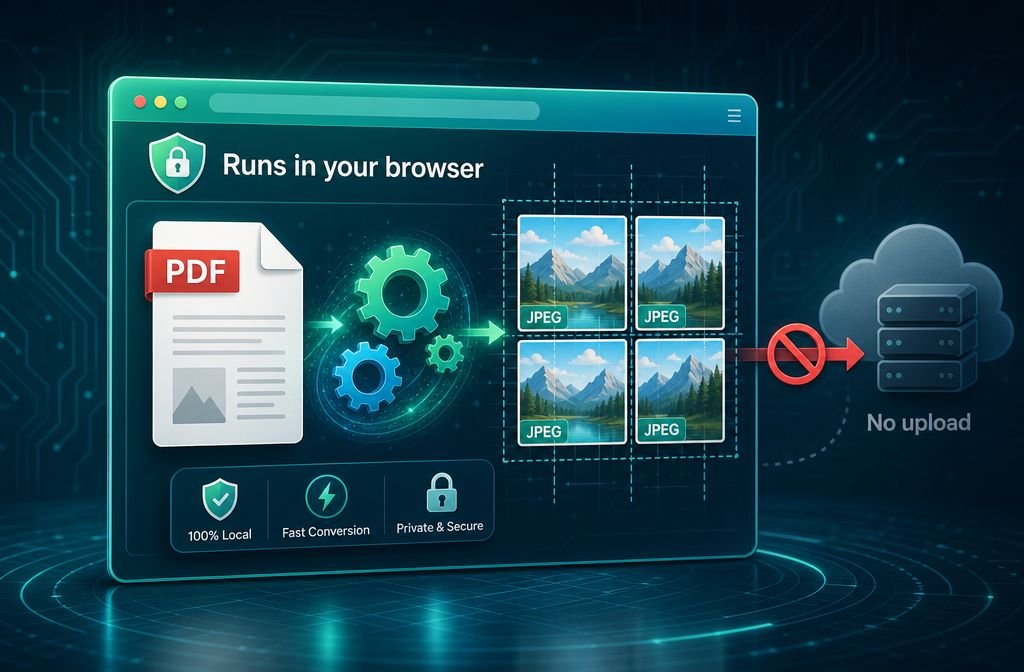
The browser does the work, not a server.
When the PDF loads, a JavaScript library called PDF.js parses the file directly in the browser tab. PDF.js was originally built by Mozilla and is the same engine Firefox uses to display PDFs natively. Each page gets rendered onto an HTML canvas element — essentially a blank rectangle the browser can draw on.
Canvas to JPEG happens locally.
Once a page is drawn on the canvas, the browser’s built-in toDataURL('image/jpeg', quality) function encodes it as a JPEG at the chosen quality level. The output stays in browser memory until you click download.
The ZIP is built in your tab.
A small library like JSZip bundles the individual JPEGs into a single archive, again entirely in the browser. The download is just the browser saving a file it already built locally.
The result: your PDF never touches an external server. No upload bandwidth used, no file lingering in a cloud cache, no privacy policy to read. This is the same approach used across Core Tools Hub, and it is documented in detail in the comparison of browser-based versus cloud upload tools.
Practical limits to know:
- Very large PDFs (200+ pages or 100+ MB) may slow down older laptops because rendering happens in RAM.
- Mobile browsers handle short PDFs well but can struggle past 50 pages — split the file first if needed.
- Password-protected PDFs need to be unlocked before conversion, since PDF.js will refuse to render encrypted content without the key.
PDF to JPG vs PDF to PNG — which format should you pick?
JPEG is not always the right answer. Both formats have clear strengths, and picking the wrong one means either bloated file sizes or fuzzy text.
| Feature | JPEG | PNG |
|---|---|---|
| Compression | Lossy (smaller files) | Lossless (larger files) |
| Best for | Photos, scanned pages, color-rich layouts | Text, charts, logos, screenshots |
| Transparency | No | Yes |
| Typical file size (1 page) | 400 KB – 2 MB | 1 – 5 MB |
| Sharpness on text edges | Slight blur from compression | Pixel-perfect |
Pick JPEG when:
- The PDF contains photos, flyers, or color illustrations.
- File size matters (email attachments, web embedding, social uploads).
- You need to share a lot of pages quickly.
Pick PNG when:
- The PDF is mostly text or contains sharp diagrams.
- You need transparent backgrounds (rare for PDFs, but possible).
- Print quality on small text matters more than file size.
If a page has already been output as PNG and needs to be shrunk, convert it with the PNG to JPG tool. Going the other way, JPG to PNG handles the upgrade. For a deeper look at format tradeoffs, the AVIF versus WebP versus JPEG breakdown covers next-gen options too.
For most everyday tasks — slides, social, email previews, listing flyers — JPEG at medium quality wins. PNG is the right call only when text crispness or transparency is non-negotiable.
Common mistakes to avoid
A few simple errors trip up most first-time users. Watch for these.
- Picking low quality for print. Print shops need 300 DPI or higher. Low-quality JPEGs look blurry on paper even when they look fine on screen.
- Forgetting to set a page range on huge PDFs. Exporting 400 pages when you only need page 12 wastes time and storage.
- Trying to convert a password-protected PDF without unlocking it first. Remove the password (or know it) before uploading.
- Confusing pdf to jpg with pdf to word. If the goal is editing text, use the PDF to Word converter instead — JPEG output is an image, not editable text.
- Expecting OCR. Converting a scanned PDF to JPEG gives you a picture of the scan, not searchable text. For searchable output, use a scanned PDF to searchable PDF tool first.
FAQ
Can the converter handle password-protected PDFs?
The PDF must be unlocked before conversion. Browser-based tools cannot render encrypted PDF content without the password. If you have the password, open the PDF in a viewer, save an unlocked copy, then convert. For locking files back up afterward, the password protect PDF tool works in-browser too.
What is the maximum file size?
There is no hard server limit because nothing uploads. Practical limits depend on your device’s RAM. A modern laptop handles 200 MB PDFs without issue. Mobile devices and older laptops may slow down past 50 MB. If a file is too big, use the PDF splitter to break it into smaller chunks first.
Does it work on scanned PDFs?
Yes. Scanned PDFs are essentially images wrapped in a PDF container, and the converter renders each page exactly as it appears. The output JPEG will look identical to the scan. Note that without an OCR step, the result is a picture — the text inside is not selectable or searchable.
Can I download all pages as a single ZIP?
Yes. After conversion, every JPEG is bundled into one ZIP archive with files named page-01.jpg, page-02.jpg, and so on. Leading zeros keep them sorted correctly in any file browser.
Will the converter work on mobile?
Yes, on modern mobile browsers like Chrome, Safari, and Firefox. Short PDFs (under 50 pages) work smoothly. For longer documents on phones, split the PDF first or use a desktop browser for better performance.
Does converting strip metadata?
JPEG output contains only the rendered visual content, not the PDF’s original metadata (author, creation date, document title). If preserving or removing image metadata matters for a separate workflow, the image EXIF remover handles JPEG metadata stripping.
Conclusion
Converting PDF pages to JPEG images should take seconds, not signups. A privacy-first browser-based converter renders every page locally, lets you pick quality and page range, and packages the result as a clean ZIP — all without your file ever leaving the tab.
Next steps:
- Open the PDF to JPG converter and drop in a test PDF.
- Check the thumbnail strip to confirm the right pages loaded.
- Pick medium quality (Q80) for general use, or high (Q95) for print.
- Set a page range if you only need part of the document.
- Click Convert and download the ZIP.
For related workflows, browse the full set of online PDF tools or jump straight to extracting specific pages when you only need a slice of the file.