













Last updated: July 15, 2026
Quick Answer: You can fill and sign PDF forms online free using a browser-based PDF editor — no printing, no scanning, no software installation, and no account required. Open the PDF in a compatible online tool, type into form fields, add your signature by drawing or typing it, then download the finished file. The whole process takes under two minutes for most forms.
Key Takeaways
- Browser-based PDF editors let you fill and sign PDF forms online free without uploading files to a server, keeping your data private.
- You can add a typed, drawn, or image-based signature — all are legally valid for most everyday documents.
- Common use cases include job application forms, rental agreements, school permission slips, and freelance contracts.
- No signup, no watermarks, and no Adobe subscription required when you use a client-side (in-browser) tool.
- After signing, compress the PDF before uploading to portals with file size limits.
- “Wet signatures” (ink on paper) are still required for a small set of legal documents — this guide covers when digital is enough.
- Mobile users can complete the same workflow on a phone or tablet without installing an app.
Why You Should Stop Printing PDF Forms in 2026
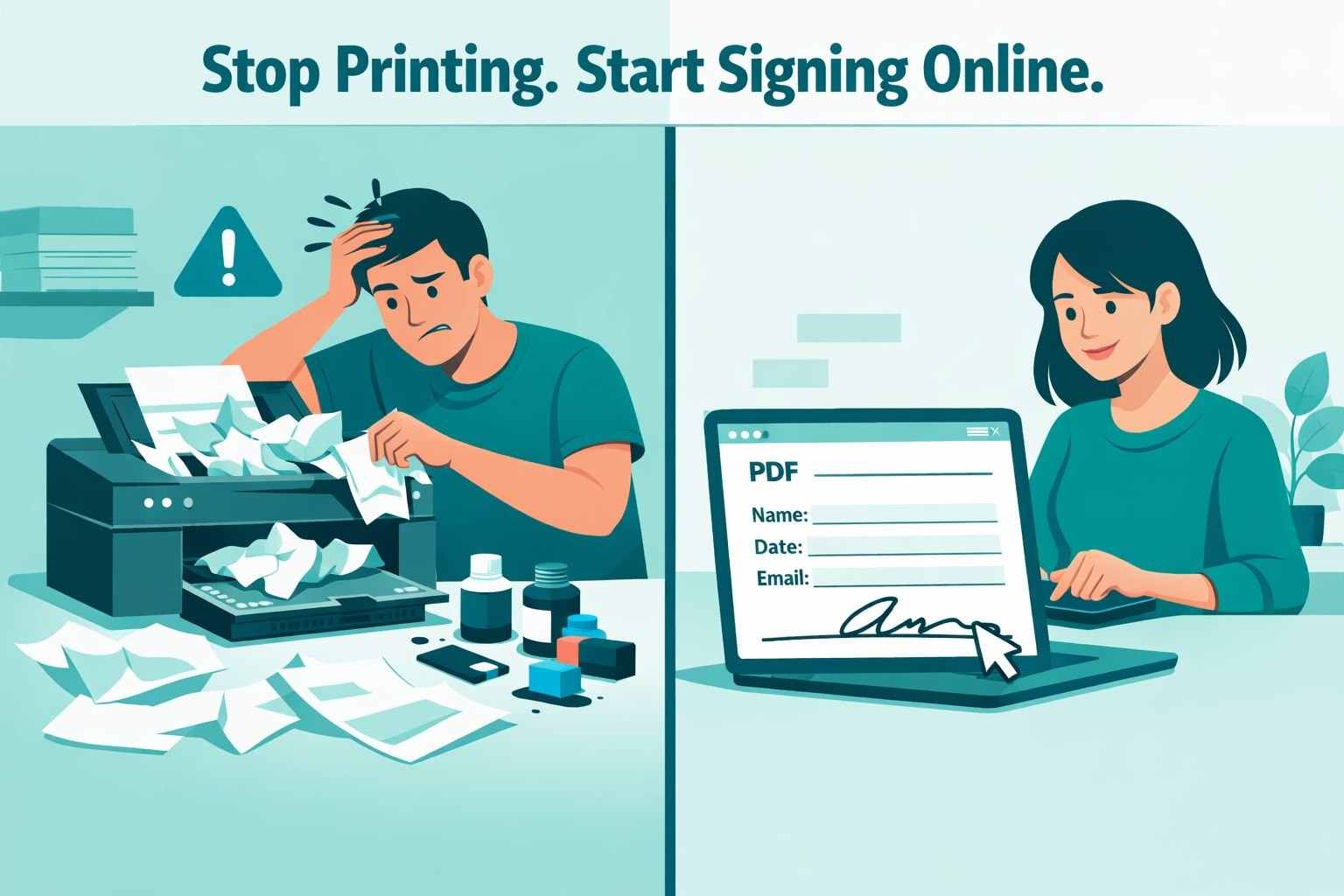
Most people who print a PDF to sign it don’t realize they’re adding 10 minutes of friction to a 30-second task. Printing, signing by hand, scanning, and emailing a document back is a four-step process that requires a working printer, ink, and a scanner or phone camera. A browser-based PDF editor collapses all four steps into one.
The habit of printing forms is largely a legacy behavior. When PDF forms first became common, editing them digitally required desktop software like Adobe Acrobat. That’s no longer true. Today, several tools — including CoreToolsHub’s online PDF editor — handle text entry, checkboxes, and signatures entirely inside your browser, with no file ever leaving your device.
Who this matters most for:
- Job seekers filling out offer letters, tax forms (W-4, I-9), and background check authorizations.
- Parents signing school permission slips, medical consent forms, and enrollment documents.
- Freelancers executing NDAs, project contracts, and client onboarding paperwork.
- Renters completing lease agreements and move-in inspection forms.
The electronic signature market in North America is growing at a projected 11.3% CAGR through 2033, driven by exactly this kind of everyday adoption — not just enterprise contracts, but the ordinary paperwork that used to require a trip to the printer.
How to Fill and Sign PDF Forms Online Free (Step-by-Step)
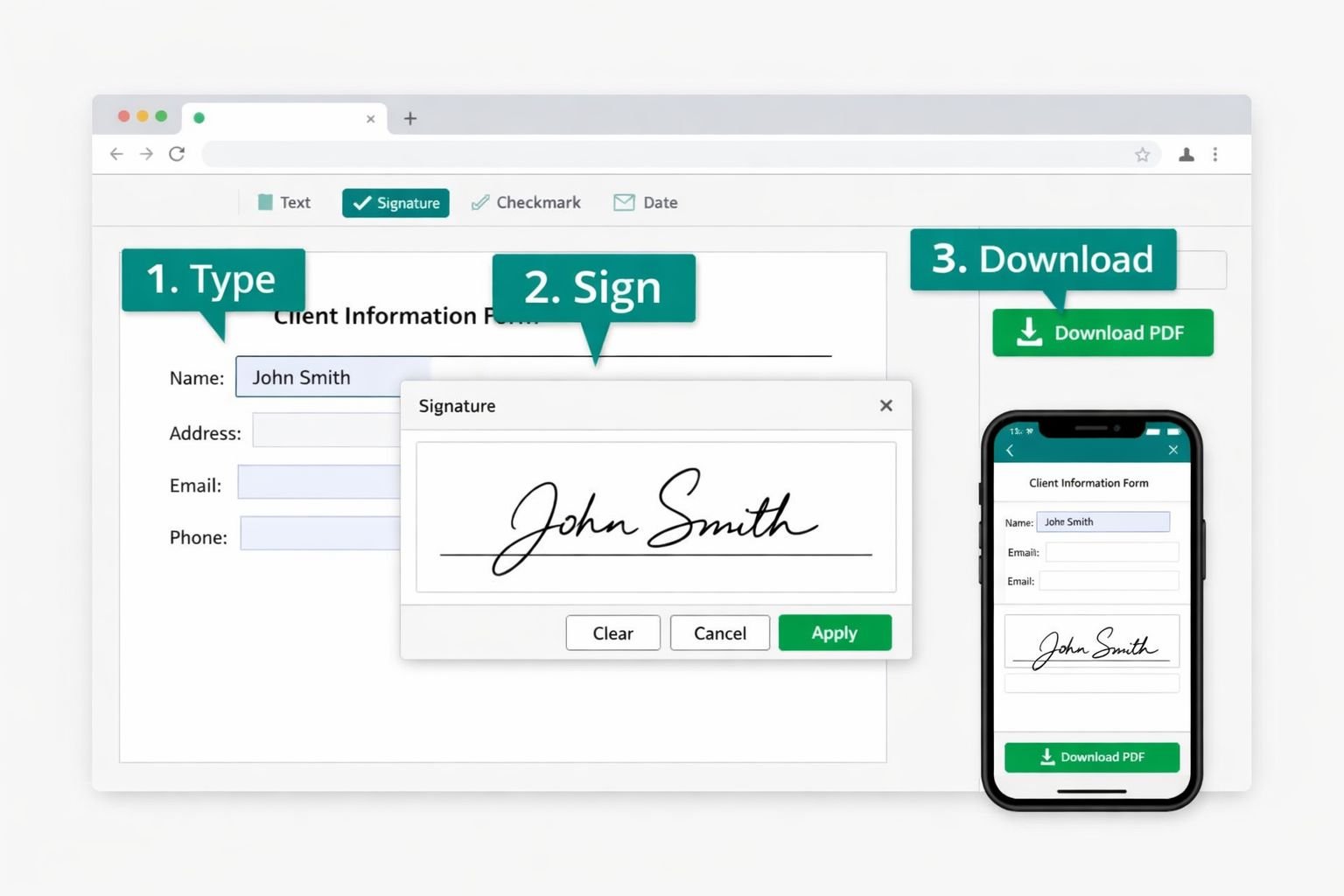
Open a browser-based PDF editor, load your file, fill the fields, add your signature, and download. No account, no install, no watermark. Here’s the exact workflow.
Step 1 — Open the PDF editor
Go to CoreToolsHub’s PDF tools and select the PDF Editor. The tool runs in your browser — no signup required, no install needed.
Step 2 — Upload or drag in your PDF
Click the upload area or drag your PDF file directly onto the page. For privacy-sensitive documents (contracts, tax forms, medical paperwork), choose a tool that processes files locally in the browser rather than uploading them to a server. CoreToolsHub’s editor is a client-side tool, meaning your file never leaves your device.
Step 3 — Fill in the form fields
Click any text field and start typing. For flat PDFs (scanned documents without interactive fields), use the text tool to place a text box over the correct area. Adjust font size to match the surrounding text — 10pt or 11pt covers most printed forms.
For checkboxes: Use the checkbox or symbol tool to place a checkmark. Don’t use an “X” unless the form specifically asks for it; a checkmark is easier to read when scanned or printed later.
Step 4 — Add your signature
Most browser-based editors offer three signature methods:
| Method | Best for | Notes |
|---|---|---|
| Type | Speed, consistency | Choose a script-style font to look handwritten |
| Draw | Personal feel, touchscreens | Use a mouse or stylus; practice once before the real thing |
| Upload image | Reusing an existing signature | Scan or photograph your signature on white paper, then upload as PNG |
Draw or type your signature once, then save it for reuse. Most tools let you place the saved signature on any subsequent document without redrawing.
Step 5 — Add the date and any initials
Many forms require a date next to the signature. Use the text tool to add it in the same format the form uses (MM/DD/YYYY vs. DD/MM/YYYY). If the form has multiple pages requiring initials, place them consistently in the same position on each page.
Step 6 — Download the completed PDF
Click Download. The file saves directly to your device. The output is a standard PDF — no watermarks, no added branding.
Quick tip for mobile users: The same workflow applies on phones and tablets. For a full walkthrough, see the guide on editing PDFs on mobile free in 2026.
Setting Up a Reusable Digital Signature for Everyday Documents
A reusable signature saves you from redrawing or retyping your name every time. Most browser-based PDF editors let you save a signature image during your first session and reuse it across documents.
The cleanest method: draw your signature on white paper with a black pen, photograph it in good light, and remove the background using any free image editor. Save it as a PNG with a transparent background. When you upload this to a PDF editor’s signature tool, it sits cleanly over any document without a white box behind it.
Typed vs. drawn signatures — which is more “official”?
Both are legally valid for the vast majority of everyday documents under laws like the U.S. ESIGN Act and UETA. The key requirement is that the signature is attached to the document and the signer intended to sign. A typed name in a script font satisfies this. For documents requiring a higher standard of verification (court filings, notarized documents, certain real estate transactions), a dedicated e-signature platform with an audit trail is a better fit.
Secure Workflows for Contracts, Rental Agreements, and School Forms
The right workflow depends on the document’s sensitivity and who receives it. Here’s how to handle the most common scenarios.
Employment contracts and offer letters
Fill in your name, address, start date, and any negotiated terms. Sign on the designated line. Before sending, check whether the employer’s HR system accepts PDF email attachments or requires upload to a portal (Workday, Greenhouse, etc.). If the portal has a file size limit, compress the PDF before uploading — most signed single-page contracts compress to under 200 KB without any visible quality loss.
Rental agreements
Lease agreements are often multi-page. Fill every required field, initial each page where indicated, and sign the final page. If the landlord needs to countersign, save the filled PDF and send it — they can add their signature using the same type of tool. For a guide on combining multiple documents (lease + addenda + move-in checklist) into one file, see the article on merging PDFs online.
School permission slips and medical consent forms
These are typically one-page flat PDFs. Use the text tool for name/date fields and the signature tool for the parent signature line. Schools rarely require verified e-signatures for routine forms — a typed or drawn signature is sufficient.
Freelance NDAs and project contracts
NDAs often have blank fields for party names, effective dates, and jurisdiction. Fill these carefully — a missed field can create ambiguity. After signing, both parties should retain a copy. Save the signed PDF to a named folder (e.g., “ClientName_NDA_2026-07”) so it’s easy to locate later.
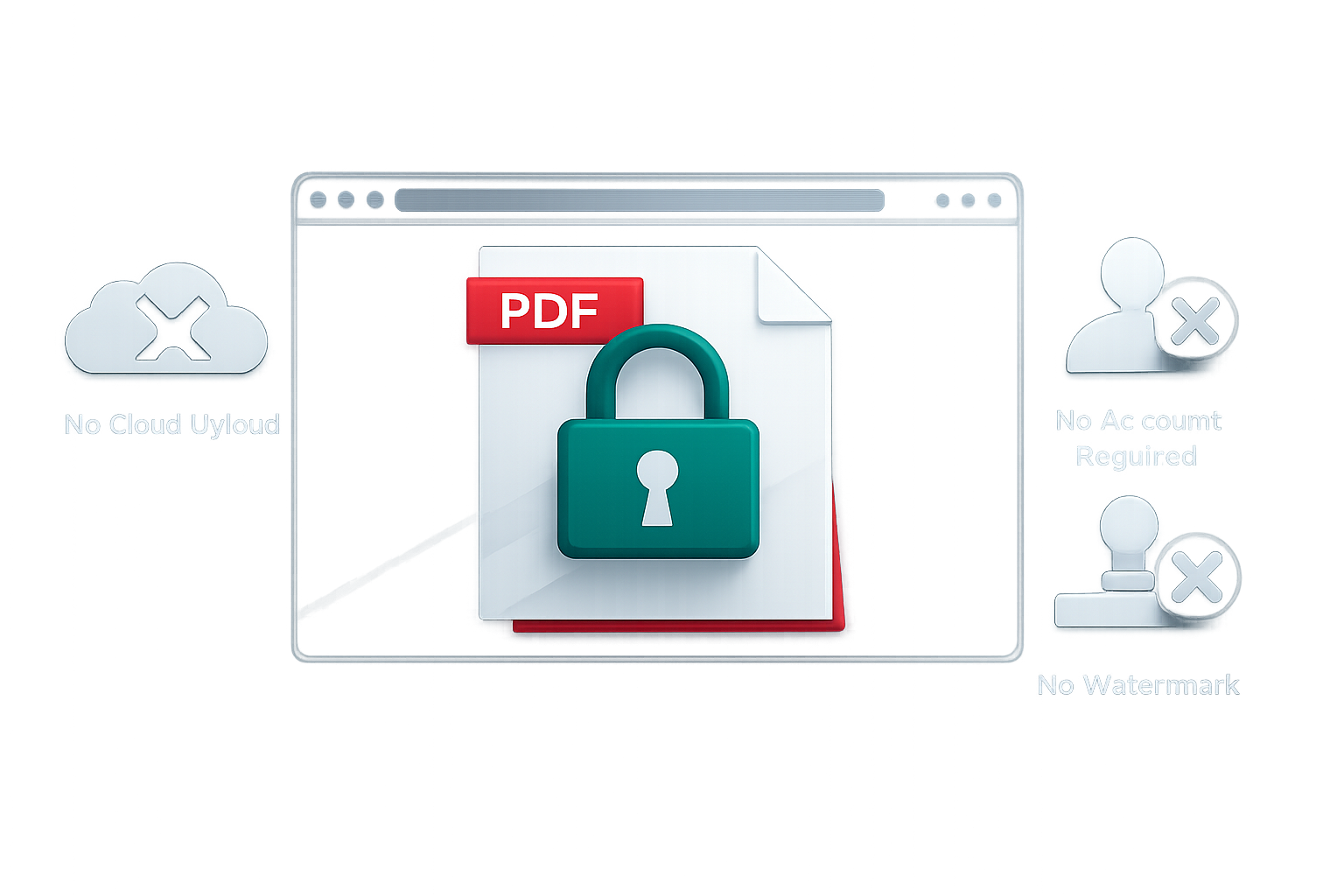
Privacy note: For any document containing personal identification numbers, financial details, or medical information, use a tool that processes files locally. A client-side browser tool never sends your file to a server, so there’s no risk of the document being stored, indexed, or accessed by a third party. This is what “privacy-first” means in practice — not a marketing claim, but a technical architecture choice.
For more on how browser-based tools handle files differently from cloud upload tools, the comparison of browser-based vs. cloud upload file tools explains the difference clearly.
Combining Multiple Forms and Keeping File Sizes Small
When you need to submit several signed documents together, merge them into one PDF and compress before sending. This is a common requirement for job applications (cover letter + resume + signed authorization), rental applications (application + ID copy + signed lease), and school enrollment packets.
Workflow:
- Fill and sign each PDF separately.
- Use CoreToolsHub’s merge PDF tool to combine them into one file, in the correct order.
- Run the merged PDF through the PDF compressor to reduce file size.
- Check the output — a typical 5-page signed form bundle should compress to under 1 MB, which fits within most email attachment limits (usually 10–25 MB) and portal upload limits.
Best settings for compression after signing:
| Scenario | Target file size | Compression level |
|---|---|---|
| Email attachment | Under 5 MB | Medium |
| Portal upload (HR, school) | Under 2 MB | Medium–High |
| Personal archive | Keep original | None |
For a deeper look at compression options, the guide on compressing PDFs without losing quality covers the tradeoffs between file size and readability.
Common Mistakes When Signing PDFs (And How to Avoid Them)
Most errors when filling and signing PDFs online come from rushing or using the wrong tool for the job. Here are the ones that cause the most problems.
❌ Signing a flat PDF without checking for interactive fields first Some PDFs have built-in form fields that accept typed input directly. If you use the text overlay tool on top of an interactive field, you may end up with double text or misaligned entries. Always click a field first to see if it’s interactive before placing a text box over it.
❌ Saving over the original blank form
Keep the original blank PDF. Save your filled version with a new filename (e.g., Form_Filled_YourName.pdf). This way, if you make an error or need to resubmit, you still have the clean original.
❌ Using a tool that adds a watermark Several free online PDF tools add a watermark to the downloaded file unless you pay or create an account. Check the tool’s terms before starting. CoreToolsHub’s PDF editor produces clean output with no watermarks.
❌ Submitting without reviewing Scroll through every page before downloading. Check that all required fields are filled, dates are correct, and your signature appears on every required line.
❌ Ignoring file format requirements Some portals only accept PDF/A (an archival format) or have specific version requirements. If a portal rejects your file, check whether it specifies a format. Most standard PDF exports from browser tools are compatible with common portal requirements.
When You Need a “Wet Signature” and When Digital Is Enough
Digital signatures are legally valid for the vast majority of everyday documents in the U.S., EU, UK, Canada, and Australia. The U.S. ESIGN Act (2000) and UETA established that electronic signatures carry the same legal weight as handwritten ones for most contracts and agreements.
Digital signatures are sufficient for:
- Employment contracts and offer letters
- Rental agreements and lease addenda
- Freelance contracts and NDAs
- School forms, consent forms, and permission slips
- Insurance documents and service agreements
- Most government forms (tax filings, benefit applications)
Wet signatures (ink on paper) are still required for:
- Wills, codicils, and testamentary trusts (in most U.S. states)
- Certain real estate deeds (jurisdiction-dependent)
- Court documents requiring notarization
- Some adoption and guardianship paperwork
- Documents requiring a notary’s physical stamp
If you’re unsure whether a specific document requires a wet signature, check with the requesting party or a legal professional before proceeding digitally. When in doubt, ask — most recipients will confirm whether a digital signature is acceptable.
FAQ
Can I fill and sign a PDF online for free without creating an account? Yes. Tools like CoreToolsHub’s PDF editor, PDFgear, and Smallpdf’s basic tier let you fill and sign PDF forms online free without signing up. You open the tool, load the file, complete it, and download — no account required.
Is a typed signature legally valid? For most everyday documents, yes. Under the U.S. ESIGN Act and UETA, a typed name with intent to sign is legally equivalent to a handwritten signature. For documents requiring notarization or court filing, check the specific requirements.
Does the PDF stay private when I use a browser-based tool? With a client-side (in-browser) tool, the file is processed locally on your device and never uploaded to a server. This means no third party can access, store, or view your document. Always verify that a tool is genuinely client-side — the tool’s privacy policy or “how it works” page should confirm this.
What’s the difference between filling a PDF and signing it? Filling means entering text into form fields (name, address, date, etc.). Signing means adding your signature — a drawn, typed, or image-based representation of your handwritten signature — to authorize the document. Most workflows require both.
Can I reuse my digital signature across multiple documents? Yes. Draw or upload your signature once, save it as a PNG image, and upload it to any PDF editor whenever you need to sign. This is faster than redrawing each time and produces a consistent result.
What if the PDF has no fillable fields? Use the text tool to place text boxes over the blank areas where you’d normally write. Adjust font size and style to match the form’s existing text. This works for any flat or scanned PDF.
How do I sign a PDF on my phone? The same browser-based workflow applies on mobile. Open the PDF editor in your phone’s browser, upload the file, use the draw tool with your finger or stylus to sign, and download. For a detailed mobile walkthrough, see the guide on editing PDFs on mobile free in 2026.
Will the signed PDF have a watermark? Not with CoreToolsHub’s PDF editor. Some free tools add watermarks unless you pay or create an account — always check before starting. The tool’s download preview usually shows if a watermark is present.
How do I reduce the file size of a signed PDF before emailing it? After signing, run the PDF through a free PDF compressor. A signed single-page form typically compresses from 500 KB–2 MB down to under 200 KB at medium compression with no visible quality loss.
Can I fill and sign a PDF on Windows without Adobe? Yes. Any modern browser on Windows (Chrome, Firefox, Edge) can run a browser-based PDF editor. No Adobe Acrobat, no desktop software, no install needed. For more options, see the best PDF editor online free guide.
What about documents that need two signatures (e.g., both tenant and landlord)? Fill and sign your portion, download the PDF, and send it to the other party. They can open it in any browser-based PDF editor, add their signature, and return it. This sequential signing workflow works for most everyday contracts without needing a dedicated e-signature platform.
Is it safe to fill out a tax form or medical form online? With a client-side browser tool, yes — the file never leaves your device. Avoid tools that require you to upload the file to their servers for processing, especially for sensitive documents. Check the tool’s privacy policy to confirm how files are handled.
Conclusion
Printing a PDF to sign it is a habit worth breaking in 2026. Browser-based PDF editors handle the entire workflow — filling fields, adding signatures, and downloading a clean file — in under two minutes, with no printer, no scanner, no account, and no paid subscription required.
Your next steps:
- Open CoreToolsHub’s PDF editor in your browser.
- Upload the form you need to complete.
- Fill the fields, draw or type your signature, and download.
- If the file is too large for a portal or email, run it through the PDF compressor before sending.
- For multi-document submissions, use the merge PDF tool to bundle everything into one clean file.
The whole process runs in your browser, works on desktop and mobile, and keeps your documents private. No install needed, no signup required — just fast, clean results.