














Last updated: June 24, 2026
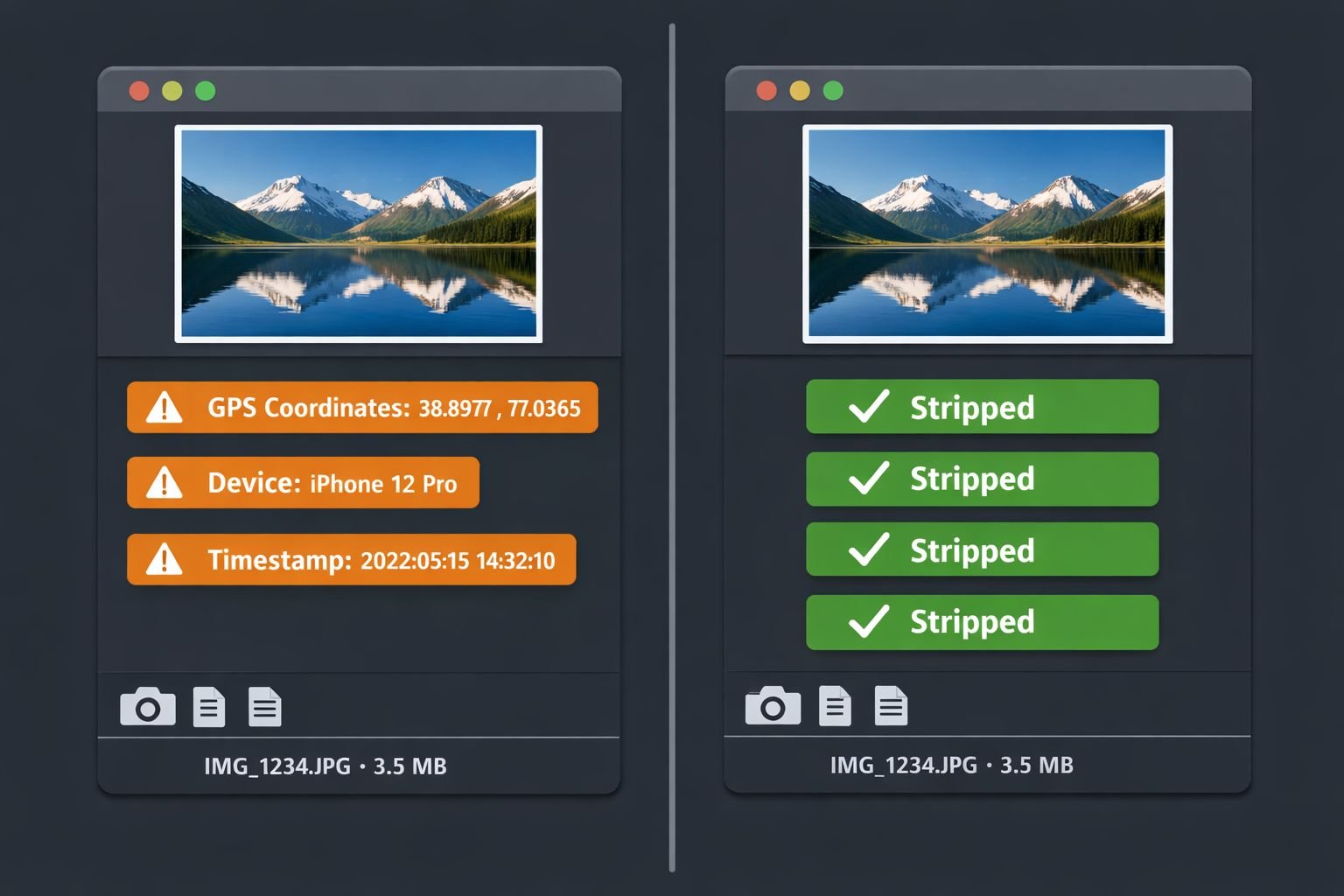
Quick Answer: Every photo taken with a smartphone or digital camera stores hidden metadata called EXIF data — including GPS coordinates, device model, and timestamps. To remove EXIF data from photos before sharing, use a browser-based EXIF remover like Core Tools Hub’s Image EXIF Remover, which strips all location and camera data directly in your browser without uploading your files to any server.
Key Takeaways
- 📍 EXIF metadata can pinpoint your exact home address if you photograph something indoors and share the unedited file publicly.
- 🔒 Browser-based tools process files locally — your photos never leave your device, which is the safest approach for sensitive images.
- 📱 Social platforms strip some EXIF data, but not all — Facebook and Instagram remove most GPS data, while platforms like LinkedIn retain more metadata, making pre-removal the only reliable method.
- 🗂️ EXIF covers 47+ fields, including GPS coordinates, camera serial number, lens model, software version, and even AI-generated content tags.
- ✅ The safest workflow is: strip EXIF first, then compress and resize — this order ensures no metadata survives the optimization process.
- ⚠️ Australia’s Privacy Act (effective March 2026) now classifies EXIF GPS data as sensitive personal information, reflecting how seriously regulators treat this issue.
- 🖥️ Microsoft Teams began automatically stripping EXIF metadata from shared images in early 2026 — a sign that even enterprise platforms now treat this as a baseline privacy requirement.
- 📸 Photographers working professionally should keep EXIF data in their original files for workflow and copyright purposes, but strip it from any copy shared publicly or sent to unfamiliar contacts.
What Is EXIF Data and Why Does It Matter for Privacy?
EXIF stands for Exchangeable Image File Format. It’s a block of metadata automatically embedded in every photo by your camera or smartphone when the shutter fires. This data travels with the image file unless something deliberately removes it.
The fields it stores include:
| EXIF Field | What It Reveals |
|---|---|
| GPS Latitude/Longitude | Exact location where the photo was taken |
| GPS Altitude | Floor level or elevation |
| Device Make & Model | Your phone or camera brand and model |
| Serial Number | Unique identifier for your specific device |
| Date & Time | Precise timestamp, down to the second |
| Software Version | OS or camera app version |
| Lens Model | Specific lens used |
| AI/MakerNotes | Proprietary camera processing data |
Most people never see this data because photo viewers don’t display it by default. But anyone who downloads the original file and opens it in a metadata viewer can read every field in seconds.
Why it matters: A privacy researcher or malicious actor doesn’t need to hack anything. They just need your unedited photo file. GPS coordinates embedded in a photo taken at home can resolve to a street address with a simple map lookup. This is why security communities consistently flag EXIF GPS data as one of the most overlooked personal data risks in everyday sharing.
How EXIF Metadata Can Expose Your Location and Daily Habits
The risk isn’t theoretical. Here’s how it plays out in practice.
A journalist photographs a source document on their kitchen table. The photo goes into an email. The recipient extracts the EXIF data and now knows the journalist’s home address. A seller posts a photo of an item for sale in an online marketplace — the GPS tag reveals which neighborhood they live in. A parent shares a child’s photo in a public community forum without realizing the image includes coordinates for their home.
The pattern is always the same: the photo looks harmless, but the metadata tells a more complete story than the image itself.
Beyond GPS, device serial numbers in EXIF data can link multiple photos to the same camera even when the photographer uses different accounts. Timestamps can reveal routines — when someone wakes up, when they leave the house, when they’re away on holiday. Privacy analysts have noted cases where EXIF data in AI-training datasets exposed photographers’ home addresses because the metadata was never stripped before the images were submitted.
Common mistake: Assuming that cropping or screenshotting a photo removes EXIF data. Cropping in most basic editors preserves the original metadata. Taking a screenshot does strip EXIF, but it also degrades image quality significantly — not a practical solution for most sharing scenarios.
How to Check EXIF Data on Your Photos Right Now
Before stripping metadata, it’s worth seeing what’s actually in your files. Here are the fastest methods:
On Windows:
- Right-click the image file
- Select Properties
- Click the Details tab
- Scroll through GPS, camera, and date fields
On Mac:
- Open the photo in Preview
- Go to Tools → Show Inspector
- Click the GPS tab (if location data exists, it appears here)
On iPhone:
- Open the photo in the Photos app
- Swipe up on the image
- A map appears if GPS data is present
On Android:
- Open Google Photos
- Tap the photo, then tap the three-dot menu
- Select Details — location appears if stored
Online (fastest, no install): Upload the photo to Core Tools Hub’s Image EXIF Remover and review the metadata panel before confirming removal. The tool shows you exactly what’s embedded before you strip it.
Edge case: Some newer smartphone formats like HEIC store metadata slightly differently. If you’re working with iPhone photos, check out this HEIC to JPG converter guide — converting to JPG first can simplify the metadata removal process.
How to Remove EXIF Data from Photos Using Core Tools Hub
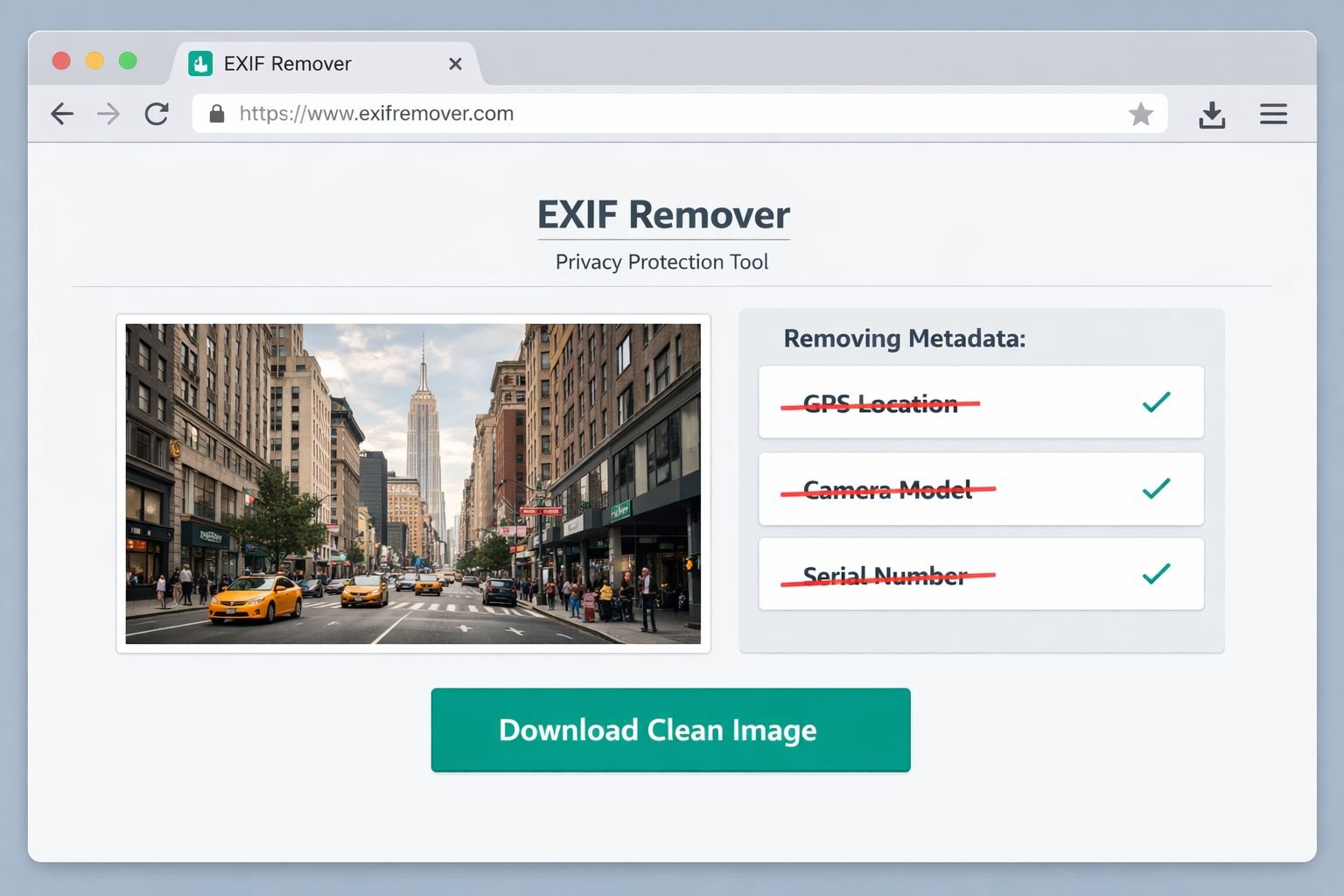
The Image EXIF Remover at Core Tools Hub runs entirely in your browser. No install needed, no signup required, and your files are never sent to a remote server — processing happens locally using your device’s own resources.
Step-by-step:
- Go to coretoolshub.com/image-exif-remover/
- Click “Upload Image” or drag and drop your JPG, PNG, or WebP file into the tool
- Review the metadata panel — the tool displays all detected EXIF fields before removal
- Click “Remove EXIF Data” to strip all metadata from the file
- Download the clean image — the output file is identical in appearance but contains no embedded metadata
The whole process takes under 30 seconds for a typical smartphone photo. The output file is download-ready for social media, email, or any public platform.
Best settings:
| Scenario | Recommendation |
|---|---|
| Sharing on social media | Strip all EXIF fields including GPS, device, and timestamps |
| Sending to unfamiliar contacts | Strip all fields; keep nothing |
| Submitting to press/journalism | Strip GPS; consider retaining copyright and caption fields |
| Personal archive copy | Keep original with full EXIF; strip only the copy you share |
What to try next: After removing metadata, run the clean image through the Image Compressor to reduce file size for email or web without obvious quality loss. For social platforms, the Image Resizer lets you resize to exact dimensions — Instagram, Twitter, LinkedIn — in seconds.
Combine EXIF Removal with Compression and Resizing for a Complete Sharing Workflow
Stripping EXIF is step one. For photos that are genuinely ready to post, a simple three-step workflow covers everything:
Step 1 — Strip the metadata Use Core Tools Hub’s Image EXIF Remover first. Always do this before compression or resizing, because some compression tools re-embed partial metadata or preserve GPS fields by default.
Step 2 — Compress for web A full-resolution smartphone photo can be 4–8MB. That’s too large for most email attachments and slower to load on social feeds. The Image Compressor reduces file size without obvious quality loss — useful for anyone following the guidance in this complete guide to compressing images without quality loss.
Step 3 — Resize to platform dimensions Different platforms have different optimal image sizes. Resizing after compression keeps file sizes small and prevents platforms from auto-cropping your image in unexpected ways. The resize images guide covers exact dimensions for every major platform.
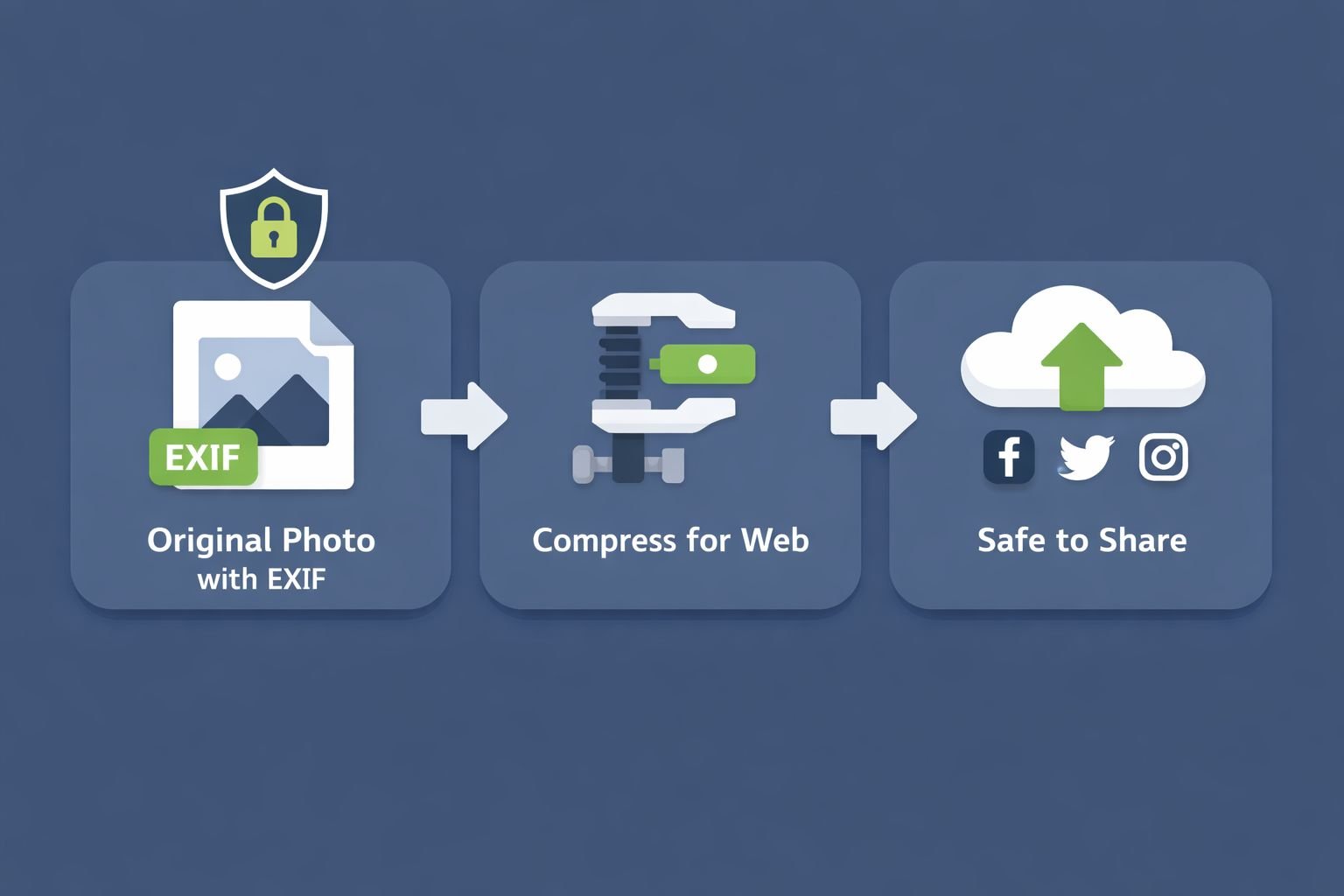
Why order matters: Some image compressors (including popular TinyPNG-style tools) offer a toggle to keep or remove metadata. If you compress first and that toggle is left on “keep,” your GPS data survives into the final file. Stripping EXIF first removes that variable entirely.
This full pipeline — strip, compress, resize — is available without leaving the Core Tools Hub image tools collection, which means no juggling between different sites or accounts.
When Photographers Should Keep Metadata (and When They Shouldn’t)
EXIF data isn’t purely a liability. For professional photographers, it’s genuinely useful — and in some contexts, removing it creates problems.
Keep EXIF data when:
- Storing original files in a personal or professional archive
- Submitting work to stock photography agencies that require copyright and licensing fields
- Using metadata for post-processing workflows (sorting by lens, ISO, or location in Lightroom)
- Documenting photojournalism where timestamp and location authenticity matters for editorial verification
Strip EXIF data when:
- Posting any photo to a public social media account
- Sending photos to people you don’t know personally
- Sharing images in online communities, forums, or marketplaces
- Submitting photos to websites, blogs, or press releases
- Sharing via messaging apps where the recipient could forward the file
The practical rule: Keep one original copy with full metadata for your own records. Always share a stripped copy. This protects privacy without losing the workflow benefits of metadata.
Note on platform reliance: Facebook and Instagram strip most GPS and camera data before displaying images — but they do this after receiving the original file, meaning the platform itself sees your full metadata. LinkedIn retains more metadata than most users expect. Pre-removing EXIF data means no platform ever receives the sensitive fields in the first place.
A Simple Privacy Checklist Before You Share Any Photo
Run through this before posting or sending any image file:
- Check for GPS data — open the file properties or use an EXIF viewer before sharing
- Strip all EXIF fields using a browser-based tool that processes locally
- Avoid relying on platform stripping — platforms vary and receive the original file regardless
- Don’t crop as a substitute — cropping in basic editors usually preserves metadata
- Convert HEIC to JPG first if working with iPhone photos, then strip EXIF
- Compress and resize after stripping, not before
- Keep the original with full metadata in a private folder for your own records
- Double-check the output file by running it through an EXIF viewer to confirm metadata is gone
This checklist takes about two minutes per photo using browser-based tools. For batch processing multiple photos at once, the Image EXIF Remover supports multiple file uploads so the whole set can be cleaned in one pass.
Frequently Asked Questions
Does removing EXIF data change how a photo looks? No. Stripping EXIF data removes only the hidden metadata block. The visible image — colors, resolution, composition — is completely unchanged.
Does Instagram automatically remove EXIF data? Instagram strips most GPS and camera metadata before displaying images, but the platform receives the original file with full metadata intact. Pre-removing EXIF means Instagram never sees the location data at all.
Can I remove EXIF data from photos on my phone without an app? Yes. A browser-based tool like Core Tools Hub’s Image EXIF Remover works on mobile browsers — no app download or install needed.
Does taking a screenshot of a photo remove EXIF data? Yes, screenshots don’t inherit the original file’s EXIF data. But screenshots also reduce image quality noticeably, so they’re not a practical solution for photos you want to share at full quality.
What’s the difference between EXIF and IPTC metadata? EXIF is generated automatically by the camera and stores technical shooting data (GPS, exposure, device model). IPTC is editorial metadata added manually by photographers or editors (caption, copyright, keywords). Both are embedded in image files; EXIF is the bigger privacy concern for everyday users.
Is it safe to upload photos to an online EXIF remover? It depends on the tool. Server-based tools receive your original file on their servers. Browser-based tools like Core Tools Hub process the file locally — your photo never leaves your device. For sensitive photos, always choose a browser-based option.
Does removing EXIF data reduce file size? Slightly. EXIF metadata typically adds a few kilobytes to a file. The size reduction from stripping EXIF alone is minimal — for meaningful file size reduction, follow up with an image compressor.
What file formats support EXIF data? JPEG/JPG is the most common. PNG files support a similar metadata standard (called tEXt chunks). HEIC, TIFF, and WebP also carry metadata. RAW formats store extensive EXIF data. GIF files do not support EXIF.
Will removing EXIF data affect my copyright claim on a photo? EXIF can store copyright information, but it’s not a legally binding copyright registration. Removing EXIF doesn’t eliminate your copyright — it just removes the embedded notice. If copyright attribution matters, consider retaining the copyright field while stripping GPS and device data.
How do I batch remove EXIF data from multiple photos at once? The Image EXIF Remover supports batch uploads. Select all files at once, strip metadata in one pass, and download the clean set.
Is EXIF removal required by law anywhere? Australia’s updated Privacy Act (effective March 2026) classifies EXIF GPS data as sensitive personal information, which has compliance implications for businesses handling digital images. Individual users aren’t directly regulated, but the legal shift signals growing recognition of metadata as personal data.
What should I do after removing EXIF data? Strip first, then compress and resize for your target platform. The full workflow is covered in the Core Tools Hub image tools hub, where all three steps are available in one place.
Conclusion
Every photo you take carries more information than the image itself. GPS coordinates, device identifiers, timestamps — this data is invisible to the eye but readable by anyone who knows where to look. The good news is that removing it takes less than a minute with the right tool.
The practical approach: use Core Tools Hub’s Image EXIF Remover to strip all metadata before any photo goes public. It runs in your browser, requires no account, and processes files locally so your images stay on your device. Follow that with compression and resizing if you’re preparing images for social media or email, and you have a complete privacy-safe image workflow that takes two to three minutes total.
For anyone sharing photos regularly — whether on social media, in online communities, or via messaging apps — making EXIF removal a default habit is one of the simplest and most effective privacy steps available. No technical expertise required, no software to install, and no tradeoff in image quality.
Start with the Image EXIF Remover — then compress and resize your clean image for wherever it’s going next.
Related reading:
- How to compress images without quality loss
- How to resize images online for free
- Browser-based file conversion vs. cloud upload tools: which is safer?
- HEIC to JPG converter guide