














Last updated: April 29, 2026
Quick Answer: The fastest way to remove image background online free in 2026 is to use an AI-powered tool like WaveSpeed, Remove.bg, or Adobe Express — most require no signup, take under 10 seconds, and export a clean transparent PNG at no cost. The key difference between tools is how well they handle complex edges like hair, and whether they limit your download resolution on the free tier.
Key Takeaways
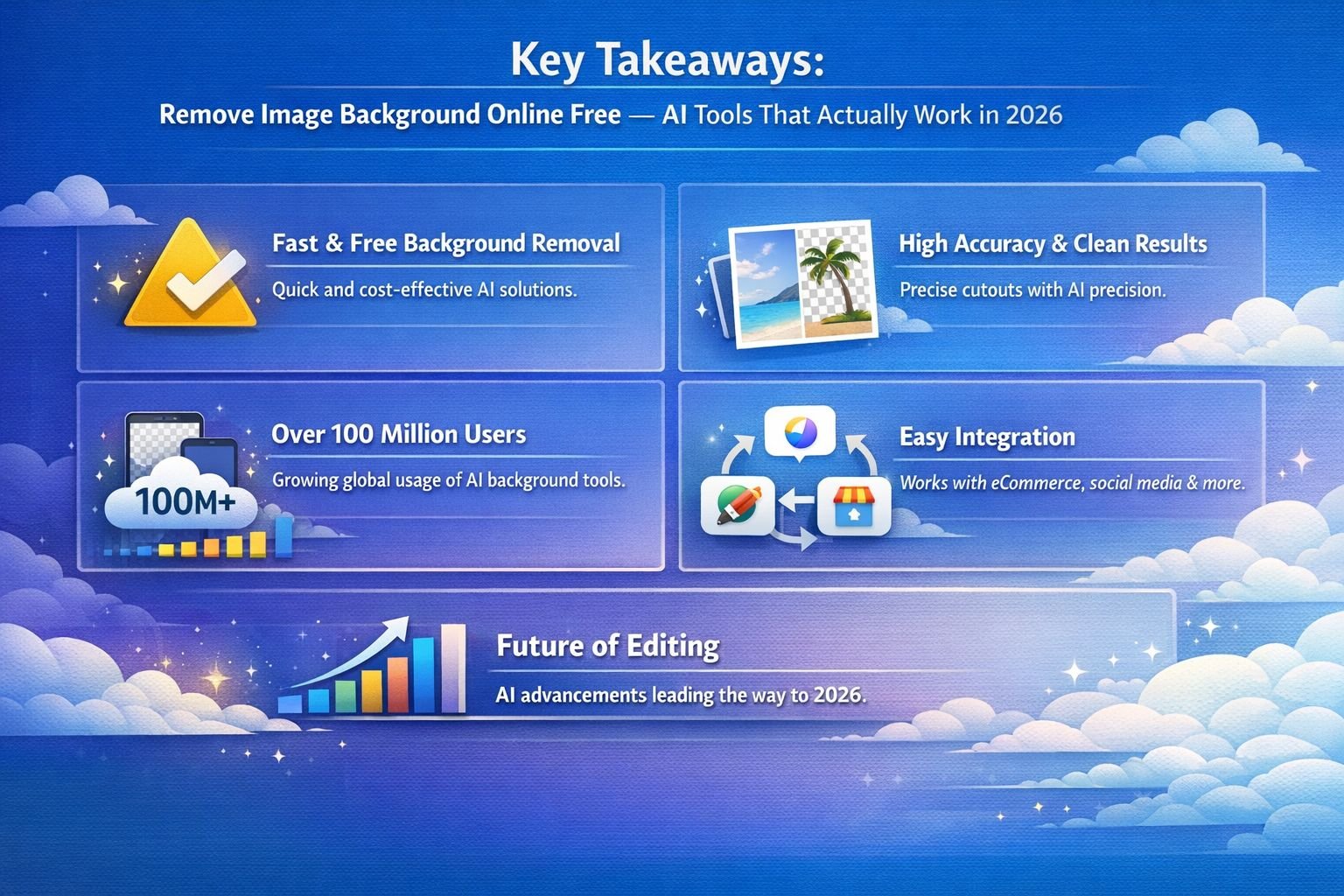
- Free AI background removers have improved dramatically — most now handle hair, fur, and semi-transparent objects without manual cleanup.
- Remove.bg is still the fastest for quick one-off jobs, but free downloads are capped at low resolution.
- WaveSpeed Background Remover (launched January 2026) offers no signup, no watermarks, and full-resolution exports on the free tier.
- Vecteezy’s AI Background Remover allows up to 20 free removals per day — more generous than most competitors.
- Adobe Express includes background removal in its free tier, backed by Adobe’s imaging technology.
- Canva’s background removal is locked behind a Pro subscription — a real gap for free-tier users.
- After removing the background, always compress your transparent PNG to reduce its file size before uploading it to a website or store.
- For complex edges (hair, glass, sheer fabric), Cutout Pro’s 2026 model currently leads on edge accuracy.
- Privacy matters: choose browser-based or no-upload tools when working with sensitive product images or client photos.
How AI Background Removal Actually Works (And Why It’s So Good Now)
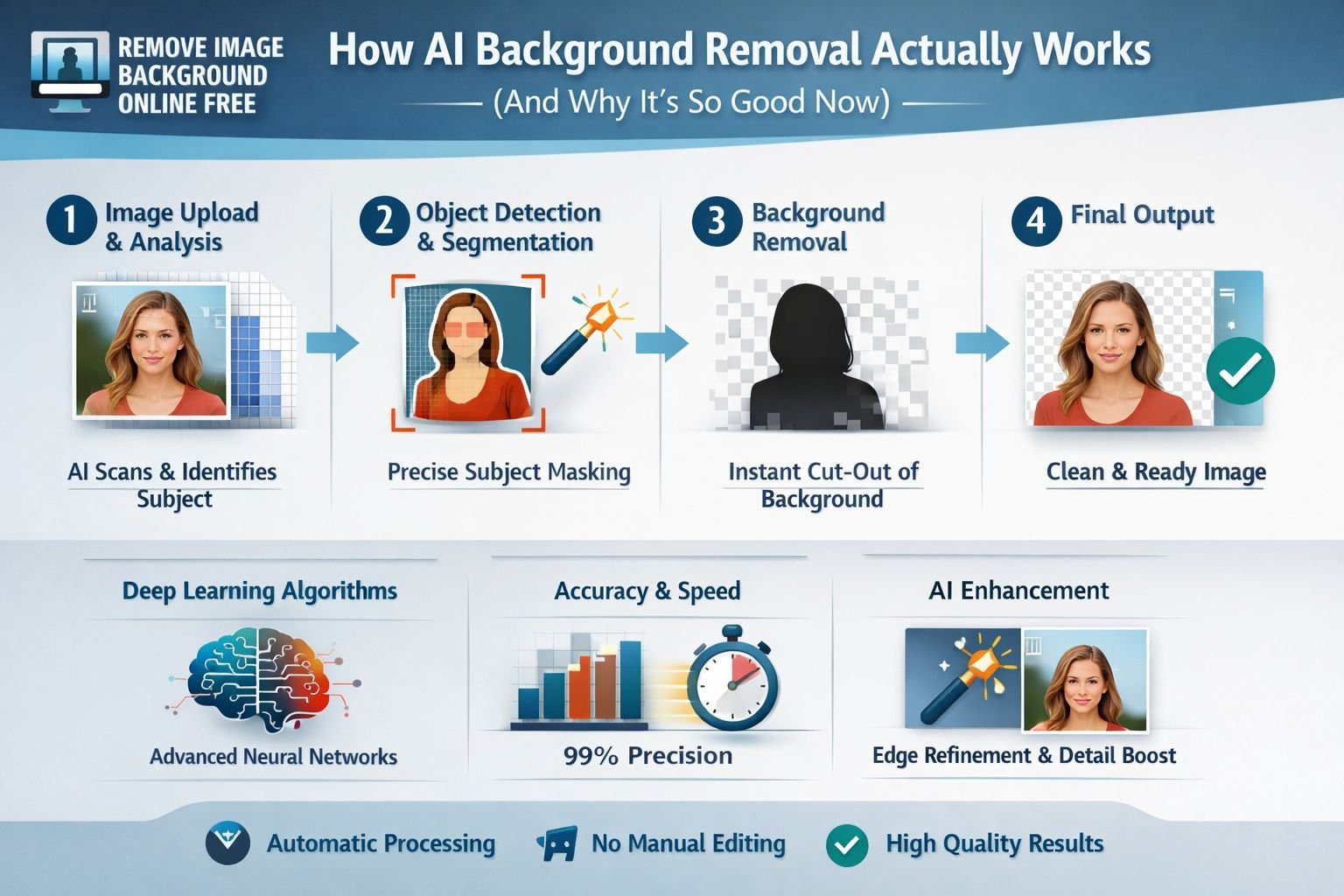
Modern AI background removers use deep neural networks trained on millions of images to identify the foreground subject and separate it from the background — pixel by pixel. The result is a clean, transparent PNG in seconds, without any manual selection.
Early tools (circa 2018–2020) relied on edge detection: identifying sharp color boundaries between the subject and the background. That worked fine for simple product photos on white backgrounds, but failed badly on curly hair, fur, or glass objects where edges blur or blend.
What changed: The best 2026 tools now use semantic segmentation — the model doesn’t just look for edges, it understands what’s in the image. It recognizes “this is a person,” “this is a glass bottle,” “this is a dog,” and uses that understanding to make smarter decisions about which pixels belong to the subject. Cutout Pro’s 2026 model update specifically improved performance on transparent objects, low-contrast subjects, and fine geometric details — areas where older edge-focused models struggled.
Why this matters for you:
- Hair strands and flyaways are preserved instead of getting clipped
- Glass and translucent objects retain their natural look
- Subjects on busy or low-contrast backgrounds are handled more reliably
The practical outcome: what used to take 20 minutes of careful Photoshop masking now takes about 5 seconds and produces comparable results for most everyday use cases.
Best Free AI Background Removers in 2026 — Ranked by Use Case
Not every tool is best for every job. Here’s how the leading free options stack up across the most common use cases.
Quick Comparison Table
| Tool | Best For | Free Tier Limit | Signup Required? | Resolution |
|---|---|---|---|---|
| WaveSpeed | Hair, complex edges | Generous daily limit | No | Full resolution |
| Remove.bg | Fast one-off cutouts | Low-res download | No | Low (free tier) |
| Vecteezy | High-volume free use | 20/day | No | Standard |
| Cutout Pro | Transparent objects, glass | Limited free credits | No | High |
| Adobe Express | Professional quality | Unlimited (free tier) | Yes (Adobe account) | High |
| Clipdrop | Batch + editing workflow | Limited free uses | Optional | High |
E-Commerce Product Photos
Best pick: WaveSpeed or Cutout Pro.
For product photography, edge accuracy around handles, fabric edges, and reflective surfaces is most important. WaveSpeed launched in January 2026 with precision edge detection specifically designed for product cutouts, no watermarks, and no signup requirement. Cutout Pro’s 2026 model update added improved handling of glass and sheer fabric — common in beauty, homeware, and fashion categories.
⚠️ Common mistake: Using a low-resolution free download (like Remove.bg’s free tier) for product listings. Blurry edges are one of the fastest ways to erode buyer trust. According to one 2026 e-commerce analysis, listings with visible image quality issues see 23% higher return rates. Always verify your export resolution before uploading.
Hair, Fur, and Complex Edges
Best pick: WaveSpeed or Cutout Pro 2026.
Both tools use semantically aware models that treat individual hair strands as part of the subject rather than as background noise. WaveSpeed specifically highlights precision edge detection for hair and complex edges as a core feature.
Choose Cutout Pro if your subject involves transparent or semi-transparent elements (glass, lace, sheer fabric) alongside hair — its 2026 model update specifically targets this combination.
Logo Cutouts and Graphic Assets
Best pick: Remove.bg or Adobe Express.
Logos typically have clean, hard edges — the exact scenario where older edge-detection models still work well. Remove.bg handles these in under 5 seconds and remains one of the most reliable tools for simple graphic assets. Adobe Express is worth using if you need to do further editing (resize, add text, adjust colors) in the same workflow.
High-Volume / Batch Processing
Best pick: Vecteezy (20 free/day) or Clipdrop.
Vecteezy’s 20-per-day free allowance is significantly more generous than most competitors. For sellers processing large product catalogs, Clipdrop (developed by Stability AI) offers batch capabilities alongside background removal, though the free tier has usage limits.
Profile Pictures and ID Photos
Best pick: Adobe Express or Remove.bg.
Both handle portrait subjects reliably, and Adobe Express’s free tier includes background replacement — useful for creating professional headshots with solid-color backgrounds for LinkedIn or ID documents.
How to Remove an Image Background Online Free in 3 Steps
Removing a background takes about 10 seconds with any of the tools above. Here’s the straightforward process:
Step 1: Choose your tool and open it Go to your chosen tool (WaveSpeed, Remove.bg, Vecteezy, etc.) in any browser — no installs, no downloads needed. Most work on desktop and mobile.
Step 2: Upload your image Drag and drop your photo onto the upload area, or click to browse. Most tools accept JPG, PNG, and WebP. For best results, start with the highest resolution version of your image.
Step 3: Download your transparent PNG The AI processes your image (usually 3–15 seconds) and shows a preview. Review the edges, then click download. Your file saves as a PNG with a transparent background — ready for product listings, social media, presentations, or print.
Pro tip: If the result has a rough edge in one area, most tools include a basic touch-up brush. Use it to add back any subject pixels that got removed, or erase any background pixels that got left in.
Complex Edges: Hair, Fur, and Transparent Objects — Tips for Clean Results
AI tools handle most images well on their own, but complex edges still benefit from a few simple habits.
Before You Upload
- Use good lighting. High contrast between the subject and the background gives the AI more signal to work with. A subject photographed against a plain, evenly lit background will always produce cleaner results than one shot in mixed lighting.
- Shoot at the highest resolution your device allows. More pixels mean more detail for the AI to work with at the edges.
- Avoid backgrounds that match your subject’s color. A brunette against a dark wood wall is harder to process than the same person against a light gray wall.
Choosing the Right Tool for the Job
| Subject Type | Recommended Tool | Why |
|---|---|---|
| Curly or fine hair | WaveSpeed, Cutout Pro | Semantic model preserves strands |
| Glass / transparent | Cutout Pro 2026 | Specific model update for this |
| Fur / fluffy textures | WaveSpeed | Precision edge detection |
| Hard-edged products | Remove.bg, Adobe Express | Fast and accurate for clean edges |
| Low-contrast subjects | Cutout Pro | Semantic understanding helps here |
After Processing
- Zoom in to 100% and check edges before downloading.
- Use the touch-up brush (available in most tools) for any missed strands or leftover background pixels.
- If the tool left a faint color fringe around the edge (common with hair), look for a “defringe” or “matte” option in the tool settings.
How to Save and Optimize Transparent PNG Files After Background Removal
A transparent PNG is the correct format for background-removed images — but PNG files can be large, especially at high resolution.
Always save as PNG, not JPG. JPG doesn’t support transparency. Saving a transparent image as JPG will fill the transparent areas with white (or another solid color), defeating the purpose.
Reducing PNG File Size Without Losing Quality
A high-resolution transparent PNG from a background remover can easily be 3–6 MB. That’s too large for most web use cases — slow page loads hurt both user experience and SEO.
The fix is simple: compress the PNG after downloading. A good PNG compressor can reduce file size by 60–80% with no visible loss of quality. You can use the Image Compressor at Core Tools Hub — it runs entirely in your browser, requires no signup, and keeps your files private. For more details on this process, see the guide on compressing images without quality loss.
Best Settings for Transparent PNGs
| Use Case | Recommended Format | Target File Size |
|---|---|---|
| E-commerce product listing | PNG-24 (transparent) | Under 500 KB |
| Social media profile picture | PNG-24 | Under 200 KB |
| Website hero / banner | PNG-24 or WebP | Under 300 KB |
| Print / high-res archive | PNG-24 | No compression needed |
Note on WebP: WebP supports transparency and produces smaller files than PNG at similar quality. If your platform accepts WebP (most modern websites do), converting your transparent PNG to WebP is worth considering. Use the PNG to WebP converter to do this in seconds, no upload required.
After Optimizing: What to Do Next
- Resize before uploading if the platform has a maximum image dimension. Uploading a 4000px image to a platform that displays it at 800px wastes bandwidth. Use the Image Resizer to set exact dimensions.
- Remove EXIF data from product photos before publishing — camera metadata can include location data and device details you may not want public. The Image EXIF Remover handles this in one click.
- Check your final file looks correct on both white and dark backgrounds before uploading to a store or social profile.
Conclusion
Removing image backgrounds used to mean either paying for Photoshop or spending 20 minutes with a selection tool. In 2026, free AI tools have closed that gap almost entirely — and the best ones require no signup, produce no watermarks, and handle complex edges that would have stumped any tool just three years ago.
Here’s the short version of what to do:
- Use WaveSpeed for hair, complex edges, and full-resolution free exports with no signup.
- Use Remove.bg for fast one-off logo and product cutouts.
- Use Vecteezy if you need 20+ free removals per day.
- Use Adobe Express if you want background removal plus editing in one place.
- After downloading your transparent PNG, compress it with the Image Compressor to reduce file size before uploading.
- If your platform supports WebP, convert your PNG for even smaller file sizes using the PNG to WebP converter.
The tools are free. The results are genuinely good. The main thing standing between you and clean product photos or polished profile images is uploading the file.
Frequently Asked Questions
Q: Can I remove the image background online for free without signing up?
Yes. WaveSpeed, Remove.bg, and Vecteezy all allow background removal without creating an account. WaveSpeed and Vecteezy also provide full-resolution downloads on the free tier without watermarks.
Q: Why does Canva charge for background removal?
Canva’s background removal tool is a Pro feature, not available on the free plan. This is one of the most common reasons users look for free alternatives — and several tools listed here match or exceed Canva Pro’s background removal quality at no cost.
Q: What file format should I save a background-removed image as?
Always save as PNG. PNG supports transparency; JPG does not. Saving as JPG will replace transparent areas with a solid color (usually white).
Q: Is it safe to upload my photos to these tools?
Most reputable tools delete uploaded images from their servers within minutes. For extra privacy — especially with client photos or sensitive product images — look for browser-based tools that process files locally without uploading them to a server.
Q: How do I reduce the file size of a transparent PNG?
Use a PNG compressor after downloading your background-removed image. The Image Compressor at Core Tools Hub runs in your browser and can reduce PNG file size by 60–80% without visible quality loss.
Q: Which free tool is best for product photos with glass or transparent objects?
Cutout Pro’s 2026 model update specifically improved performance on transparent objects and low-contrast subjects, making it the strongest free option for glass bottles, clear packaging, and similar products.
Q: Does Remove.bg limit free downloads to low resolution?
Yes. Remove.bg’s free tier downloads are capped at a lower resolution. For full-resolution exports without a subscription, WaveSpeed or Cutout Pro are better free alternatives.
Q: Can I remove a white background from an image for free?
Yes — all the tools listed here handle white backgrounds easily. White backgrounds are actually the simplest case for AI background removers because the contrast between the subject and the background is usually very clear.
Q: What’s the difference between edge detection and semantic segmentation in background removal?
Edge detection finds boundaries between colors. Semantic segmentation understands what objects are in the scene. Semantic models perform better on hair, glass, and complex subjects because they use context, not just color contrast, to decide which pixels belong to the subject.
Q: How many images can I process for free per day?
It varies by tool. Vecteezy allows up to 20 per day. WaveSpeed has a generous daily limit. Remove.bg allows free processing but limits download resolution. Adobe Express has no stated daily cap on its free tier but requires an Adobe account.