













Last updated: June 26, 2026
Quick Answer: An image enhancer uses AI or manual adjustments to fix dark, blurry, or low-resolution photos by boosting brightness, reducing noise, and sharpening detail. The right tool depends on your photo type and end use. For most non-technical users, a browser-based AI enhancer handles the heavy lifting in seconds — no installs, no signup required.
Key Takeaways
- AI image enhancers work best on portraits, product shots, and old scans — not text-heavy documents or forensic images.
- Enhancement and upscaling are different steps; doing both in the right order produces cleaner results.
- Over-processing AI enhancement creates “plastic” skin tones and smeared fine detail — less is usually more.
- Free browser-based tools (Real-ESRGAN-based upscalers, PicWish, Upsampler) handle most everyday fixes without an account.
- After enhancing, convert to WebP for web use — it can significantly reduce file size while keeping visual quality high.
- Always strip EXIF metadata before sharing enhanced photos publicly to protect location and device data.
- AI enhancement cannot reliably recover text from blurry documents or add detail that was never captured.
- The best workflow: enhance → upscale → resize → compress → convert for web.
What Can an Image Enhancer Actually Fix?
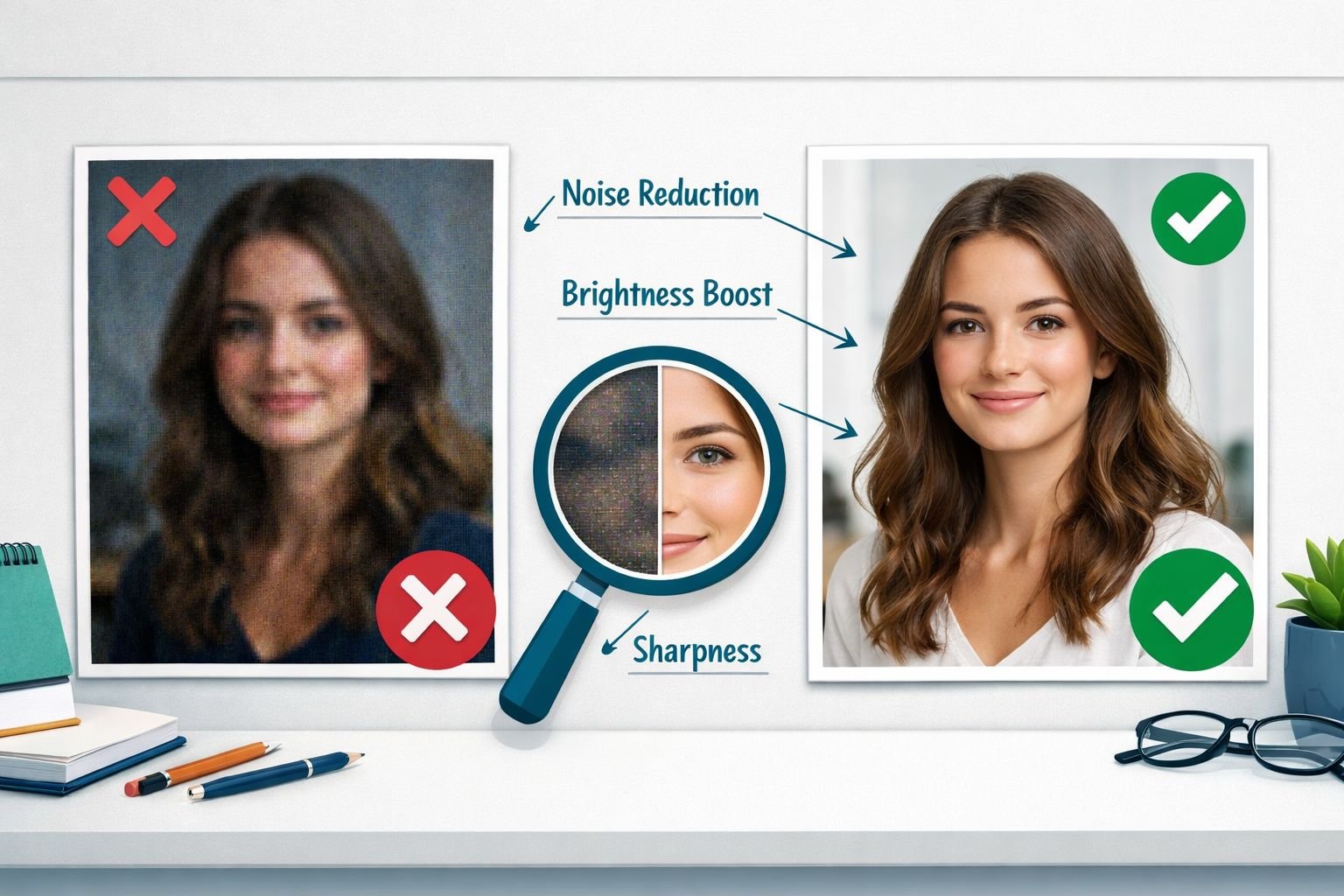
An image enhancer can correct problems caused by poor lighting, camera shake, low sensor quality, or heavy compression — but it cannot invent detail that was never in the original file.
Here’s what enhancement handles well, and where it falls short:
✅ Good candidates for enhancement:
- Dark or underexposed interior shots (dim restaurant photos, real estate listings)
- Slightly blurry portraits from phone cameras
- Old scanned family photos with grain and fading
- Product photos with flat, dull lighting
- Social media images are compressed into low quality by repeated re-uploads
❌ Poor candidates – expect unreliable results:
- Blurry text documents or screenshots (AI often guesses letters incorrectly)
- Images used for legal, medical, or forensic purposes (enhancement alters evidence)
- Heavily pixelated images where less than 30% of the original detail survives
- Anime or illustrated art run through photo-trained models (use Waifu2x instead)
Decision rule: If you can still make out the subject but the image looks soft, dark, or noisy – enhancement will help. If the image is mostly a smear of pixels, no tool will reliably reconstruct it.
Common mistake: Running a screenshot of a PDF or a text-based graphic through an AI photo enhancer. The model treats text as texture and often blurs or distorts letters. For document images, stick to manual sharpening or use a dedicated PDF to image export tool that preserves resolution from the source.
AI Image Enhancer vs. Manual Editing: Which Should You Use?
For most non-technical users, AI enhancement is faster and produces better results than manual editing — with one important caveat: AI tools make decisions for you, and those decisions aren’t always right.
| Method | Best for | Speed | Control | Risk |
|---|---|---|---|---|
| AI auto-enhance | Portraits, products, old photos | Fast (seconds) | Low | Over-processing artifacts |
| Manual levels/curves | Specific brightness or contrast fixes | Medium | High | Requires practice |
| AI upscaling (Real-ESRGAN) | Low-res images for print or large displays | Fast | Medium | Soft edges at extreme scales |
| Manual sharpening | Slightly soft images with good base quality | Medium | High | Halos if over-applied |
AI tools shine when:
- You have a batch of product photos that all need similar corrections.
- The original image has good composition but poor exposure.
- You need fast clean results for a social post or listing, not a gallery print.
Stick to manual editing when:
- You need precise color accuracy (brand colors, product photography for print).
- The image contains text, logos, or charts.
- You’re preparing images for professional retouching afterward.
Tools like PicWish (which launched an upgraded AI model in early 2026 with HD and Ultra HD modes) handle portraits and product photos well in batch. For single images where you need more control, manually adjusting brightness, contrast, and sharpness in a tool like GIMP or even the built-in editor on your phone yields more predictable results.
How to Upscale Low-Resolution Images Without Obvious Artifacts
Upscaling and enhancing are related but different. Enhancement fixes brightness, noise, and sharpness. Upscaling increases the image’s pixel dimensions — ideally without making it look blurry or “painted.”
The most reliable free method in 2026 uses Real-ESRGAN, an open-source neural network model available in several browser-based tools. It analyzes image patterns and fills in plausible detail when increasing size.
Practical upscaling limits:
| Original size | Safe upscale target | Method |
|---|---|---|
| 300×300 px | Up to 1200×1200 px (4x) | Real-ESRGAN |
| 600×400 px | Up to 2400×1600 px (4x) | Real-ESRGAN or similar |
| 1000×750 px | Up to 4000×3000 px (4x) | Neural upscaler |
| Any size | 8K (8x) | GPU-powered tools (Upsampler) |
Going beyond 4x on most tools starts producing soft, slightly artificial-looking edges. Upsampler offers no-signup 4K and 8K upscaling using dedicated GPU hardware, with daily free minutes, producing sharper results than CPU-based browser tools for large upscales. For most social media and web use cases, 4x is more than enough.
Step-by-step: Upscale a low-res image for web
- Start with the highest-quality original you have (even a small JPG is fine).
- Upload to a Real-ESRGAN-based tool (PixelPanda offers 3 free images per day at 4x with no signup).
- Choose a 4x scale for web use; use an 8x scale only if printing large format.
- Download the result and check edges and skin tones at 100% zoom.
- If edges look “painted” or skin looks waxy, reduce the enhancement strength if the tool allows it.
- Resize to your exact target dimensions using an image resizer before publishing.
Common mistake: Upscaling an already-compressed JPG that has visible compression blocks. The AI model treats those blocks as real detail and amplifies them. Always start from the least-compressed version of the file you have.
How to Prepare Enhanced Images for Web Performance and SEO
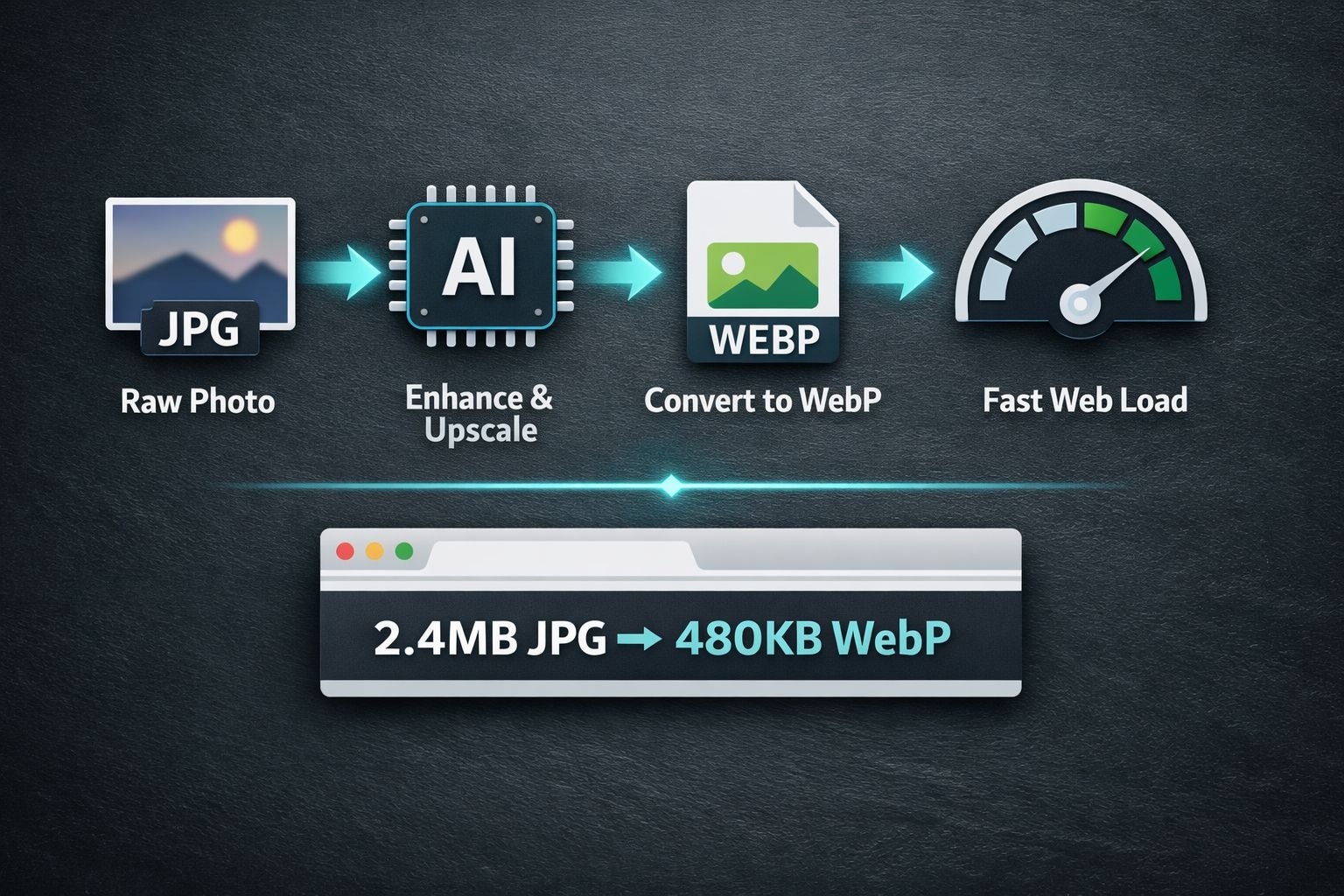
Enhancing a photo improves visual quality, but it often increases file size — sometimes significantly. A 4x upscaled image can be 10–15× larger than the original. Publishing that directly to a website will slow page load and hurt SEO.
The correct workflow after enhancement is: enhance → resize to display dimensions → compress → convert to WebP.
Best settings for web-ready enhanced images:
| Use case | Target dimensions | Format | Quality setting |
|---|---|---|---|
| Social media post | Platform-specific (e.g., 1200×630 for Open Graph) | WebP or JPG | 80–85% |
| E-commerce product | 800×800 to 1200×1200 px | WebP | 85% |
| Blog header | 1200×628 px | WebP | 82% |
| Portfolio/gallery | Up to 2000px wide | WebP | 88% |
WebP consistently delivers smaller files than JPG at equivalent visual quality. Some AI platforms report up to 80% size reduction when converting enhanced images to WebP — the actual savings depend on image content, but 40–60% is typical for photos. See the guide to optimizing WebP for SEO for platform-specific settings.
For resizing before or after enhancement, the resize images for social media guide covers exact dimensions for every major platform. Once resized, run the image through the image compressor to reduce file size without visible quality loss before publishing.
Quick checklist before publishing an enhanced image:
- Resized to actual display dimensions (not larger)
- Compressed to under 200KB for most web uses
- Converted to WebP for modern browsers
- Descriptive filename (not “enhanced_final_v3.jpg”)
- Alt text added in CMS
- EXIF data removed (see privacy section below)
For a deeper look at the compress-then-convert step, the how to compress images without quality loss guide walks through the full process.
Privacy and Misuse Pitfalls With AI Image Tools
Most free AI image enhancers are cloud-based, which means your photos leave your device and are processed on a remote server. For personal or sensitive photos, that’s worth thinking about before you upload.
Key privacy considerations:
- Cloud tools store uploads — check the privacy policy to know how long your images are retained and whether they’re used for model training.
- EXIF metadata travels with your image — original photos often contain GPS coordinates, device model, and shooting time. Enhanced versions may carry this forward. Use an EXIF remover before sharing publicly.
- Browser-based tools keep files private — tools that run all processing in your browser never send your image to a server. This is the privacy-first option for sensitive photos.
- AI enhancement ≠ authentication — enhanced images should never be presented as unaltered originals in legal, journalistic, or academic contexts. Enhancement changes pixel values, which means the image is technically modified.
Important limit: If you’re enhancing images for insurance claims, real estate disclosures, or any legal filing, document that the image was processed and retain the original. AI enhancement that makes a dark room look brighter or a small crack look less visible can create liability.
For misuse awareness: Photography communities have flagged cases in which AI enhancements were used to make product photos look more appealing than the actual items — a real concern for e-commerce buyers. The “uncanny valley” of over-processed skin in portrait enhancement is a well-known signal that a photo has been heavily altered.
If privacy is a priority, look for tools that explicitly state all processing runs in the browser with no uploads. The comparison between browser-based and cloud upload tools clearly explains the technical differences.
Recommended Image Enhancer Tools and Workflows for 2026
No single tool is best for every situation. Here’s a practical breakdown based on what you’re trying to fix:
For portraits and product photos:
- PicWish — Updated AI model (2026) with HD and Ultra HD modes. Good for batch processing. Cloud-based; review their data policy before uploading sensitive images.
- Remini — Strong on portrait sharpening, especially for old or low-light face photos.
For upscaling resolution:
- PixelPanda — Real-ESRGAN 4x upscaling, 3 free images per day, no signup. Best free browser option for quick upscales.
- Upsampler — GPU-powered neural upscaling with daily free minutes, no signup. Best for 4K/8K upscales where quality matters most.
- Upscayl — Desktop app (free, open-source). Excellent quality but requires installation; not suitable for quick browser-based fixes.
For professional workflows:
- Adobe Photoshop Neural Filters — Best-in-class for e-commerce and print, where color accuracy matters. Requires a subscription and an existing Photoshop workflow.
- Topaz Photo AI — Preferred by photographers for noise reduction and sharpening on high-value images. Desktop software.
For budget/free browser use (privacy-conscious):
- Use a browser-based image tool that processes files locally. Pair it with the image resizer and image compressor for a complete enhance → resize → compress pipeline without uploading to third-party AI servers.
The full recommended workflow:
- Start with the best original file available.
- Enhance — use AI auto-enhance to improve brightness, reduce noise, and sharpen.
- Upscale — if the image is under 800px wide and you need it larger, run it through a Real-ESRGAN tool.
- Resize — bring it down to your actual display dimensions.
- Compress — target under 200KB for web, under 100KB for email.
- Convert — export as WebP for web publishing. Use PNG to WebP or JPG to WebP converters.
- Strip EXIF — remove metadata before public posting.
Frequently Asked Questions
Can an image enhancer fix a completely blurry photo? Partial blur from camera shake or slight defocus can be improved. Severe blur — where no detail is visible — cannot be reliably recovered by any current tool. The AI fills in plausible detail, but it’s essentially guessing.
Is it safe to upload personal photos to a free AI enhancer? It depends on the tool. Cloud-based tools process your image on their servers and may retain it temporarily. For personal or sensitive photos, use a browser-based tool that runs all processing locally with no uploads.
What’s the difference between upscaling and enhancing? Enhancing fixes brightness, contrast, noise, and sharpness within the existing pixel dimensions. Upscaling increases the actual pixel count (resolution) of the image. Most workflows benefit from doing both: enhance first, then upscale if needed.
Will enhancing a photo make the file size larger? Yes, almost always. A sharper, higher-resolution image contains more data. Always compress and convert to WebP after enhancing to bring the file size back down before publishing to the web.
Can I enhance images in bulk without paying? Some tools offer free batch processing with daily limits. PicWish supports batch enhancement. PixelPanda allows 3 free upscales per day. For larger batches, desktop tools like Upscayl (free, open-source) process unlimited images locally.
Does AI enhancement work on screenshots or document scans? Poorly. AI photo models treat text as texture and often blur or distort characters. For document scans, use a dedicated scan-to-PDF tool or manually adjust contrast and sharpness rather than running through a photo AI model.
What format should I save enhanced images in for social media? JPG at 85% quality or WebP at 82–85% quality. WebP is supported by all major platforms and browsers in 2026 and produces smaller files. Check the resize images for social media guide for platform-specific dimension requirements.
How much can I upscale an image before it looks artificial? 4x is the practical limit for most real-world photos using current free tools. Beyond 4x, edges and fine textures start to look “painted” or soft. GPU-powered tools like Upsampler push this further with better results for 8x upscales.
Does enhancing an image change its EXIF data? It depends on the tool. Many AI enhancers strip EXIF during processing. Some preserve it. Either way, manually removing EXIF before sharing publicly is good practice for privacy.
Is AI enhancement reliable enough for e-commerce product photos? For quick fixes — yes. For professional catalog photography where color accuracy and brand consistency matter, AI enhancement should be a starting point, not the final step. Pair it with manual color correction for best results.
Conclusion
A good image enhancer is one of the most practical tools in any creator’s or seller’s toolkit — but only when used with clear expectations. AI enhancement genuinely rescues dark interiors, old scans, and soft portraits. It fails quietly on text, documents, and severely damaged images.
The most reliable approach in 2026 is a simple pipeline: enhance for quality, upscale only if needed, resize to display dimensions, compress, and convert to WebP for web. Each step is fast and most can be done in a browser with no installs and no signup required.
Your next steps:
- Run your photo through a free AI enhancer (PixelPanda or PicWish for portraits and products).
- Resize to your target dimensions with the image resizer.
- Compress the result using the image compressor to keep file sizes web-friendly.
- Convert to WebP using JPG to WebP or PNG to WebP for faster page loads.
- Strip EXIF data before publishing with the EXIF remover.
All of these tools run in your browser — no installs, no accounts, no files sent to a server. Fast, clean results, and your images stay private.