













Last Updated: May 29, 2026
You receive a PDF contract at 4 PM. It needs three edits before you can send it back. You try copying and pasting the text into Word, and the formatting collapses into a jumbled mess. Sound familiar? That locked-format problem is exactly what a PDF to Word converter solves, and you can fix it in under 30 seconds without installing anything.
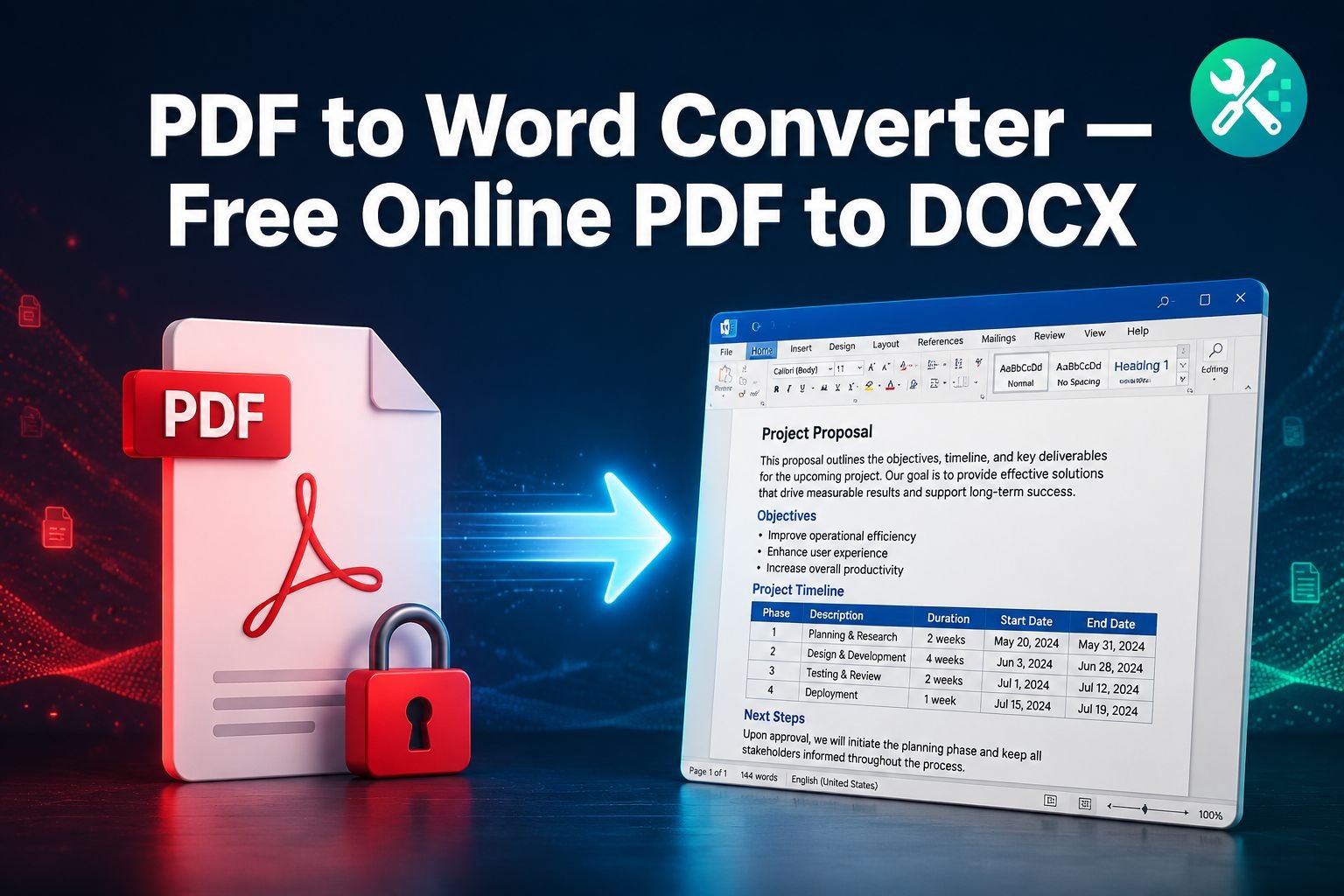
The CoreToolsHub PDF to Word converter runs entirely in your browser. Drop in your PDF, get a clean, editable .docx file back — tables, headings, bullet lists, and all. No signup. No watermark. No file ever leaves your device.
Key Takeaways 🔑
- Convert PDF to Word in seconds — drag, drop, download, done.
- 100% browser-based — files are processed using a WebAssembly engine; nothing is uploaded to a server.
- Formatting is preserved — tables, bullet lists, and headings come through as editable Word elements, not flattened images.
- Works on desktop and mobile — no install needed, no account required.
- Best for digital PDFs — scanned PDFs need OCR first; see the FAQ section below.
What This Tool Does — and Who It’s For
The PDF to Word converter takes a standard .pdf file and exports it as a .docx file you can open and edit in Microsoft Word, Google Docs, or LibreOffice. It’s built for office workers who receive PDF reports they need to update, students editing assignment feedback, and freelancers revising contracts without retyping everything from scratch.
The core problem it solves: PDFs lock content in a non-editable format. This tool unlocks it — fast, privately, and for free.
If you’ve ever needed to fill out a PDF form online or make quick edits without a desktop app, this converter is the faster path. It handles 50-page documents in under 30 seconds and returns a valid .docx that opens cleanly across all major word processors.
How to Convert PDF to Word — Step by Step
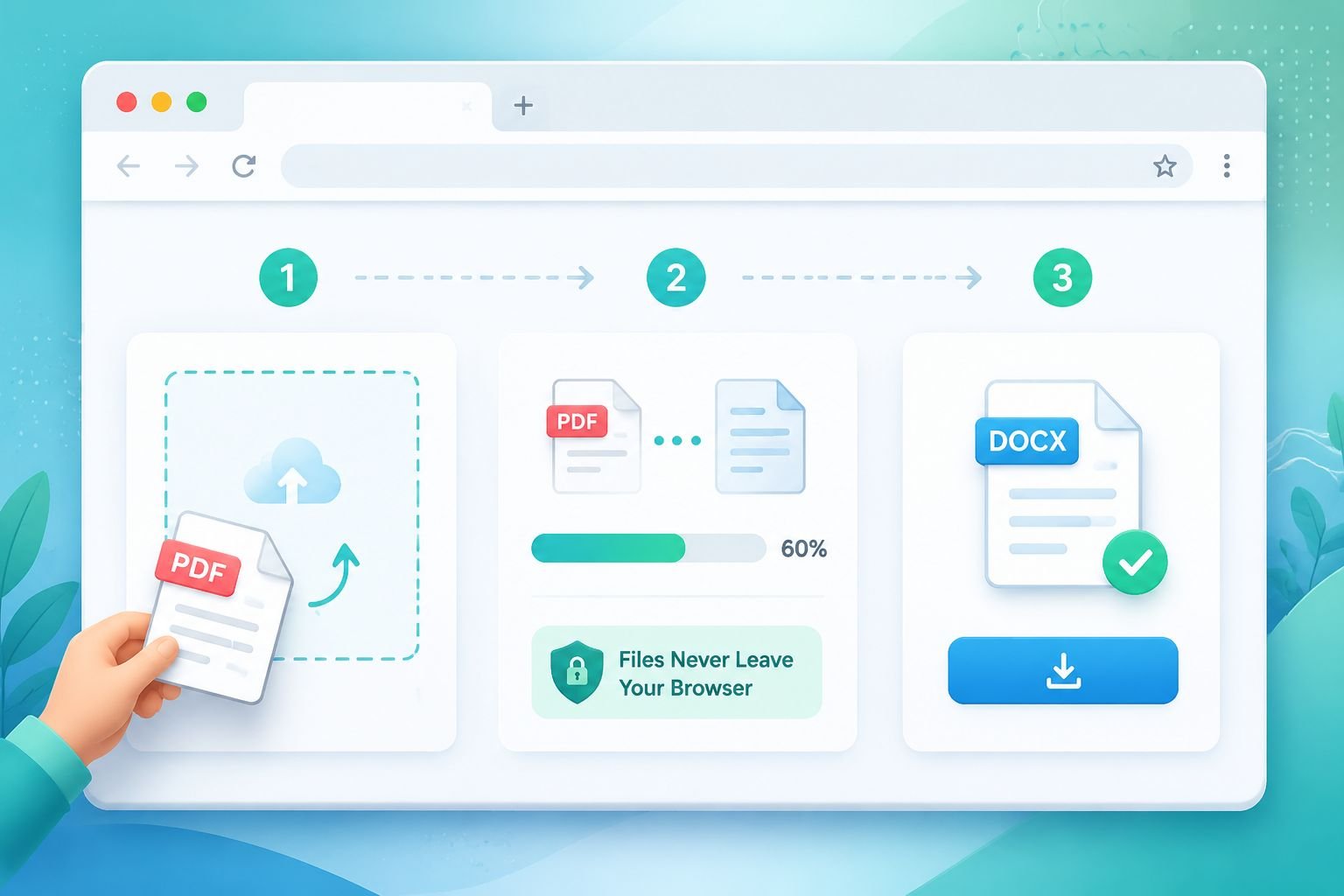
Getting a clean Word document from a PDF takes three steps. Here’s exactly what to do:
Step 1 — Upload Your PDF
- Go to the PDF to Word converter tool.
- Drag and drop your PDF into the upload zone, or click Choose File to browse.
- A per-page progress bar appears immediately so you can see conversion happening in real time.
- A green “Files never leave your browser” privacy badge confirms your document is being processed locally.
💡 Tip: The tool works on mobile too. On iOS or Android, tap the upload zone and select your PDF from Files or Google Drive.
Step 2 — Convert
The conversion starts automatically after upload. No settings to configure — the tool reads your PDF’s structure and maps it to Word-compatible elements:
| PDF Element | Output in DOCX |
|---|---|
| Paragraph text | Editable text with original fonts |
| Tables | Fully editable Word tables |
| Bullet lists | Native Word list formatting |
| Headings | Styled heading levels (H1, H2, etc.) |
| Images | Embedded inline images |
A side-by-side preview shows your input page count and estimated output word count before you download — so you can confirm the conversion looks right.
Step 3 — Download Your DOCX
Once conversion is complete:
- Click Download to save the
.docxfile to your device. - Open it in Microsoft Word, Google Docs, or LibreOffice — it’s fully editable.
- Need to clean up minor formatting quirks? Check the guide to fixing PDF to Word formatting issues for quick fixes on layouts, tables, and fonts.
That’s it. No email required. No account. No waiting for a confirmation link.
Why This Converter Is Private — No Upload, No Email
Most online PDF converters send your file to a remote server for processing. That means your contract, tax document, or confidential report travels across the internet to a third-party machine you know nothing about.
CoreToolsHub works differently. The PDF to Word converter uses a WebAssembly PDF engine — a technology that runs complex processing tasks directly in your browser tab. Your file never leaves your device.
What that means in practice:
- ✅ Contracts and HR documents stay on your machine
- ✅ No account or email address needed to download results
- ✅ No file stored on a server after conversion
- ✅ Works offline once the page has loaded
This privacy-first approach is also the reason the merge PDF tool and split PDF tool on CoreToolsHub run entirely in the browser. If you’re curious about how browser-based processing compares to cloud upload tools in terms of safety, there’s a detailed breakdown worth reading.
Frequently Asked Questions
Will my tables and formatting survive the conversion?
Yes — for standard digital PDFs. Tables, bullet lists, and headings are preserved as editable Word elements, not flattened into images. Multi-column layouts and indented lists carry through cleanly in most cases.
Complex designs — like PDFs exported from InDesign with overlapping text boxes — may need minor cleanup in Word afterward. The formatting fix guide covers the most common issues and how to resolve them in under five minutes.
What about scanned PDFs?
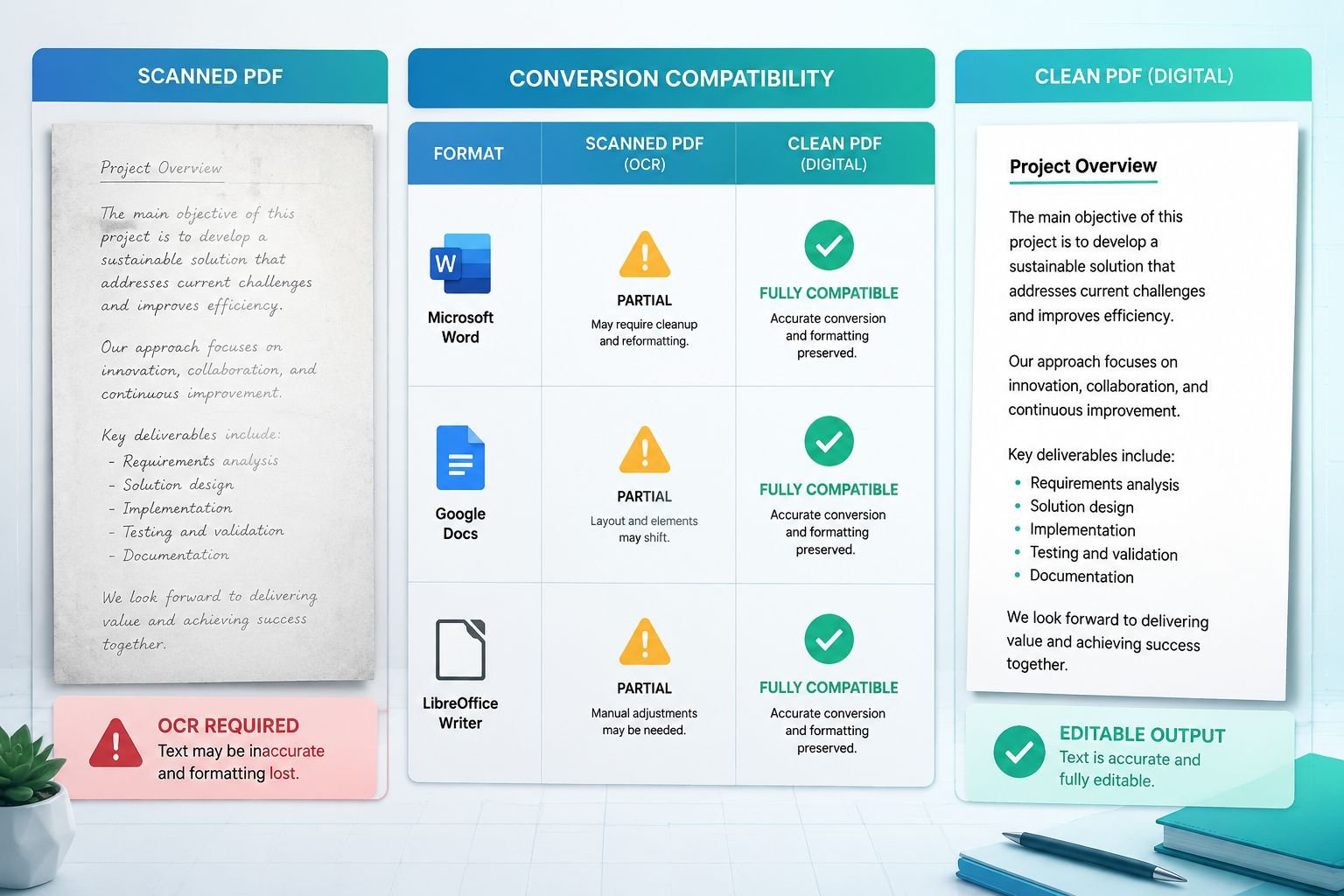
A scanned PDF is essentially a photograph of a page. There’s no actual text data for the converter to extract — just pixels. To convert a scanned PDF to editable Word text, you need OCR (Optical Character Recognition) first.
OCR reads the image and identifies characters, then converts them into real text. Tools like Xodo and ABBYY FineReader offer OCR-powered PDF to Word conversion for scanned documents. Once you have a searchable PDF, the CoreToolsHub converter can process it normally. You can also convert a scanned PDF to a searchable PDF as a first step.
Is there a file size limit?
The browser-based engine handles most standard documents well. Very large files — think 200+ pages with high-resolution embedded images — may take longer or hit browser memory limits depending on your device.
Practical guidance:
| File Type | Expected Performance |
|---|---|
| Text-heavy PDFs (1–100 pages) | Fast — under 30 seconds |
| Mixed text + images (50 pages) | Fast — under 30 seconds |
| Image-heavy PDFs (100+ pages) | May take 30–60 seconds |
| Scanned PDFs (no text layer) | Requires OCR pre-processing |
If your PDF is unusually large, consider using the extract PDF pages tool to pull out just the pages you need before converting. That keeps the file small and the conversion fast.
Does the output work in Google Docs and LibreOffice?
Yes. The .docx format is the standard Microsoft Word format, and both Google Docs and LibreOffice open it natively. Upload the downloaded .docx to Google Drive and it opens as an editable Google Doc automatically. LibreOffice Writer handles .docx files without any extra steps.
Do I need to create an account or pay anything?
No account. No email. No payment. The tool is free to use with no watermark on the output. There’s no daily conversion limit tied to a login either — open the tool, convert your file, download, done.
Can I use this on my phone?
Yes. The converter is mobile-friendly and works on both iOS and Android in a standard browser (Chrome, Safari, Firefox). Tap the upload zone, select your PDF, and download the .docx when it’s ready. For more mobile PDF editing options, see the guide on editing PDFs on mobile for free in 2026.
Common Mistakes to Avoid ⚠️
- Converting a scanned PDF without OCR first — you’ll get a DOCX with embedded images, not editable text.
- Expecting pixel-perfect layout matching — PDF and Word use different layout engines. Spacing and column widths may shift slightly.
- Uploading a password-protected PDF — the converter can’t read encrypted files. Remove the password first. (Need to add one afterward? See how to password protect a PDF online.)
- Ignoring the preview — always check the page count and word count preview before downloading to catch conversion errors early.
Related Tools You Might Need Next
Once you have your editable Word document, here are the tools that pair naturally with this workflow:
| Task | Tool |
|---|---|
| Reduce a PDF’s file size for email | Compress PDF |
| Combine multiple PDFs into one | Merge PDF |
| Pull specific pages from a PDF | Extract PDF Pages |
| Convert a Word doc back to PDF | Word to PDF Converter |
| Edit a PDF without converting it | Best Free PDF Editor Online |
Conclusion — Stop Retyping, Start Editing
Retyping a PDF document word by word wastes time you don’t have. The CoreToolsHub PDF to Word converter gives you a clean, editable DOCX in seconds — with tables intact, headings preserved, and your file never leaving your browser.
Your next step: Head to the PDF to Word converter, drop in your PDF, and download your editable Word file. No account, no watermark, no hassle.
If the output needs a little cleanup, the PDF to Word formatting fix guide has you covered in minutes.