













Last Updated: June 3, 2026
Your resume looks perfect on your laptop. The recruiter opens it on Windows with a different font set, and the layout collapses. That single formatting failure can cost you an interview. Converting your Word document to PDF before you send it eliminates that risk entirely.
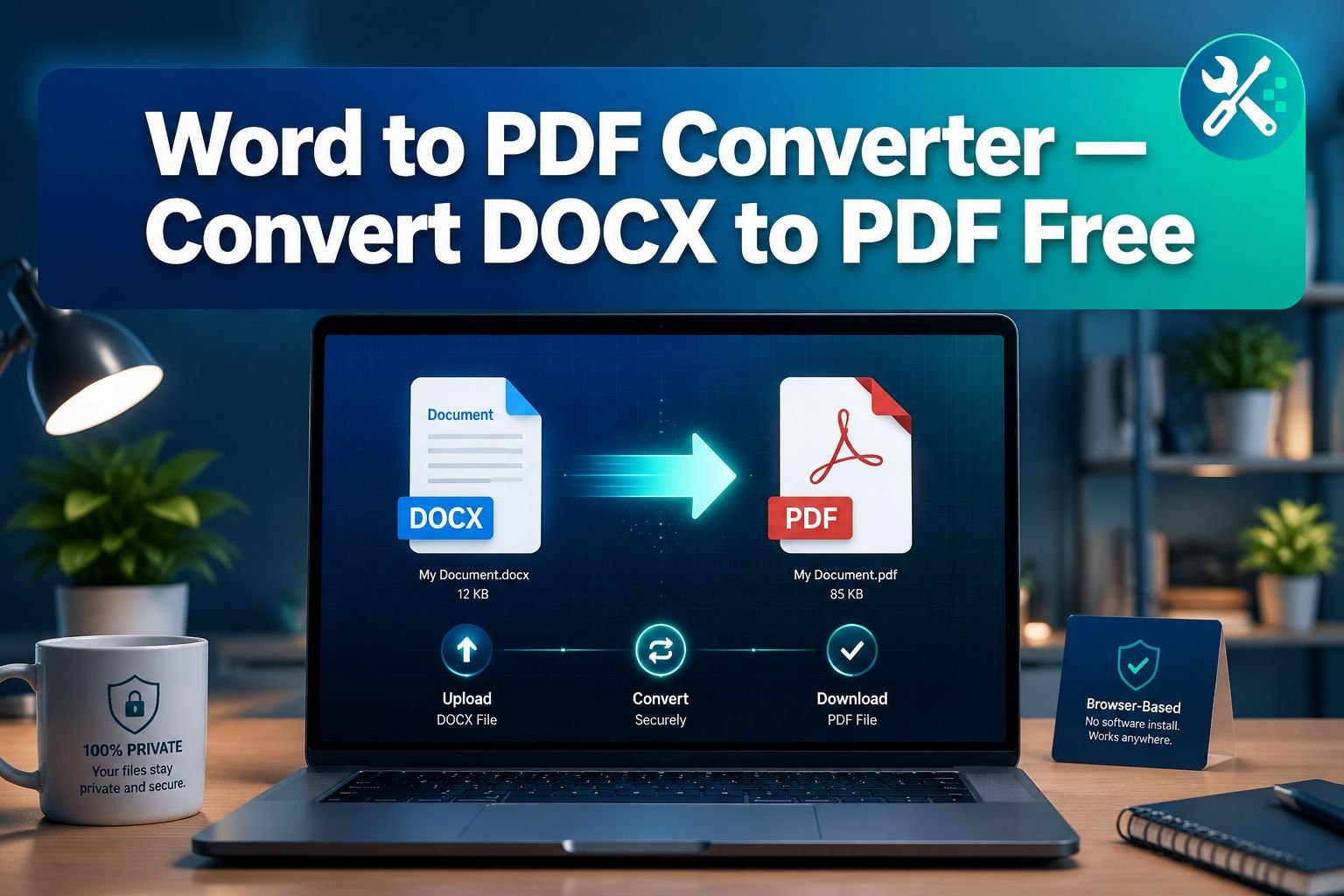
The Word to PDF Converter at Core Tools Hub runs directly in your browser using WebAssembly. Your file never leaves your device, there’s no signup required, and the output PDF preserves your fonts, headers, footers, tables, and page numbers exactly as they appear in Word.
Key Takeaways
- Convert DOCX to PDF in seconds — no install, no account, no watermark
- Fonts and layout are preserved — tables, headers, footers, and page numbers survive the conversion intact
- Privacy-first processing — your file is parsed and rendered entirely inside your browser via WebAssembly; nothing reaches a server
- Advanced options available — adjust margins, page size, and flatten comments before downloading
- Free with no file tricks — no hidden limits, no forced upgrades for basic conversions
What the Word to PDF Tool Does
The converter accepts .docx files (and legacy .doc files) and renders them as print-ready PDFs without requiring Microsoft Word, Google Docs, or any other installed software.
Drop your file into the zone at the top of the page and the tool gets to work immediately. A font substitution summary appears after conversion — if your document uses a font that isn’t available in the rendering engine, the tool names the replacement so you know exactly what changed. No silent surprises.
The drop zone is above the fold. You don’t need to scroll, register, or navigate menus to start. One drop, one click, one download.
What gets preserved
| Document element | Preserved? |
|---|---|
| Embedded fonts | ✅ Yes (or named substitute shown) |
| Headers and footers | ✅ Yes |
| Page numbers | ✅ Yes |
| Tables and borders | ✅ Yes |
| Section breaks | ✅ Yes |
| Inline images | ✅ Yes |
| Comments | ⚙️ Optional — flatten or remove |
| Tracked changes | ⚙️ Accept before converting |
Step-by-Step: Upload, Configure, and Download Your PDF
Converting a Word document takes under a minute. Here’s exactly what to do.
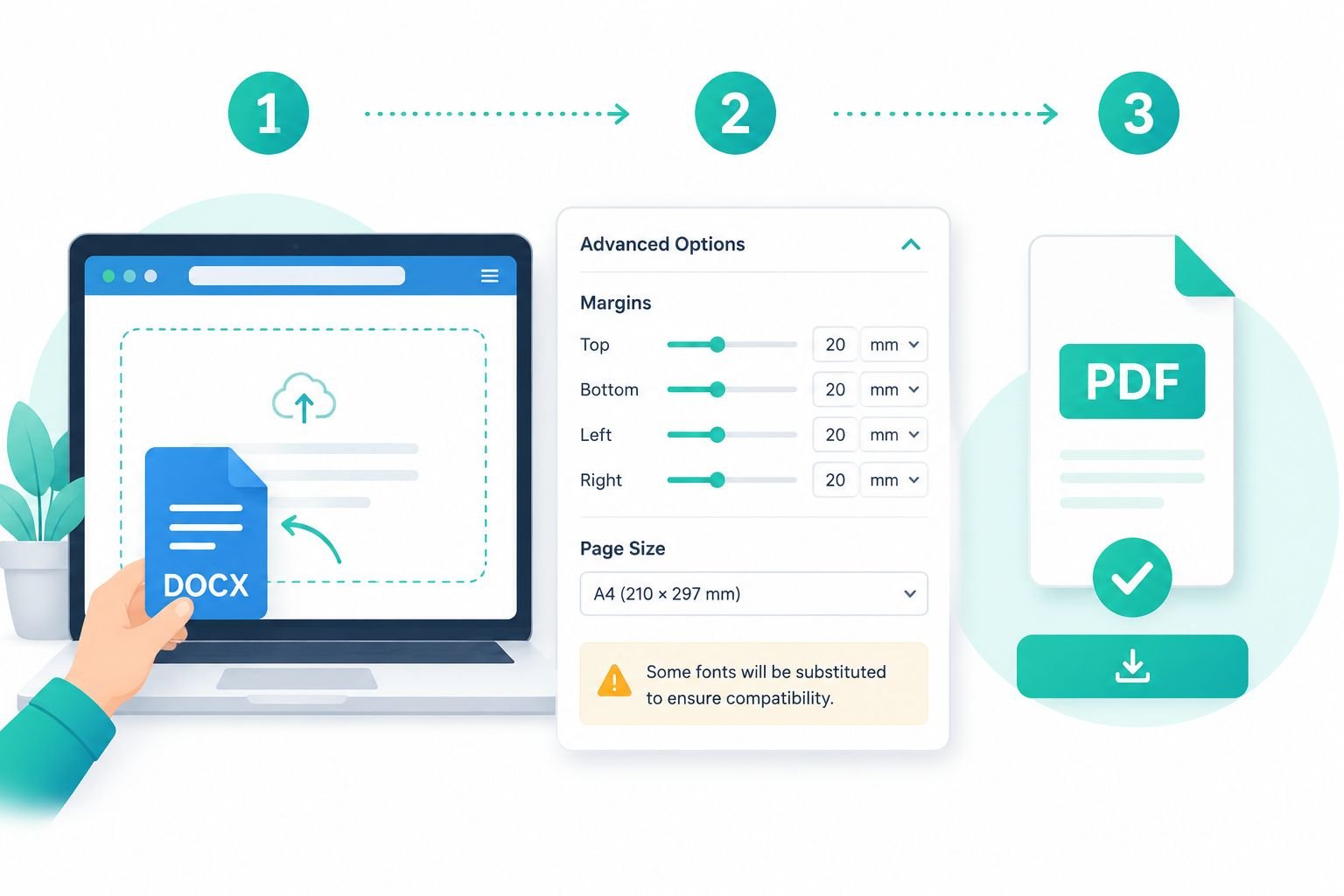
Step 1 — Drop or select your file
Drag your .docx file onto the drop zone, or click Choose File to browse. The tool accepts files up to the browser memory limit — typically 50–100 MB, depending on your device and browser. Very large files with many embedded images may take a few extra seconds.
💡 Quick tip: If your file is over 40 MB, consider compressing embedded images in Word first (Picture Format → Compress Pictures) before converting.
Step 2 — Open Advanced Options (optional but recommended)
Click the Advanced Options twirl-down to reveal three settings:
| Setting | Options | Best choice for most users |
|---|---|---|
| Page size | A4, Letter, Legal | A4 for international; Letter for US |
| Margins | Narrow / Normal / Wide | Normal (1 inch) for documents and resumes |
| Comments | Keep / Flatten / Remove | Remove for resumes; Flatten for contracts |
If you’re preparing a document for print, set the page size to match your printer’s paper. For email attachments and job applications, the defaults work perfectly.
Step 3 — Convert
Click Convert to PDF. The WebAssembly engine processes the file locally — you’ll see a progress indicator. For most documents, this completes in 2–5 seconds.
After conversion, a font substitution panel appears if any fonts were swapped. Review it quickly. If the heading font was replaced, you can return to your Word file, change the font to a web-safe alternative (such as Georgia or Arial), and reconvert.
Step 4 — Download your PDF
Click Download PDF. The file saves to your default downloads folder, ready to attach to an email, upload to a job portal, or send to a printer.
That’s it. No account confirmation email. No watermark. No “upgrade to remove the logo” prompt.
Why This Converter Keeps Fonts and Layout Intact
Most formatting problems happen because a tool converts the document on a remote server running a stripped-down rendering engine — one that doesn’t have your fonts and doesn’t fully parse complex DOCX structures.
Core Tools Hub’s converter is different for two reasons.
1. WebAssembly rendering runs in your browser
The entire DOCX-to-PDF pipeline runs inside your browser tab using WebAssembly (Wasm). Wasm is a compiled binary format that runs near-native speed in modern browsers. It gives the tool access to a full document rendering engine — not a simplified server-side script.
This also means your file never reaches a server. For HR letters, contracts, invoices, and anything confidential, that matters. You can verify this in your browser’s network tab — no upload request is made.
2. The tool logs font substitutions instead of silently guessing
When a DOCX embeds a proprietary font (like a company brand typeface), the rendering engine identifies it, finds the closest available match, and logs the substitution by name. You see: “Calibri Light replaced with Liberation Sans.” That transparency lets you make an informed decision — accept the substitute or swap the font in Word first.
This is more honest than tools that silently replace fonts and deliver a PDF that looks slightly off without explaining why.
Native Word export vs. browser-based conversion
Microsoft Word’s built-in Save As PDF is reliable for simple documents. But it compresses embedded images more aggressively than most users expect, and files over 40 MB can produce inconsistent results depending on the Word version. The browser-based approach here gives you more control over output settings and consistent results across document types.
If you need to go the other direction — turning a PDF back into an editable document — check out the Fix PDF to Word Formatting guide for practical tips on recovering clean layouts.
FAQ: DOC vs DOCX, Fonts, Comments, Headers, and Footers
Does the tool accept old .doc files as well as .docx?
Yes. Both .doc (Word 97–2003) and .docx (Word 2007 and later) are supported. DOCX is the modern standard and generally produces cleaner output because its XML structure is more predictable. If you have an old .doc file, the tool handles it — but opening it in Word and saving as .docx first is good practice.
What happens if my document uses a font I downloaded from the internet? The tool will identify that the font isn’t in its rendering library and substitute the closest match. The font substitution panel names both the original and the replacement. If the visual difference matters (common with decorative heading fonts), embed the font in your DOCX before converting: in Word, go to File → Options → Save → Embed fonts in the file.
Will comments and tracked changes appear in the PDF? By default, comments are removed for a clean output. You can change this in Advanced Options — set Comments to Flatten if you want them visible in the PDF as annotations. Tracked changes should be accepted or rejected in Word before conversion, as the tool renders the document in its final accepted state.
Are headers, footers, and page numbers always included? Yes. Headers, footers, and page numbers are part of the DOCX page layout structure and are fully rendered in the output PDF. Section-specific headers (different first page, odd/even pages) are also preserved.
Is there a file size limit? The practical limit depends on your browser and device RAM rather than an artificial cap. Most documents — including multi-page reports with images — convert without issue. Very large files (100 MB+) with many high-resolution images may be slow on older devices. For oversized PDFs after conversion, use the Compress PDF tool to reduce the file size without noticeable loss of quality.
Does this work on mobile? Yes. The tool is mobile-friendly and works on current versions of Chrome, Safari, and Firefox on iOS and Android. The drop zone becomes a tap-to-browse button on mobile. Conversion speed depends on your device’s processing power, but most phone-created documents convert quickly.
Is there a watermark on the output? No watermark, ever. The output PDF is clean and ready to use.
Related Tools for Your PDF Workflow
Once you have your PDF, these tools handle the next steps without leaving your browser.
Need a smaller file for email? Job portals and email services often cap attachments at 10–25 MB. The Compress PDF tool reduces file size while keeping text sharp and readable — ideal for resumes and reports. For a deeper look at compression strategies, the guide to compressing PDFs without losing quality covers all the practical settings.
Need to edit the PDF or convert it back to Word? The PDF to Word formatting fix guide walks through recovering editable layouts from PDFs, including handling tables and multi-column text that often breaks during conversion.
Need to combine multiple PDFs into one document? If you’re assembling a portfolio, a multi-part report, or a combined application package, the Merge PDF tool lets you drag and arrange multiple PDFs and combine them in one click — all in-browser, no uploads.
Working with spreadsheets instead of Word documents? The Convert Excel to PDF guide covers the same privacy-first, browser-based approach for .xlsx files, with tips for fitting wide tables cleanly onto the page.
Need to add images to a PDF? If your document includes scanned pages or photos you want to bundle into a PDF, the JPG to PDF Converter combines images into a single clean document in seconds.
Conclusion
A Word document that looks great on your screen can look completely different on someone else’s device. Converting to PDF before you share is the simplest way to guarantee your formatting, fonts, and layout arrive exactly as intended.
The Core Tools Hub Word to PDF converter makes that conversion fast, private, and free. Drop your DOCX, adjust the optional settings if needed, and download a clean PDF — no account, no watermark, no server upload.
Ready to convert? Head to the Word to PDF Converter and drop your file. Your polished, print-ready PDF is about 10 seconds away.